
I. What Problems Does This Feature Solve?
When running ads on platforms such as Meta, TikTok, and Google, these advertising platforms primarily track metrics such as ad clicks and ad spend, while the store's admin panel records orders and sales. By adding UTM parameters to ad URLs, you can track traffic sources when consumers visit your store and identify which ads generated specific orders. This provides valuable data for analyzing advertising performance and optimizing ad campaigns.
Example of a complete UTM URL:
https://your-store-domain/products/xxx?utm_source=facebook&utm_medium=paid&utm_campaign={{campaign.name}}
If UTM parameters are missing or incorrectly configured, the following issues may occur:
- Discrepancies between ad spend and attribution data: The ad spend recorded by advertising platforms may differ from the advertising performance data in attribution reports. Some orders may not be properly attributed and may instead be classified as "Direct Traffic."
- Configuration errors that are difficult to detect: Misspelled UTM parameter names, dynamic parameters that are not supported by the current advertising platform, or incorrectly configured values such as utm_medium may affect traffic source identification. Advertising platforms typically do not notify you of these errors.
- Impact on advertising decisions: When orders are not properly attributed, conversions and return on investment (ROI) may be underestimated, leading merchants to misjudge ad performance. Additionally, if different ads use the same campaign name, aggregated data may make it difficult to distinguish the actual performance of individual ads.
- Increased ad URL maintenance costs: When running a large number of ads across multiple platforms, manually checking and correcting UTM parameters one by one increases maintenance workload and makes configuration issues more likely to be overlooked.
UTM Parameter Health Check automatically scans every ad that has recorded spend in the past 30 days, checks each parameter in its landing page URL for proper configuration, and provides a diagnostic result. Issues that can be fixed automatically can be corrected in bulk with one click. For issues that cannot be fixed automatically, the feature provides the correct values for you to copy and paste into your advertising platform.
Every modification is recorded in an operation log, allowing you to restore the original values at any time.
Specifically, UTM Parameter Health Check is designed to address the following issues:
| Before | Now |
| You could only see an unusually high volume of "Direct Traffic" in attribution reports, without knowing which ad URL was causing the issue. | Get diagnostic results for each ad and each UTM parameter, along with the ad spend for each ad over the past 30 days. |
| You had to log in to each advertising platform separately and open ads one by one to check their URLs. | View ads from all three platforms in a single table, with filters for platform, account, delivery status, and diagnostic results. |
| Once an issue was identified, you had to manually edit each ad in the advertising platform. | Select multiple ads and fix them in bulk with one click. Preview exactly which parameters will be changed and what the new values will be before applying the changes. |
| Changes could not be tracked after modification, and there was no way to restore the original settings if a mistake was made. | Every modification is recorded in the operation log, allowing you to restore the original values at any time. |
II. Feature Access and Page Overview
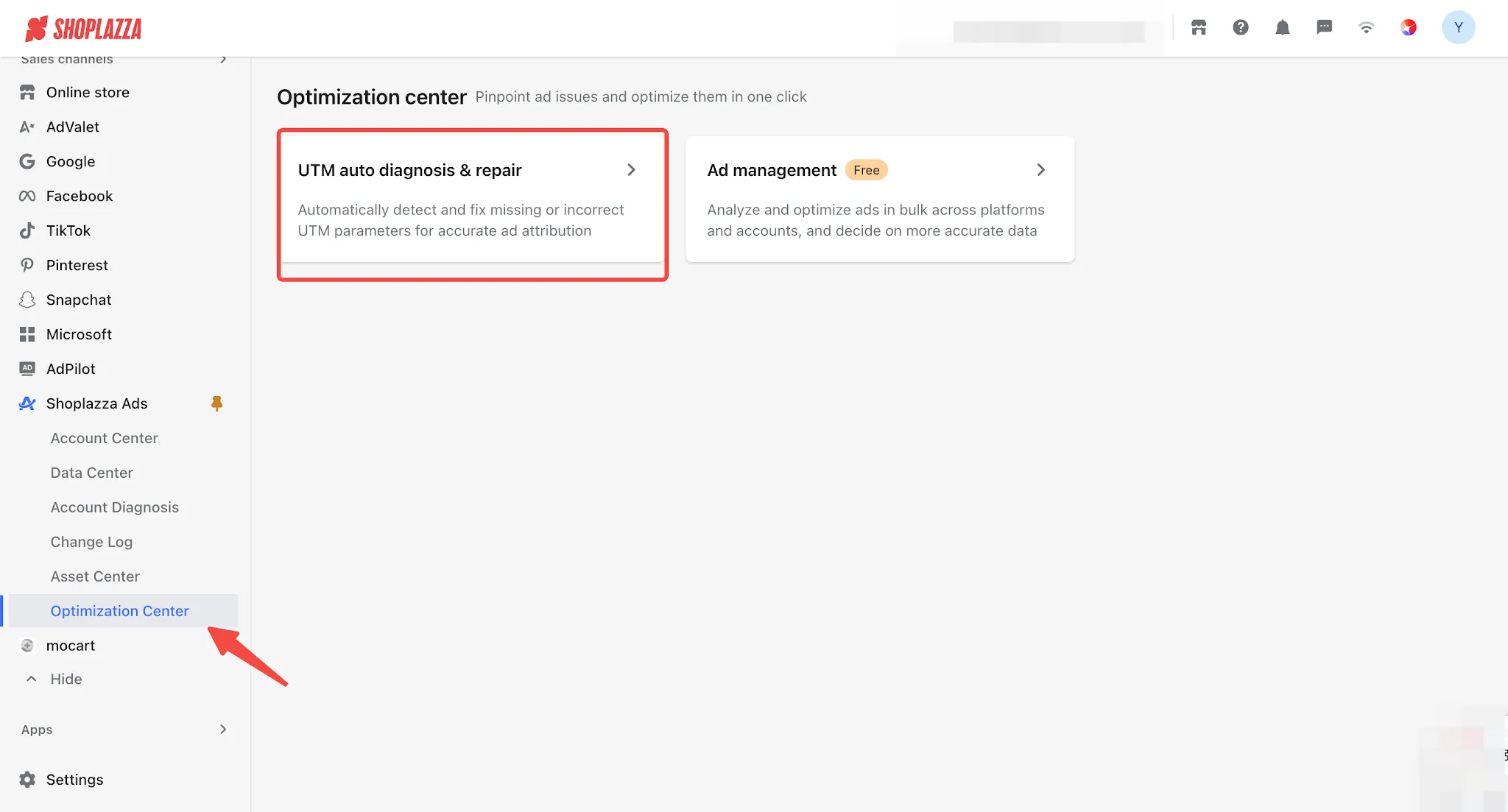
1. Log in to your Shoplazza admin, go to Sales Channels > click Shoplazza Ads > Optimized Center, then click the UTM auto diagnosis & repair card to access the UTM Parameter Health Check page.
Note
UTM Parameter Health Check is only available for stores that have completed advertising account authorization on at least one of the following platforms: Meta, TikTok, or Google. If you haven't completed the authorization yet, please do so in the Asset Center first.
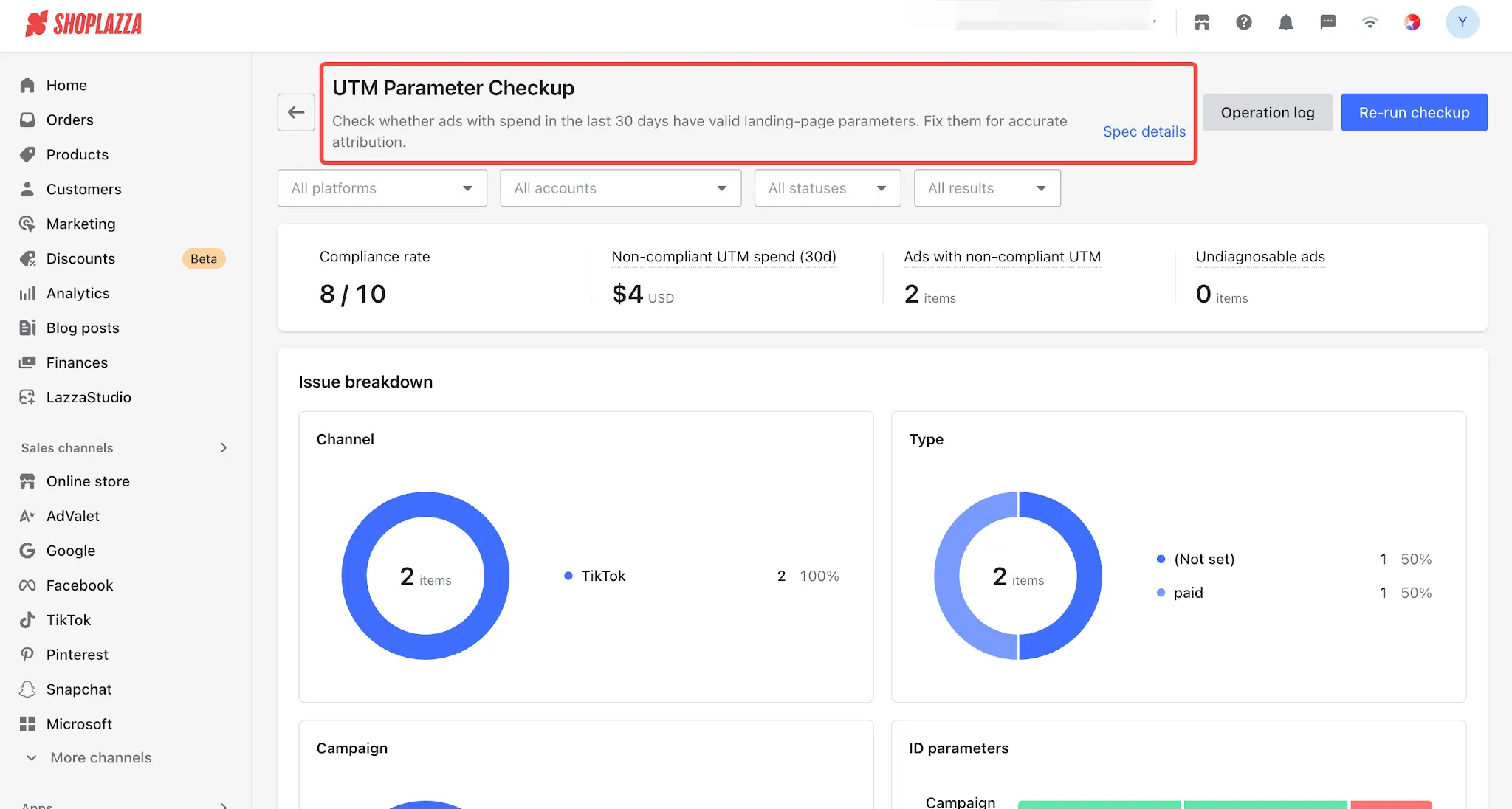
2. After entering the page, no additional configuration is required. The system will automatically display the health check results. From top to bottom, the page consists of the following sections:
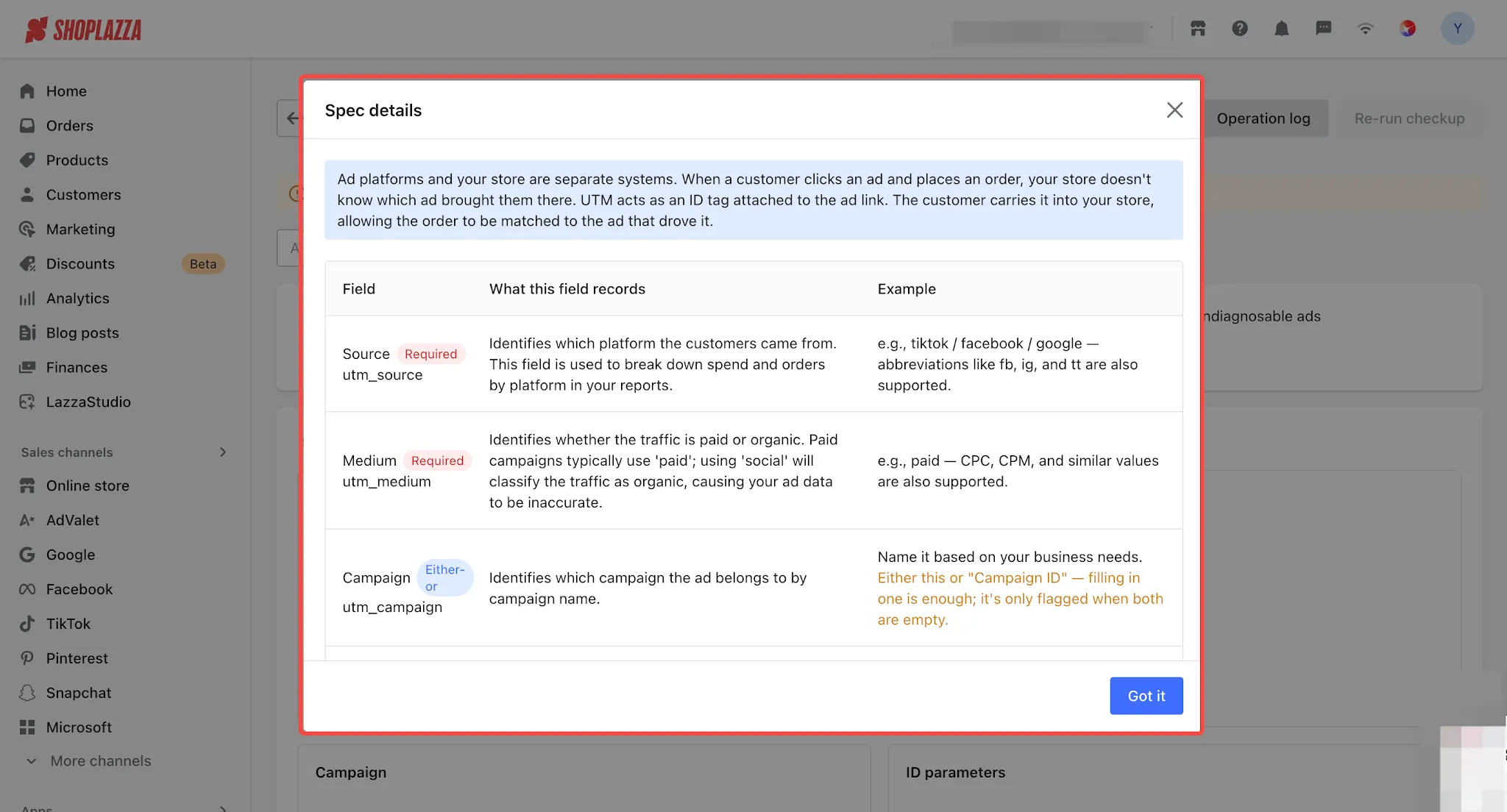
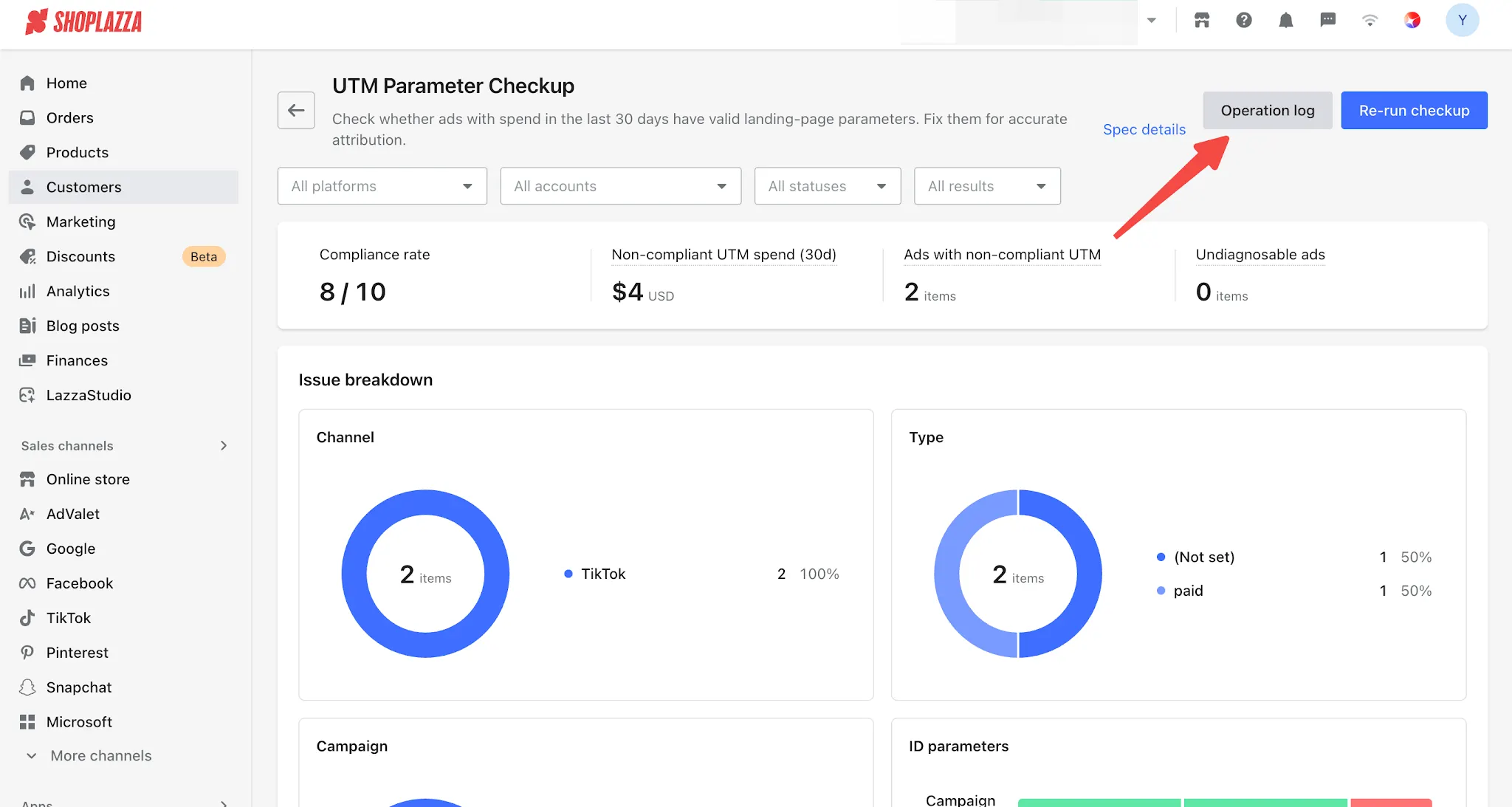
- Page Header and Parameter Specification Details: The report covers ads that have incurred spending within the past 30 days. Click Specification Details to view the definitions, requirements, and platform-specific examples for each of the six UTM parameters across the three platforms. You can refer to these examples when configuring your UTM parameters (see Section 3 for details).
- Filters: Supports filtering data by platform, ad account, campaign status, and health check results. For detailed descriptions, please refer to the table below.
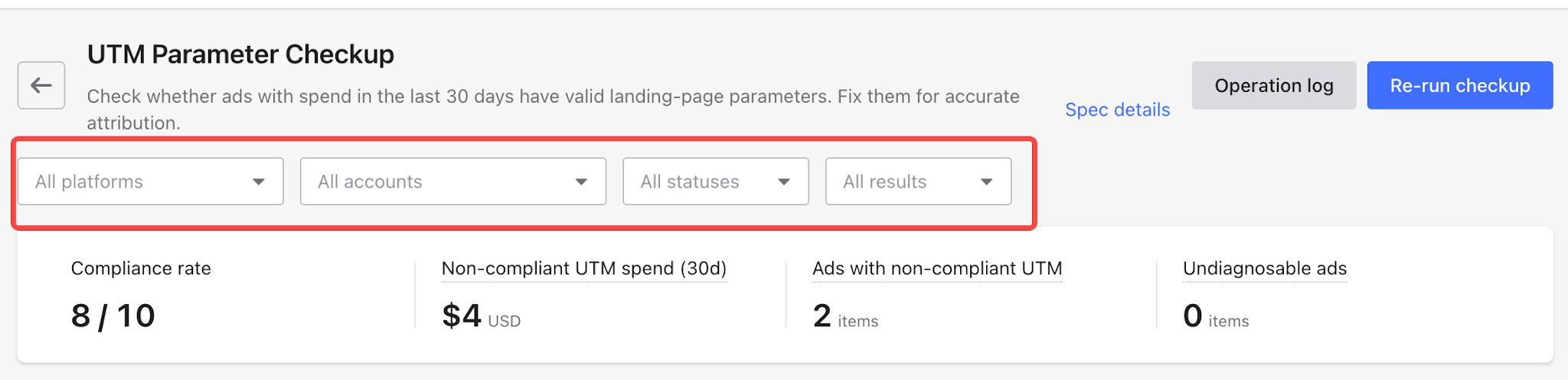
| Filter | Options | Description |
| All Platforms | TikTok / Facebook / Google | Meta is displayed as Facebook on the page. TikTok health checks currently support Smart+ ads only. |
| All Accounts | Ad accounts included in the current health check | After selecting a platform, the account list displays only accounts under that platform, sorted in descending order by UTM Issue Spend in the Last 30 Days. |
| All Statuses | Active / Paused / Unknown | Paused includes ads that are paused at the ad level, campaigns or ad groups that are paused, and other non-delivering statuses (over budget, rejected, under review, or not yet started). Unknown means the ad status cannot currently be retrieved. |
| All Results | Compliant / Can Be Optimized / Needs Fixing / Needs Modification / Not Applicable | Filter by health check result. For definitions, see Section 4. |
Note
- Selected filter conditions will be displayed as tags in a filter bar. Click Clear to remove all selected filters at once.
- Filters apply to the entire page. After filtering, the summary cards, issue distribution chart, parameter list, and the counts displayed on the One-Click Auto-Fix button will all reflect only the ads within the selected filter scope.
- The summary bar will always display the current filter scope (e.g., Current Filters: TikTok · Needs Fixing). Therefore, the compliance rate will change when filtering by result (when Compliant is selected, the rate will always be 100%). Please do not interpret the filtered compliance rate as the overall compliance rate for the entire store.
- Summary Cards: Provide an overview of the overall UTM parameter compliance status, the number of ads with issues and their spending over the past 30 days, as well as the number of ads that cannot be diagnosed, helping you quickly identify issues that require attention.
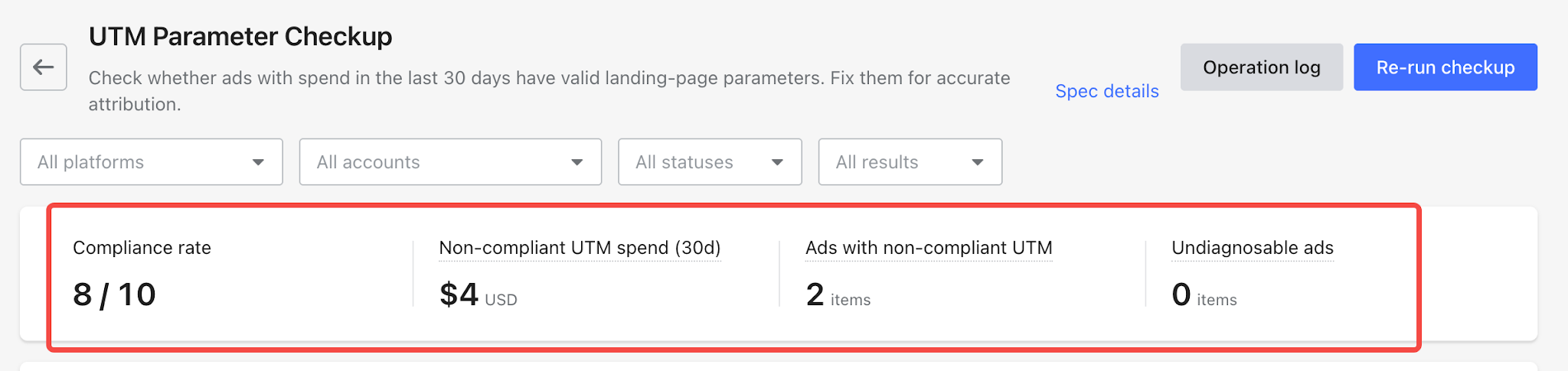
| Card | Description |
| Compliance Rate | The number of ads with a health check result of Compliant or Can Be Optimized, divided by the total number of ads included in the statistics. Only the numerator and denominator are displayed (e.g., X / Y), without a percentage. Ads with unreadable links are excluded from both the numerator and denominator. |
| Spend on Ads with UTM Issues in the Last 30 Days | The total spend over the past 30 days for ads with a health check result of Needs Fixing or Needs Modification. This represents money already spent during the last 30 days, including spend from paused ads. |
| Number of Ads with UTM Issues | The number of ads with a health check result of Needs Fixing or Needs Modification. Hover over the card to view the breakdown: X ads can be fixed with one click / Y ads require manual changes. |
| Number of Ads That Cannot Be Diagnosed | The number of ads with a health check result of Not Applicable. Hover over the card to view the breakdown: N ads with unreadable links / M ads unsupported by the platform or with duplicate parameters. "Unreadable links" means the system was unable to retrieve the links from the advertising platform. This is a data availability issue, not a configuration error on your part, and these ads are excluded from the compliance rate calculation. |
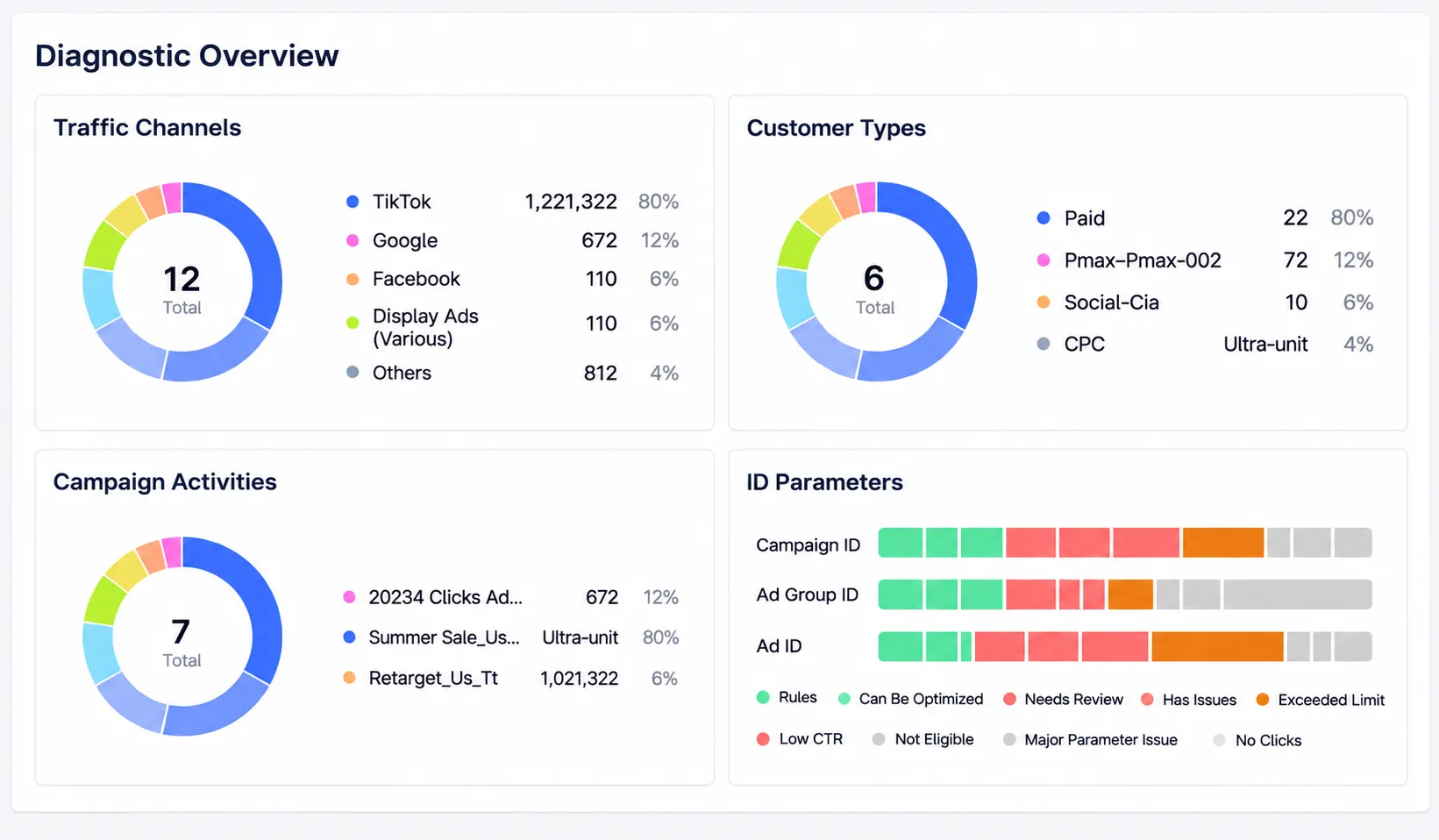
Diagnostic Distribution:
- Doughnut Chart: Shows where ads with issues are concentrated across three dimensions: Channel, Type, and Campaign. When there are more than four groups, the fifth and subsequent groups are combined into Others in the legend, while each group is still displayed individually on the chart.
- Stacked Bar Chart: Displays the proportion of each parameter status for the three parameters: Campaign ID / Ad Set ID / Ad ID (see Section 4 for details). Hover over the chart to view the number of ads, percentage, and spend over the past 30 days.
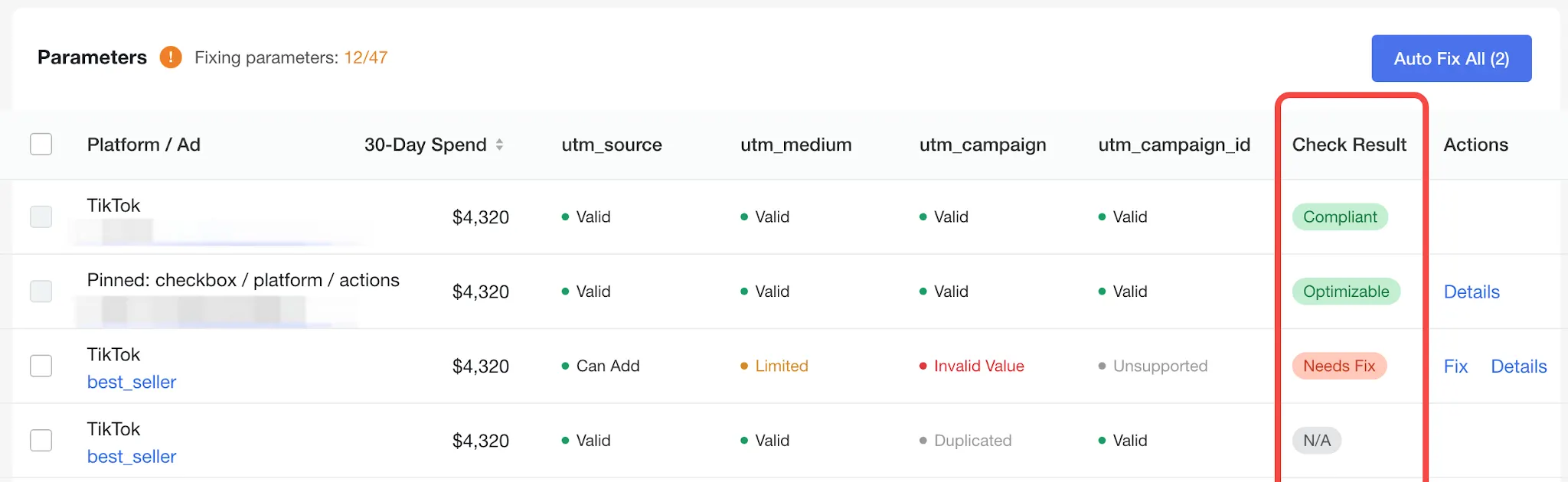
- Parameter List: Each row represents one ad. From left to right, the columns include: a checkbox; platform and ad name (hover to view the full name, with a copy button to copy the landing page URL); spend over the past 30 days (sorted in descending order by default, with an option to change the sorting order); individual status indicators for each of the six parameters (hover to view configuration instructions); the overall health check result for the entire row; and available actions. The default page size is 50 ads, and you can switch between page sizes. Click Fix to preview the proposed changes before applying them.
- Operation Logs:
Records every modification initiated through this feature, including who made the change, when it was made, which ad and parameter were modified, the original and updated values, and the operation result. You can filter logs by platform, operator, status, and time. Logs can also be exported as CSV files. For successfully applied changes, you can Revert to Original Value (see Section 6 for details).
Ⅲ. What Does Each of the Six Parameters Check?
Click Specification Details in the page header to view the definitions of each of the six UTM parameters.
| Parameter | Column Header (Hover Label) | Requirement | Purpose |
| utm_source | Source | Required | Identifies which platform the customer came from. This parameter is used to break down ad spend and orders by platform in reports. |
| utm_medium | Medium | Required | Identifies whether the traffic is paid or organic. Paid advertising traffic should generally use paid. If social is used, the traffic will be classified as organic, which may cause discrepancies in advertising data. |
| utm_campaign | Campaign | One of the two required | Identifies which campaign the ad belongs to, based on the campaign name. |
| utm_campaign_id | Campaign ID | One of the two required | Identifies which campaign the ad belongs to, based on its campaign ID. Campaign names may be duplicated or changed over time, but IDs remain unchanged, ensuring more accurate data tracking. Use the placeholder code provided; there is no need to look up the ID manually. |
| utm_adset | Ad Set ID | Optional | Identifies which ad set the ad belongs to, based on its ad set ID. Adding this parameter helps analyze the performance of individual ad sets. Use the placeholder code provided; there is no need to look up the ID manually. |
| utm_ad | Ad ID | Optional | Identifies which ad the traffic comes from, based on its ad ID. Adding this parameter enables you to analyze which specific ad creative generates orders. Use the placeholder code provided; there is no need to look up the ID manually. |
Note
- Campaign and Campaign ID are mutually exclusive. Filling in either one is sufficient. An issue is flagged only when both fields are empty.
- When the system automatically fixes parameters, the Campaign ID is written to utm_id (a GA4 standard parameter). The utm_id you see in your own reports is the same parameter as the Campaign ID mentioned here.
- utm_content and utm_term are custom parameters. The system does not check or modify them under any circumstances.
What Are Dynamic Parameters?
Dynamic parameters are predefined parameter formats provided by advertising platforms, such as Facebook's {{campaign.id}}. When configuring your UTM parameters, simply enter the placeholder exactly as provided. There is no need to replace it with a specific number.
A dynamic parameter is not an actual ad ID. Instead, it acts as a dynamic value placeholder. When a user clicks an ad, the advertising platform automatically replaces it with the corresponding actual ID.
Why Use Dynamic Parameters?
When an ad is duplicated or newly created, it typically receives a new ID. By using dynamic parameters, the platform can automatically retrieve the correct ID for each ad, ensuring accurate attribution.
If you manually enter a fixed number, duplicated ads may continue using the old ID, causing attribution data to mismatch the actual ads.
The standard formats for the three advertising platforms are as follows:
| Parameter |
Meta
|
TikTok(Smart+) | |
| utm_source | tiktok | ||
| utm_medium | paid | paid | paid |
| utm_campaign | {{campaign.name}} | __CAMPAIGN_NAME__ | Google does not provide a campaign name placeholder. You must enter the current campaign name manually. Changes to the campaign name will not be reflected automatically. |
| Campaign ID (written to utm_id) | {{campaign.id}} | __CAMPAIGN_ID__ | {campaignid} |
| utm_adset | {{adset.id}} | __AID__ | {adgroupid}; for Performance Max campaigns, use {assetgroupid}. |
| utm_ad | {{ad.id}} | __ADID_V2__ | {creative}; Performance Max campaigns do not have an ad-level hierarchy, so this field should be left blank. |
Example of the Complete URL After Combining All Parameters:
Meta
?utm_source=facebook&utm_medium=paid&utm_campaign={{campaign.name}}&utm_id={{campaign.id}}&utm_adset={{adset.id}}&utm_ad={{ad.id}}
TikTok(Smart+)
?utm_source=tiktok&utm_medium=paid&utm_campaign=__CAMPAIGN_NAME__&utm_id=__CAMPAIGN_ID__&utm_adset=__AID__&utm_ad=__ADID_V2__
Google (Enter this in the Final URL Suffix field, without a leading question mark.)
utm_source=google&utm_medium=paid&utm_id={campaignid}&utm_adset={adgroupid}&utm_ad={creative}
For Performance Max campaigns, please use:
utm_source=google&utm_medium=paid&utm_id={campaignid}&utm_adset={assetgroupid}
Notes
1. The dynamic parameter for TikTok Ad ID is ADID_V2 (A-D-I-D). Make sure the letters and format are entered exactly as shown. Otherwise, the system will be unable to retrieve the correct Ad ID, which may affect subsequent ad attribution.
2. For TikTok, AID represents the Ad Set ID, while CID represents the Creative ID. Neither is the Ad ID.
3. For Google, UTM parameters must be entered in the Final URL Suffix field, not in the landing page URL. Do not include a leading question mark.
4. TikTok's Ad ID dynamic parameter is supported only for Smart+ ads.
5. Google Performance Max campaigns do not have separate ad group and ad levels. Use {assetgroupid} for the Ad Group ID and leave utm_ad blank. Using the standard Google format will cause the parameter to be flagged as Unsupported.
IV. Understanding Health Check Results
Parameter Status Indicators (10 Types in Total)
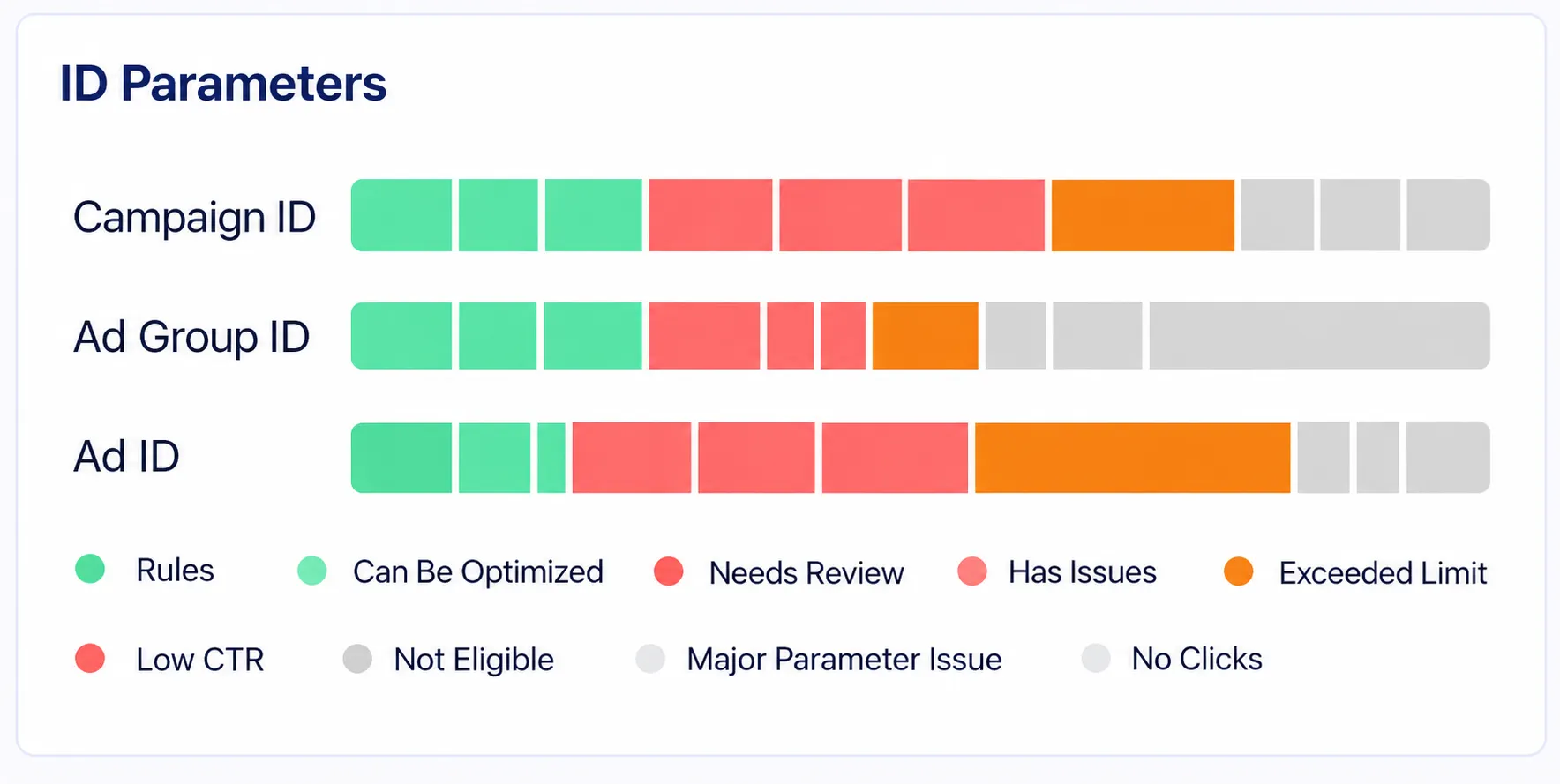
| Parameter Status | Indicator | Description | Example |
| Standard | 🟢 | Correctly configured. | utm_source=tiktok |
| Can Be Improved | 🟢 | Functional, but can be optimized for more reliable tracking. For example, an ID is stored in an outdated parameter, or an ID parameter has not been configured. | utm_content=1203948571 |
| Not Required | 🟢 | The link does not direct to a page on your store (e.g., an app store), so UTM parameters are not required. | play.google.com/store/apps/... |
| Missing | 🔴 | The parameter is not configured, or the parameter name is present but has no value. | utm_campaign= |
| Invalid Format | 🔴 | The parameter is configured, but its value is incorrect. | utm_medium=social |
| Invalid Dynamic Parameter | 🔴 | The dynamic parameter is incorrectly formatted, so the advertising platform will not replace it with the actual value. | utm_ad=__CID__ |
| Restricted | 🟠 | An issue exists, but the system cannot fix it automatically. You must update it manually in the advertising platform. For example, a parameter is placed after #, or an ID parameter already contains a manually entered value. | /p?utm_medium=paid#/detail?utm_source=SZ03 |
| Unsupported | ⚪ | The ad type does not support this level of hierarchy. This is not considered an issue. | Ad ID in Google Performance Max campaigns |
| Duplicate Parameter | ⚪ | The same parameter appears twice with different values. The last value takes effect. It is recommended that you remove the redundant parameter in the advertising platform. Parameters with the same name and value are not considered duplicates. | utm_source=tiktok&utm_source=google |
| Unable to Read URL | ⚪ | The system was unable to retrieve the ad URL from the advertising platform, so all six parameter fields display "—". This is a data availability issue, not a configuration error on your part. | Meta ads using existing posts |
Health Check Results for Each Ad (5 Types in Total)
| Health Check Result | Description | Action Column | What You Need to Do |
| Compliant | No issues found. | None | No action required. |
| Can Be Optimized | Functional, but can be improved for more reliable tracking. | Details | Optimization is optional and will not affect attribution if left unchanged. Click Details. For parameters that can be automatically added, an Optimize button will appear at the bottom of the pop-up window. |
| Needs Fixing | Issues detected that can be automatically fixed by the system in one click. | Fix | Select the relevant ads and click One-Click Auto-Fix. |
| Needs Modification | Issues detected that require manual changes in the advertising platform. | Details | Click Details, then copy the suggested values and paste them into the advertising platform. |
| Not Applicable | No action is required, or the system cannot retrieve the ad URL. | None | No action required. |
Evaluation Rules:
- If any parameter is marked as Missing / Invalid Format / Invalid Dynamic Parameter, the overall health check result is Needs Fixing.
- Otherwise, if any parameter is marked as Restricted, the result is Needs Modification.
- Otherwise, if any parameter is marked as Can Be Improved, the result is Can Be Optimized.
- If none of the above conditions apply, the result is Compliant.
- If the ad URL cannot be retrieved, or all six parameter fields are marked as Unsupported / Duplicate Parameter / Not Required, the overall result is Not Applicable.
Note
- Needs Fixing = System Action
- Needs Modification = Manual Action (If a row contains both parameters that the system can fix automatically and restricted parameters that require manual changes, the overall health check result will be Needs Fixing. After the system fixes the applicable parameters, the row status will change to Needs Modification, and you will need to handle the remaining parameters manually.)
V. How to Fix Issues
- How to Handle Ads with the Health Check Result "Needs Fixing"
Method 1: One-Click Auto-Fix (Recommended)
1. Use the filters to select the scope you want to process (e.g., a specific platform or ad account), and make sure the filtered results include all the ads you want to fix. The fix will apply to all ads matching the selected filters, including those on pages you have not navigated to.

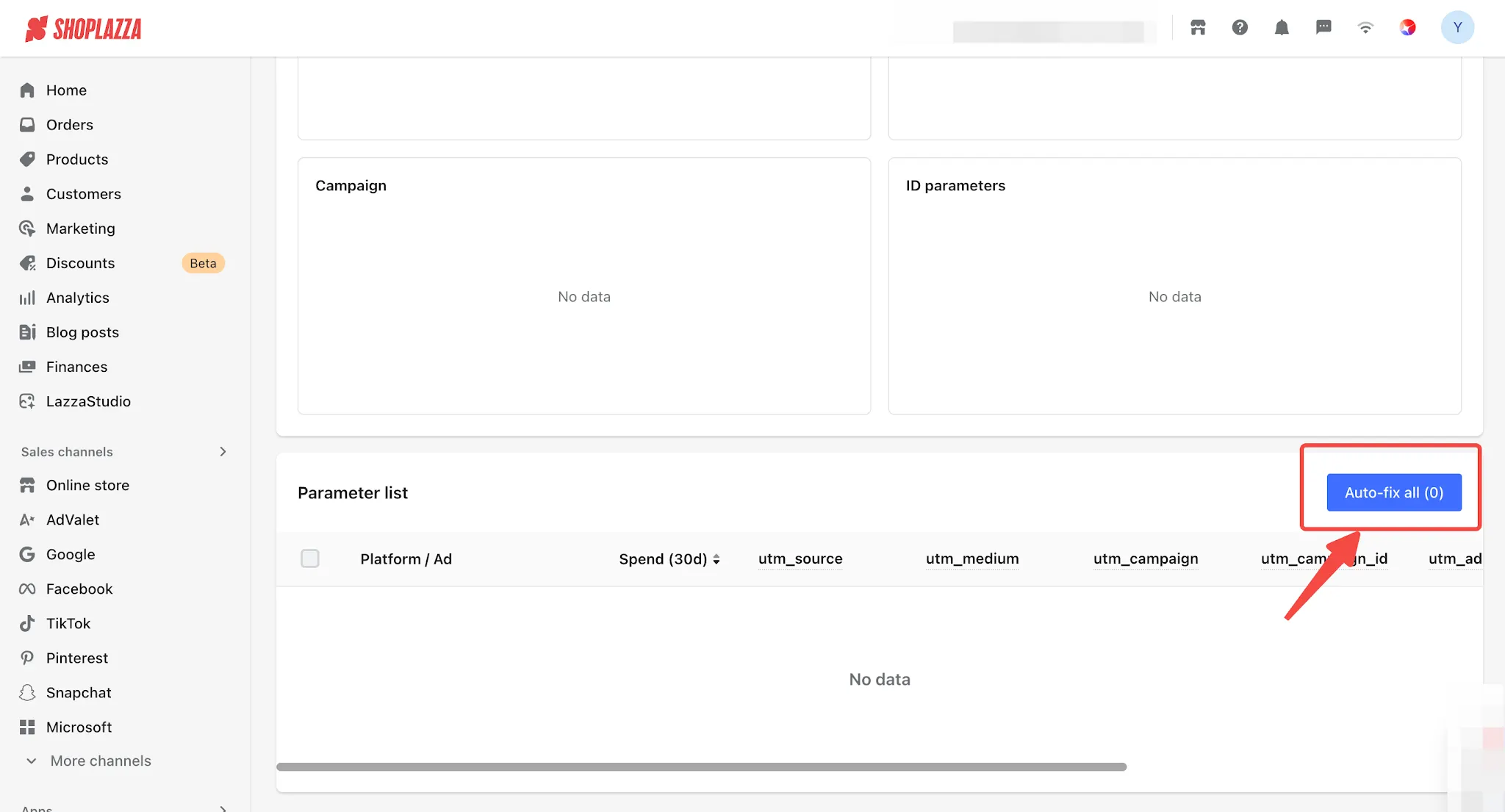
2. Click One-Click Auto-Fix (N) in the upper-right corner of the list. N represents the number of ads with a Needs Fixing status within the current filter scope. If no rows are selected, all ads marked Needs Fixing will be fixed. If you select specific rows, only the selected ads will be fixed.
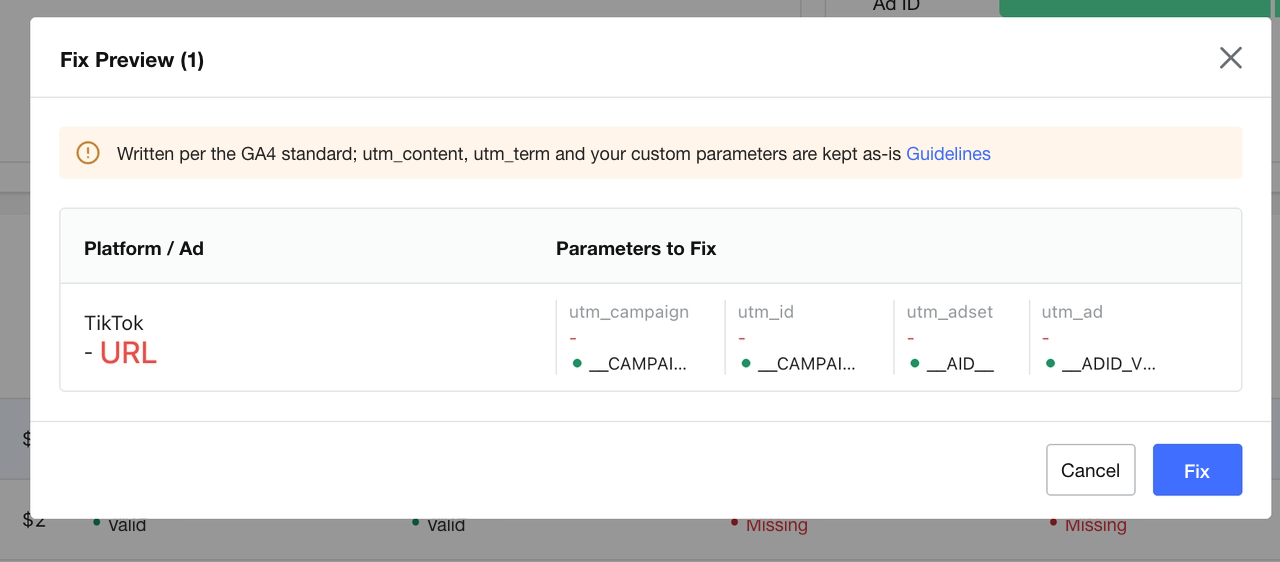
3. Review each item in the Fix Preview pop-up window. Each row represents one ad, displaying the parameters to be updated, the old values (highlighted in red with strikethrough), and the new values (highlighted in green). A fixed notice at the top of the pop-up window states: "This update follows GA4 general standards. utm_content, utm_term, and all custom parameters will be preserved exactly as they are."
4. Click Fix. A message will appear: "Fixing in progress. Please check the Operation Logs later." The health check status of the affected row will change to Fixing. After writing the changes to the advertising platform, the system will retrieve the parameters again to verify whether the changes have taken effect. You can check the Operation Logs for the results of each individual operation. Failed operations generally retain their original values. If a Meta rollback fails, a write operation times out, or the retrieved values do not match the expected results, follow the instructions in the Operation Logs and verify the settings directly in the advertising platform.
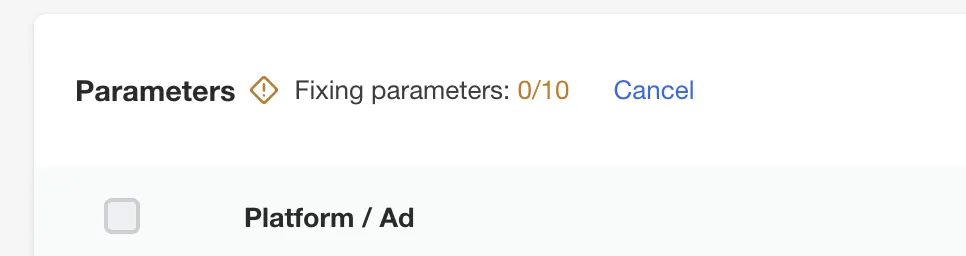
5. During batch fixing, the list header will display the progress as "Fixing Parameters: X/Y Ads". You can leave the page while the task continues running in the background. When you return, the progress will automatically be restored.
Method 2: Select Ads and Fix in Bulk
Select the ads you want to fix, then click Batch Fix.
Notes
- Only rows with a Needs Fixing status can be selected. Checkboxes for all other rows will be disabled (grayed out), with an explanation provided.
- The Select All checkbox in the table header is supported and applies only to selectable rows on the current page.
- Selections are valid only on the current page (up to 100 ads per page). All selections will be cleared when you switch pages, and you will need to select the ads again.
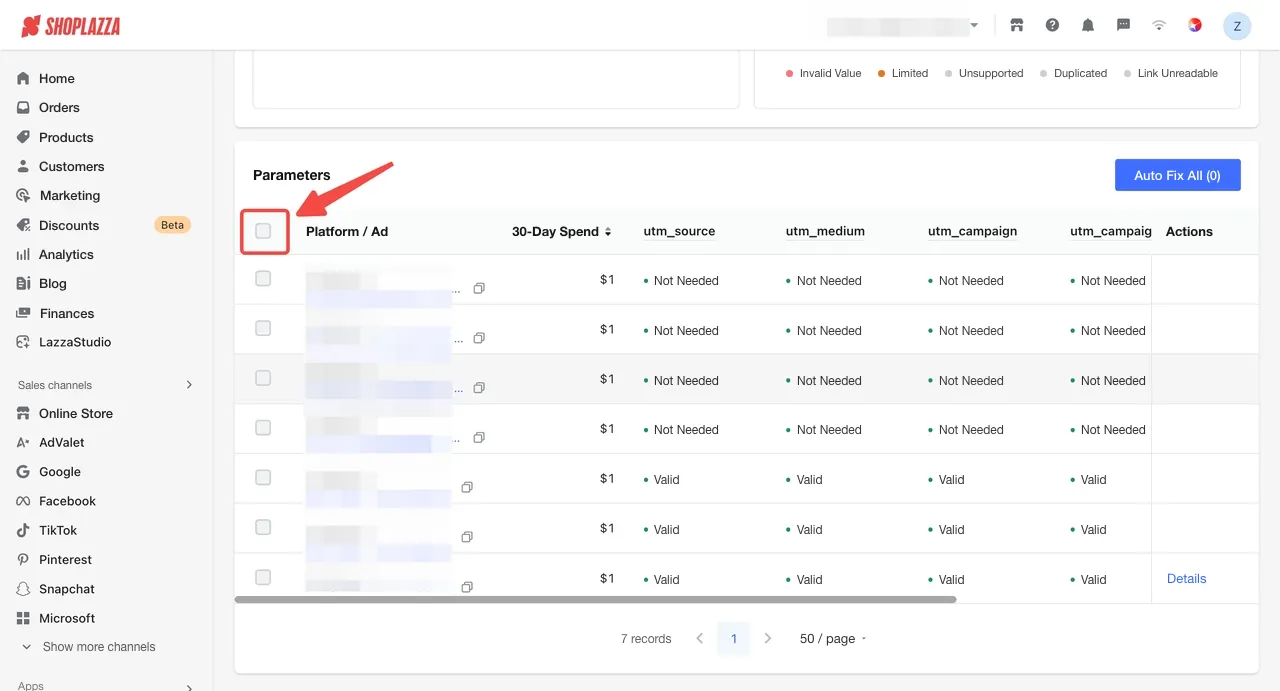
Method 3: Fix Individual Ads
Click Fix in the Action column of the relevant row. The Fix Preview window will open first. Review and confirm the changes before proceeding with the fix.
- How to Handle Ads with the Health Check Result "Can Be Optimized"
Click Details in the Action column. For parameters that the system can automatically add (for example, when the three ID parameters are empty), an Optimize button will appear at the bottom of the pop-up window. Click it, and the system will append the corresponding dynamic parameters without modifying any existing parameters.
If a value is already stored in another UTM parameter in the URL (for example, the Campaign ID is stored in the campaign name parameter utm_campaign), the system will not add it again. Instead, the pop-up window will provide instructions for copying the value, allowing you to decide whether to make the adjustment manually.
Ads with a Can Be Optimized status are not included in the count displayed on the One-Click Auto-Fix button.
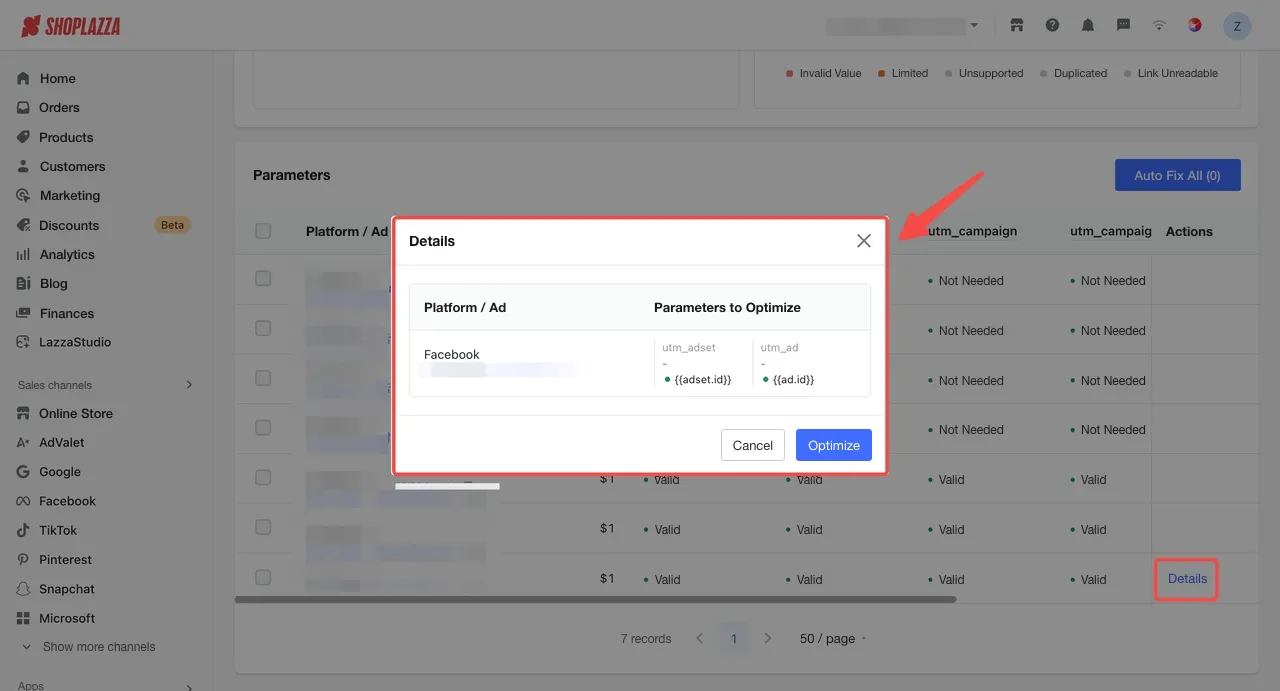
- How to Handle Ads with the Health Check Result "Needs Modification"
Click Details in the Action column. The pop-up window lists the parameters by group, with instructions displayed above each group explaining what needs to be done:
- Incorrect Value: Copy the Suggested Value and enter it under the corresponding parameter name in the relevant advertising platform's dashboard. If the parameter already has a value, replace it directly. Do not keep the old value.
- No Suggested Value Available: For example, when Google cannot retrieve the campaign name. The field will display gray instructions without a copy button. You will need to enter the value manually in the advertising platform's dashboard.
Once you have made the changes, return to this page and wait for the next diagnostic update.
Notes
- Fixing Meta ads will trigger a new ad review, regardless of whether the ads are currently active or paused, and may reset the learning phase. Before applying any fixes, the system will display a confirmation reminder. Changes will only be applied after you confirm. If you do not want to modify Meta ads for now, you can exclude Meta using the platform filter before proceeding with the fixes.
- Fixing TikTok ads generally does not trigger a new ad review.
- Fixing Google ads through the Final URL Suffix field does not trigger a new ad review either (see Google Ad Fixing Methods below).
Scope of Automatic Fixes and What Is Not Affected by the System
| Item | Rules |
| utm_source / utm_medium / utm_campaign | If identified as incorrect, these parameters will be updated to their standard values. The preview will clearly show "Old Value → New Value". |
| Campaign ID / Ad Set ID / Ad ID | Only updated when empty. Existing valid dynamic parameters or actual IDs will not be modified. Values manually entered by you will not be automatically overwritten and will be marked as Restricted for your review and confirmation. |
| utm_content / utm_term | Never modified. |
| Domain, URL path, and content after # | Never modified. Not even a single character will be changed. |
| Custom non-UTM parameters added by you (e.g., ref, spm) | Preserved exactly as they are. |
| Landing Page Destination | Only tracking parameters are modified. The final page opened by customers will never be changed. |
-
Facebook Ad Fixing Method- Facebook UTM parameters are configured in the landing page URL within the ad creative. When fixing an ad, the system will create a new creative and associate it with the original ad. As a result, you will see a change in the ad's creative in Facebook Ads Manager after the fix.
- 🔴 Modifying a Facebook ad's URL will trigger a new ad review and may reset the machine learning phase. This can have a real impact on ads that are actively delivering. Therefore, a separate confirmation warning will appear before submission. Changes will only be applied after you confirm.
- Reverting to the original values will also trigger a new ad review. A separate warning will be displayed in the revert confirmation window.
- If you do not want to modify Facebook ads for now, you can exclude Facebook using the platform filter before proceeding with the fixes.
-
TikTok Ad Fixing Method
- - Only the entire URL can be modified. Before applying the changes, the system checks the domain, path, content after #, and all non-UTM parameters one by one. If any item does not match, the system will reject the changes rather than display a warning and proceed.
-
Google Ads Fixing Method
- Google Ads UTM parameters are added in the Final URL Suffix field. The system appends parameters at the currently effective level (Ad / Ad Group / Campaign) without modifying the Final URL itself. Existing parameters in the suffix, including non-UTM parameters and custom parameter references in the {_xxx} format, are preserved as they are, and new parameters are appended at the end.
- If the effective level is Ad Group or Campaign, the fix will also affect other ads within the same ad group or campaign. The Fix Preview will list all affected ads, and you must confirm before the changes are applied.
- The system will not automatically modify ads under the following circumstances. These ads will be marked as Needs Modification, with the reason explained in the Details section: The campaign tracking template already contains a parameter with the same name. The suffix already contains duplicate parameters.A parameter value references a Google Ads custom parameter. The suffix is configured at the account level. Other asset groups in the same campaign already contain a parameter with the same name. The current asset group's own URL already contains a parameter with the same name.The system cannot identify the campaign to which the ad belongs or determine which other ads would be affected.
- In a few cases, the Final URL itself may already contain a parameter with the same name but an incorrect value, requiring the URL to be modified directly. These ads can only be fixed individually by clicking Fix in the Action column. They are not included in the One-Click Auto-Fix count and cannot be selected for batch fixing. Modifying the URL will trigger a new Google ad review, which will be noted separately in the Fix Preview.
Ⅵ. Operation Logs and Reverting to Original Values
Click Operation Logs on the UTM Parameter Health Check page to open the logs page.
Three Statuses and Their Corresponding Actions
| Status | Description | Action |
| Fix Successful | The platform API was called, and the value was successfully updated. | Revert to Original Value |
| Fix Failed | The platform API was called, but the platform returned an error or the changes were not applied. | Retry Fix; for records where Meta rollback failed, Go to Ads Manager is provided. |
| Not Fixed | The platform API was not called, and no changes were made to the values on the platform. For example, the field already contains a value you entered manually, the ad has been archived, or platform authorization has expired. | The reason is displayed directly below Unchanged. Depending on the reason, the available actions may include Go to Health Check Page, Retry Fix, or no action button. |
Revert to Original Value
- Every Fix Successful record can be reverted to its original value, with no time limit.
- Revert to Original Value is not an undo operation. Instead, it writes the original values recorded in the log back to the platform. A new log entry will be created, and Meta ads will also undergo a new review.
- The confirmation dialog lists the values for each parameter in the format Current Value → Reverted Value. The operation is performed after confirmation. Records generated by a revert operation can also be reverted again.
- Members within the same store who have Sales Channels > Shoplazza Ads permissions can revert changes made by any other member. The operation log displays both the original operator and the person who performed the revert.
Export CSV
- Export and directly download records within the current filter scope.
Ⅶ. Quick Reference: Data Definitions
| Frequently Asked Questions | Description |
| Which ads are included in the health check? | Ads that have incurred spend in the past 30 days, including active, paused, restricted, and ads with unknown statuses. Ended or archived ads are excluded. Currently, only TikTok Smart+ ads are checked. |
| How often is the data updated? | Health check results are updated once a day. Ads that have been fixed successfully are rechecked immediately. Data synchronization times vary across platforms, so please keep this in mind when comparing results with your ad platforms. |
| I’ve fixed the issue in my ad platform. When will the changes appear here? | Changes are usually reflected after the next day's synchronization. Recheck only reevaluates the results using data that has already been synchronized that day; it does not immediately retrieve changes you've made in your ad platform today. |
| How is the compliance rate calculated? | Numerator = Number of Compliant + Can Be Optimized ads. Denominator = Number of ads included in the health check − Number of ads with unreadable URLs. Ads marked Needs Fixing, Needs Modification, or unsupported by the platform are included in the denominator but not the numerator. |
| Can the compliance rate reach 100%? | Usually not. Some ads have unreadable URLs, and some platforms do not support modifications. The compliance rate is also affected by each store's ad structure. |
| Who can view the results, and who can fix ads? | Viewing the health check page requires permission to view advertising reports. Fixing ads requires editing permissions for ad campaigns. Read and write permissions are separate, so it is normal to be able to view results but not make changes. |
| Is there a limit on the number of ads that can be fixed? | One-Click Auto-Fix supports up to 20,000 ads per operation, with automatic batch processing in the background. Manual selection applies only to the current page, with a maximum of 100 ads per page. |
| Can URLs from product catalogs be fixed? | Landing pages for Google Shopping ads come from product catalogs, and there is no field at the ad level for adding UTM parameters. These ads are currently excluded from the health check. Google Performance Max ads can be checked and fixed normally. |
| When will attribution data become accurate after fixing? | UTM parameters only apply to new traffic generated after the fix. Historical orders will not be updated retroactively. We recommend completing the fixes as early as possible. |
Ⅷ. Frequently Asked Questions
Q1: My ad platform shows 10,000 in ad spend, but attribution analysis only attributes 3,000. Is there a data issue?
Not necessarily. In many cases, this is caused by UTM parameter issues. First, open the UTM Parameter Health Check page and check Number of Ads with UTM Issues and Ad Spend Generated by Ads with UTM Issues in the Past 30 Days. If a large number of ads are marked Needs Fixing or Needs Modification, it means their URLs do not contain properly formatted UTM parameters, and the resulting orders may be attributed to Direct Traffic. After fixing the parameters, newly generated orders can be attributed correctly.
For other discrepancies, refer to Section VII of Shoplazza Ads | Attribution Analysis and troubleshoot each item accordingly.
Q2: Will fixing UTM parameters affect my ad campaigns?
TikTok fixes generally do not trigger a new review. Google fixes made through the Final URL Suffix do not affect ad delivery. Only a small number of cases that require directly modifying the Final URL will trigger a new Google review.
Meta ads will undergo a new review regardless of whether they are active or paused, and the learning phase may be reset. The system displays a confirmation dialog before applying the changes. No changes will be made until you confirm. If you do not want to modify Meta ads for now, you can exclude Meta using the platform filter.
Q3: Will the system change my landing page URL and redirect customers to a different page?
No. The system only modifies UTM parameters in the URL. The domain, path, content after #, and all other custom parameters you have added remain completely unchanged.
Before writing changes back to TikTok, the system also checks each item individually. If any item does not match, the system rejects the changes.
Q4: Will my manually entered utm_content and utm_term values be overwritten?
No. The system will never modify these two parameters. This is also clearly stated at the top of the Fix Preview dialog.
Q5: Will my existing Campaign ID values be overwritten?
No. The three ID parameters (Campaign ID / Ad Set ID / Ad ID) will not be automatically overwritten if they already contain values. They will be marked as Restricted for you to review and confirm manually.
However, if the system identifies issues with the Source, Medium, or Campaign Name parameters, it will directly replace them with standardized values. This is because these three parameters have fixed value formats, and incorrect values provide no attribution value.
Q6: Why are so many ads marked as "Can Be Optimized"? Does this mean there are many issues?
No. Most Can Be Optimized cases occur because the three ID parameters have not been filled in. This is very common and does not affect basic attribution. The system will not prompt you to fix them, and ads marked Can Be Optimized are still counted toward the compliance rate.
If you want more detailed attribution at the ad group or creative level, click Details for the relevant row, then use the Optimize button at the bottom of the dialog to add the missing parameters.
Q7: Why is one parameter still unchanged after fixing an ad?
This means the system cannot automatically modify that parameter. For example, the parameter may be located after # in the URL. Modifying parameters before ? will not affect it, while modifying content after # may cause the landing page to become inaccessible. Other cases may involve restrictions on Google's write operations (see Section V).
The system skips the parameter that cannot be modified, while fixing the other parameters in the same row as usual. After the fix, the ad status changes from Needs Fixing to Needs Modification.
For the remaining parameter, click Details, copy the suggested value, and update it manually in your ad platform.
Q8: Why do some operation log records not have a "Revert to Original Value" button?
Only records marked Fix Successful can be reverted.
Not Fixed means the system did not call the platform API, so no values were changed on the platform. There is nothing to revert. Records marked Fix Failed provide the Retry Fix option instead.
Hover over a record to view the specific reason. If you do not have ad campaign editing permissions, the revert option will also be unavailable.
Q9: If I filter by a specific platform and then click One-Click Auto-Fix, will ads on other platforms also be modified?
No. Ads outside the selected filter scope will not be modified. The number displayed on the button reflects the current filter results. After clicking it, the system fixes all ads matching the current filters, including ads on pages you have not opened.
One exception is Google's cascading changes. If the effective URL suffix is configured at a higher level than the selected ad, the Fix Preview will list other ads at the same level that will also be modified. These may include ads outside the current filter scope. You must confirm before the changes are applied.
Q10: Why are paused ads also included in the list?
Because they have incurred ad spend within the past 30 days.
Fixing a paused ad does not affect current ad delivery. Its UTM parameters will already be correct when you reactivate it. However, Meta ads will still undergo a new review after modification, even when they are paused.
Q11: Why does the Google Ads Fix Preview include ads that I did not select?
This is because the UTM parameters for the selected ad are configured in the Final URL Suffix at the Ad Group or Campaign level. When the system appends parameters at the same level, the changes also apply to other ads under that level.
The ads listed in the preview are those that will be modified together. The changes will only be applied after you confirm.
If you do not want to affect other ads, cancel the current operation and configure the URL suffix separately for this ad in Google Ads.
Q12: What does "Number of Ads That Cannot Be Diagnosed" mean? Did I enter something incorrectly?
No. This card includes two types of ads:
1. Ads whose URLs could not be retrieved: The system was unable to retrieve the URL from the platform, for example, ads on Meta that reference existing posts. This is a data availability limitation, and these ads are excluded from the compliance rate.
2. Ads for which all six parameter fields are marked "Unsupported," "Duplicate Parameter," or "Not Required": These ads do not require further action. However, if duplicate parameters are present, we recommend removing the extra parameters directly in your ad platform.
If only one or two parameter fields have these statuses, the ad is generally still considered Compliant.
Hover over the card to see the number of ads in each category.


Comments
Please sign in to leave a comment.