
This article will guide you through how to configure form styles in the Form Tools app.
Accessing the Form tools app
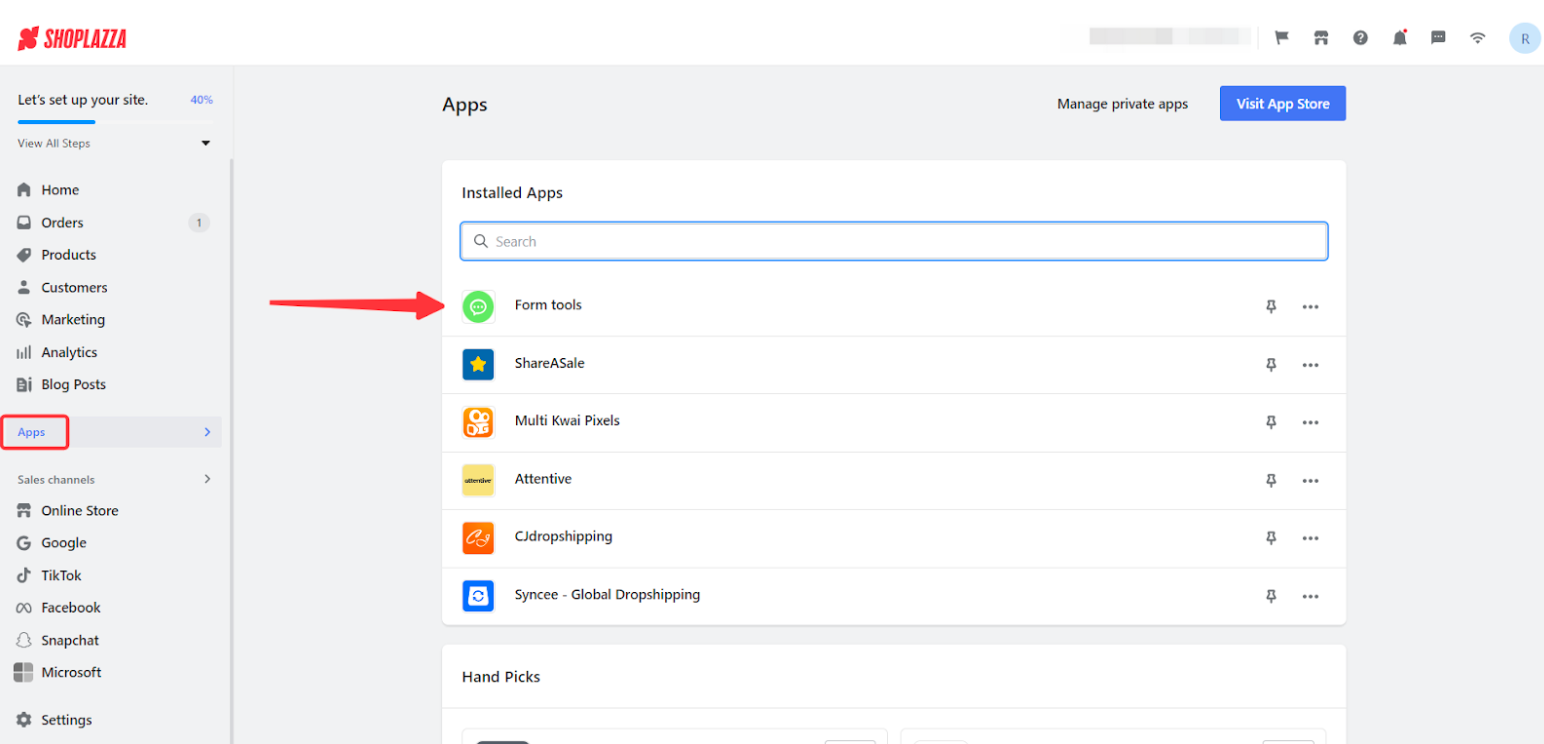
1. Access the app: From your Shoplazza admin, click on Apps. Search for the Form tools app among your installed apps and click to open it.
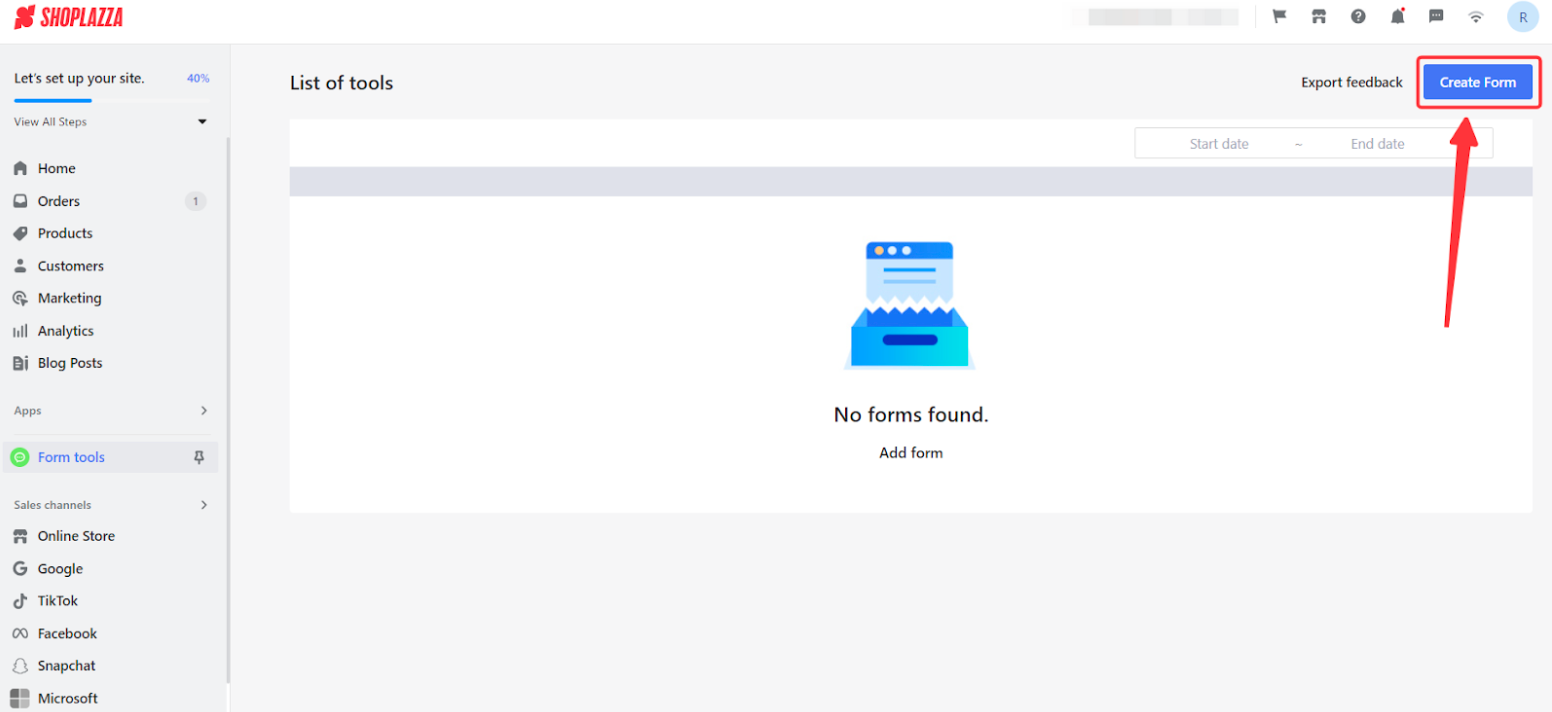
2. Create new form: Once in the app, begin by clicking the Create form button to initiate form setup.
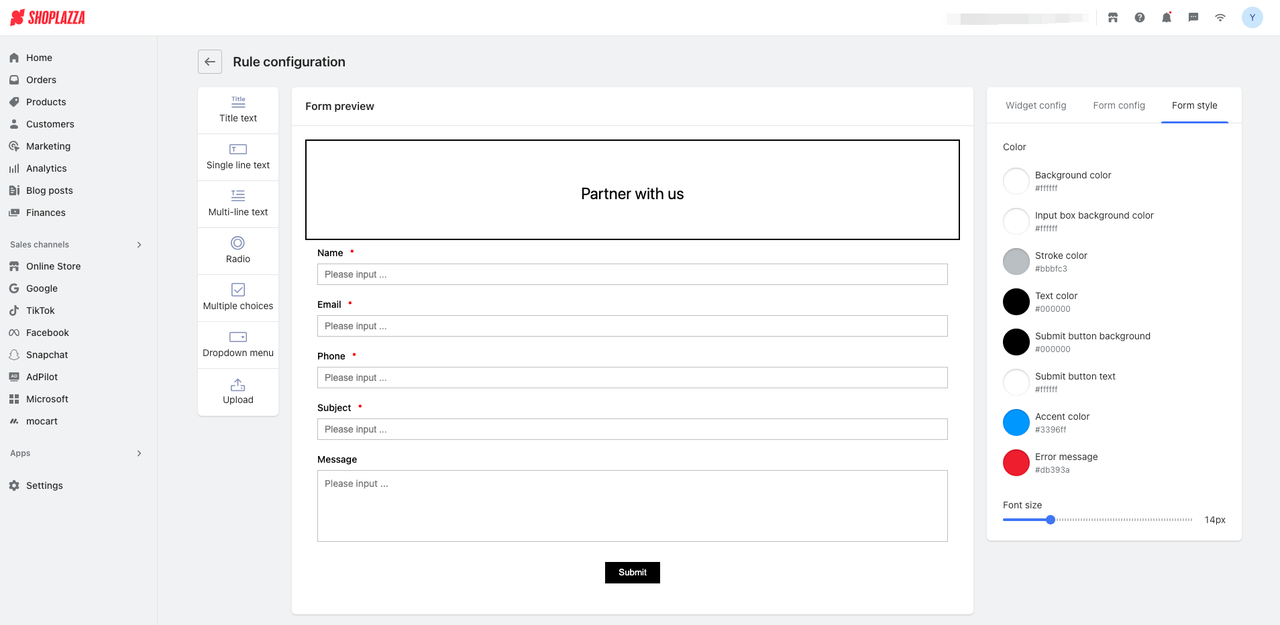
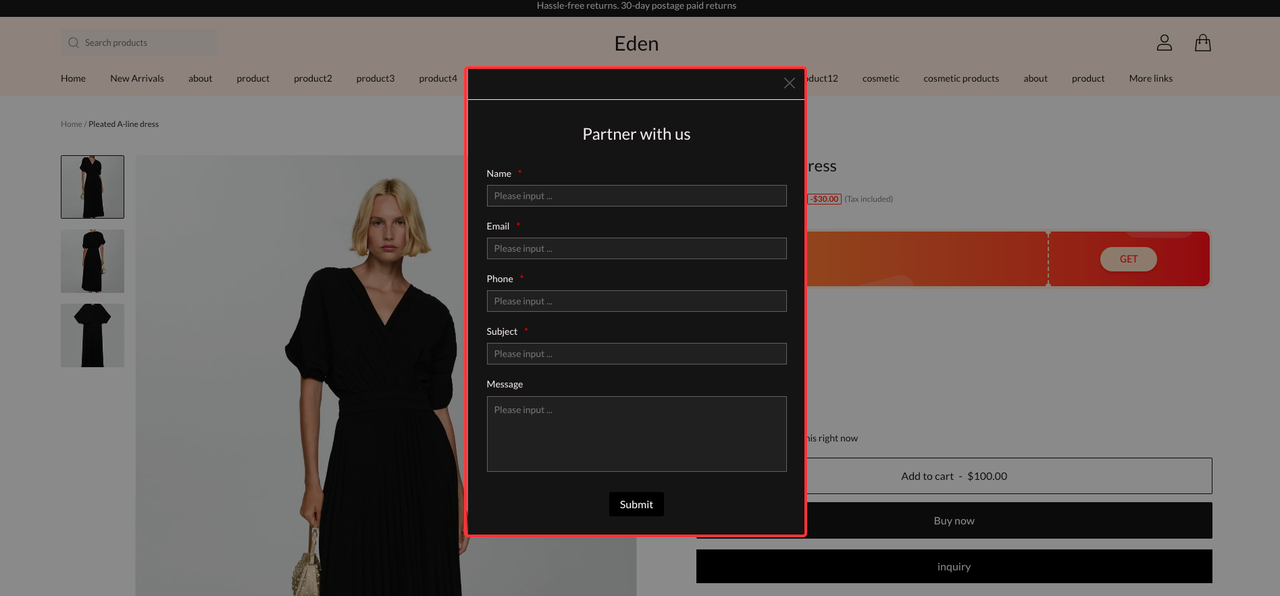
3. On the Form Style page, you can configure the form background color, input field background color, border color, field label color, submit button background color, submit button text color, input text color, error message color, and the font size of form fields.
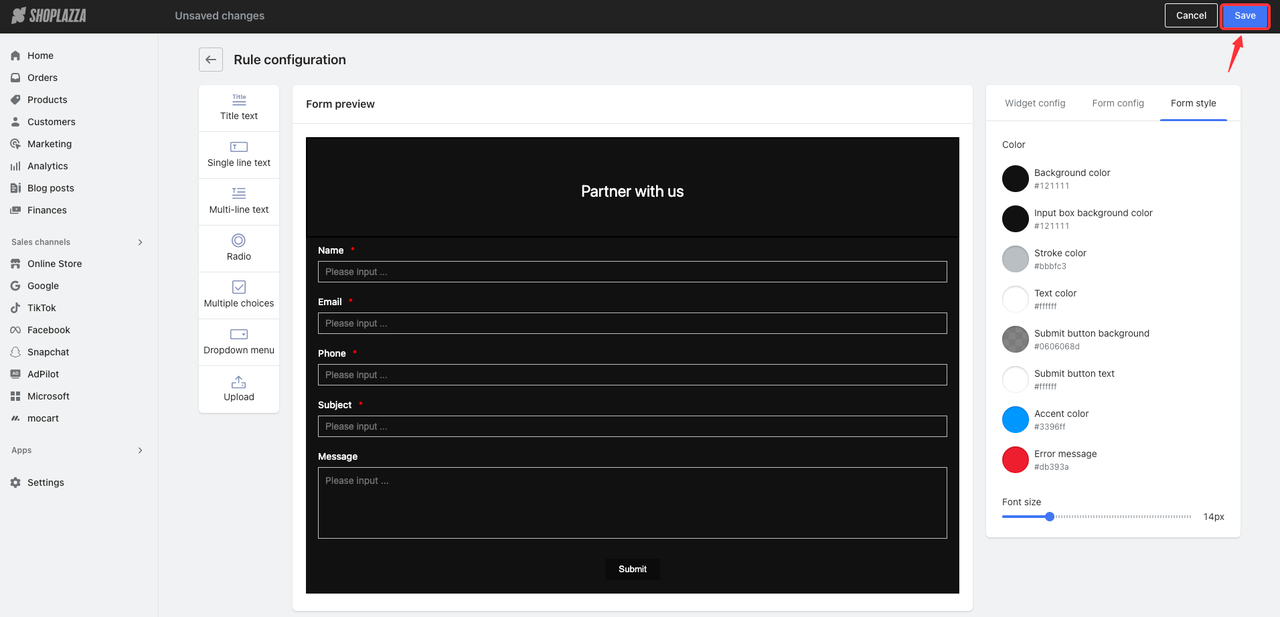
4. After completing the settings, click Save in the upper-right corner.
5. Preview the display effect on the front-end page.


Comments
Please sign in to leave a comment.