
WhatsApp Chat is a customer service tool that helps merchants add a WhatsApp instant messaging entry to their stores. Merchants can configure their WhatsApp contact information, chat button, and preset messages, making it easy for customers to start a conversation while browsing the store. It also supports mobile devices, providing a convenient communication channel for pre-sales and after-sales support.
Installation & Setup
1. Install WhatsApp Chat
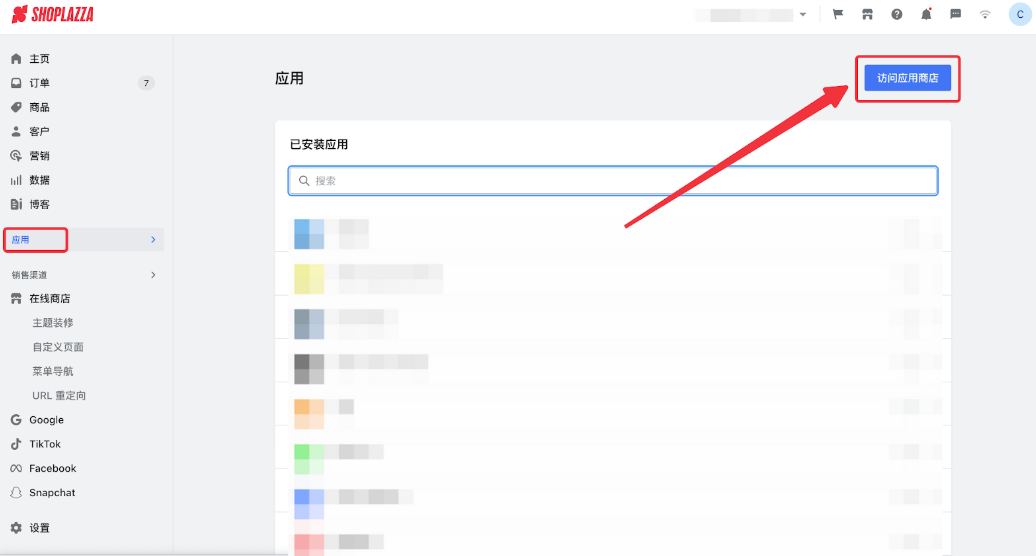
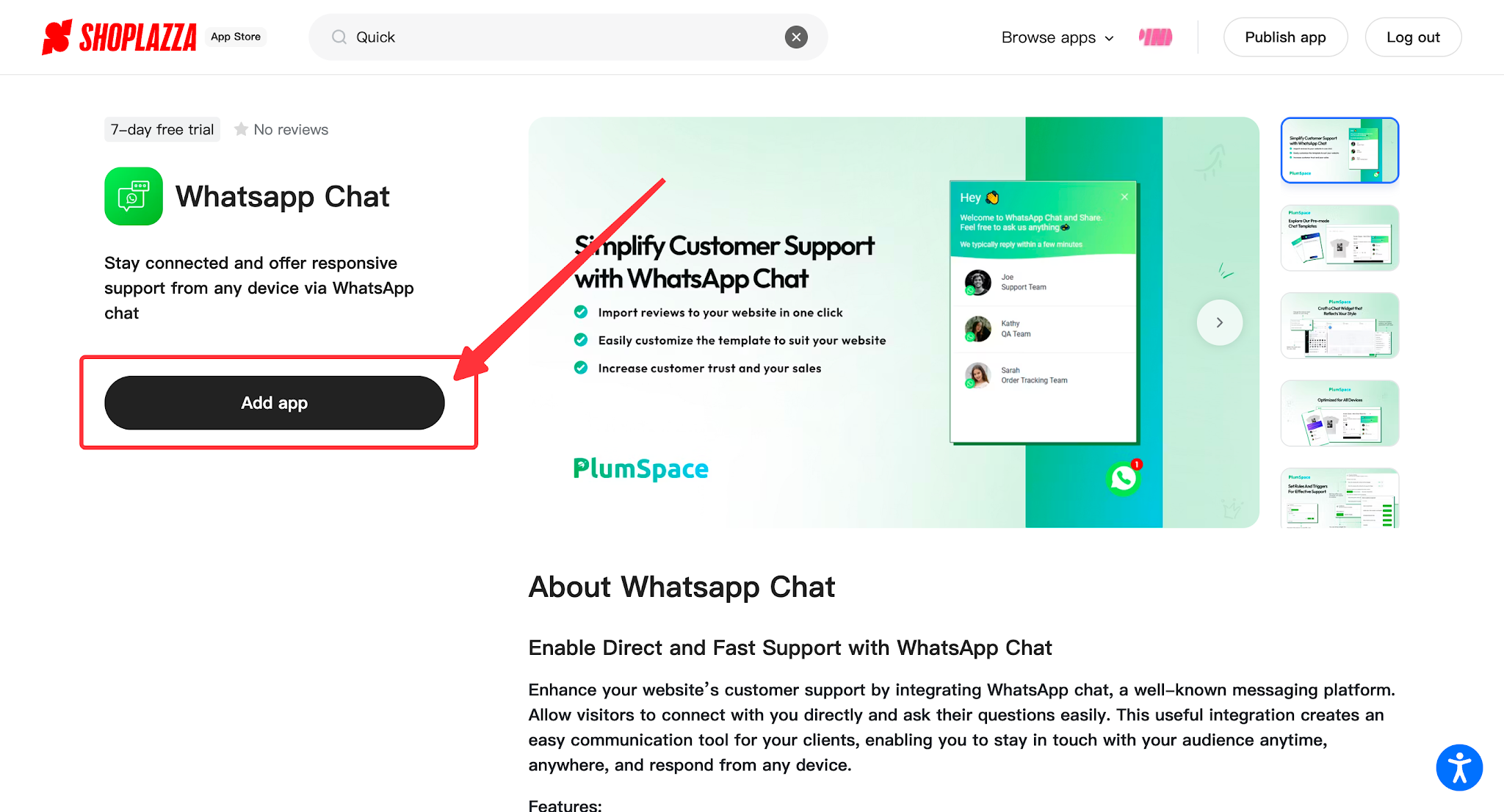
Open the App Store in the Shoplazza admin, search for WhatsApp Chat ,click Install, and authorize your store information in WhatsApp Chat.
2. Choose a template
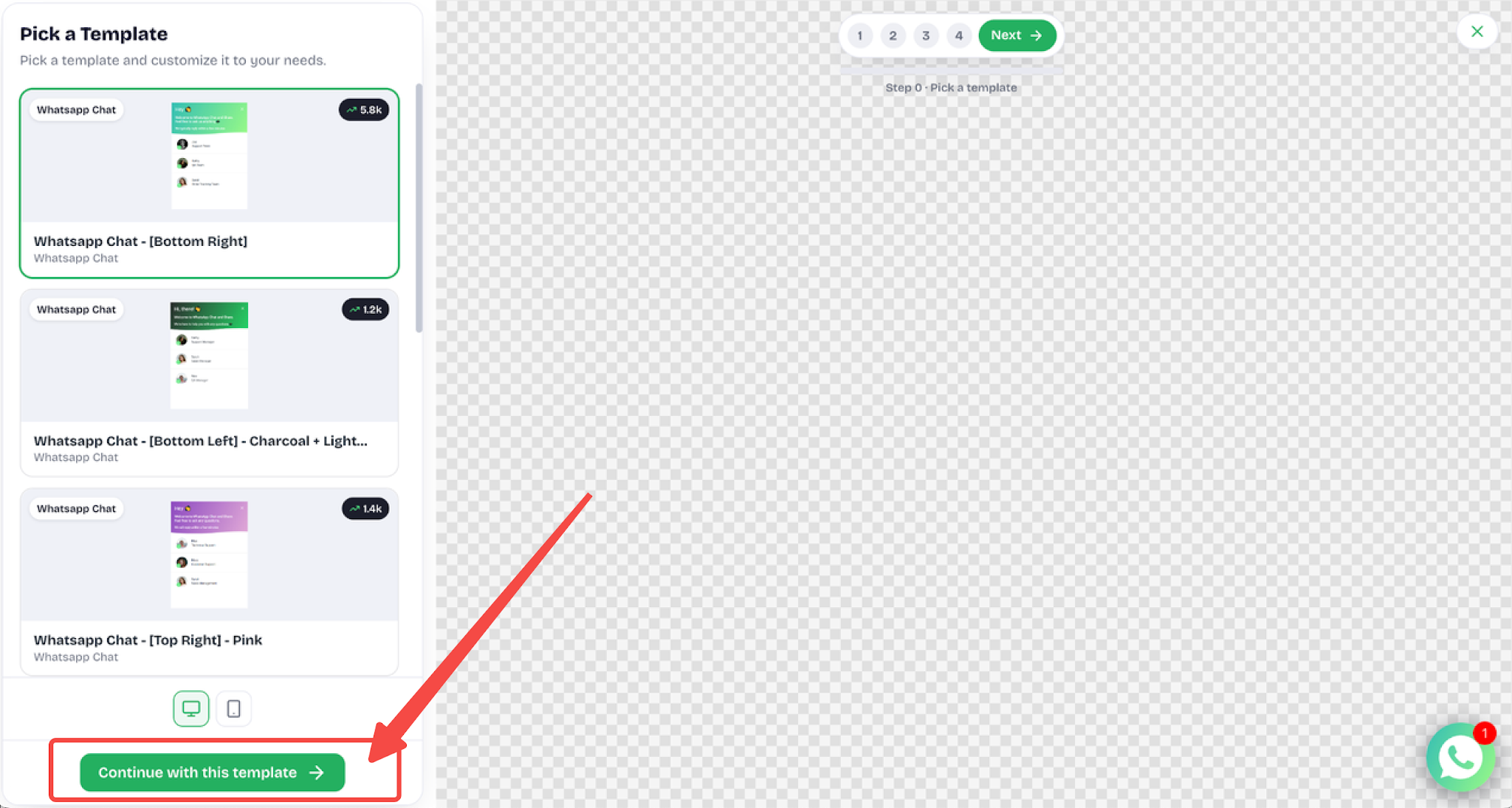
Choose a template, click it, and then click Continue with this template.
3. Customize your widget
- Select AI Customizer and create your widget with AI by entering your request, or select Customizer to create it manually.
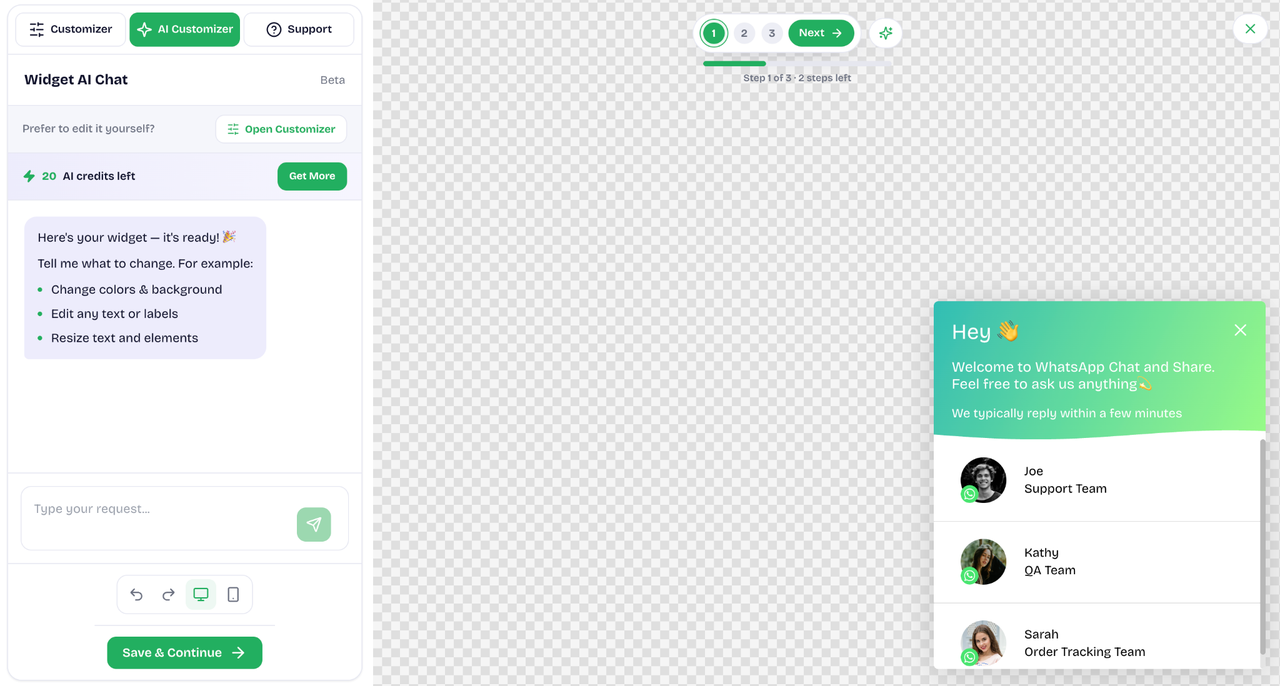
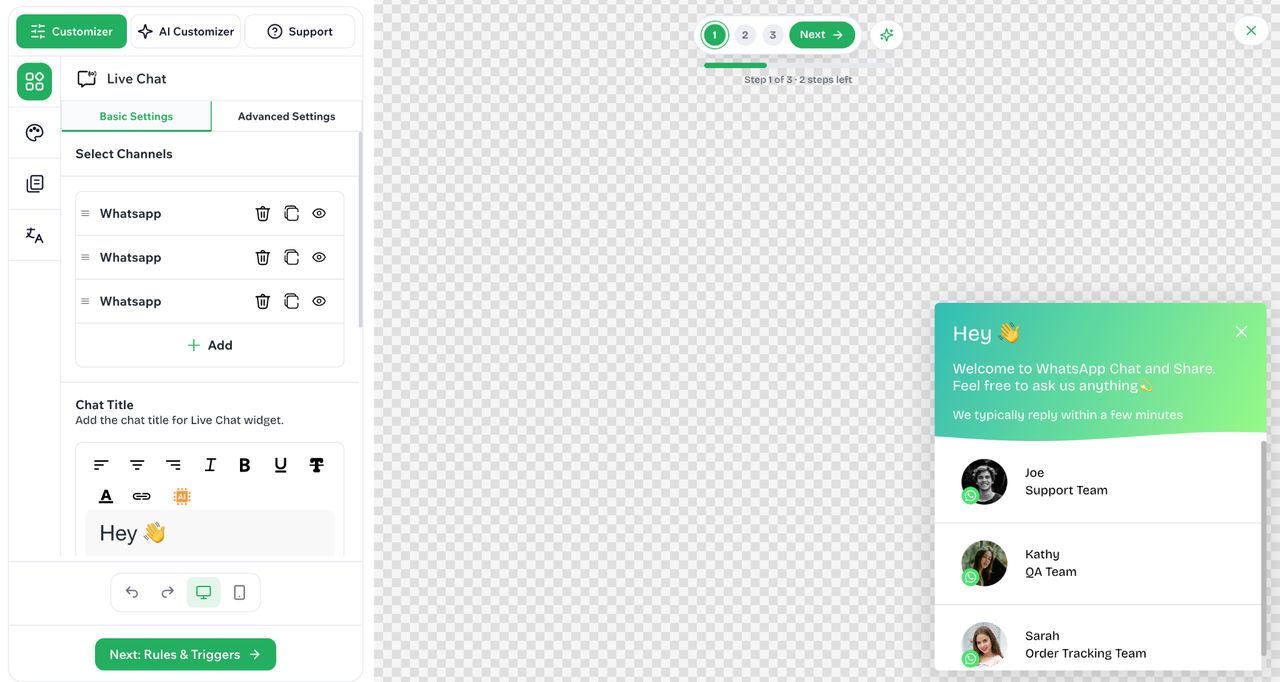
- In Basic Settings, select channels and add the chat title and subtitle for the Live Chat widget.
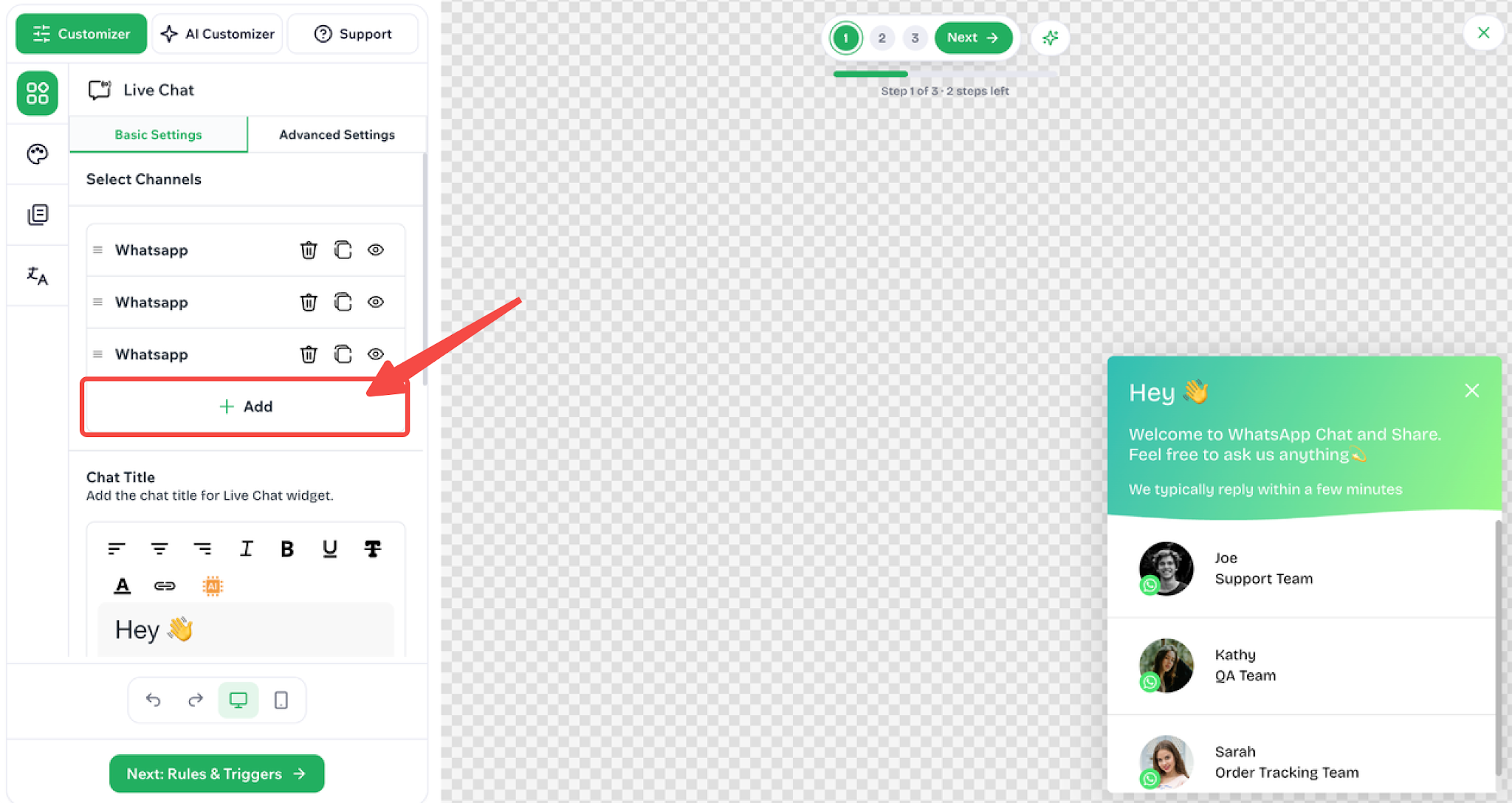
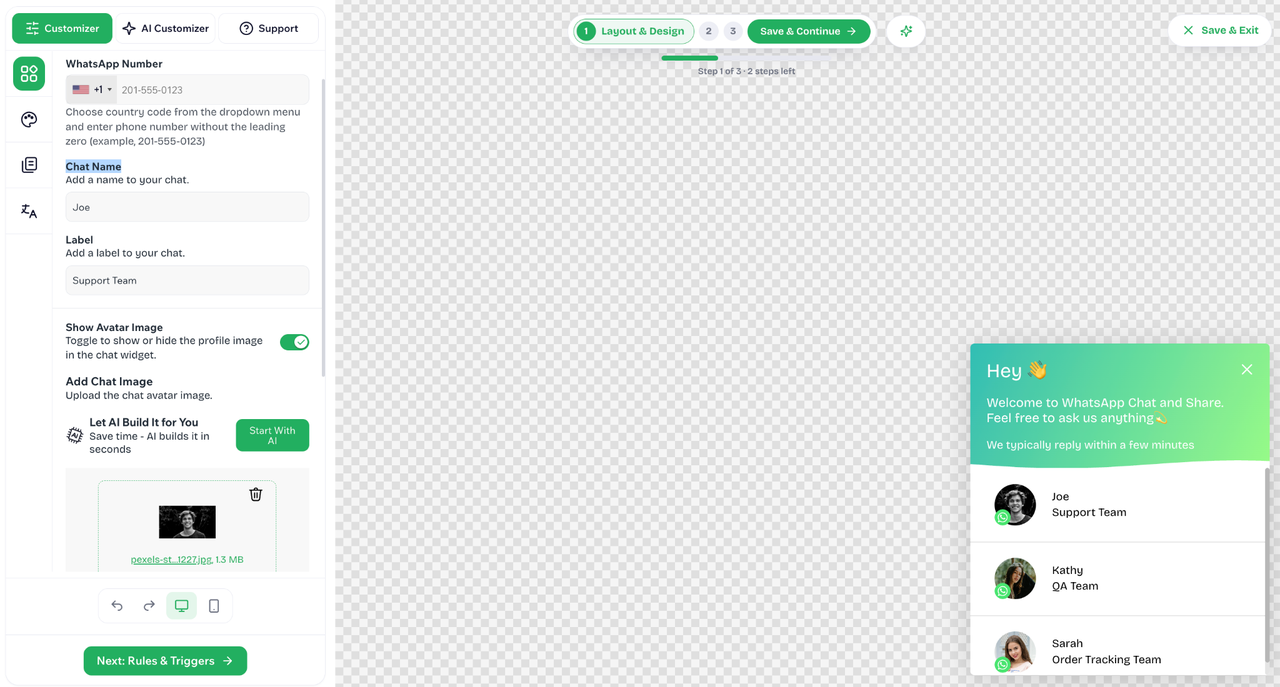
- To add a new channel, click Add and set the WhatsApp number, chat name, label, and image.
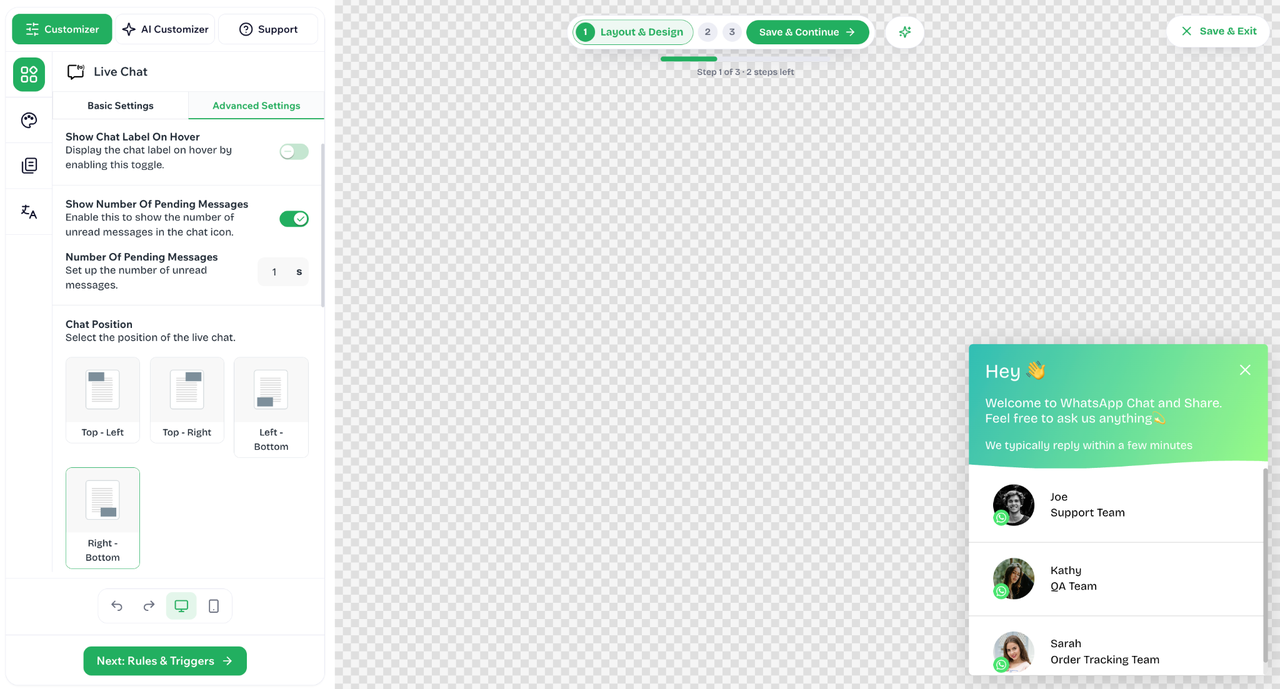
- In Advanced Settings, configure the welcome message, number of pending messages, spacing and sizing, and the chat icon and position.
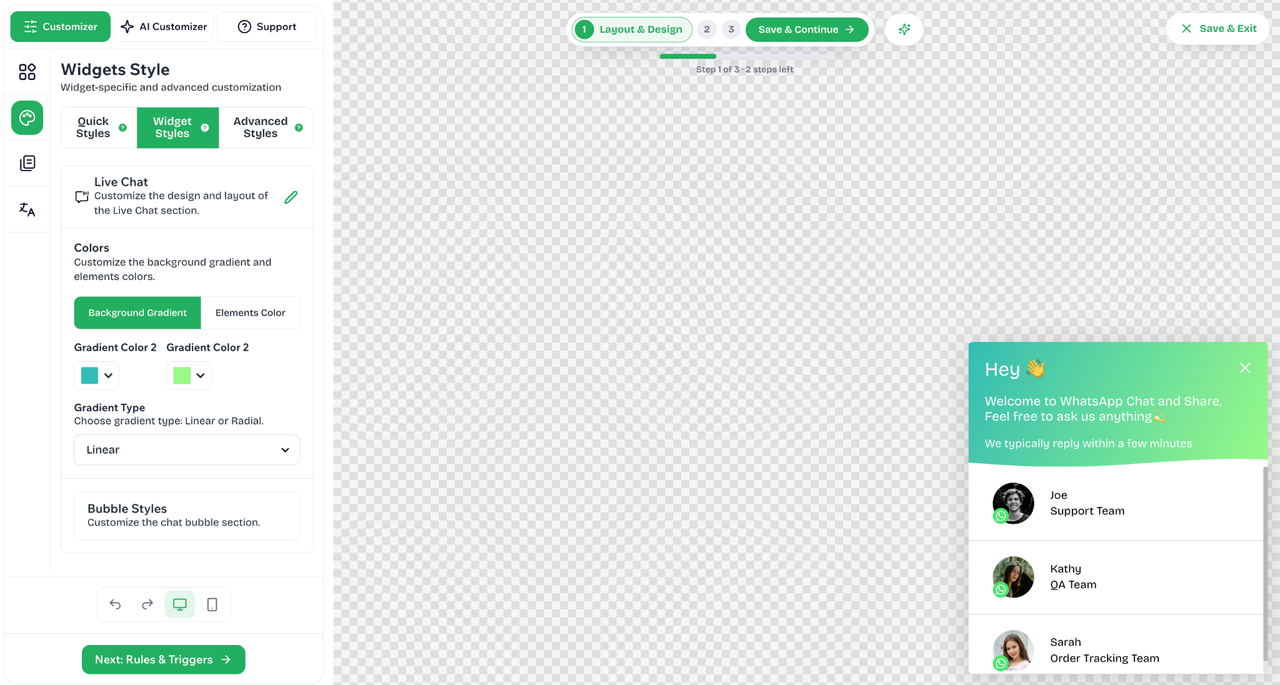
- In the Appearance tab, customize the design and layout of the WhatsApp chat widget.
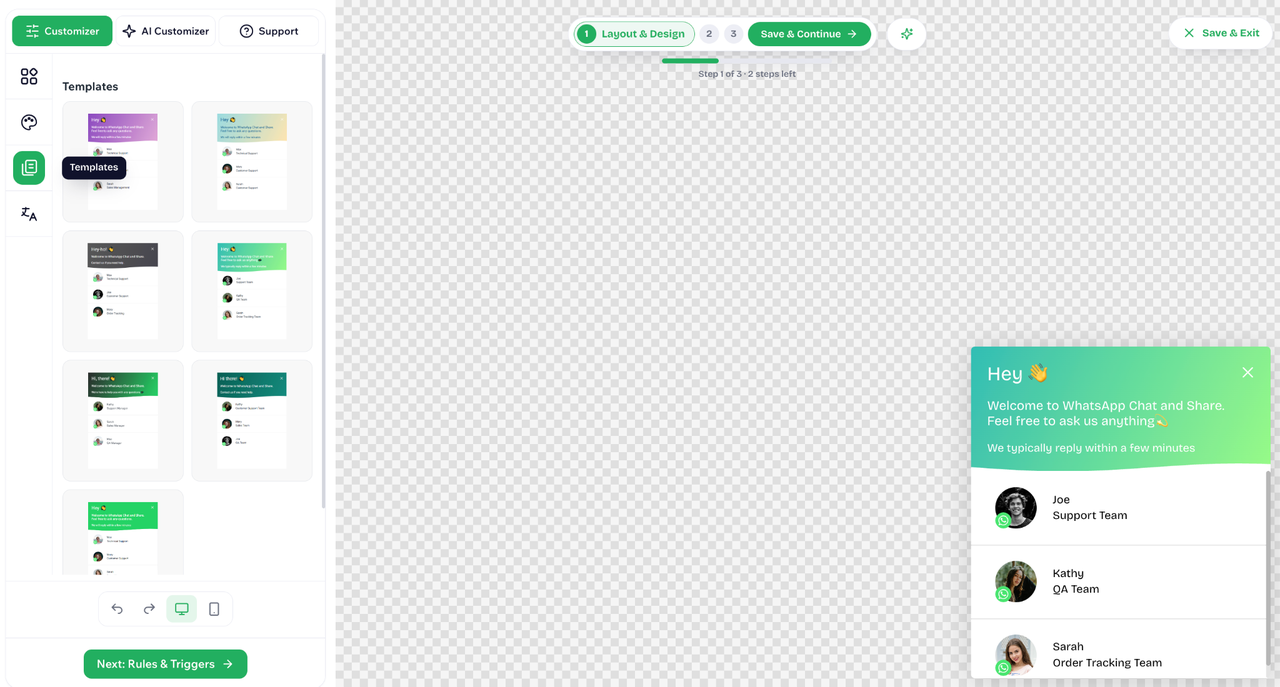
- In the Templates tab, change the widget template.
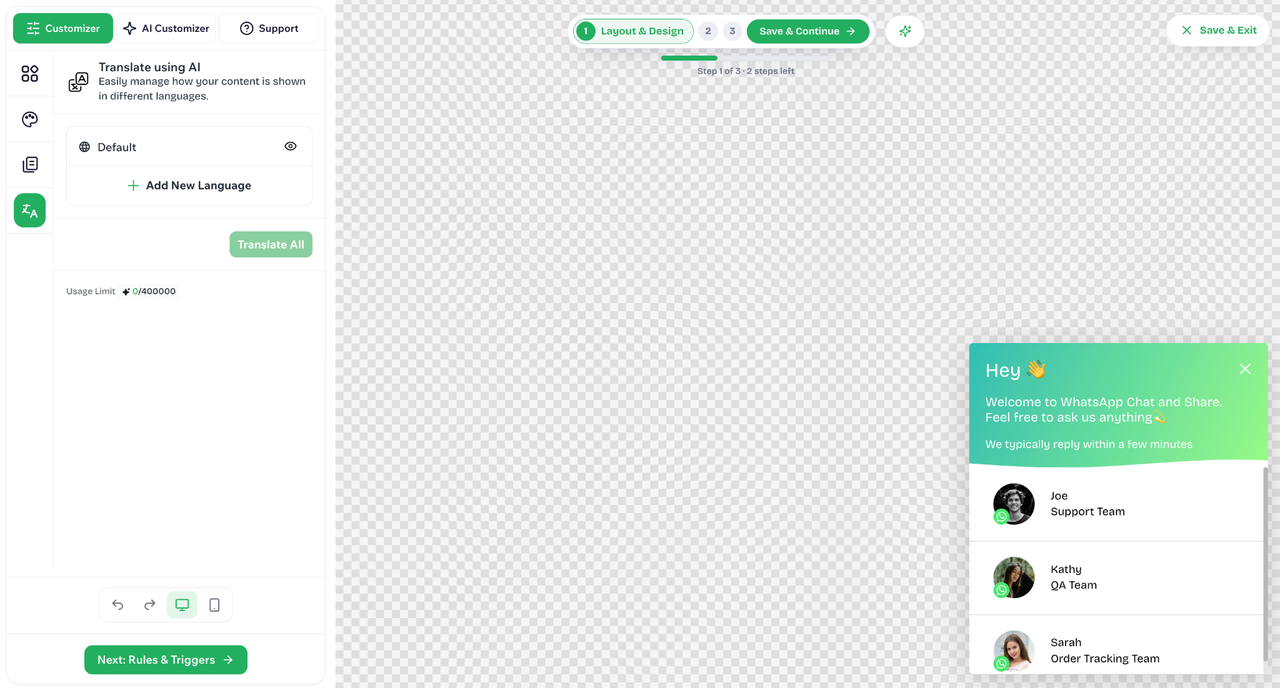
- Go to the Translation tab to manage how content is displayed in different languages.
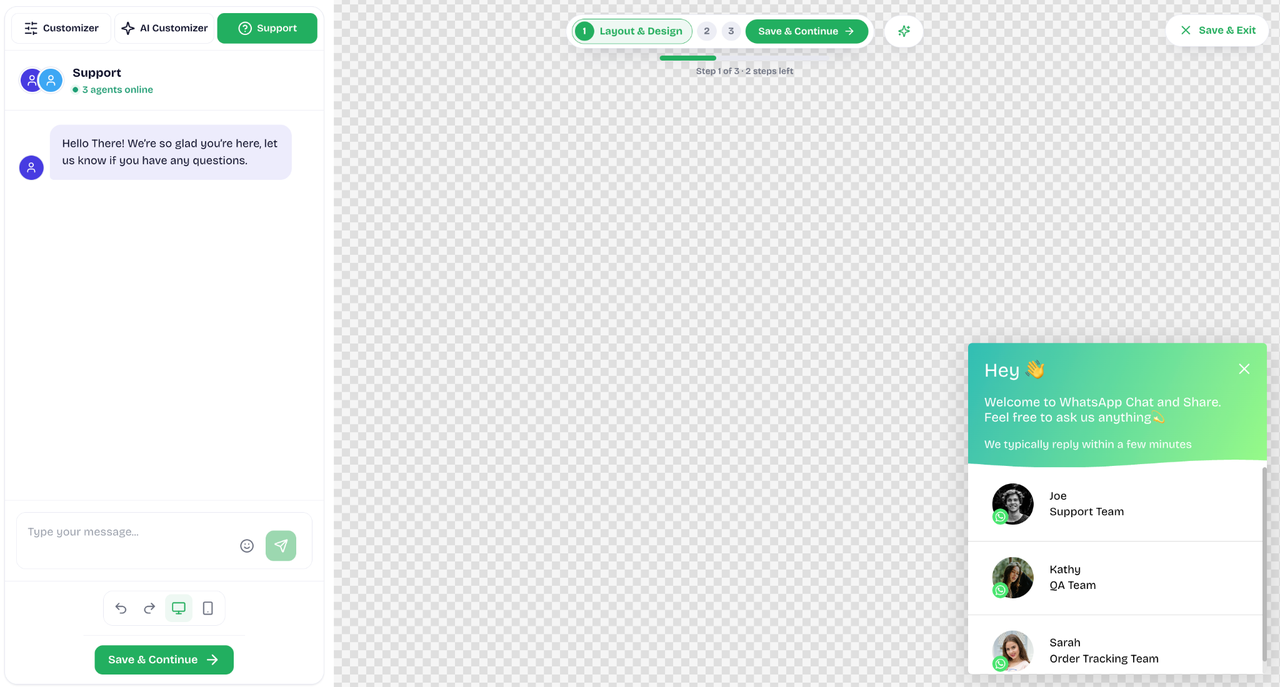
- If you need help, select the Support menu and send your question.
After finishing all customization, click Save & Continue.
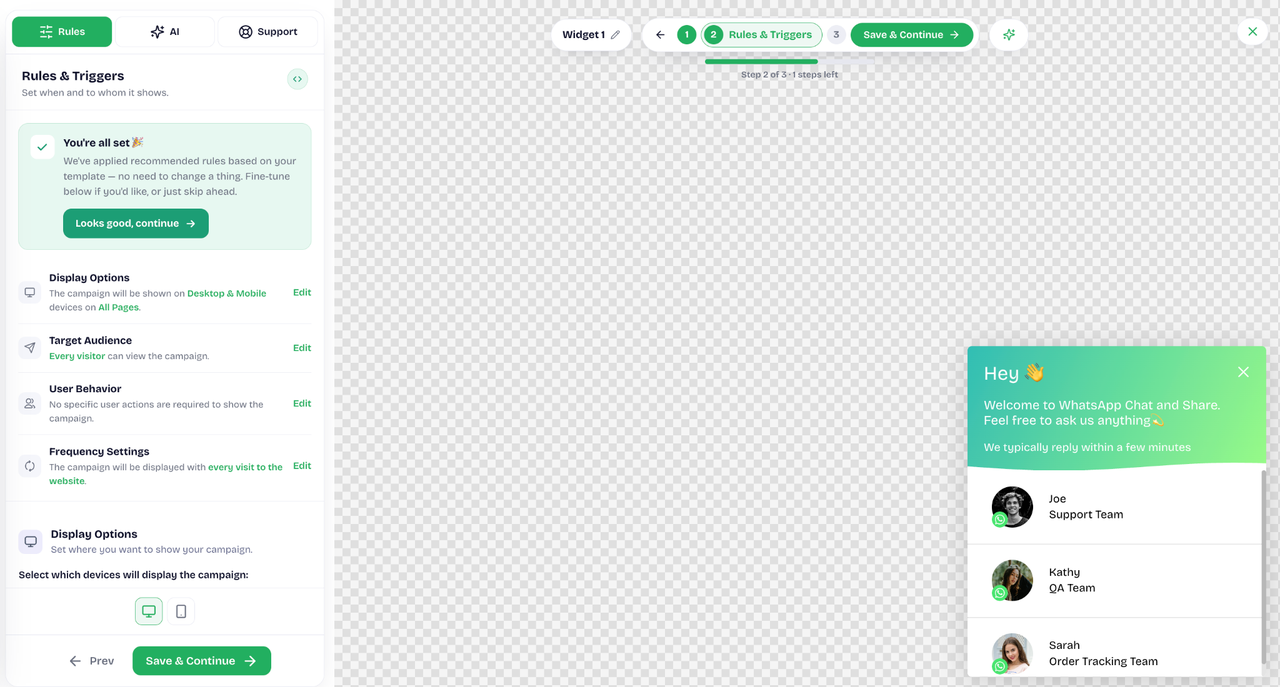
4. Set display conditions
On the second step, set when and to whom the widget is shown. After finishing the settings, click Save & Continue.
5. Preview and publish
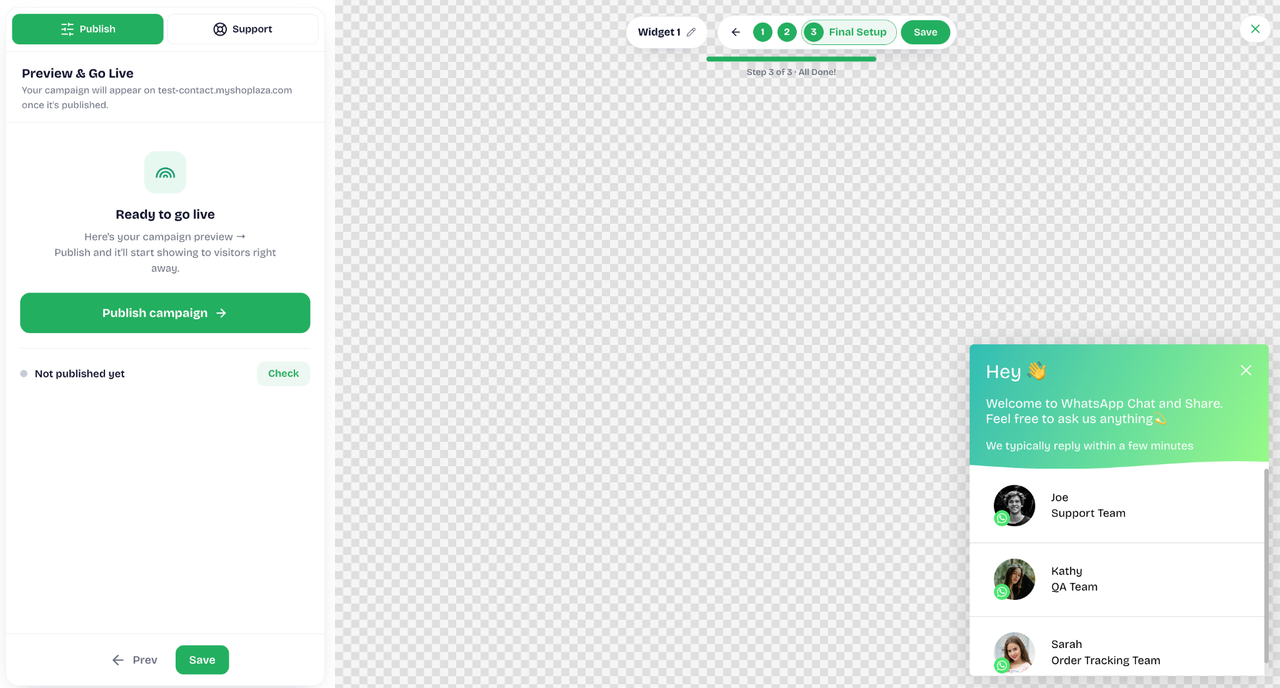
On the third step, check the widget preview and click Publish campaign. The widget will start showing to visitors right away.
6. Use the app dashboard
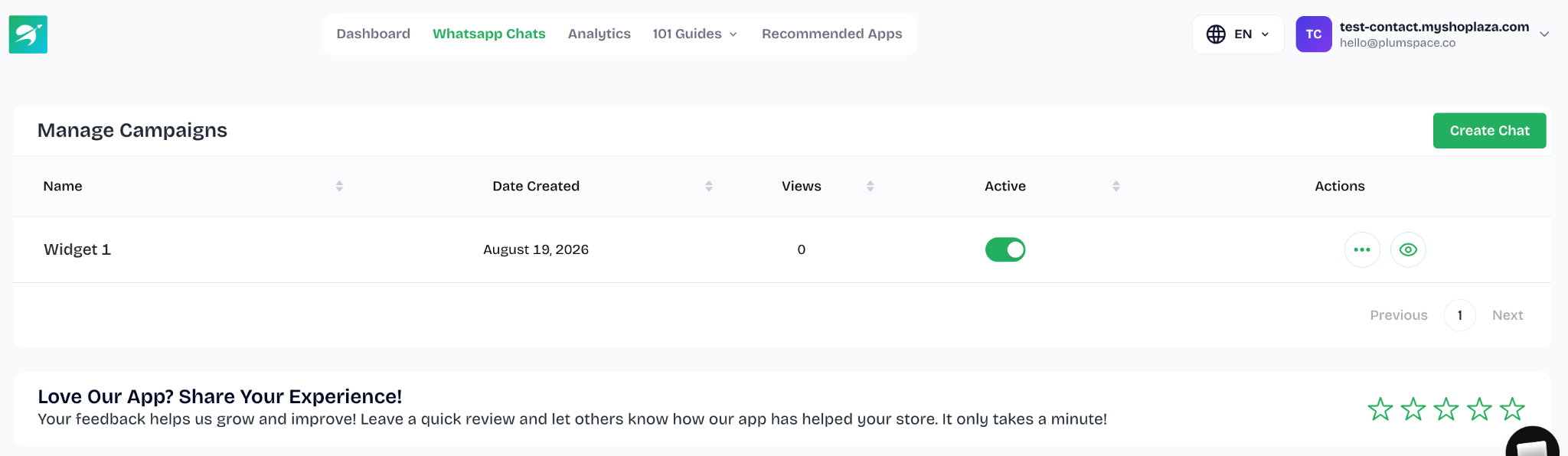
In the app admin panel, you can manage created widgets and review key performance information.
- Widgets menu: Find all created widgets, edit, delete, or preview them, and create new widgets.
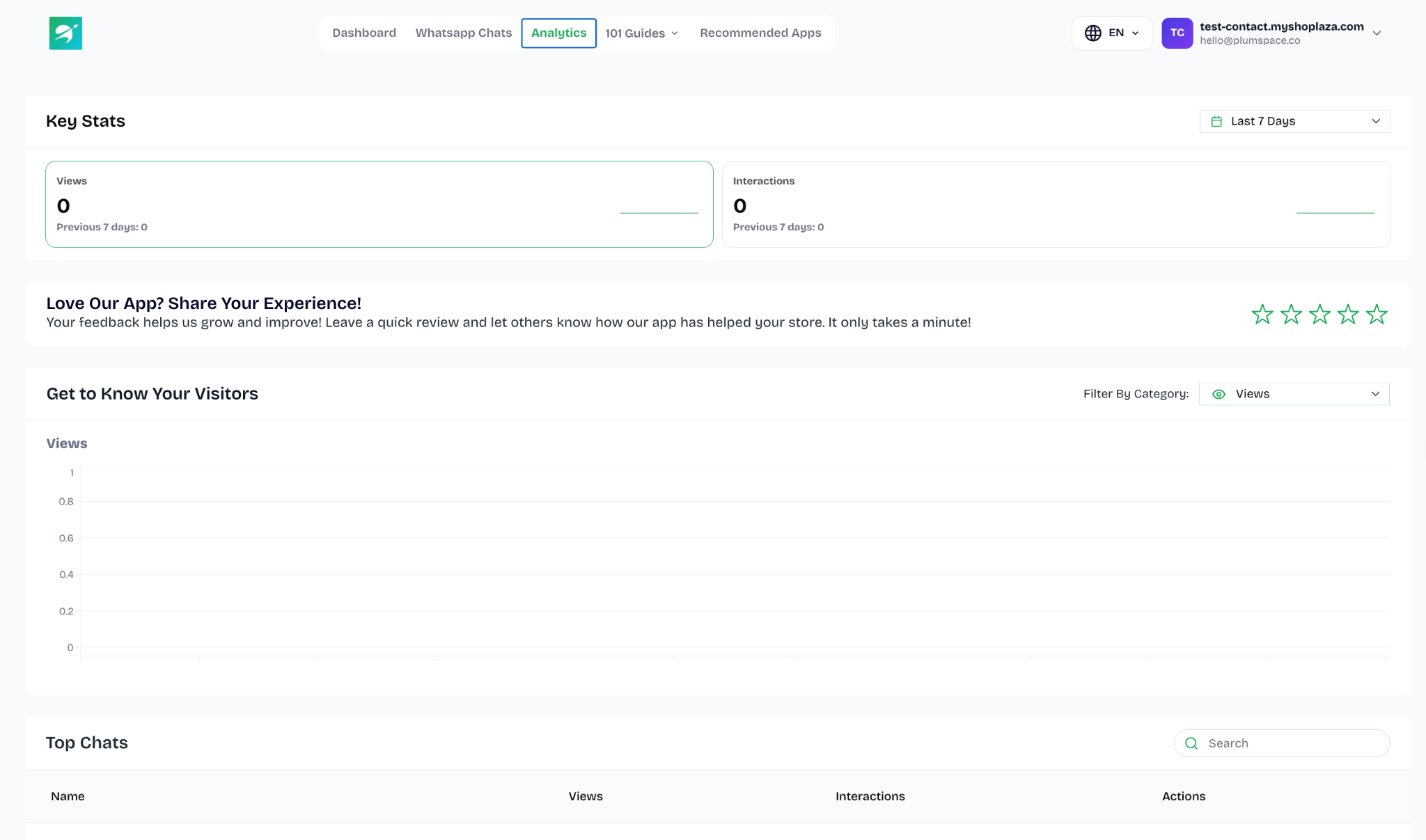
- Analytics menu: Track key statistics such as Views, Interactions, and Top Chats.
- Recommended Apps menu: View a list of Plumspace applications.
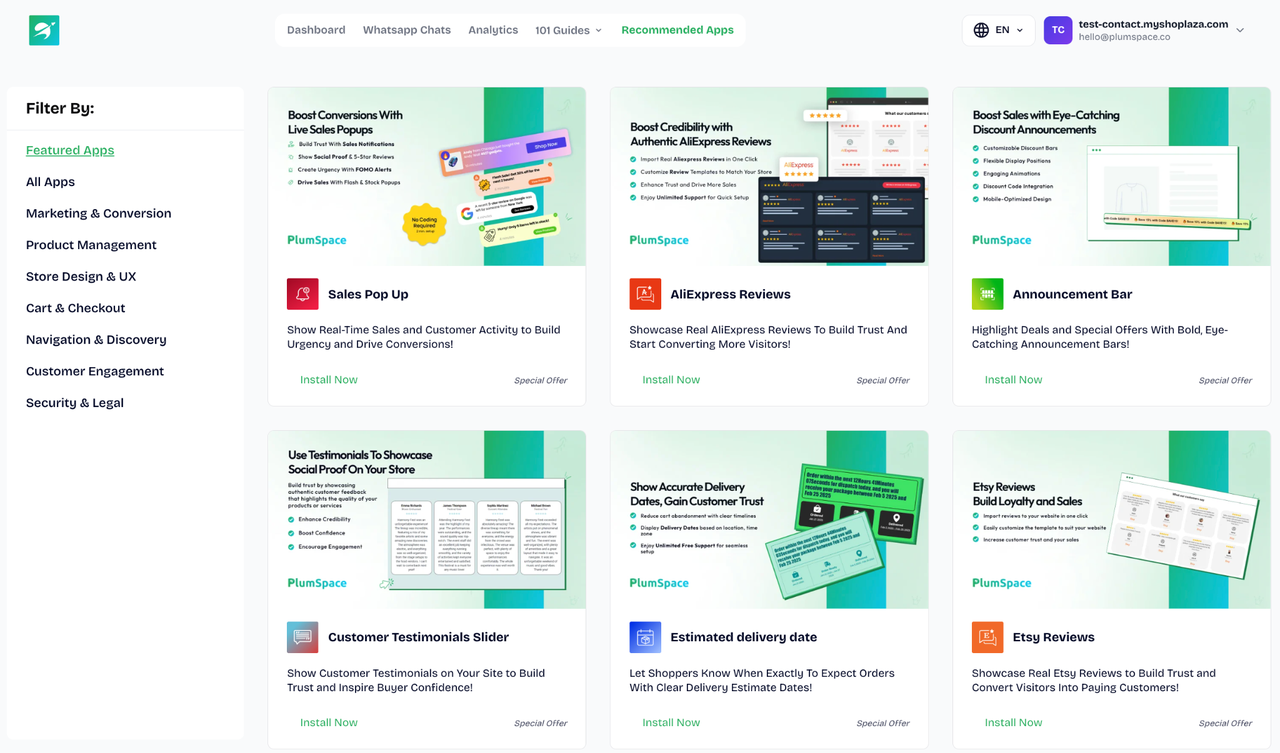
- Dashboard menu: View the necessary information in one place.
For additional information or assistance, contact hello@plumspace.co.


Comments
Please sign in to leave a comment.