
Ⅰ. Feature Overview
Teeinblue is a leading personalization and print-on-demand (POD) SaaS platform that supports 13 categories of customizable products, including apparel, drinkware, accessories, and gifts. It integrates with 30+ POD suppliers to provide an end-to-end design-to-production-to-fulfillment solution.
Currently, Teeinblue offers official native apps only for Shopify and Etsy. Based on Teeinblue’s open API capabilities, Shoplazza has developed an integration solution that enables merchants to provide a personalized product customization experience in their Shoplazza stores similar to the native Shopify experience, while improving the operational efficiency and user experience of customized products.
Ⅱ. Core Features
- 13 personalization types: Supports text, image uploads, AI effects, and color variants, allowing customers to preview their customized designs in real time directly on the product page.
- Bulk association of personalization templates: Merchants can associate the same personalization template with multiple products in one operation, eliminating the need to configure products individually.
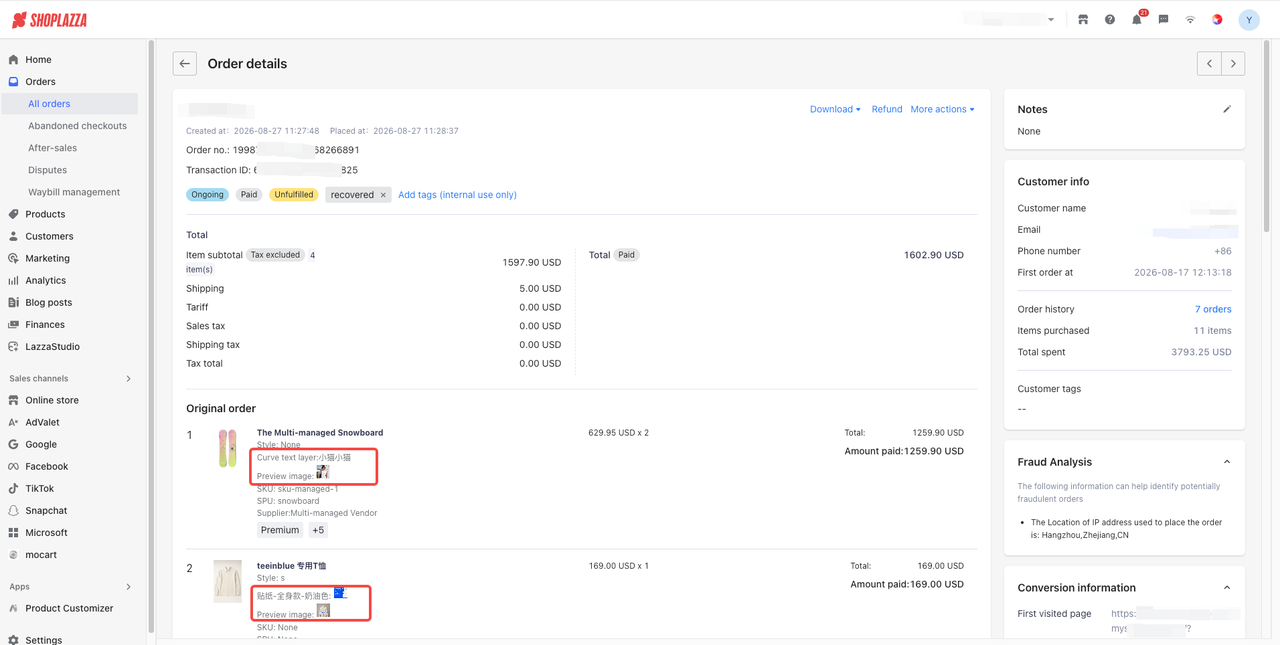
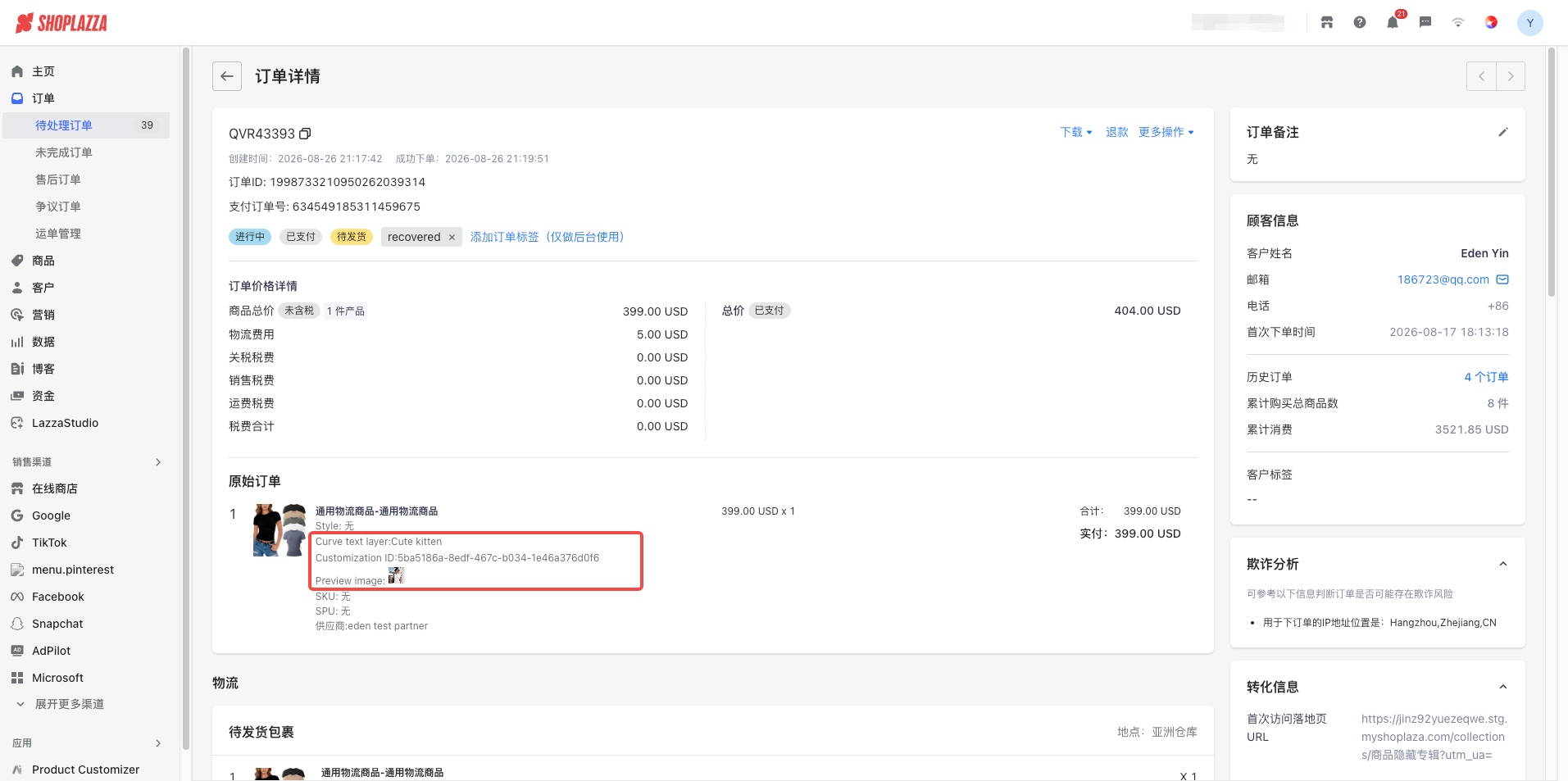
- Automatic recording of personalization order information: After customers place an order, the system automatically extracts and saves the personalization details, making it easier for merchants to review and fulfill orders.
- Smart alerts for personalization template issues: Merchants are promptly notified of abnormal template data, such as unpublished or deleted templates, allowing them to quickly identify and fix invalid product personalization configurations in the admin panel.
- Consistent loading experience: The product page personalization editor provides a loading experience that is consistent with the visual style of the storefront.
Note
This App is not an official native Teeinblue App. It is an integration solution independently developed by Shoplazza. As a result, there are some differences in the user experience compared with the Shopify version. For details, please refer to the important limitations outlined in Section 3 below.
III. Limitations
The following outlines the supported functionality and corresponding limitations based on the current capabilities of the Teeinblue Open API.
| Limitation | Details |
| Personalization templates can only be created/edited in the Teeinblue admin panel | The personalization template list in the Shoplazza App is read-only. Templates cannot be created or modified on the Shoplazza side, including design templates, print areas, and other template content. |
| Personalization template data synchronization may be delayed | The system automatically syncs the personalization template list from Teeinblue once every hour. Merchants can also click Sync Now to manually retrieve the latest data. If changes have just been made in Teeinblue, there may be a short delay before they are reflected in the Shoplazza store. |
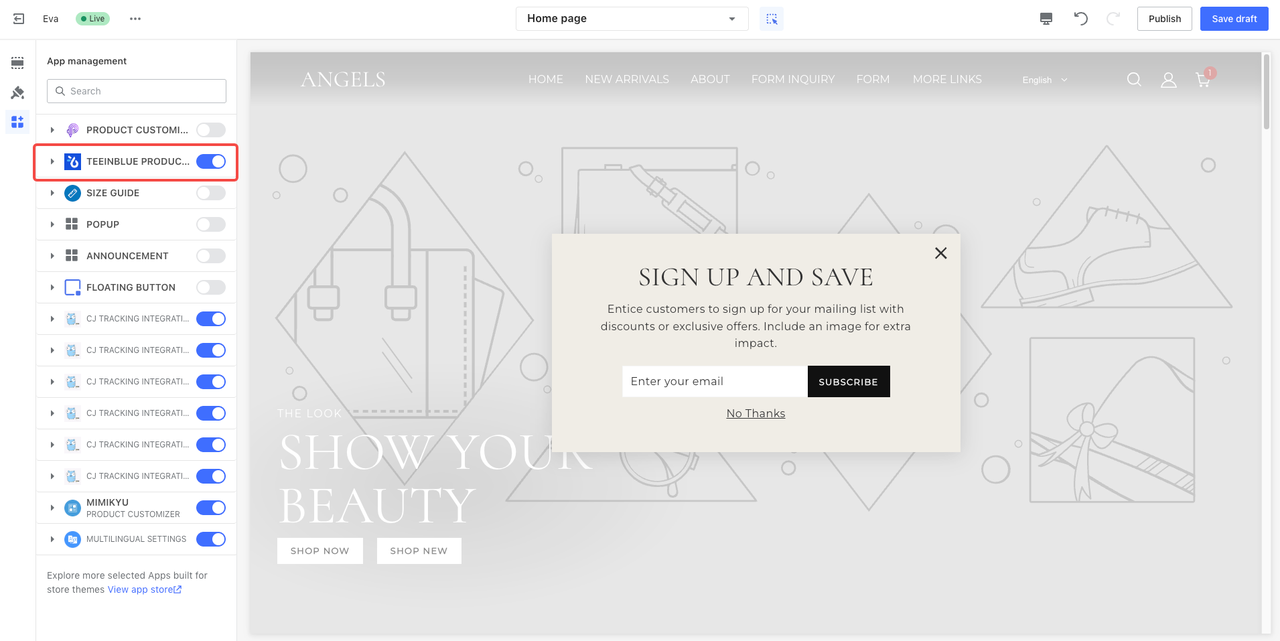
| Product personalization depends on the theme app | Merchants need to manually enable the Teeinblue Product Personalization app in the Shoplazza theme editor; otherwise, the personalization entry will not be displayed on the product page. The app must be enabled again after switching themes. |
| Order fulfillment | Since the Teeinblue Boundless version does not provide the ability to connect with suppliers, subsequent fulfillment can only be carried out through Shoplazza orders. |
IV. Setup Process
Teeinblue Admin
Register for a Teeinblue Boundless account
1. Click Register to sign up and enjoy a 14-day free trial. A Boundless plan subscription starting at $297/month is required for continued use after the trial period.
2. Configure the Domain
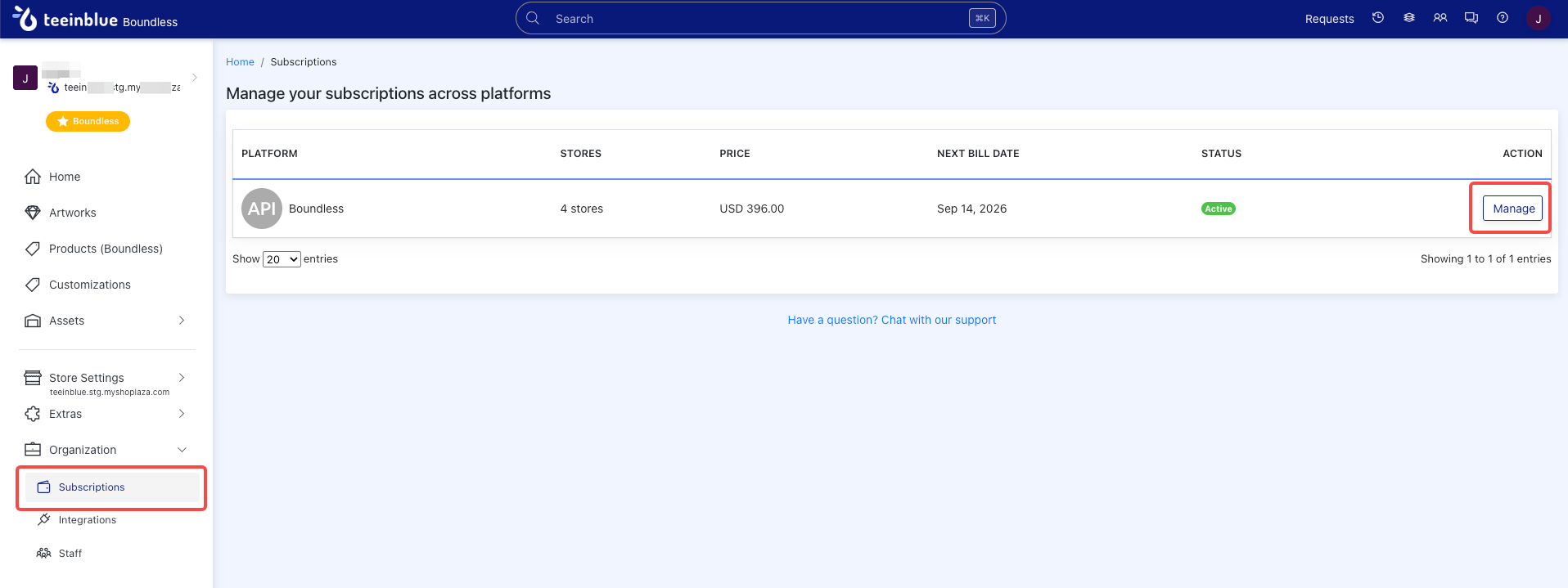
- In the Teeinblue Boundless admin panel, go to Subscriptions, then click Manage Plan to access the domain settings page.
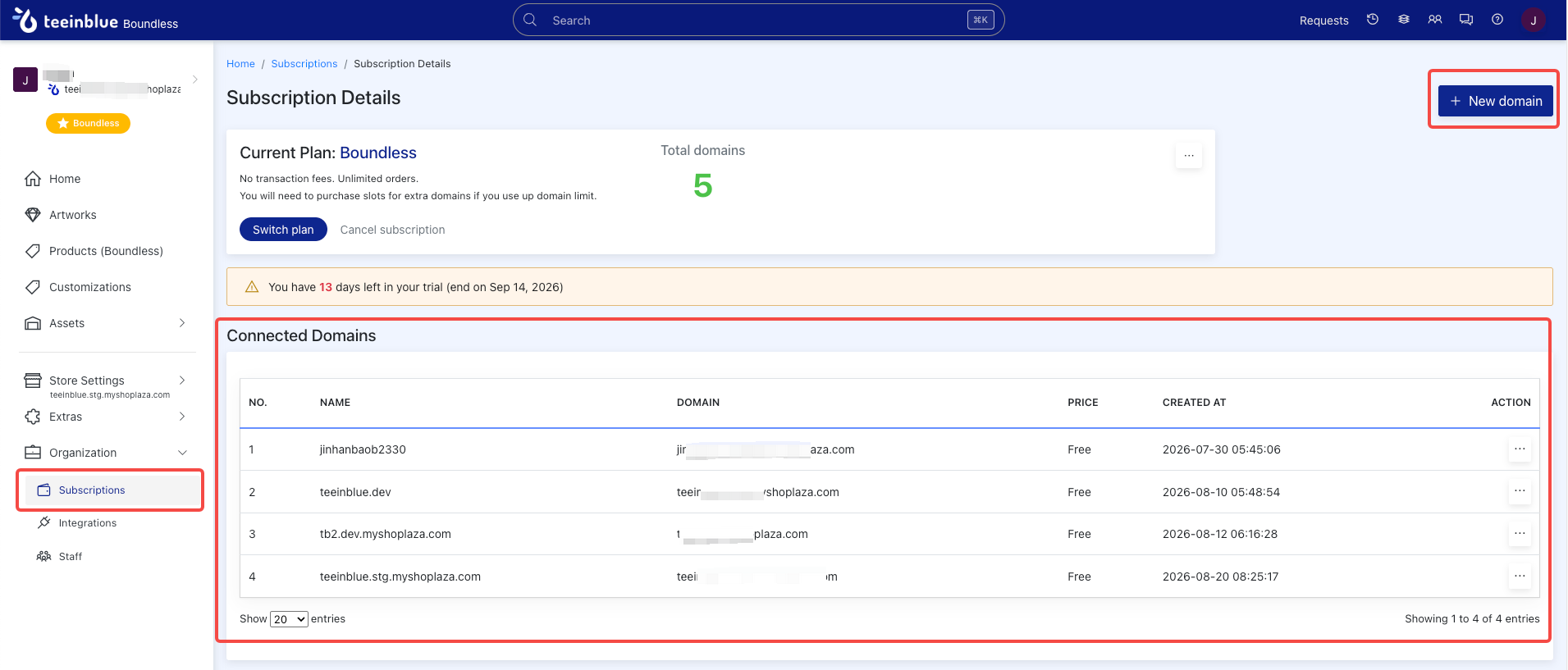
- Within your subscription plan, you can add available domains or remove unused domains. You can also switch between domains for different users.
- After linking the corresponding domain, copy the domain and paste it into the Domain field under Account Settings in the Shoplazza admin panel.
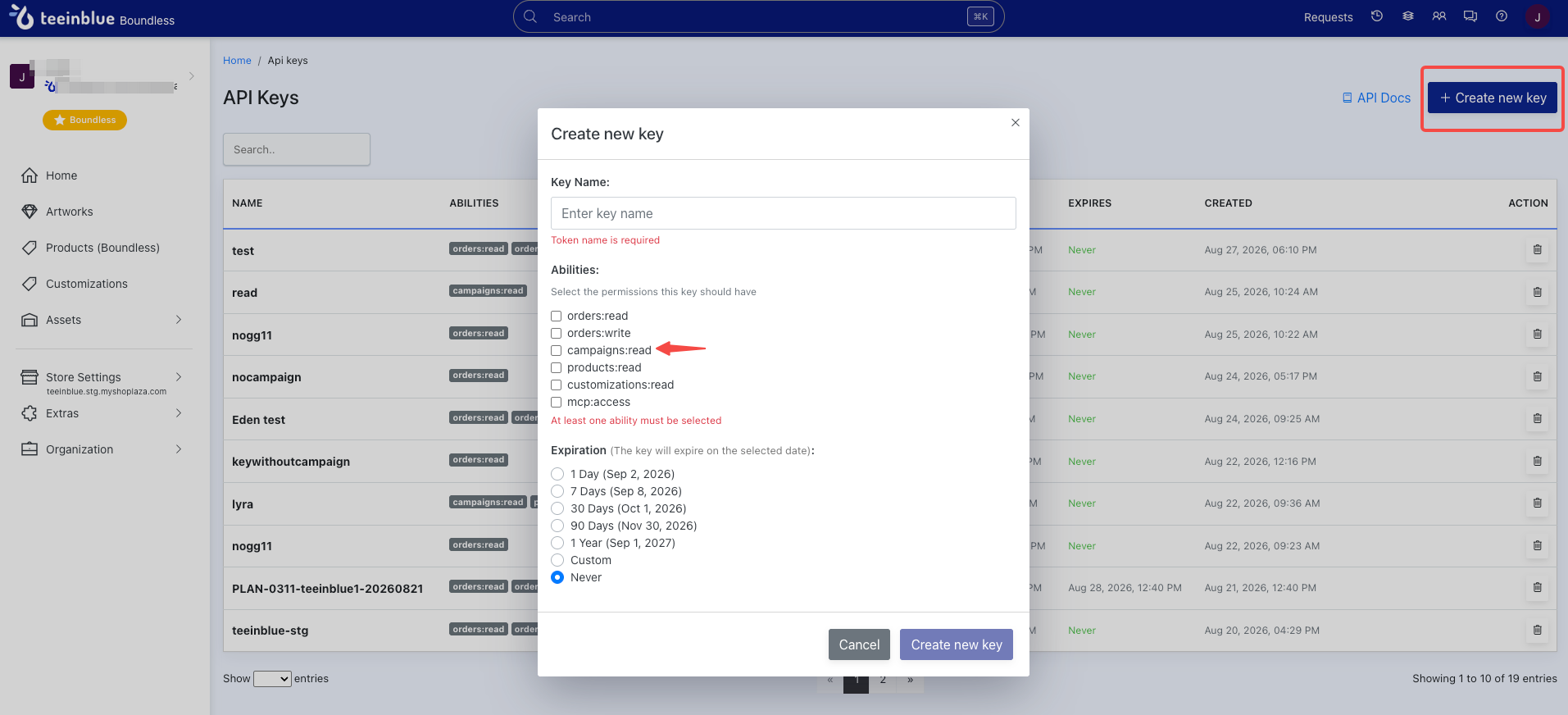
3. Configure the API Key
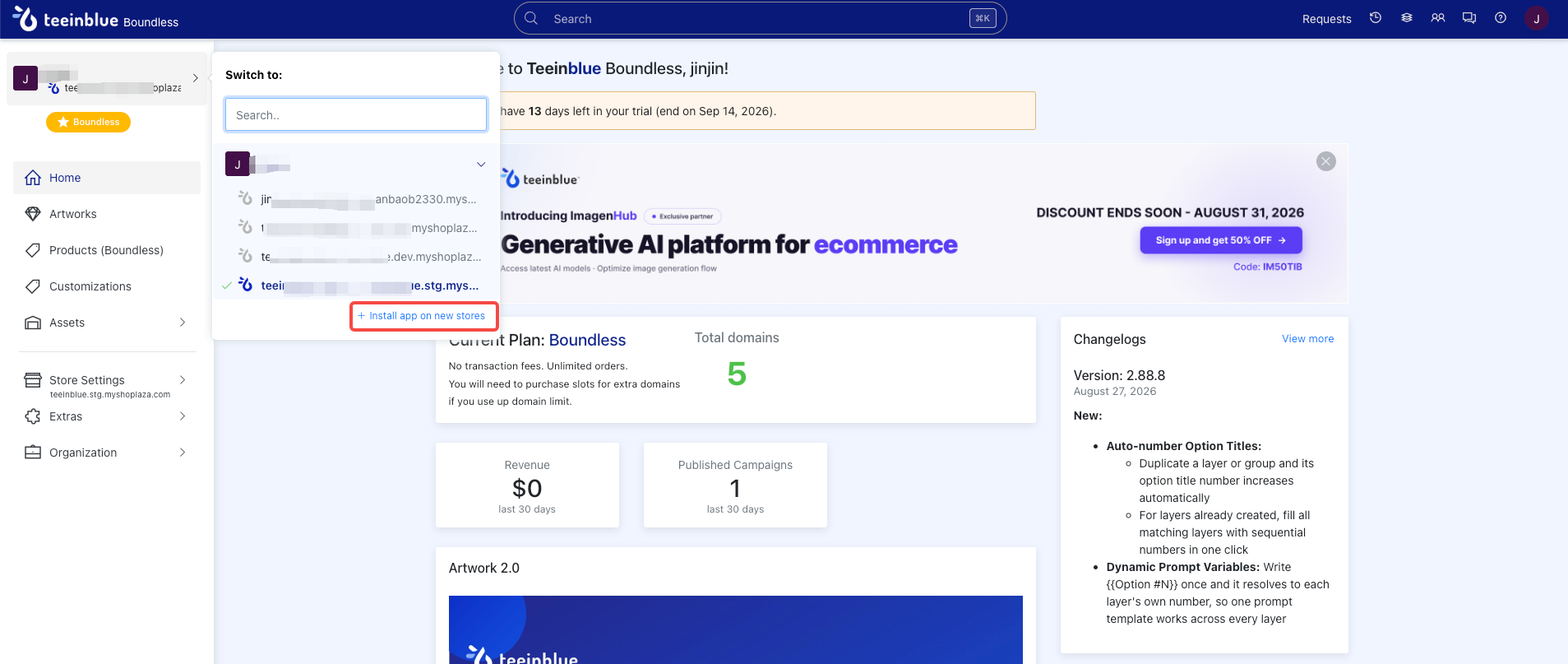
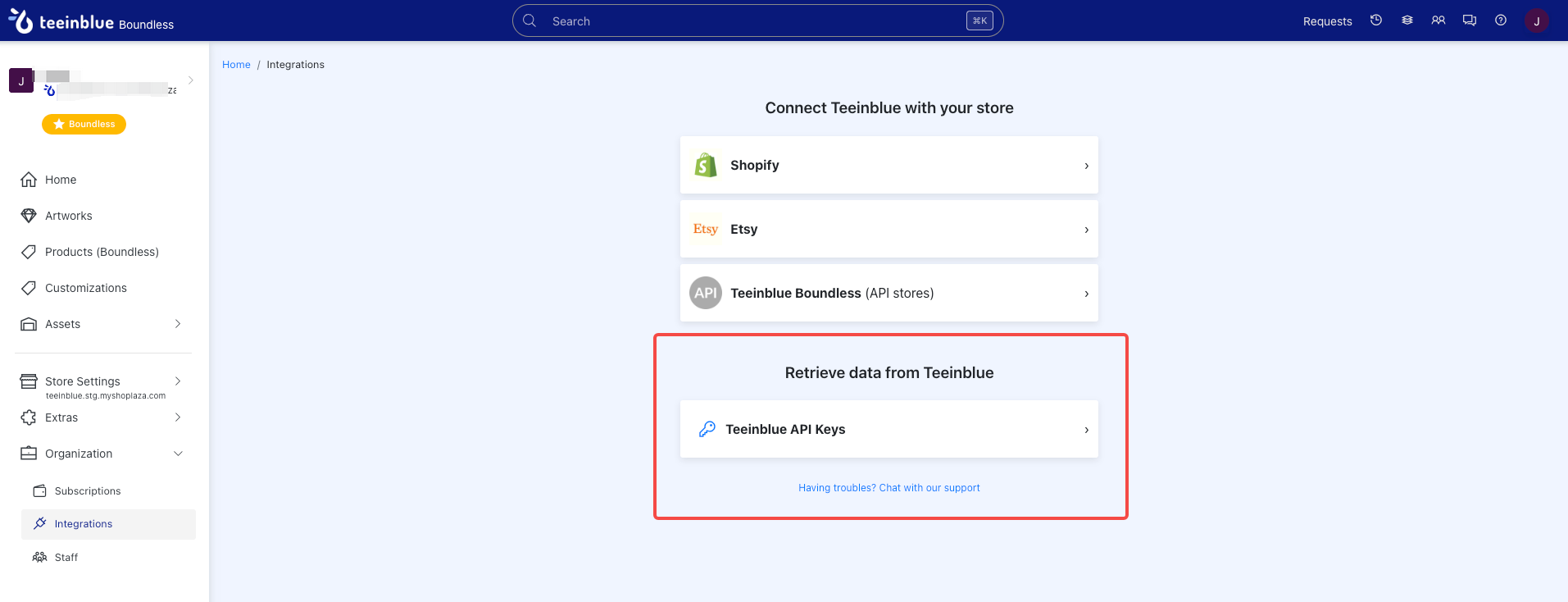
Click your username, select Install app on new stores to access Integrations, then click Teeinblue API Keys to enter the API configuration page and configure the required permissions.
Note
Once the API Key is generated, it cannot be viewed again. Please save it immediately and then paste it into the API Key field under Account Settings in the Shoplazza App. Make sure to grant the campaigns:read permission.
4. Configure Artworks Templates:Configure product personalization options, such as custom designs, custom text, and other personalization elements.
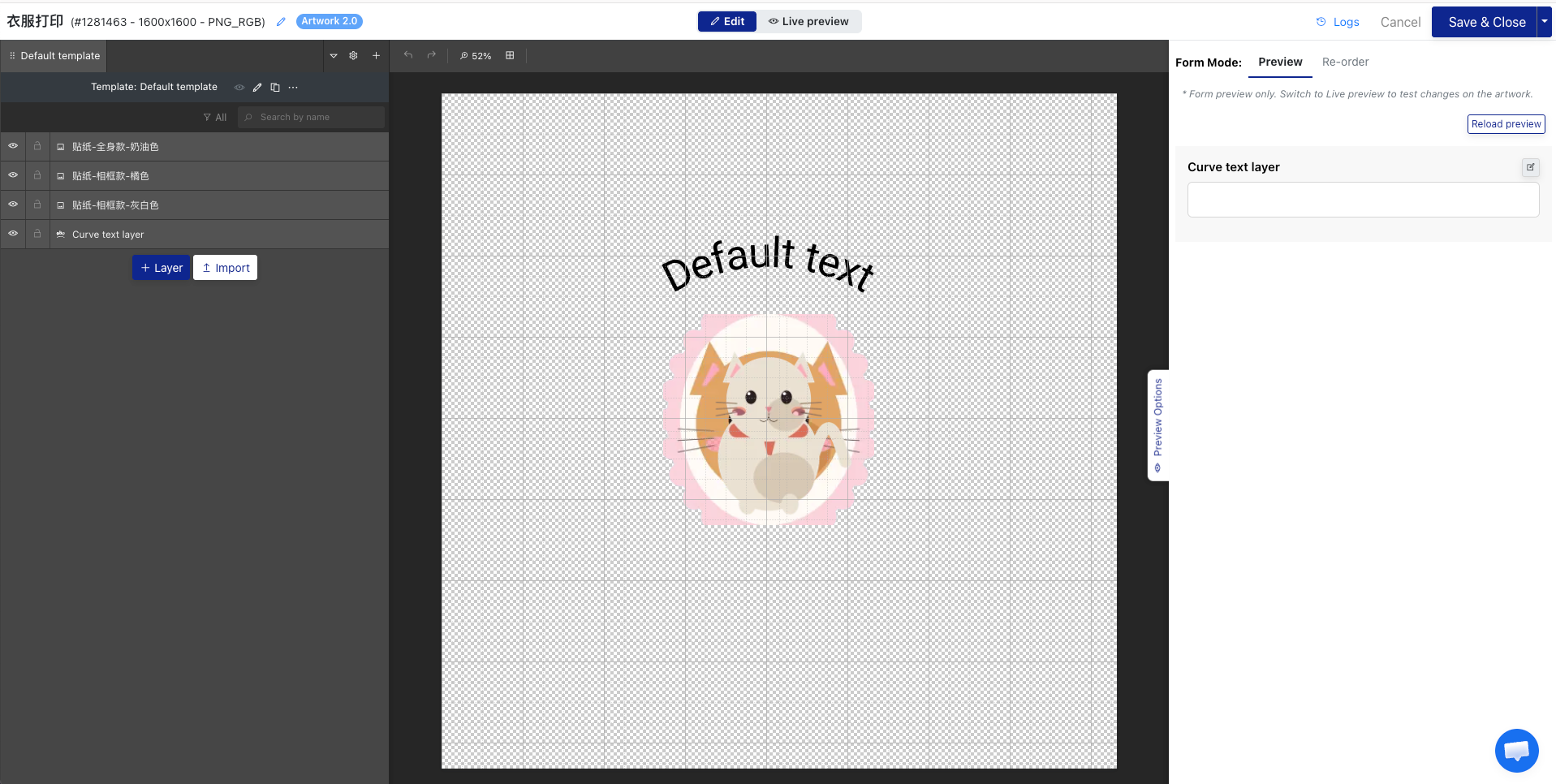
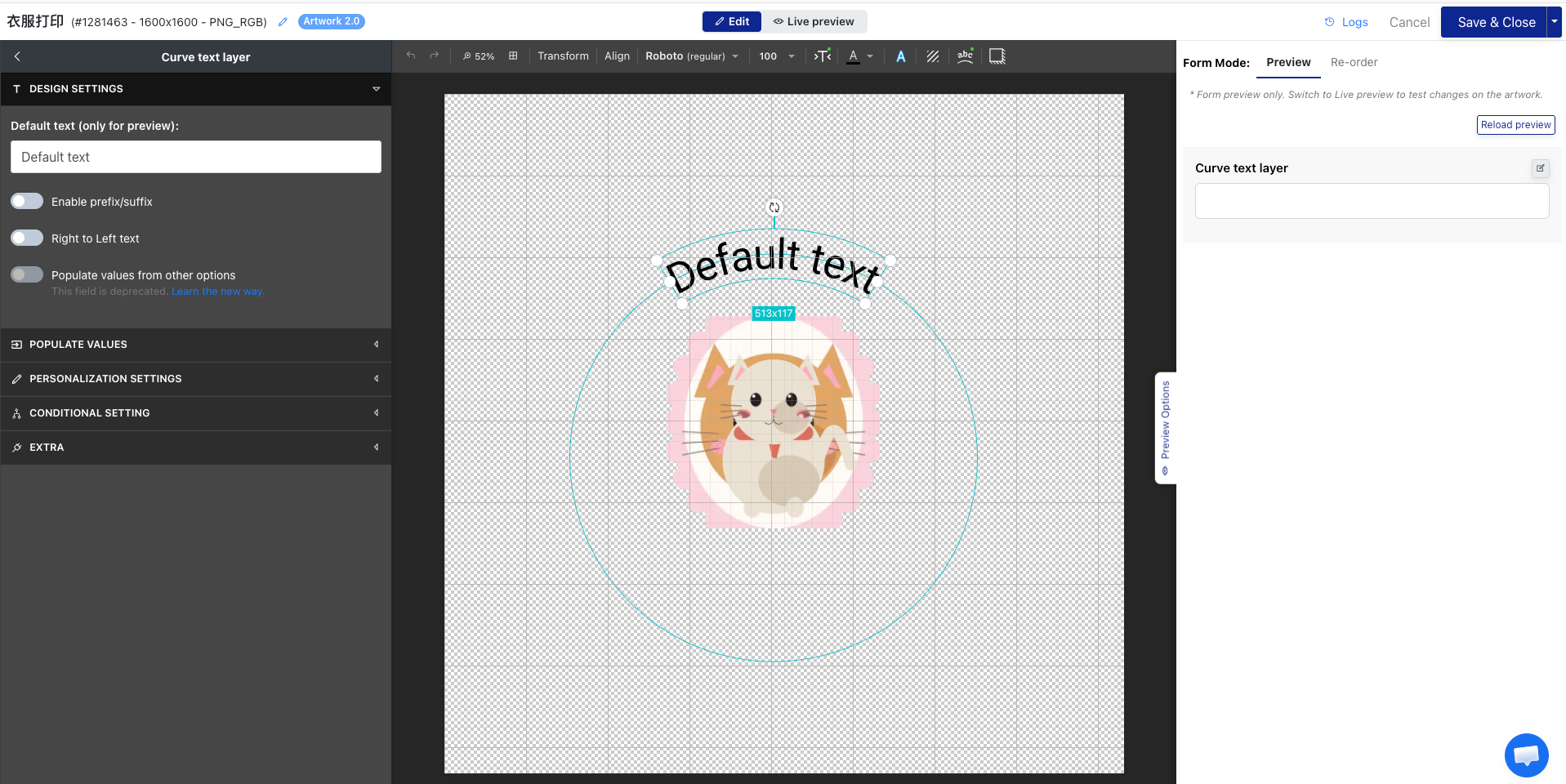
5. Configure Option Settings:Set the default values, styles, display conditions, and other settings for the options.
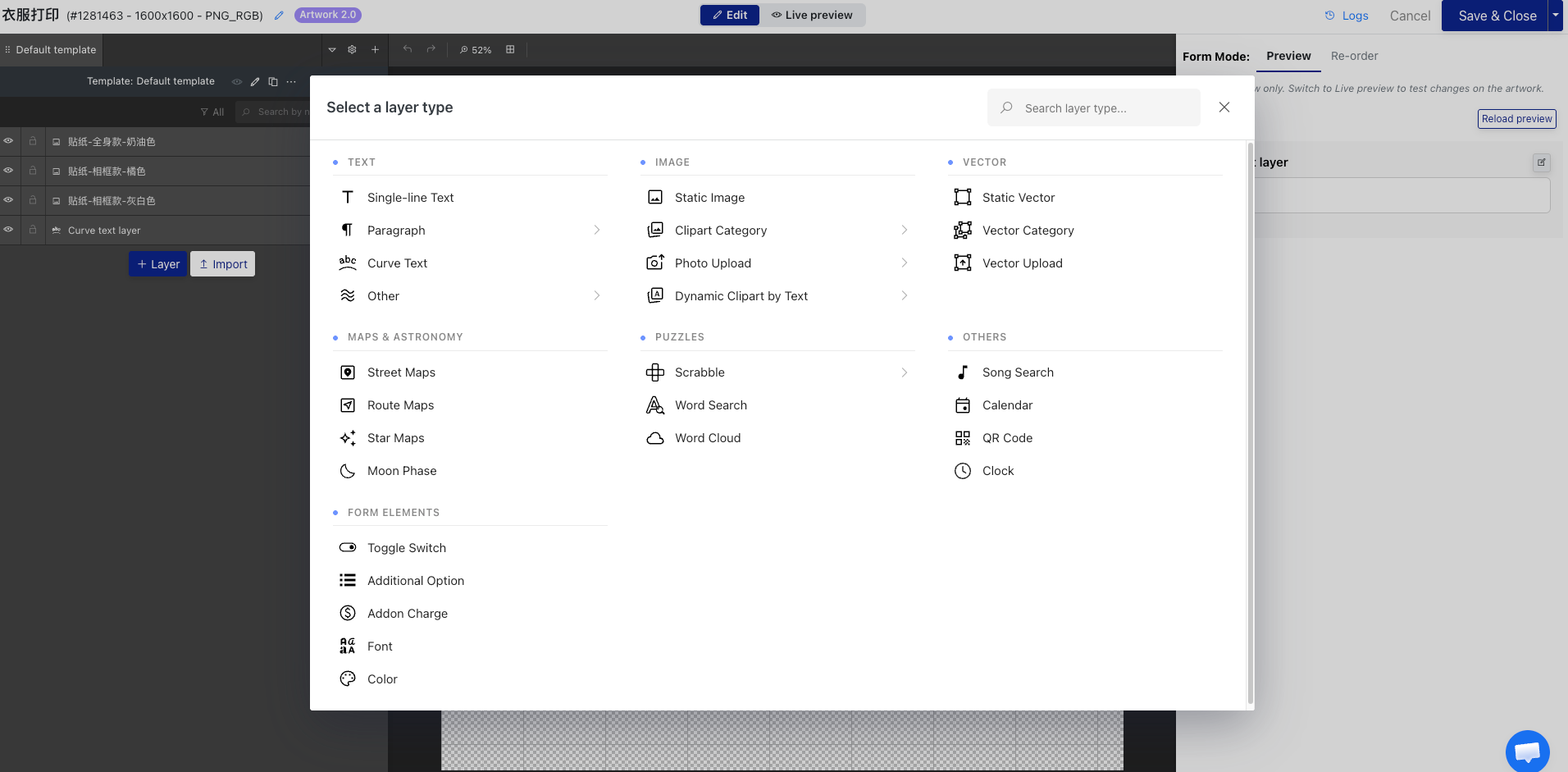
6. Add Personalization Options:Add additional personalization options by selecting from the available configuration components to further customize the template.
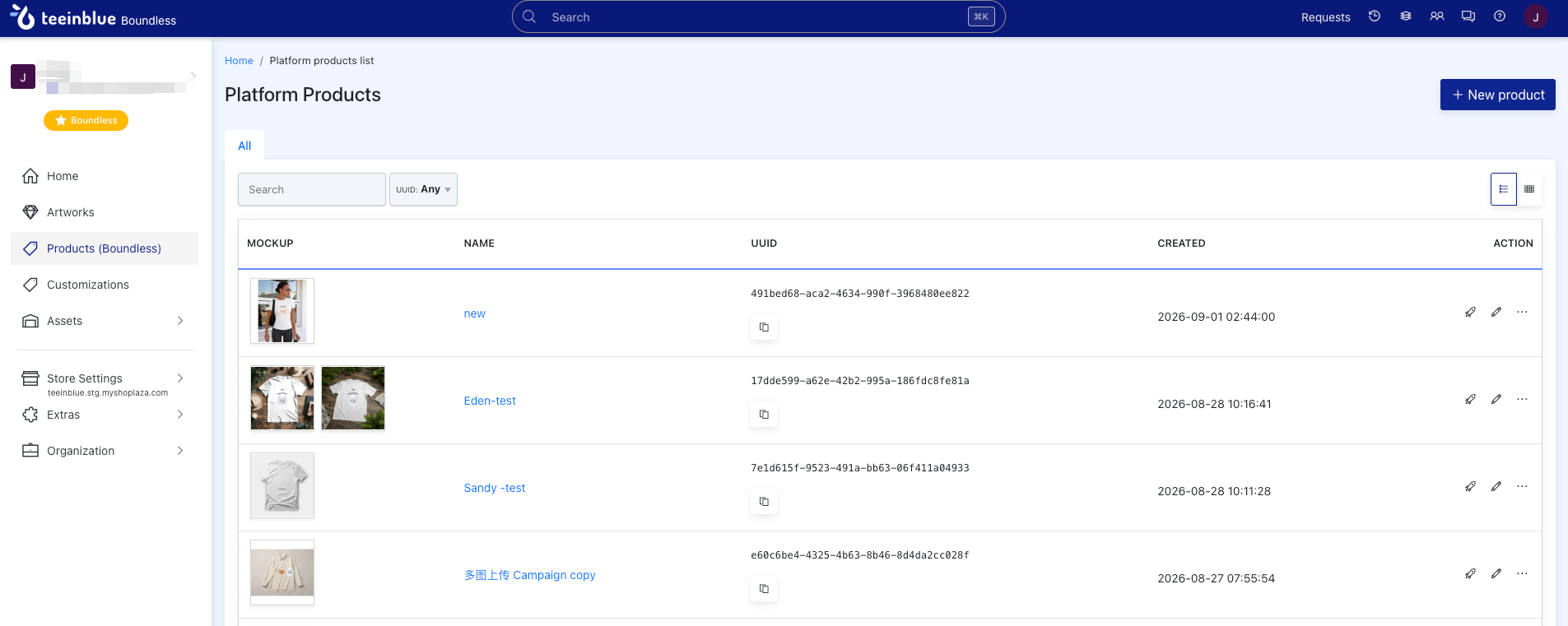
7. Configure Products (Boundless):Set up the Product Base (blank product) and associate it with a design template/print area, combining the product with its personalization options. Once configured, the product can be made available for customers to place personalized orders directly.
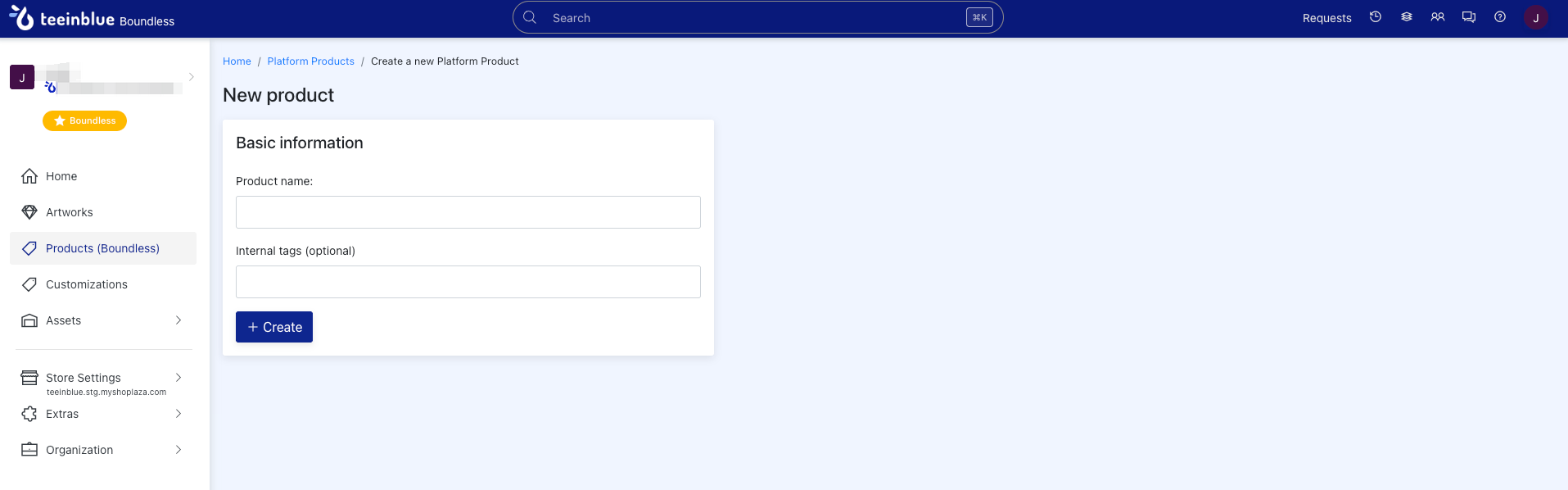
- Create a blank product and set the product name.
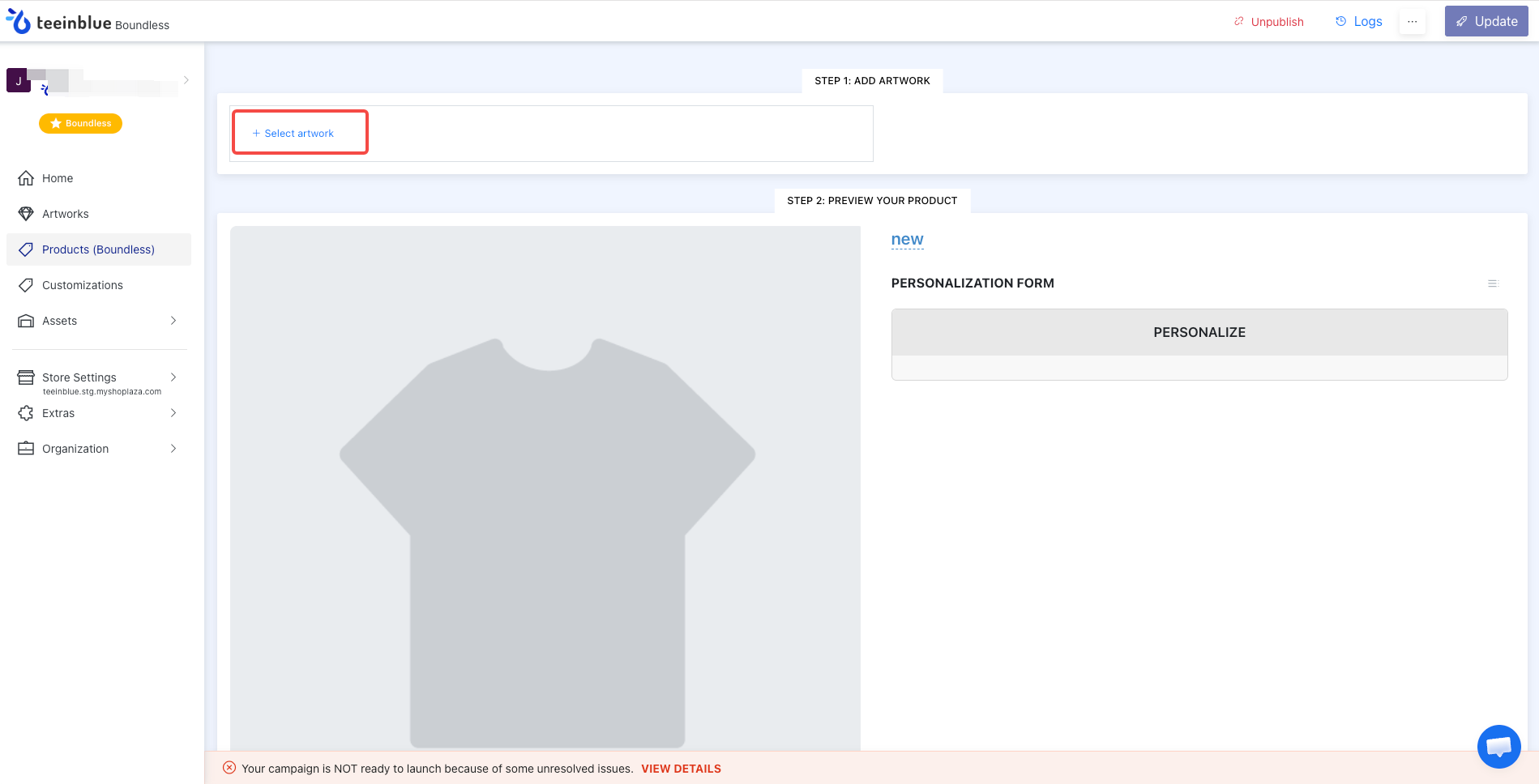
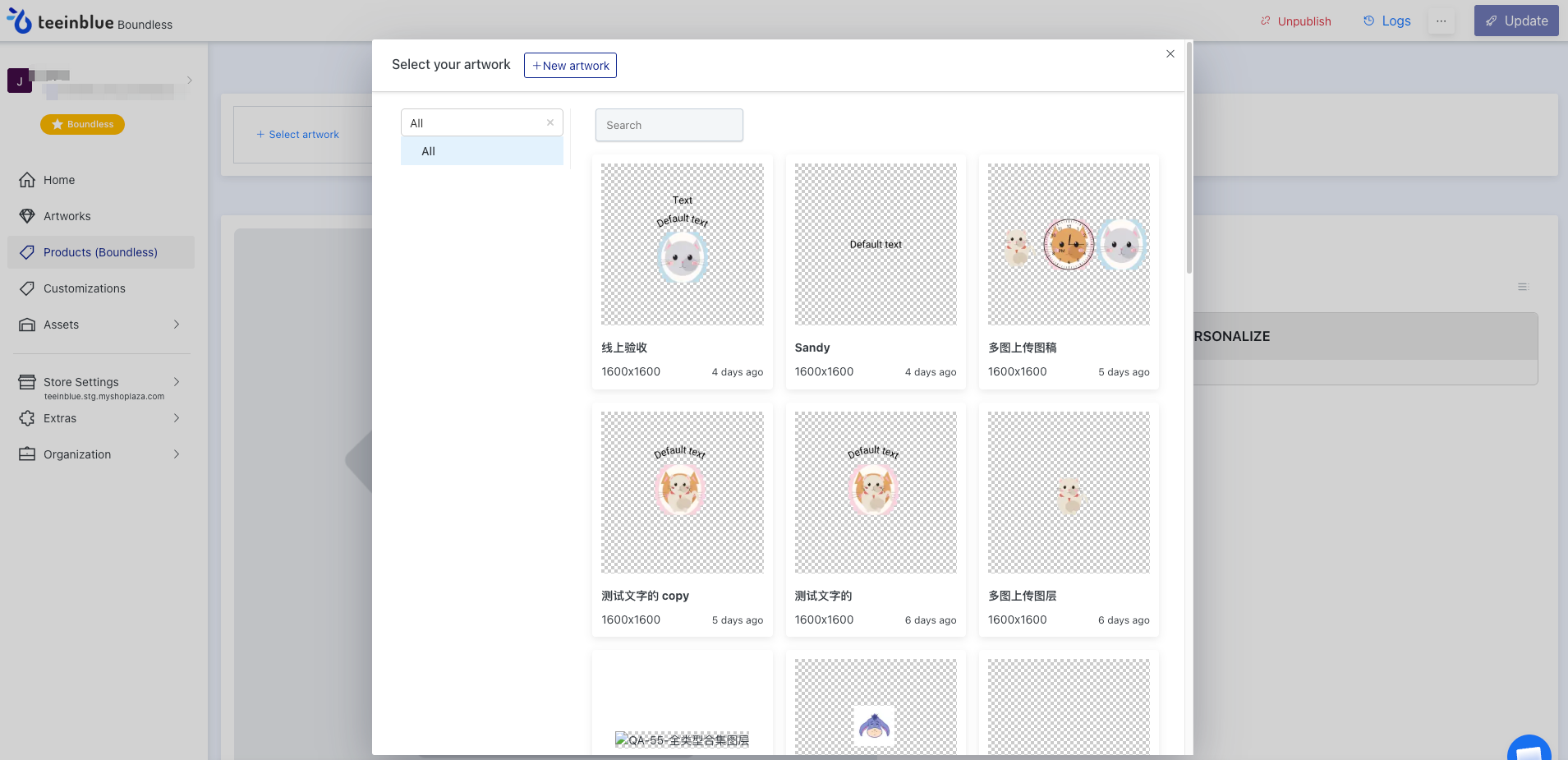
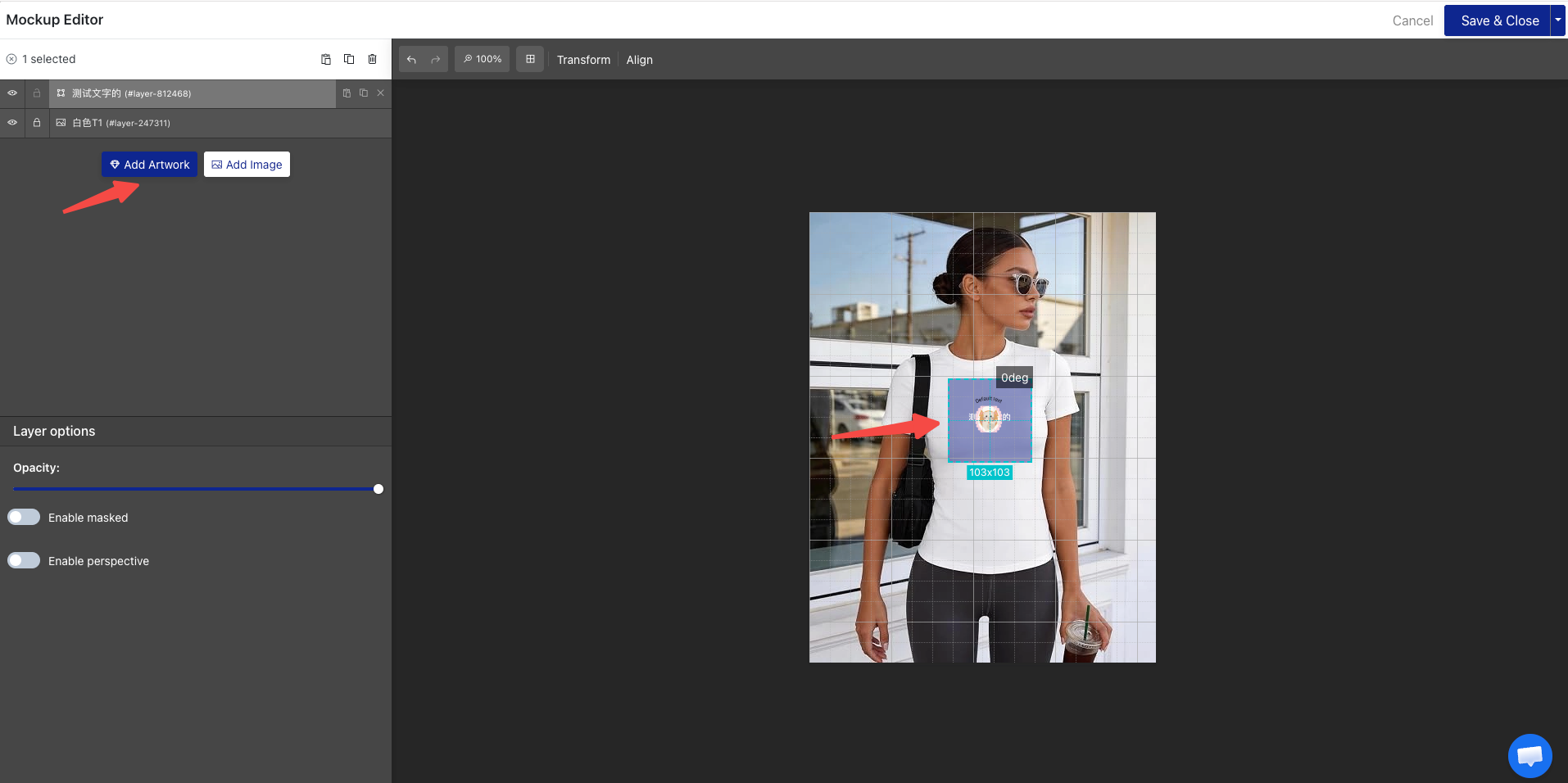
- After successfully creating the product, associate it with the previously created Artwork and upload the product base image.
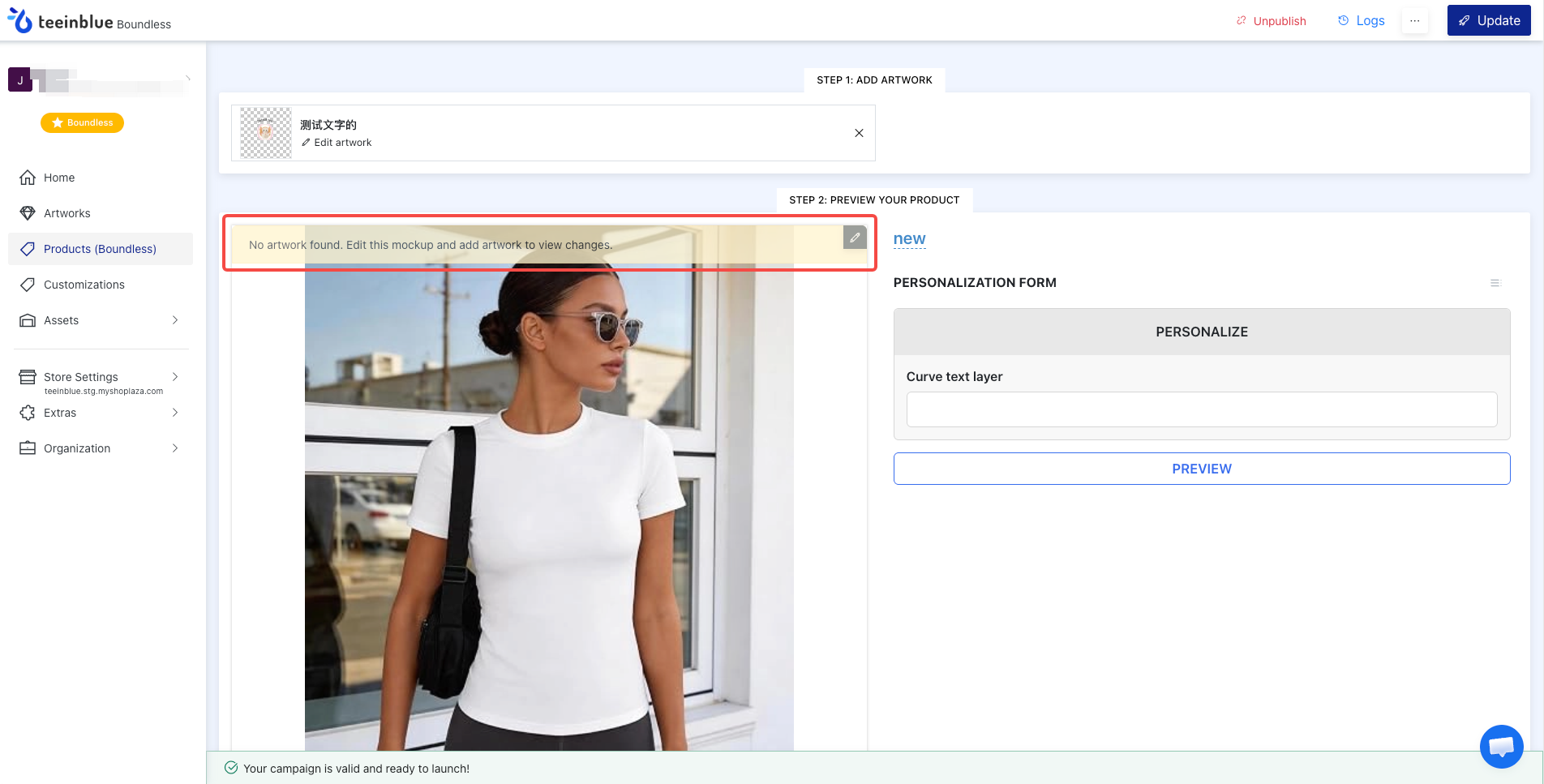
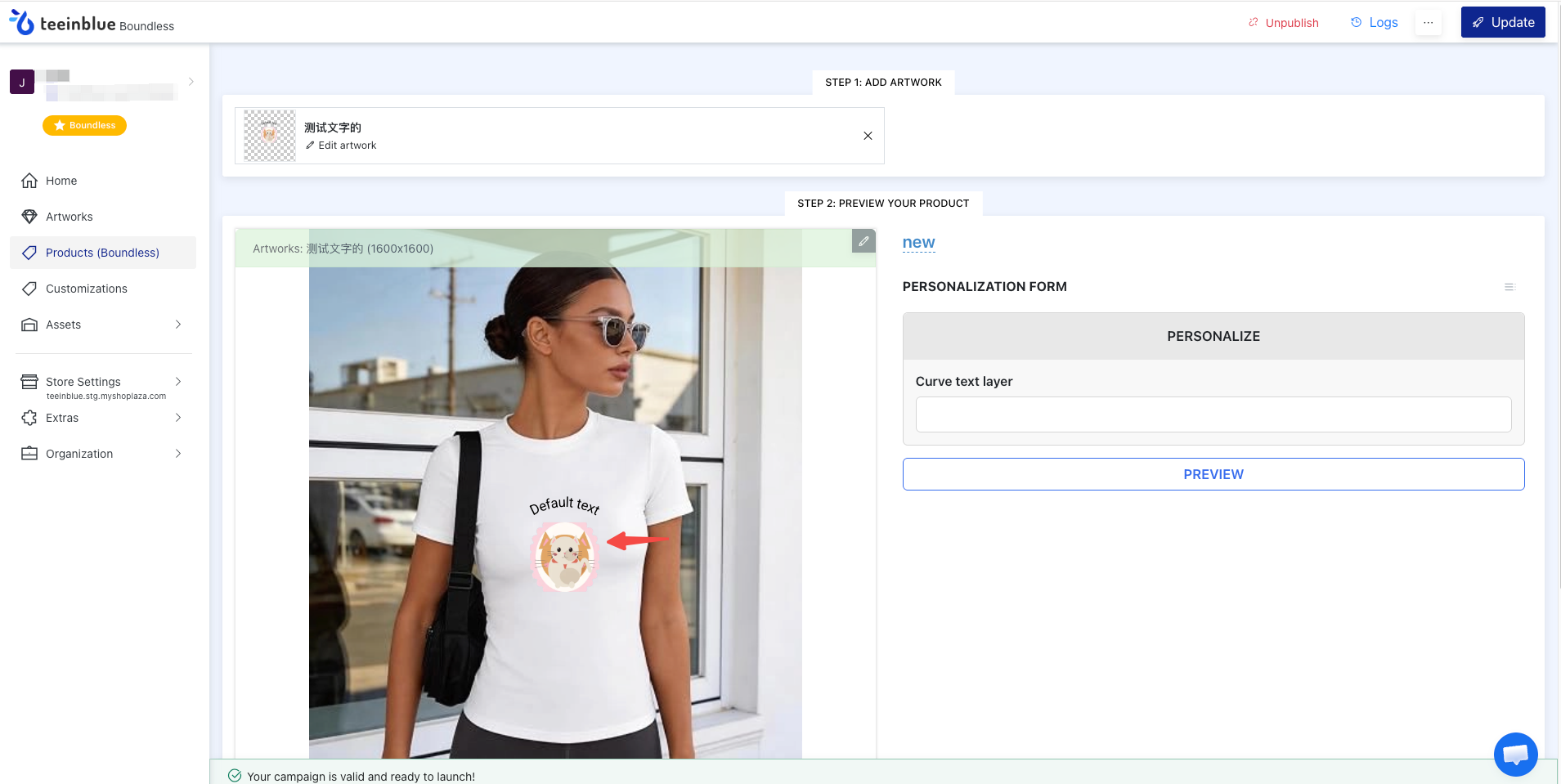
- After adding the product, configure the printing areas between the Artworks and the product. Once the configuration is complete, the Campaign will be successfully created. You can then sync the Campaign to Shoplazza and associate it with the corresponding product personalization template.
Shoplazza App Setup
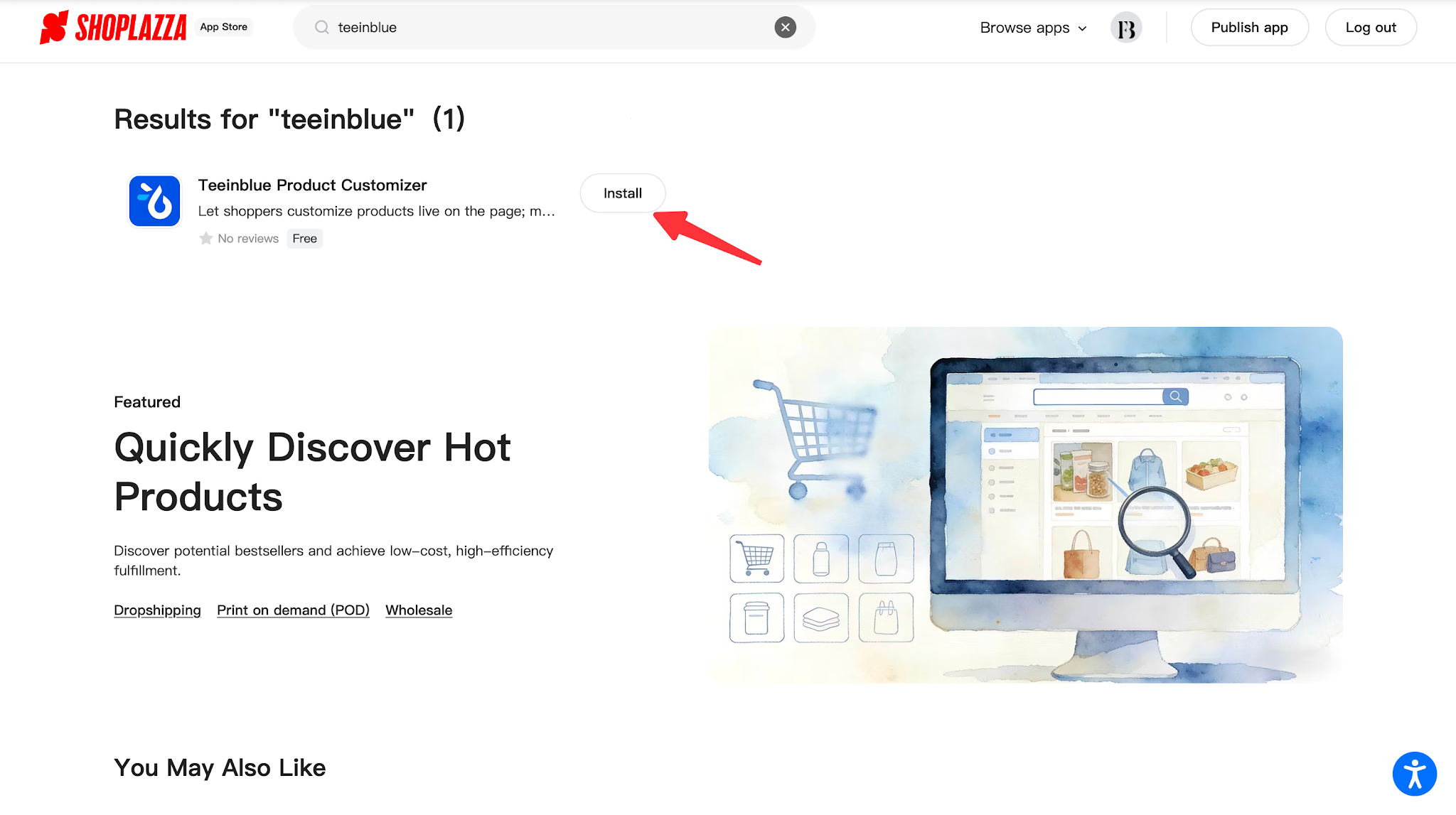
1. Log in to your Shoplazza admin panel, go to Apps, and visit the Shoplazza App Store. Search for Teeinblue Product Customization and install the app.
2. After installation, you can find Teeinblue Product Customization in the app list and click to open it.
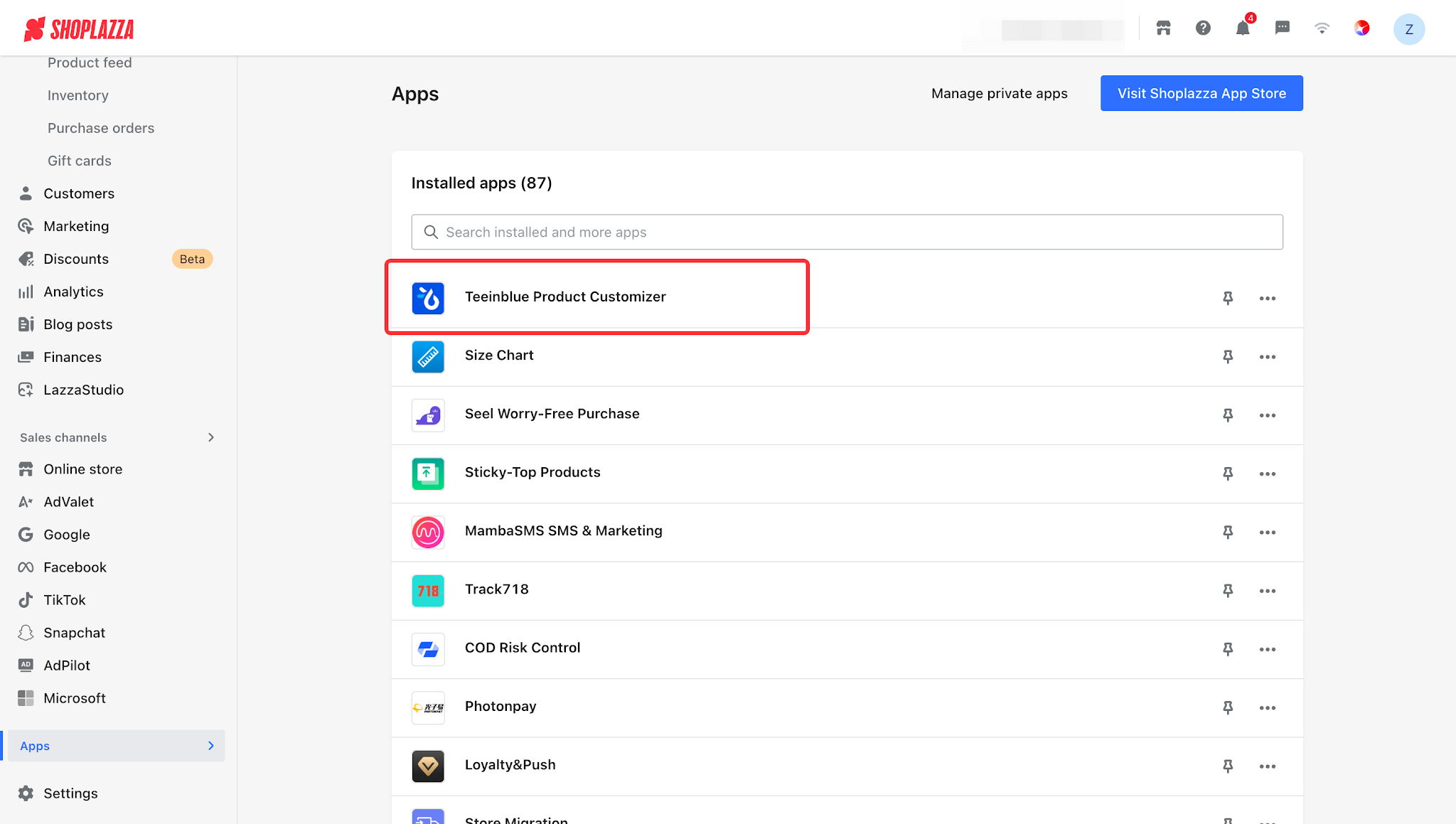
3. The app mainly consists of Dashboard, Product (Boundless), Product List, Order, and Account Settings.
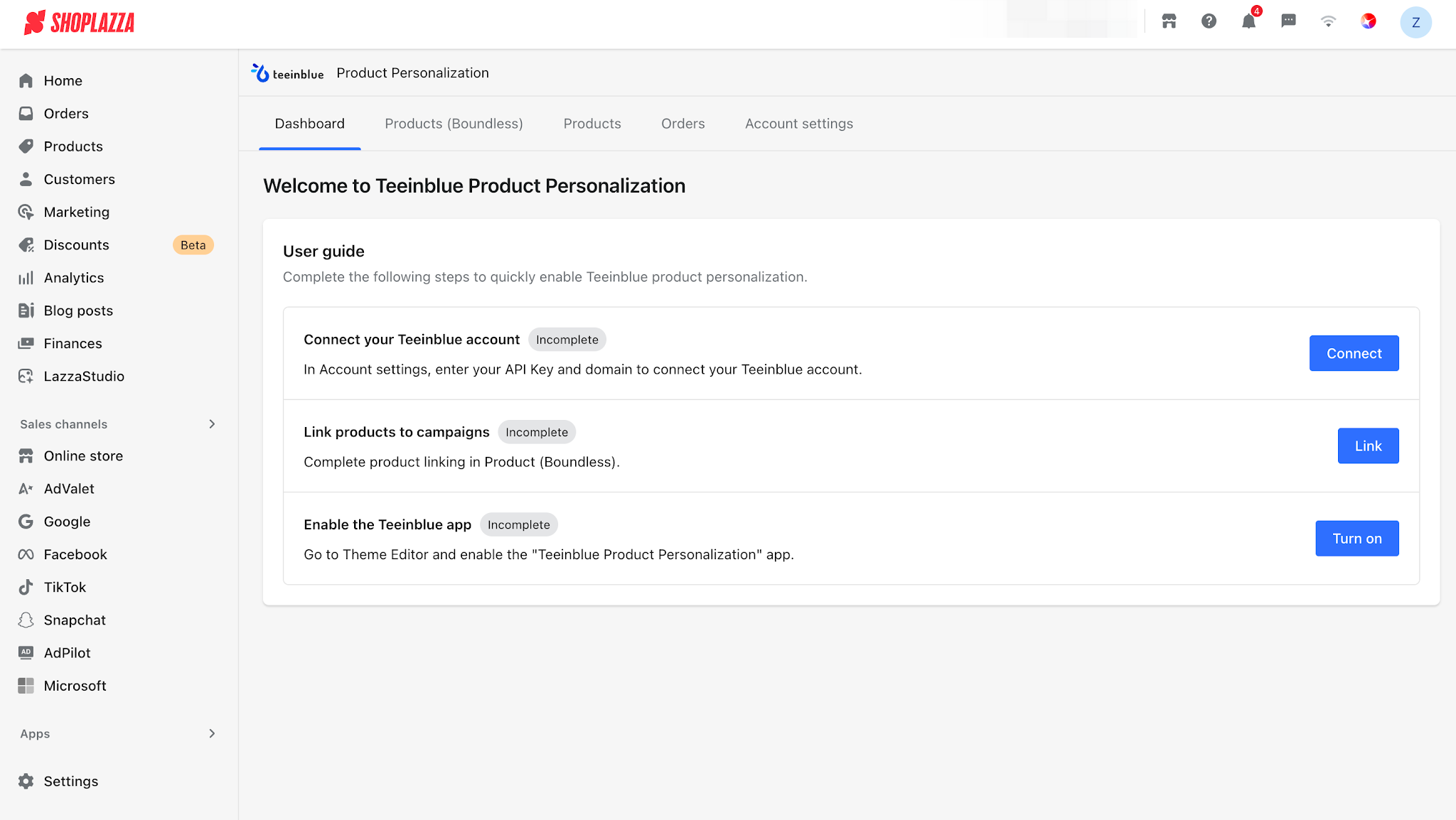
4. The Dashboard mainly provides merchants with a guided setup and usage guide. Once the guide is completed, it will no longer be displayed.
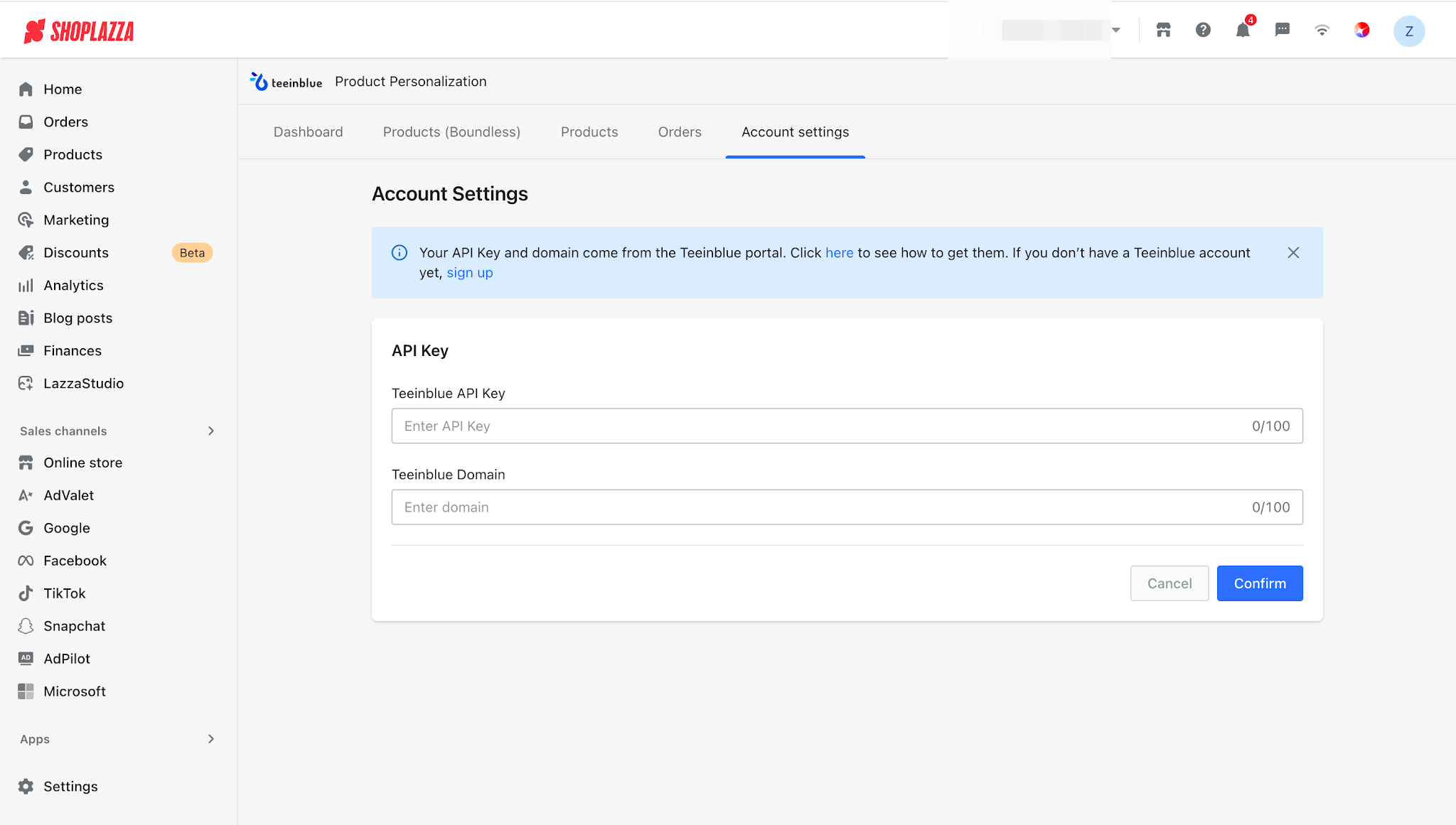
- Connect your Teeinblue account: Enter the API Key generated in the Teeinblue API settings and the corresponding domain under Account Settings to establish a direct connection between the two platforms.
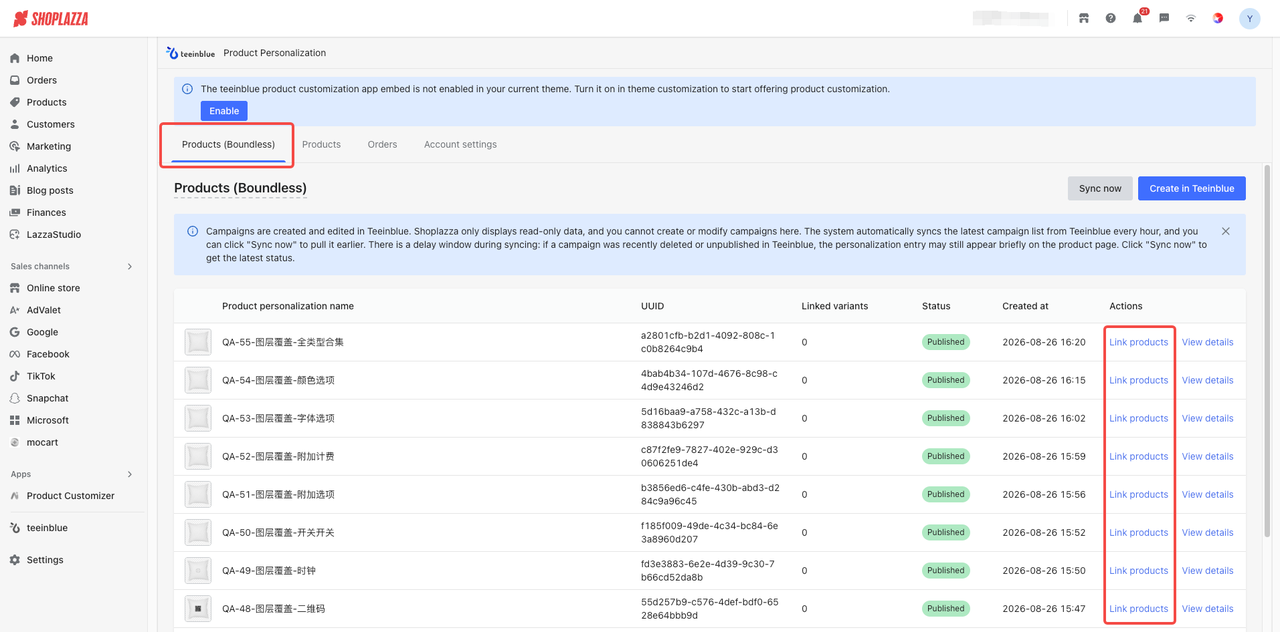
- Associate Products with Campaigns: Since the Teeinblue API does not support syncing Shoplazza products to the Teeinblue admin panel, merchants need to first sync the Campaigns (personalization templates) from Teeinblue, and then associate the Shoplazza products with the corresponding Teeinblue Campaigns in the Shoplazza admin panel.
- Enable the Teeinblue App: Enable the Teeinblue Product Personalization app in the theme editor. After switching to a different theme, you will also need to enable the app again. Otherwise, the Teeinblue personalization information will not be displayed on the storefront.
5. Products (Boundless): Displays the Campaigns (personalization templates) synced from Teeinblue.
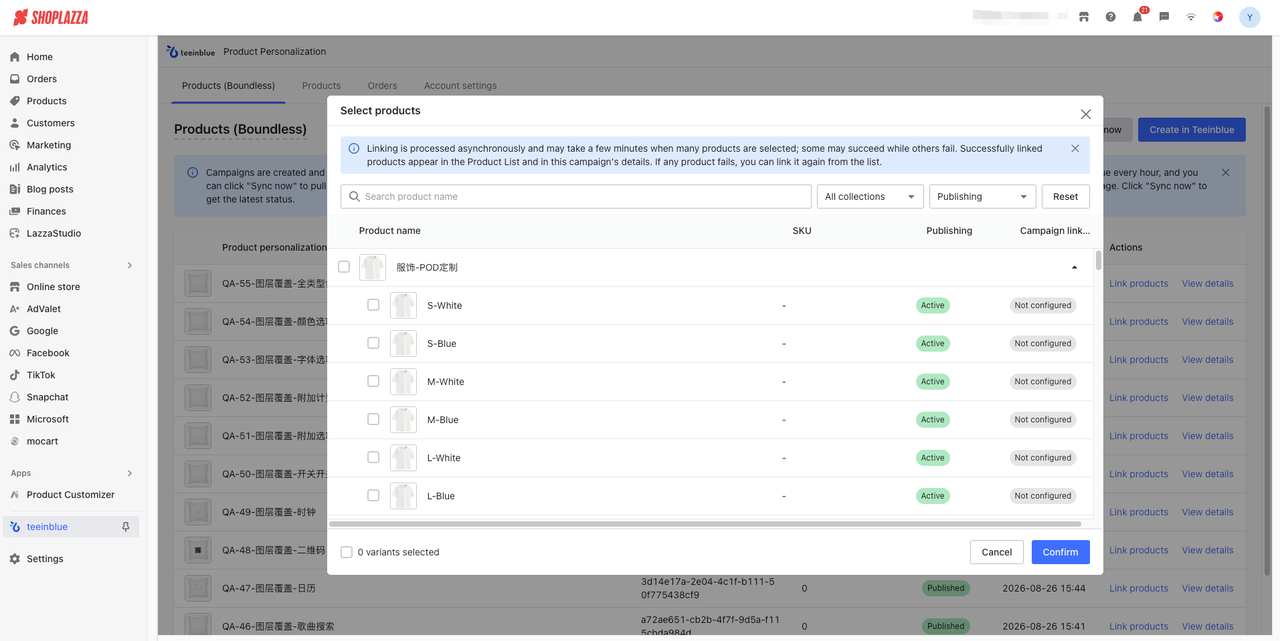
6. Associate Products: Under the template actions, click Associate Products to link the corresponding product SKUs. Different SKUs can be associated with different Campaigns (personalization templates).
Note
Due to the limitations of the Teeinblue Boundless version, the Teeinblue platform does not support configuring product personalization for multiple SKUs. Therefore, different SKUs can only be associated with different Campaigns (personalization templates) in Shoplazza. This allows customers to switch between different Teeinblue personalization templates based on the selected SKU.
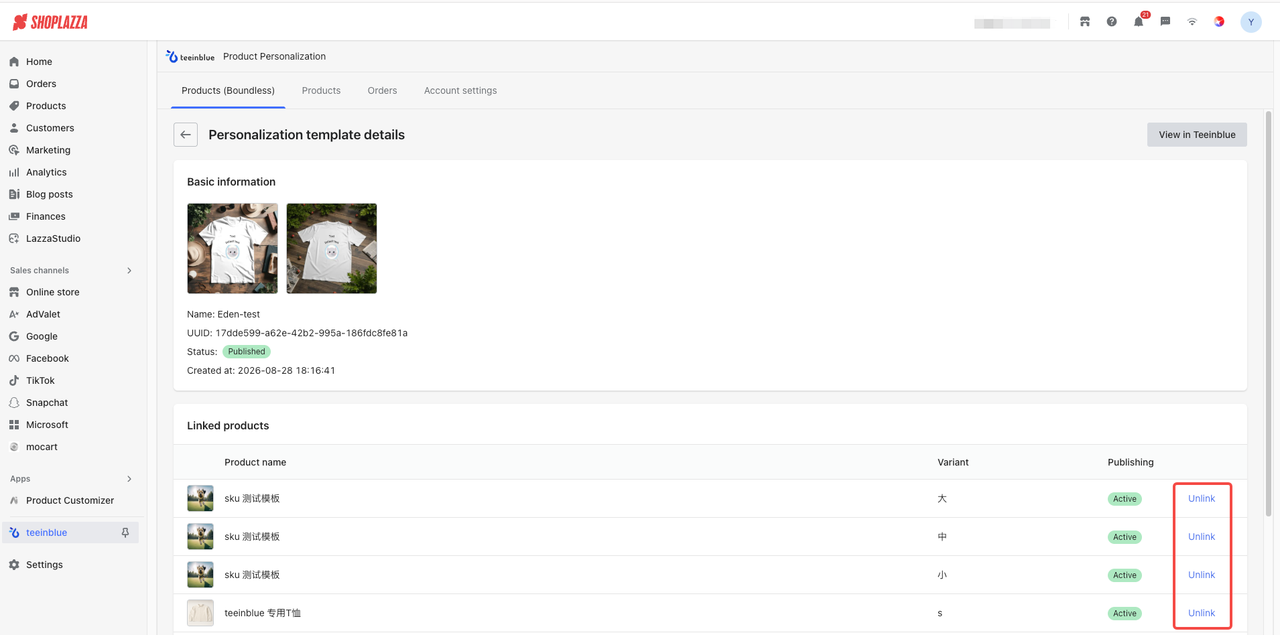
7. View Details: Click View Details to view the product information associated with the current Campaign (personalization template). You can also remove the product association from the details page.
-
Product List: Displays products that have been associated with Teeinblue Campaigns (personalization templates), i.e., products with personalization options configured. It also provides basic performance data for the corresponding personalized products.
- Personalized Product Impressions: The number of unique personalized products viewed by customers within the selected time range, where the product personalization component was displayed on the product detail page.
- Visitors: The number of unique visitors (UV) who visited product detail pages with the personalization component.
- Added to Cart: The number of unique visitors (UV) who added a personalized product to their cart.
- Completed Orders: The number of paid orders containing personalized products.
- Total Product Sales: The total transaction amount generated by personalized products in completed orders.
- Conversion Rate: Completed Orders ÷ Visitors, representing the conversion rate from product views to orders.
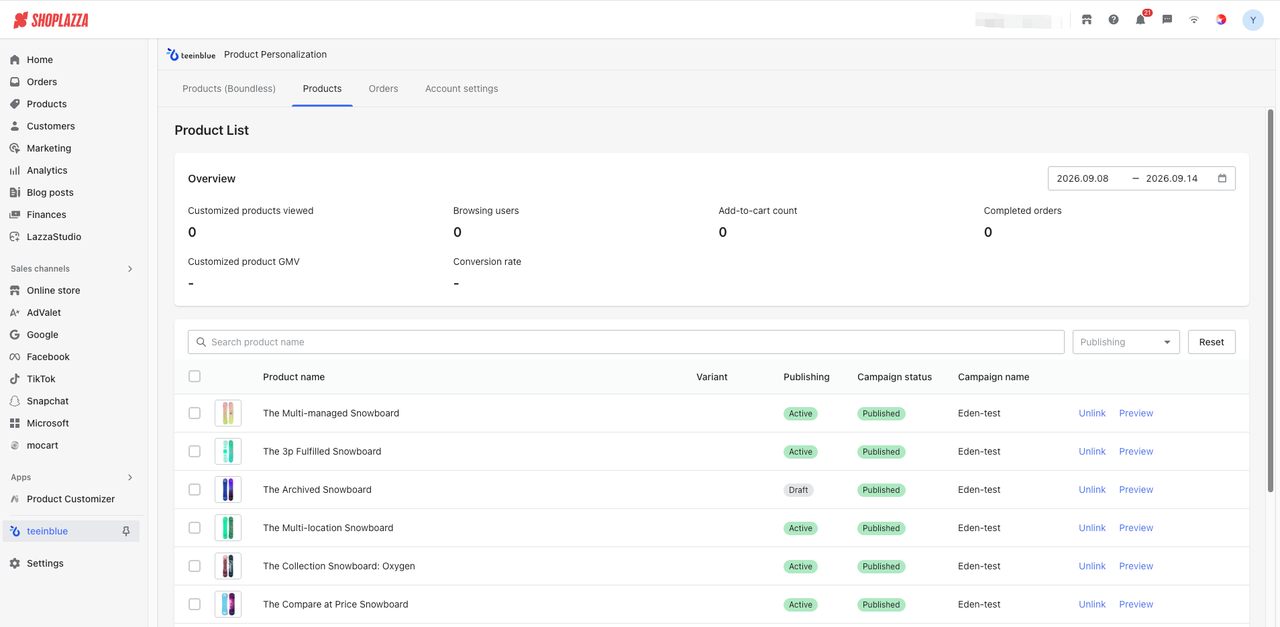
9. If a Teeinblue Campaign (personalization template) is deleted or unpublished after being associated with a product, the affected product will be marked accordingly in the Product List. The product can then be associated with a new Campaign, or the Campaign can be republished in Teeinblue.
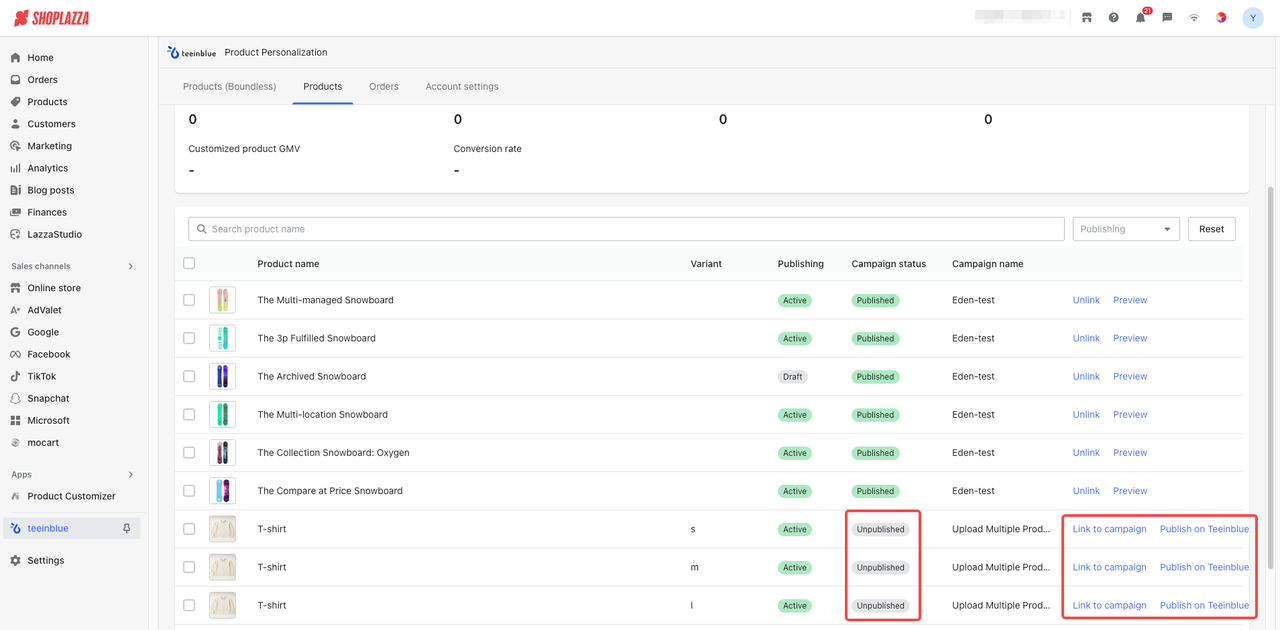
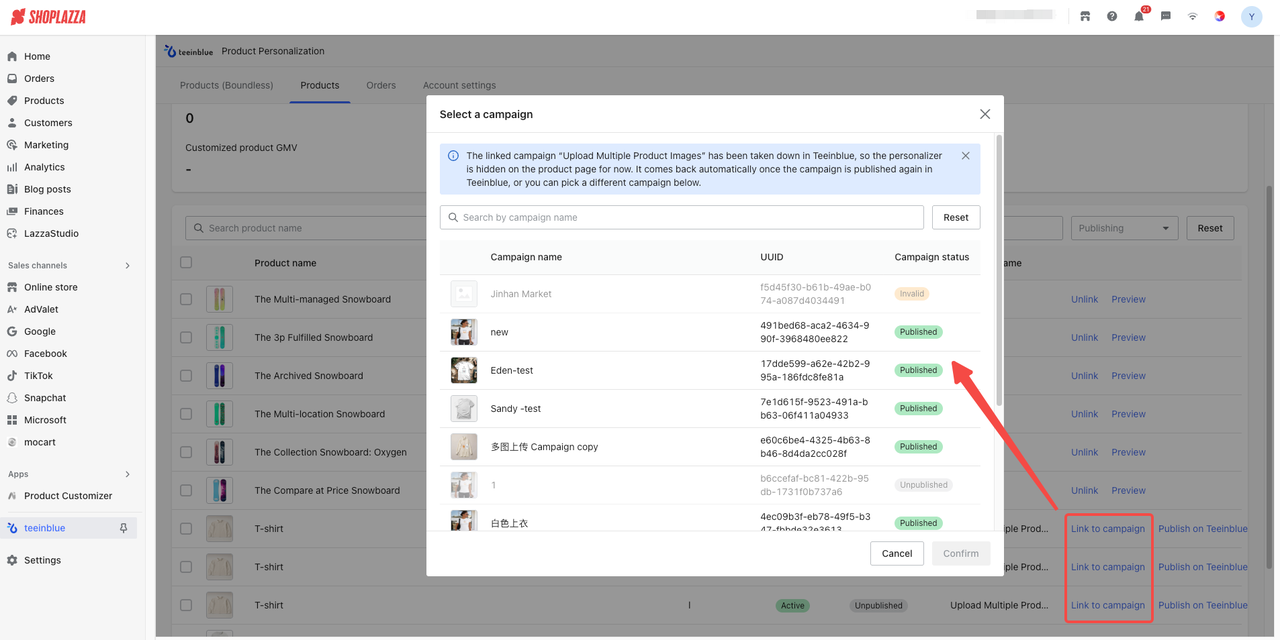
Teeinblue Campaign (Personalization Template) Status
- Published: The Campaign is currently published and available for use.
- Unpublished: The Campaign is currently unpublished.
- Deleted: The Campaign has been deleted in Teeinblue.
- Error: The Campaign does not have any Artworks or Mockup data associated with it in Teeinblue.
10. Order List: Displays orders placed for Teeinblue personalized products. Click the order number to view the order details and the specific personalization options.
11. Account Settings
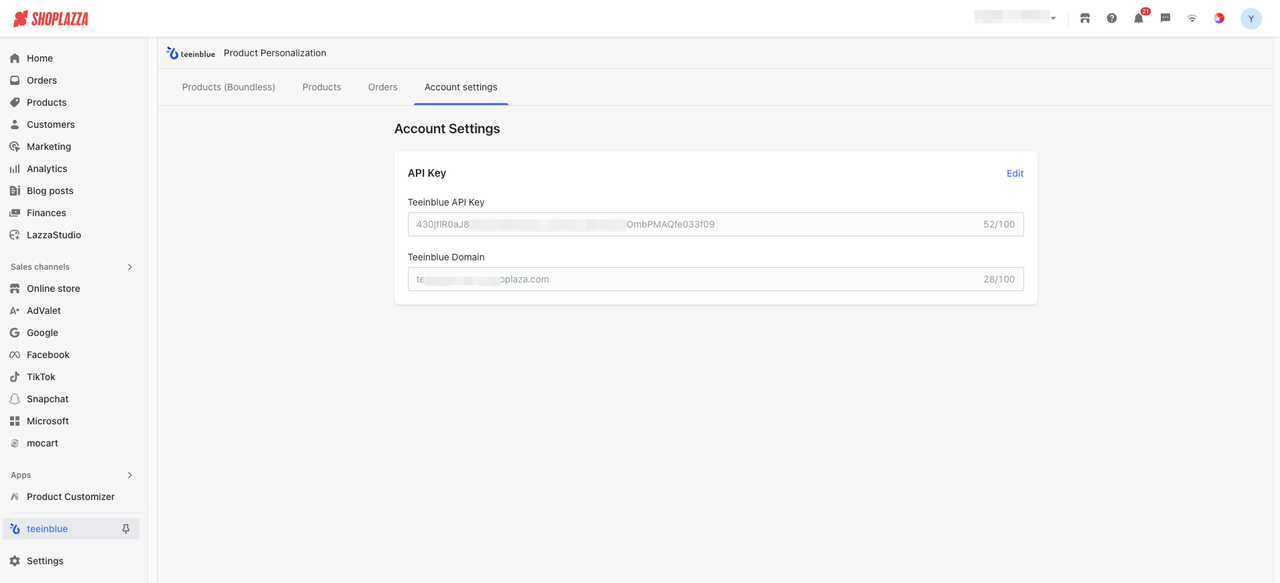
- Teeinblue API Key: The API Key generated in the Teeinblue admin panel. See the Teeinblue API Key section for more information.
- Teeinblue Domain: The domain configured in the Teeinblue admin panel. See the Teeinblue Domain section for more information.
Note
Switching to a different Teeinblue domain or a different Teeinblue account under Account Settings will trigger the Campaign information to be re-synced. The existing product-Campaign associations will also be removed. Merchants will need to re-associate their products with the Campaigns under the new domain or account.
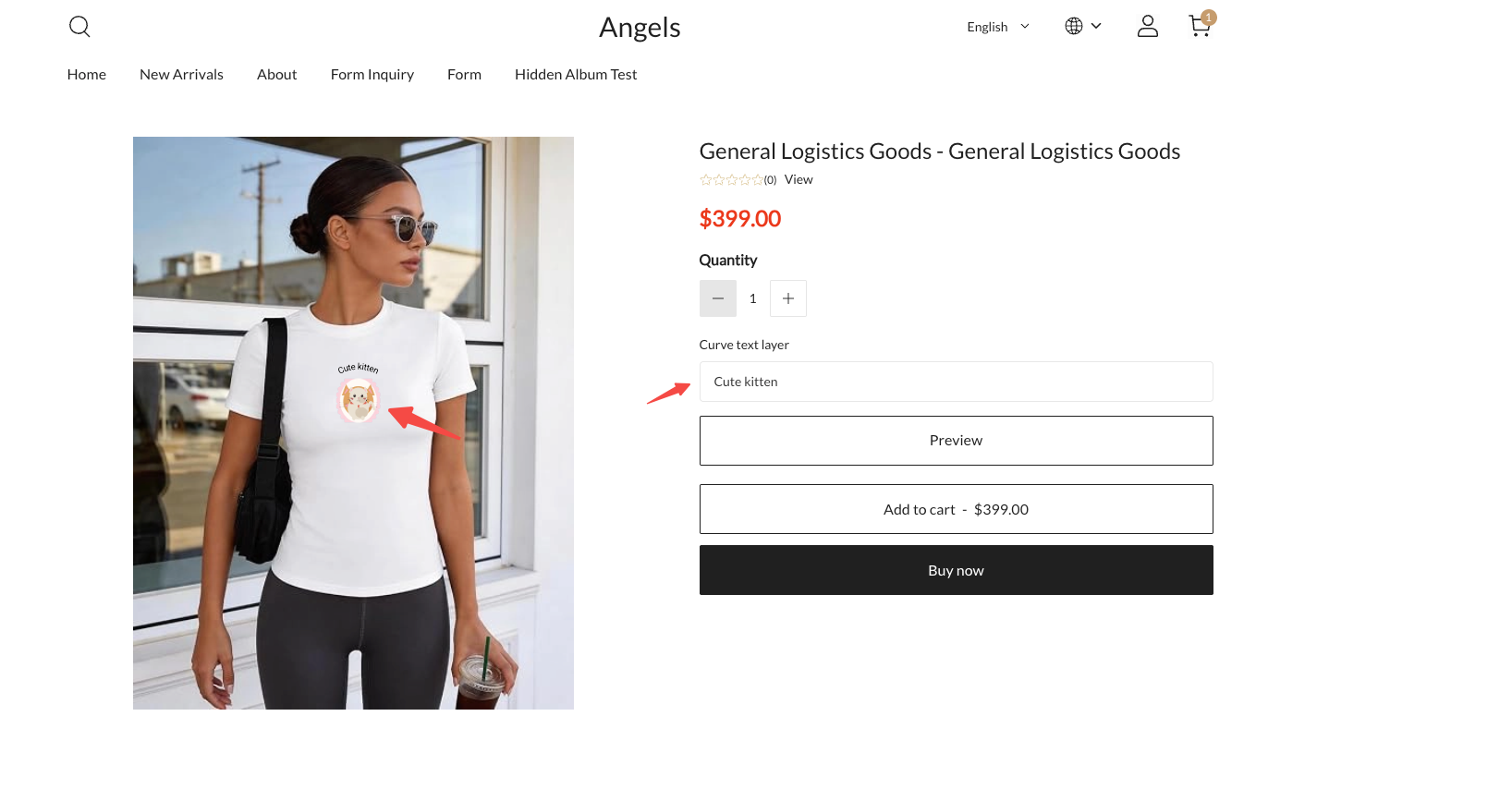
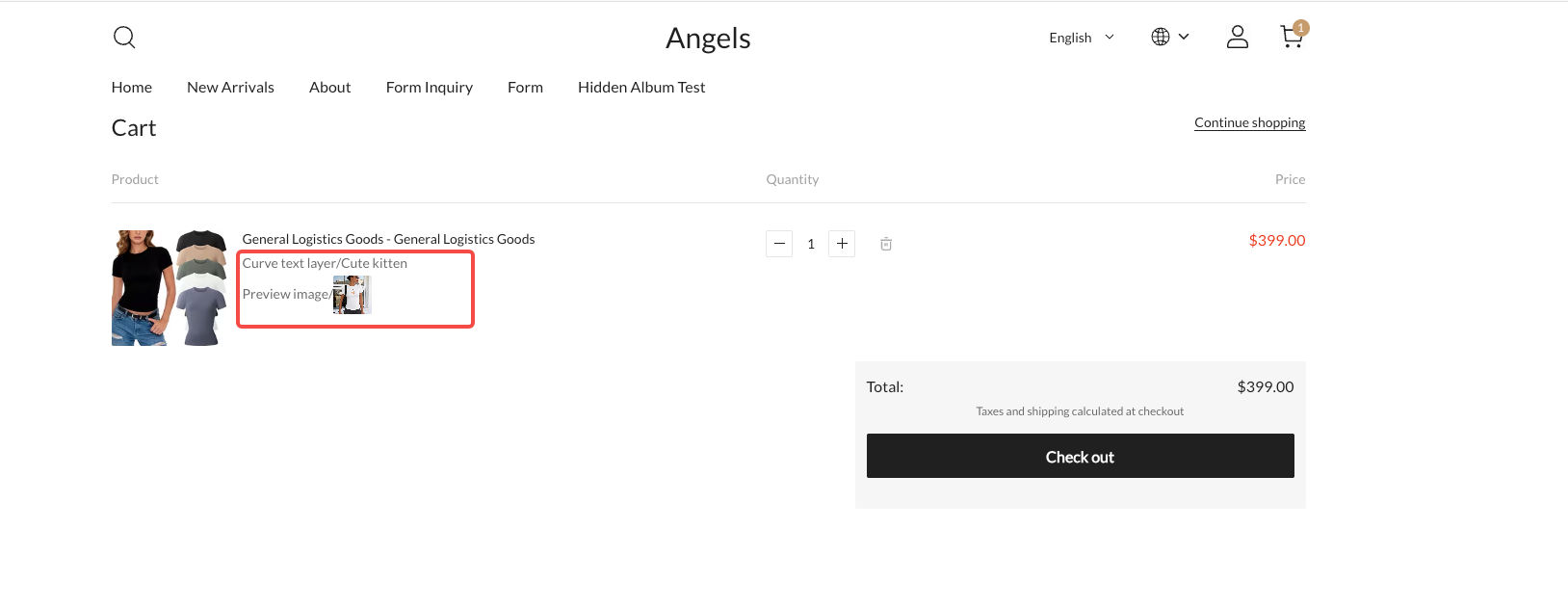
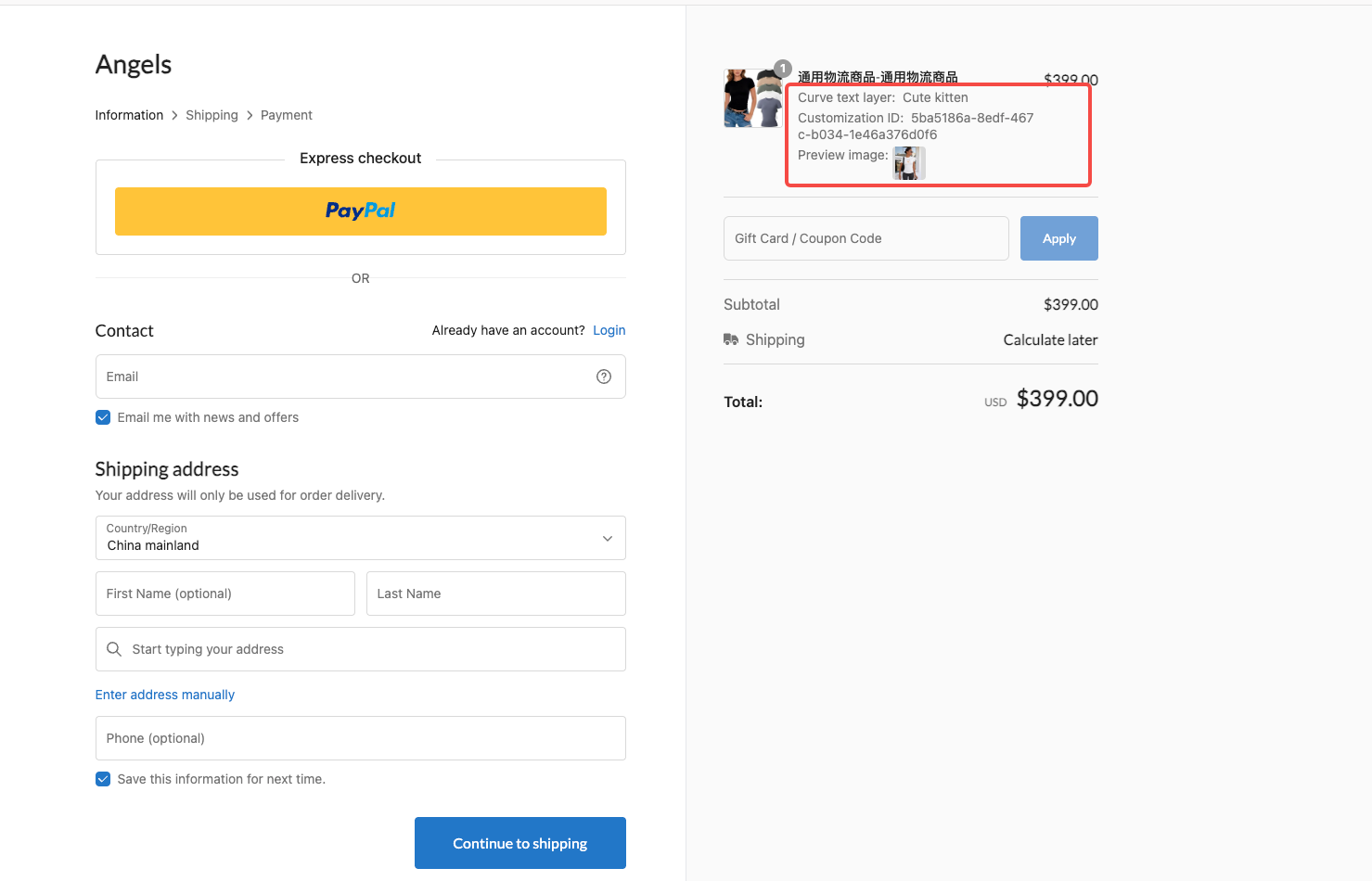
12. Storefront: Customers can view the Teeinblue personalization options associated with the product on the product detail page and complete the subsequent ordering process.
V. Frequently Asked Questions (FAQ)
Q1: Can I create or edit personalization templates directly in the Shoplazza admin panel?
A: No. Campaigns (personalization templates) must be created in the design editor in the Teeinblue admin panel. Shoplazza is responsible for associating the Campaign with specific products, with each platform having clearly defined responsibilities.
Q2: Why can't I see the personalization feature on the product page?
A: The most common reasons are that the Teeinblue Product Personalization app has not been enabled in the theme editor, or the product has not yet been associated with a personalization template in the Campaign module. You can follow the setup checklist on the App homepage to check each item step by step.
Q3: Why does the personalization feature disappear after switching to a new theme?
A: The app needs to be enabled separately for each theme. After switching to a new theme, you need to enable the app again in the new theme editor. The App homepage will automatically remind you and provide a direct link to the relevant settings page.
Q4: What happens if a Campaign (personalization template) is deleted or unpublished in the Teeinblue admin panel?
A: Products associated with the Campaign will be marked as Campaign Unpublished/Deleted in the product list. The personalization entry will be silently hidden from the storefront, while the product itself will continue to be displayed normally without errors. Merchants can re-associate a Campaign or clean up the affected products in bulk from the product list.
Q5: Is there any additional cost for using this App?
A: The installation and usage fees for the Shoplazza App are subject to the pricing information displayed on the App Store. The Teeinblue Boundless account requires a separate subscription. The current public pricing is $297/month with an annual subscription or $396/month with a monthly subscription. Please refer to the latest information on the Teeinblue official website for the most up-to-date pricing.
Q6: Where can I find detailed instructions for using Teeinblue?
A: You can visit the Teeinblue Help Center to find detailed guides and instructions.


Comments
Please sign in to leave a comment.