
Find My Size is a smart size recommendation feature provided by the Size Chart app. After customers enter their height and weight, with bust, waist, and hip measurements as optional inputs, the system generates a recommended size based on your configured size chart, the platform’s preset U.S. women’s apparel size reference chart, and the configured fit hints. Customers can then add the recommended size to their cart with one click. This article explains how to enable Find My Size and the prerequisites that must be met.
Navigation Path
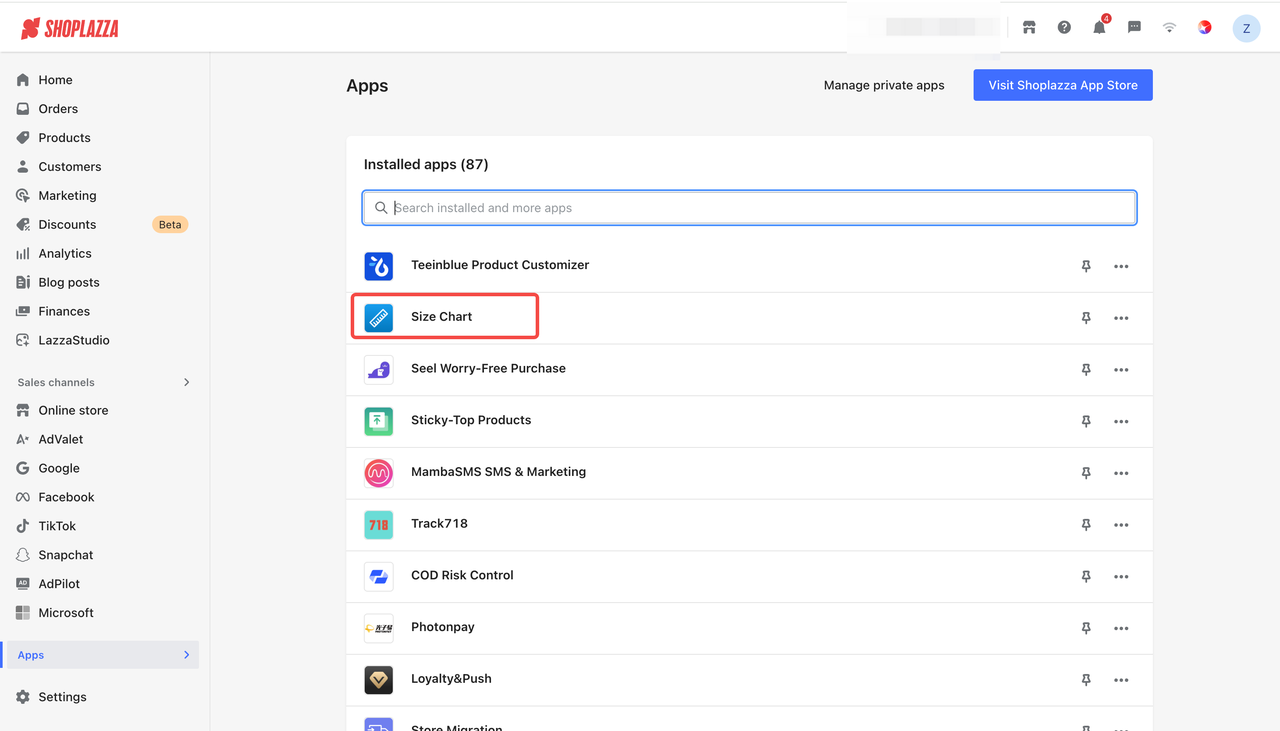
1. Log in to your Shoplazza Admin, then click the Size Chart app under Apps.
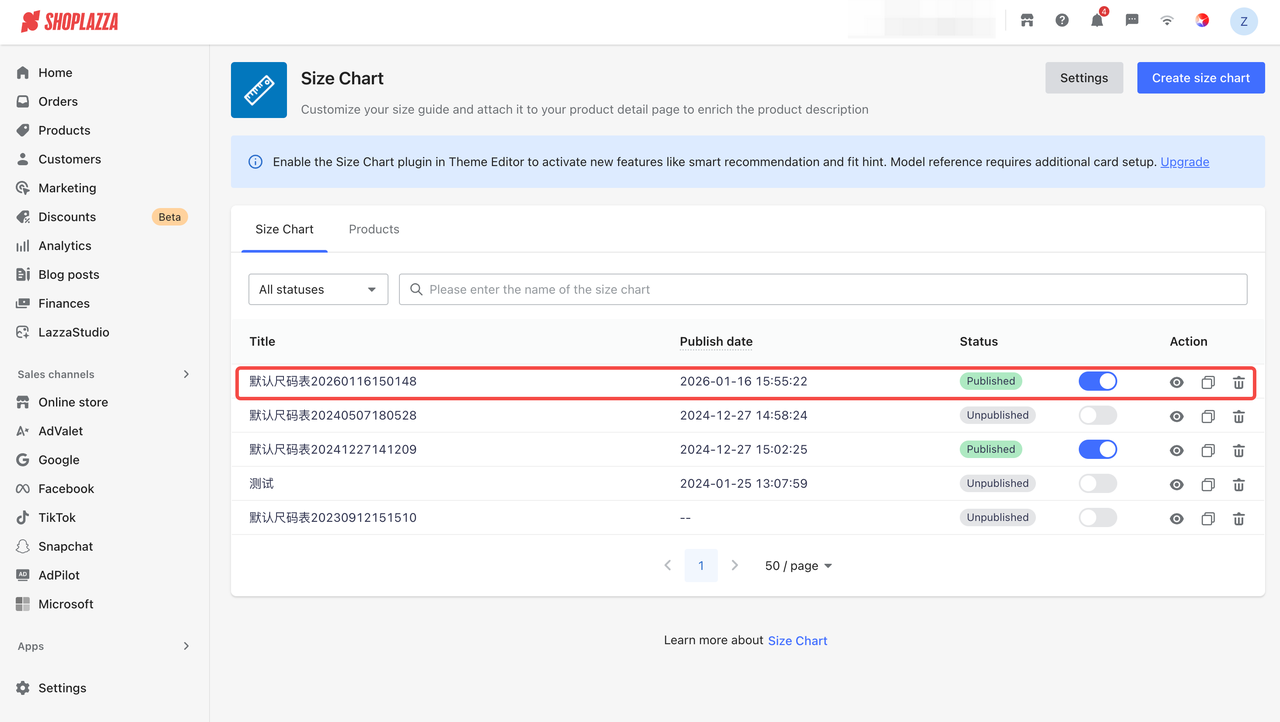
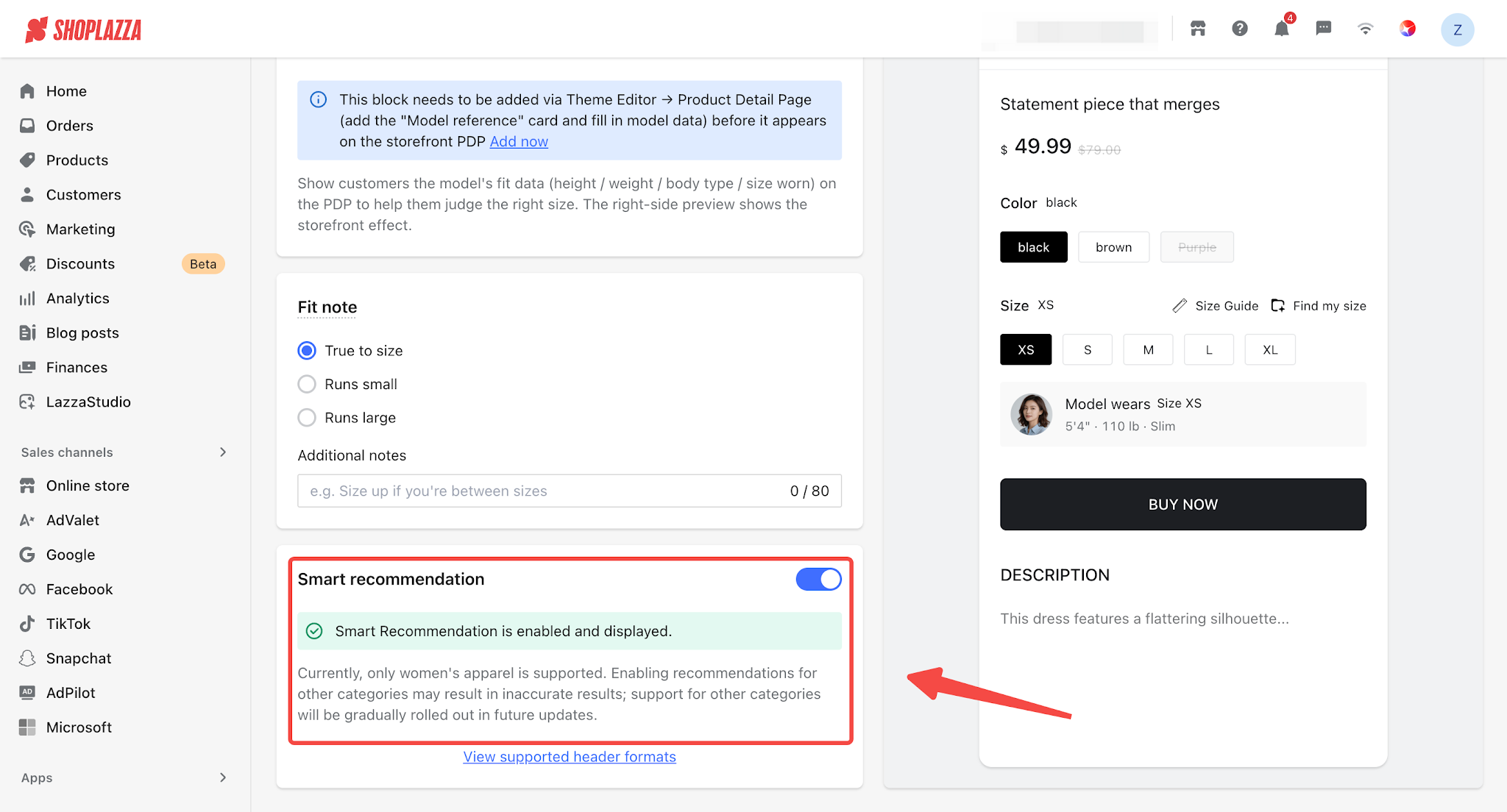
2. Select a created size chart to enter the editing page, then find the Smart Size Recommendations card in the left panel and enable the Enable Smart Recommendations toggle.
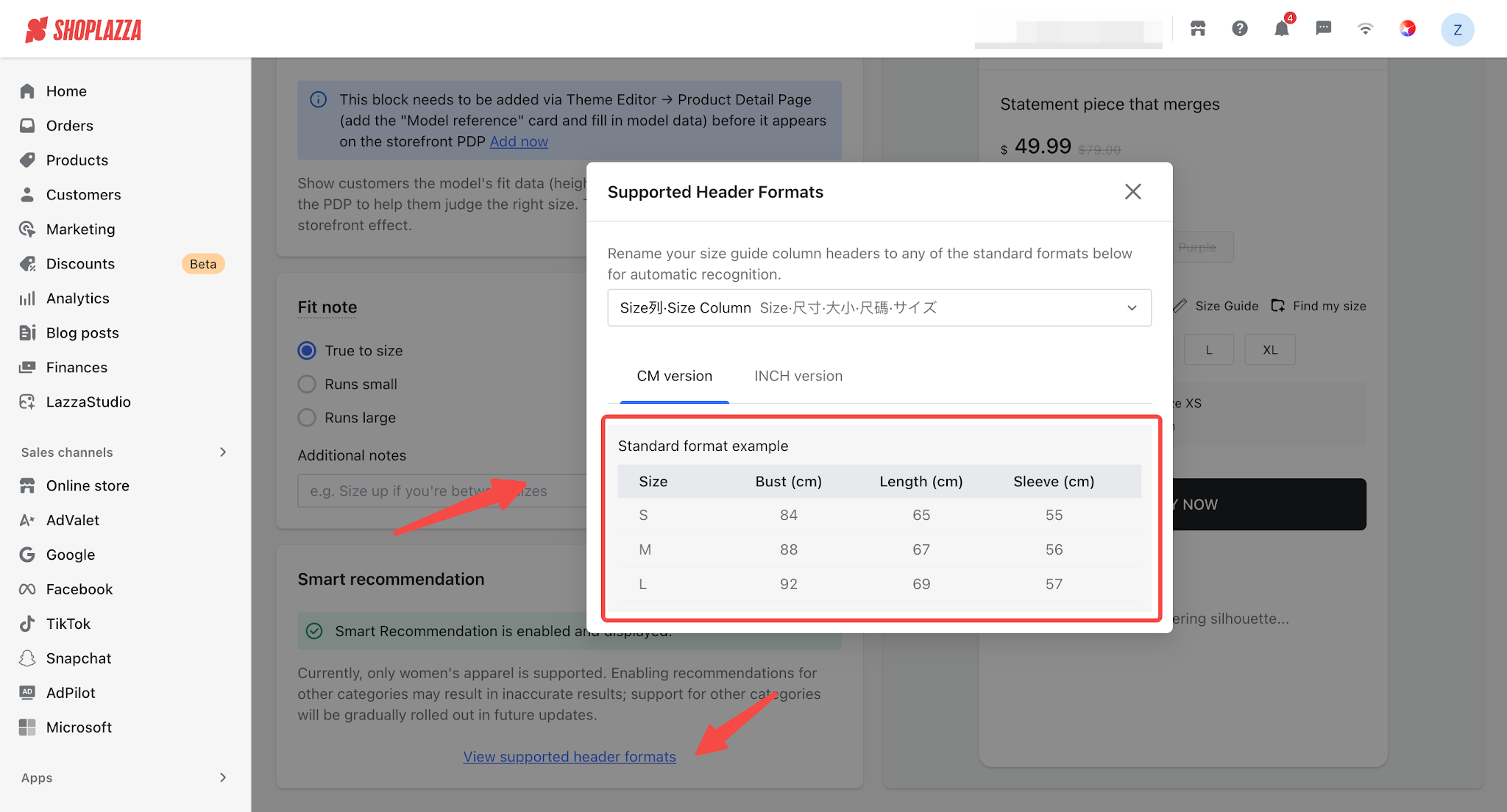
3. Make sure that at least one row in the Content Editor of the size chart contains complete measurement data:
- The Size field in each row must not be empty (e.g., S / M / L / XL).
- At least one of the Bust, Waist, or Hip fields in each row must contain a numeric value.
- Values must fall within a reasonable range (30–200 cm) and cannot be 0, negative numbers, or text.
Click to view the supported header formats for reference:
4. Make sure the current product is correctly associated with the size chart. In the Select Products section, you can select all products, products in a collection, or specific products. Make sure the products where you want to display Find My Size are included.
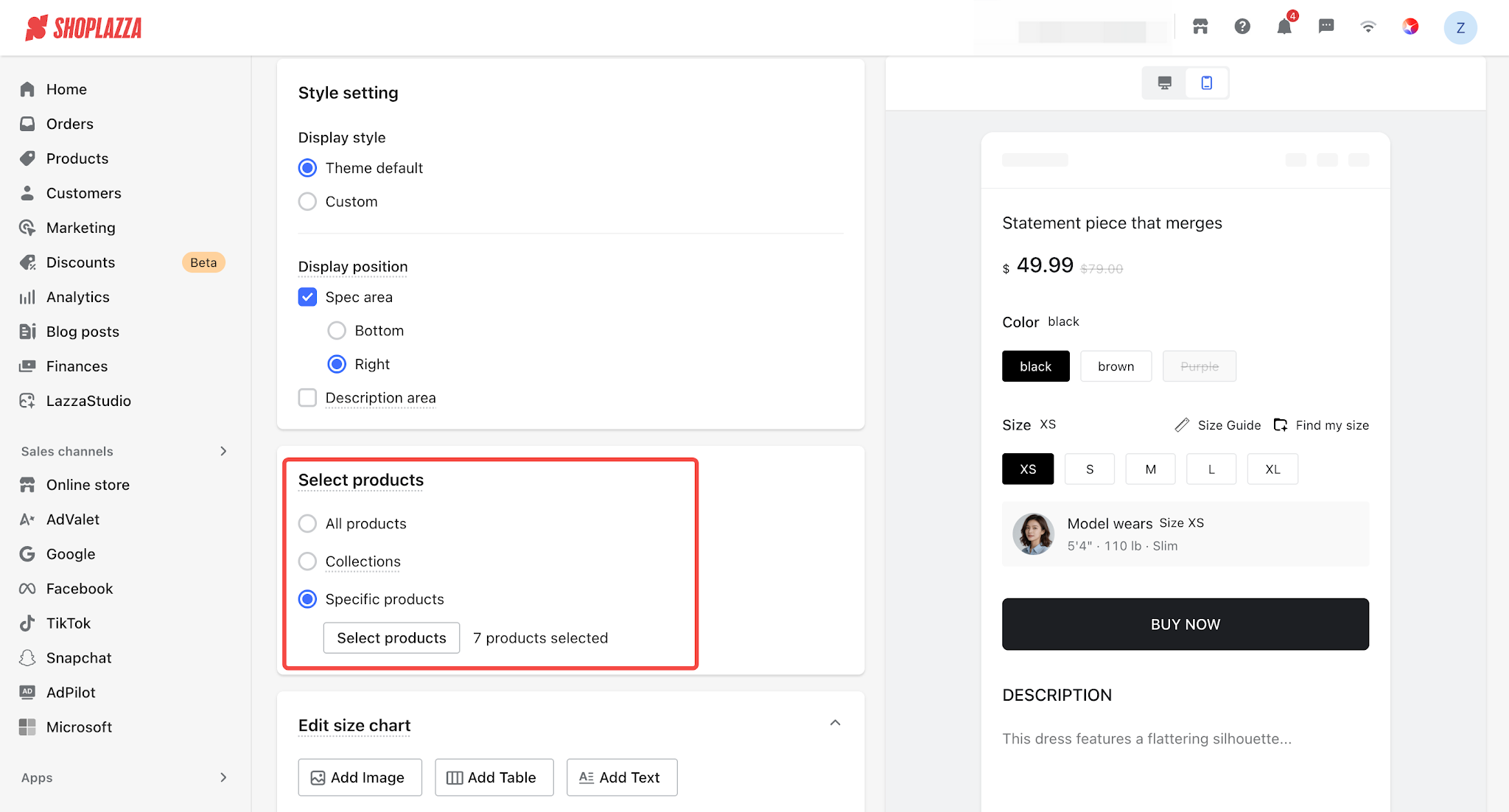
5. Click Save in the upper-right corner to apply the configuration.
Prerequisites for Displaying Find My Size on the Storefront
The Find My Size entry will appear on the product detail page only when all four of the following conditions are met. Otherwise, the entry will be hidden by default:
- The Smart Size Recommendations toggle is enabled on the size chart editing page.
- The size chart contains at least one valid row (the Size field is not empty, and at least one of Bust, Waist, or Hip contains a numeric value).
- The current product is included in the products applicable to the size chart.
- The product SKU size variants use letter-based size names, such as XS / S / M / L / XL / 2XL / 3XL / 4XL / 5XL / XXS.
Note
- Find My Size currently supports women’s apparel only. For non-women’s apparel categories, the entry will not be rendered on the storefront even if the feature is enabled.
- Product SKUs currently do not support EU size formats (e.g., 36 / 38) or numeric size formats (e.g., 0 / 2 / 4 / 6 / 8 / 10).
How Customers Use Find My Size on the Storefront
1. On the product detail page, click Find My Size next to the Size label.
2. Enter your height and weight (required), and optionally enter your bust, waist, and hip measurements. Then click Get My Size.
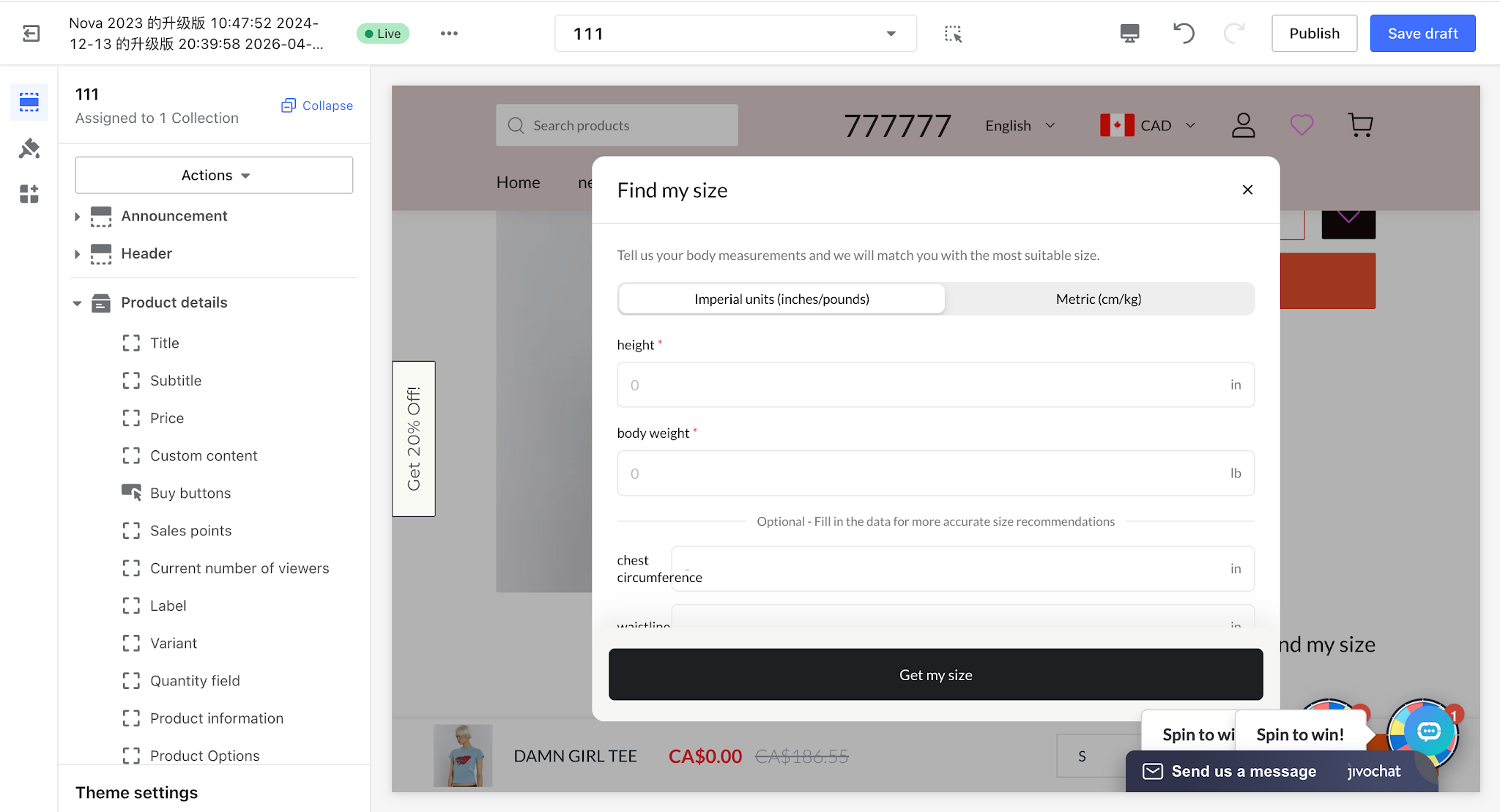
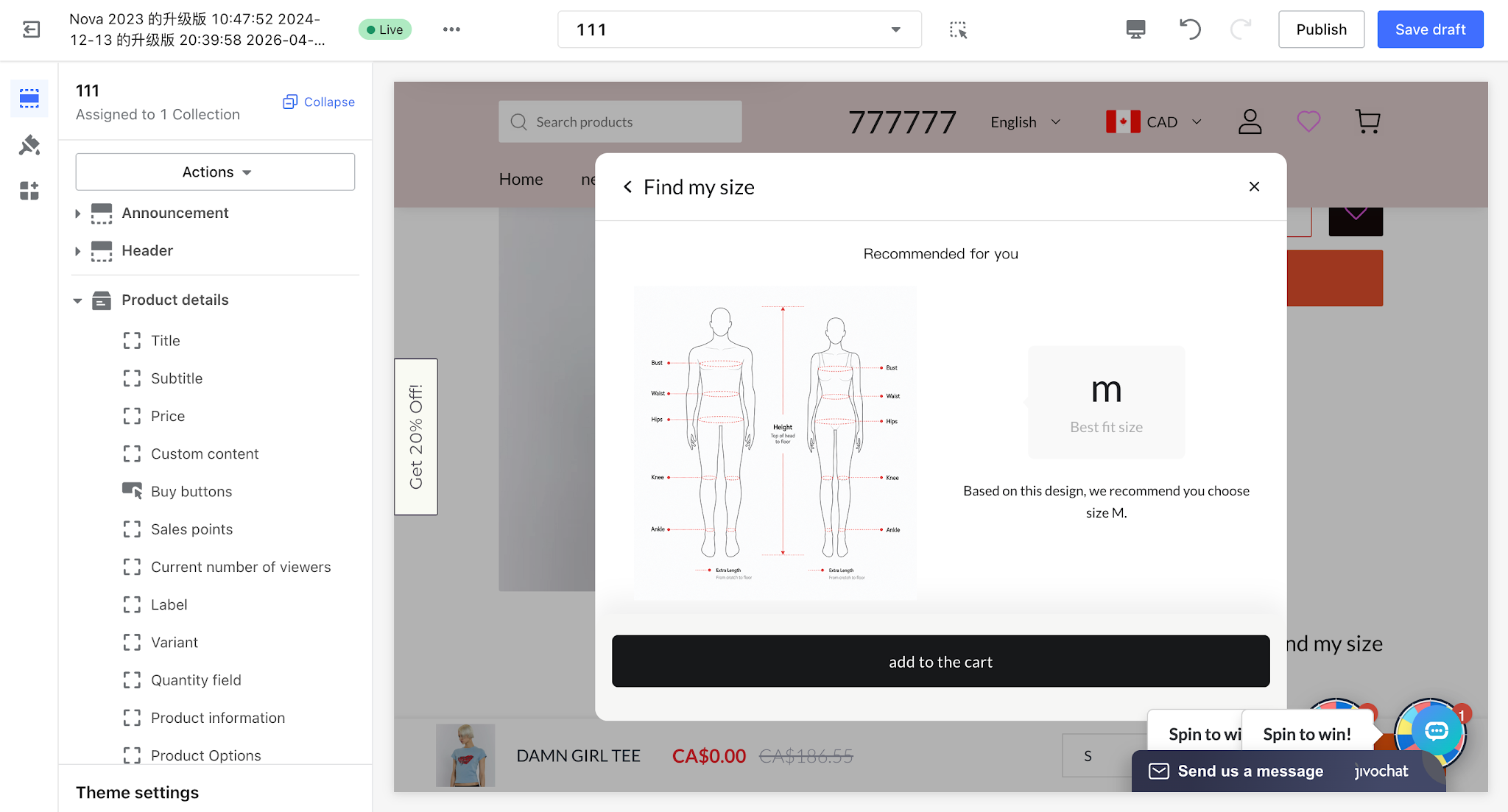
3. The system displays the recommended size, and customers can choose:
- Add to Cart (primary CTA): Automatically selects the recommended size and adds it to the shopping cart.
Note
The recommended result is automatically adjusted based on the fit type selected in the Fit Hints card: Runs Small shifts the recommendation up by one size, Runs Large shifts it down by one size, while True to Size applies no adjustment. Please make sure the fit type is configured accurately to avoid affecting the accuracy of the recommendations.


Comments
Please sign in to leave a comment.