
The Model Size Reference Card can display the model’s height, weight, worn size, and body type description below the size options on the product detail page. When customers select a size, the model information for the corresponding size will be displayed automatically, helping them determine which size is most suitable for them. This article explains how to configure the Model Size Reference Card.
Step 1: Enable the Model Reference Feature in the Size Chart App
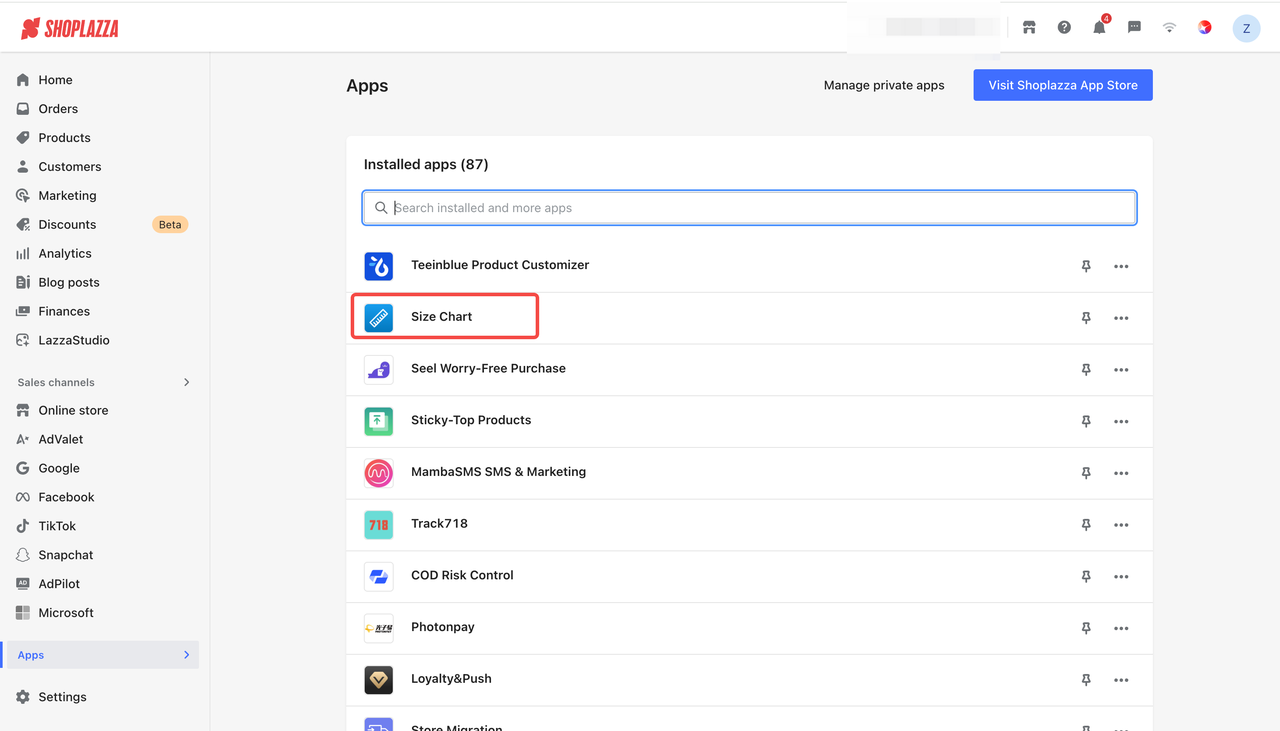
1. Log in to your Shoplazza Admin, then click the Size Chart app under Apps.
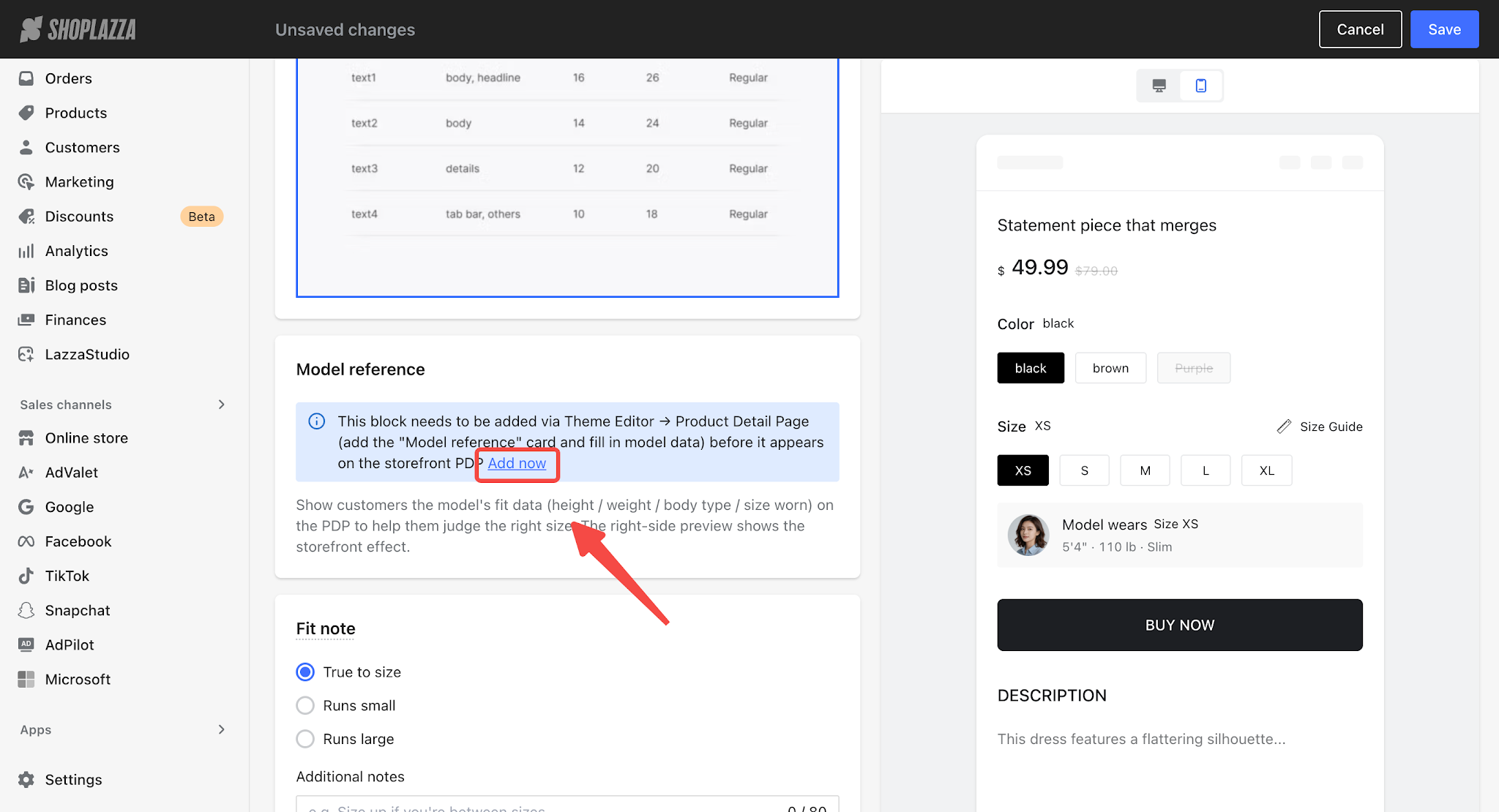
2. Select a created size chart to enter the editing page, then find the Model Reference section in the left panel. Click Add, and you will be redirected to the product detail page, where the Model Reference Card will be added automatically.
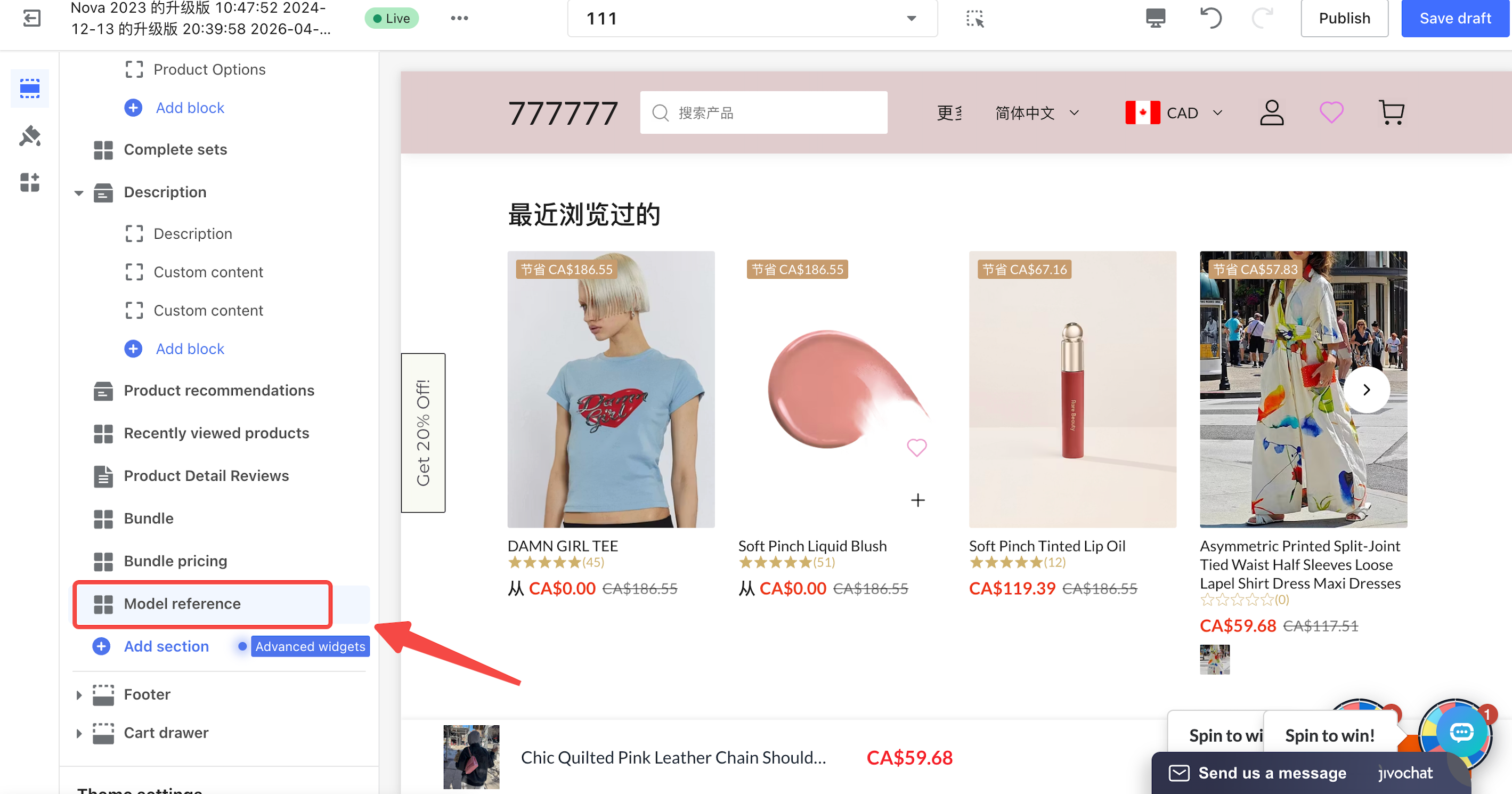
Step 2: Configure the Model Reference Card / Model Reference Metafield Card in the Theme Editor
The Theme Editor provides two types of model reference cards. Merchants can choose either method based on how they manage their data, or use both methods simultaneously.
Method A: Add the Model Reference Card (configure data directly within the card)
This method is suitable for merchants with a small amount of model data who prefer to manage the data directly in the Theme Editor.
1. Stay on the Product Detail Page, click Add below the Variants card, and select the Model Reference card.
2. Configure Applicable Size: Enter the size(s) to be displayed (e.g., S / M / L). Multiple sizes are supported. When customers switch to a corresponding size, the card will fade in automatically.
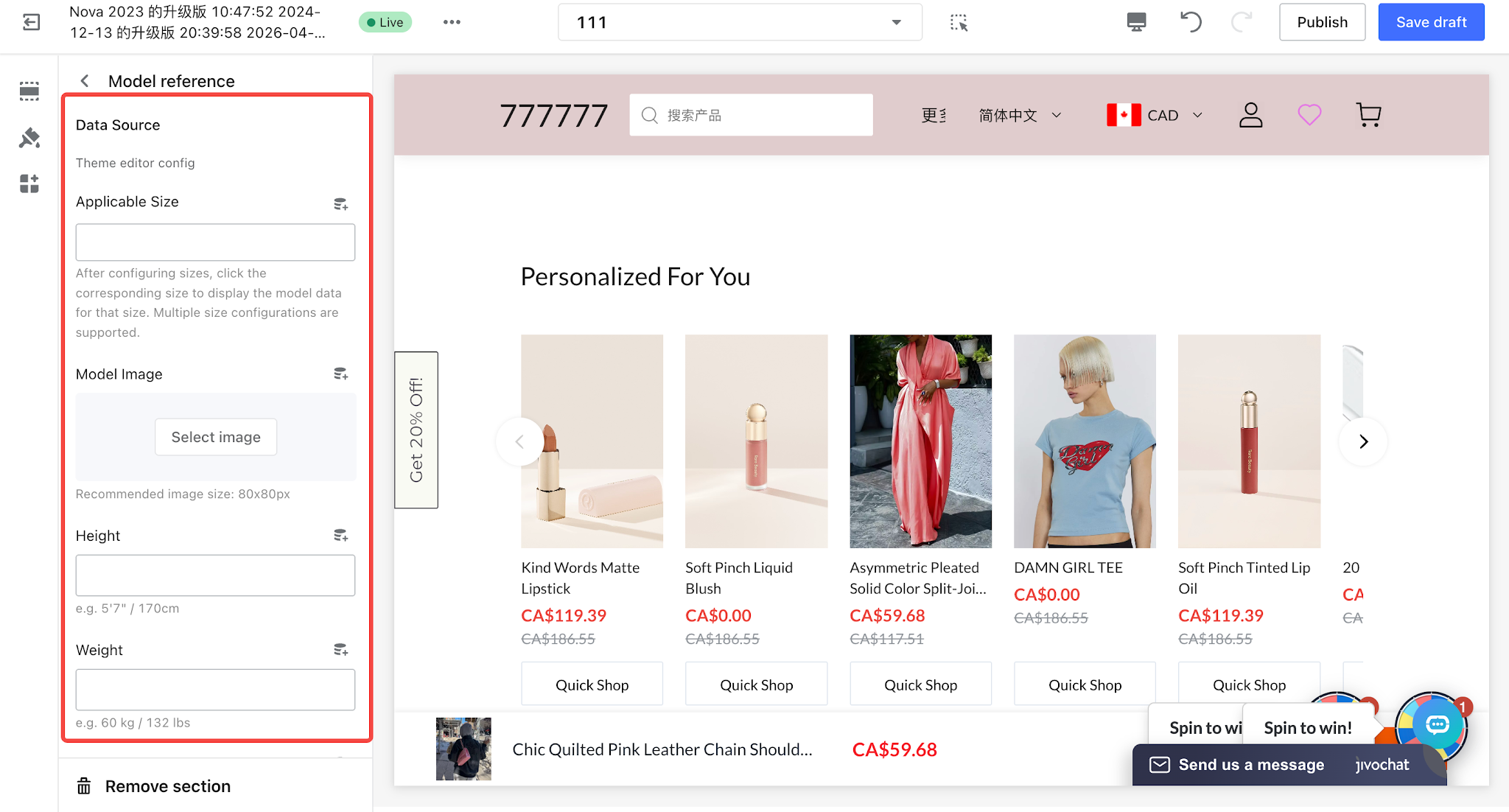
3. Configure Model Image, Height, Weight, and Body Type in sequence.
- Model Image: Upload a photo of the model. If no image is uploaded, the image will not be displayed.
- Height: For example, 5'7" / 170 cm.
- Weight: For example, 60 kg / 132.28 lbs.
- Body Type: For example, Slim Fit / Athletic / Curvy.
4. Configure the Caption Template displayed on the storefront. The following template variables are supported: {size} / {height} / {weight} / {bodyType}.
- Default template: Model wears Size {size} · Height {height} · Weight {weight}{ · {bodyType}}
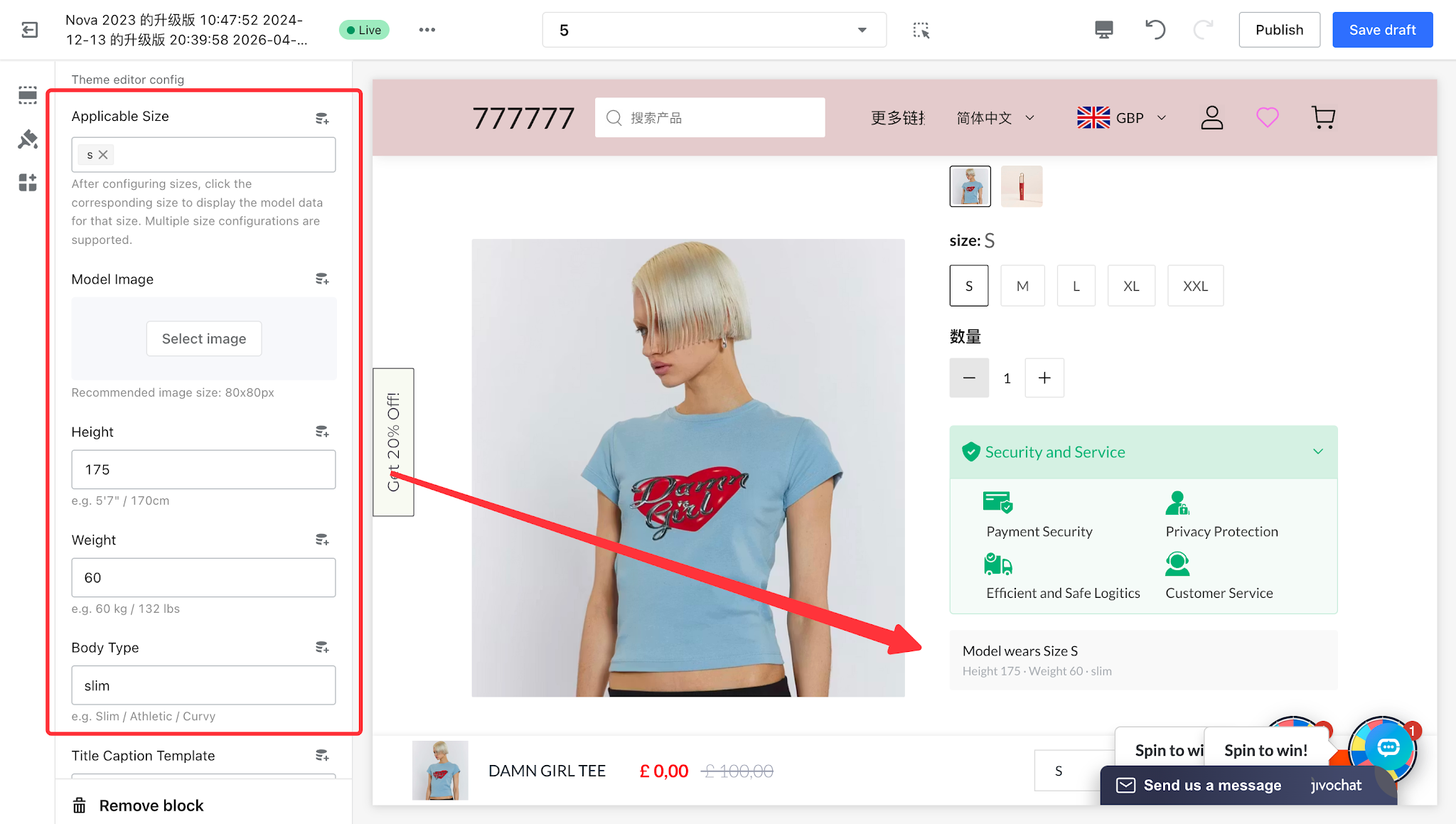
5. Each Model Reference card corresponds to model data for one specific size. If you want to cover multiple sizes, you can continue adding more Model Reference cards (up to 18 cards per product).
Method B: Add a Model Reference (Metafield) Card (Referencing Product Metafields)
This method is suitable for merchants who need to manage multiple products in bulk and want to centrally manage model data through product metafields.
1. Prerequisite: First, configure the relevant model metafields in the product admin, such as the model’s height, weight, and wearing size as custom fields.
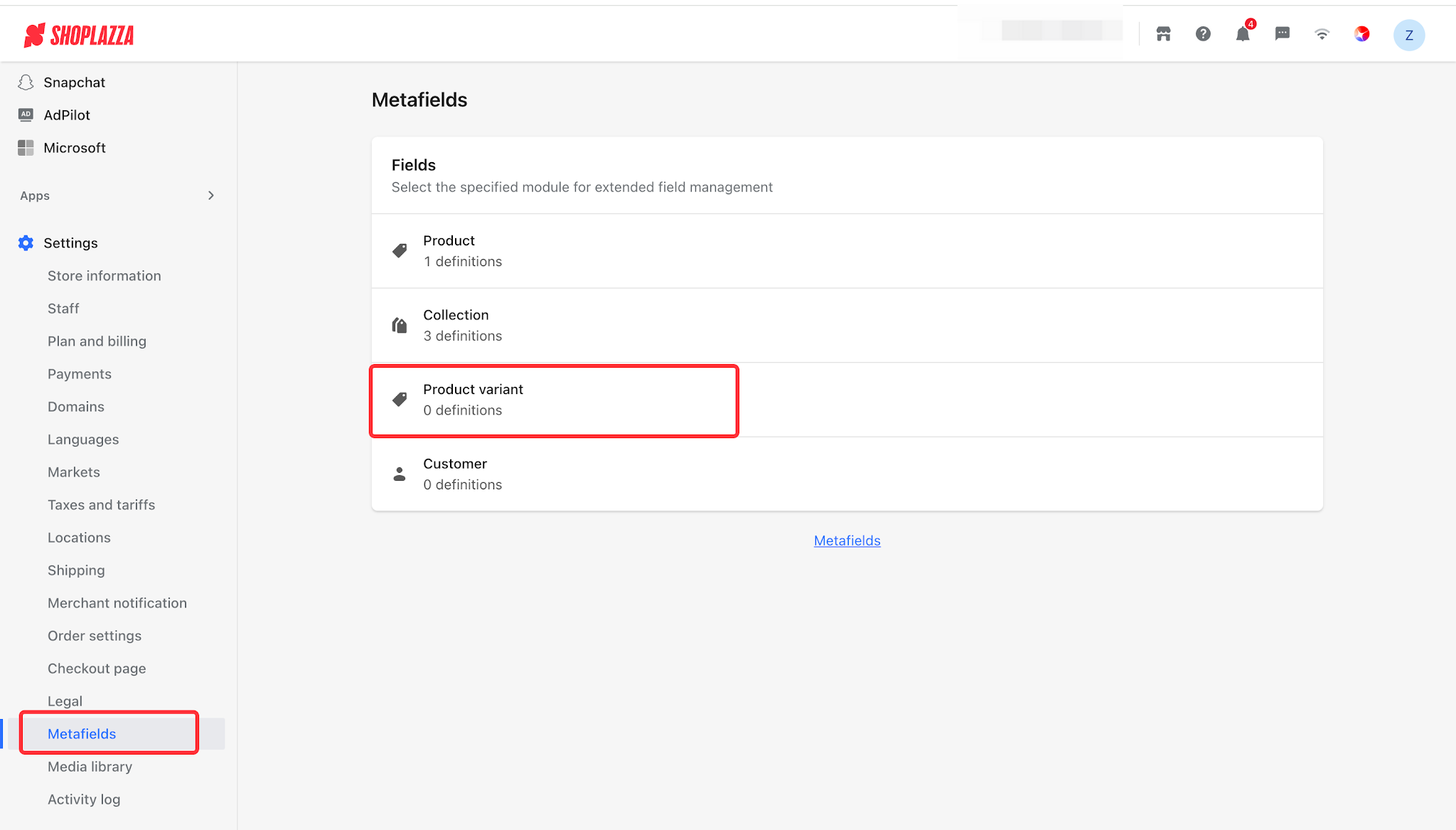
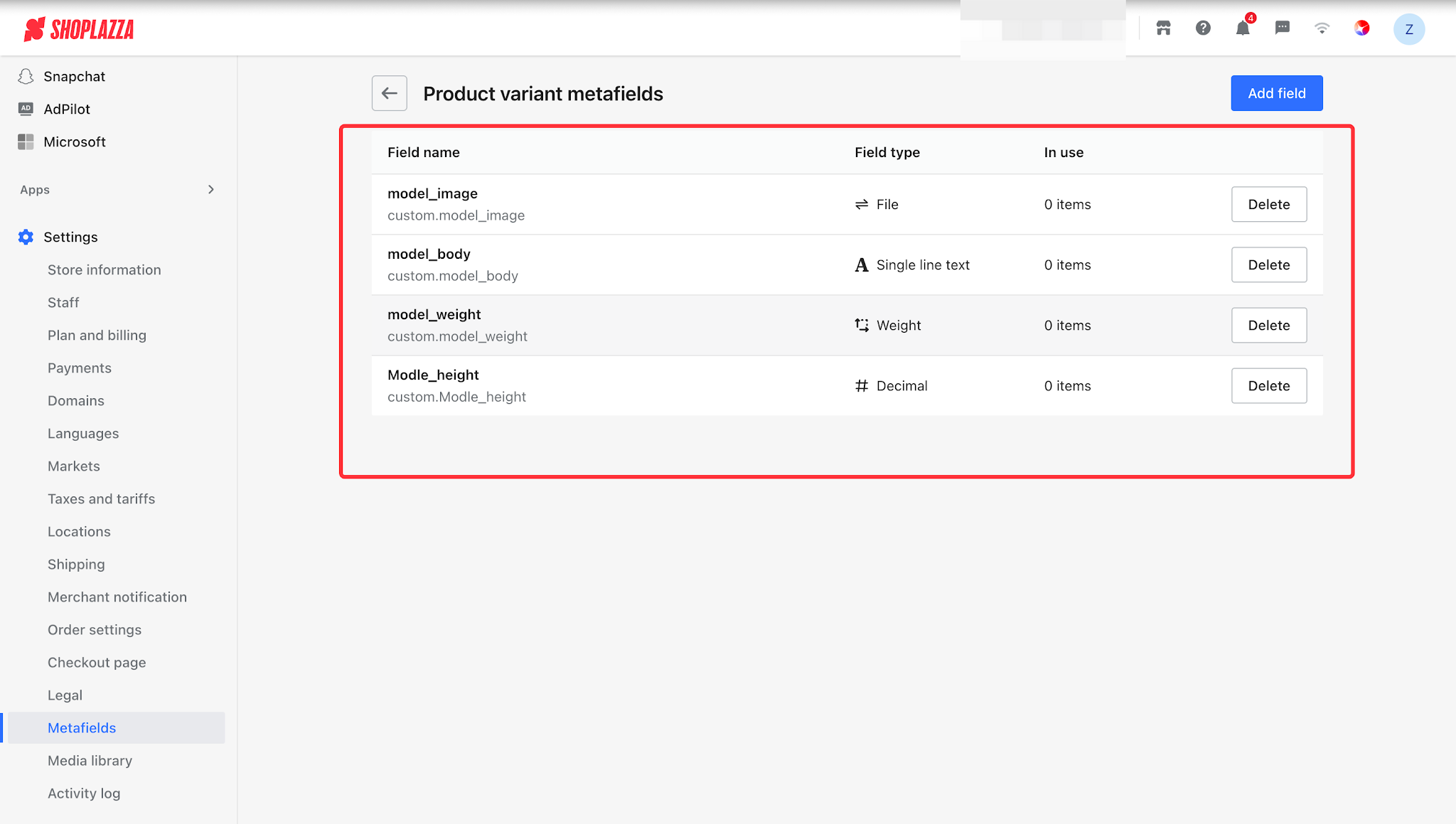
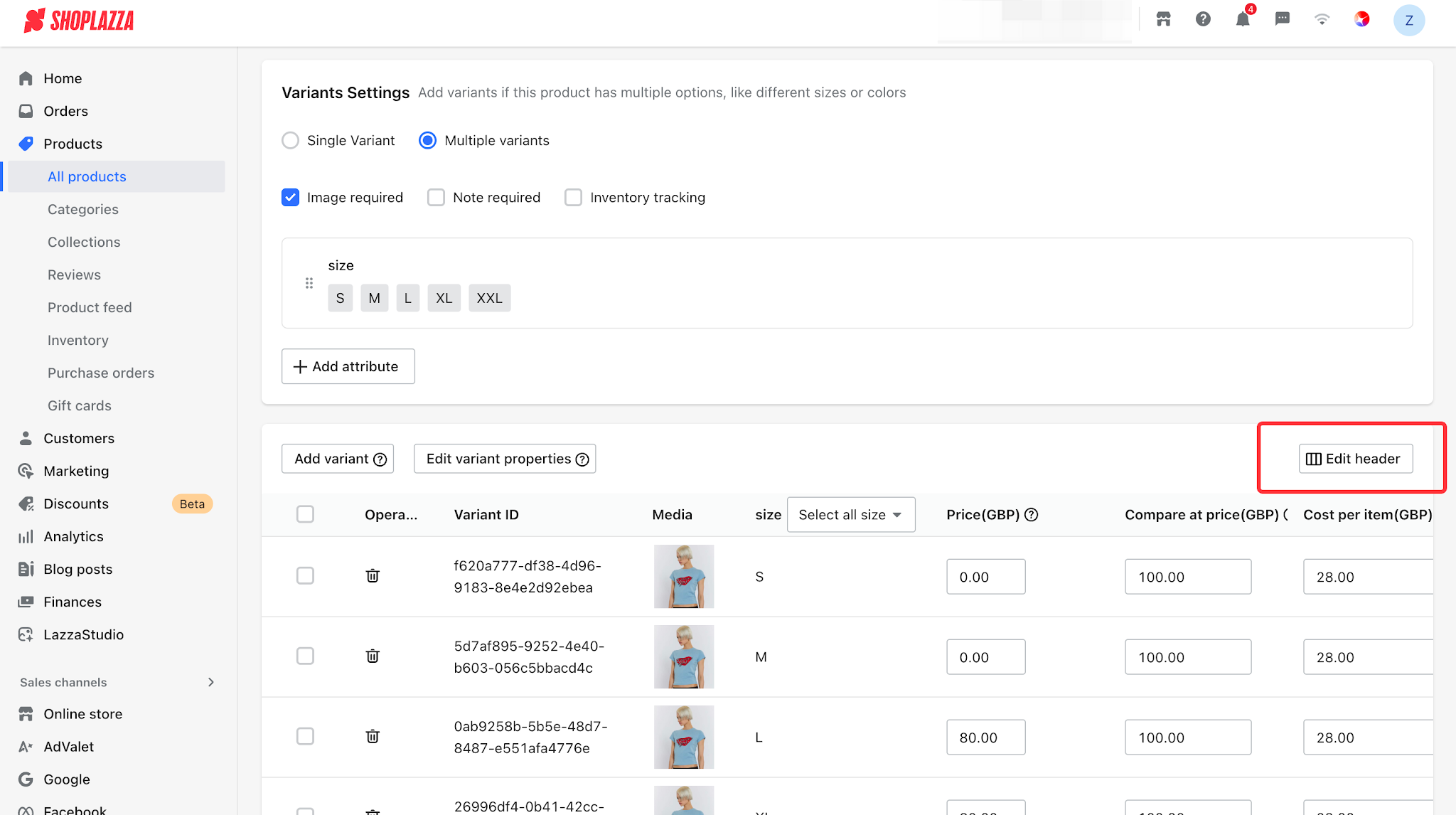
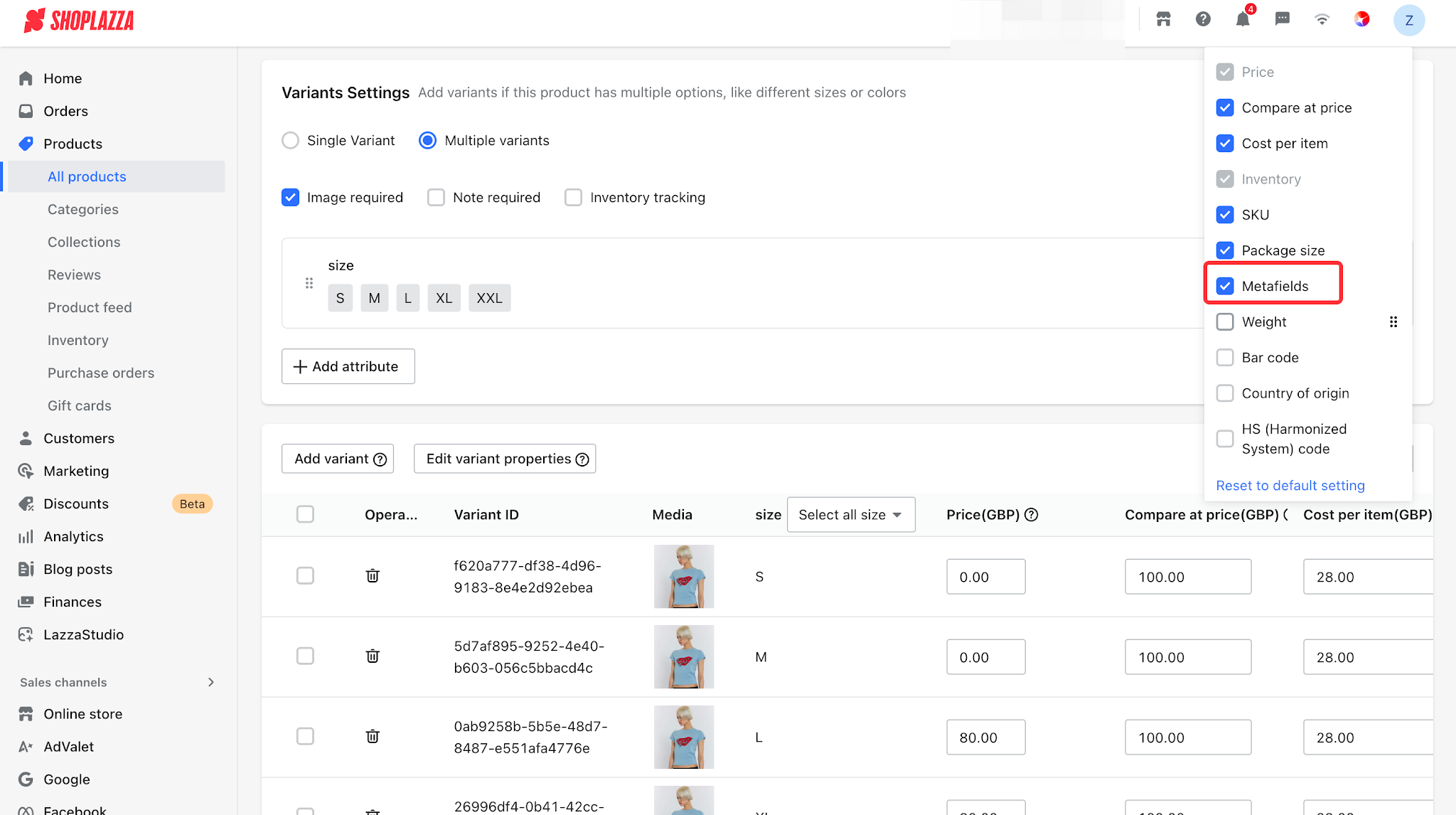
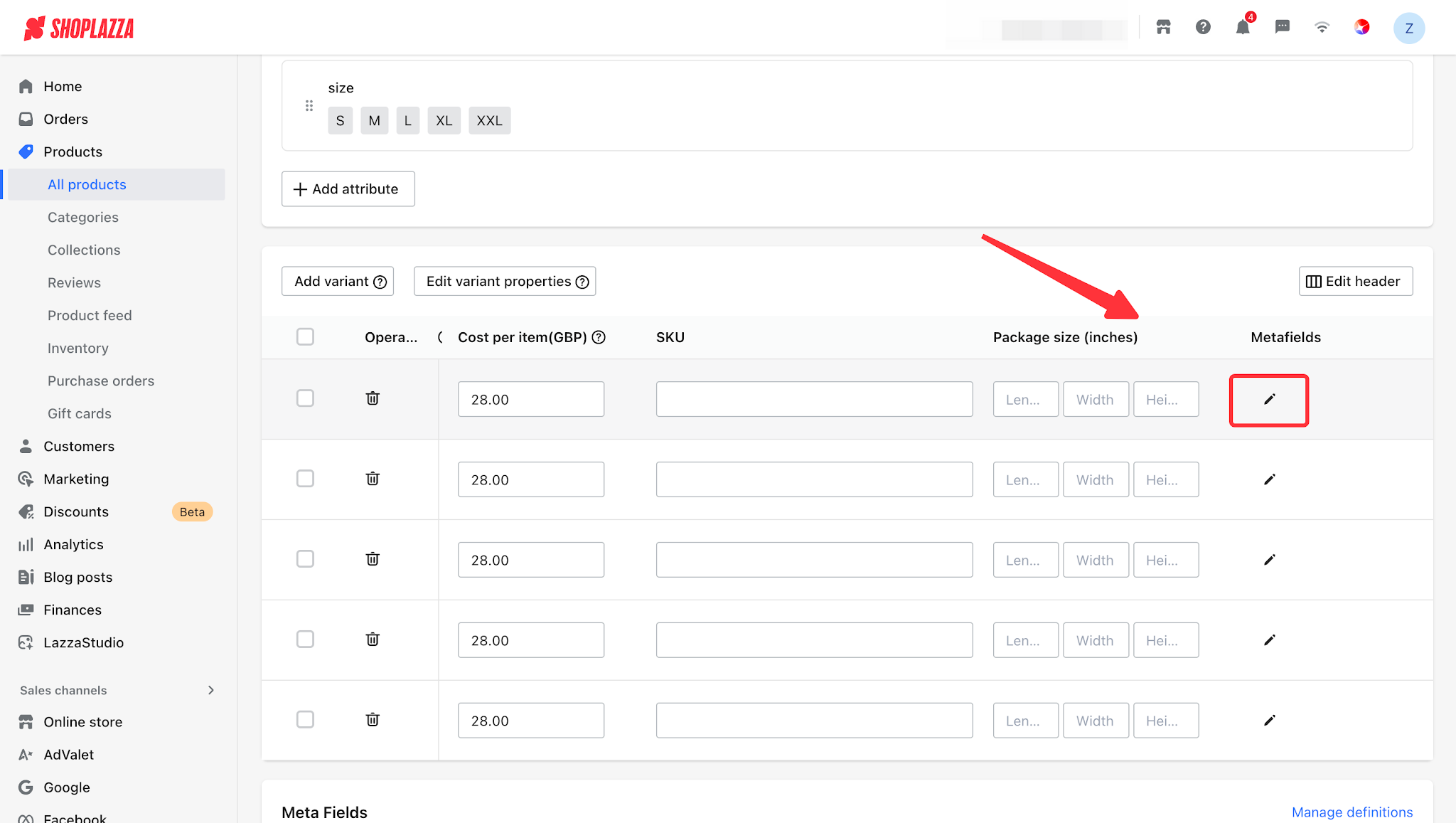
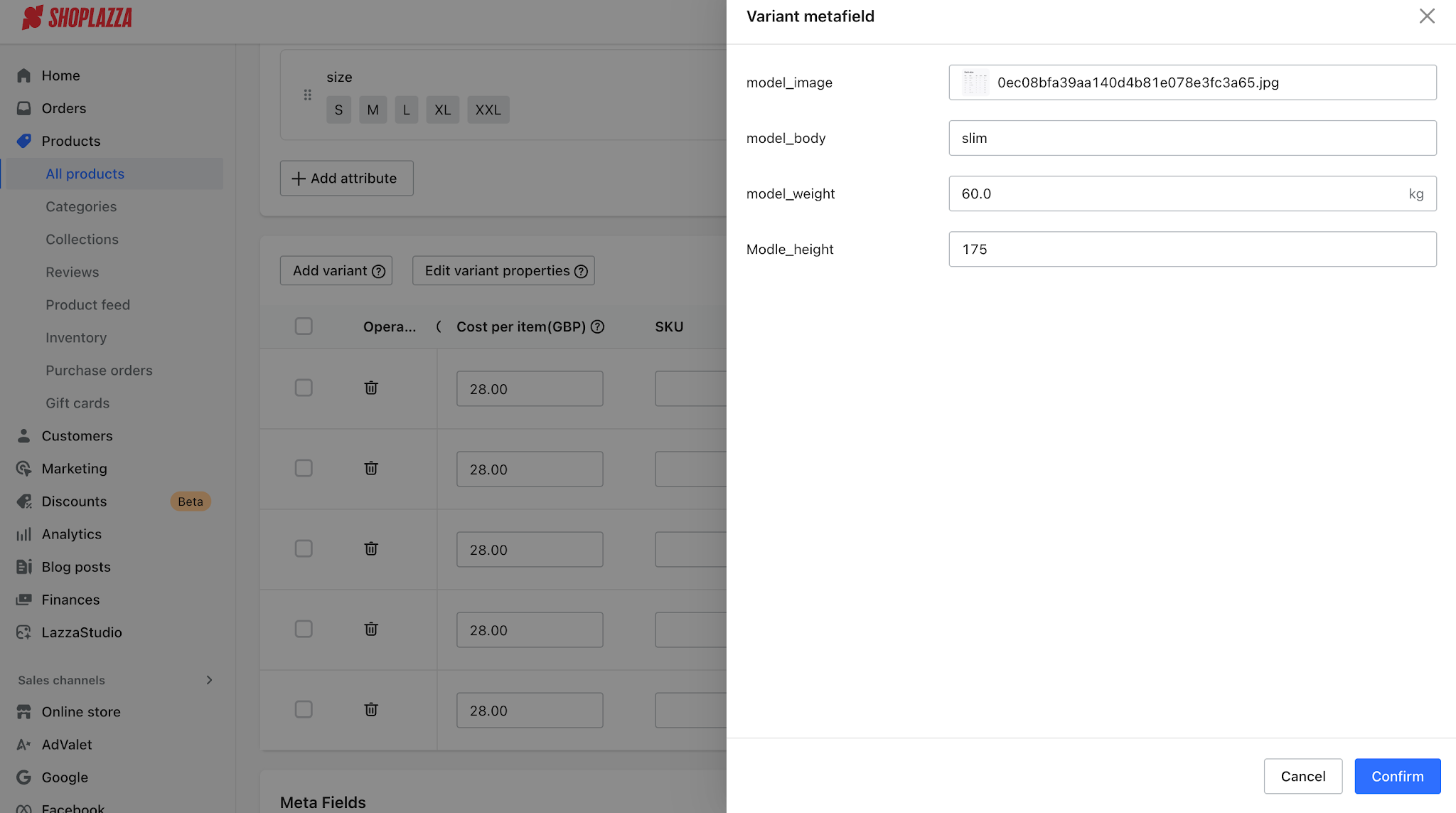
- Stay on the Product Details page. Below the Variants card, click Add, then select Model Reference (Metafield) to insert a dynamic source for the configuration item.
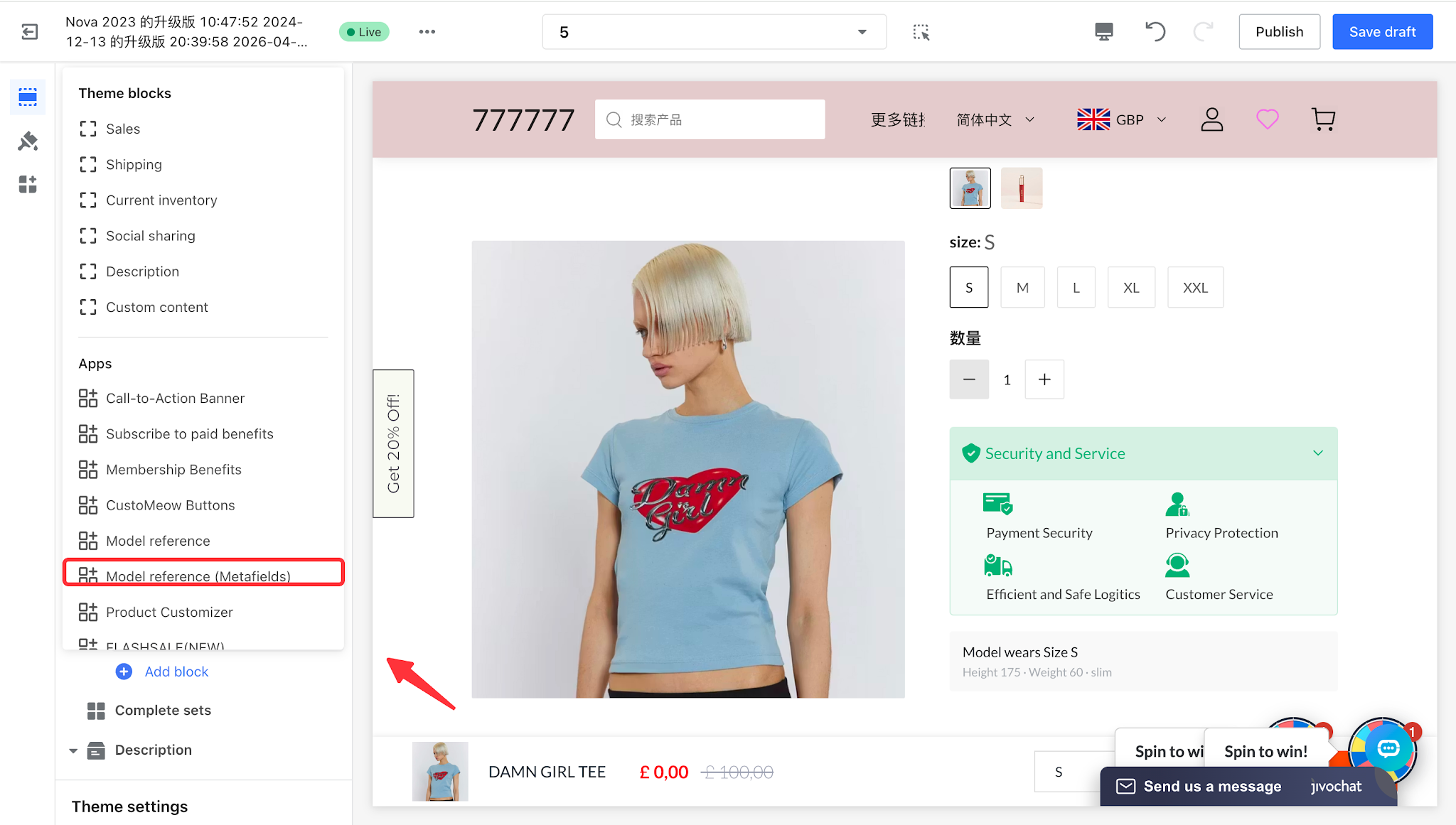
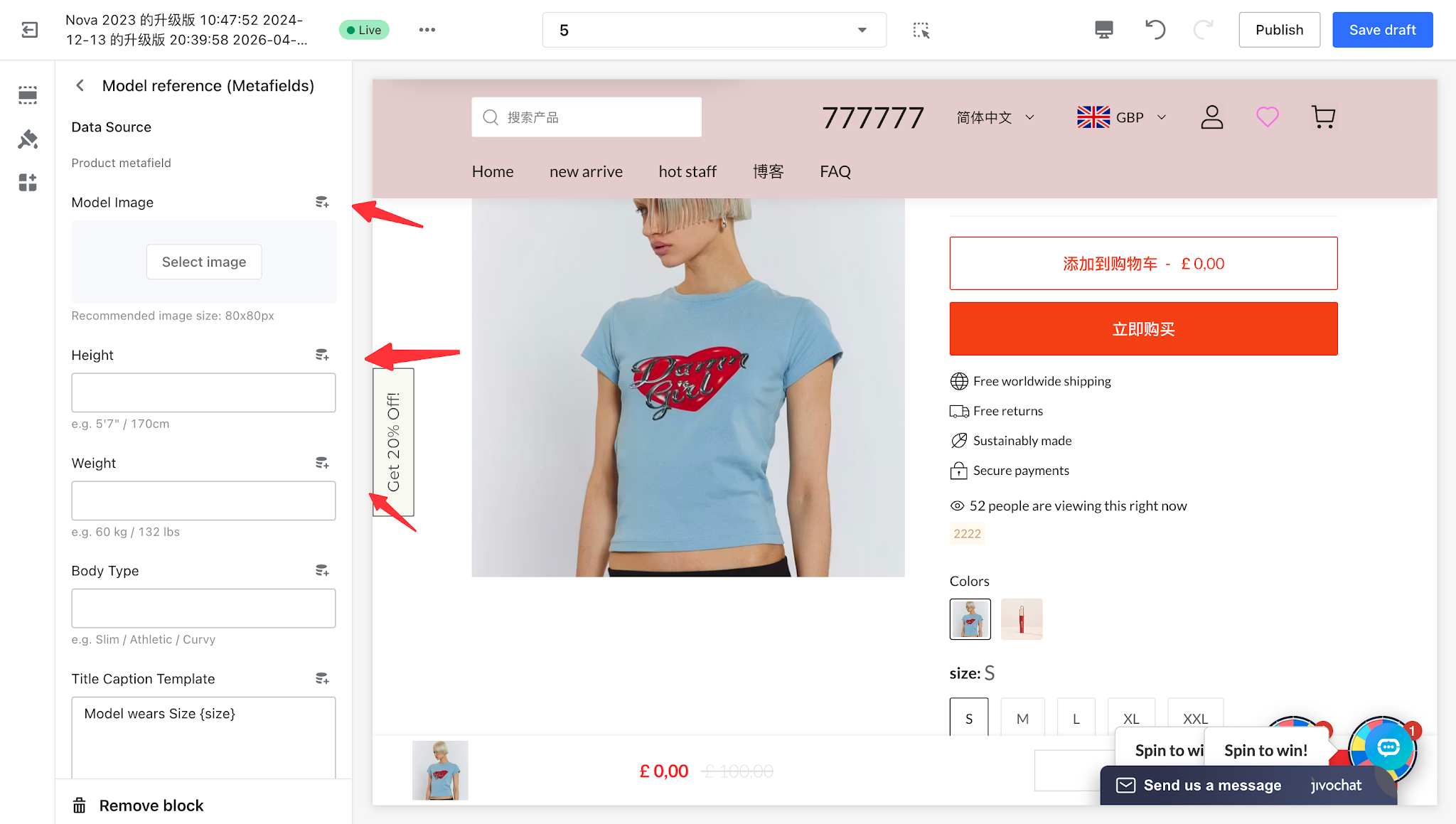
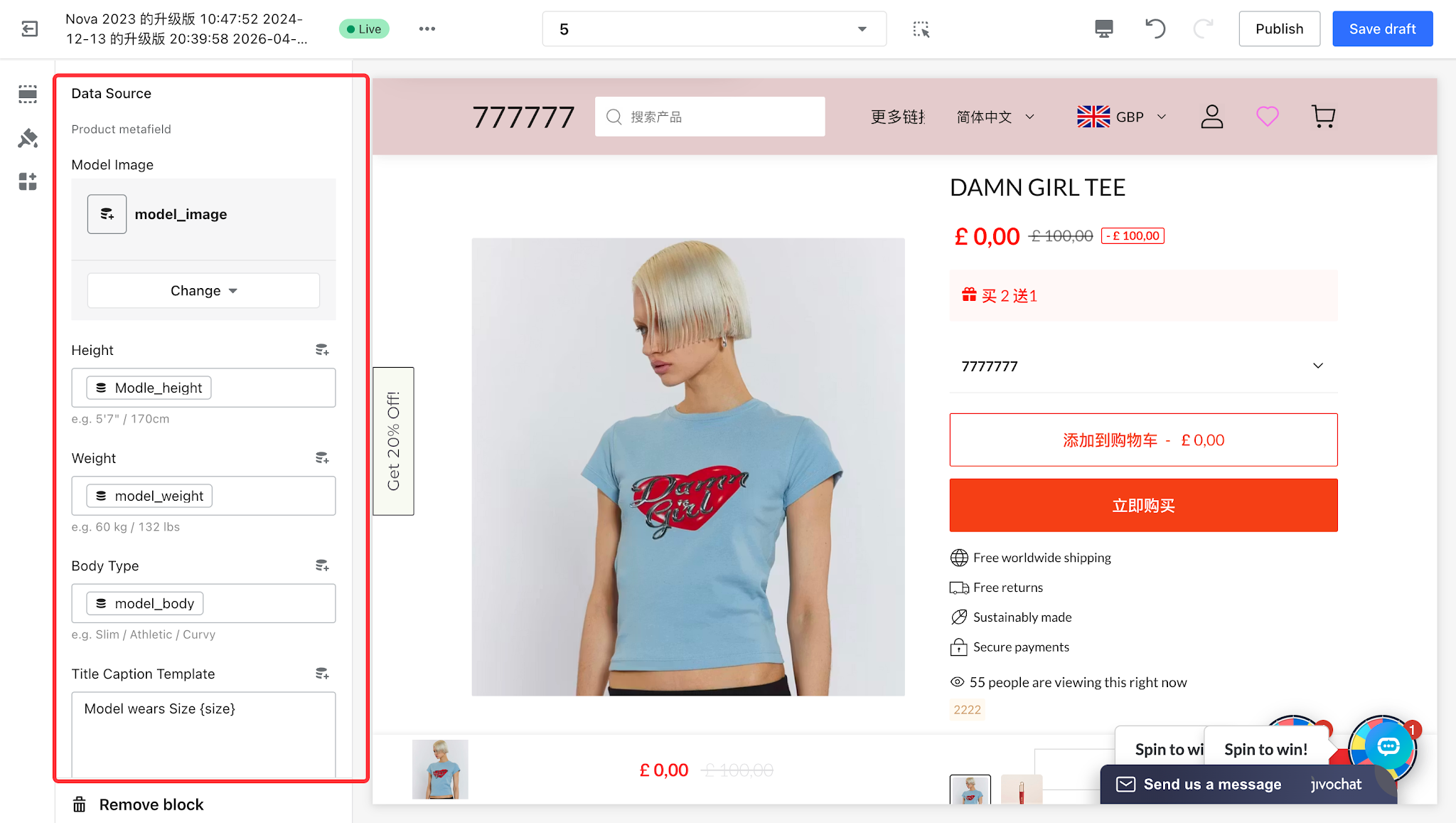
- The card will automatically retrieve the corresponding metafield data for the current product. When customers switch sizes, the model information will be displayed dynamically based on the metafield values, eliminating the need to enter the data repeatedly in the theme editor.
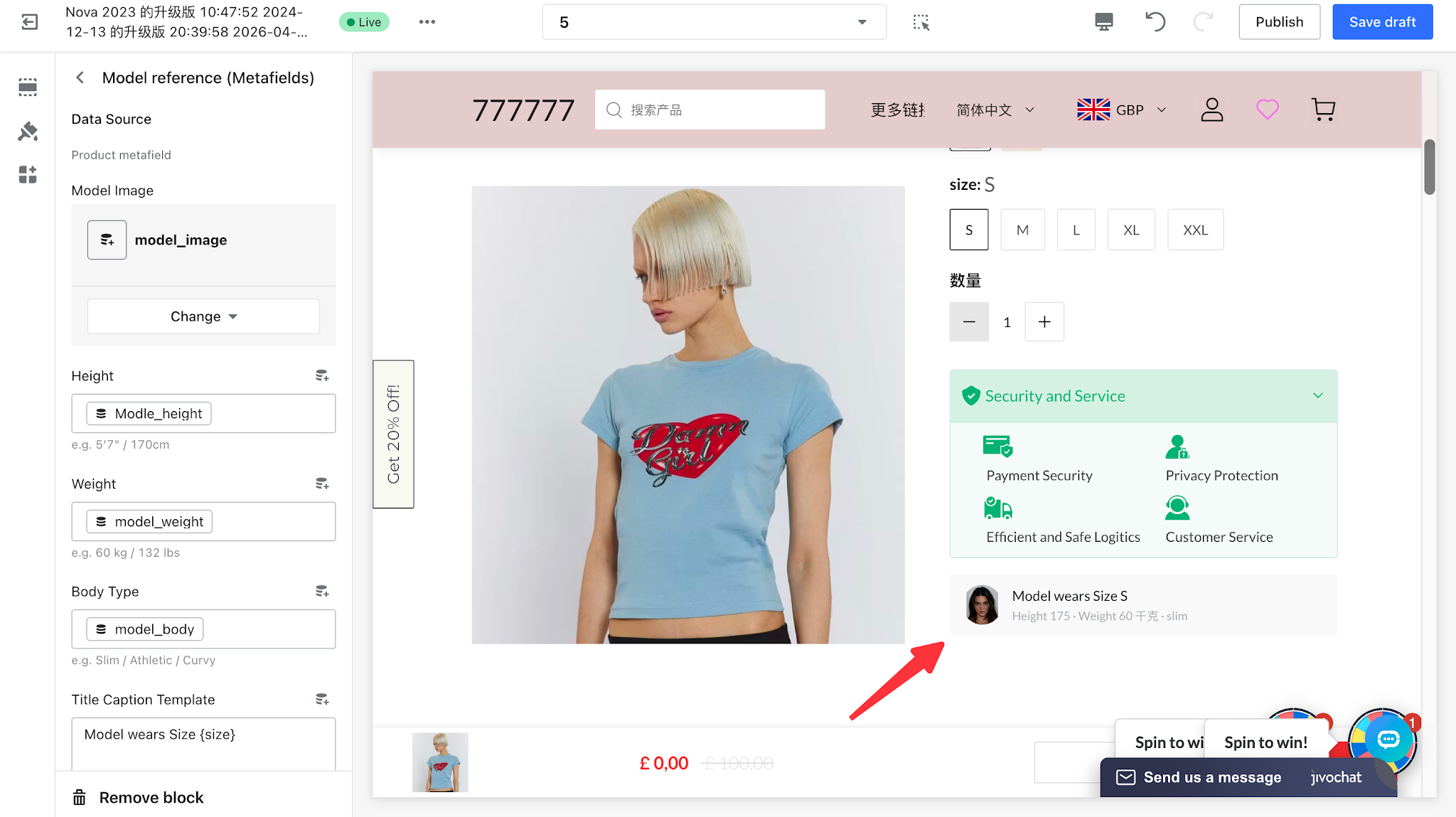
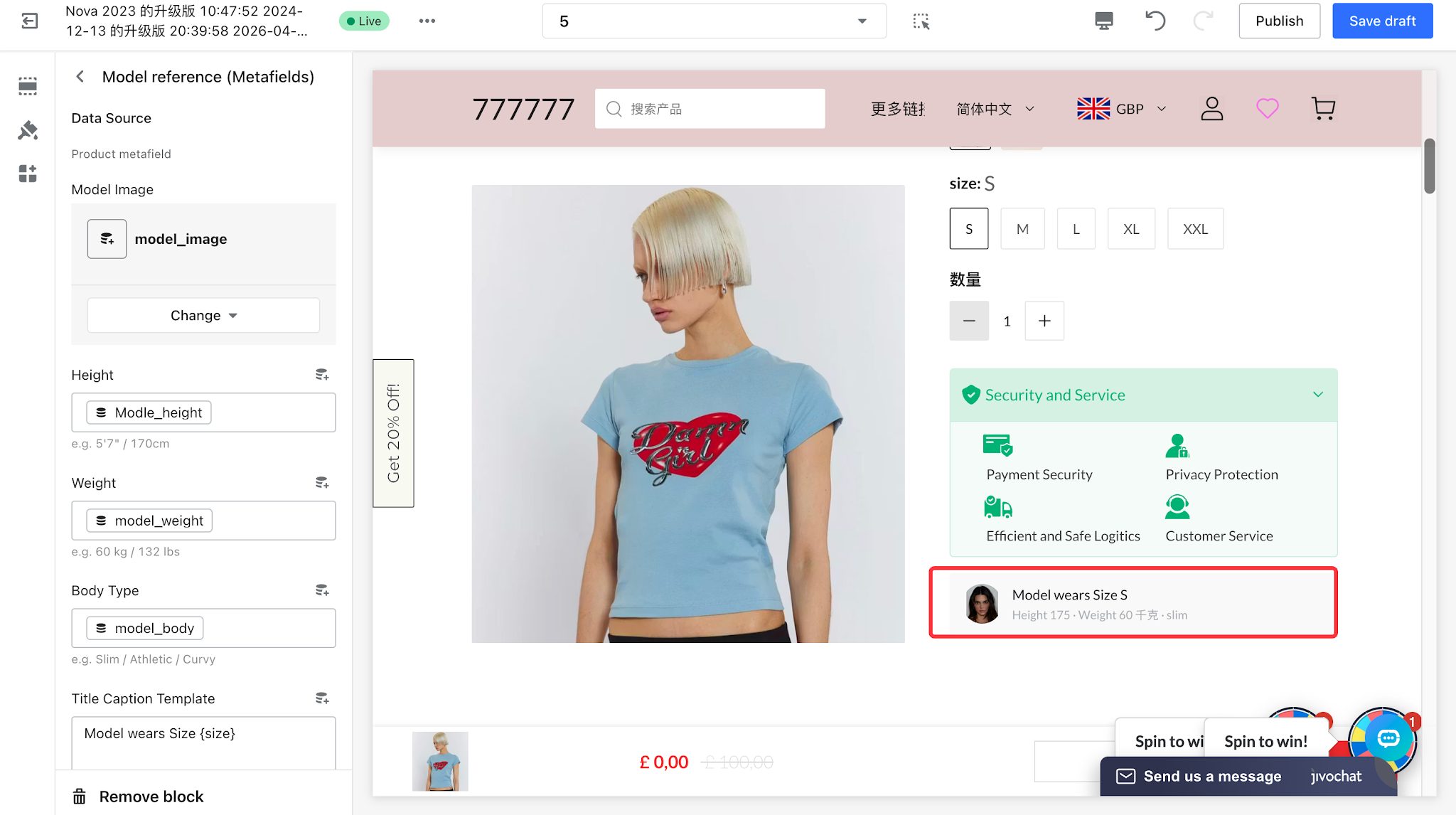
Step 3: Configure the Card Style, Save, and Publish
- The following settings can be configured independently: border radius, model image corner radius, font size, text color, and border color.
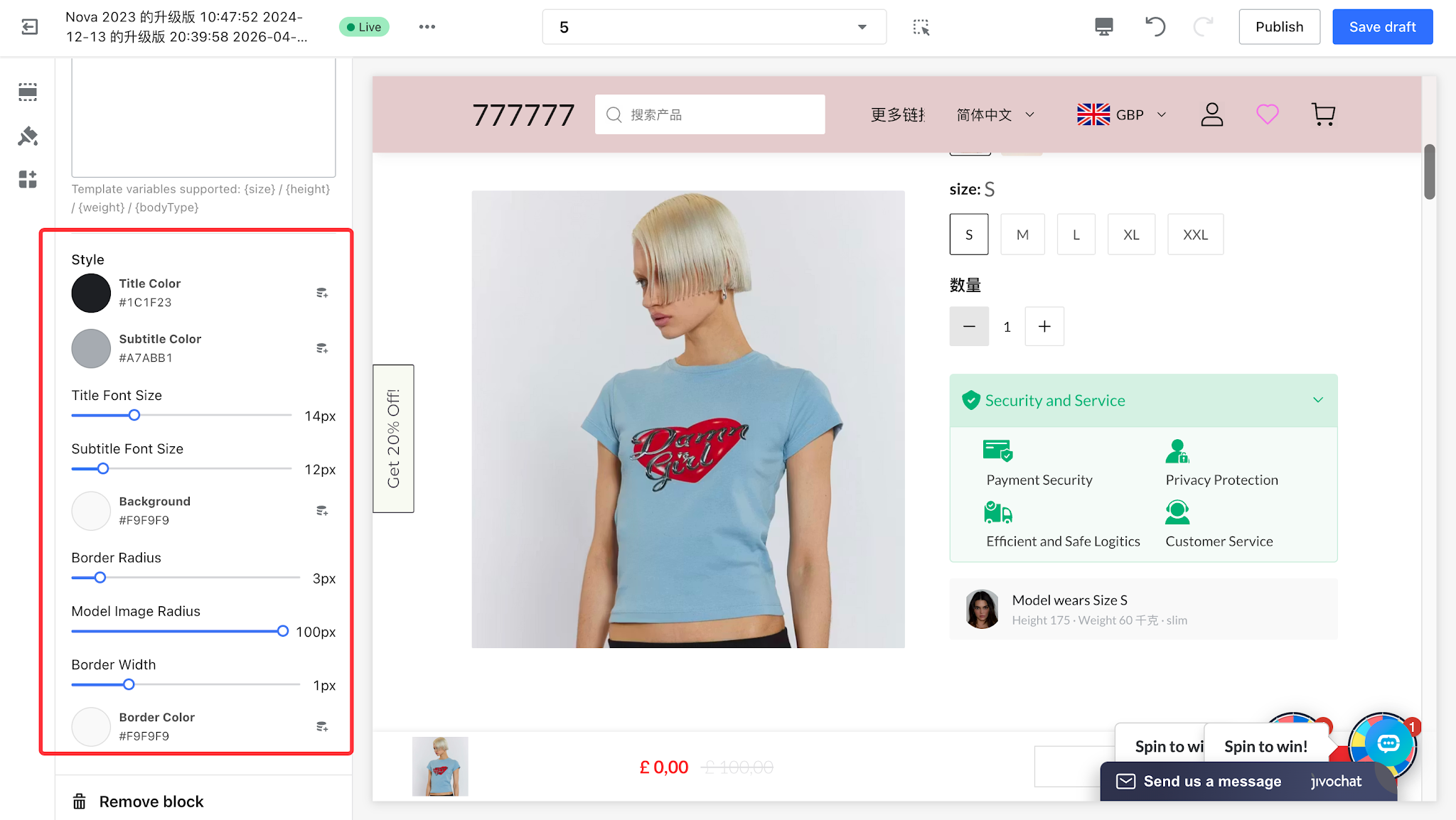
- Once the configuration is complete, click Save Draft and Publish in the top-right corner to apply the configuration to the storefront.
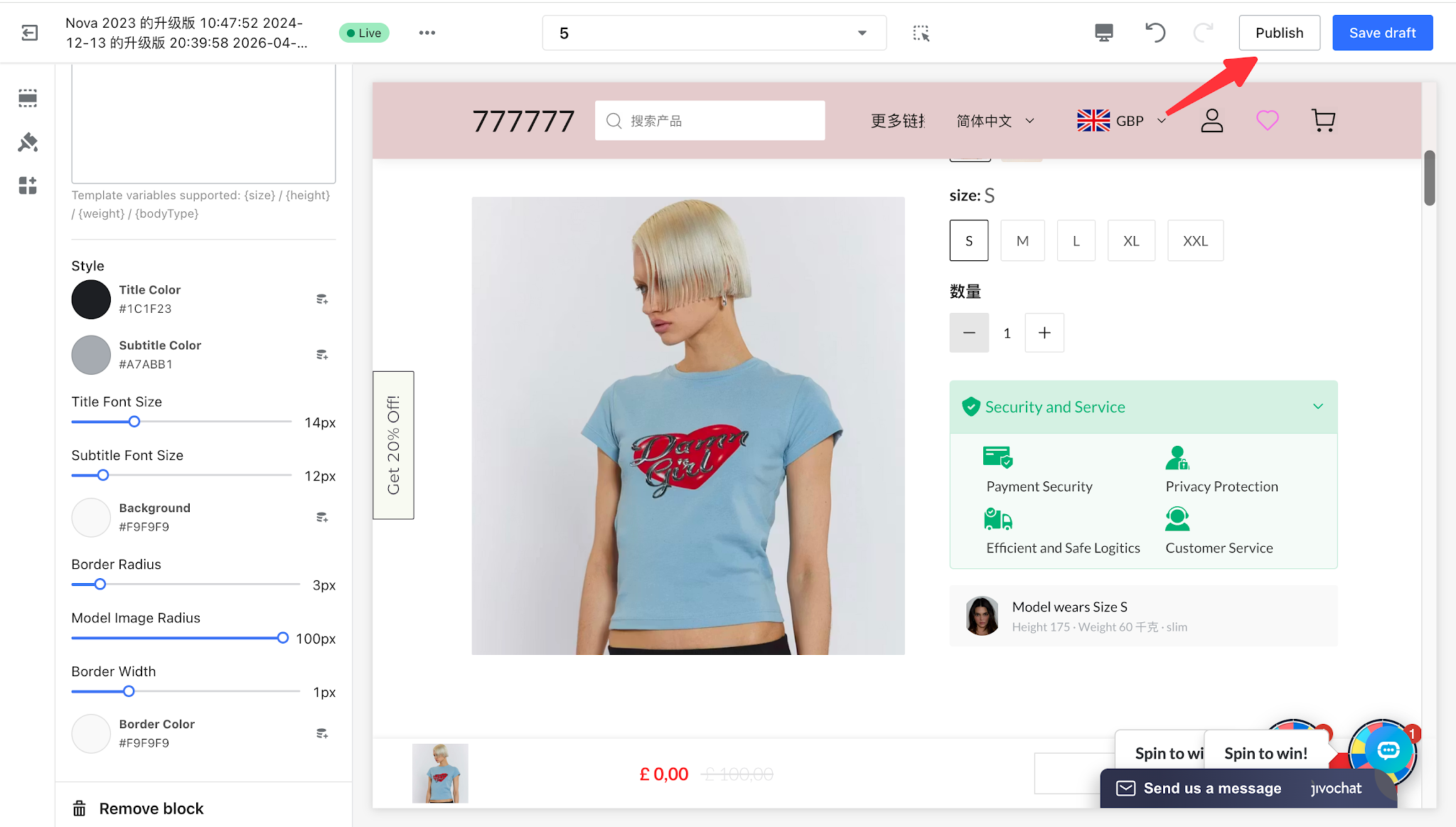
When customers switch sizes on the storefront, the corresponding model card will automatically fade in if it has been configured. If no model card has been configured for the selected size, no model information will be displayed in that position.


Comments
Please sign in to leave a comment.