
Fit hints allow you to provide customers with fit guidance at the bottom of the expanded Size Guide content and below the Find My Size recommendation results on the storefront. You can indicate whether the item runs small, true to size, or loose, along with any additional recommendations you’d like to provide. Fit hints also serve as a factor in smart size recommendations, helping generate results that better match the actual fit of the product. This article explains how to configure fit hints.
Navigation Path
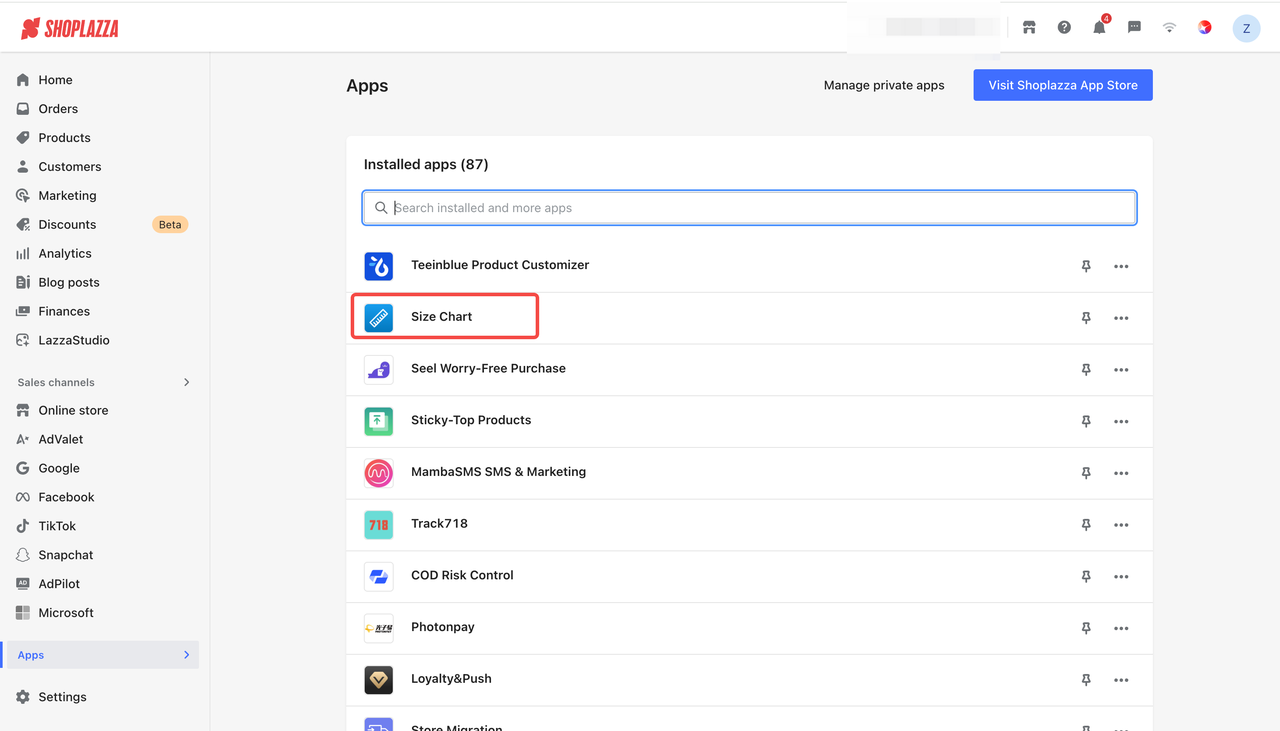
1. Log in to your Shoplazza Admin, then click the Size Chart app under Apps.
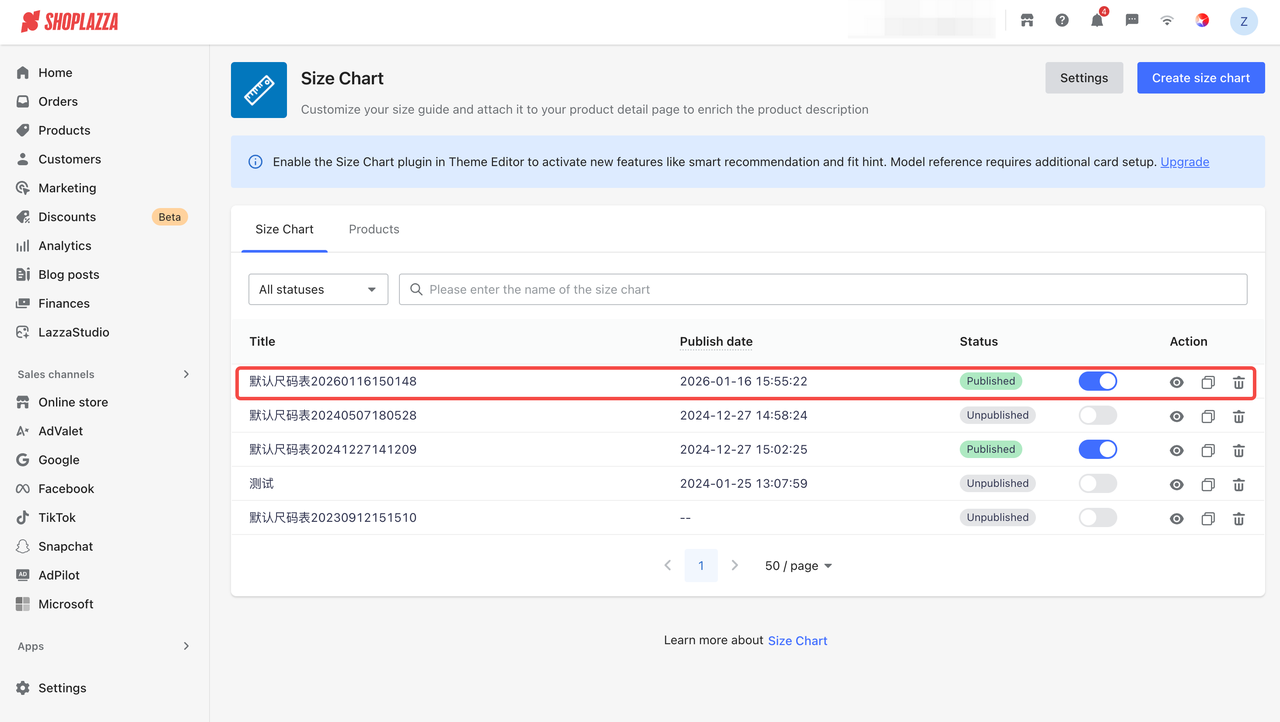
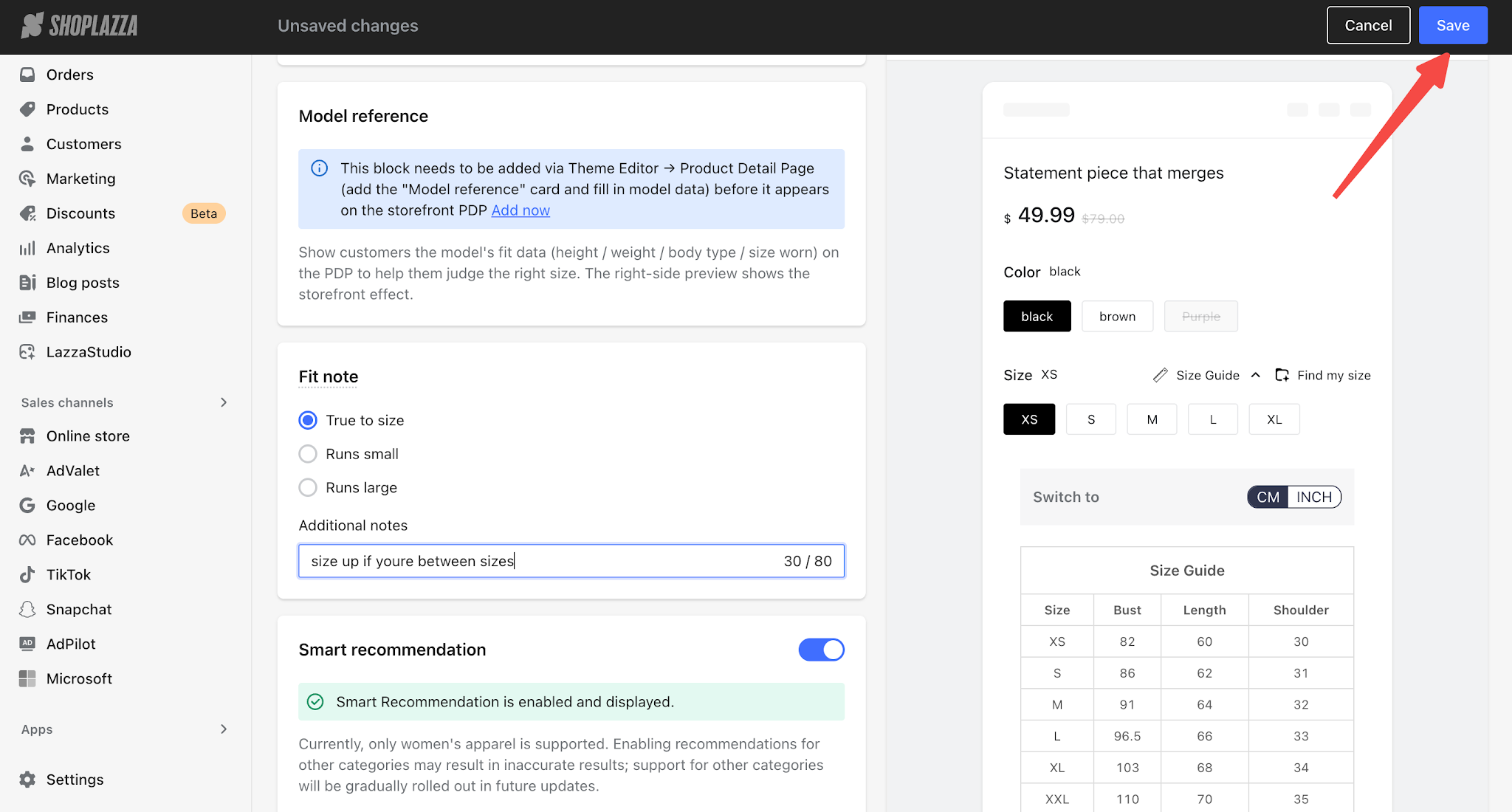
2. Select a created size chart to enter the editing page, then find the Fit Hints section in the left panel.
3. Select a Fit Type. The system provides three preset options:
- True to Size (default): The product fits according to standard sizing.
- Runs Small: The product runs smaller than standard sizing.
- Runs Large: The product runs larger than standard sizing.
Note
The fit type is not only displayed on the storefront but also used as a calculation factor for smart size recommendations (Find My Size). Selecting Runs Small shifts the recommended size up by one size, while Runs Large shifts the recommendation down by one size. True to Size does not apply any size adjustment. Please select the fit type accurately to avoid misleading customers.
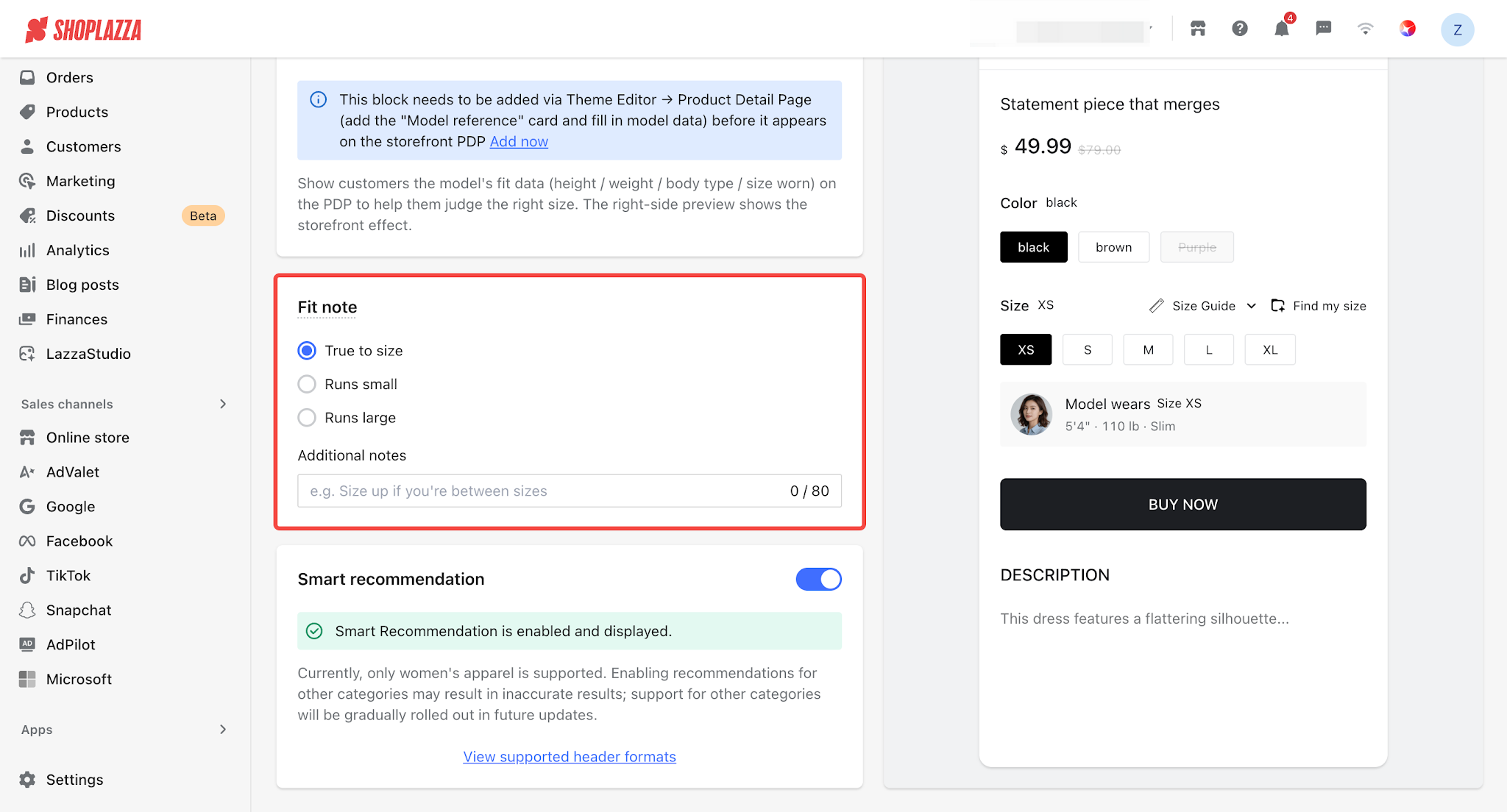
4. Enter any additional recommendations you would like to provide to customers in Additional Note (optional, up to 80 characters).
- Example: Size up if you're between sizes.
- The additional note will be displayed both at the bottom of the expanded Size Guide content and below the Find My Size recommendation results on the storefront.
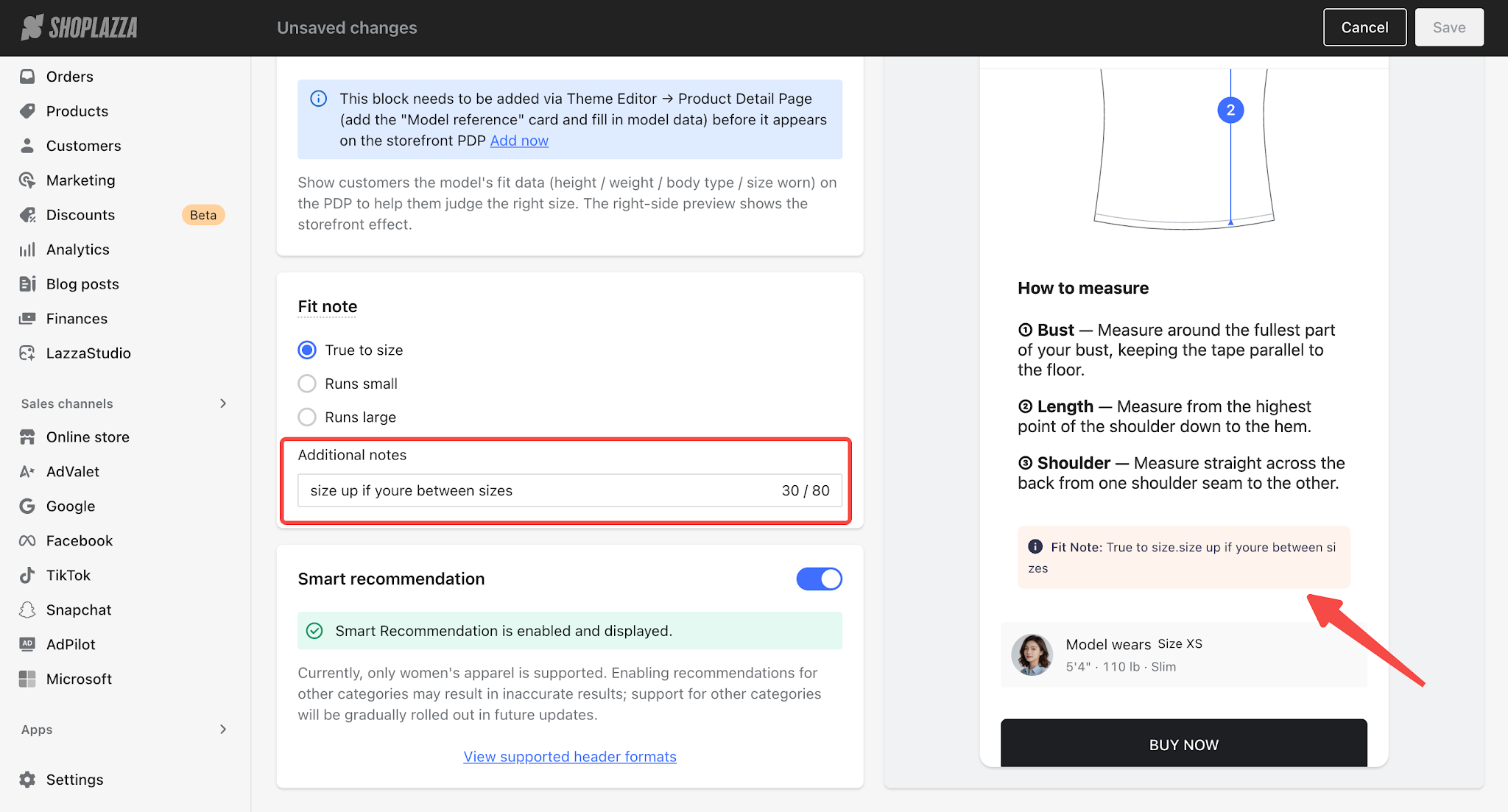
5. The preview area on the right will display the storefront effect in real time. After confirming the display, click Save in the upper-right corner.


Comments
Please sign in to leave a comment.