
Size Guide entries and content sections support style customization, including font size, bold/italic/underline, font family, color, and more. If you prefer not to manage the styles separately, you can choose to follow the theme so that the styles automatically match the overall design of your website. This article explains how to configure the styles of the Size Guide entry and content sections in the app.
Navigation Path
1. Log in to your Shoplazza Admin, then click the Size Guide app under Apps.
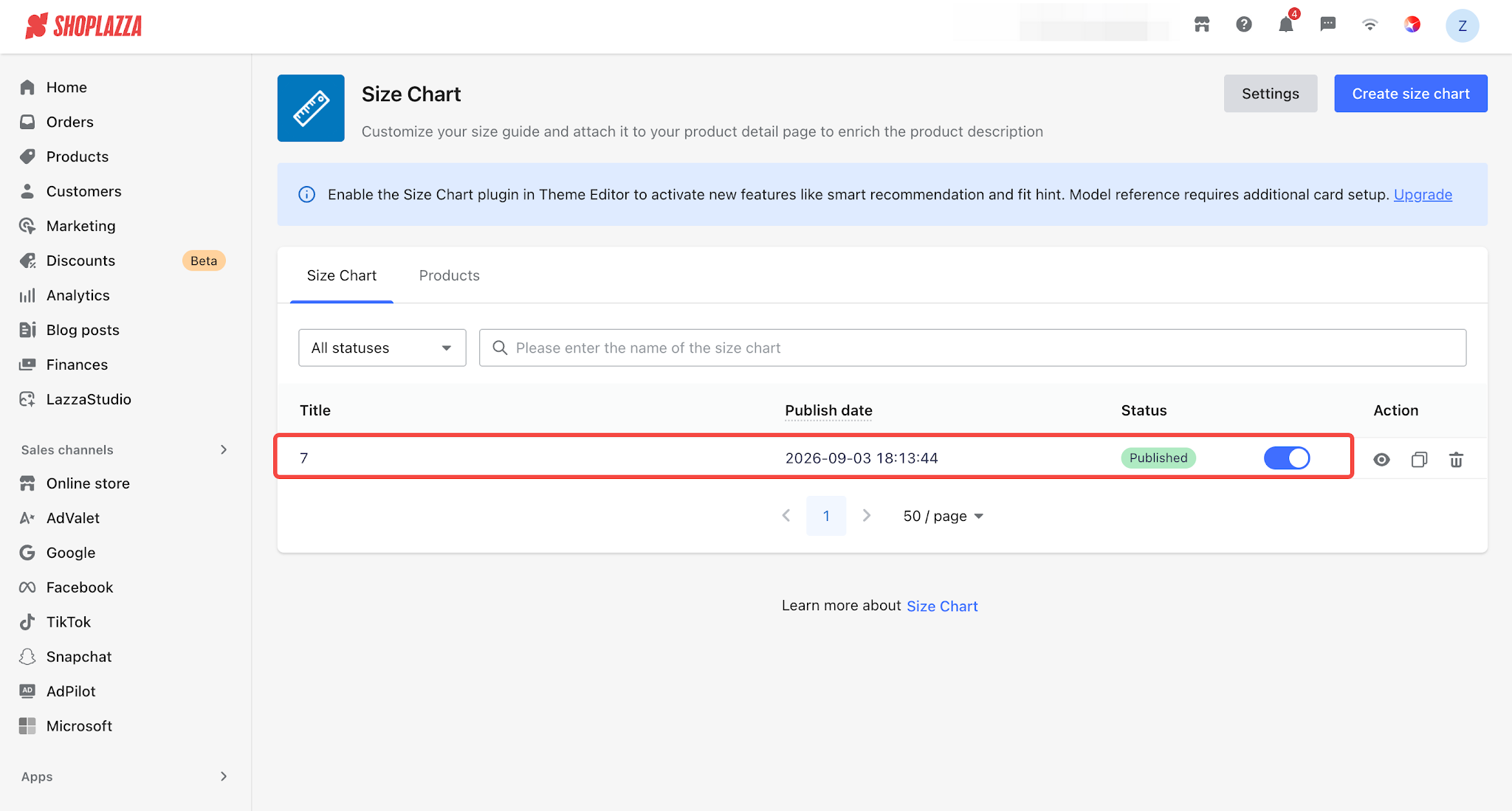
2. Select Style source to determine the overall style of the Size Guide entry and content:
- Theme default (default): Font size, bold/italic/underline, font family, and color will all inherit the website theme’s global settings. The styles will be rendered according to the theme on the storefront, and the four detailed style settings below will not be displayed in the app.
- Custom: Select this option to expand the four independent style settings in the app. You can customize each setting individually.
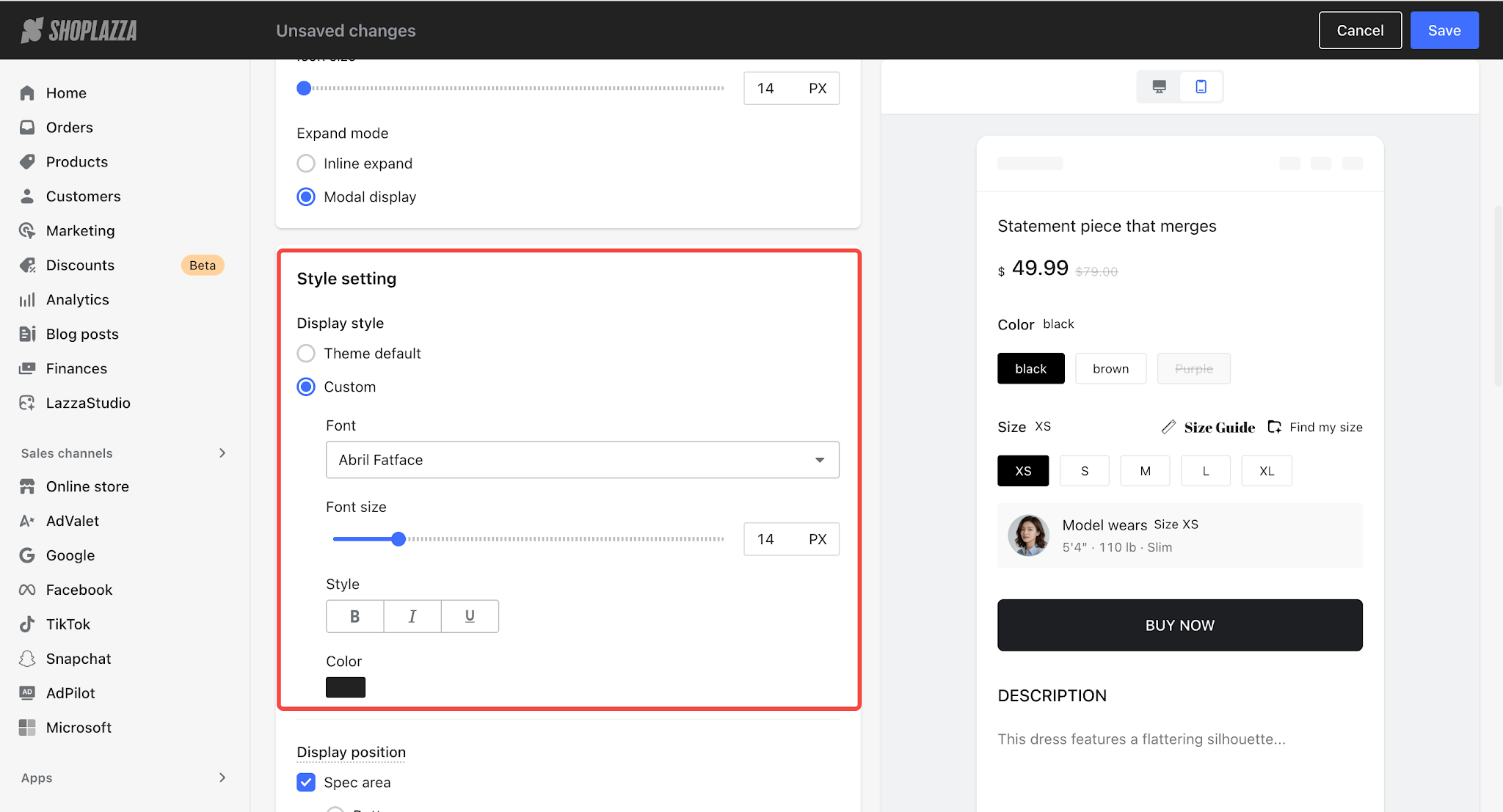
- Configure Font
- After selecting Custom, you can choose a font style from the font dropdown menu. Multiple font options, such as Roboto, are available.
- Configure Font Size
- Drag the Font size slider to adjust the text size of the Size Guide entry and content.
- Available range: 12–24 px
- By default, the current font size is used.
- Configure Text Style
- Click the B / I / U buttons to toggle bold / italic / underline. The three options work independently and can be combined freely. Click to enable and highlight an option, and click again to disable it.
- Configure Color
- After selecting Custom, use the color picker to choose your desired color.
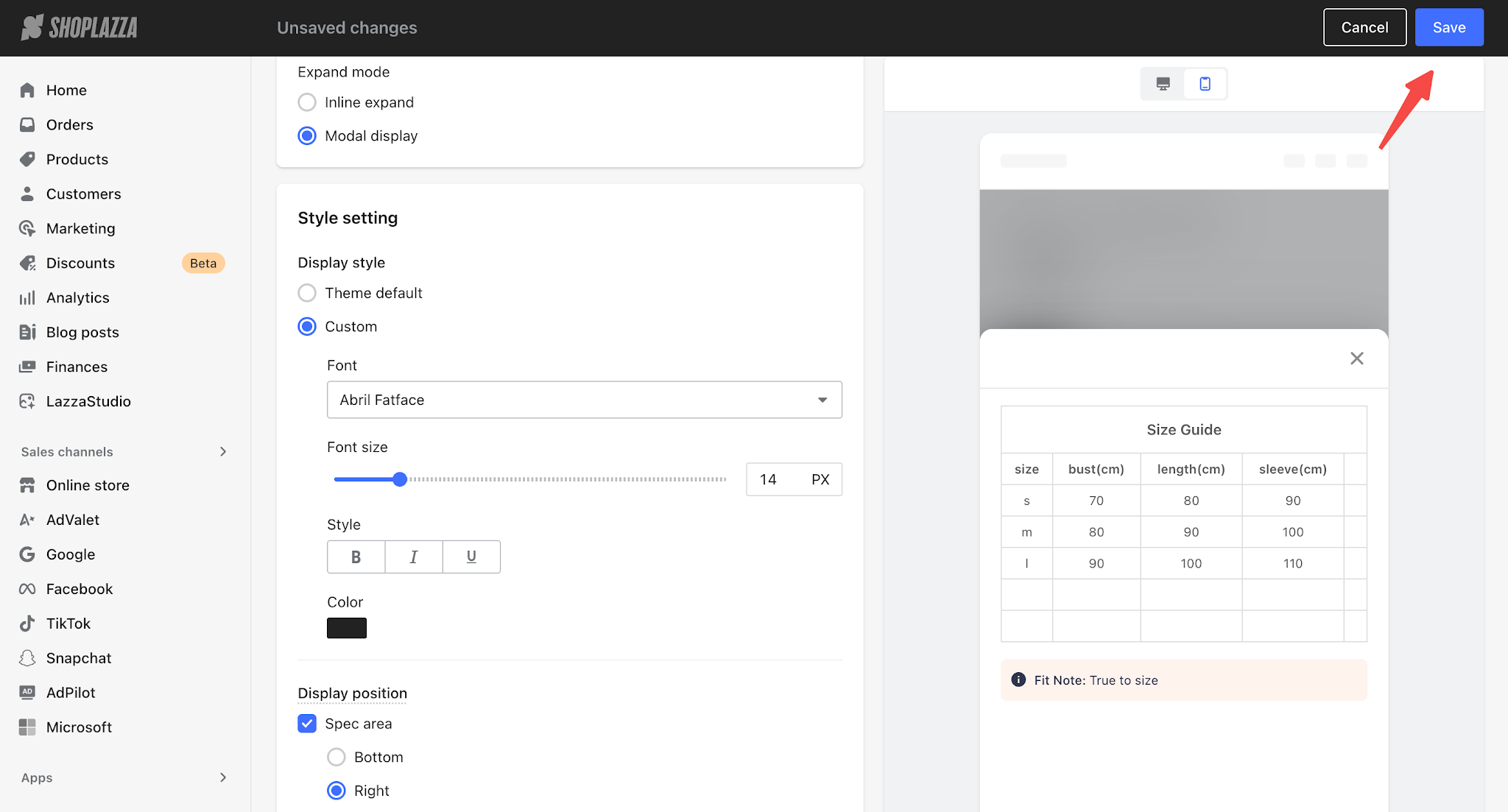
3. The preview area on the right will update in real time as you adjust the styles. Once you’re satisfied, click Save in the top-right corner.
Tip
If you want the styles of the Size Guide entry and content to match your website theme, we recommend keeping Style source set to Theme default, so you don’t need to maintain the styles separately. If you want the Size Guide to have a different visual style from the theme, switch to Custom and configure each setting individually.


Comments
Please sign in to leave a comment.