
A Cardholder is the holder of a virtual card. Before applying to issue a card, you must first create a cardholder and pass review. A single cardholder can be linked to multiple Regular Cards or Shared Cards.
Create a cardholder
Go to Funds > Shoplazza Accounts > Issuing > Cardholders, and click Add cardholder in the top-right corner.
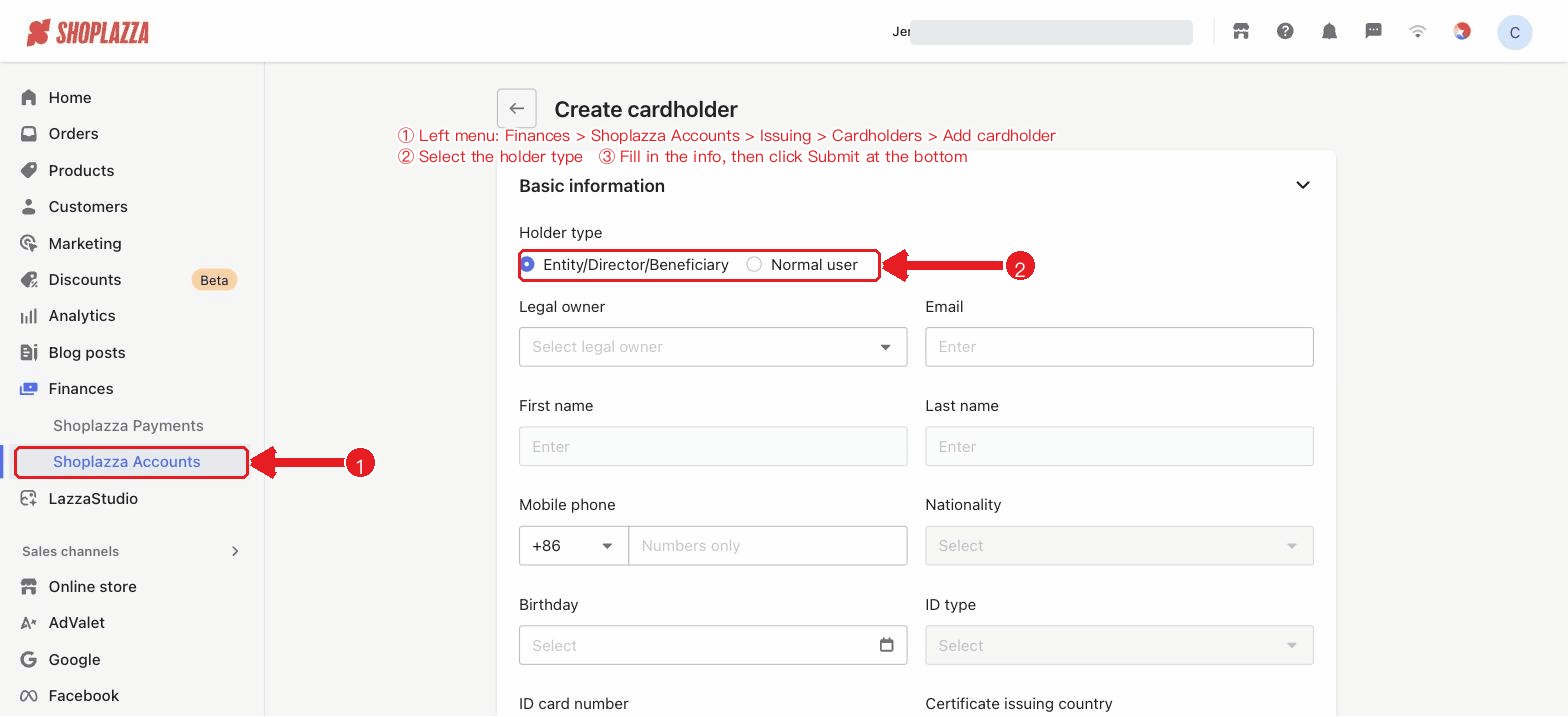
1. Select the cardholder type: Legal representative / Director / Beneficial owner (can be quickly filled from KYC data) or general cardholder.
2. Fill in the basic information: First name, last name, email, phone number, nationality, date of birth, ID document type and ID document number, and country of issue.
3. Fill in the billing address: Country/region, province/state, city, detailed address, and postal code.
4. Upload the ID document: Upload according to the document type (a single image for a passport; front and back for an ID card / residence permit). PNG/JPG/JPEG/HEIC/PDF are supported, with each file no larger than 6MB.
5. Click Submit and wait for review.
The cardholder must be at least 18 years old; names may contain only letters, digits, or Chinese characters; temporary email addresses are not supported. After submission, the status becomes "Under review". Once the review is passed, the status changes to "Normal", after which the cardholder can be used to apply for card issuance.
Review status descriptions
| Status | Description |
| Normal | Review passed; can be used to apply for card issuance. |
| Under review | The information is under review. |
| To be modified | Materials need to be supplemented or modified. |
| Rejected | The review was not passed. |
Interface operations and button descriptions
| Button / Control | Function |
| Add cardholder (top-right corner) | Opens the create cardholder form. |
| Cardholder type: Legal representative / General cardholder | Create form; selecting "Legal representative" allows quick filling from KYC data. |
| Basic information / Billing address / ID document upload (collapsible panels) | Fill in the name, contact details, ID document, and address by group, and upload the ID document according to the document type (≤6MB). |
| Cancel / Submit | Discard / validate and submit the cardholder, then wait for review. |


Comments
Please sign in to leave a comment.