
The Collection feature brings together all incoming records received through your Global Accounts, including the incoming amount, collection amount, and status. When an incoming payment requires supplementary materials for compliance review, you can upload the supporting documents here to complete the review.
View incoming records
1. Open the Collection page: Go to Finances > Shoplazza Accounts > Collection.
2. View and filter: Search by settlement No. / account, and filter by status and date range (up to 180 days); click Reset to clear the conditions.
Figure 1: Incoming records list
Figure: Incoming records list showing Success / Processing / Pending Certificate statuses, with Details and Supplement entry points
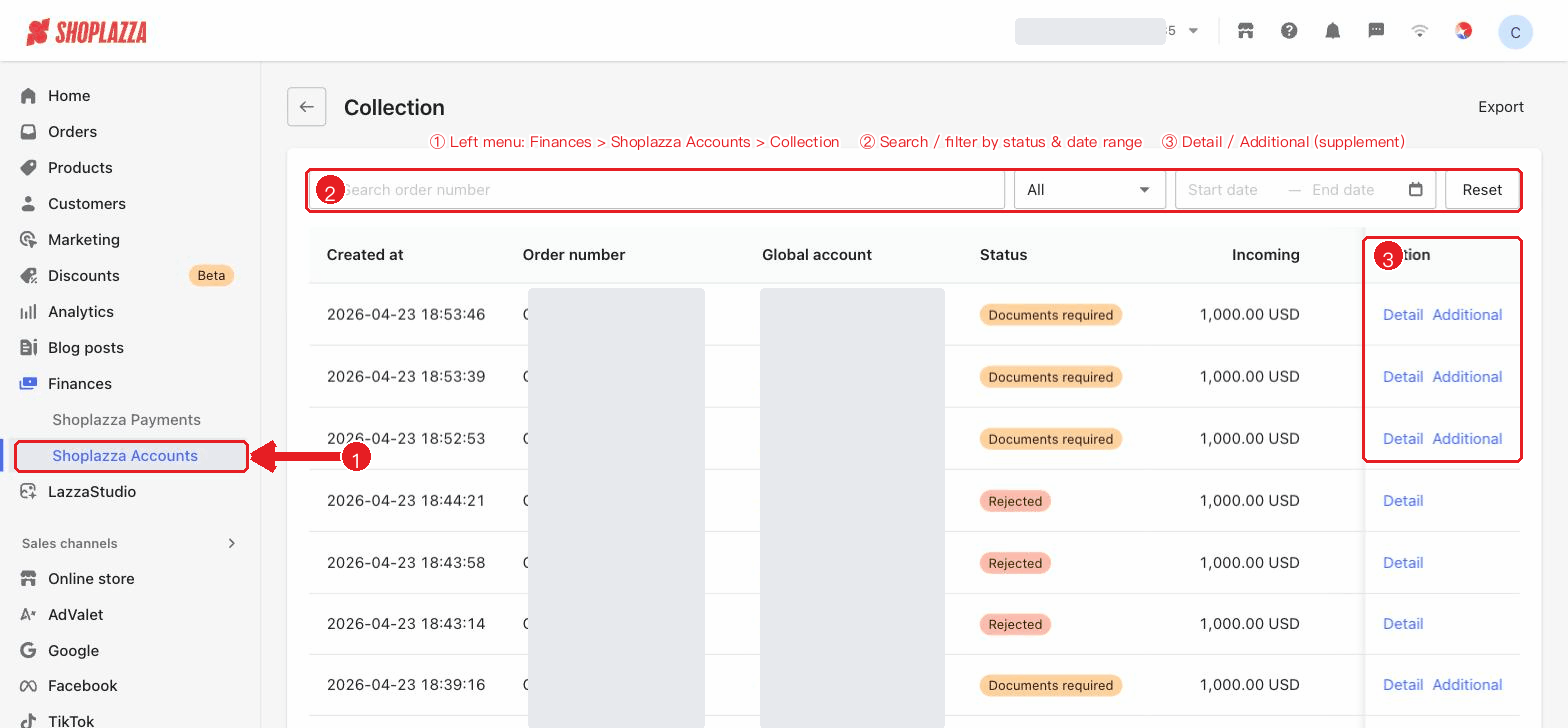
List columns: Created At, Order number, Global Account, Status, Incoming amount, Collection amount, Action (Details / Supplement).
| Status | Description |
| Processing | The incoming payment is being processed. |
| Success | The incoming payment has succeeded. |
| Pending Certificate | Supporting documents must be supplemented before processing can continue. |
| Rejected | The incoming payment was rejected. |
View incoming record details
Click Details to view the incoming amount, collection amount, fee, and finish time, along with the linked store information and the review status of the supporting documents (Pending Certificate / Under review / Approved / Rejected).
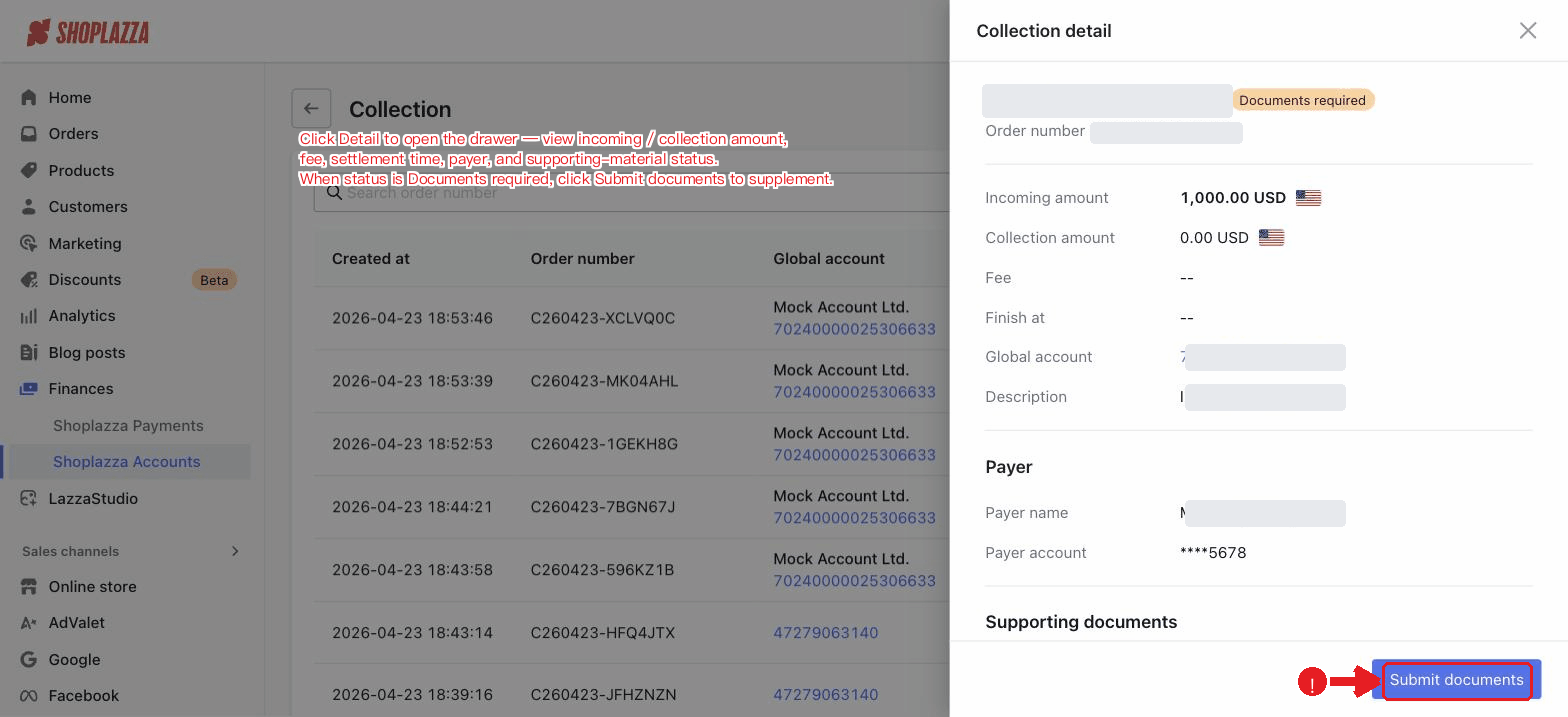
Supplement supporting documents (RFI)
When an incoming record has the status Pending Certificate, click Supplement to open the supplementary documents page and upload the following as required:
- Payment screenshot: Shows the collection of the product / order.
- Order screenshot: Shows the order details.
- Logistics proof: Shows the shipping / logistics information.
Note
Up to 5 files can be uploaded for each type, in .jpg / .jpeg / .png / .heic / .pdf format, with each file no larger than 10MB. After submission, review is expected to take 1–2 days, and the result will be notified via email.
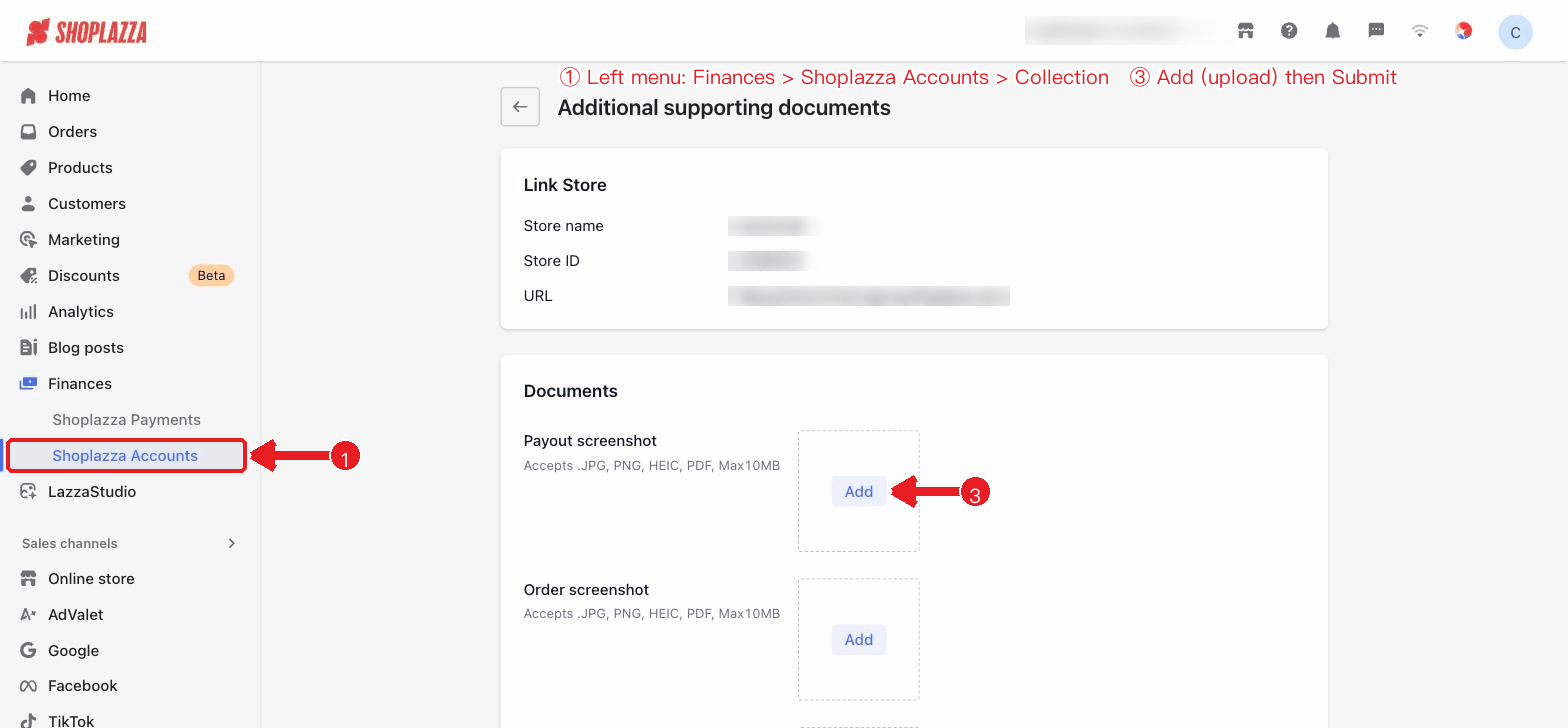
Figure: Supplement supporting documents (RFI) — upload payment screenshot / order screenshot / logistics proof
Interface actions and buttons
| Button / Control | Function |
| Fiat / Crypto (tabs) | Switch between the fiat collection and crypto collection views (crypto requires the corresponding permission; otherwise it is not shown). |
| Export | Export collection (incoming) records (fiat view, available when there is data). |
| View deposit address | Exclusive to the crypto view; opens the deposit address dialog. |
| Search / Status / Date range | Search by settlement No. / account, and filter by status and date (up to 180 days). |
| Reset | Clear all filters. |
| Details (row action) | Open the incoming record details to view the incoming / collection amount, fee, finish time, linked store, and the review status of the supporting documents. |
| Supplement (row action) | Shown only for the "Pending Certificate" status; navigates to the supplementary documents page. |
| Payment screenshot / Order screenshot / Logistics proof (upload) | The three upload types on the supplementary documents page; up to 5 files per type, ≤10MB. |
| Cancel / Submit | On the supplementary documents page: discard / validate and submit the materials; the materials enter review after submission. |


Comments
Please sign in to leave a comment.