
Global Accounts provide you with local receiving accounts, so you can accept payments from around the world just like a local transfer. Once activated, you receive local bank account details in the corresponding currency (account number, SWIFT/BIC, routing number, etc.) for receiving funds and reconciliation.
Supported banks (full list)
The following are the banks and local clearing networks currently supported for opening an account. The actual available options are subject to what is displayed on the application page in the back office.
| Account country | Currency | Bank name | Local clearing network |
| DE Germany | EUR | Banking Circle S.A | SEPA |
| DK Denmark | USD | Banking Circle S.A | SWIFT, BACS, CHAPS, FPS |
| GB United Kingdom | GBP | Banking Circle S.A | SWIFT, BACS, CHAPS, FPS |
| US United States | USD | Citi Bank; Community Federal Savings Bank (CFSB, applications supported only for HK and CN entities, can be linked to PayPal) | Citi: ACH; CFSB: Fedwire, ACH |
| HK Hong Kong | HKD / USD / EUR / GBP | Standard Chartered Bank (Hong Kong) (can be linked to PayPal); DBS Bank (Hong Kong) | SCB: SWIFT, RTGS, FPS; DBS: SWIFT, RTGS |
What is a Global Account
A Global Account is a local receiving account that Shoplazza Accounts opens for you in supported countries/regions. Different countries/regions can have accounts in different currencies (such as USD in the United States, USD/HKD in Hong Kong, etc.), with the corresponding local clearing details provided based on the bank.
Apply for a Global Account
1. Open the Global Accounts page: Go to Finances > Shoplazza Accounts > Global Accounts, and click Apply Global Account in the top-right corner.
2. Fill in the application details: Enter a nickname, and select the country/region, currency, and bank name. Some banks also require you to provide linked store information (store name, URL, payment provider, registration date, trade type, sales category, and a store dashboard screenshot).
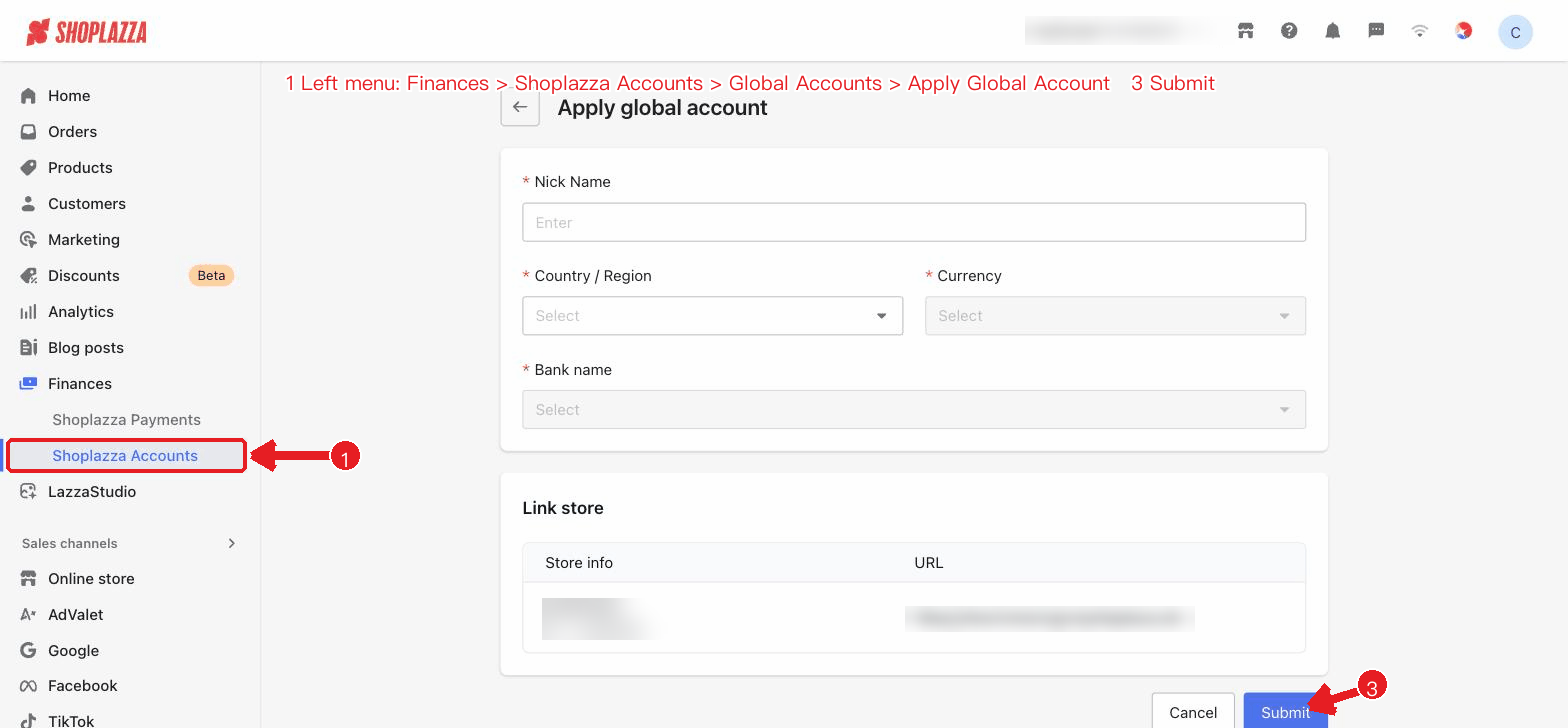
Figure 1: Apply for a Global Account
Figure: Apply for a Global Account — nickname / country-region / currency / bank, plus linked store
3. Submit the application: After confirming the information, click Submit. The system will begin its review, which is usually completed within 1–3 business days.
If a message indicates that there are no supported banking options for your region or currency, you can try again later or contact your account manager. To apply for multiple Global Accounts, please contact our business team.
Notes
- The nickname is for identification only: The account nickname is used solely to help you distinguish between accounts in the back office.
- Store screenshot requirements: If you need to provide linked store information, the screenshot must include the store name and store URL. Supported formats are .jpg/.png/.heic, up to 10MB.
- Review status: After submitting the application, you can check its status in the Global Accounts list (Processing / Actived / Failed, etc.).
Interface actions and button descriptions
| Button / control | Function |
| Nickname (input field) | Enter an account nickname, for your identification only. |
| Country/Region (dropdown) | Select the account country; switching it clears the currency, bank, clearing network, and fee. |
| Currency (dropdown) | Select the account currency; once selected, the banks available for that country/currency are loaded. |
| Bank name (dropdown) | Select a bank; once selected, the clearing network and fee are displayed, and the system determines whether linked store information is required (IBC banks). If no bank is available, a message is shown. |
| Linked store form (IBC banks) | Enter the store name, URL, payment provider, registration date, trade type, and sales category, and upload a store dashboard screenshot (the screenshot must include the store name and URL). |
| Screenshot preview / delete | After a screenshot is uploaded, hover over it to reveal the enlarge-preview and delete icons. |
| Cancel / Submit | Cancel to go back; after submitting, the application enters review (1–3 business days). |


Comments
Please sign in to leave a comment.