
The Payout records feature lets merchants view all submitted payout transactions in one place, making it easy to track transaction status, review transaction details, and search historical payout records — so you can manage your cross-border payout process and fund flows more efficiently.
View payout records
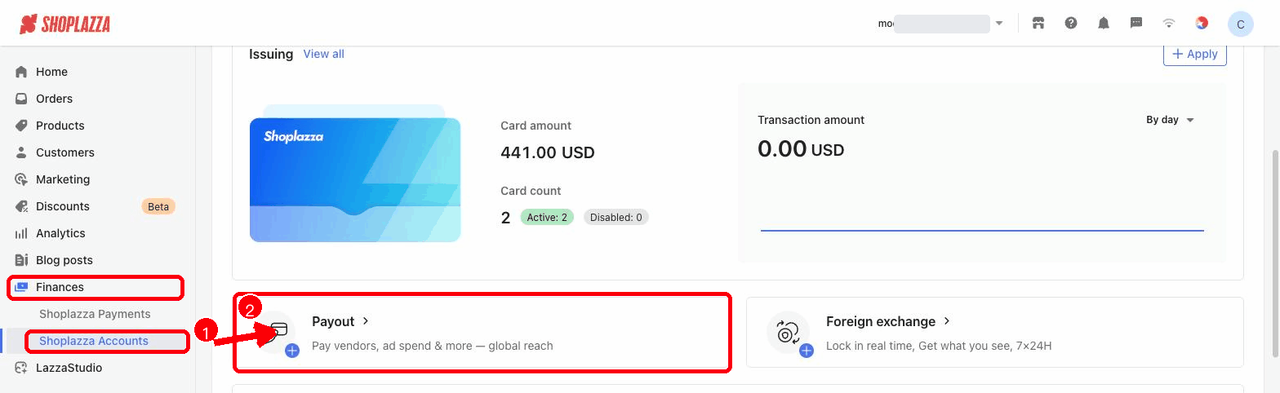
1. Open the Payout page: Go to Finances > Shoplazza Accounts > Payout. The Payout tab is shown by default.
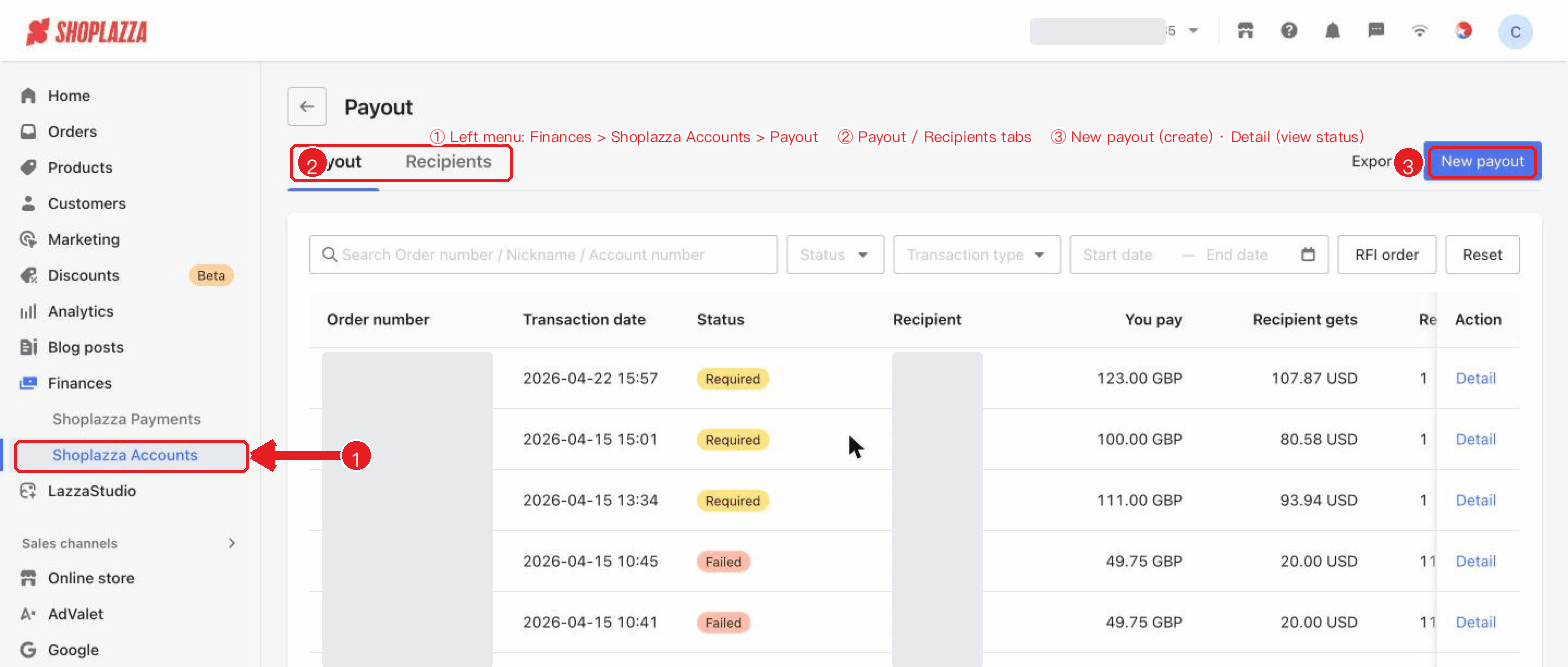
2. View the payout list: The list shows the basic information of each payout transaction, including order number, transaction date, status, recipient, you pay, recipient gets, reference, and action.
Search and filter
- Search by order: Enter an order ID in the search box to quickly find a transaction.
- Filter by status: Processing / Success / Failed, etc.
- Filter by transfer type and date: Select a transfer type or a start/end date.
- RFI orders: Click RFI orders to quickly view payout transactions that require supplementary materials (Request for Information).
- Reset: Clear all search and filter conditions.
Payment Status Description
| Status | Description |
| Processing | The payout is being processed. Please wait for the system to complete processing. |
| Action required | The payout transaction has triggered a risk-control rule. Following the prompt shown in the console, upload the supplementary materials required for the order, and you can continue to submit the payout request. |
| Success | The payout has been completed successfully. |
| Failed | The payout was not completed successfully. You can review the failure reason and handle it as prompted. |
| Reversed | The payout was not actually successful because the receiving bank rejected the credit or for a related reason. The funds will be returned along the original route. |
View payout details
In the payout list, click Details to open the transaction details panel.
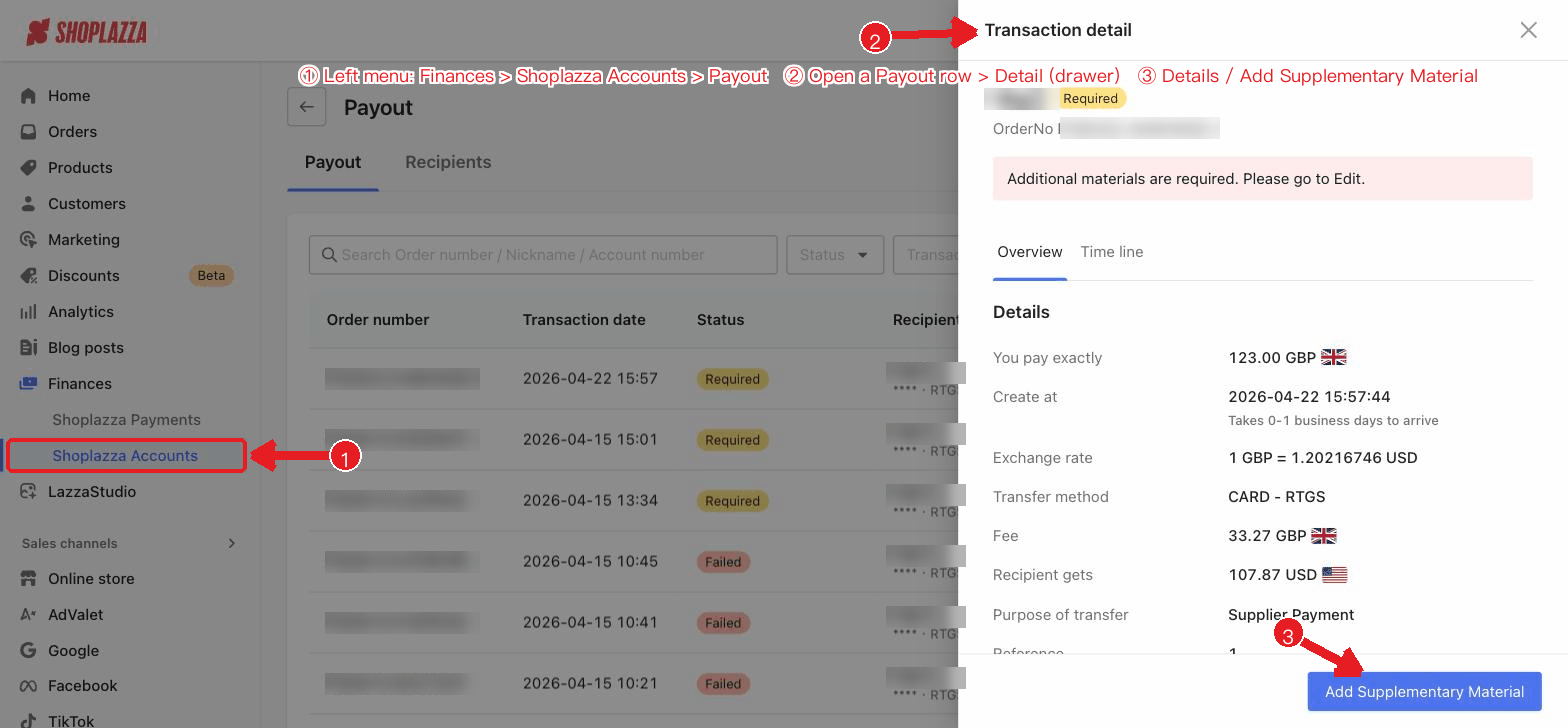
The transaction details may show the following information:
- Transaction information: Order number, transaction status, the amount you pay, creation time, payment method, fee, the estimated amount the recipient receives, purpose of payout, and reference. If currency exchange is involved, the exchange rate used for this transaction is also shown. If supplementary materials are required due to risk-control or compliance review, the system will display the relevant prompt and guide you through the next steps.
- Recipient information: Recipient name, country / region, bank account information, receiving currency, clearing network, and more (depending on the payment method).
- Payer information: Payer name, business registration number, and place of registration (if applicable).
Best practices
- Search by order number: Quickly locate a specific payout transaction.
- Watch processing transactions: Check status updates in time and complete any follow-up steps as prompted.
- Watch RFI orders: If a transaction requires supplementary materials, submit them as soon as possible to avoid payout delays.
- Make good use of date filters: View payout records by time range for easier reconciliation and financial management.
Interface controls and buttons
| Button / control | Location | Function |
| Payout / Recipients (tabs) | Top | Switch between the payout records and the recipient list. |
| New Payout | Top right | Enter the create-payout flow. |
| Export | Top right | Export the current payout records as a file. |
| Search order ID | Filter bar | Find a payout transaction by exact order ID. |
| Status (filter) | Filter bar | Filter by status such as Processing / Success / Failed. |
| Transfer type (filter) | Filter bar | Filter transactions by transfer type. |
| Start date — End date | Filter bar | Filter by transaction time range. |
| RFI orders | Filter bar | Quickly filter payout transactions that require supplementary materials (RFI). |
| Reset | Filter bar | Clear all search and filter conditions. |
| Details (row action) | Action column | Open the transaction details drawer, which has an "Overview" tab and a "Timeline" tab. |
| Overview / Timeline (drawer tabs) | Details drawer | Overview shows the amount / exchange rate / fee / recipient, etc.; Timeline shows each node of the transaction's processing. |
| Add Supplementary Material | Details drawer (when materials are pending) | Appears when a transaction requires supplementary materials; click to upload the required materials. |


Comments
Please sign in to leave a comment.