
The header menu in the Reformia theme supports modular and flexible combinations, offering unprecedented flexibility and expressiveness. It solves the issue of “single header styles that cannot meet advanced design requirements.” It supports configuring images, products, and collections within the menu, breaking the limitations of traditional text-based navigation. This allows customers to quickly find their target content and improves navigation efficiency. This article will focus on introducing the menu section under the header.
Before configuring the header menu
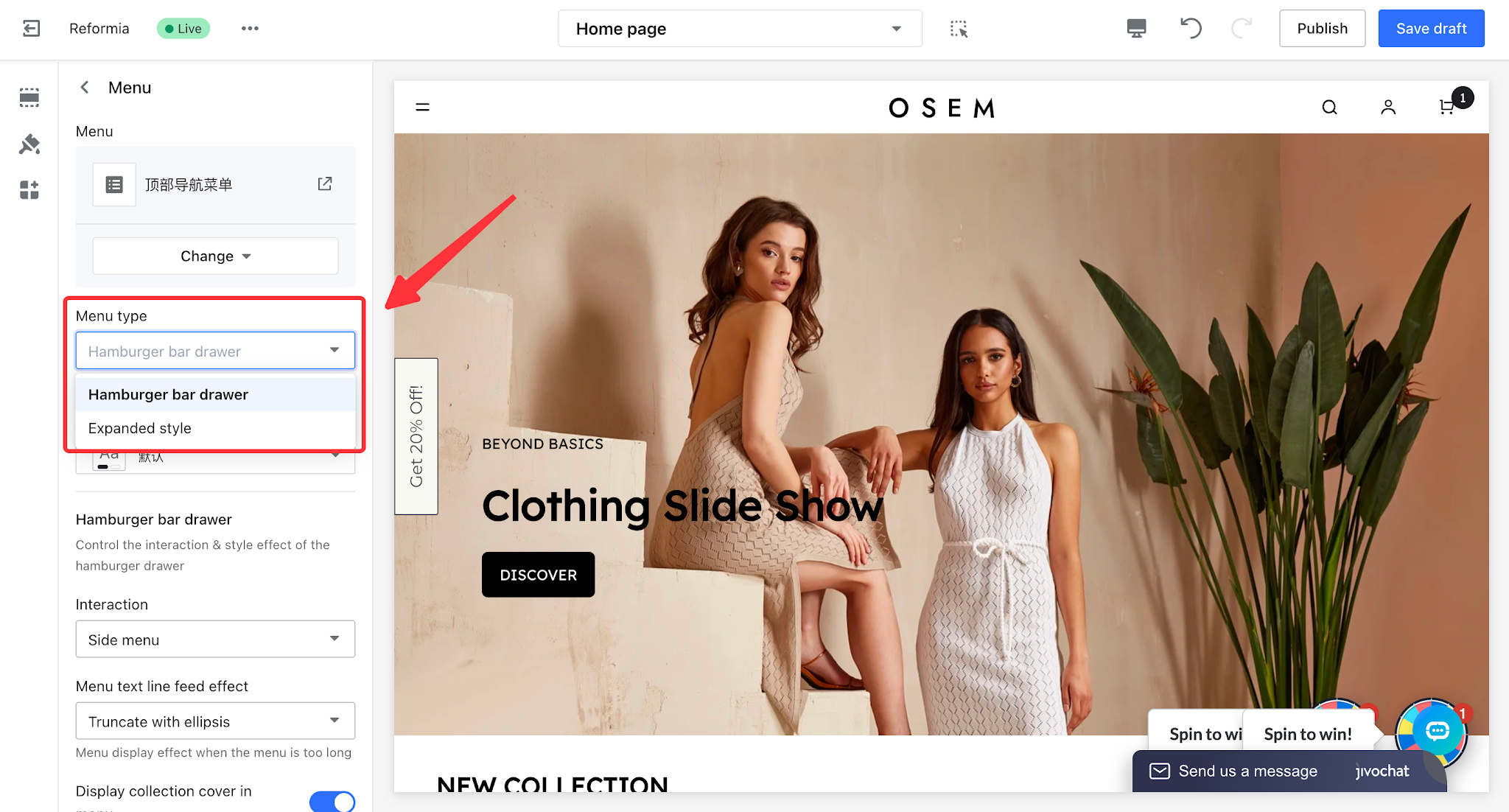
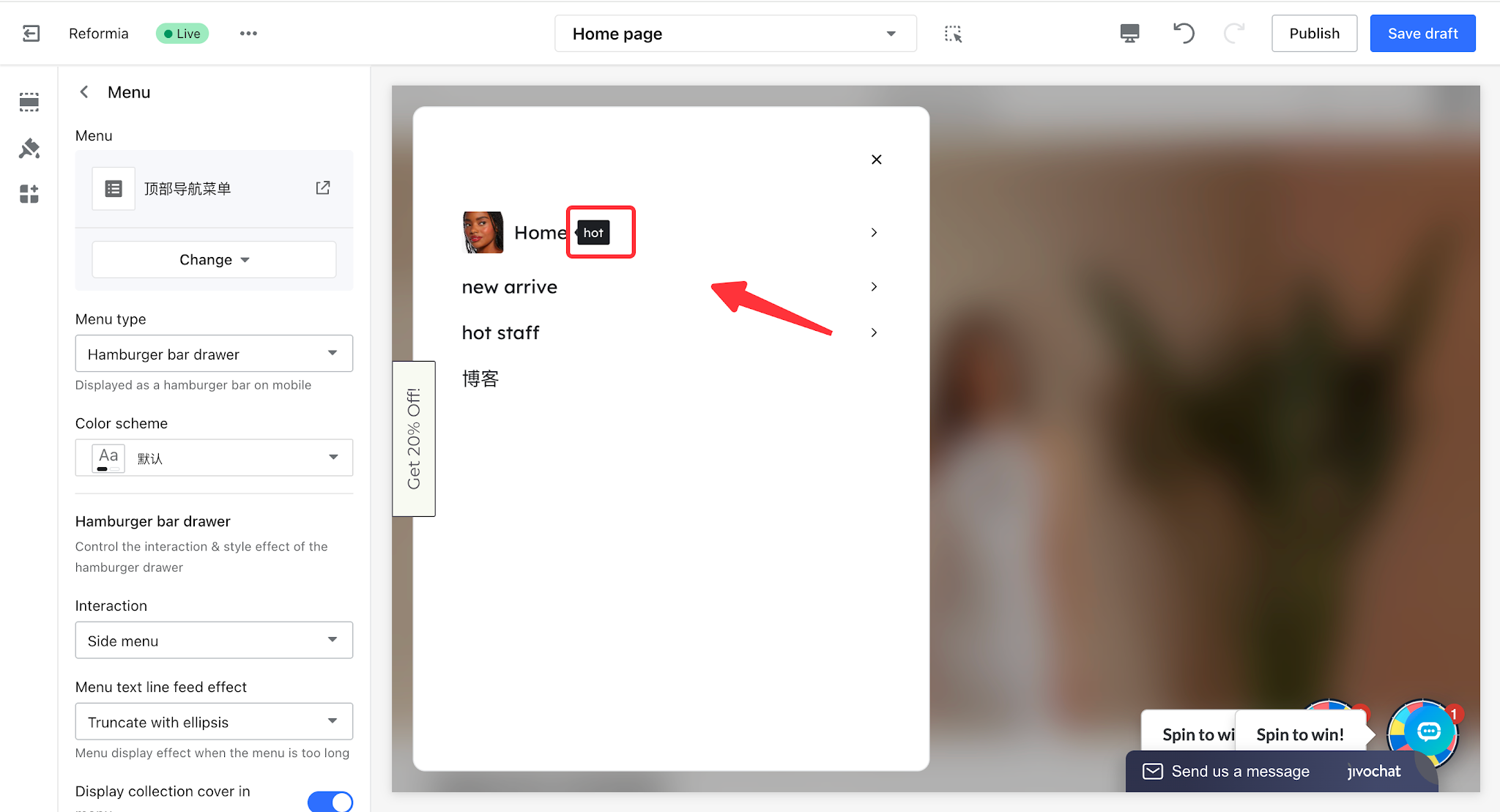
Go to the theme editor page, then click Header > Menu to change the menu type. The menu type can be configured as either a hamburger bar drawer or an expanded style. On mobile devices, the menu is displayed in a hamburger format.
I. Menu bubble
Tooltip pop-ups are clearly visible and can quickly guide customers to key menu items, while maintaining a clean and uncluttered page design.
1.1 Steps
1. Log in to your Shoplazza admin, go to Online Store > Themes, and click the Customize button.
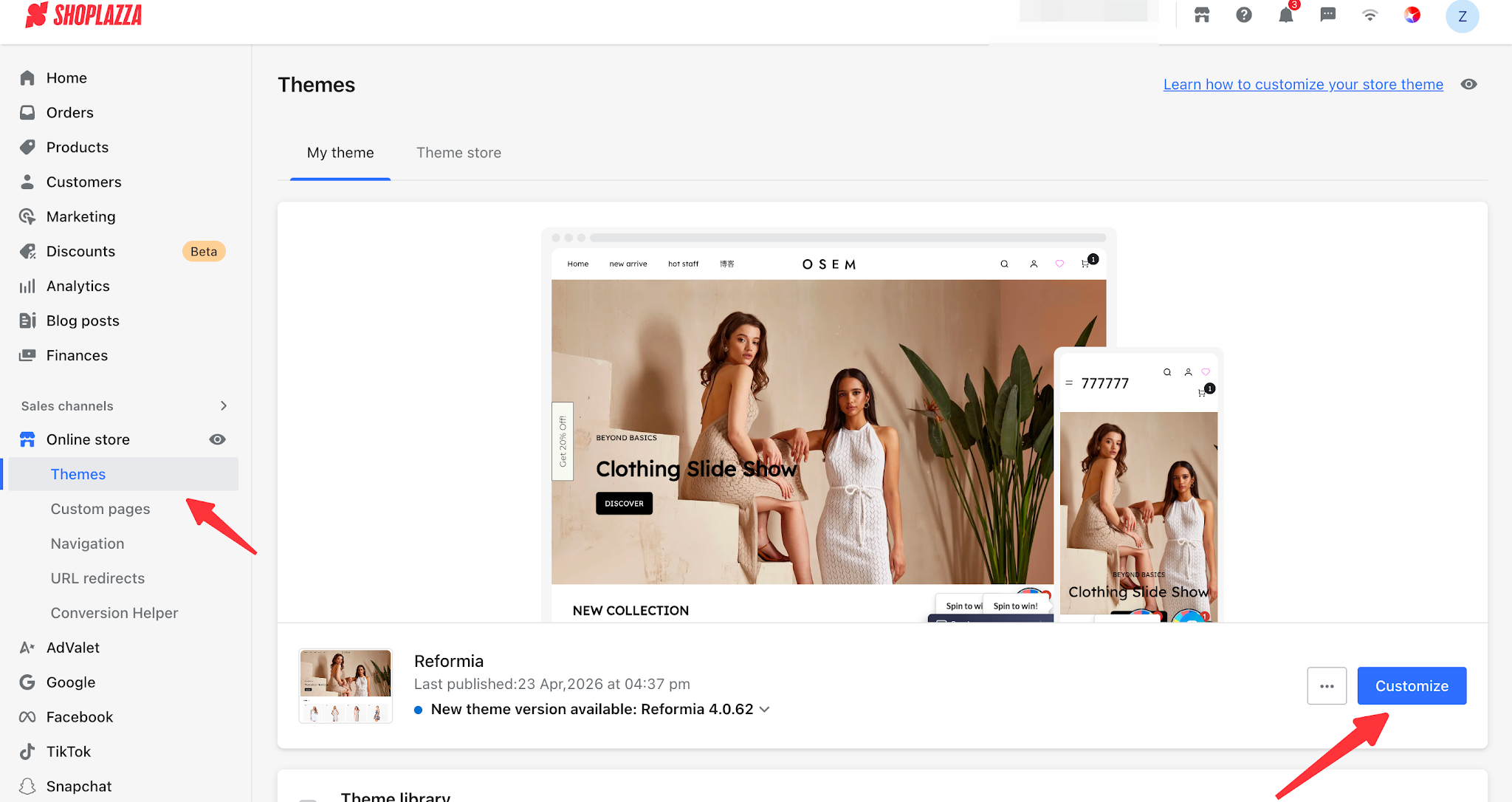
2. Expand Header > Menu, then click the menu bubble to configure it.
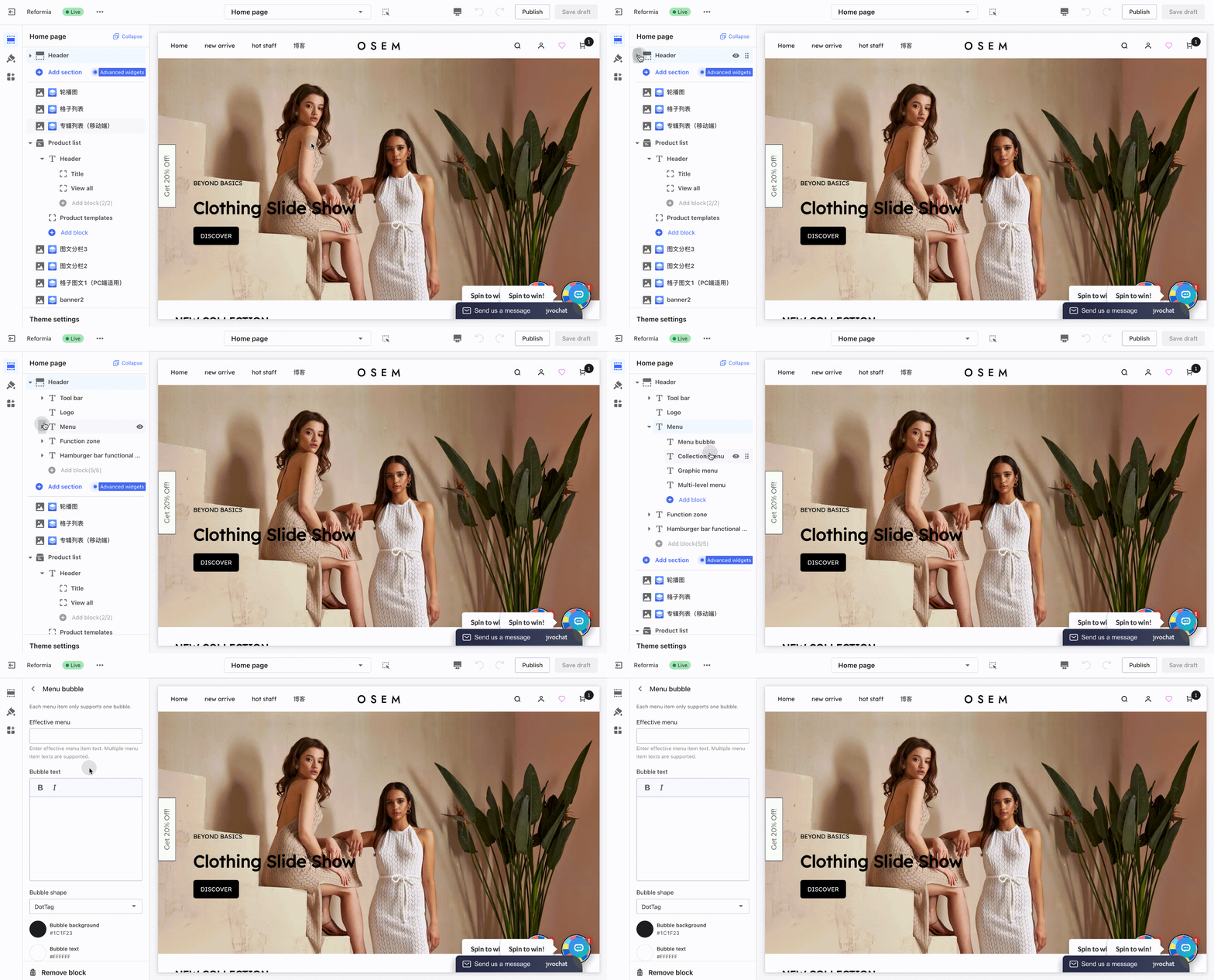
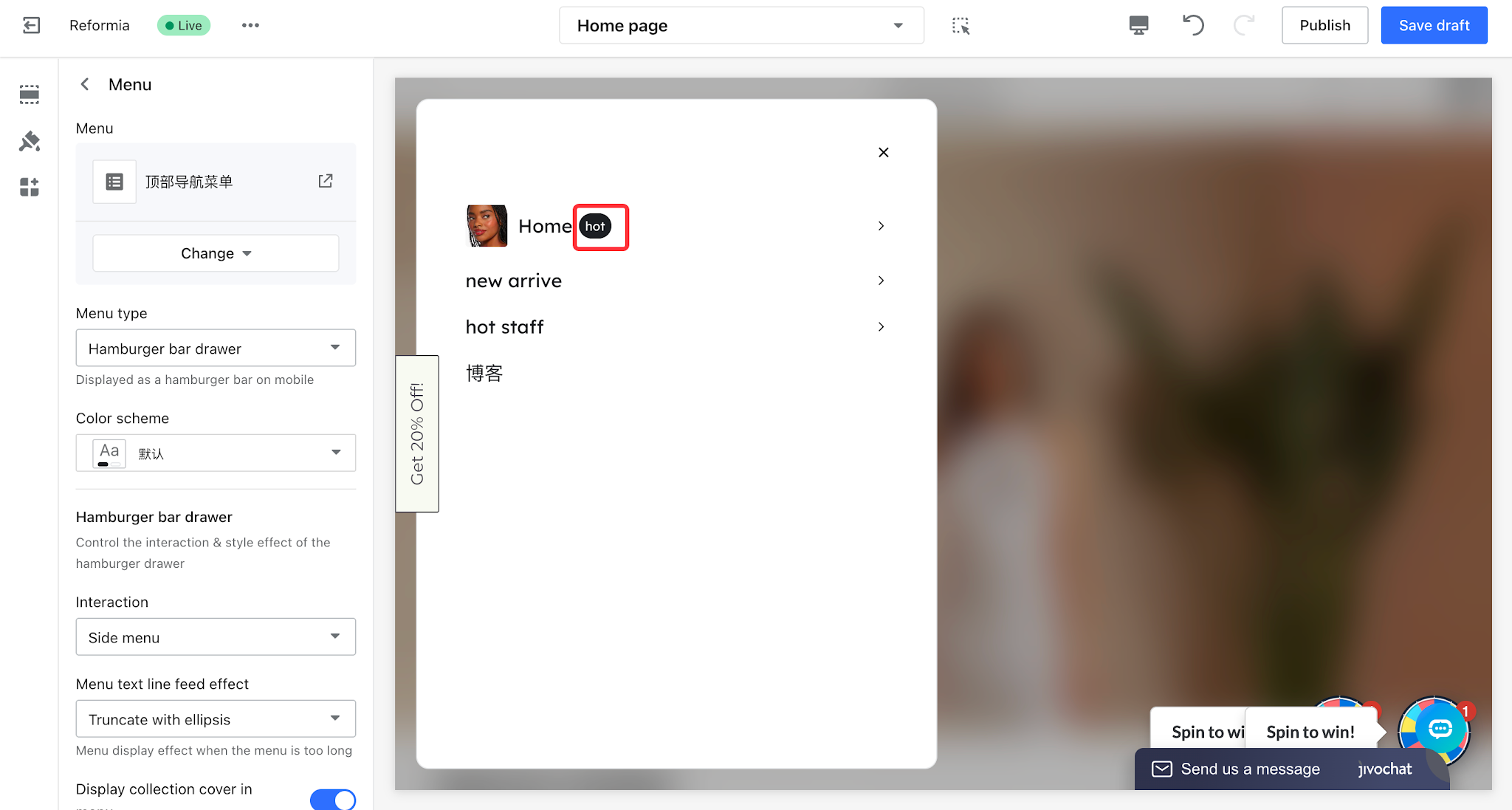
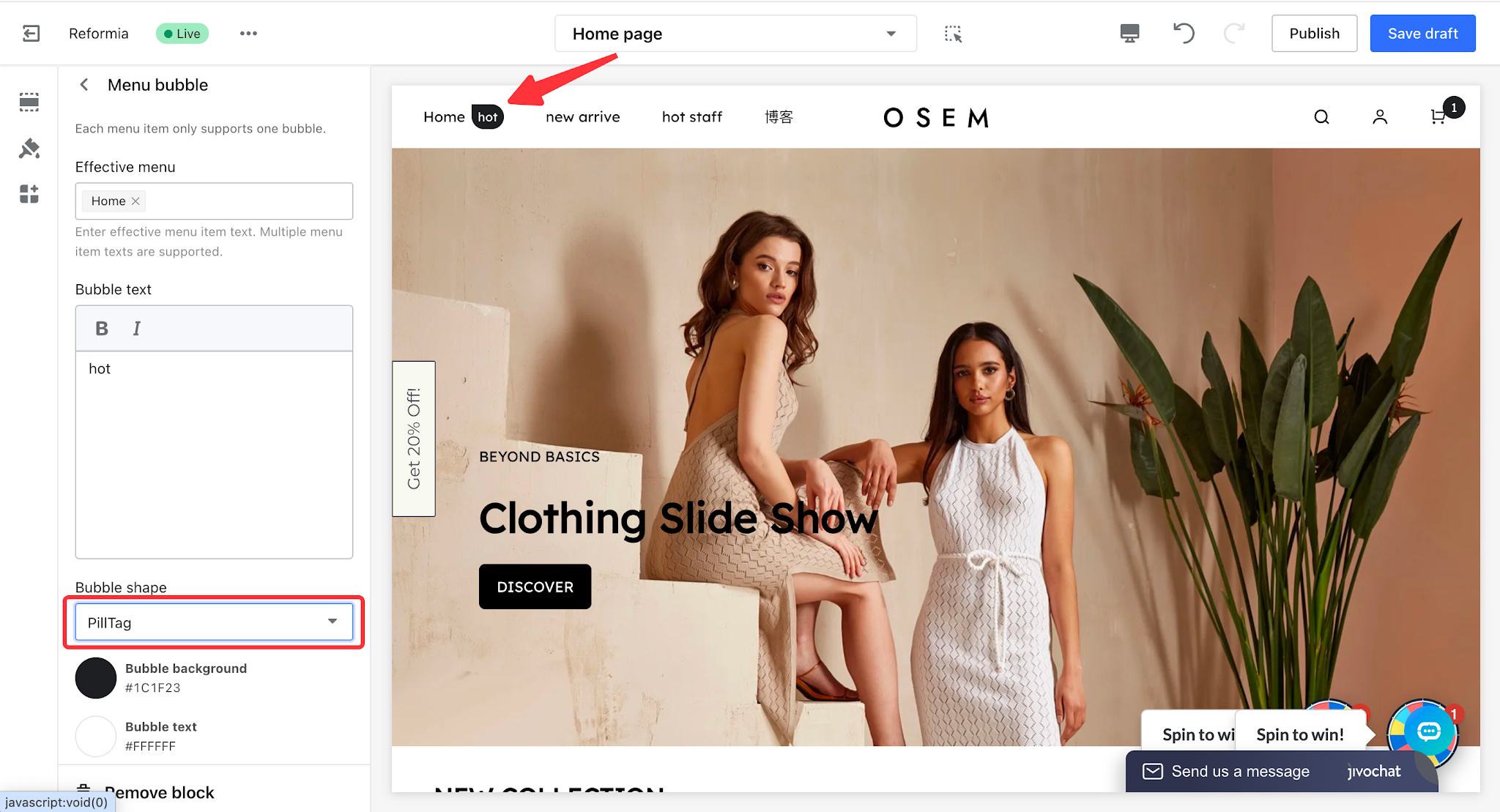
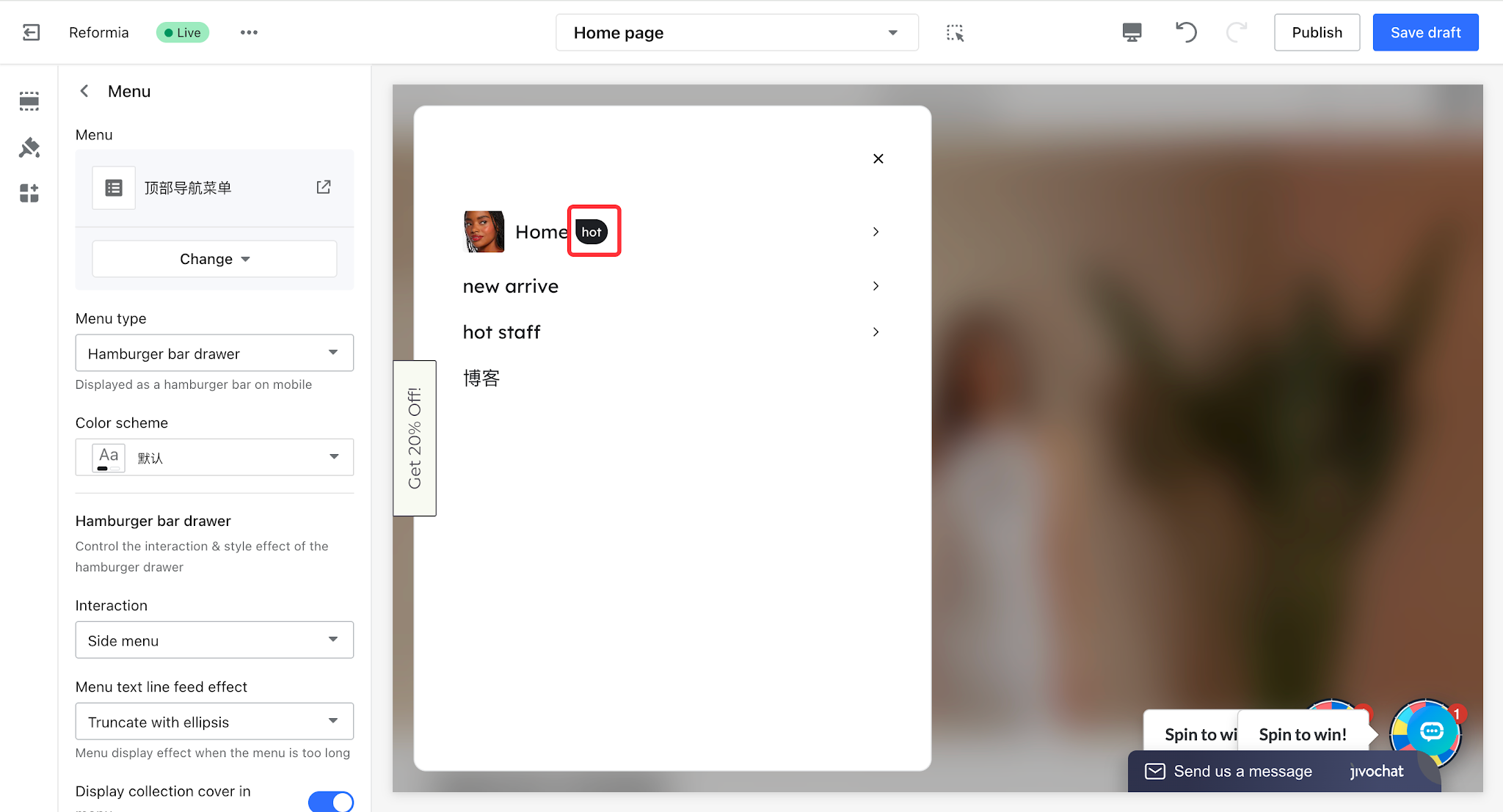
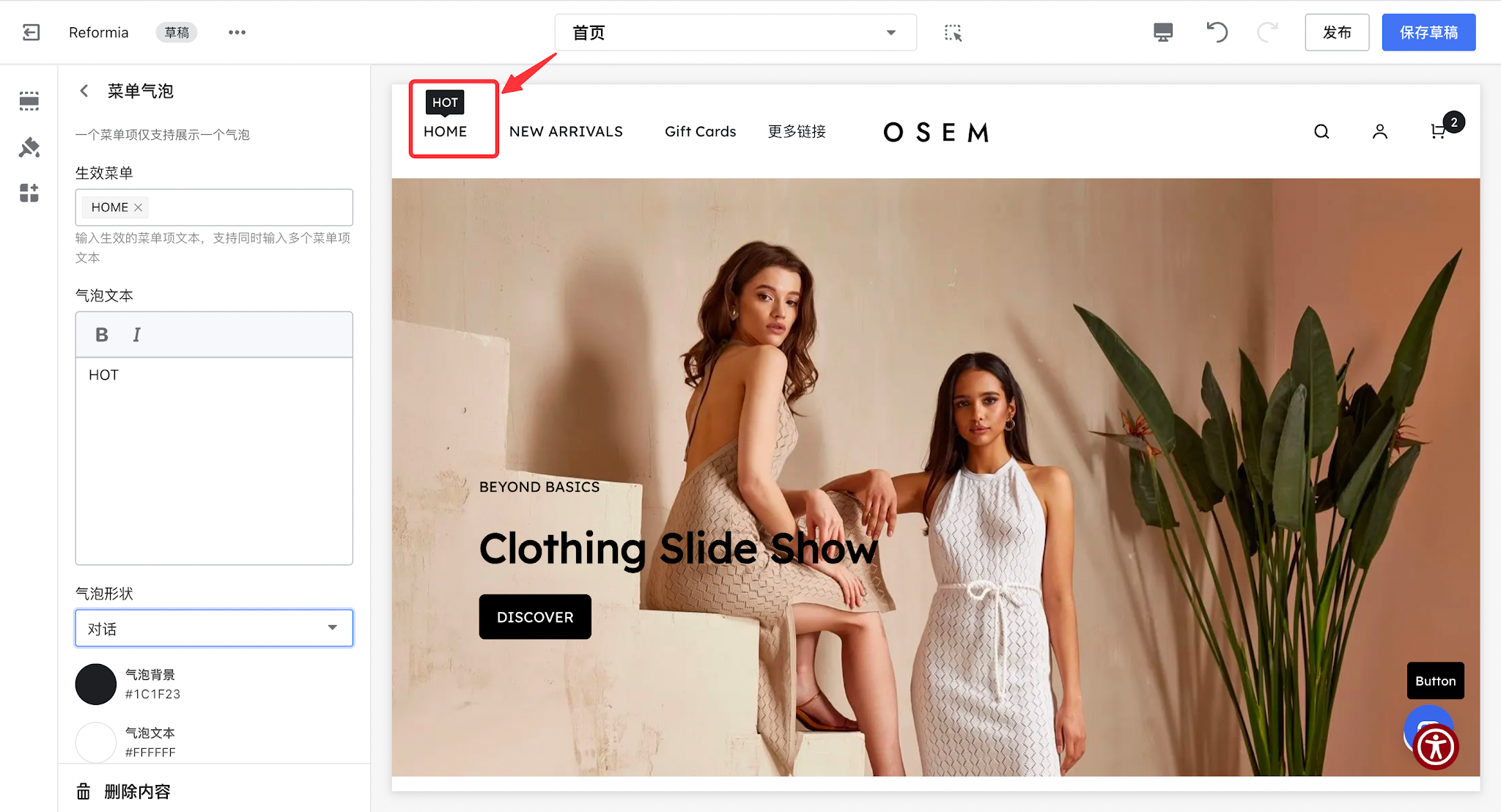
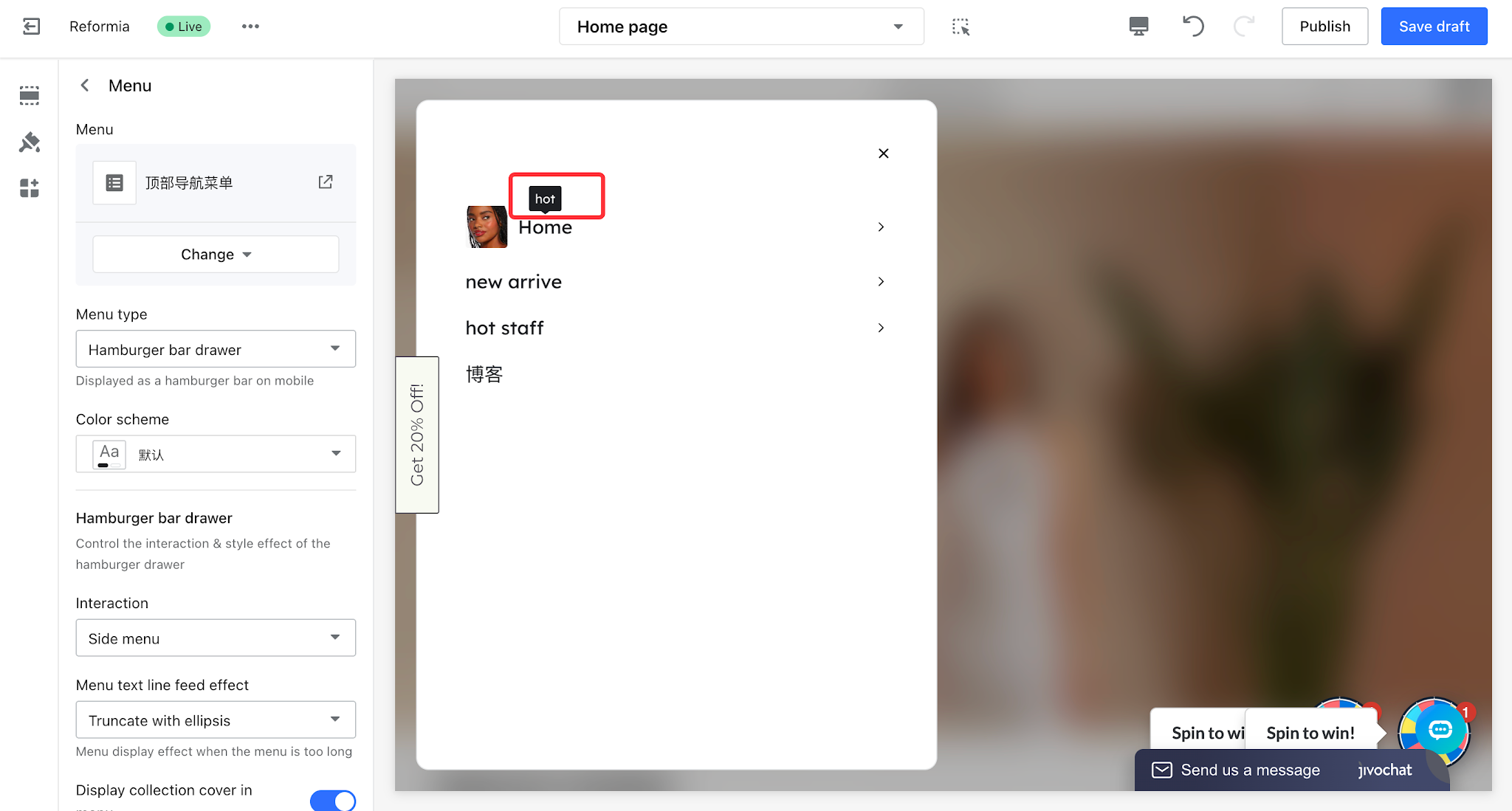
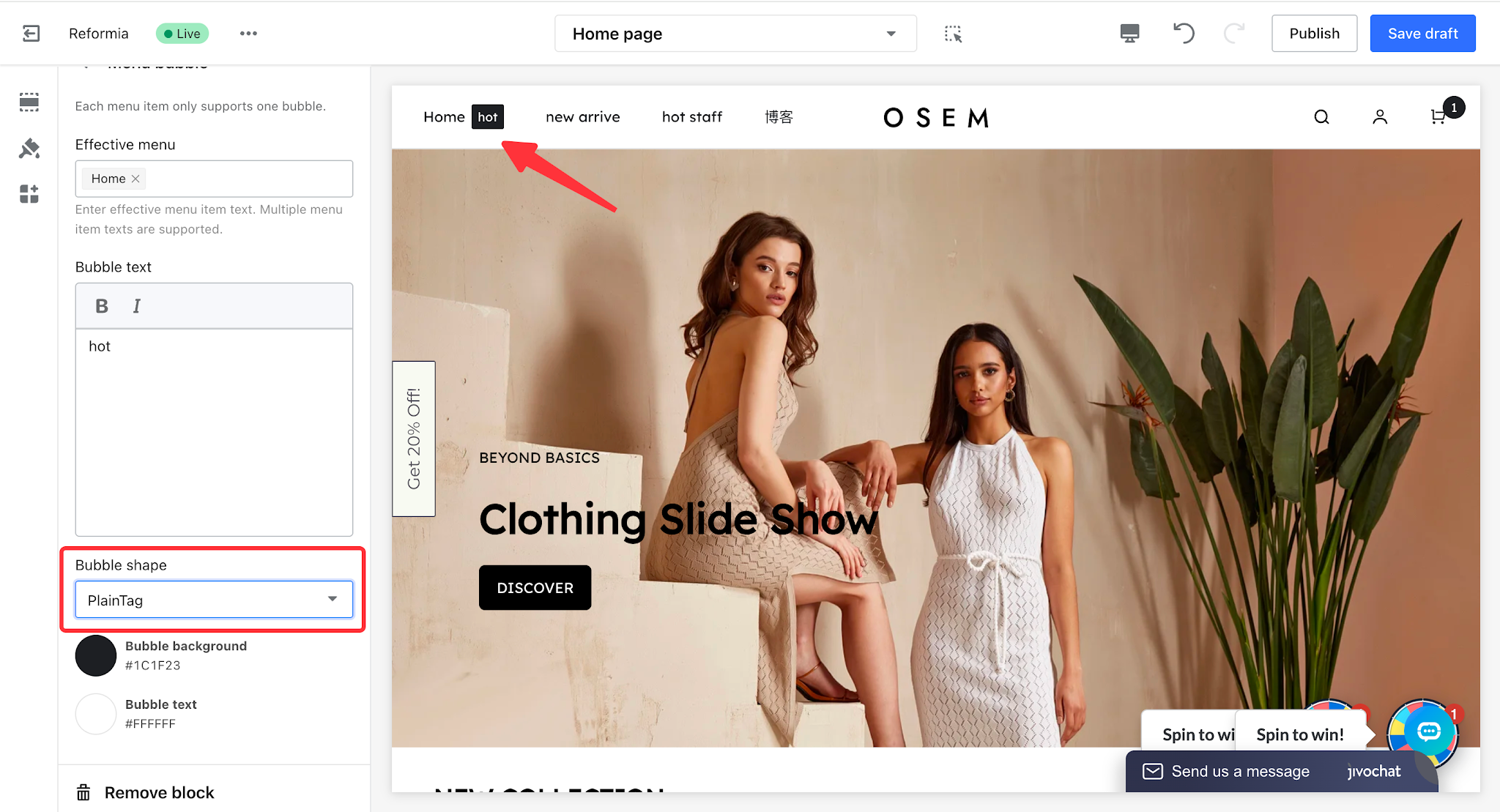
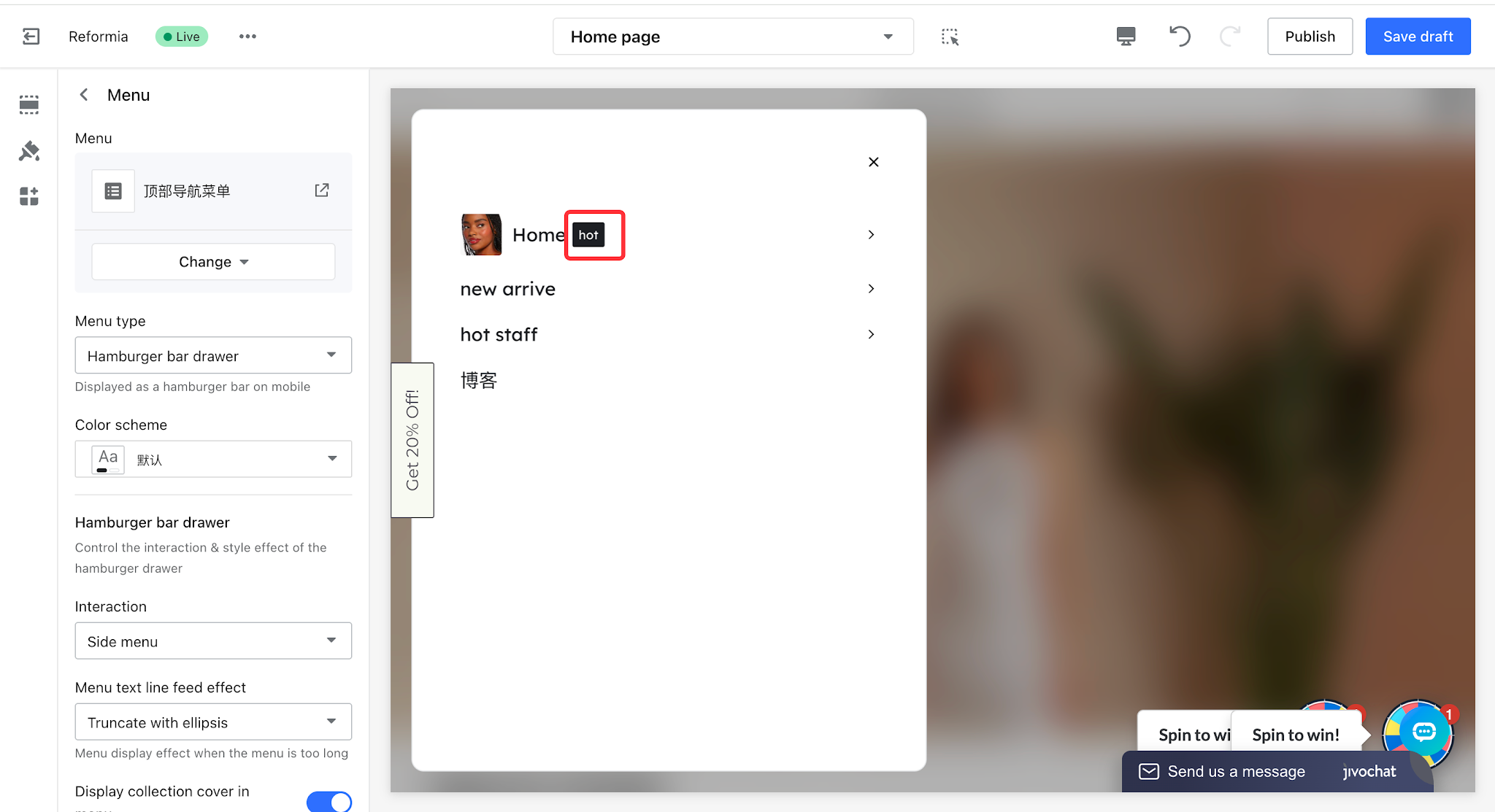
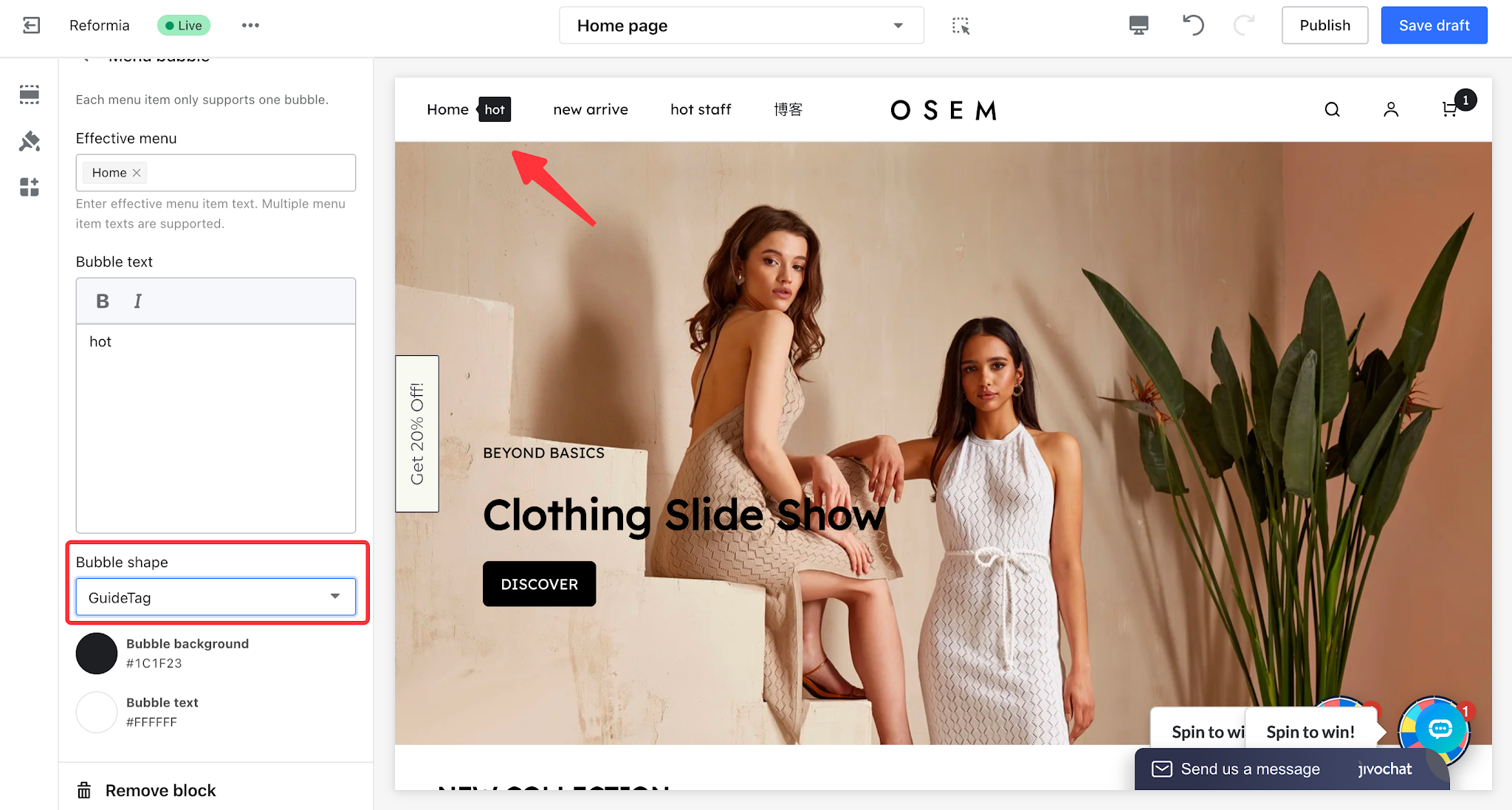
- In the configuration page, you can customize the tooltip style: choose the tooltip background, set the shape (dot, capsule, speech bubble, standard, or guided), and enter the tooltip text (e.g., "NEW", "HOT").
1.2 Configuration Result
This section uses the HOME menu and the "HOT" tooltip text as an example to demonstrate the configuration results of five different tooltip shapes.
Bubb shape | Display effect | Hamburger menu display effect |
DotTag
|
|
|
| PillTag |
|
|
| SpeechTag |
|
|
PlainTag
|
|
|
| GuideTag |
|
|
II. Collection Menu
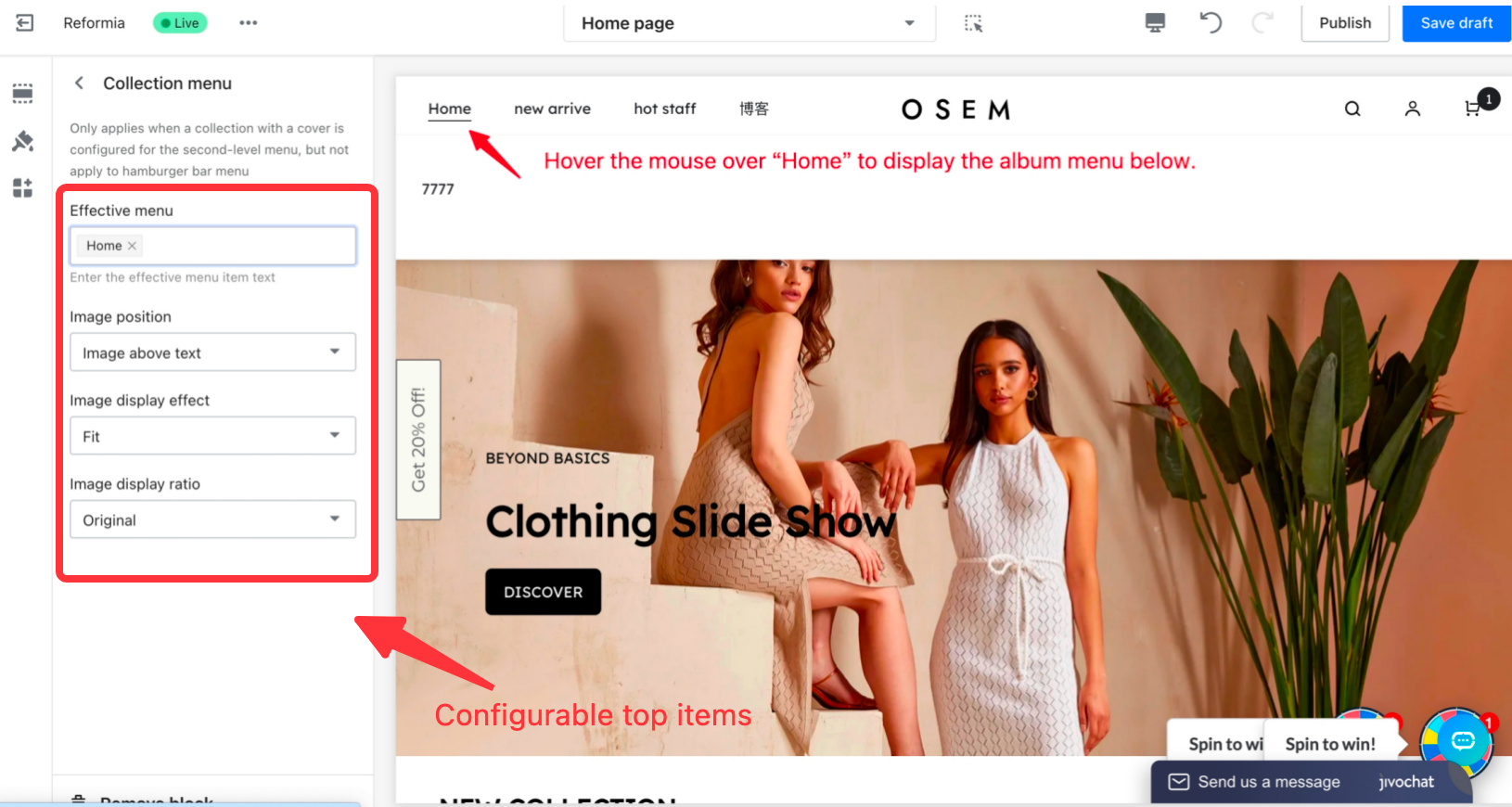
When hovering over the main menu, a submenu album list will expand. Each album is displayed with a "cover image + name" format, and clicking an album item will directly navigate to its corresponding detail page.
2.1 Steps
1. Log in to your Shoplazza admin, go to Online Store > Themes, and click the Customize button.
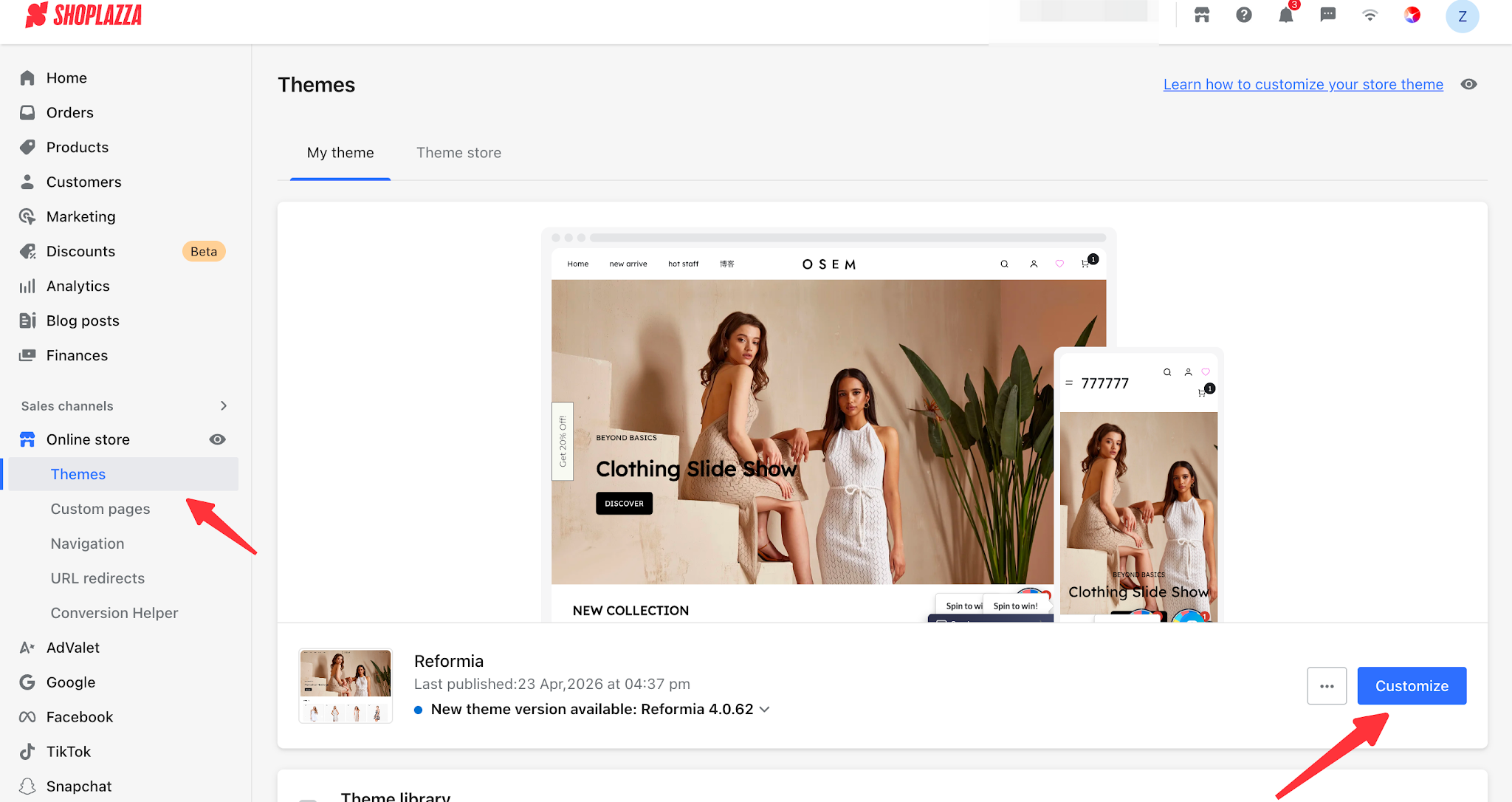
2. Expand Header > Menu, then click Collection Menu to configure it.
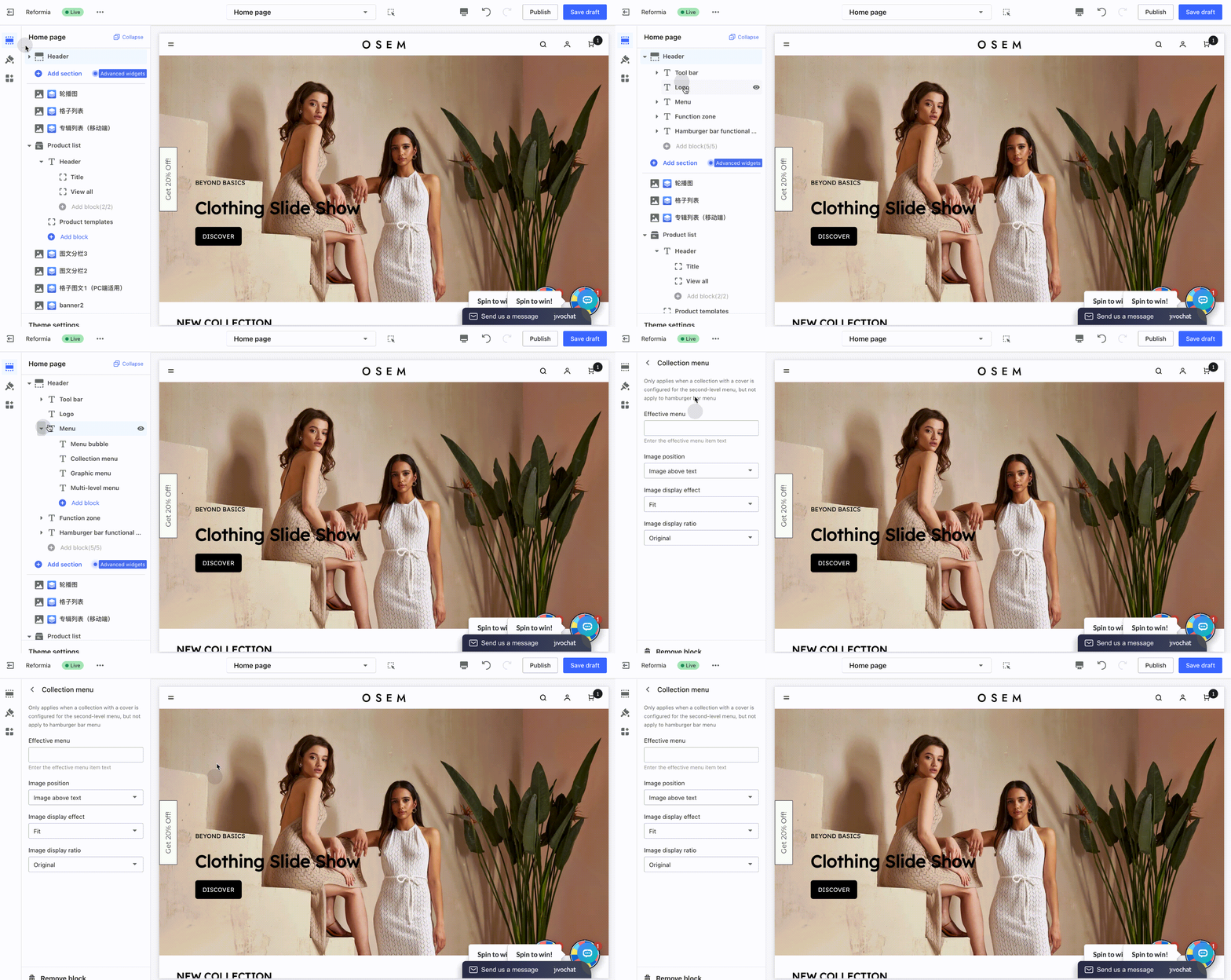
- Note: This only takes effect when albums are configured in the second-level menu and include album cover images. It does not apply to the hamburger menu.
2.2 Configuration Preview
In the configuration menu, you can configure the active menu, image position, image display effects, and image aspect ratio. This article will use the HOME menu as an example to demonstrate the configuration effects.
III. Graphic Menu
The combination of images and text is more visually appealing than a text-only menu and can help customers quickly identify and navigate the menu.
3.1 Steps
1. Log in to your Shoplazza admin, go to Online Store > Themes, and click the Customize button.
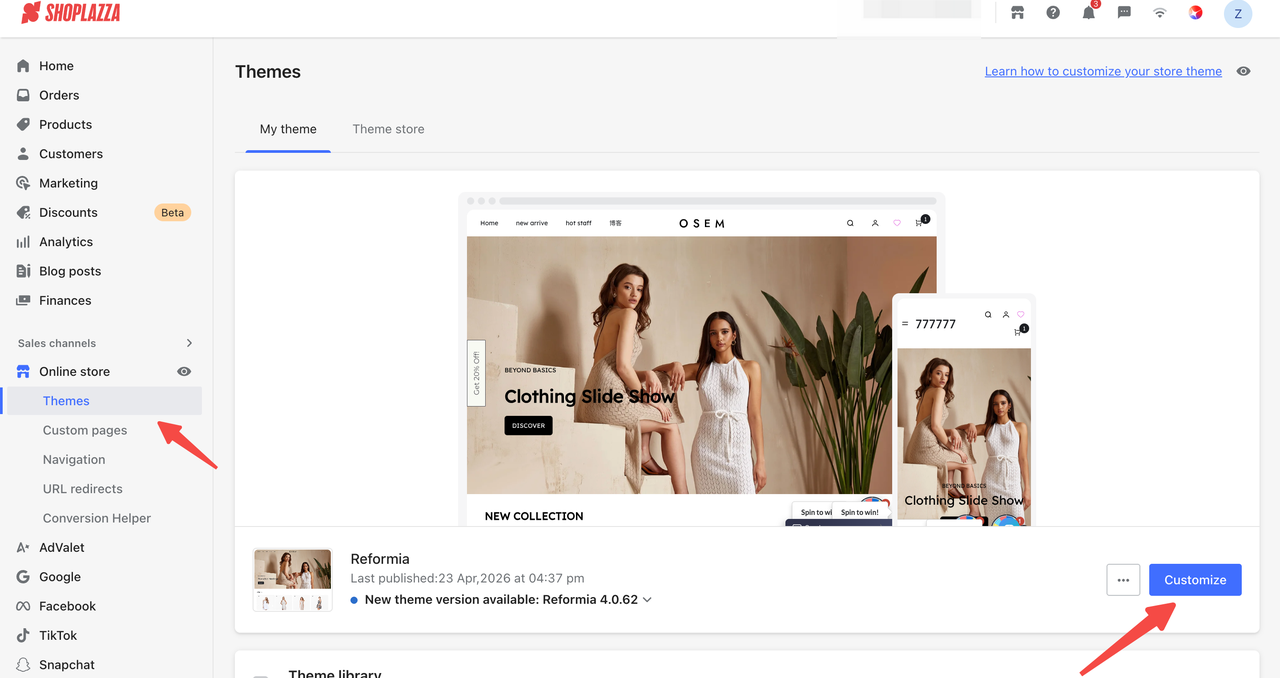
2. Expand Header > Menu > click Image and Text Menu to configure it.
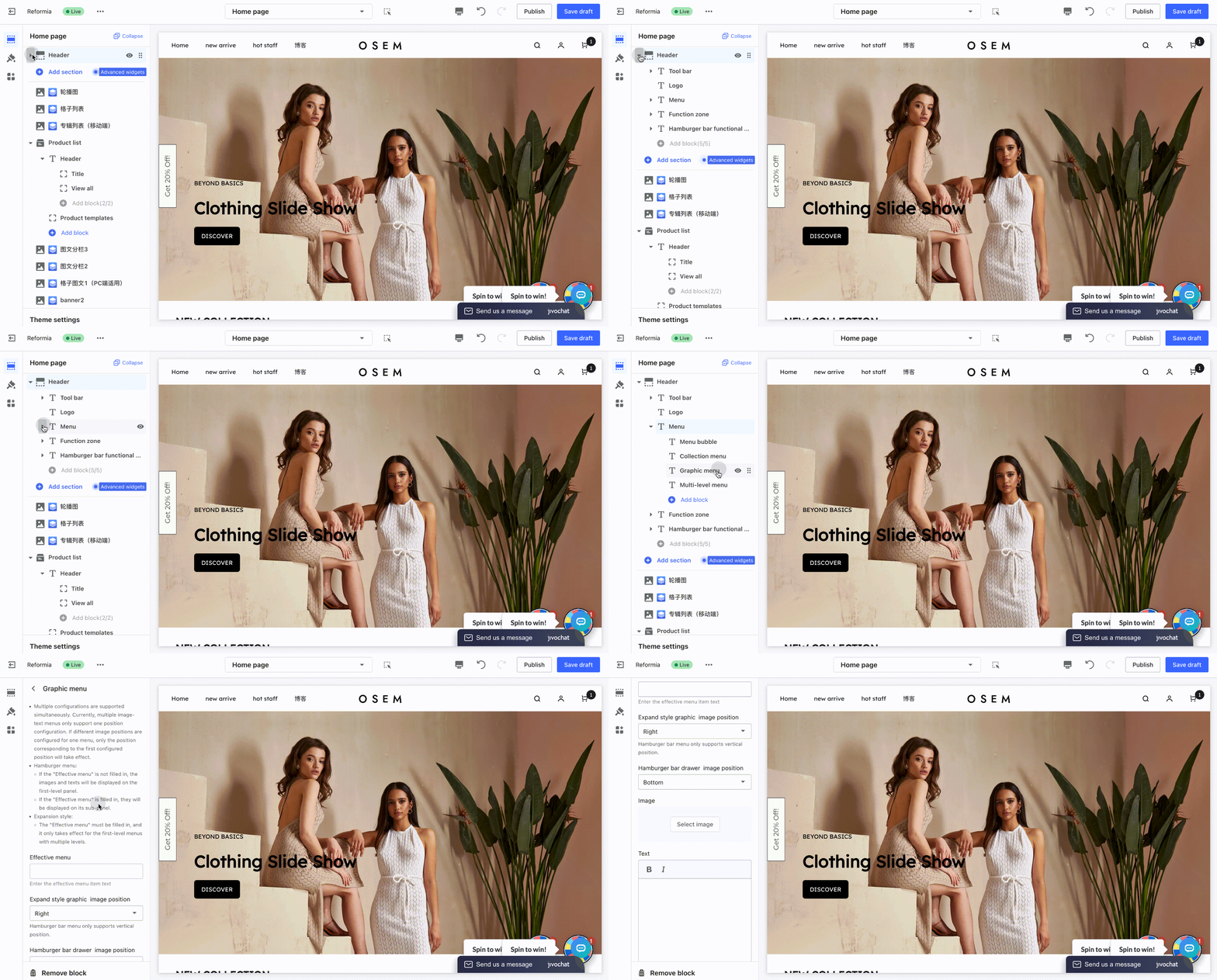
- In the configuration page, you can set the active menu, image position, image, text, button, link, and image display ratio, etc.
3.2 Configuration Preview
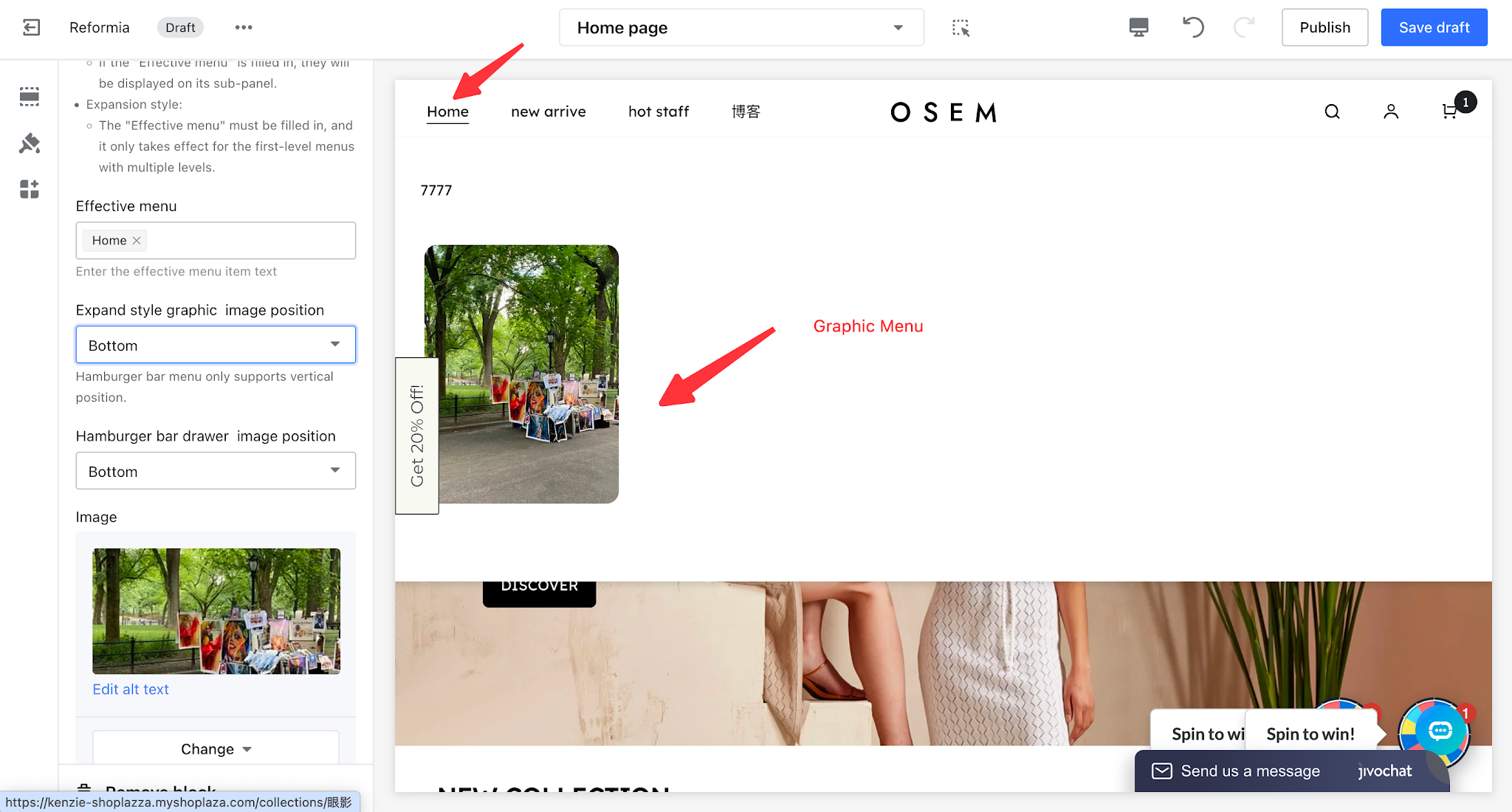
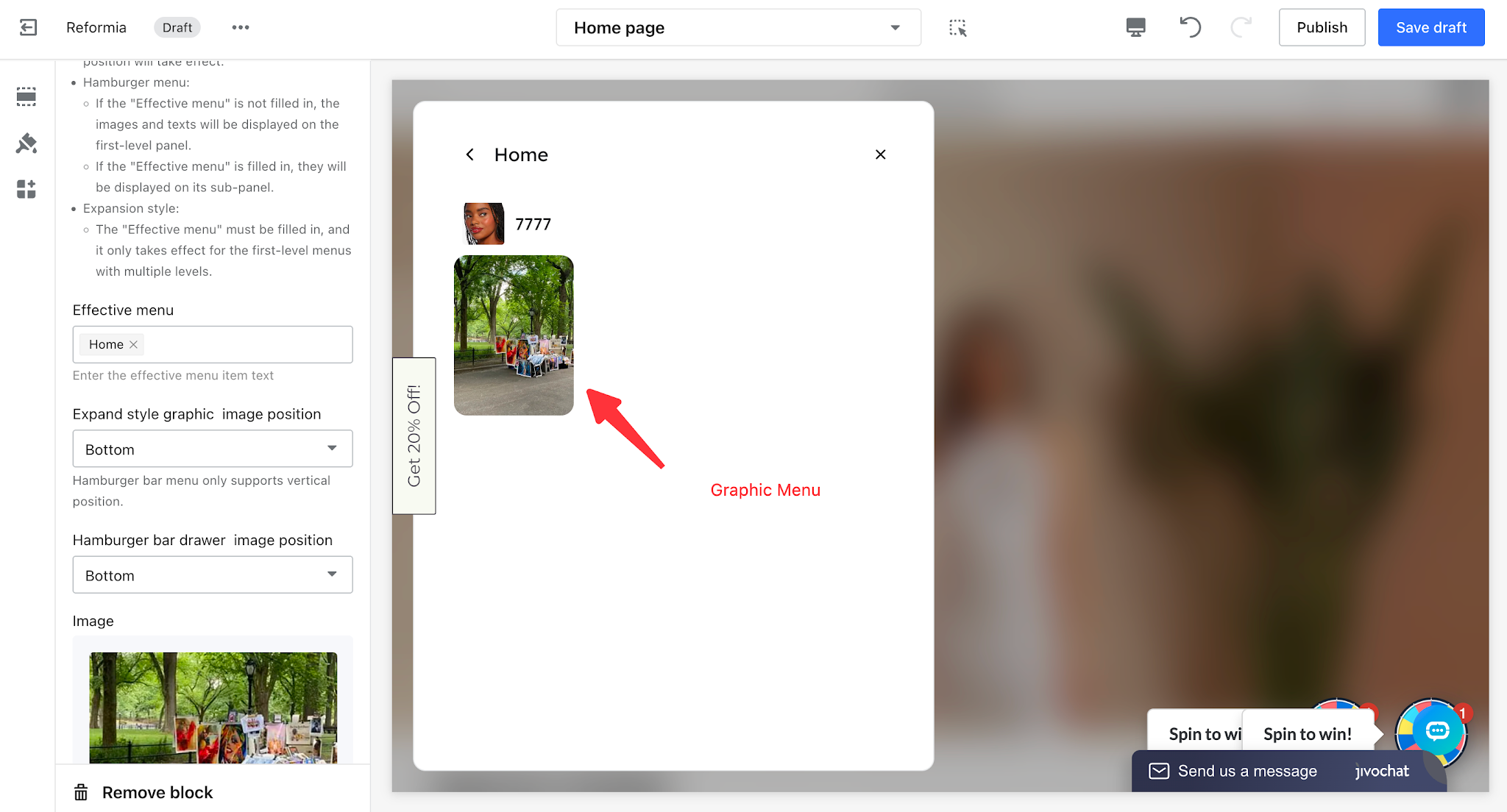
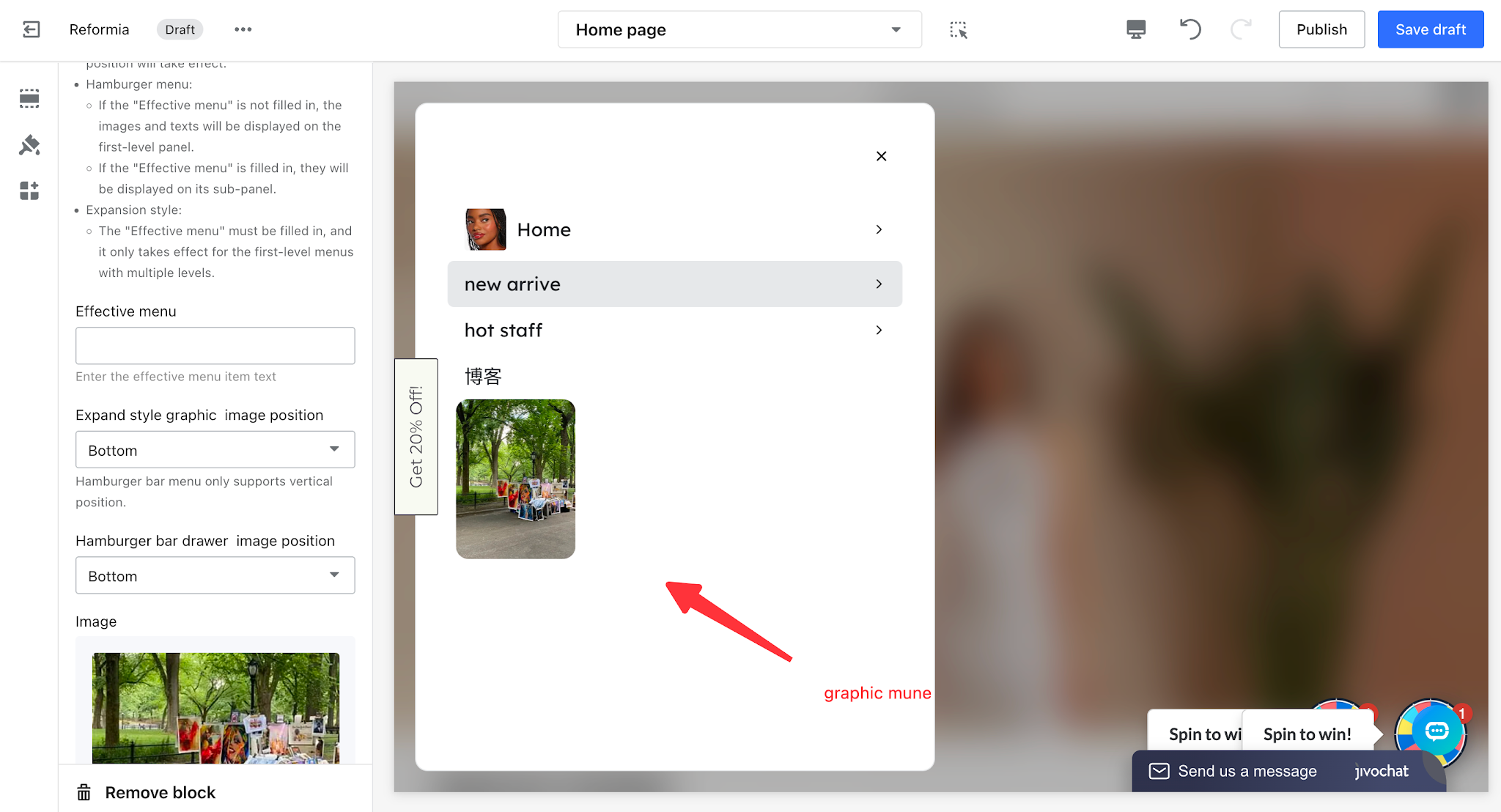
This section uses the HOME menu with the text “HOT” as an example. The sample image below demonstrates the configuration result.
3.2.1 Configuration Preview on Desktop
Menu Type | Display Effect |
| Expand |
|
Hamburger Menu【Enter Active Menu】
|
|
| Hamburger Menu 【No Applicable Menu Specified】 |
|
3.2.2 Mobile Configuration Preview
Effective Menu Specified | Effective Menu Not Specified |
|
|
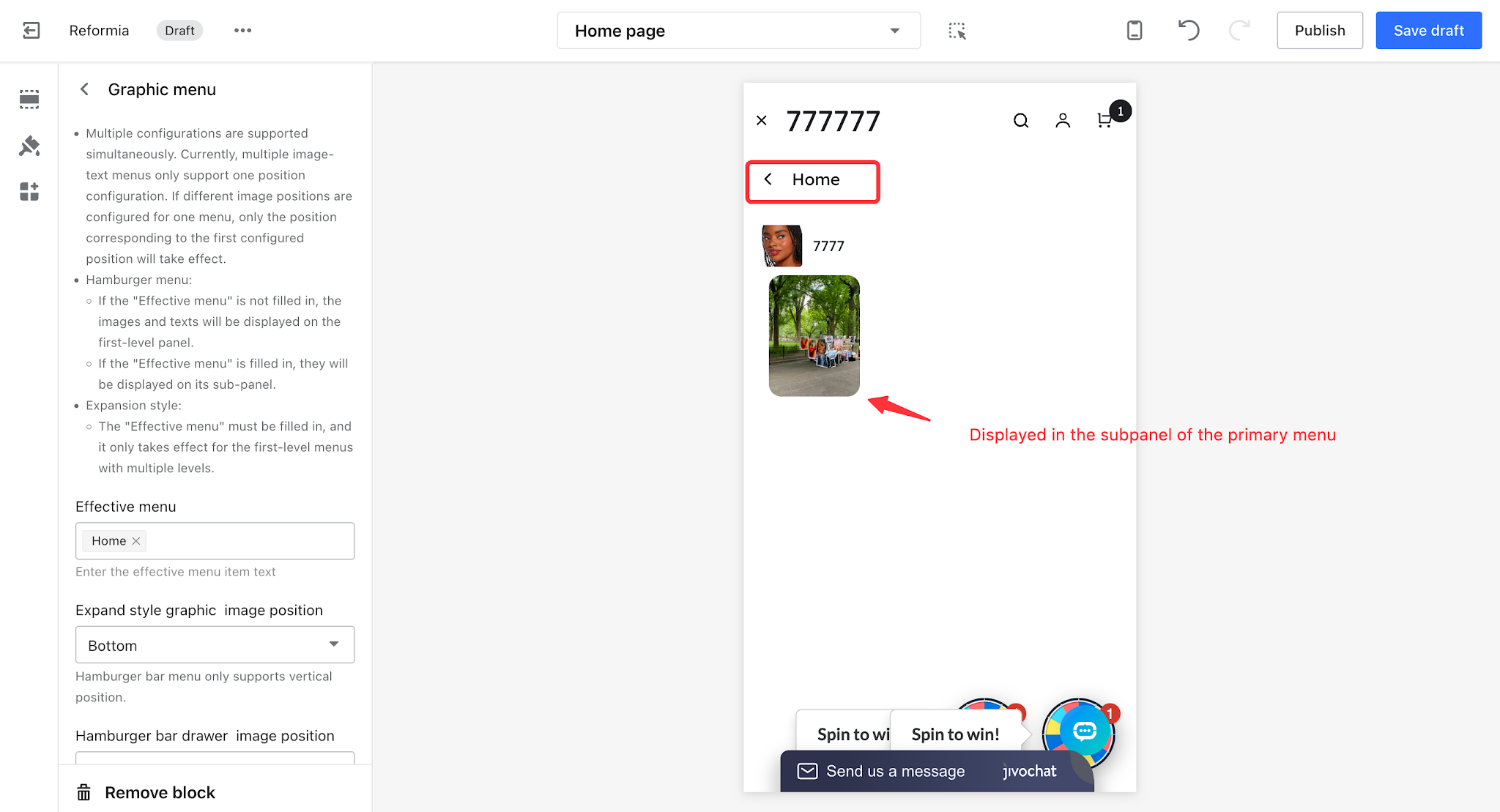
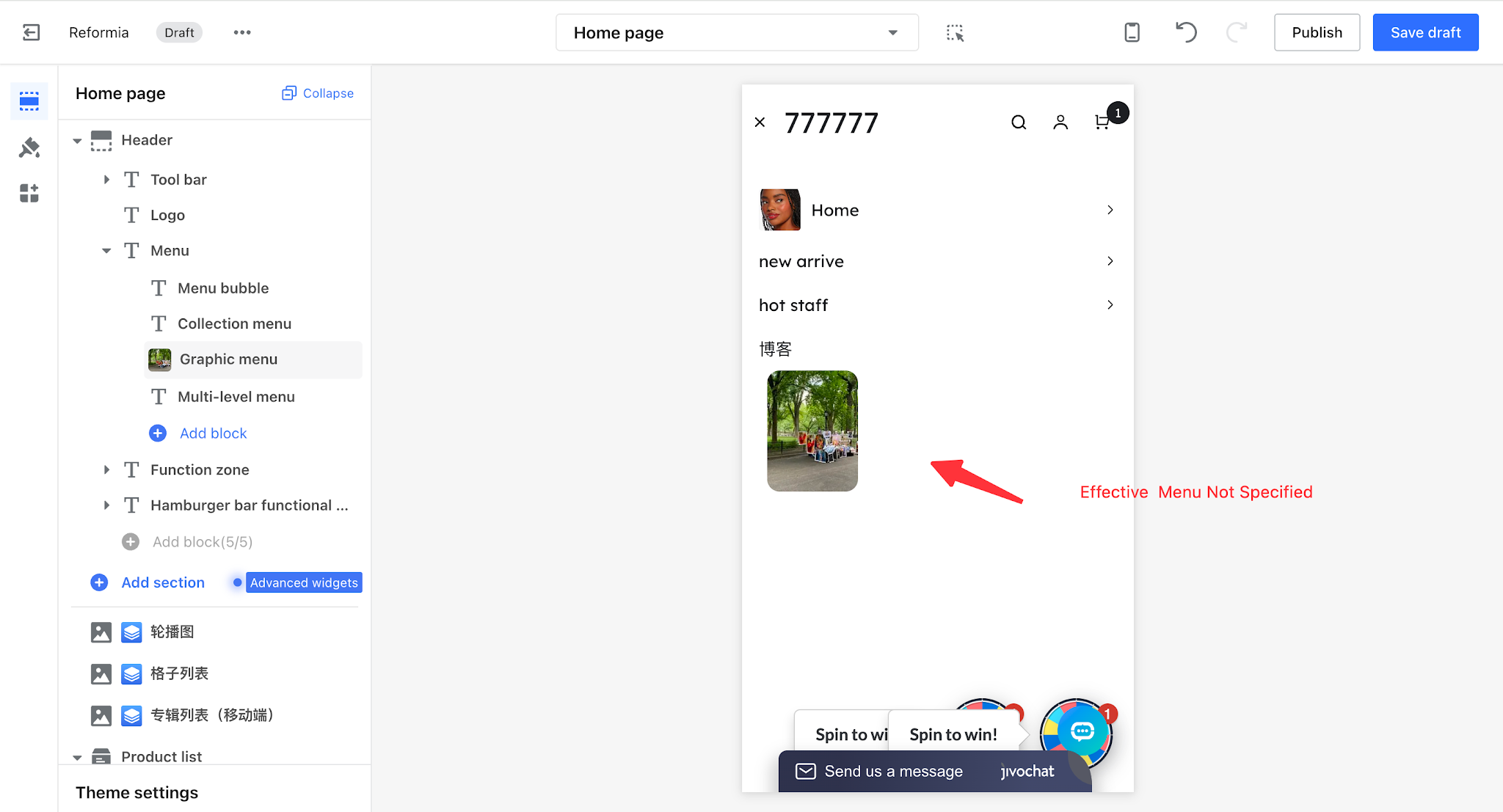
IV. Multi-level Menu
Well-balanced and visually clean, it preserves the core advantages of different menu types while meeting complex navigation needs.
4.1 Steps
1. Log in to your Shoplazza admin panel, then go to Online Store > Themes, and click the Customize button.
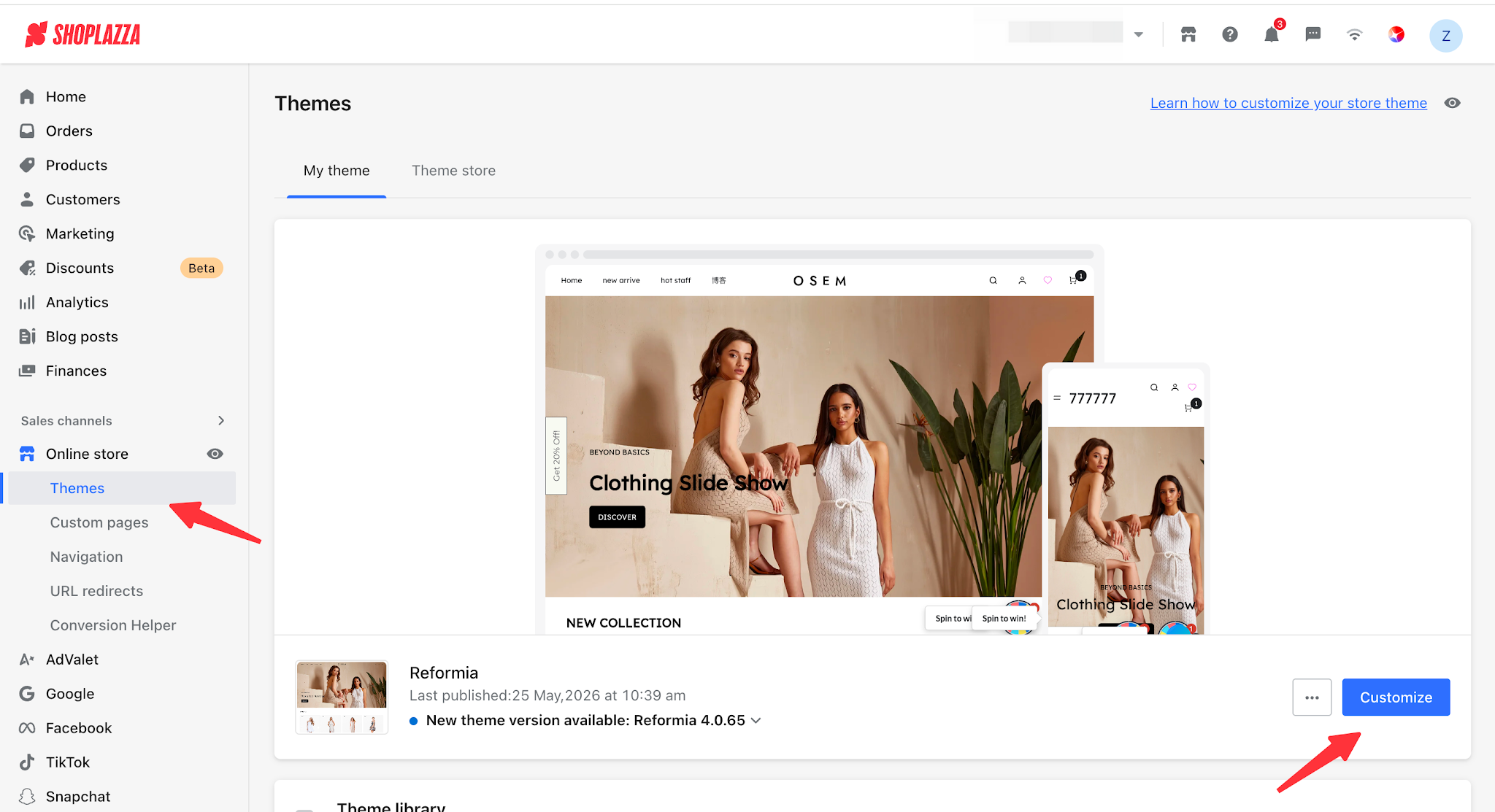
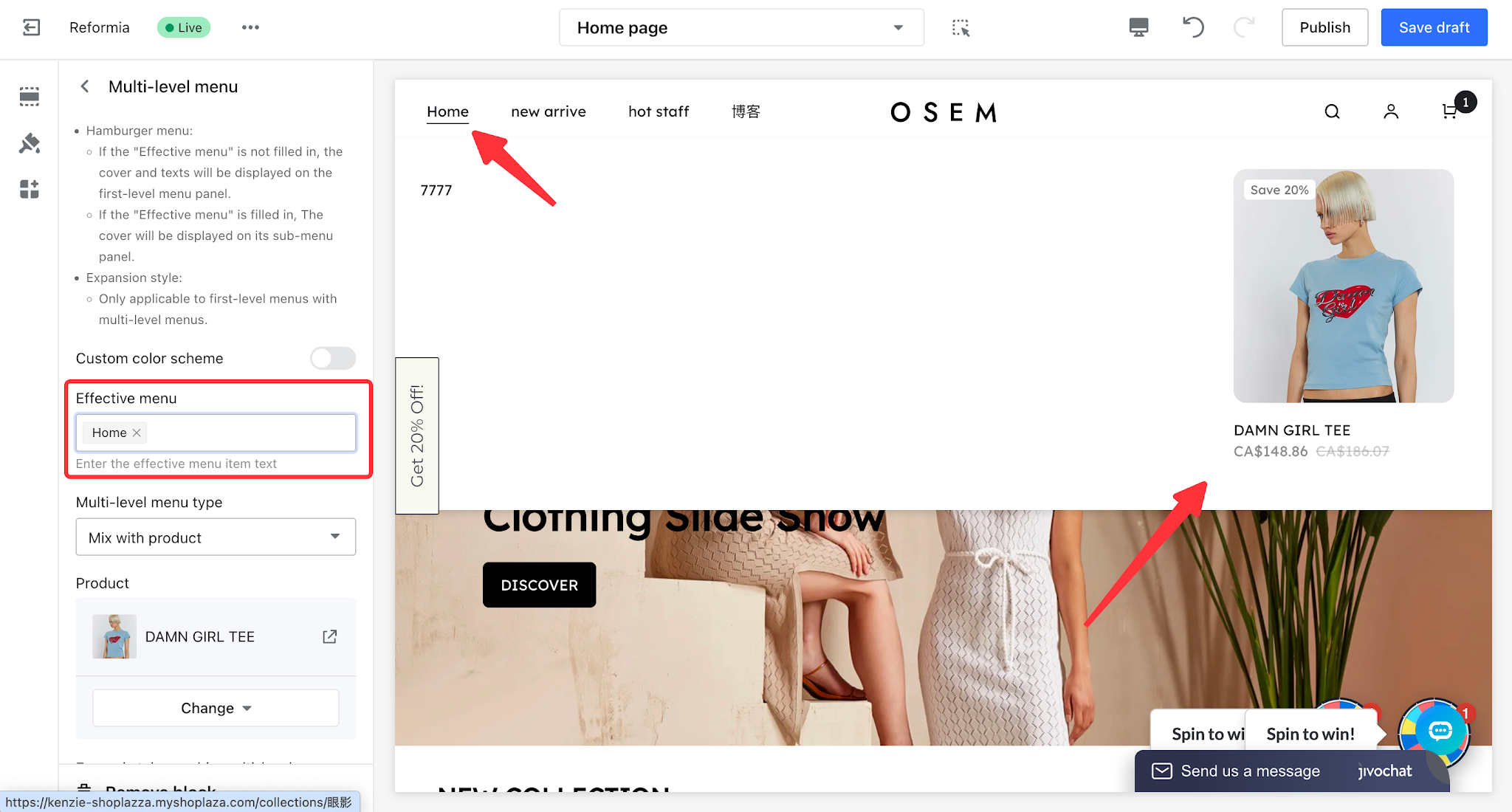
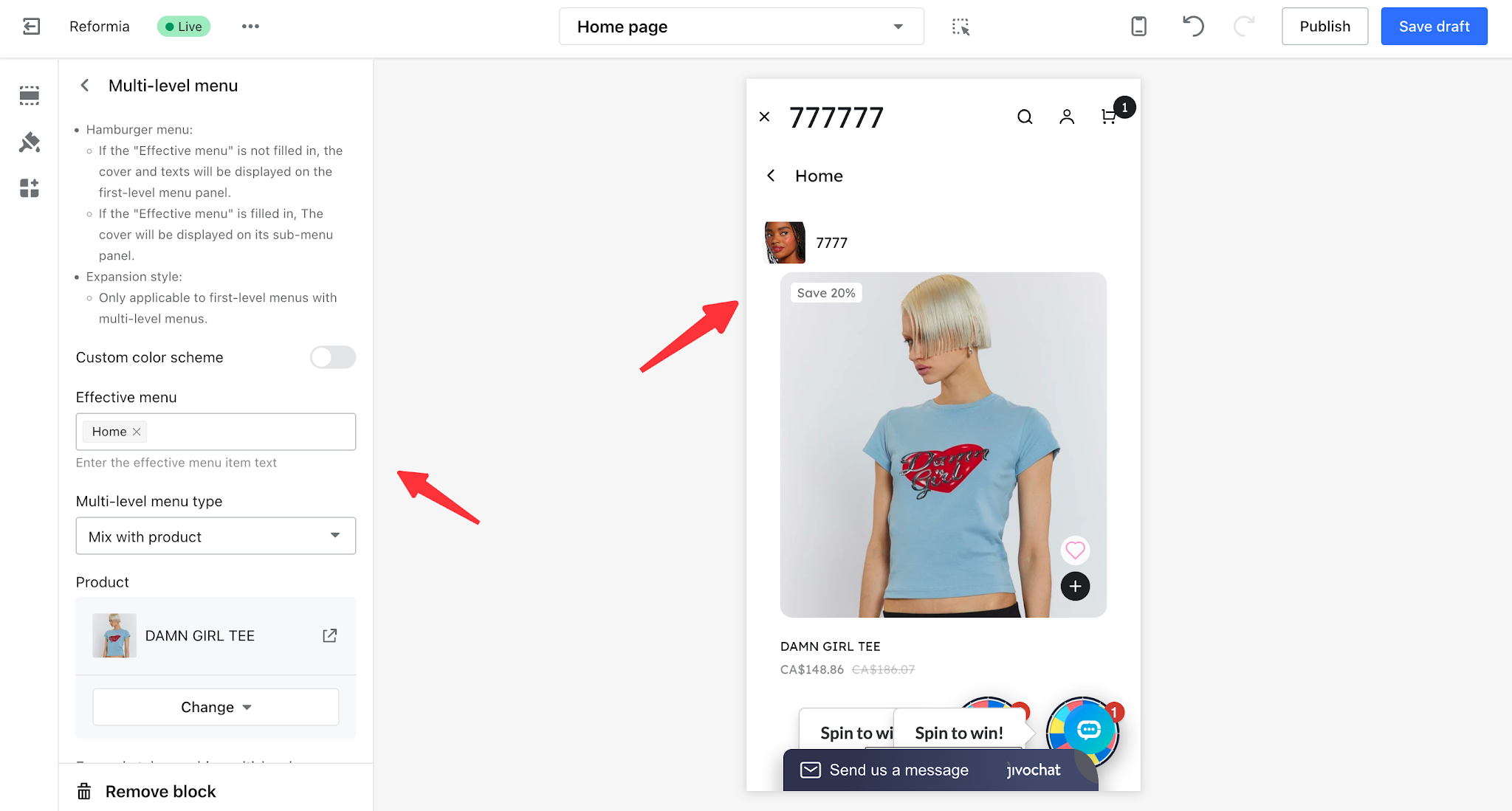
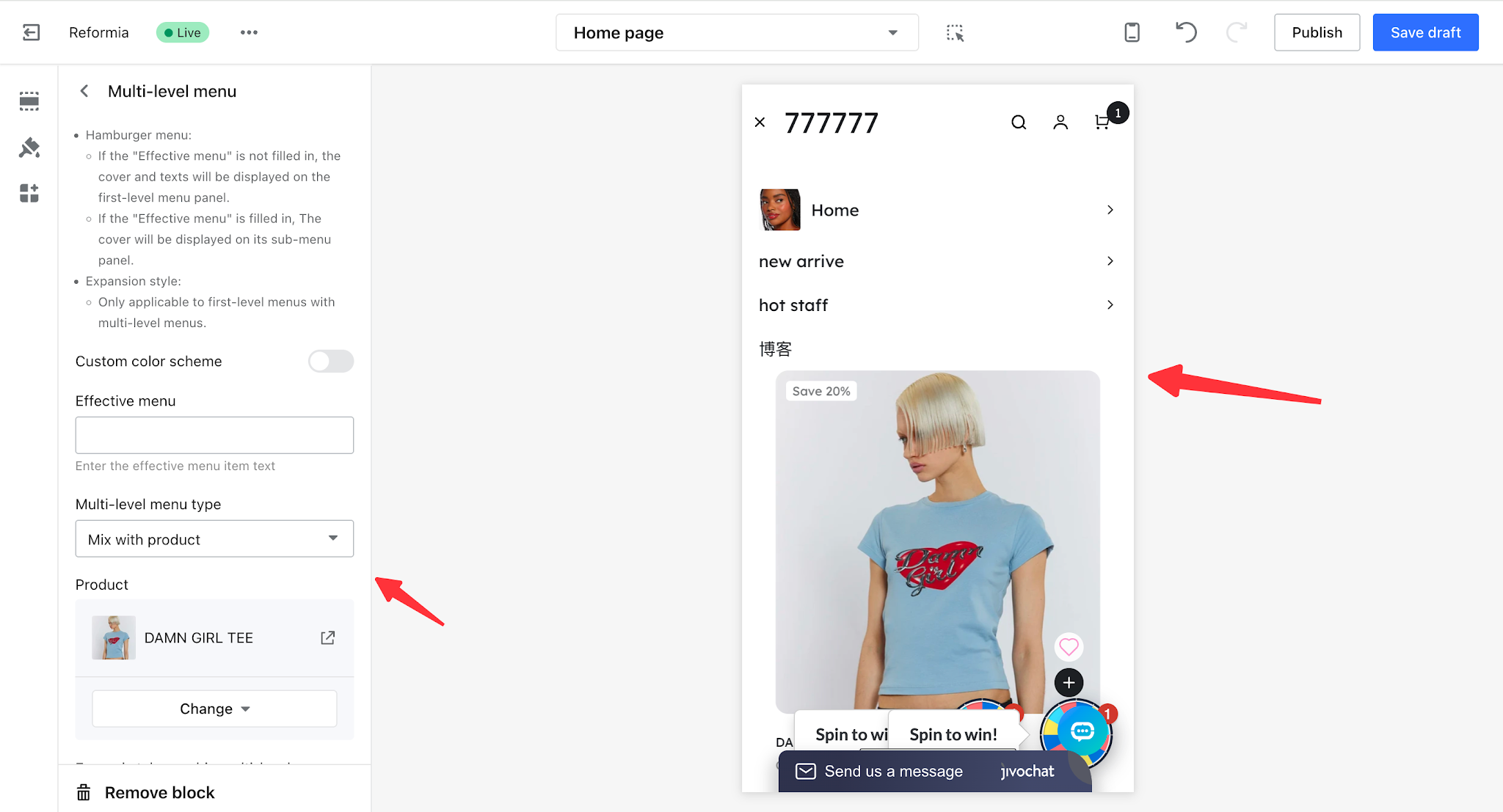
2. Expand Header > Menu > Click Mixed Menu to configure it.
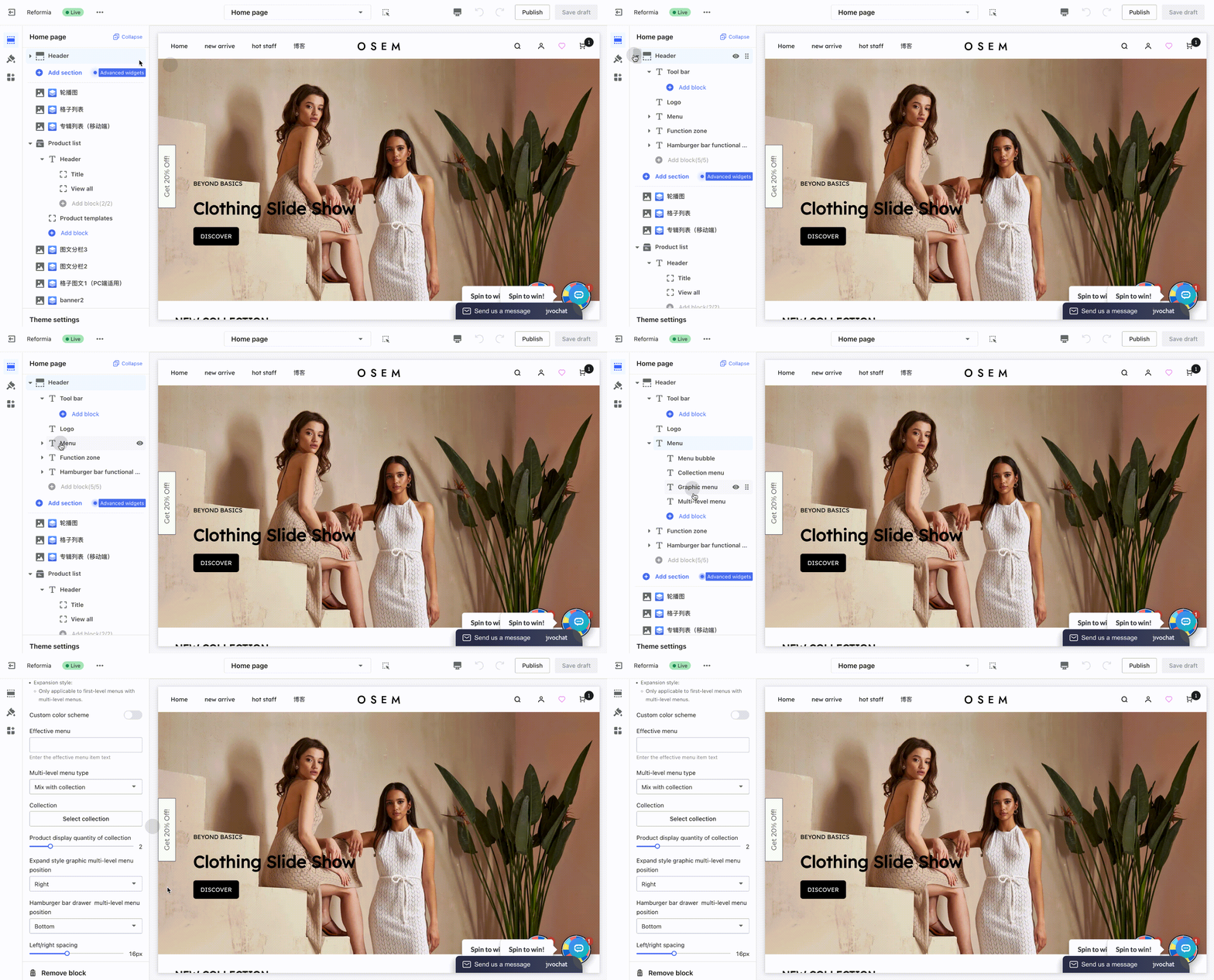
4.2 Configuration Preview
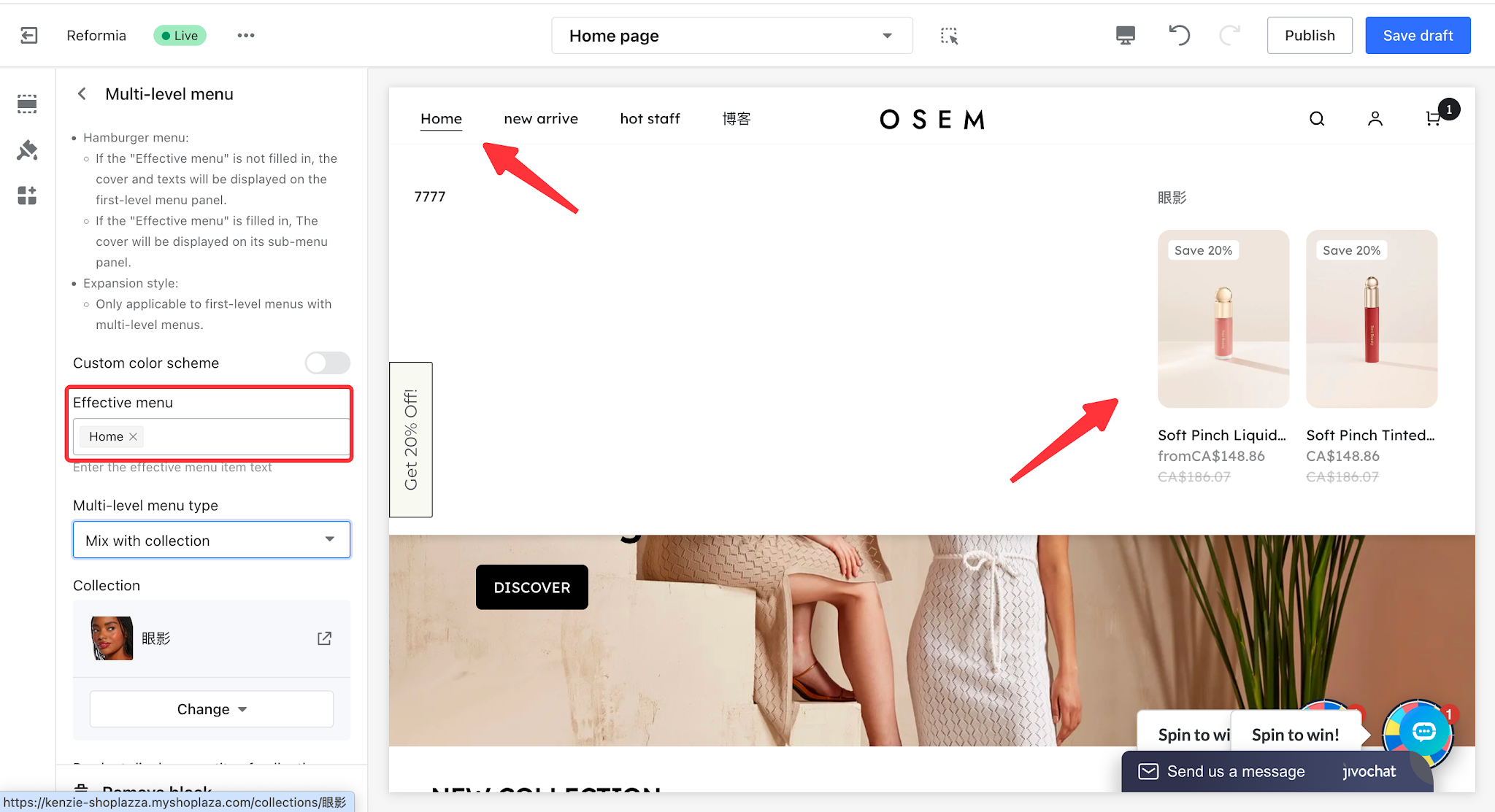
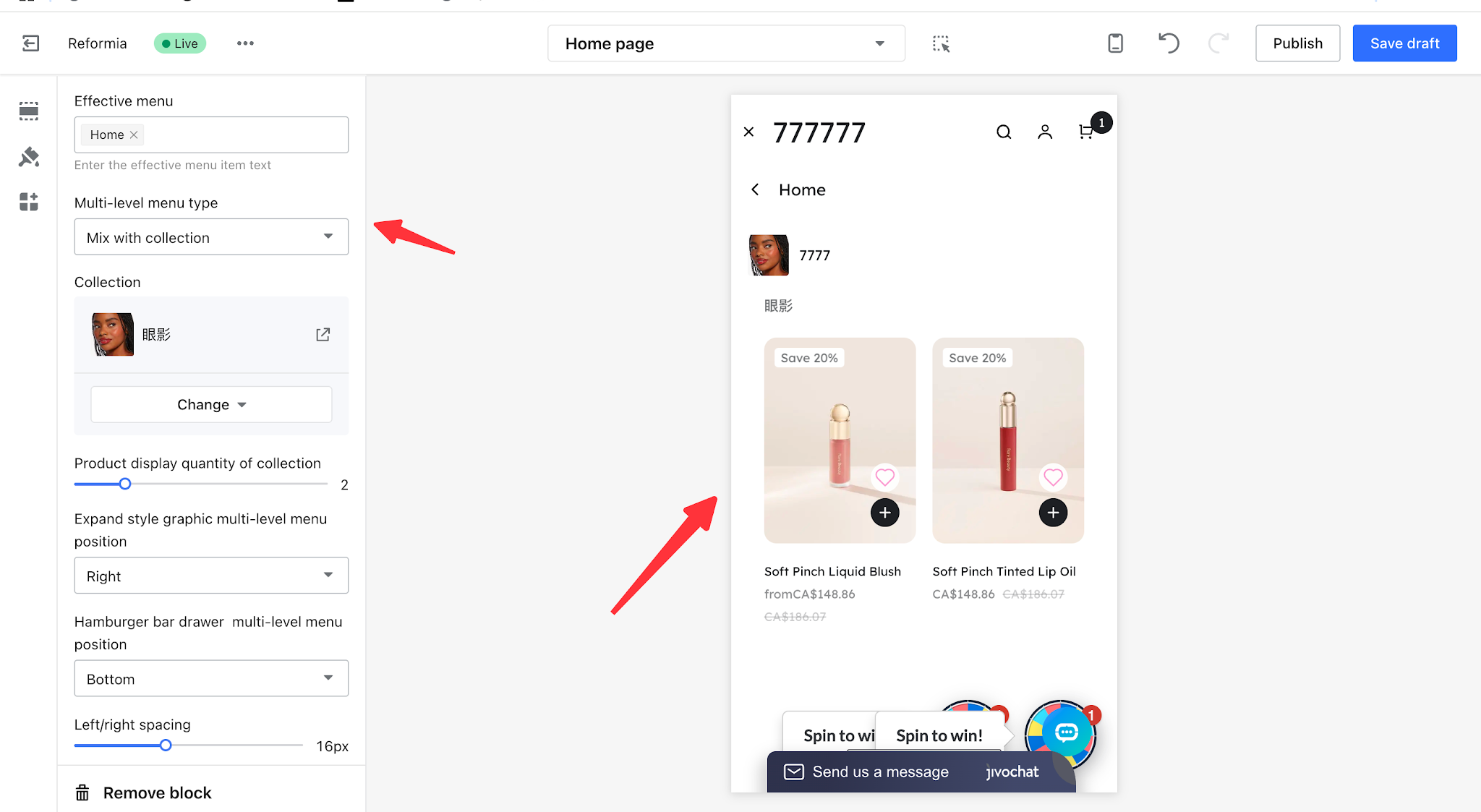
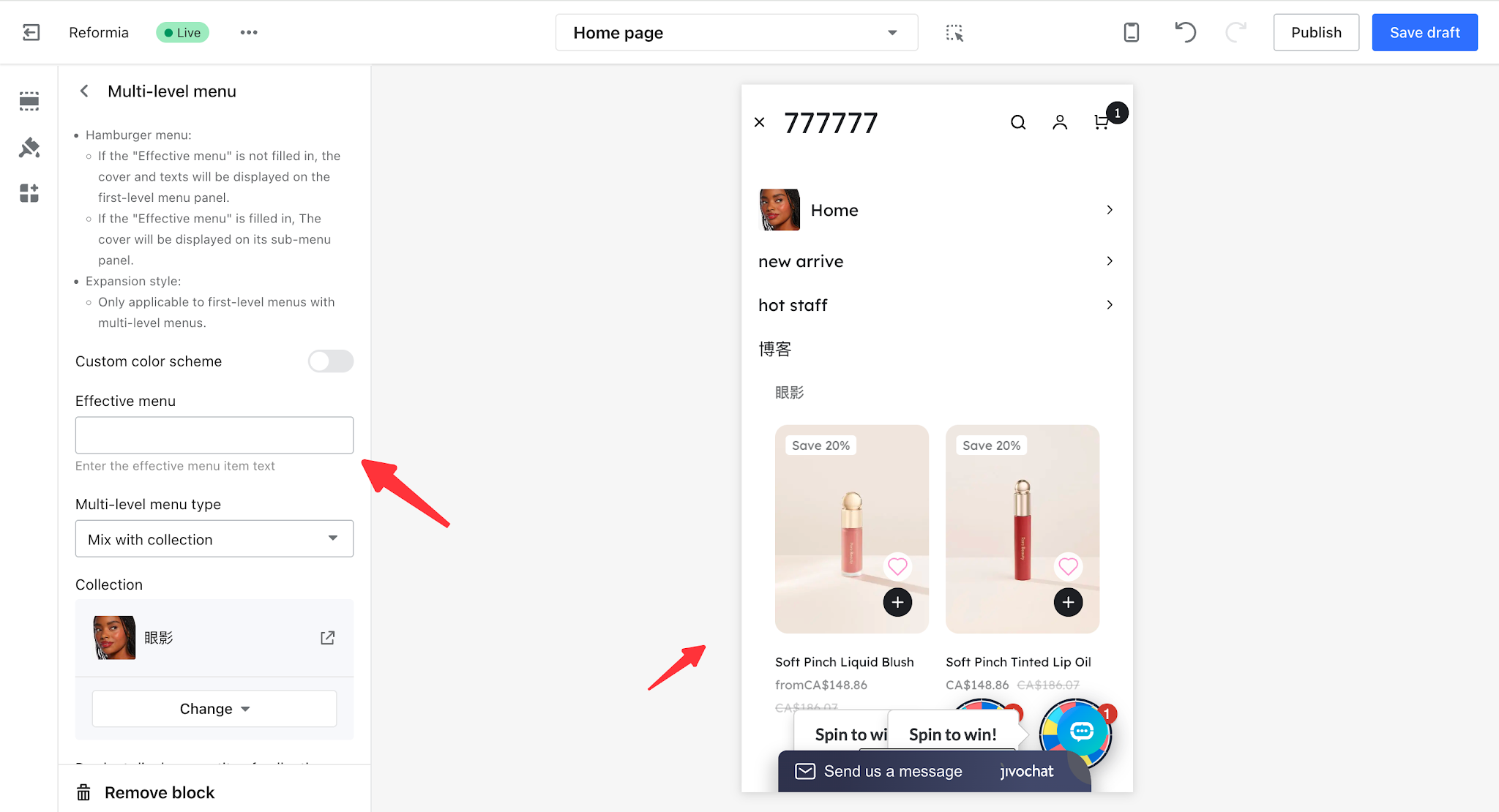
| Multi-level Menu | Expanded Type: Display Effect when Applicable Menu is Specified | Hamburger Menu: Configuration Effect when Applicable Menu is Specified | Hamburger Menu: Configuration Effect when Applicable Menu is Not Specified |
| Mix with collection |
|
|
|
| Mix with product |
|
|
|


Comments
Please sign in to leave a comment.