
The Shoplazza Size Chart app includes 15 women's clothing category templates + 1 blank template. When creating a size chart, select a category to automatically populate the table headers, size options, sample values, measurement image, and measurement instructions. You can edit the template directly without creating a size chart from scratch. This article explains how to create a size chart using a category template.
Navigation Path
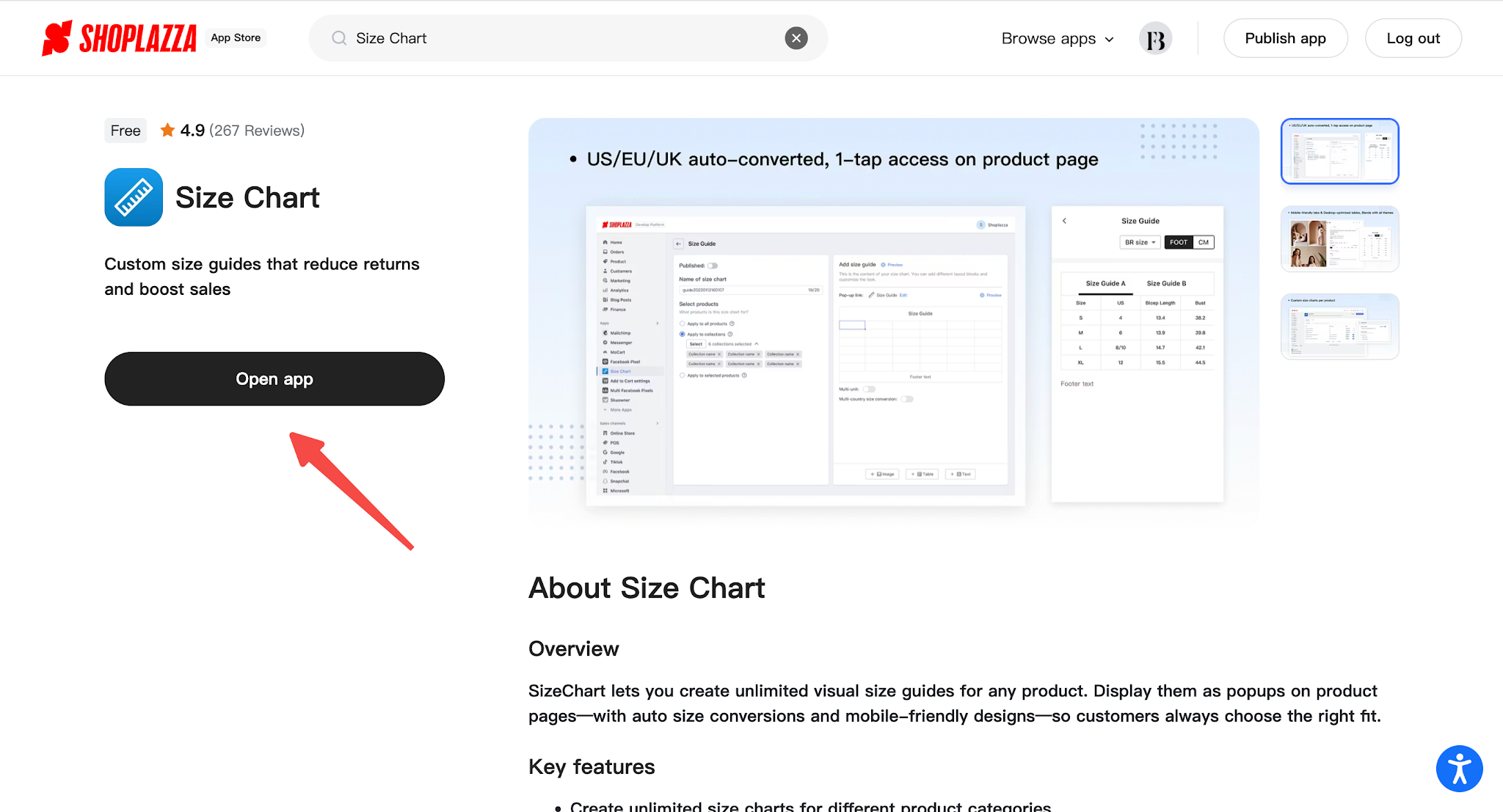
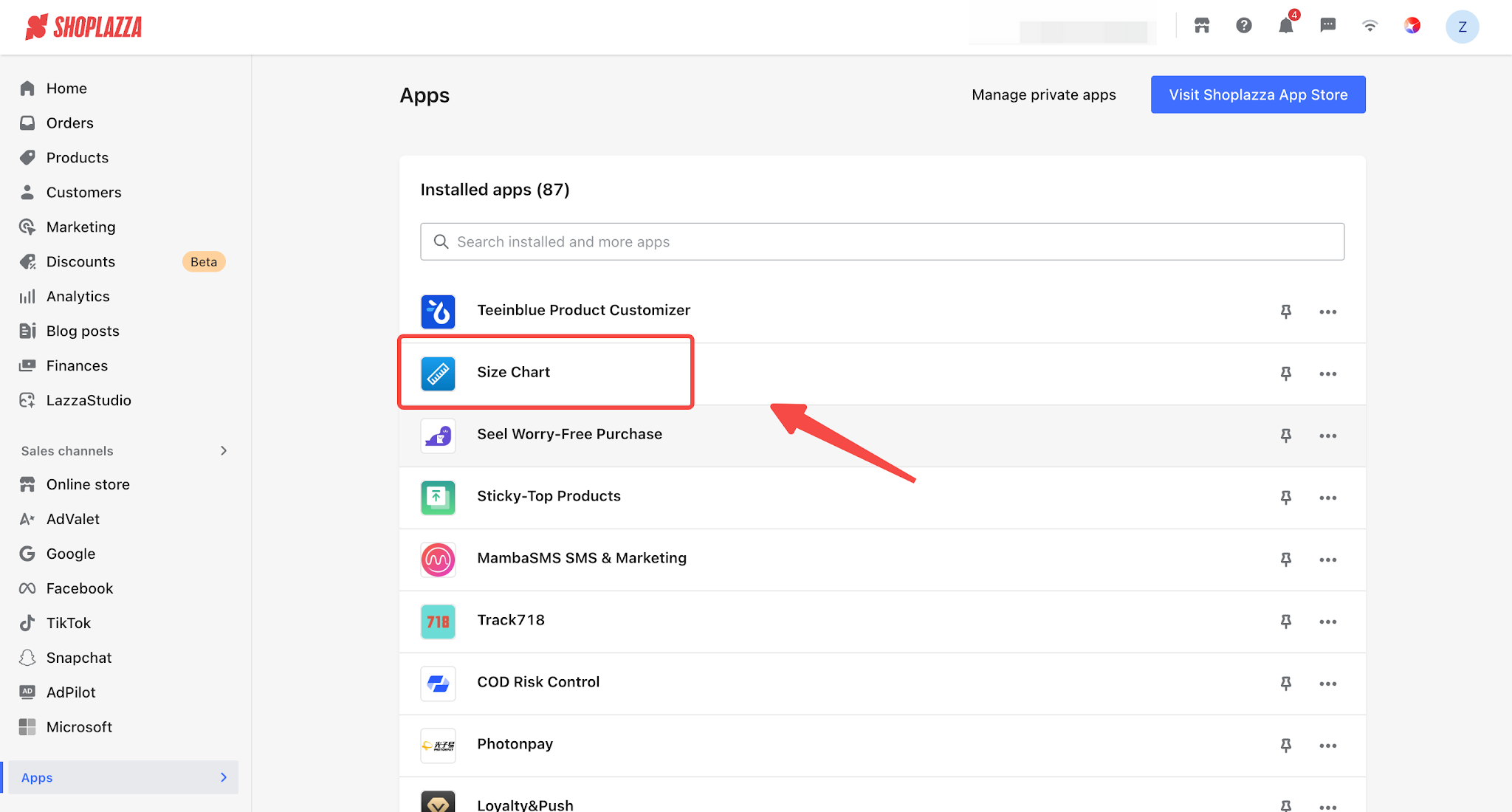
1. Log in to your Shoplazza Admin, click Visit Shoplazza App Store, search for Size Chart in the App Store, and click Add App to install the app to your store. Then, click to enter the Size Chart app.
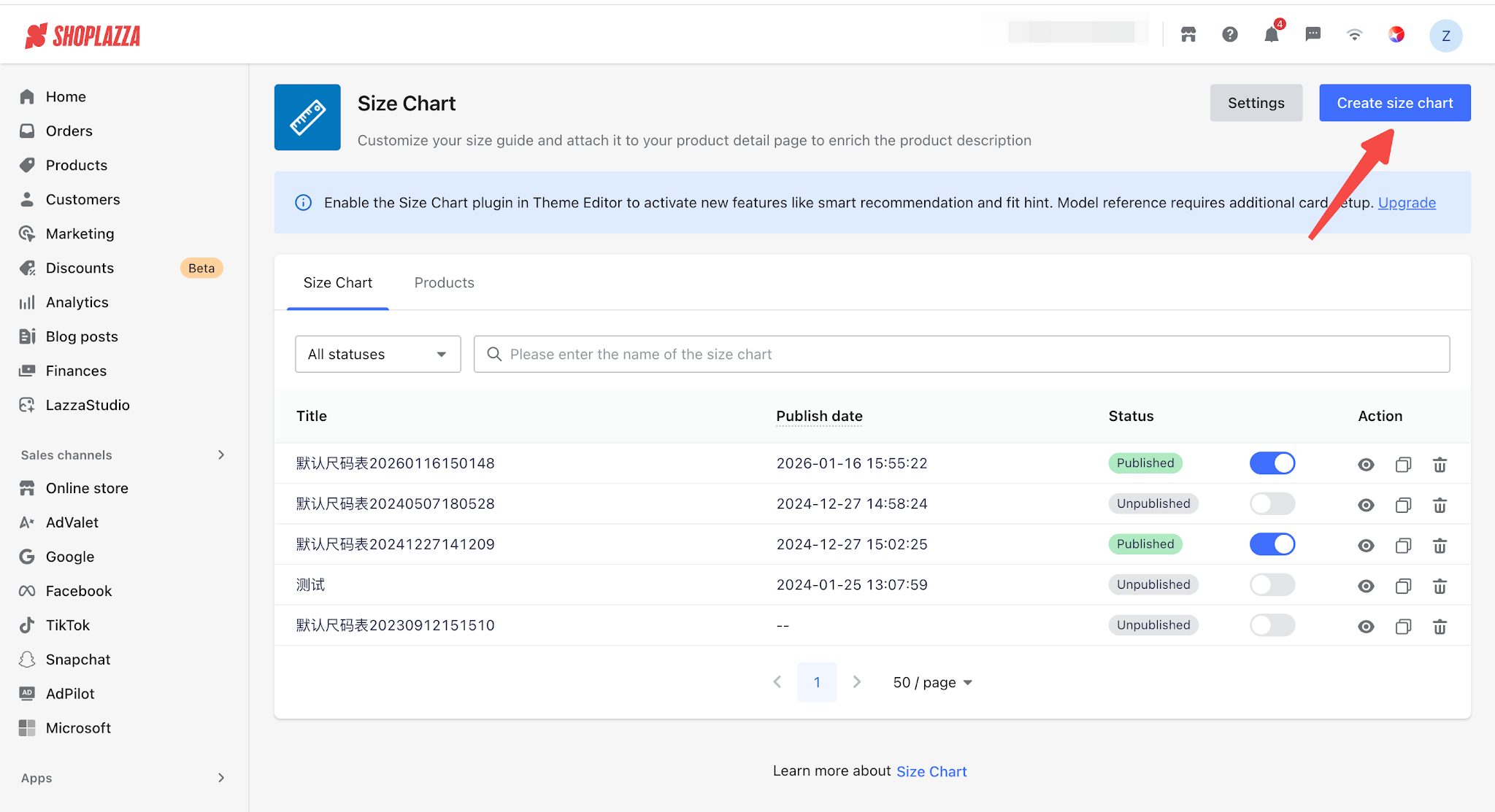
2. After entering the app, click the Create Size Chart button in the upper-right corner. A Select Size Chart Template window will then appear.
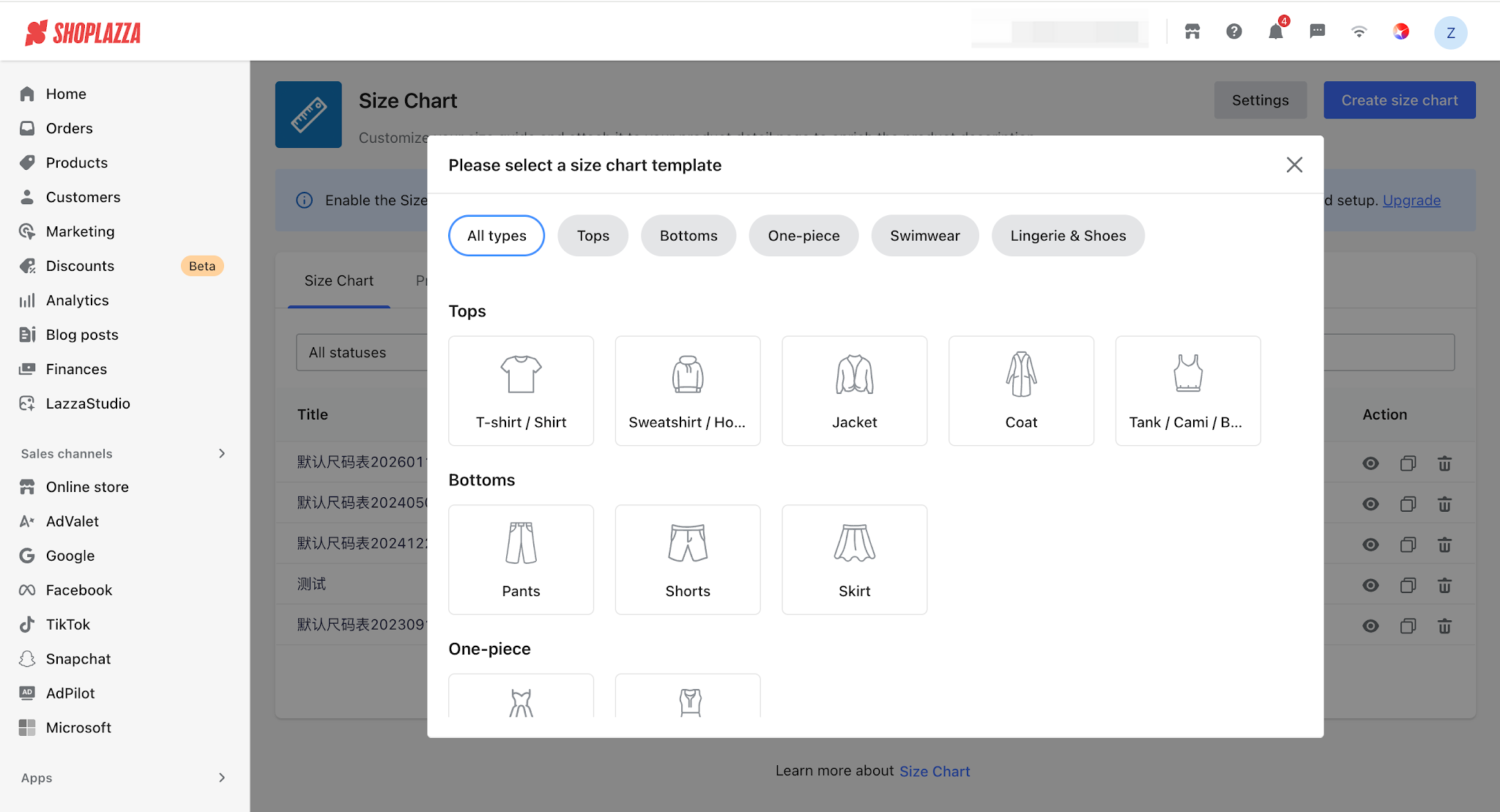
3. In the template window, select the category template you want to use. There are 6 categories, including 15 category templates + 1 blank template:
- Tops: T-Shirts · Shirts, Sweatshirts · Hoodies, Coats · Jackets, Coat, Tank / Cami / Base layer
- Bottoms: Pants, Shorts, Skirt
- One-piece: Dress, Jumpsuit
- Swimwear: Bikinis, One-Piece Swimsuit
- Lingerie & Shoes: Lingerie · Bras, Women's Shoes, Men's Shoes
- Other: Customer size chart
- Click the desired category card to automatically enter the editing page. The system will pre-populate three sections based on the selected category: Header + Size Options + Sample Values, Measurement Images, and Measurement Instructions. You can directly edit the values or replace the images and text.
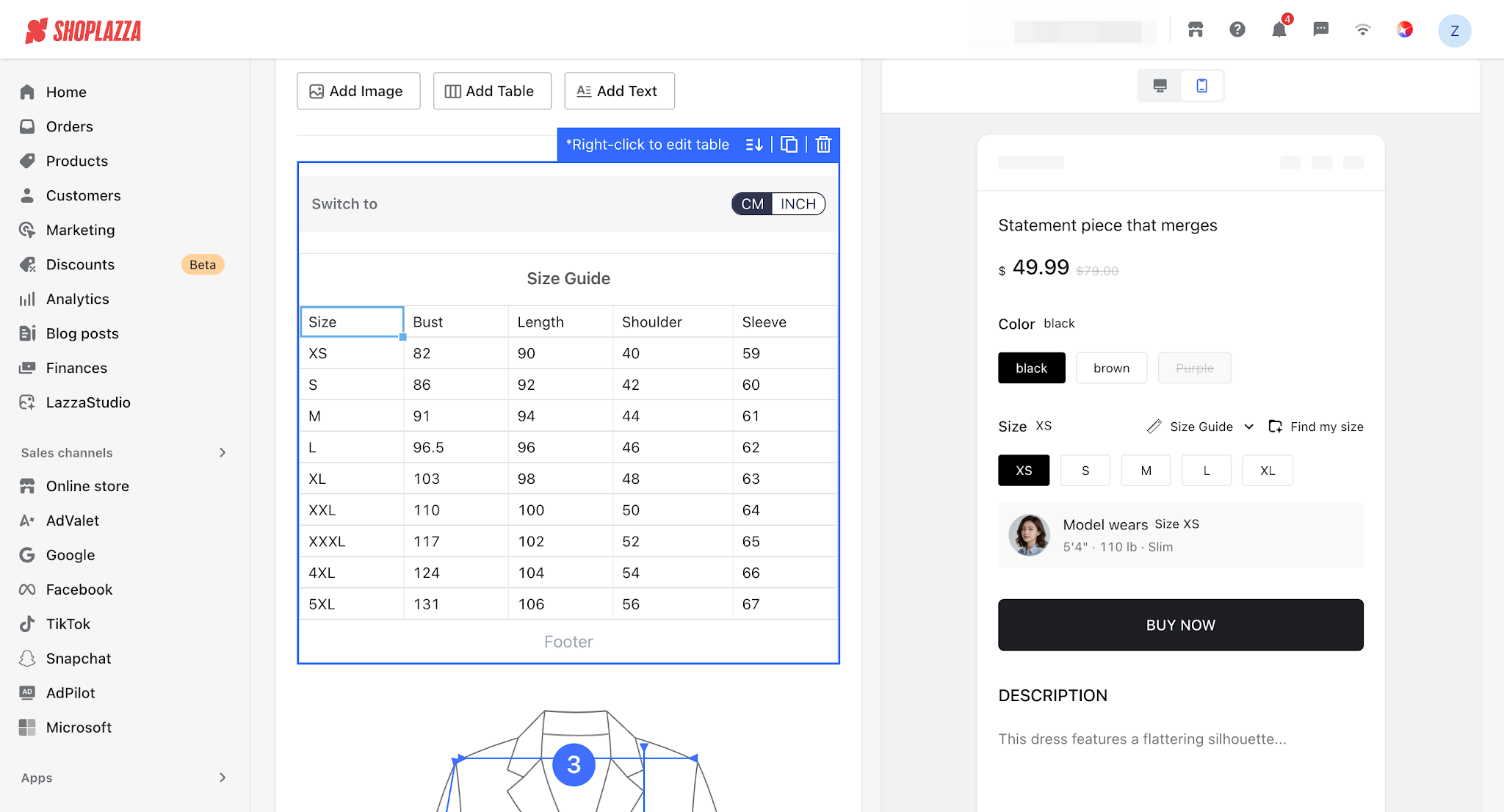
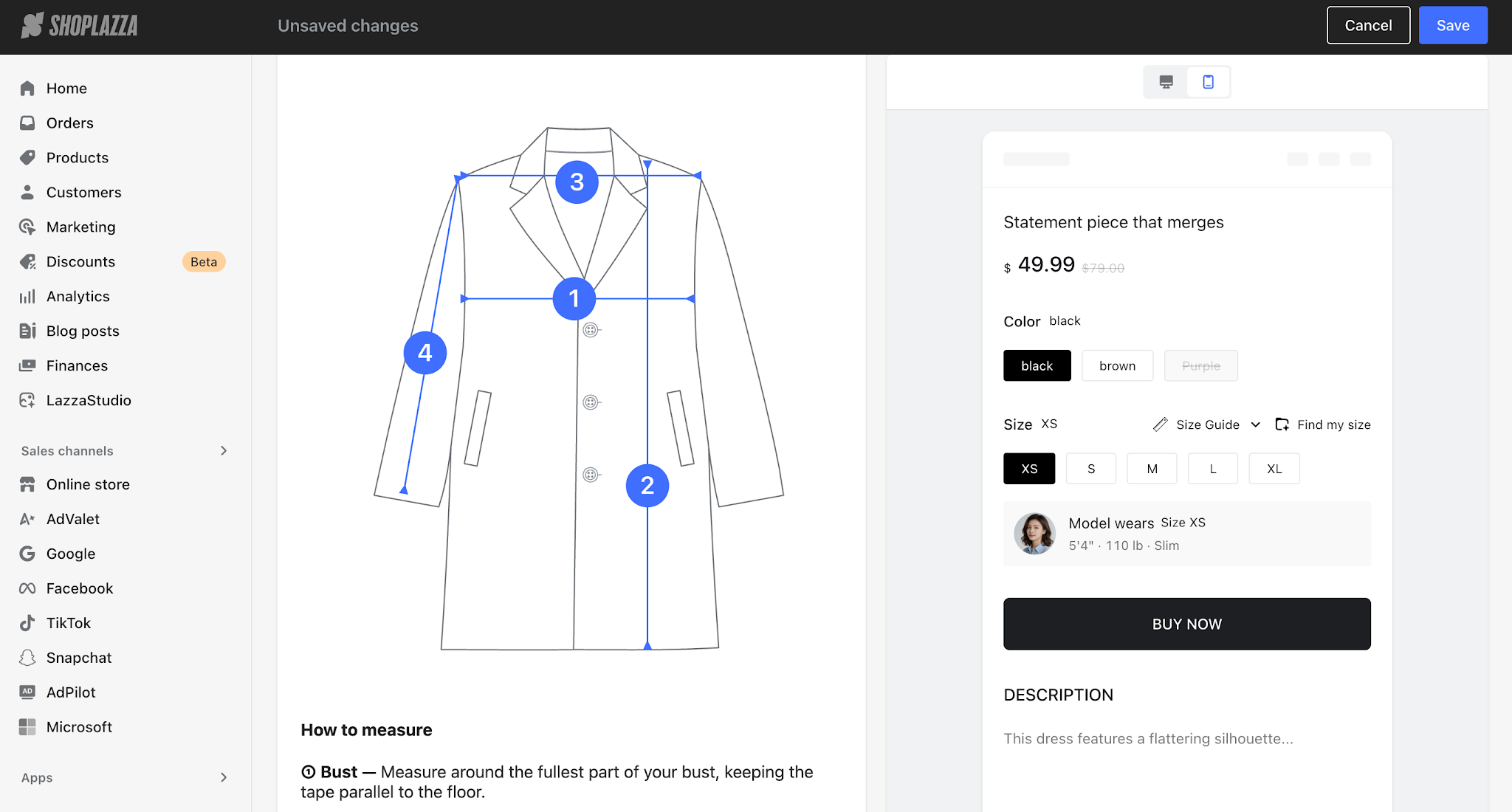
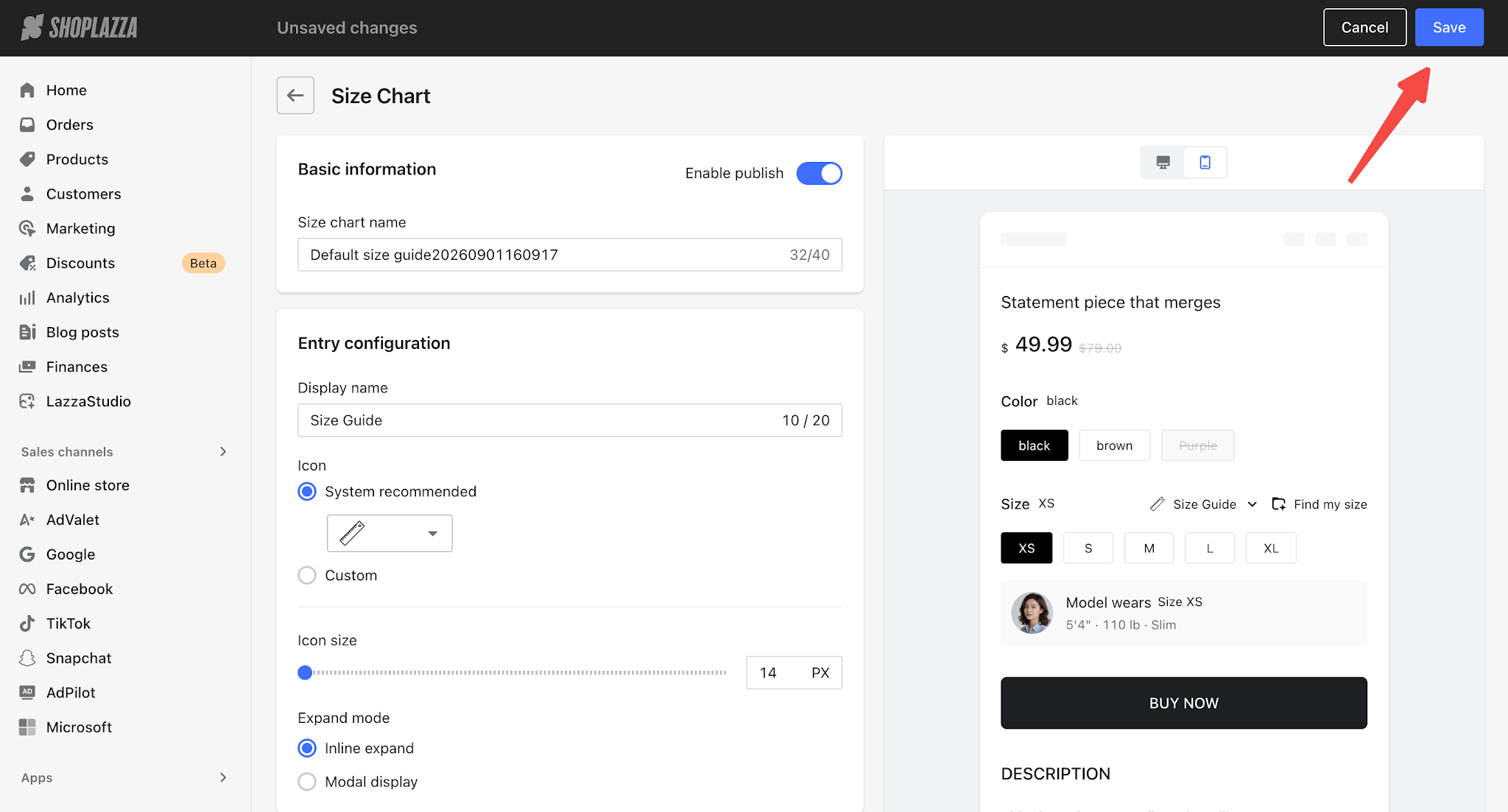
- Once you have finished editing, click Save in the upper-right corner.
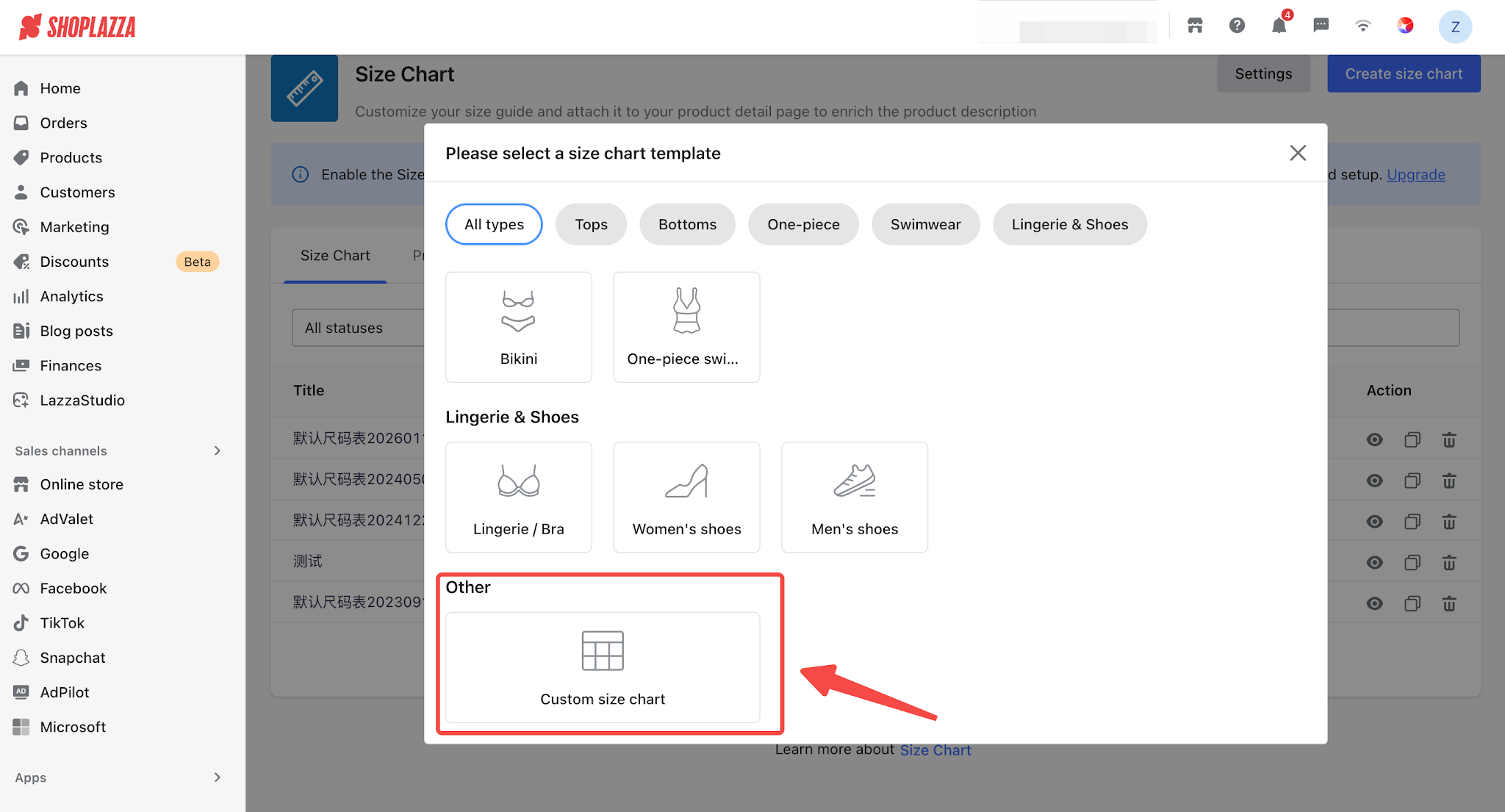
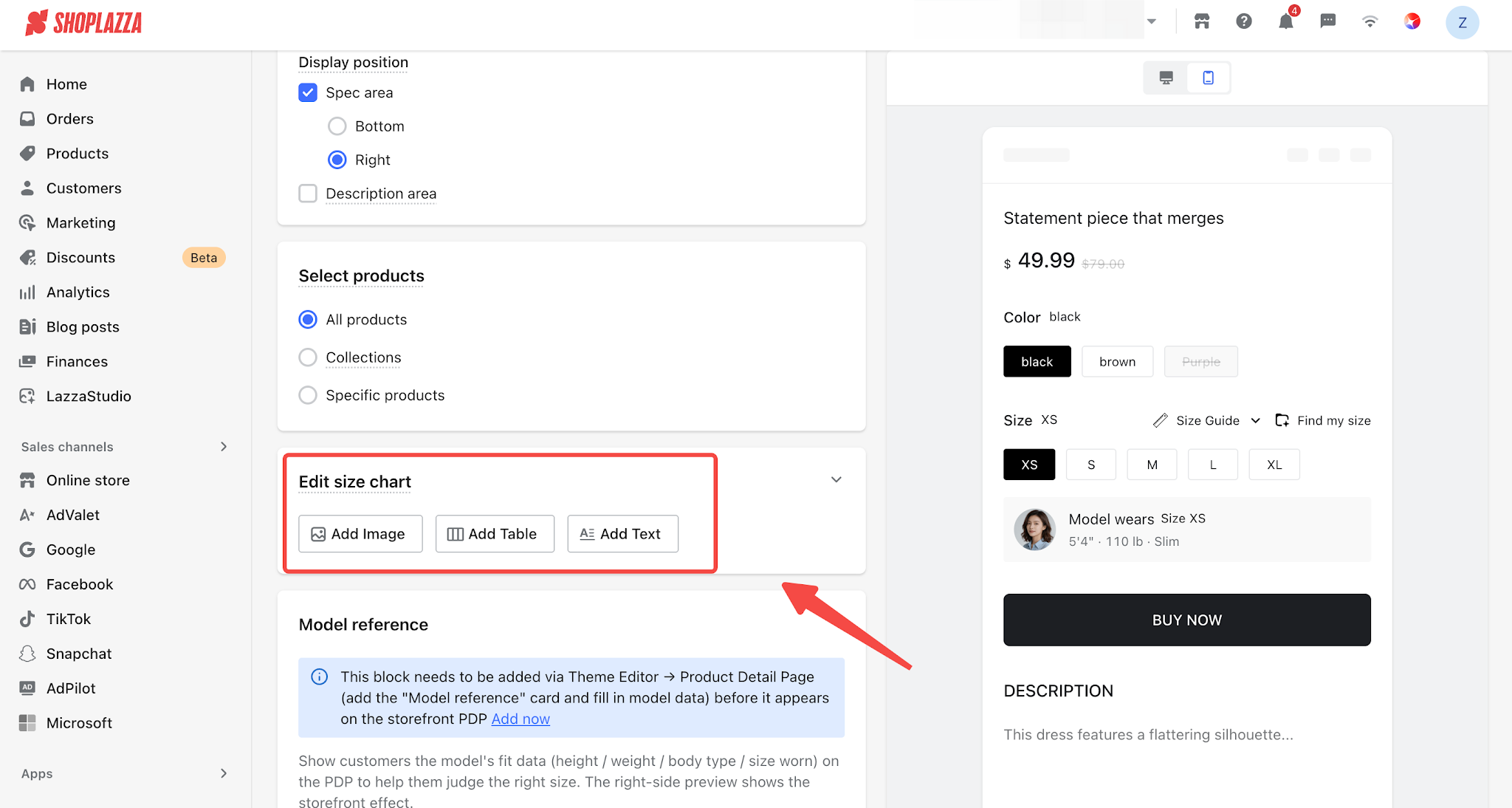
- If you want to manually build the size chart content, select Other - Custom Size Chart in the template window. After entering the editing page, you can add three types of content blocks: images, tables, and text.
Tips
If you close the template window without selecting any template, the creation process will be canceled, and no blank size chart will be created.


Comments
Article is closed for comments.