
Ⅰ. What Problems Does This Feature Solve?
When running ads on Meta, TikTok, and Google simultaneously, you may encounter the following challenges:
- Difficult to compare performance across platforms: To determine which platform delivers better results, you have to log in to each platform separately, manually copy the data into a spreadsheet, and compare it. Differences in reporting metrics, time zones, and currencies can also make the comparison less reliable.
- Managing budgets and bids requires switching between platforms: When certain ads underperform, you need to return to the corresponding platform's dashboard to adjust budgets, bids, or pause individual ads.
- Differences between platform-reported conversions and actual store orders: For example, Meta may report 100 conversions from an ad, while your store shows only 60 orders. Both figures may be correct because each platform uses its own attribution rules, while your store tracks actual orders. However, without a clear way to distinguish between differences in ad performance and attribution methods, making informed decisions becomes difficult.
Ads Management brings campaigns, ad groups, and individual ads from all three platforms into a single table. You can view performance data side by side, including platform-reported metrics and Shoplazza-attributed order data. You can also directly adjust budgets, bids, and ad statuses (enable/pause). Once confirmed, changes are immediately applied to the respective advertising platforms, eliminating the need to switch between different dashboards.
Specifically, Ads Management is designed to address the following challenges:
| Before | Now |
| Had to log in to each of the three advertising platforms separately to view performance data, then manually compile the data into a spreadsheet for comparison. | Ad data from all three platforms is consolidated into a single table, with filtering and sorting available by ad account, ad level, and metrics. |
| Could only view conversion data reported by advertising platforms. | Platform-reported metrics and store-reported metrics are displayed side by side, making it easier to compare differences between the two attribution methods. |
| Had to access the corresponding advertising platform to adjust budgets, bids, or pause ads. | Budgets, bids, and ad statuses can be adjusted directly in the table, with bulk actions supported. Changes take effect immediately upon confirmation. |
Ⅱ. Accessing the Feature and Page Overview
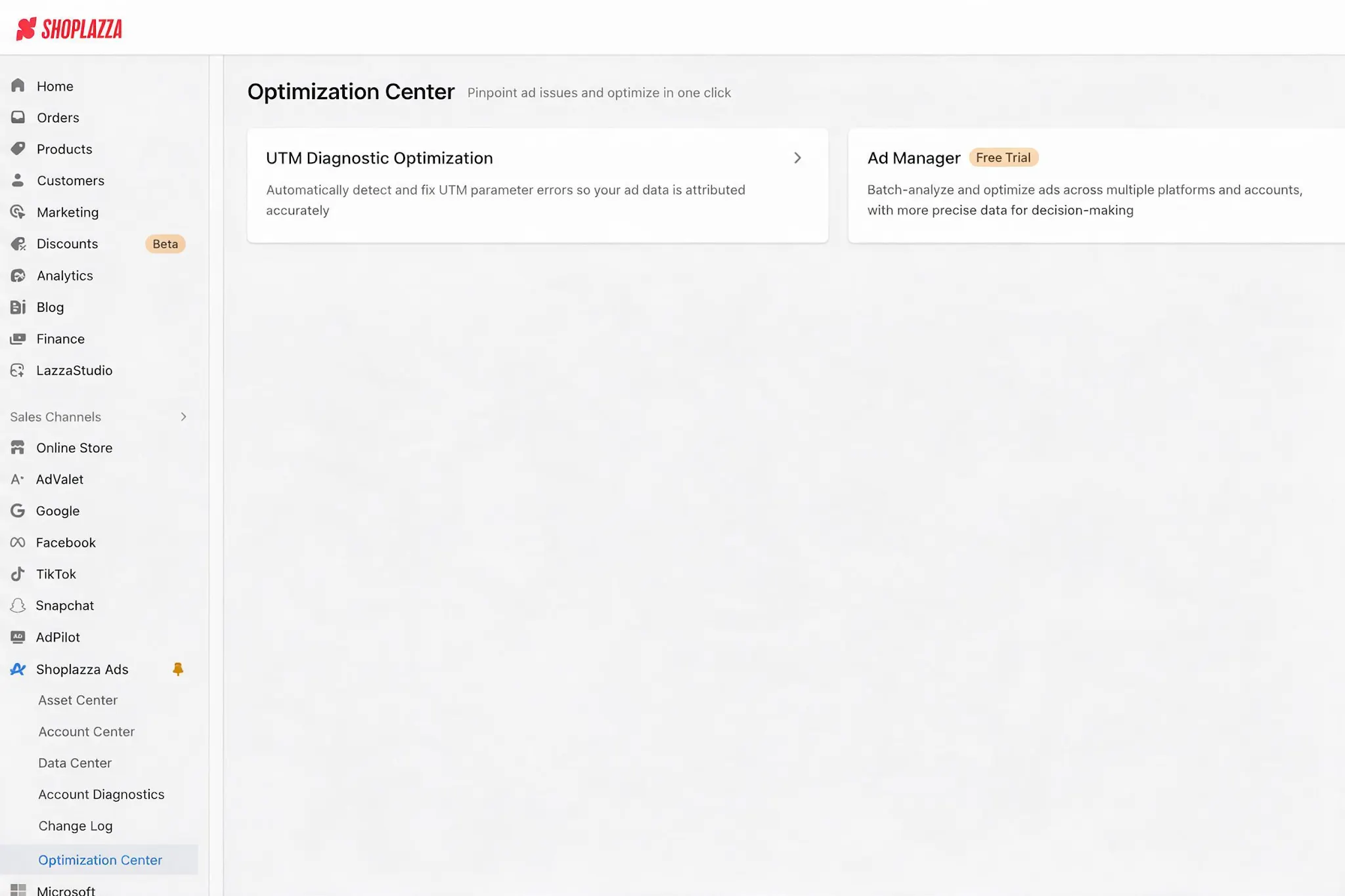
Log in to your Shoplazza admin panel, go to Sales Channels > Shoplazza Ads > Ad Services > Optimization Center, and click the Ad Management card to access the Ad Management page.
Note
Ad Management is only available for stores that have completed ad account authorization. If you haven't authorized your ad account yet, please complete the authorization in the Asset Center first.
- Ad Management data is updated hourly. Click Refresh Data to retrieve the latest data directly from the advertising platform. Manual refresh is available once every 30 minutes, calculated separately for each store and advertising platform.
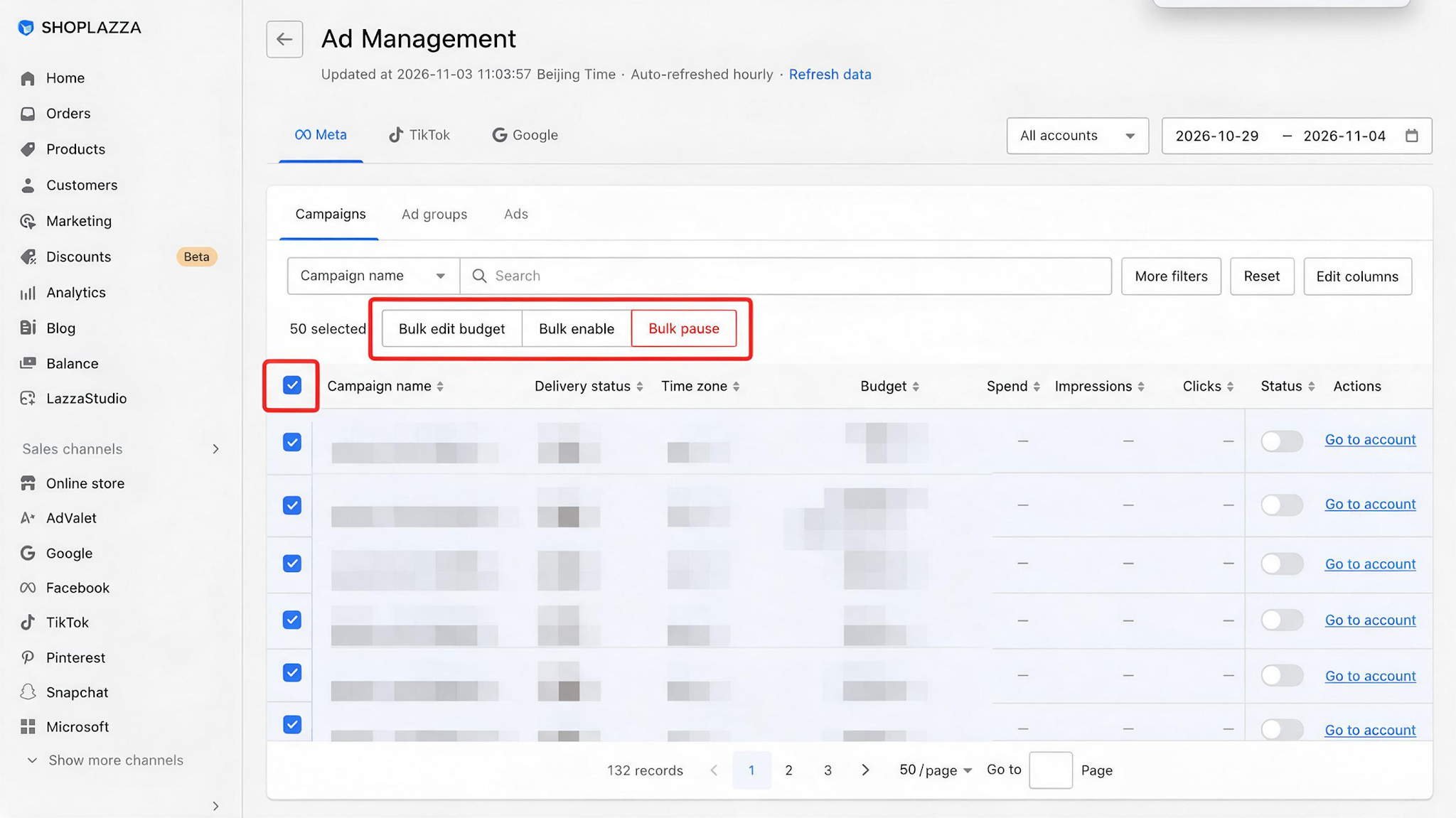
- The top of the page provides filters such as account and time range. The list displays both advertising platform data and store data for reconciliation and optimization. Select specific items to display the bulk action toolbar at the top of the page.
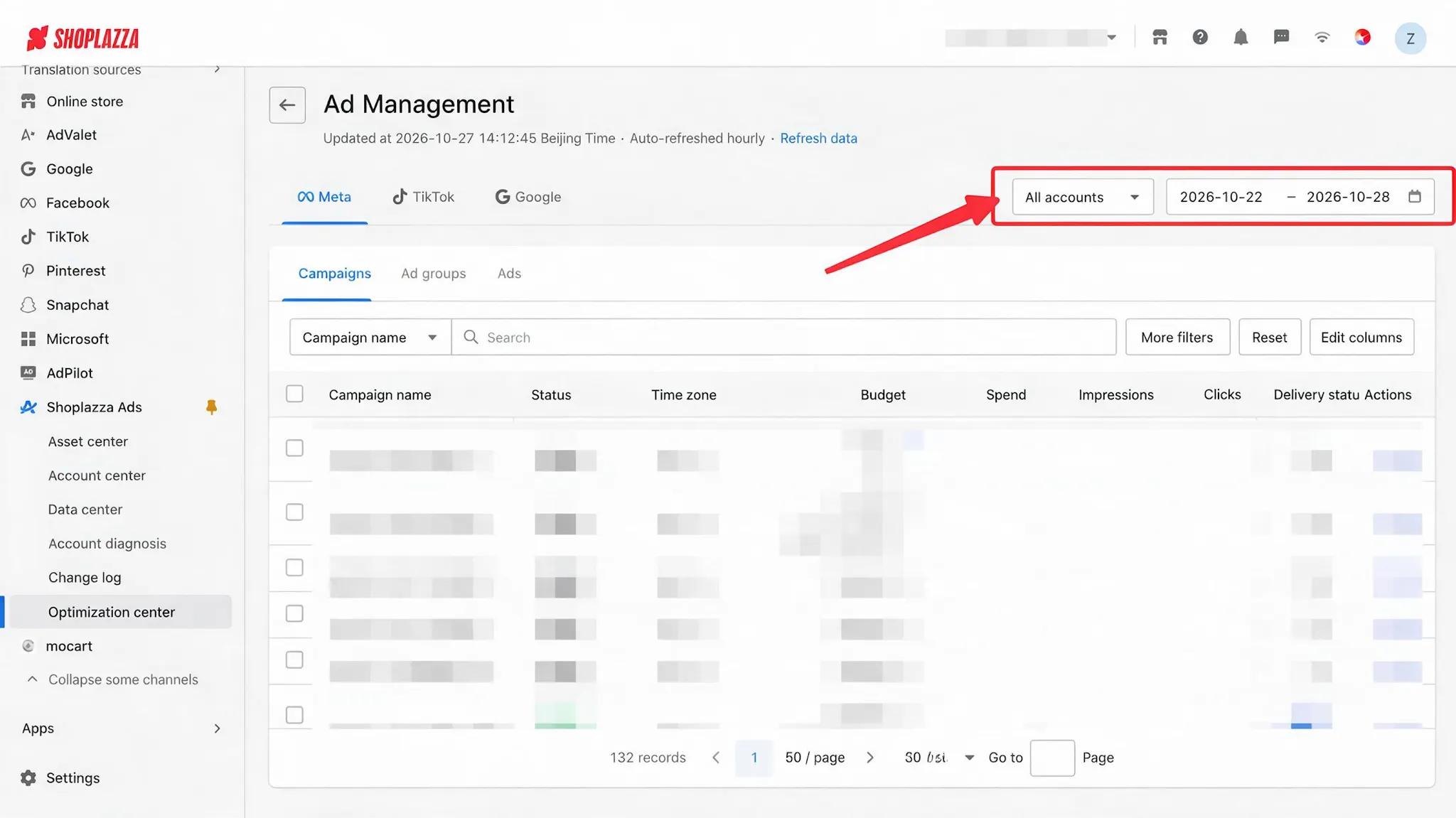
Platform and Account
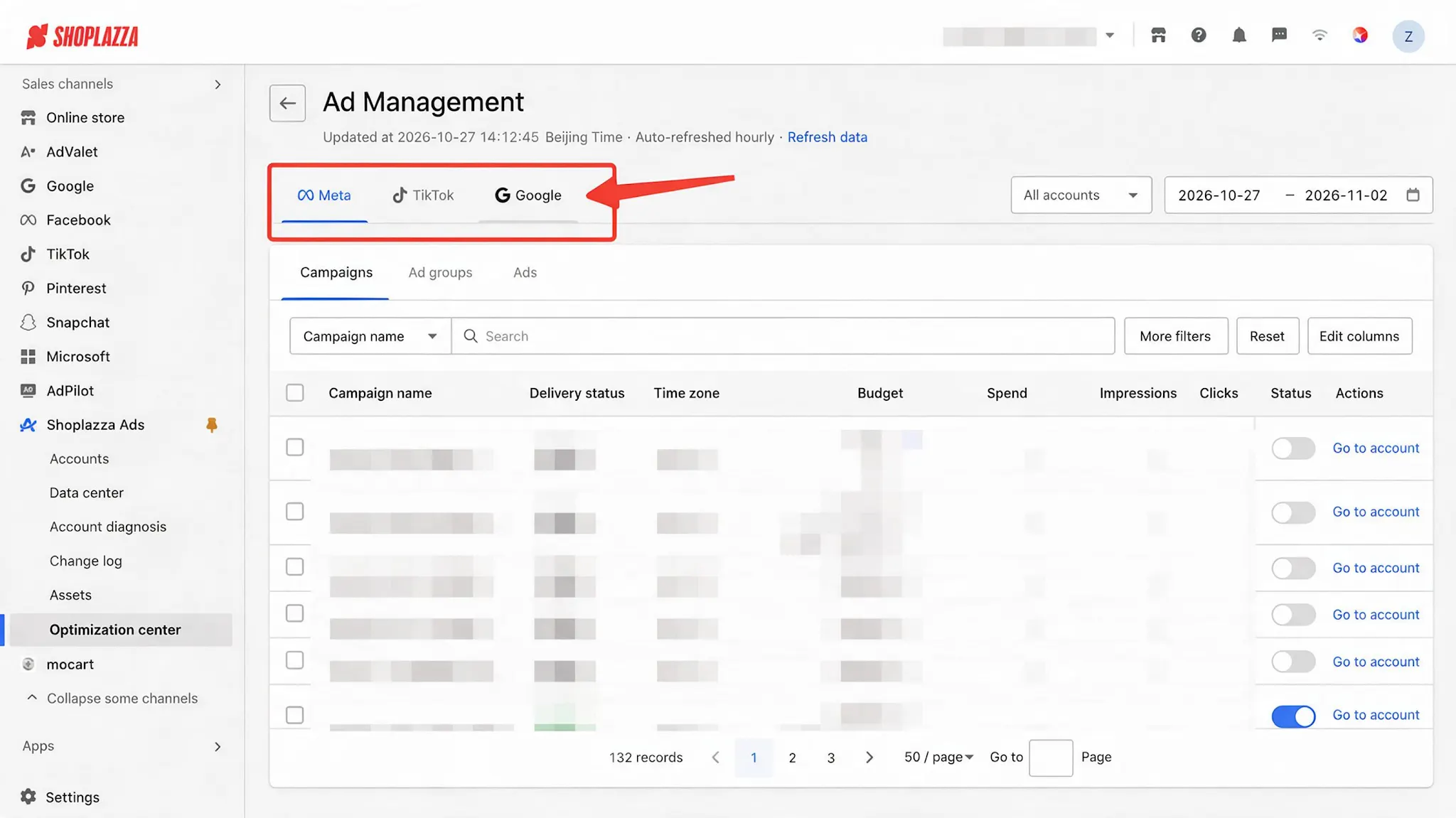
- Platform Tabs: Facebook / TikTok / Google. Only one platform can be selected at a time.
- Accounts: Multiple accounts can be selected. By default, all ad accounts under the selected platform are selected. Amounts are displayed in each account's original currency, with no currency conversion.
- Date Range: Supports custom date range selection, as well as quick options such as Last 7 Days, Last 14 Days, Last 30 Days, and Month to Date. All quick options include today. Dates are based on each ad account's own time zone, with no time zone conversion, ensuring that all figures match those displayed in the corresponding advertising platform's dashboard.
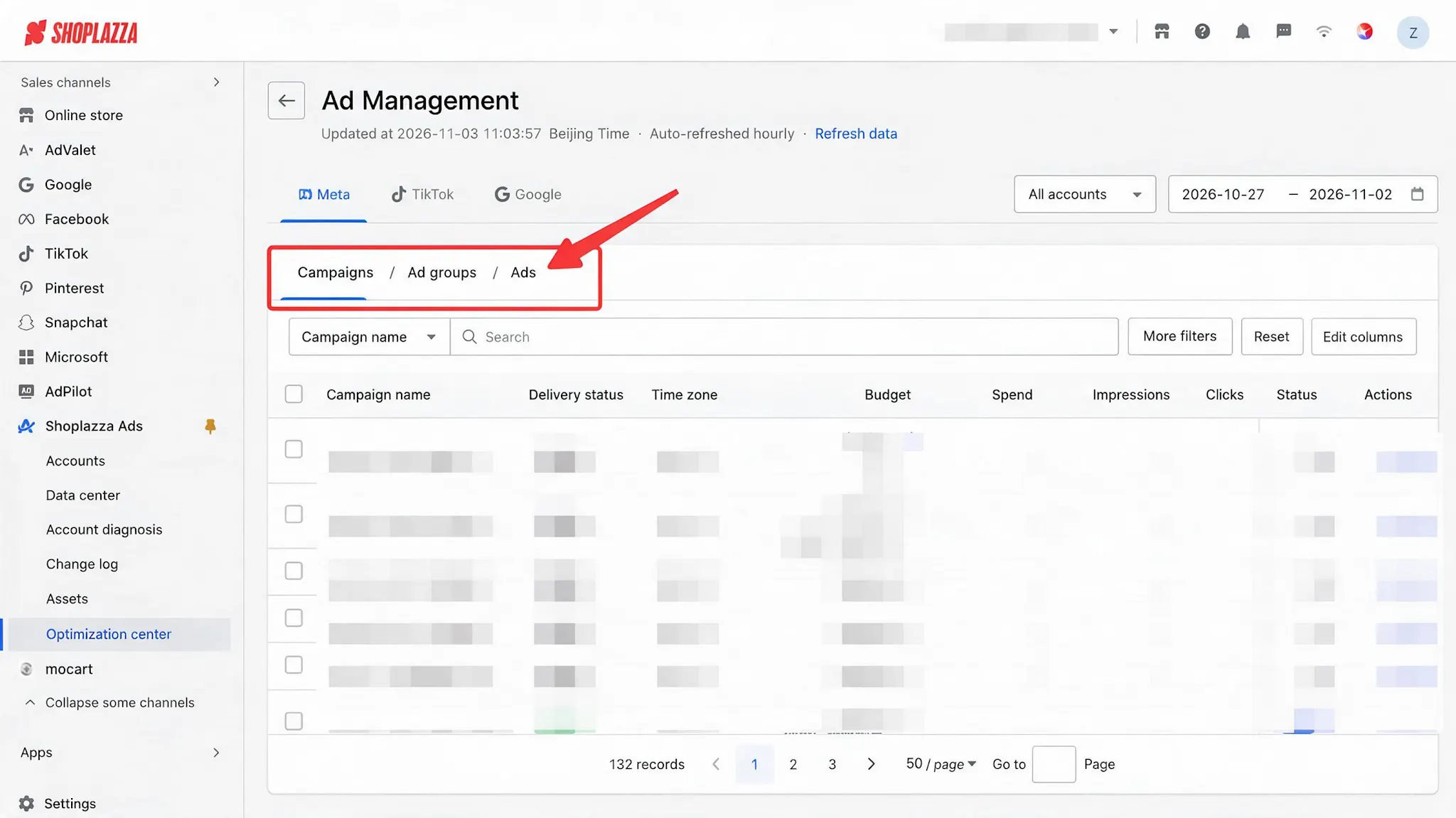
- Ad Level Tabs
The three platforms use different terminology for the same ad levels:
- Meta: Campaign / Ad Set / Ad
- TikTok: Campaign / Ad Group / Ad
- Google: Campaign / Ad Group / Ad
Ad Management is divided into three levels: Campaign, Ad Group, and Ad. The available viewing and editing options vary by level. For details, please refer to Sections IV and V.
-
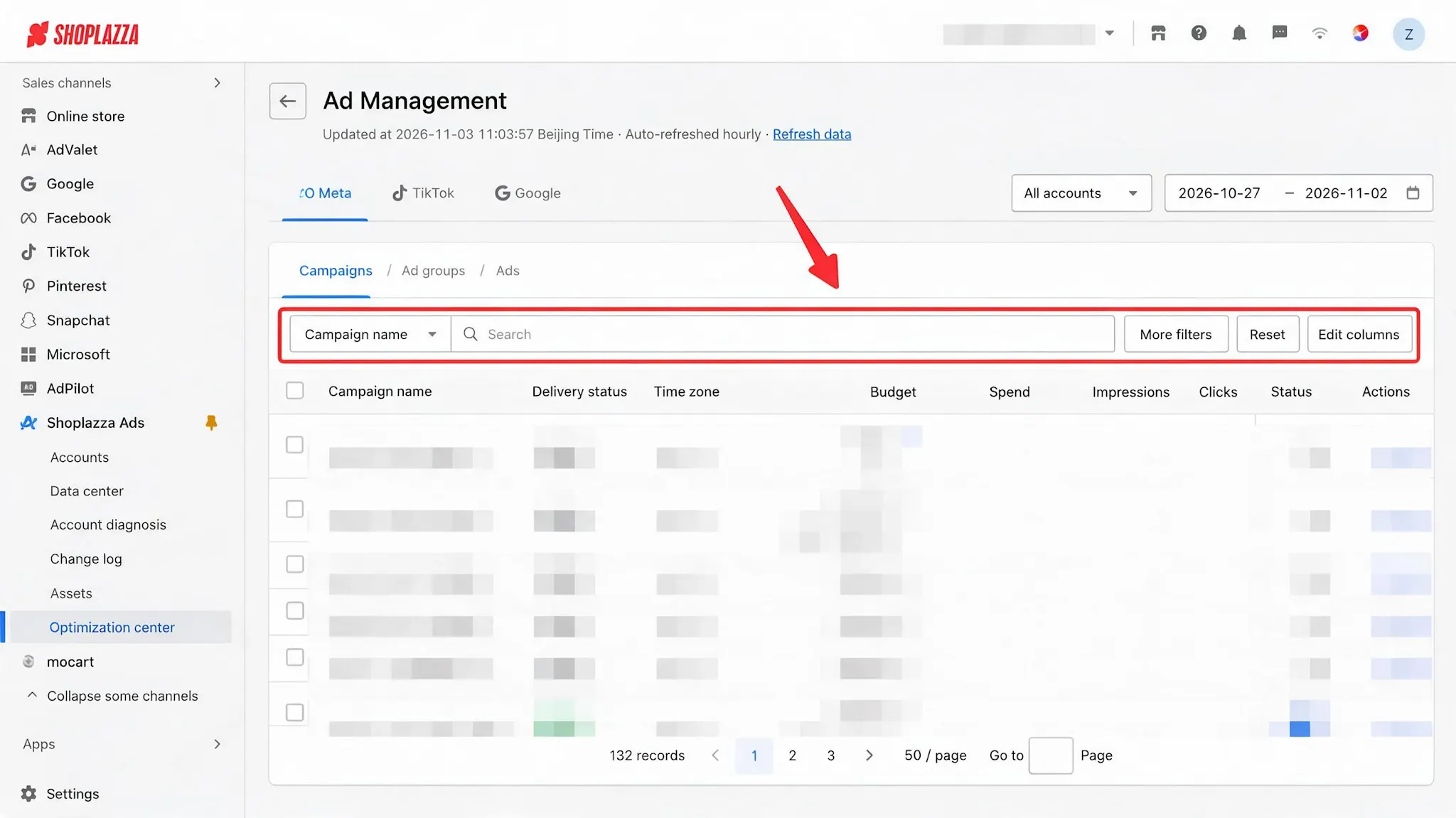
Toolbar
- Search: Search by account, name, or ID.
- More Filters: Combine filters by dimensions (e.g., delivery status, ad status, ad type, budget type, targeted countries) and metrics (e.g., spend, ROAS). Up to 9 filter conditions can be applied. Active filters are displayed as tags, which can be clicked to modify the corresponding conditions.
- Customize Columns: Customize the fields displayed in the table. The Name and Actions columns are always displayed. Columns without an available data source for the selected platform or level will be grayed out, with the reason indicated.
- Reset: Clear all filters and search criteria.
Data Panel
| Category | Columns | Description |
| Basic | Account, Ad Type, Campaign Objective, Budget Type, Time Zone, Name, ID |
|
| Status | Delivery Status, Ad Status | See Section III for details. |
|
Delivery Settings
|
Spend, Budget, Bid | Budget and Bid are only available at the Campaign and Ad Group levels. These columns are grayed out at the Ad level. |
| Traffic | Impressions, Clicks, CTR, CPC, CPM | Reported by the advertising platform. |
| Conversions (Platform-Reported) | Add to Cart, Initiate Checkout, Conversions · Platform, Purchase Value, CPA · Platform, ROAS · Platform | Reported by the advertising platform. |
| Conversions (Store-Reported) | Conversions · Store, Attributed Revenue · Store, CPA · Store, ROAS · Store | Attributed by Shoplazza based on store orders (store-side metrics). See Section VII for details. |
|
Actions
|
Status Toggle, Edit, Go to Account to Edit | Fixed on the far right. The Go to Account to Edit option is available at all three levels. |
III. Two Status Columns: Running Status and Delivery Status
Each ad has two separate statuses, each reflecting different information:
- Delivery Status: Indicates the actual delivery result determined by the advertising platform. This status cannot be manually changed. Available statuses include: Delivering / Paused / Campaign Paused / Ad Group Paused / Rejected / Insufficient Budget (TikTok) / Account Penalized (TikTok).
- Running Status: Indicates whether you want the ad to run, allowing you to turn the ad on or pause it.
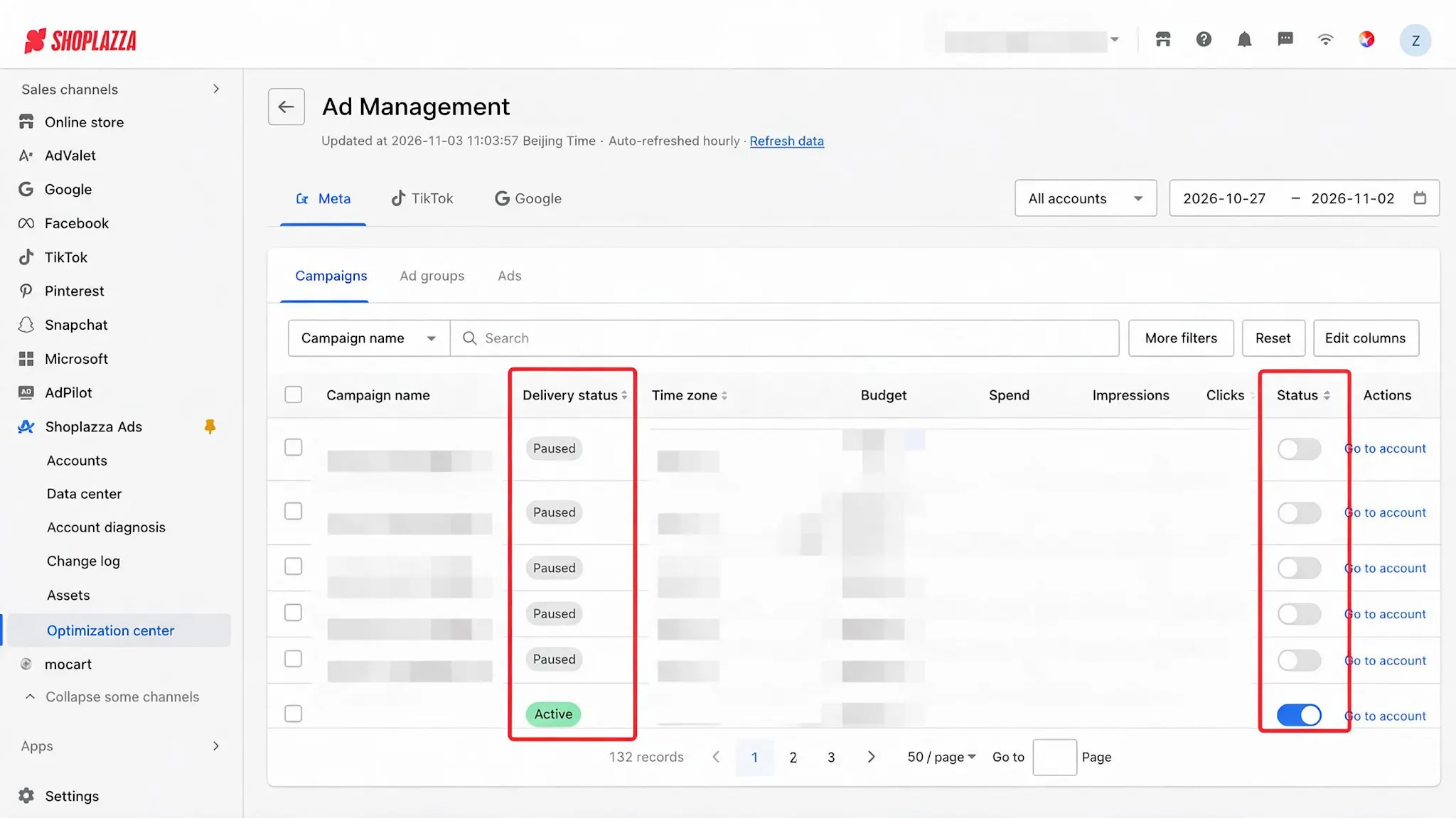
Why Are Two Separate Statuses Needed?
A Running Status of Enabled does not necessarily mean that the ad is actively being delivered. For example, when the Delivery Status shows Campaign Paused or Ad Group Paused, it means that although the ad's toggle is enabled, it is not actually running.
By distinguishing between these two statuses, you can gain a more accurate understanding of the ad's actual delivery status.
Note
- A Delivery Status of Delivering only indicates that the advertising platform has not restricted the ad. It does not necessarily mean that the ad has generated any spend. For example, shortly after an ad is enabled or when it fails to receive traffic due to bidding competition, its status may show Delivering while its spend remains 0. To determine whether an ad has generated actual spend, check the Spend column.
- Google does not provide a Delivery Status field at the Campaign or Ad Group level. Therefore, the Delivery Status for these two levels is displayed as "—". The status is displayed normally at the Ad level.
- Deleted ads are not displayed in the table and cannot be recovered on any of the three advertising platforms. Ads restricted by the platform (e.g., rejected ads or ads from restricted accounts) are still displayed, with the corresponding status returned by the platform shown in the status column.
IV. How to Adjust the Budget
1. Where Is the Budget Set?
| Budget Type | Budget Level | Description |
| CBO | Campaign level, with the platform automatically distributing the budget across ad groups. | n Meta, this is called Advantage Campaign Budget. In TikTok, it is called Campaign Budget Optimization. |
|
ABO
|
Ad Group level, with an independent budget set for each ad group. | At the Campaign level, Meta only displays the total budget of all ad groups, which cannot be edited at this level. In TikTok, the campaign's own budget can be edited directly at the Campaign level. |
| Always at the Campaign level. | Google does not use the CBO / ABO budget model. |
The budget type is displayed below the amount in the Budget column, with labels such as Daily Budget, Dynamic Daily Budget, Lifetime Budget, Budget at Campaign Level, and Total Budget Across Ad Groups.
If a budget is shared with other campaigns, the prefix Shared - is added before the budget type, for example, Shared - Lifetime Budget.
For Dynamic Daily Budget, the entered amount represents the average daily budget over a week. The platform may adjust spending throughout the day, with a maximum daily spend of 125% of the set amount. However, total spending over the entire week will not exceed the average daily budget × 7.
2. Which Budgets Cannot Be Edited in This Table?
| Scenario | Reason |
| Ad Level | Ads do not have their own budget entity. This is not supported by the advertising platforms. |
| Shared Budget | estricted by the platform. Please make changes directly in the advertising platform's dashboard. |
| Unlimited Budget | The platform silently converts it to a daily budget, and this change cannot be reversed. The system blocks this operation to prevent unintended changes. |
| Campaign Level under Meta ABO | Editing the budget at this level converts the campaign to CBO, causing individual ad group budgets to become invalid. The entire campaign will stop delivering, and the change cannot be reversed. Switch to the Ad Group level to edit budgets individually. |
| Ad Group Level under CBO | The budget is set at the Campaign level. Switch to the Campaign level to make changes. |
Cells that cannot be edited do not display an Edit button. Hover over the cell to view the specific reason.
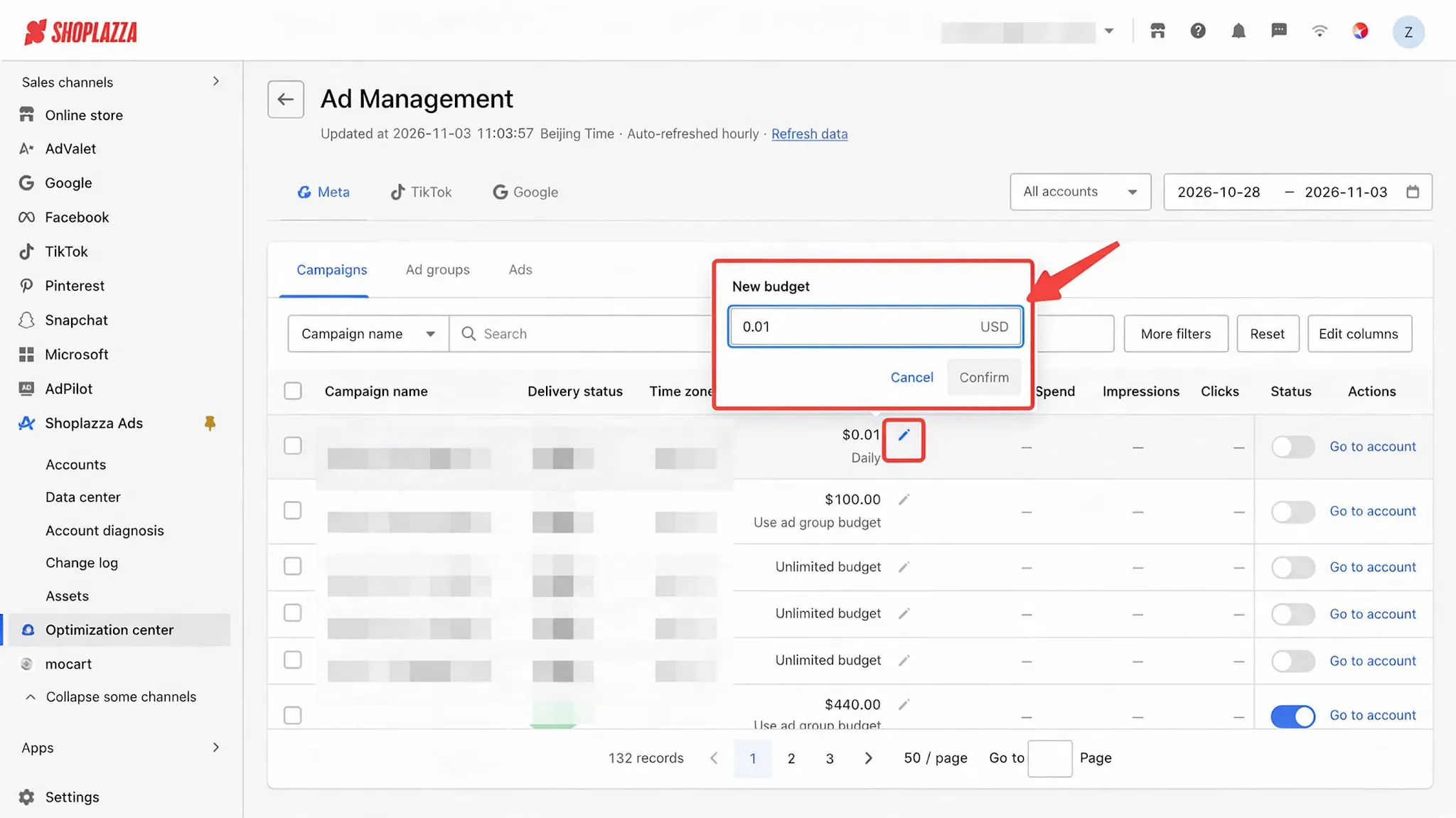
3. How to Adjust the Budget
- Click the Edit icon in the Budget cell and enter the new budget. The system recommends adjusting the budget within ±50% of the current value. If the new amount exceeds this range, a warning will appear. You can still submit the change after confirmation.
- Click Confirm in the pop-up panel. The change will be sent to the advertising platform immediately and take effect right away (there is no option to schedule it for the next day). Upon successful modification, a confirmation message will appear: "Budget updated to ."
Note
- When modifying the budget of an active Meta ad, Meta may pause the ad in certain cases. If this happens, a notification will appear on the page, and the Running Status of the corresponding row in the table will be updated to Paused. The system will not automatically re-enable the ad. You can decide whether to turn it back on.
- The ±50% warning is designed to prevent accidental changes (for example, accidentally adding an extra zero and increasing the budget tenfold). After acknowledging the warning, the system will still submit the exact amount you entered.
V. How to Adjust Bids
1. Bids Can Only Be Adjusted at the Ad Group Level
Bid settings are only available at the Ad Group level. At the Campaign level, only a bidding strategy label is displayed (e.g., "Bid Set at Ad Group Level"). The Bid column is grayed out at the Ad level.
2. Whether a Bid Amount Is Available Depends on the Bidding Strategy
For ad groups using automatic bidding strategies (Meta Highest Volume and TikTok Automatic Bidding), the platform does not return a bid amount. The Bid column displays "—", and there is nothing to edit. This reflects the platform's actual behavior, not missing data.
3. Which Scenarios Allow Bid Adjustments
| Platform | Scenarios Where Bids Can Be Edited | Description |
| Meta | Bidding strategy is Cost Per Result Goal or Bid Cap, regardless of whether CBO or ABO is used. | The Cost Target strategy has been discontinued in the Meta API. Existing values are read-only. |
| TikTok | ABO + Manual Bidding | Changes do not affect other ad groups. |
| TikTok | CBO + Cost Cap + Manual Bidding | Under this combination, TikTok requires all ad groups within the same campaign to use the same bid. Editing the bid for one ad group will also update the bids of all other ad groups under the same campaign, including rows that have not been selected. The confirmation dialog will list each affected ad group along with its current bid. For CBO campaigns using CPC / CPM / CPV bidding, each ad group's bid remains independent and is not affected. |
The modification process is the same as for budgets: click the Edit icon → enter the new bid (a warning will appear if the new bid exceeds ±50% of the current value) → click Confirm in the pop-up panel → the change is submitted to the advertising platform immediately.
VI. Enabling, Pausing, and Bulk Actions
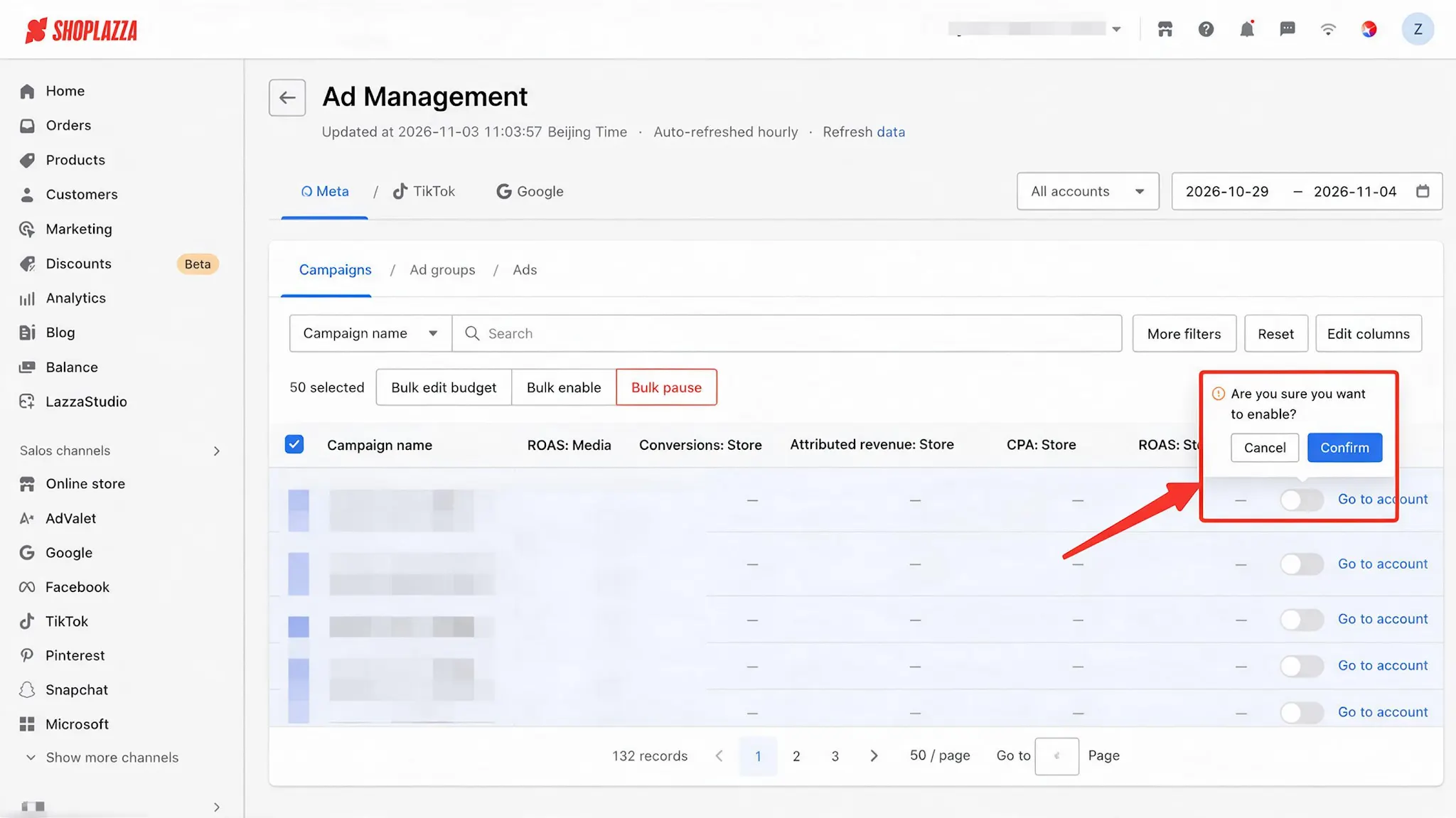
1. Enabling / Pausing Individual Ads
Click the status toggle. The change takes effect immediately after you confirm it in the confirmation dialog. If you cancel, the toggle will revert to its previous position.
Note
Ads with a Delivery Status of Campaign Paused, Ad Group Paused, Rejected, Insufficient Budget, or Account Penalized can still be enabled. The change will be submitted to the advertising platform, but the Delivery Status of the corresponding row will not change to Delivering until the underlying issue is resolved. The page will display the following message: "The change will be submitted, but this ad will still not be delivered."
2. Bulk Actions
After selecting one or more rows, a bulk action toolbar appears at the bottom of the page, offering the following options: Bulk Edit Budget, Bulk Edit Bid (Ad Group level only), Bulk Enable, Bulk Pause, and Clear Selection.
Selections can be made across multiple pages, with a maximum of 100 items per operation. The option to Select All Filtered Results is not available.
-
Bulk Edit Budget
- Three adjustment methods are supported: Set Fixed Amount, Increase/Decrease by Fixed Amount, and Increase/Decrease by Percentage. After entering the adjustment value, click Submit. The list will display the changes for each row in real time (Current Value → Adjusted Value) and indicate the number of skipped items (e.g., "N items skipped: no editable budget").
- A warning will appear for any row where the adjusted budget exceeds ±50% of its current value. You can still submit the changes after confirmation.
- If the selected rows belong to accounts with different currencies, the entered amount will be applied in each account's original currency, with no currency conversion.
3. Results
- Bulk operations are submitted to the platform row by row. Real-time progress is displayed during execution (e.g., 37 / 100 completed). Once execution is complete, a results summary is provided, with successful, failed, and skipped items listed separately.
- Failed rows retain their original values and are marked with an error indicator. Hover over the indicator to view the original error message returned by the platform. You can retry failed rows individually.
Note
- If the same ad is modified by another team member while the confirmation dialog is open, that row will be skipped with the message: “This row has been modified by another user and has been skipped.” Please refresh the page and try again.
- Google’s bulk operations follow an “all-or-nothing” principle: if even one item is invalid, the entire batch will not be applied. The page will display the message: “The bulk operation was not applied. Reason: …”
4. Edit in Account
- Actions such as creating new ads, modifying creatives, changing links, adjusting targeting, and modifying audiences are not supported on this page. Each row across all three levels includes an Edit in Account button. Clicking it takes you directly to the corresponding object's page in the respective advertising platform's dashboard.
- The editable fields supported on this page vary by level:
- Campaign level: Budget and status (enable/disabled).
- Ad Group level: Budget, bids, and status (enable/disabled).
- Ad level: Status (enable/ disable) only.
VII. Two Measurement Standards: Platform Metrics vs. Store Metrics
The same set of metrics is displayed side by side using two different measurement standards. The two sets of figures are not convertible into one another, nor are they mutually exclusive. It is normal for the numbers to differ.
The value of this feature is to present these differences side by side, helping you determine which figures are more relevant to your analysis and decision-making.
| Measurement Standard | Metrics | Data Source |
Requirements |
| Platform Metrics |
Conversions · Platform, Purchase Value, CPA · Platform, ROAS · Platform
|
Reported by advertising platforms and calculated based on each platform's own attribution window (e.g., purchases made within 7 days after an ad click are counted). | None |
| Store Metrics | Conversions · Store, Attributed Revenue · Store, CPA · Store, ROAS · Store | Attributed by Shoplazza based on actual store orders. | The UTM parameters in ad URLs must include the Ad ID. |
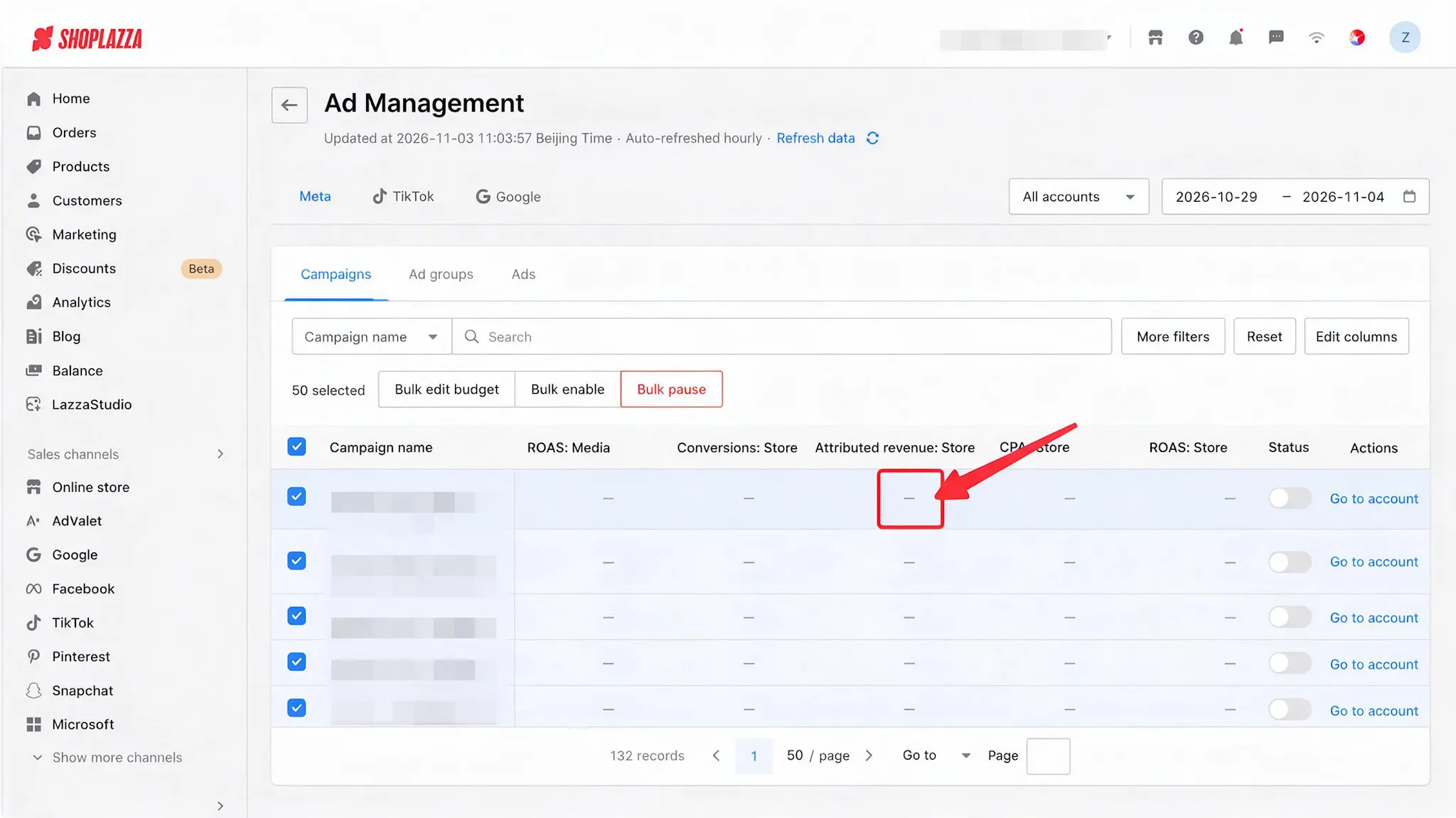
When Store Metrics Are Displayed as “—”:
Illustration:
| Display | Reason | What to Do |
|
All four Store Metrics columns display “—”
|
The UTM parameters in the ad URL do not include the Ad ID, so orders cannot be attributed to a specific ad. | Go to UTM Diagnostics to fix the issue. Store Metrics will be available for newly generated orders after the fix. |
| Store Metrics for TikTok / Google display “—” | The UTM parameters for this platform do not yet include the Ad ID, so Store Metrics cannot attribute data to this level. | Follow the same steps above. Store Metrics will become available after the UTM issue is fixed. |
|
Attributed Revenue · Store and ROAS · Store display “—”, while Conversions · Store and CPA · Store display normally.
|
The exchange rate for the selected date and currency has not yet been added to the system. (The system will look back up to 7 days to retrieve the exchange rate. “—” is displayed only if no rate can be found.) | The metrics will be restored automatically once the exchange rate data is available. No support ticket is needed. |
Note
Attributed Revenue · Store is always converted into the account currency using the exchange rate on the date the order was placed, ensuring it uses the same currency as ad spend for easier side-by-side comparison with Platform Metrics. A difference between the store currency and the account currency does not affect data availability.
CPA · Store and Conversions · Store are count-based metrics and are not affected by exchange rates.
VIII. Quick Reference: Metric Definitions
| Frequently Asked Questions | Description |
| How often is data updated? | Data is automatically updated every hour. To get the latest data, click Refresh Data. Manual refresh is available once every 30 minutes (calculated separately for each store and platform). Data from individual advertising platforms typically has a delay of 1–2 days. Quick date ranges (Last N Days, Month to Date) include today, so data for the current day may be incomplete. |
| Which time zone is used? | Each account's own time zone is used without conversion, ensuring that every figure matches the corresponding advertising platform's dashboard. When multiple accounts with different time zones are selected, "the same day" does not represent the same time period. Adding or comparing figures across accounts is therefore not recommended. The Time Zone column is displayed by default in the table. |
| Which currency is used for monetary values? | Monetary values under Platform Metrics, such as ad spend and budget, are displayed in the account currency without currency conversion. Attributed Revenue · Store is converted into the account currency using the exchange rate on the order date. |
| Which ads are displayed in the table? | Deleted ads are not displayed. Ads restricted by the platform are still displayed and can be managed. Each of the three levels is displayed separately; switch between levels to view the corresponding data. |
| Which columns may display “—”? | This appears when a platform does not support a particular concept (e.g., Ad Type in Meta, Campaign Objective in Google, or CBO / ABO in Google), when an entity does not exist at a particular level (e.g., budget and bids at the Ad level), when automated bidding has no bid value, or when Store Metrics have not been enabled. Hover over “—” to view the specific reason. |
| Who can perform operations? | Store members with permission to access the Ad Management module. In this version, viewing and editing share the same permission. Members who can view the data can also modify budgets, bids, and ad statuses. |
| Why do conversion numbers for historical dates change? | Conversion and monetary metrics are subject to attribution updates from advertising platforms. As a result, figures for historical dates may increase slightly over time. This is normal platform behavior. During each hourly sync, this page only retrieves attribution updates for the most recent 3 days. Updates for earlier dates are no longer synced. |
IX. Why Don't the Ad Management Data Match the Data in the Advertising Platform Dashboard?
| Reason | Explanation |
| Different Date Ranges | This page displays data based on each account's time zone. Make sure both sides use the same date range and time zone. |
| Not All Accounts Are Selected | Multiple accounts can be selected on this page. Make sure all the accounts selected match those in the advertising platform dashboard. |
| Different Data Refresh Times | This page updates every hour, while the advertising platform dashboard provides real-time data. Click Refresh Data before comparing the figures. |
| Different Metrics Being Compared | The Conversions metric in the platform dashboard corresponds to Conversions · Platform on this page. Conversions · Store uses a different attribution method based on actual store orders and should not be directly compared with platform-reported conversions. |
| Platform Data Is Still Being Recalculated | Data from the most recent 1–2 days may still be undergoing attribution updates on both sides. We recommend excluding the most recent two days when comparing figures. |
| Attribution Updates Outside the Sync Range | Platforms may attribute late-reported conversions back to historical dates. This page only retrieves attribution updates for the most recent 3 days. As a result, Conversions · Platform and Purchase Value for earlier dates may be slightly lower than the figures shown in the advertising platform dashboard. |
X. Frequently Asked Questions
Q1: Will changing the budget affect my ad delivery?
Usually not. In some cases, Meta may pause an object whose budget has been modified. If this happens, a notification will appear on the page, and the status in the corresponding row will show as Paused. The system will not automatically reactivate it. You can decide whether to resume delivery. Enable / Pause actions take effect immediately based on your selection.
Q2: Why do I see a ±50% warning when adjusting the budget?
When a single adjustment exceeds ±50% of the current value, the system will prompt you to confirm. This helps prevent accidental changes, such as entering an extra zero and increasing the budget tenfold. Once confirmed, the system will submit the value you entered.
Q3: Why is the ad spend here different from what I see in the Meta dashboard?
Please check the following three things first:
1. Date range: Are both sides using the same date range? This page uses the account's time zone without conversion.
2. Selected accounts: Have all the relevant accounts been selected?
3. Data refresh time: Are you comparing data from the same point in time? This page updates every hour. You can click Refresh Data to get the latest data.
If the figures still differ after confirming all three, please contact Customer Support.
Q4: The platform reports 100 conversions, but Store Metrics show only 60 orders. Are some orders missing?
No. The difference comes from two different attribution methods. Advertising platforms use their own attribution windows (for example, purchases made within 7 days after an ad click are counted), while Store Metrics attribute conversions based on the actual source of each order. The same order may also be claimed by multiple advertising platforms simultaneously.
The two sets of figures are displayed side by side precisely to help you understand these differences. For more details, see Section VII of Shoplazza Ads | Attribution Analysis.
Q5: Why do some ads show as Delivering but have zero spend?
Delivering only means that the platform has not restricted the ad. It does not necessarily mean the ad is actually generating spend. The ad may have been enabled recently, or its bid may not be competitive enough to win impressions. To determine whether an ad is actually spending, check the Spend column.
Q6: Why are all four Store Metrics columns always empty?
This is because orders cannot be attributed to specific ads. To populate these four columns, the UTM parameters in your ad URLs must include the Ad ID. This is exactly what UTM Diagnostics helps you configure.
After the issue is fixed, the four columns will gradually populate as new orders are generated.
Q7: Can I create ads or modify creatives here?
No. This page only supports three types of modifications: Budget, Bids, and Enable / Pause.
To create ads, modify creatives, adjust targeting, or modify audiences, click Edit in Account in the corresponding row to go directly to the relevant page in the advertising platform's dashboard.
Q8: Why can't I modify budgets and bids at the Ad level?
None of the three advertising platforms has budget and bid settings at the Ad level. Budgets are configured at the Campaign or Ad Group level, while bids are configured at the Ad Group level. Please switch to the corresponding level to make changes.
Q9: I submitted a change, but why did I receive the message "This row has been modified by another user and has been skipped"?
This happens when another store member modifies the same ad while the confirmation dialog is open. To prevent your changes from overwriting theirs, the system skips that row. Please refresh the page and try again.
Q10: Why can't I see ads that have already been deleted?
Deleted ads cannot be restored on any of the three advertising platforms. Displaying them here could give users the mistaken impression that they can still be managed. Therefore, deleted ads are not displayed. To view historical records, please go to the corresponding advertising platform's dashboard.
Q11: When will TikTok and Google be available?
TikTok and Google will be made available gradually. We will notify you once they are officially launched.


Comments
Please sign in to leave a comment.