
Set up gift-with-purchase promotions by defining conditions such as no minimum purchase, a minimum order amount, or a minimum number of items purchased, and offering corresponding gifts to customers. When customers purchase eligible products and meet the specified conditions, they can receive gifts according to the promotion rules. This helps make products more appealing, encourage additional purchases, and improve order conversion rates.
Note
- Theme Restrictions:
- The Life Style theme is not supported.
- OnePage: Since this theme does not have a shopping cart page or a separate checkout page, the following limitations apply: ① When gifts are configured for manual addition and the option to display the gift selection pop-up upon clicking Buy Now is enabled, manually adding a gift will redirect customers to a new checkout page. ② After opening the pop-up via the gift selection entry point (including the floating icon), customers cannot add gifts to their cart. Additionally, when the items in the cart meet the promotion threshold, no entry point is available for adding gifts.
Access the Gift with Purchase Promotion Creation Page
Log in to your Shoplazza admin panel, go to Discounts > Discount Campaigns, click Create Discount, and select Gift with Purchase to create a promotion.
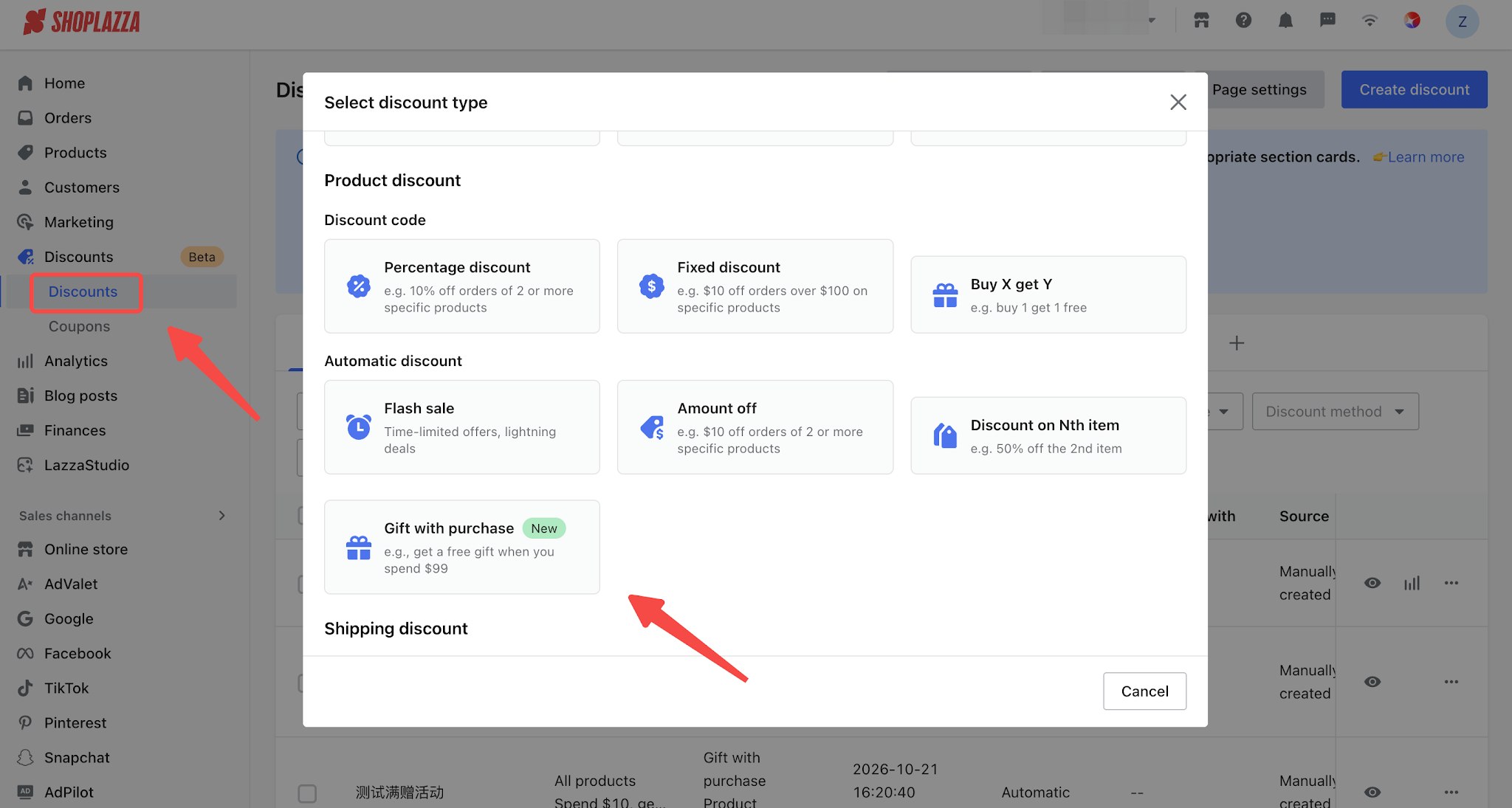
Configure the Gift with Purchase Promotion
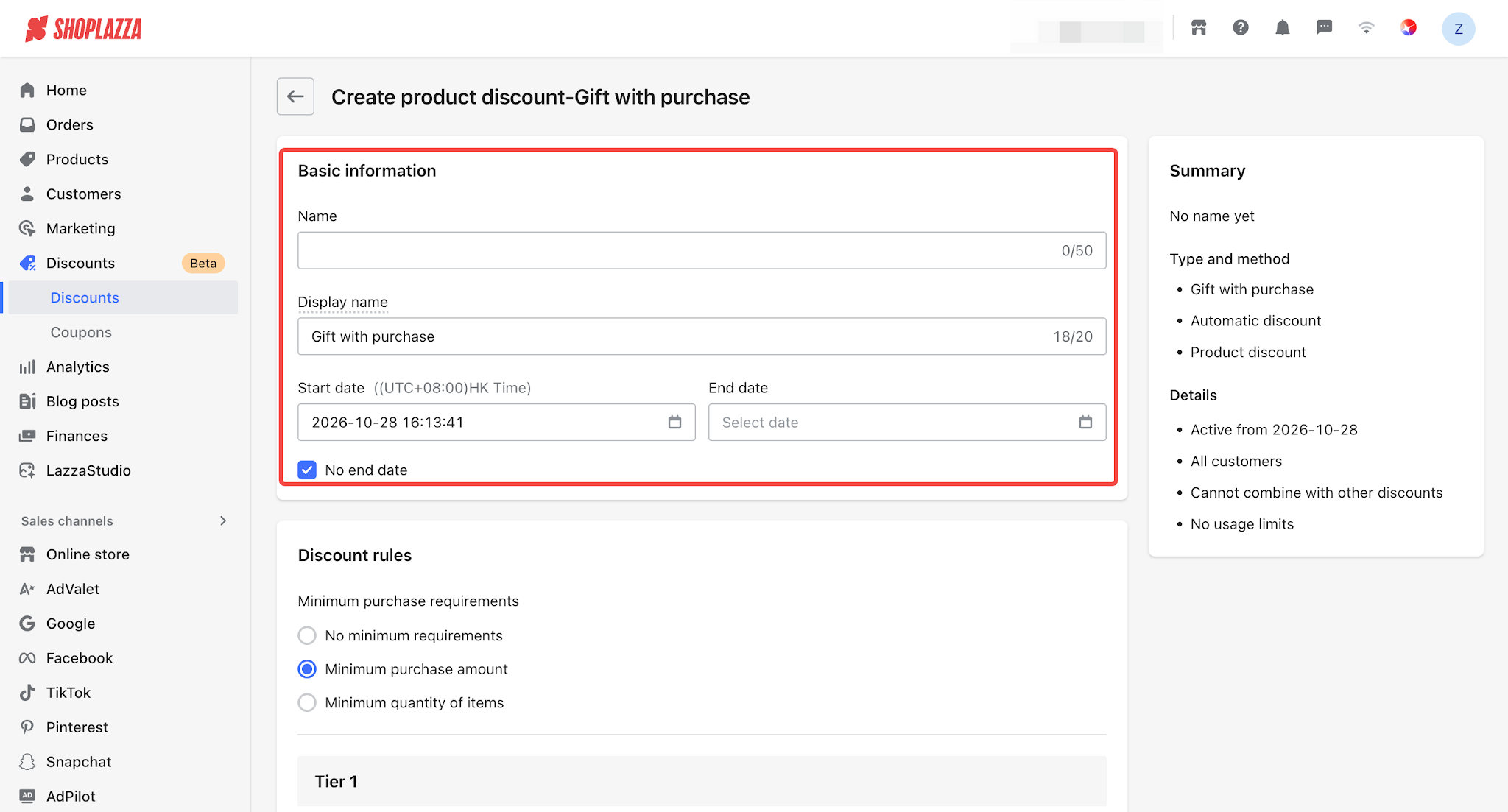
Basic Information
Set the Name (for internal management purposes only; not visible to customers) and Display Name (visible to customers) to help you manage promotion details more efficiently. Then, set the promotion's active period.
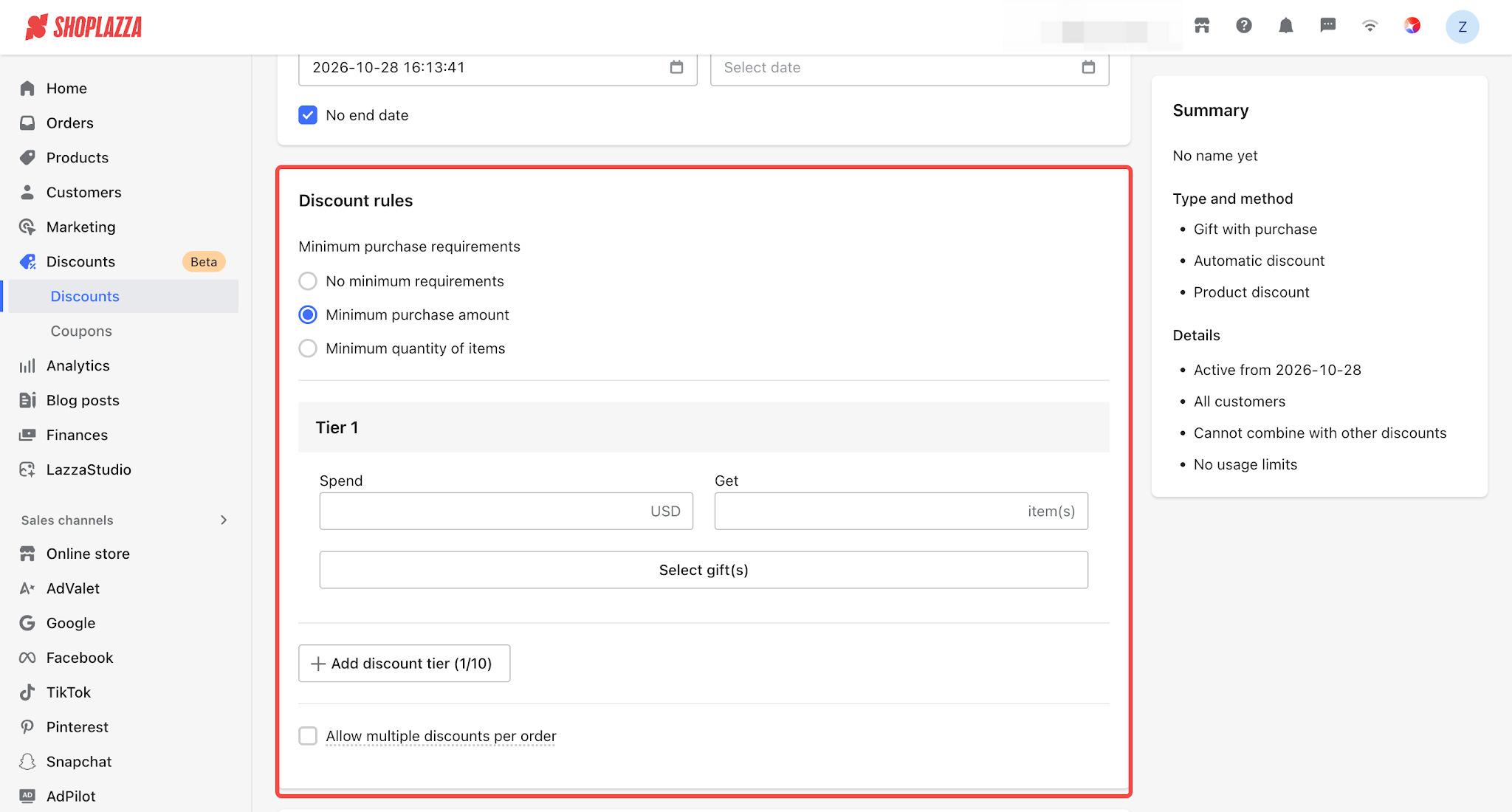
Discount rules
- When None is selected, only a single tier is supported, and the option to remove the upper limit is unavailable.
- When Minimum Spend Amount or Minimum Quantity Purchased is selected, multiple promotion tiers can be configured, with a maximum of 10 tiers.
- You can select gifts for the promotion. Each promotion supports up to 300 gifts, with a maximum of 5,000 gift SKUs.
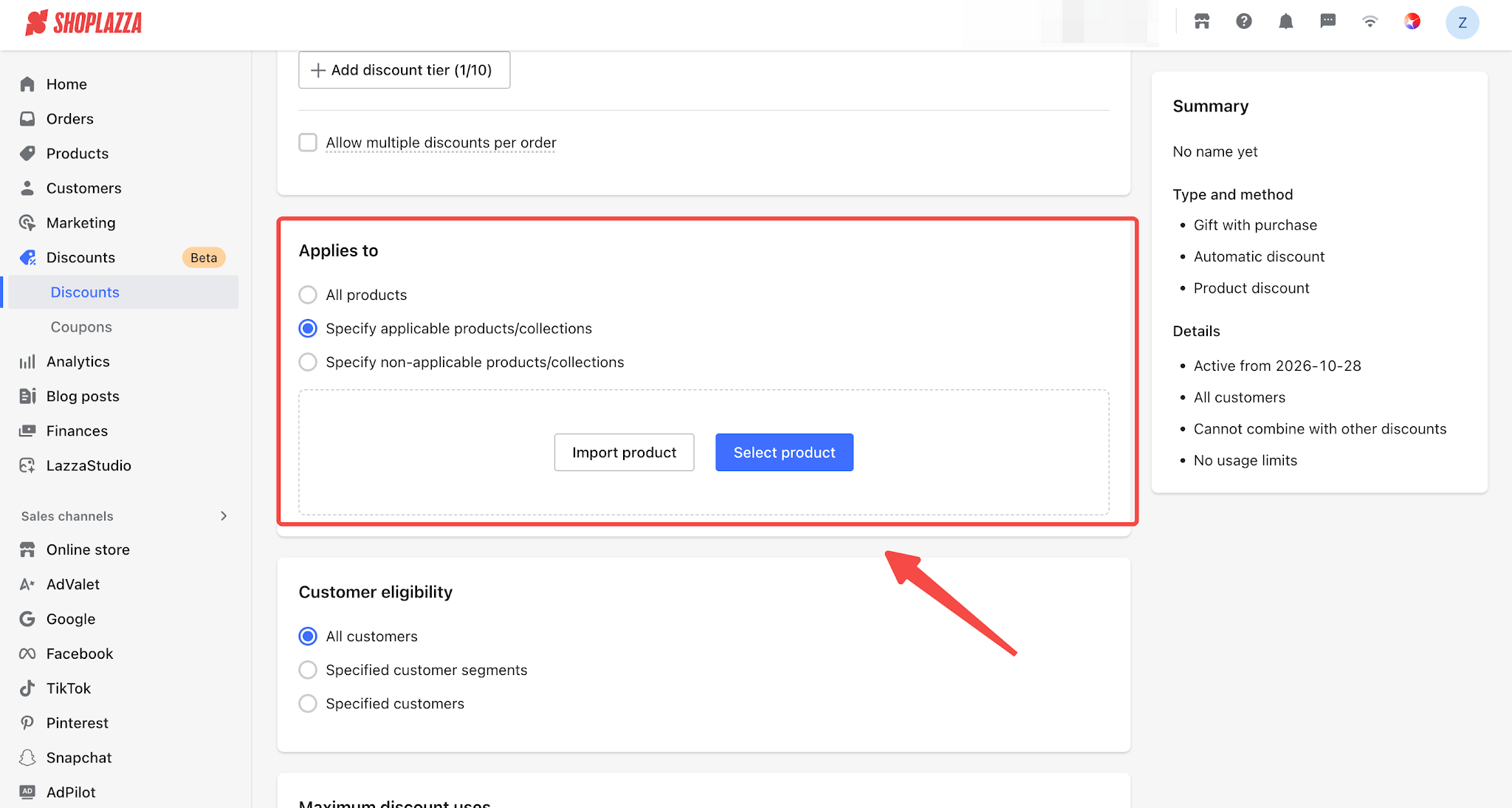
Applies to
Select the products eligible for the discount promotion. You can choose All Products, Specific Products/Collections, or Exclude Specific Products/Collections.
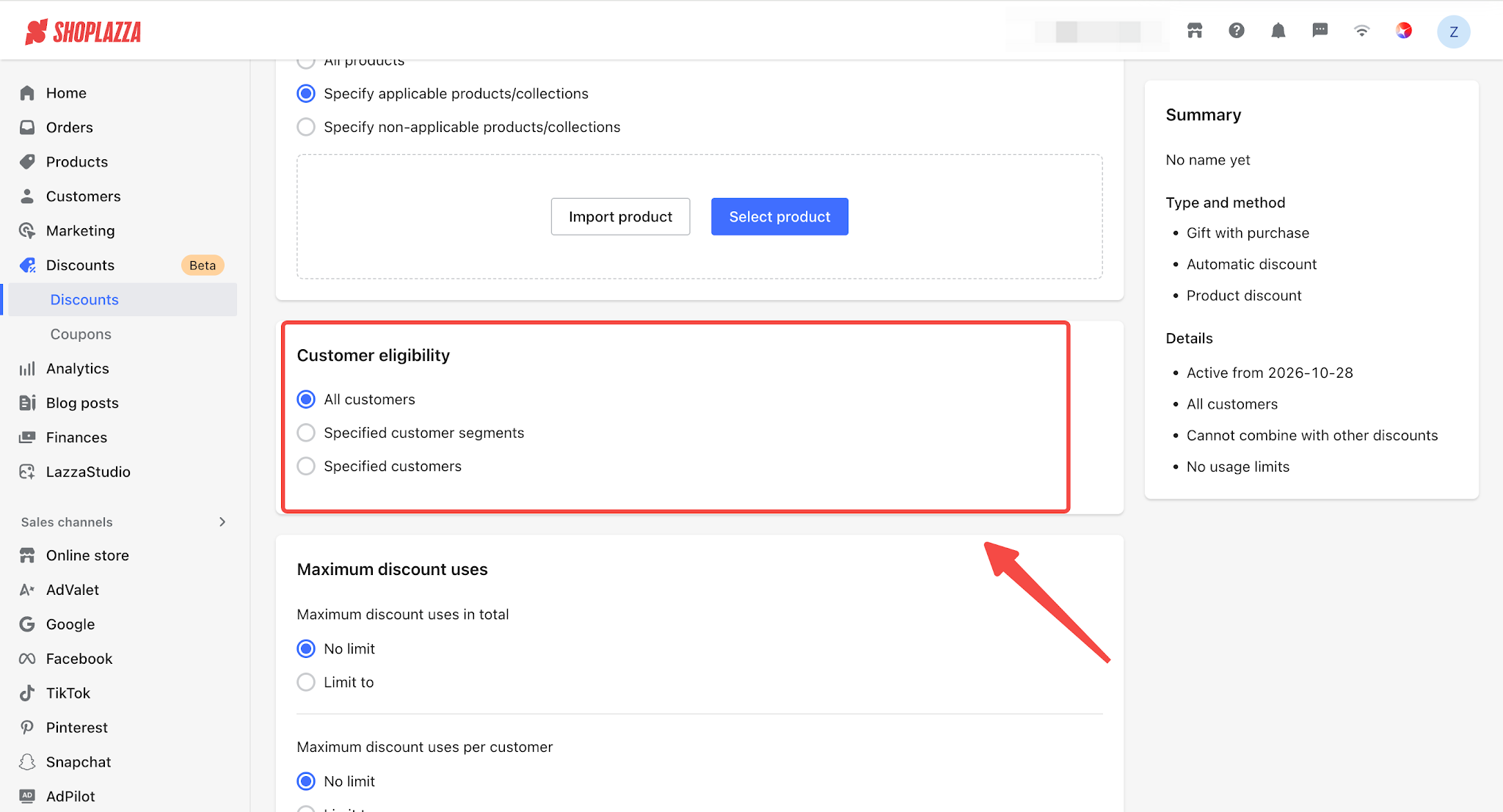
Customer eligibility
Configure whether the promotion applies to all customers or only specific customers, according to your needs.
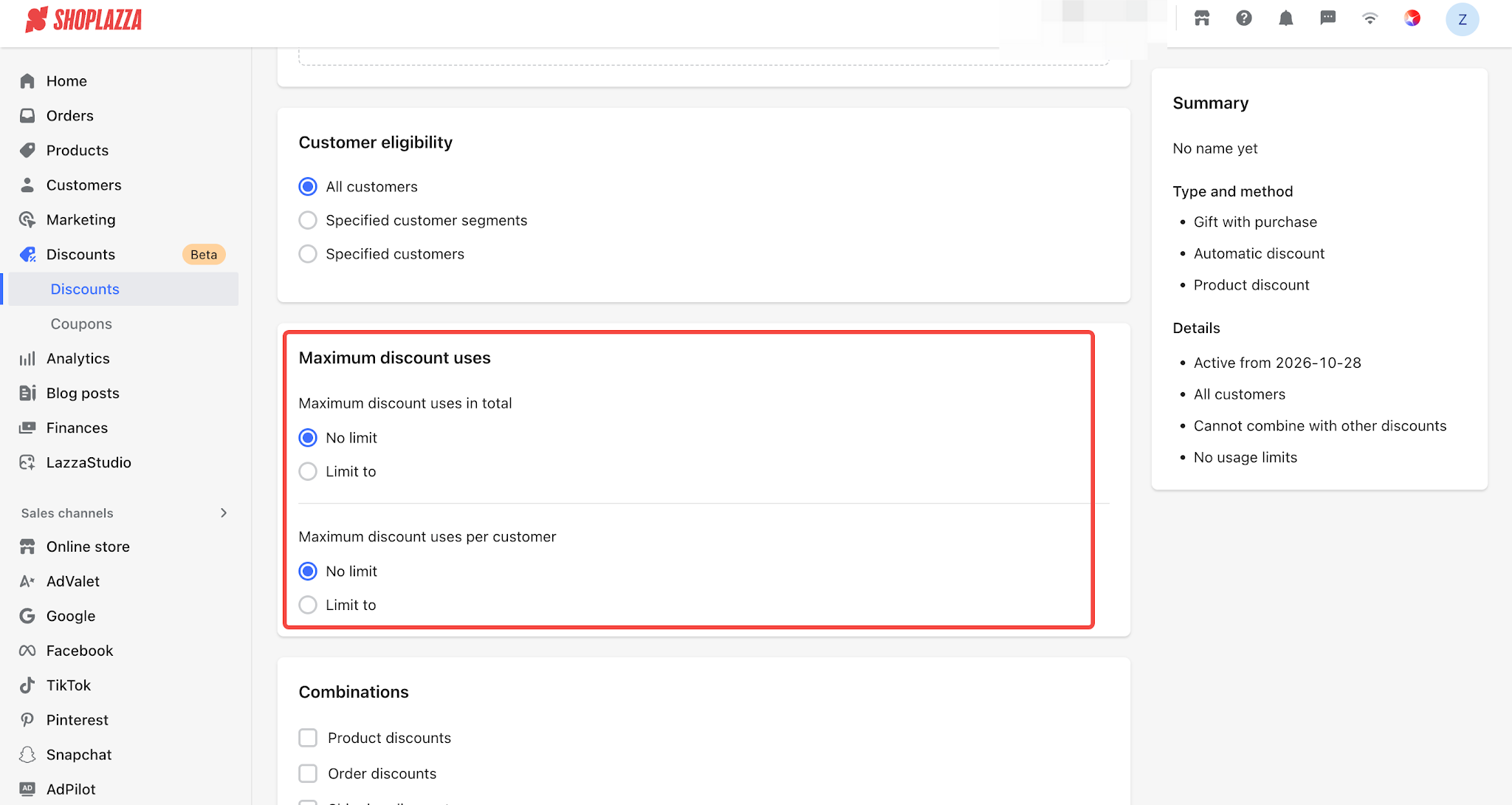
Maximum discount uses
When configuring a discount promotion, you can limit the total number of times the promotion can be used and the number of times each customer can use it.
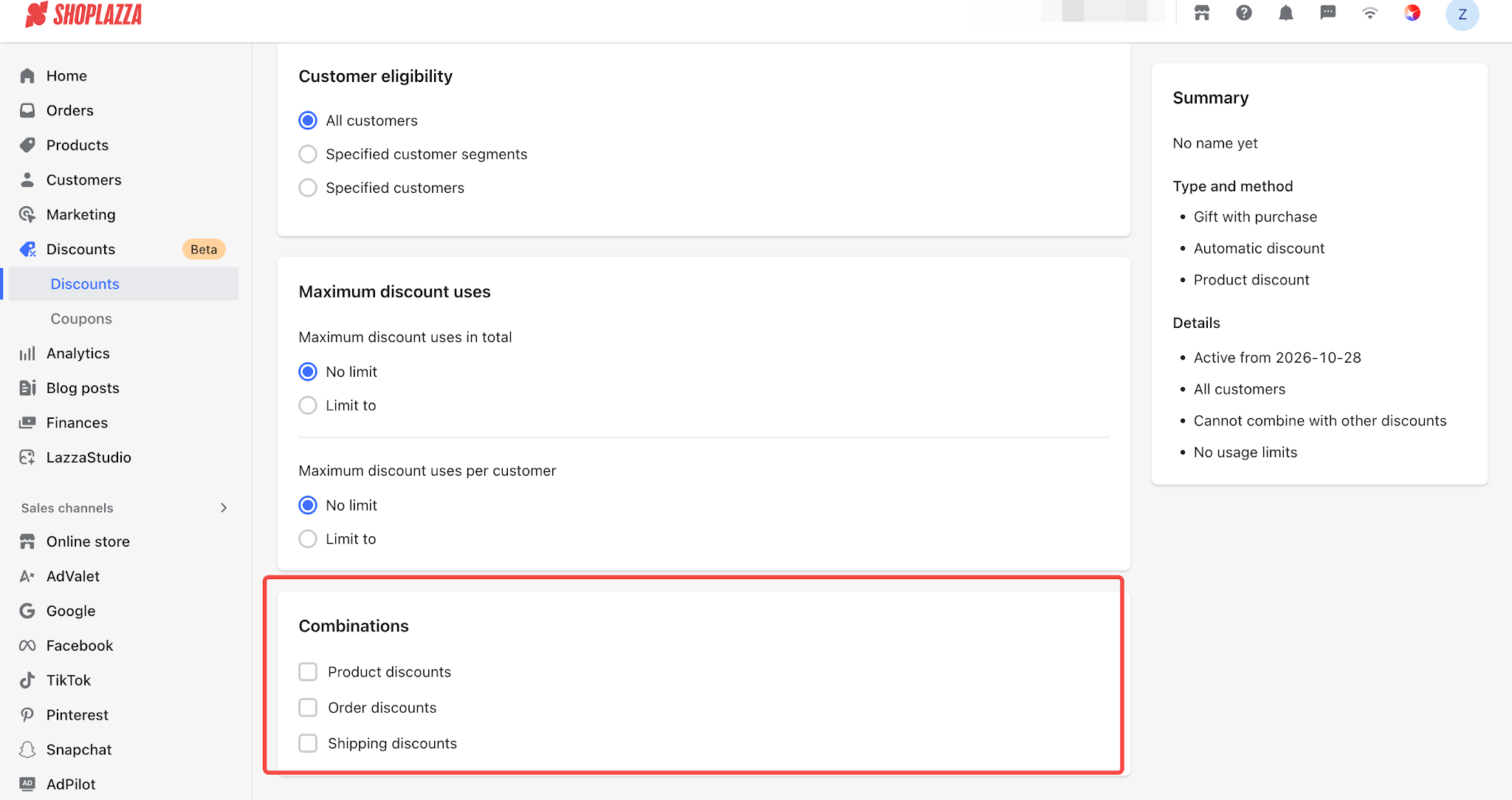
Combinations
Discount combinations can be configured across three categories: Product Discounts, Order Discounts, and Shipping Discounts. These discounts are considered when calculating the optimal combination. For details, see the Discount Calculation Rules.
Discount Calculation Rules
1. Gift Labels
- Products manually added to the cart through the gift selection pop-up or automatically added by the system will be marked with a Gift label. The system uses this label to identify gifts.
- The same product added to the cart through the regular shopping process is not considered a gift. It is sold as a regular product and does not count toward the gift quantity.
- When a Gift with Purchase promotion can be combined with other promotions, gifts that have already received the Gift with Purchase discount are excluded from the calculation of all other promotions. For example, a Gift with Purchase promotion offers one free gift (G) when customers purchase any two products. A discount promotion offers 10% off orders of three or more items. If a customer purchases A, B, and G, gift G does not count toward the minimum quantity required for the discount promotion.
2. Promotion Threshold Requirements
Both conditions must be met for the promotion to apply: the qualifying products must meet the promotion threshold, and the cart must contain a gift marked with the Gift label.
For example, a promotion offers one free gift on orders of 100ormore.IfacustomeraddsproductA(100) to the cart but does not add the gift, the Gift with Purchase promotion will not apply.
3. Number of Gifts Customers Can Receive
Rule
| Number of Gifts | Available Example |
Single Tier
| The number of gifts configured for the promotion, Y (maximum once per order) | Buy 3, Get 2 Free: Purchasing 6 items still qualifies for 2 free gifts. |
Multiple Tiers
| The number of gifts configured for the highest tier reached | Buy 3, Get 2 Free; Buy 5, Get 3 Free: Purchasing 5 items qualifies for 3 free gifts. |
| Multiple Tiers + Cumulative Gifts Across Tiers | The total number of gifts from Tier 1 through the highest tier reached | Buy 2, Get 1 Free; Buy 3, Get 2 Free; Buy 5, Get 3 Free: Purchasing 5 items qualifies for up to 6 free gifts. |
4. When Gift Inventory Is Insufficient or Gifts Are Unavailable
- Gift quantity: If the available stock is insufficient, the customer will receive gifts based on the actual available quantity. For example, in a Buy 3, Get 2 Free promotion, if only 1 gift remains in stock, the customer will receive 1 gift.
- Multiple-tier promotions: If all gifts in a tier are unavailable for sale (e.g., unpublished, deleted, or tracked inventory with zero stock), the system automatically falls back to the next lower tier.
- Multiple tiers with cumulative gifts: If all gifts in a tier are unavailable for sale, that tier contributes 0 gifts, while gifts from other tiers are still offered as usual.
5. Discount Amount and Display
- Discount amount = Gift price × Gift quantity. The discount applies only to the gifts.
- Gifts are displayed as separate line items in the shopping cart and at checkout.
6. Interaction with Other Promotions
- Gift with Purchase is treated as a product discount and follows the rule that each product (including gifts) can participate in only one product discount promotion. It is also included in the optimal discount combination calculation. The system automatically selects the combination that provides the greatest savings for the customer. If the optimal combination does not include the Gift with Purchase discount, the discount on any gifts already added to the cart will be removed.
- Example 1: Promotion 1 is a Gift with Purchase promotion: buy 2 units of product A and get 1 unit of product G free (G = $10). Promotion 2 is a discount promotion: spend on 2 or more units of product A and get $20 off (A = $100). Automatic gift addition is enabled. A customer purchases AA, and the system automatically adds gift G to the cart, resulting in AAG.
- When the promotions are mutually exclusive: The customer can benefit from only one promotion: either a $10 Gift with Purchase discount (gift G is free) or a $20 discount on AA (buy 2 units of A and get $20 off). The system selects the larger discount, which is the $20 discount. The discount on gift G is removed, and G is charged at its original price. The customer pays $100 × 2 − $20 + $10 = $190.
- When the promotions can be combined: AA qualifies for the $20 discount, while G qualifies for the Gift with Purchase promotion. Both discounts apply: AA receives $20 off, and G is free. The total savings are $30, and the customer pays $180.
- Example 2: Promotion 1 is a Gift with Purchase promotion: buy 1 unit of product A and get 1 unit of product G free (G = $10). Promotion 2 is a discount promotion: get $30 off when purchasing 2 or more items, with both A and G included in the eligible products (A = $100). The promotions are configured to be combinable, and automatic gift addition is enabled. A customer purchases A, and the system automatically adds gift G to the cart, resulting in AG.
Since each product can participate in only one product discount promotion, G can qualify for only one of the two promotions:
- Combination 1: G qualifies for the Gift with Purchase promotion and is free, providing a $10 discount. The cart contains only one qualifying item for the other promotion, so it does not meet the minimum quantity requirement. Total savings: $10. The customer pays $100.
- Combination 2: G qualifies for the $30 discount promotion together with A, meeting the two-item threshold. G is no longer free. Total savings: $30. The customer pays $80.
The system selects Combination 2 because it provides the greater discount, removing the Gift with Purchase discount. Gift G remains in the cart at its original price and counts toward the $30 discount.
The following message appears in the cart: “You've got a better discount. Gift offer removed.”
If the option allowing customers to remove gifts is enabled, customers can remove the gift from the cart. The system will temporarily stop automatically adding the gift again.
Configure Discount Design and Display the Promotion in Your Store
1. Configure the Gift Selection Pop-up
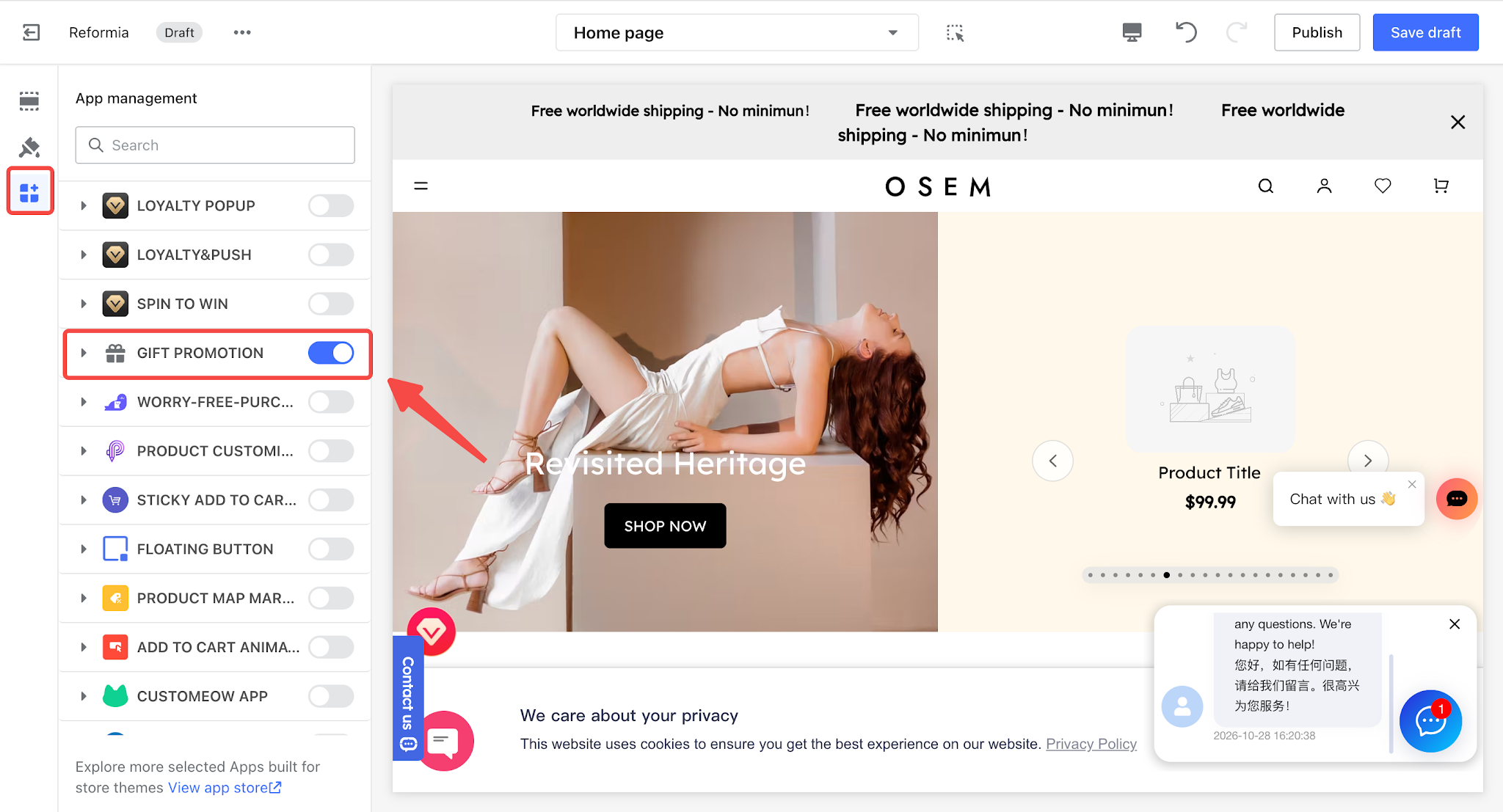
Note
Before displaying the gift selection pop-up, go to Theme Editor > App Management and enable the Gift with Purchase feature to ensure the pop-up displays correctly in your store.
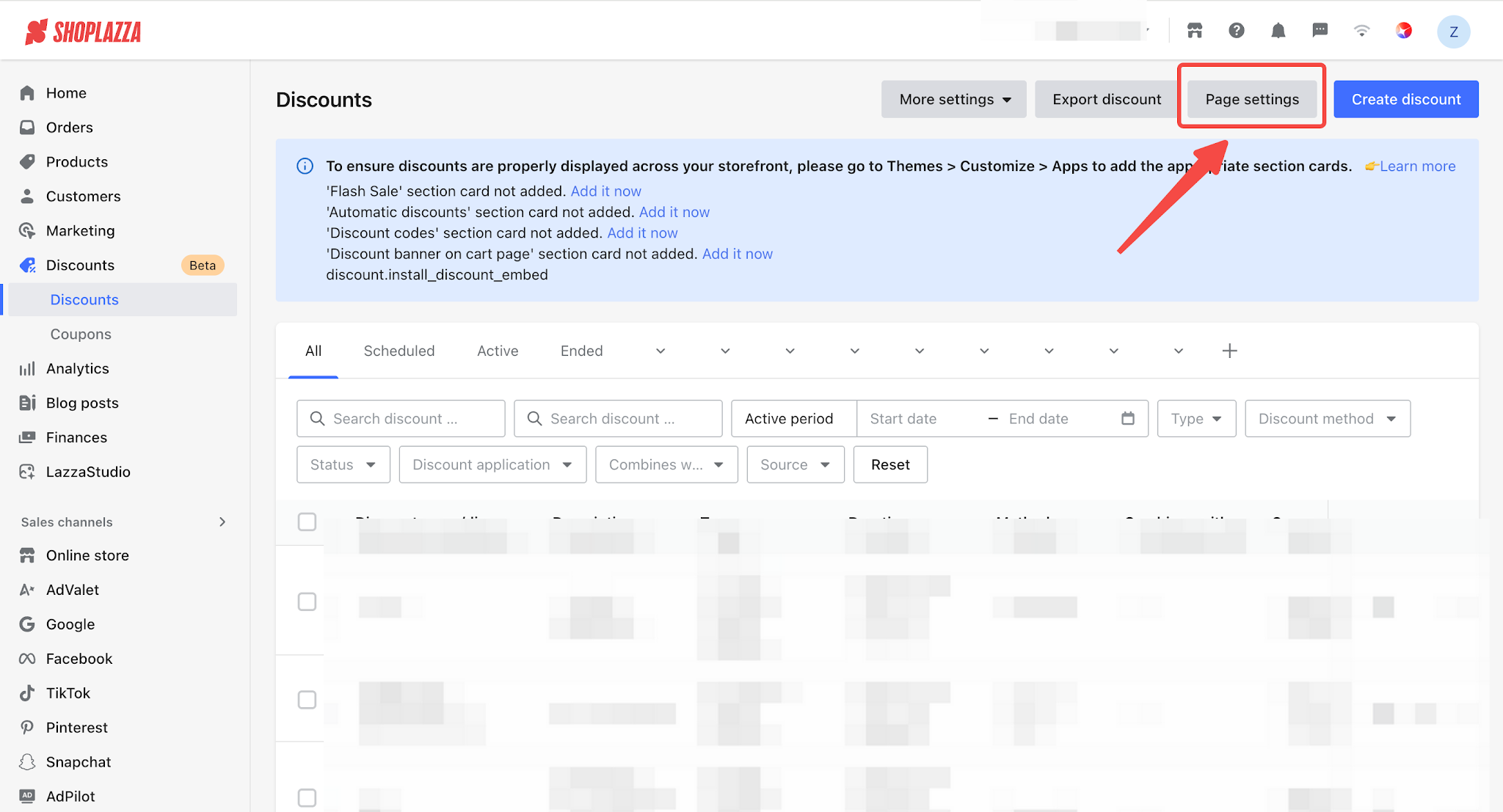
- In your admin panel, go to Discounts, click Discount Design in the upper-right corner, then select Advanced Settings to access the Gift with Purchase Pop-up Entry Settings.
- You can enable the standard entry point, the floating icon entry point, or both. The selected settings will apply to all Gift with Purchase promotions.
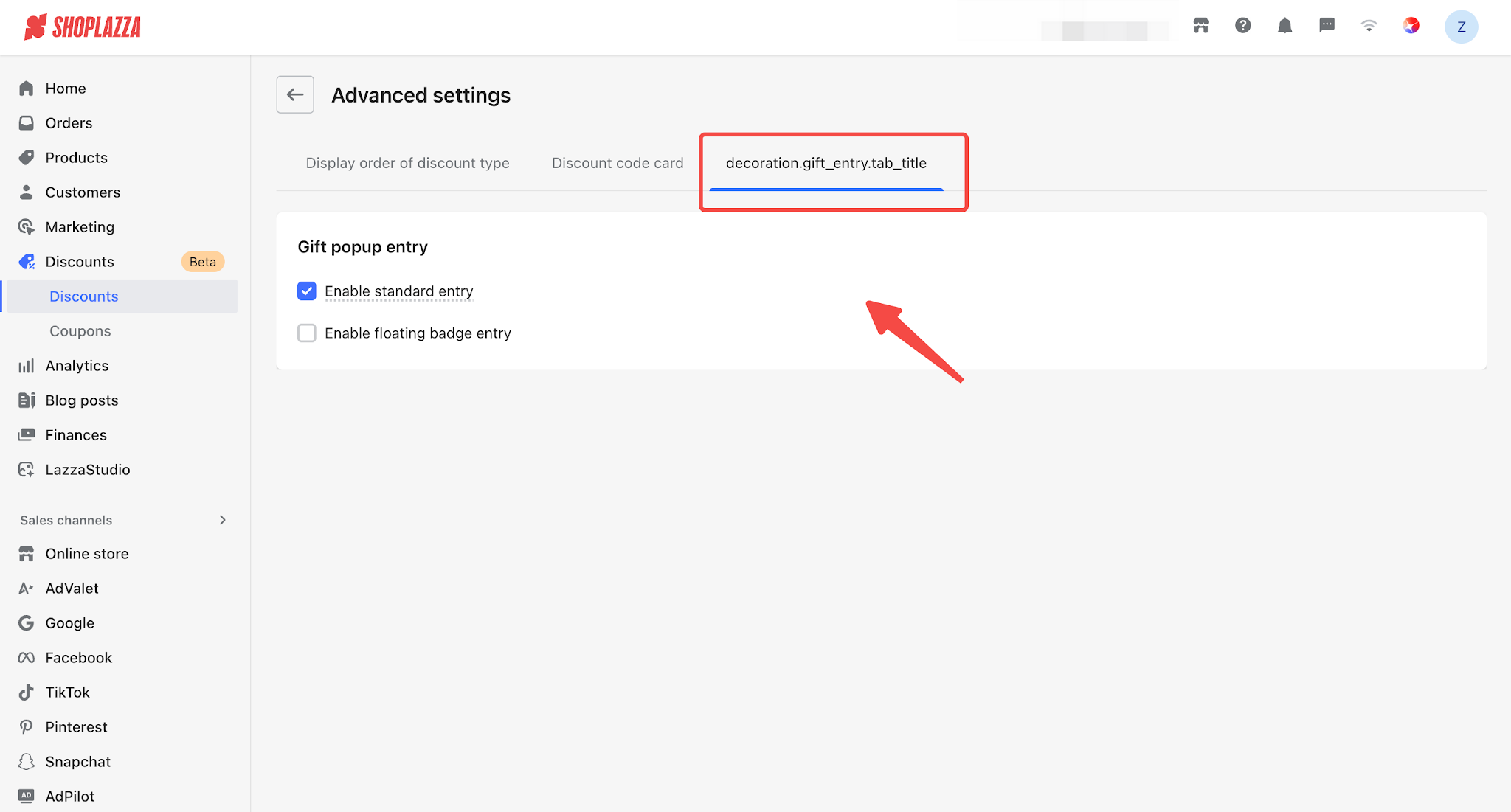
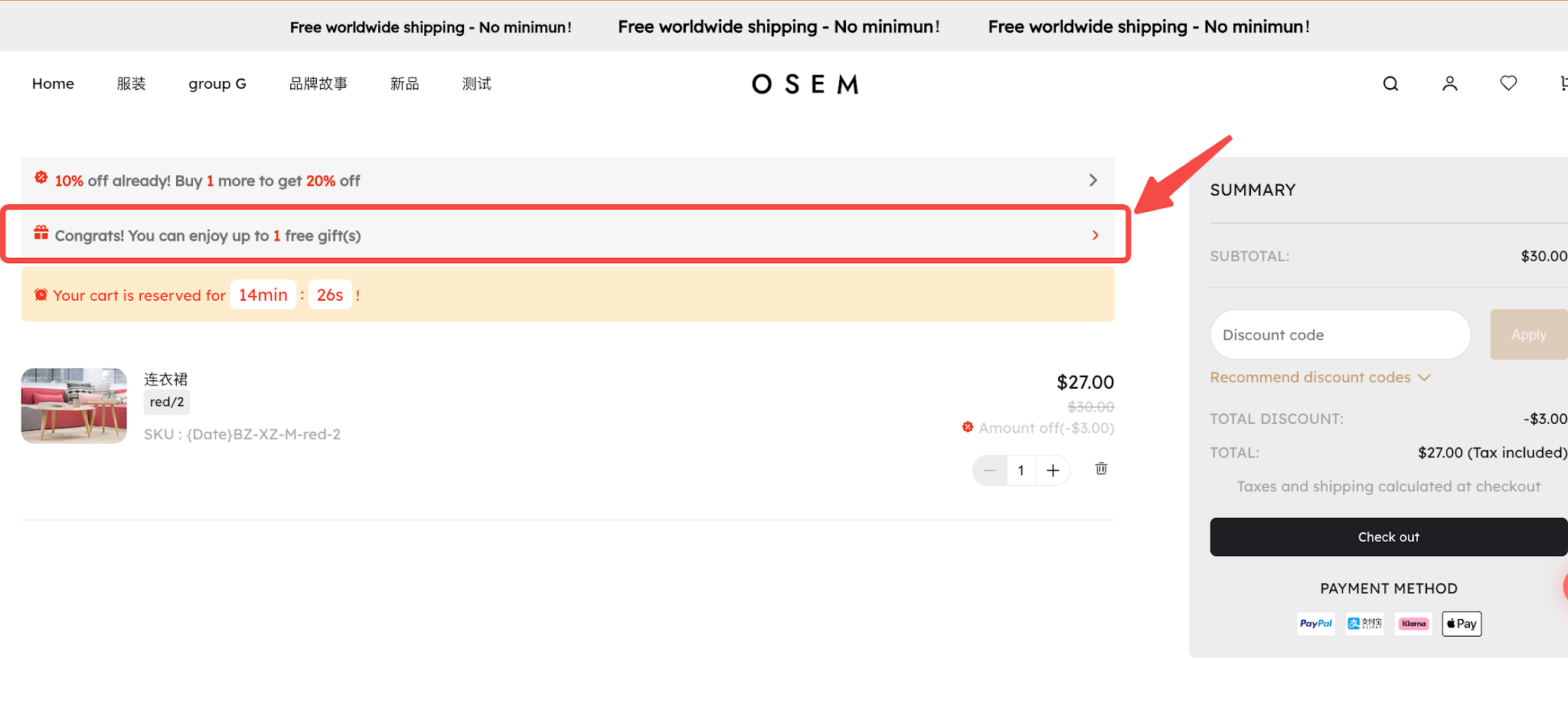
- Enable the Standard Entry Point: After enabling this option, the gift selection pop-up entry point will appear on the cart page.
Standard Entry Point Display on the Customer-Facing Store:
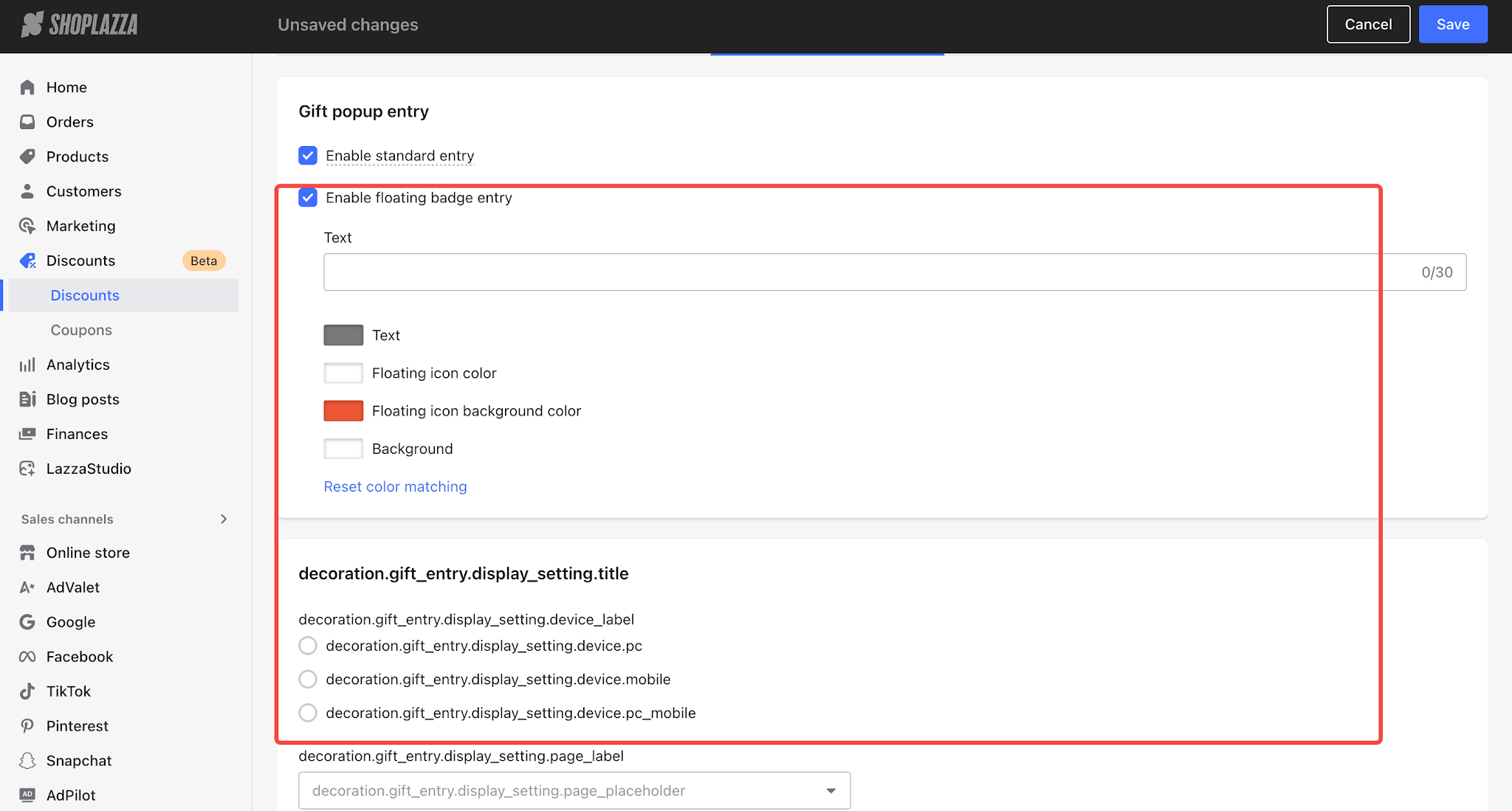
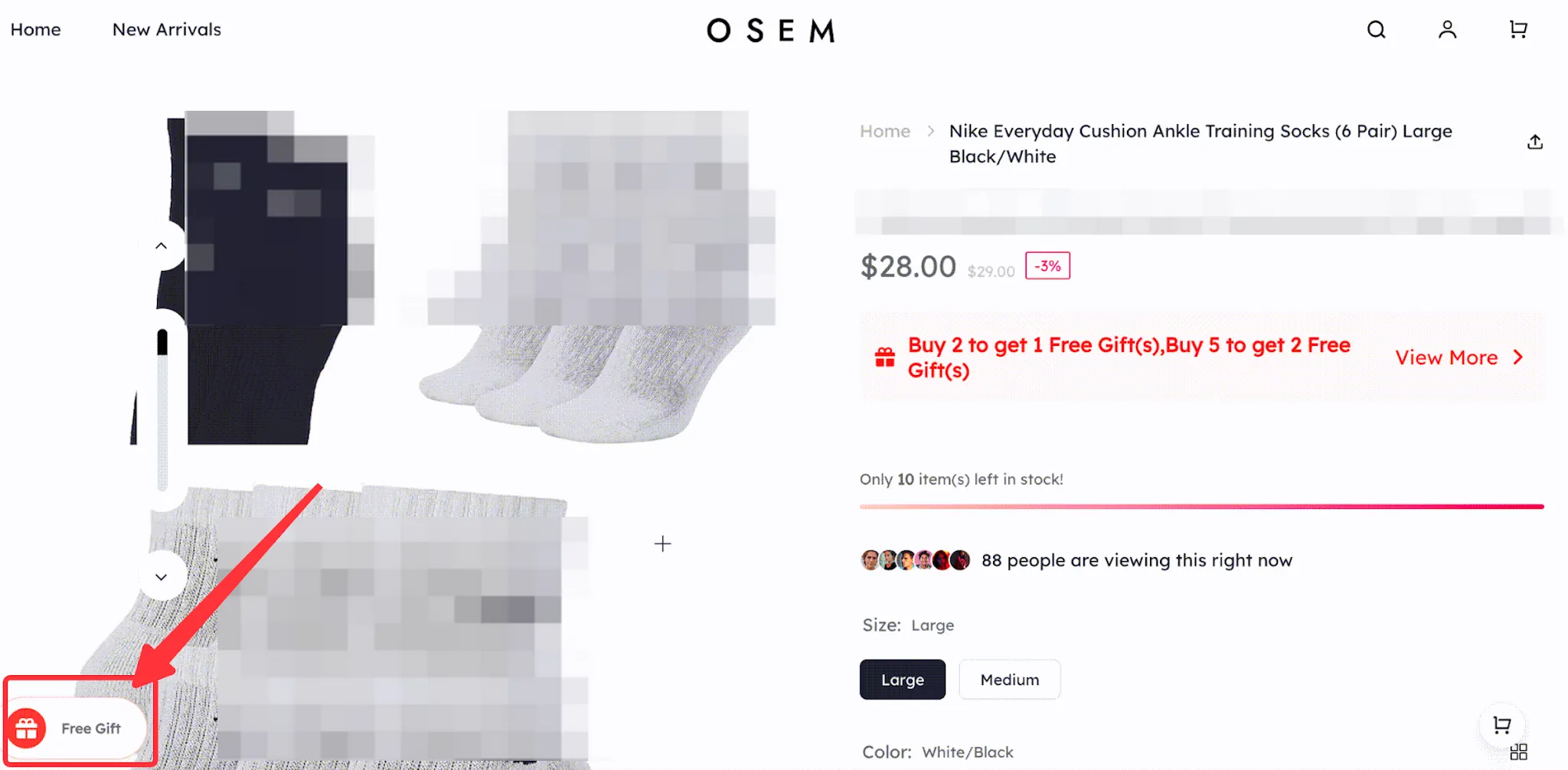
- Enable the Floating Icon Entry Point: After enabling this option, you can customize the floating icon's text, colors, and display position.
Floating Icon Display on the Customer-Facing Store:
Note
There are two types of gift pop-ups:
- View Only: Customers can view gifts on product pages, promotion landing pages, via the floating icon on pages other than the cart page, or on the cart page when gifts are automatically added to the cart.
- Gift Selection: Customers can manually add gifts on the cart page or manually select gifts when clicking Buy Now on a product page. These options can be enabled or disabled individually. For details, refer to the gift selection settings below.
2. Global Design
- The configured settings apply to all Gift with Purchase promotions.
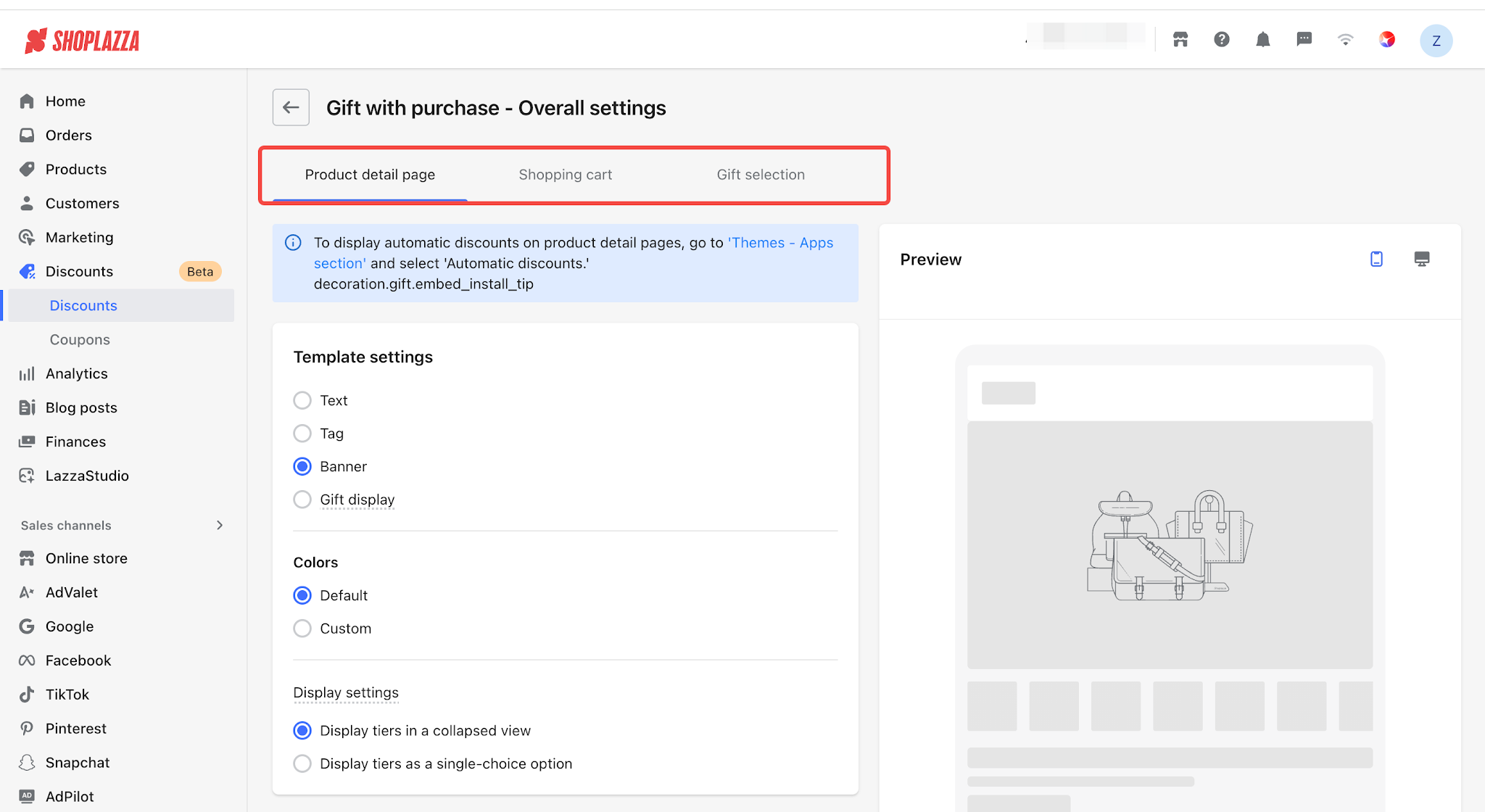
- The configurable pages include product pages, the cart page, and gift selection.
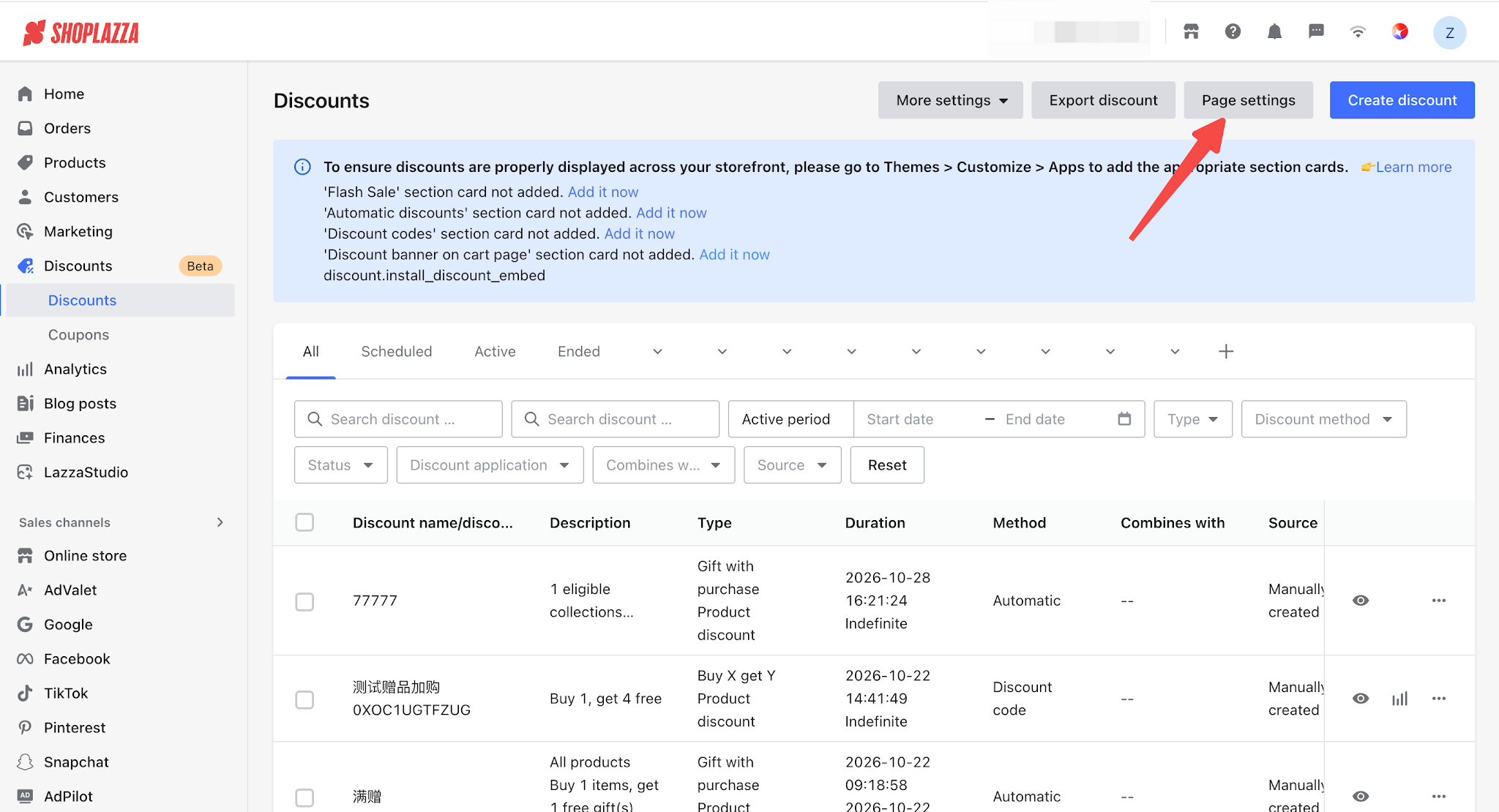
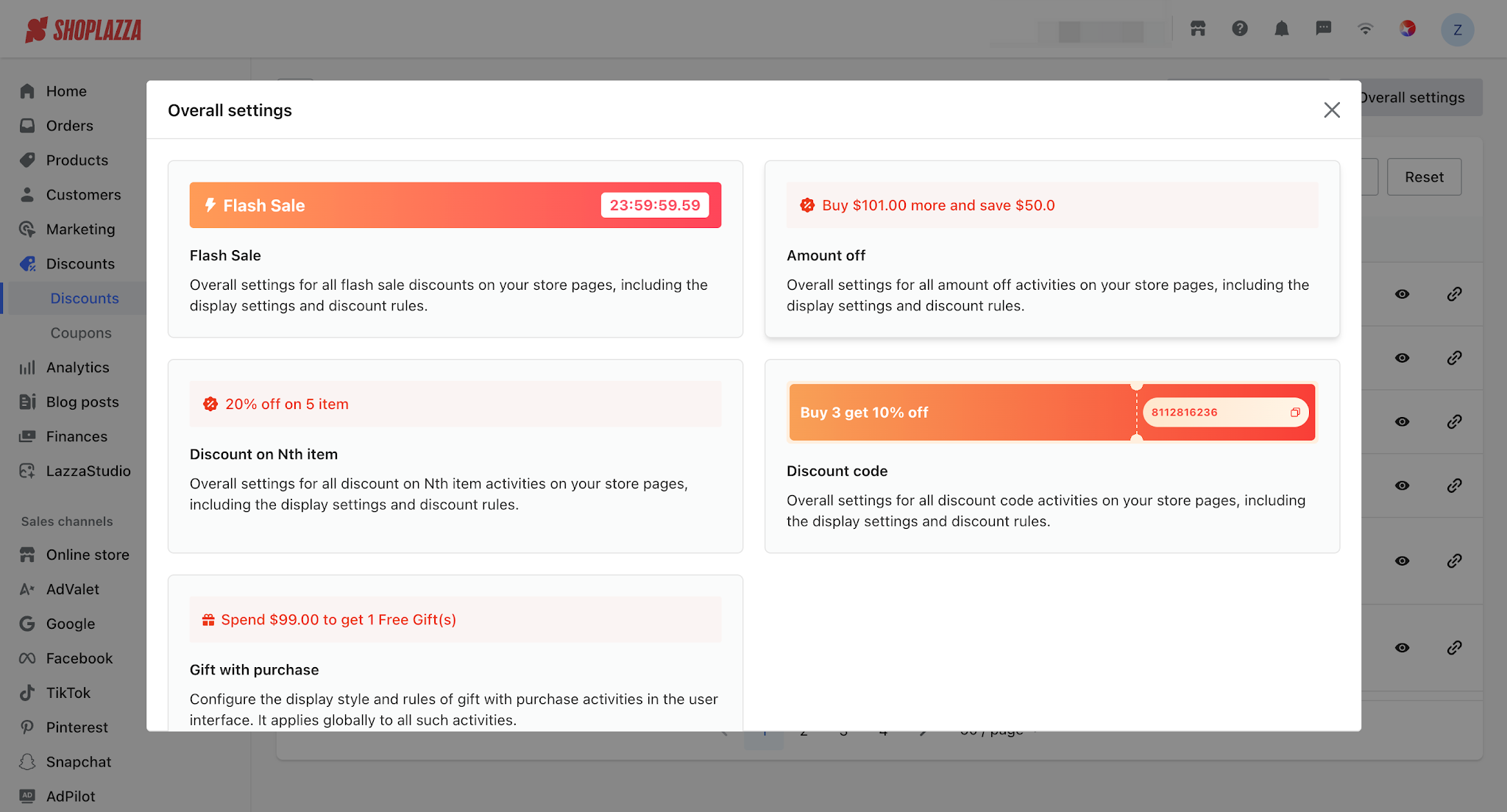
Return to the Discounts list, click Discount Design in the upper-right corner, then select Global Settings > Gift with Purchase. You can customize the template styles, text, gift label colors, gift selection methods, and other settings for Gift with Purchase promotions as needed.
3. Individual Promotion Design
- The configured settings apply only to the individual promotion.
- The configurable pages include product pages, the cart page, gift selection, and the promotion landing page.
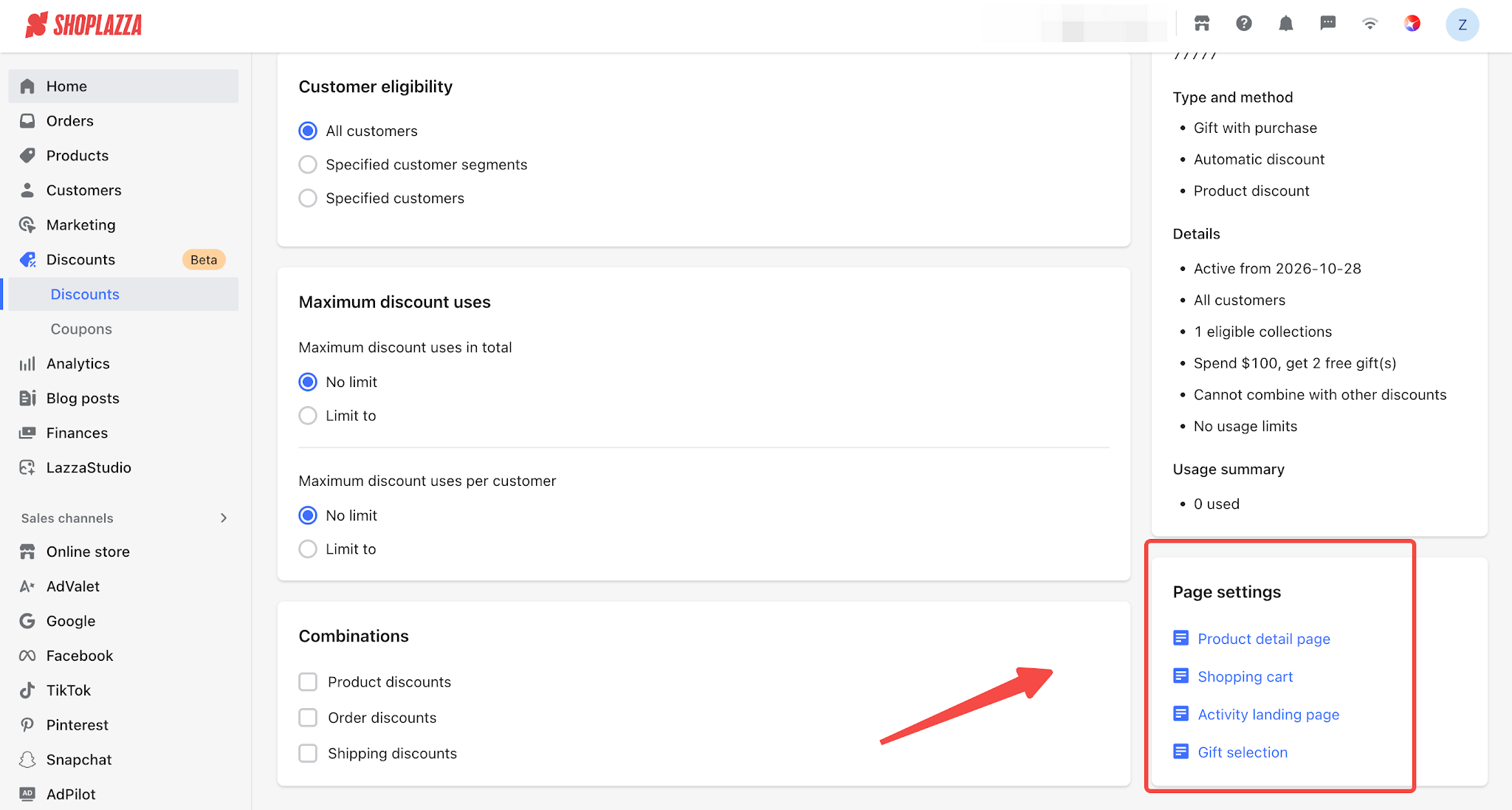
Open the promotion editing page and scroll down the right-hand panel to Discount Design for each page. Uncheck Use Global Settings to customize the settings for that individual promotion.
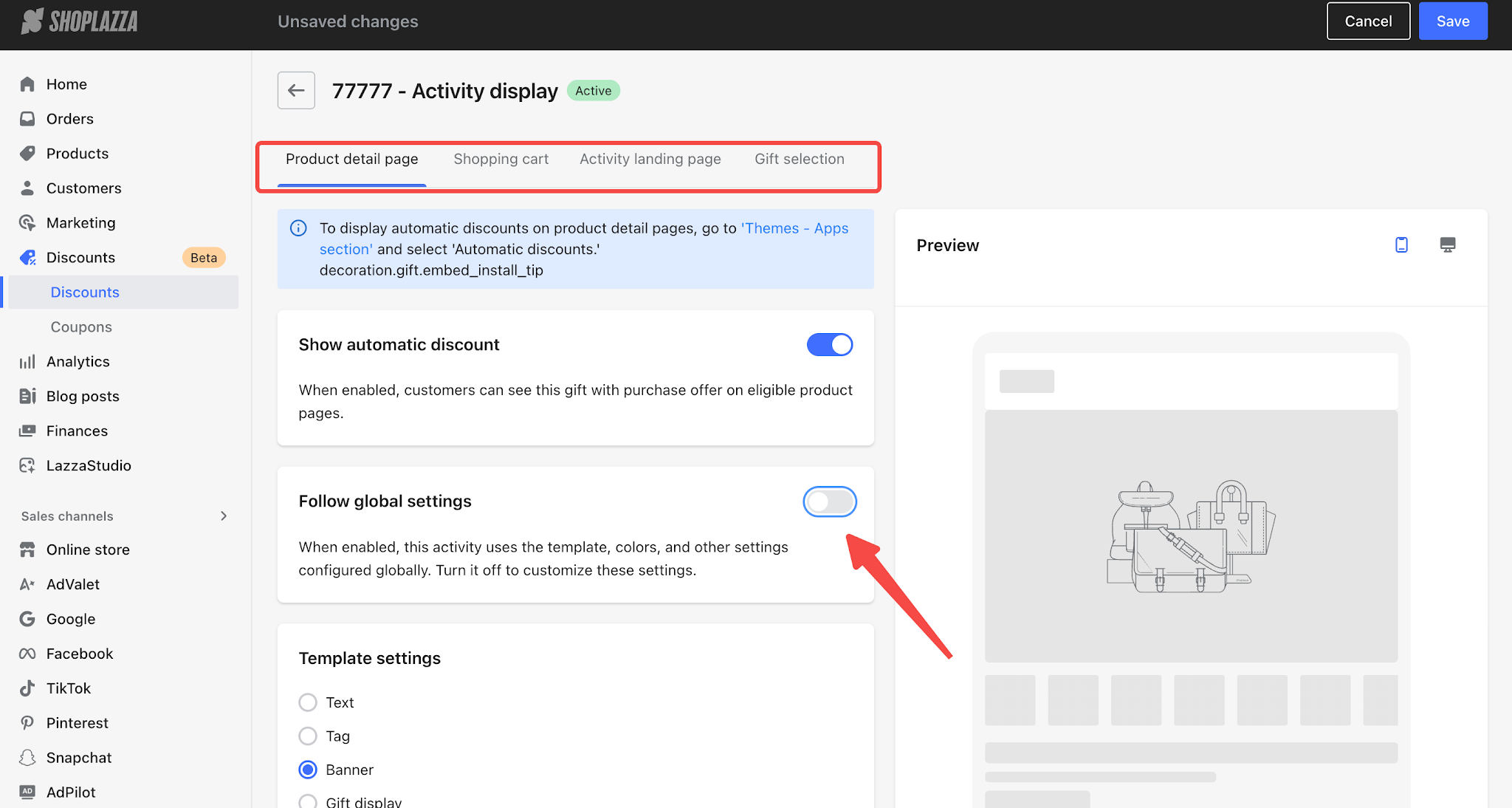
Product Page
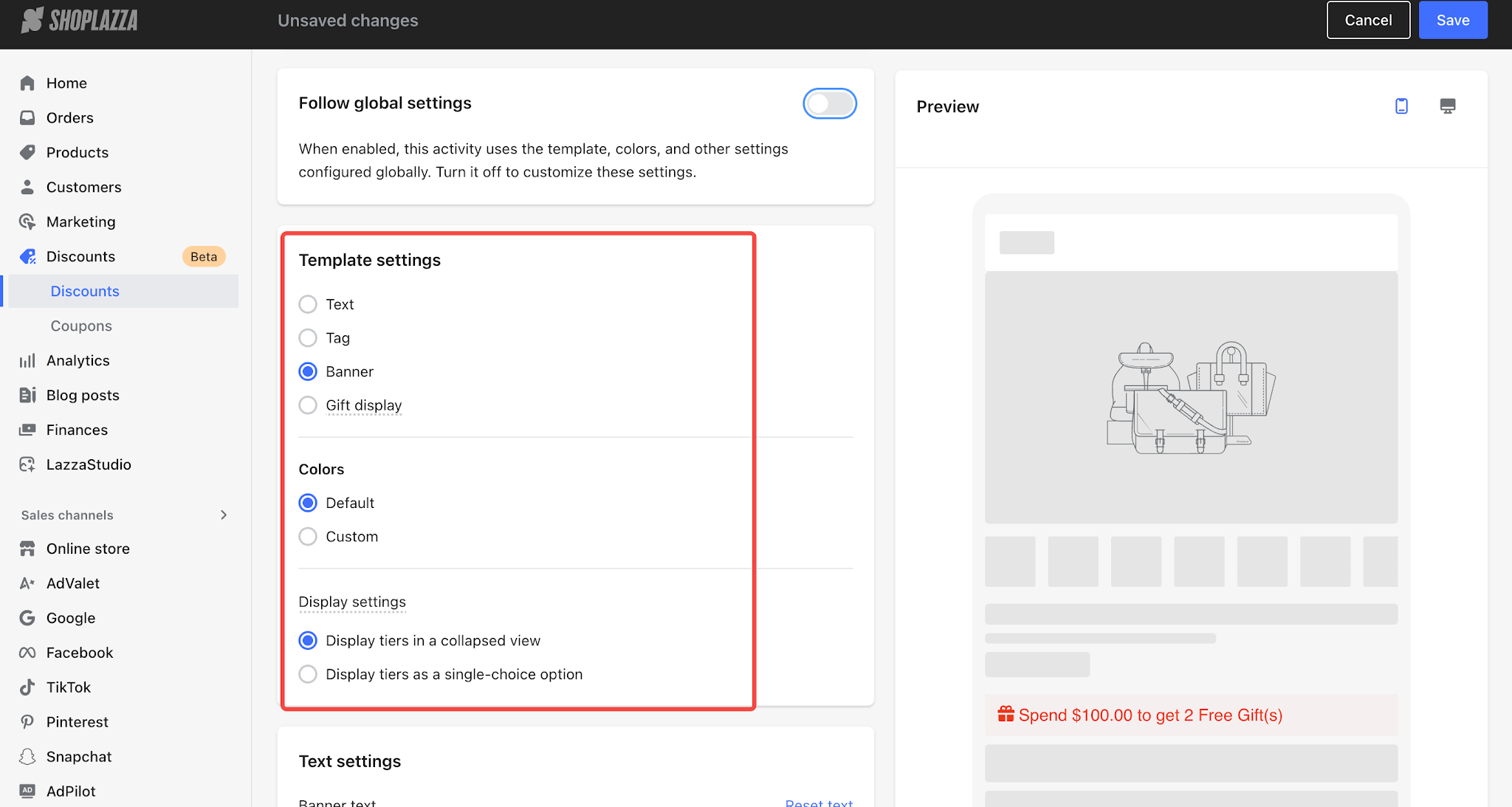
- Template Settings: Choose from four template styles: Text, Label, Banner, and Gift Display.
- Color Scheme: Choose the default color scheme or customize the colors.
- Display Settings: Configure multi-tier collapsible display or carousel display.
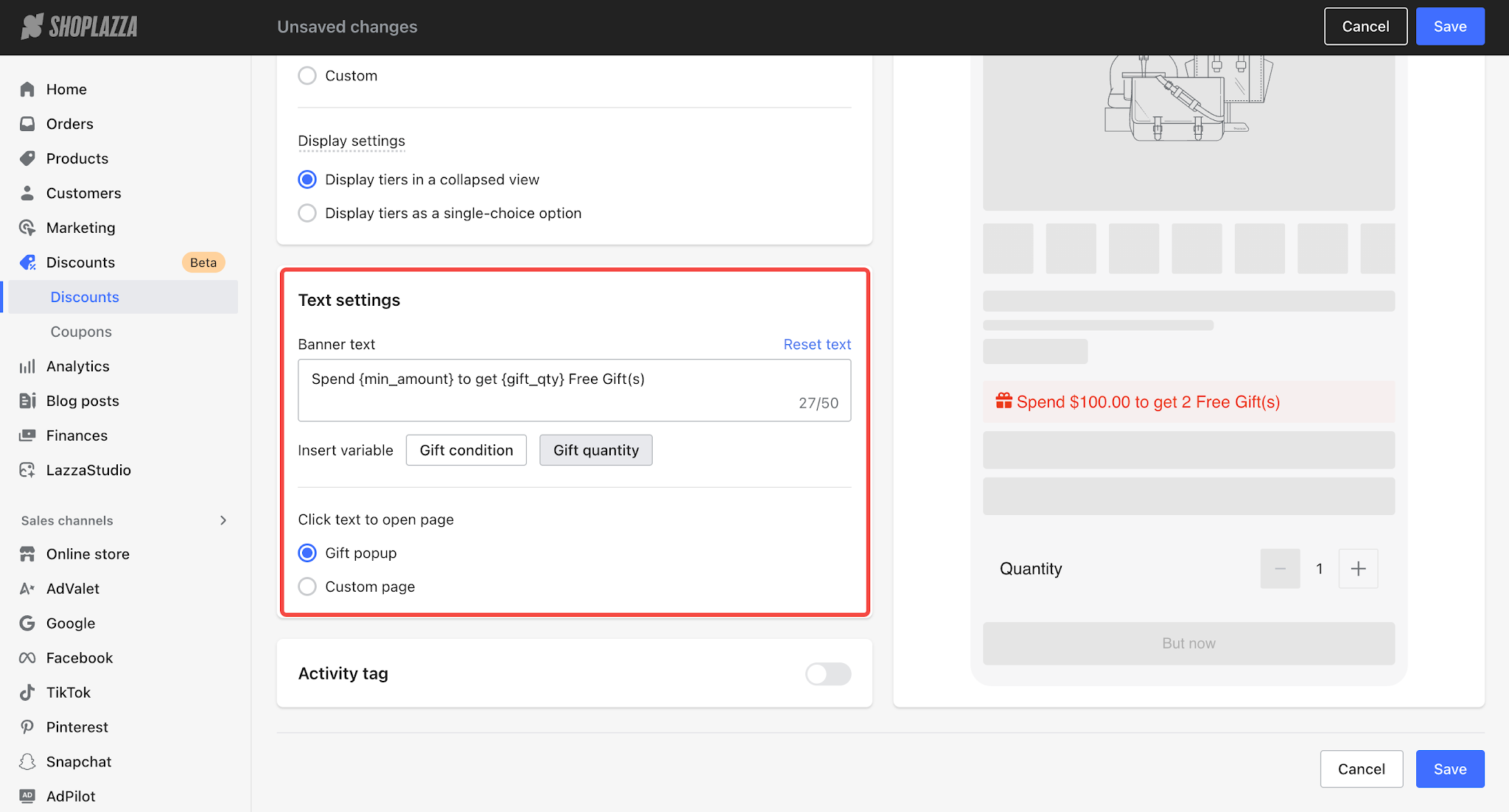
- Text Settings: Display Gift with Purchase promotion details. You can customize the banner text and configure the page style that opens when customers click the text.
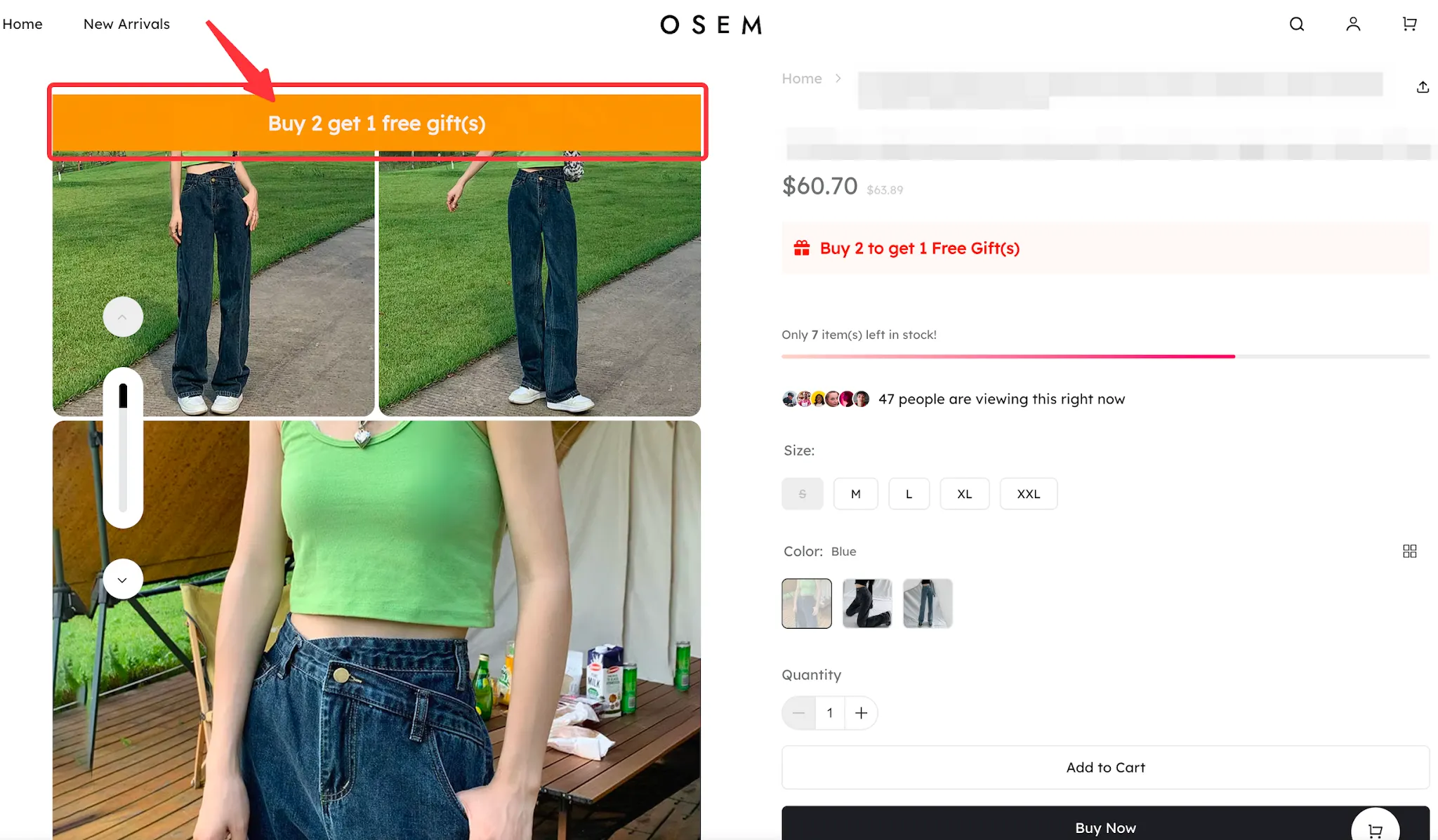
- Promotion Labels: Display a promotional banner or badge on the product's main image. You can customize the text, colors, and display position as needed.
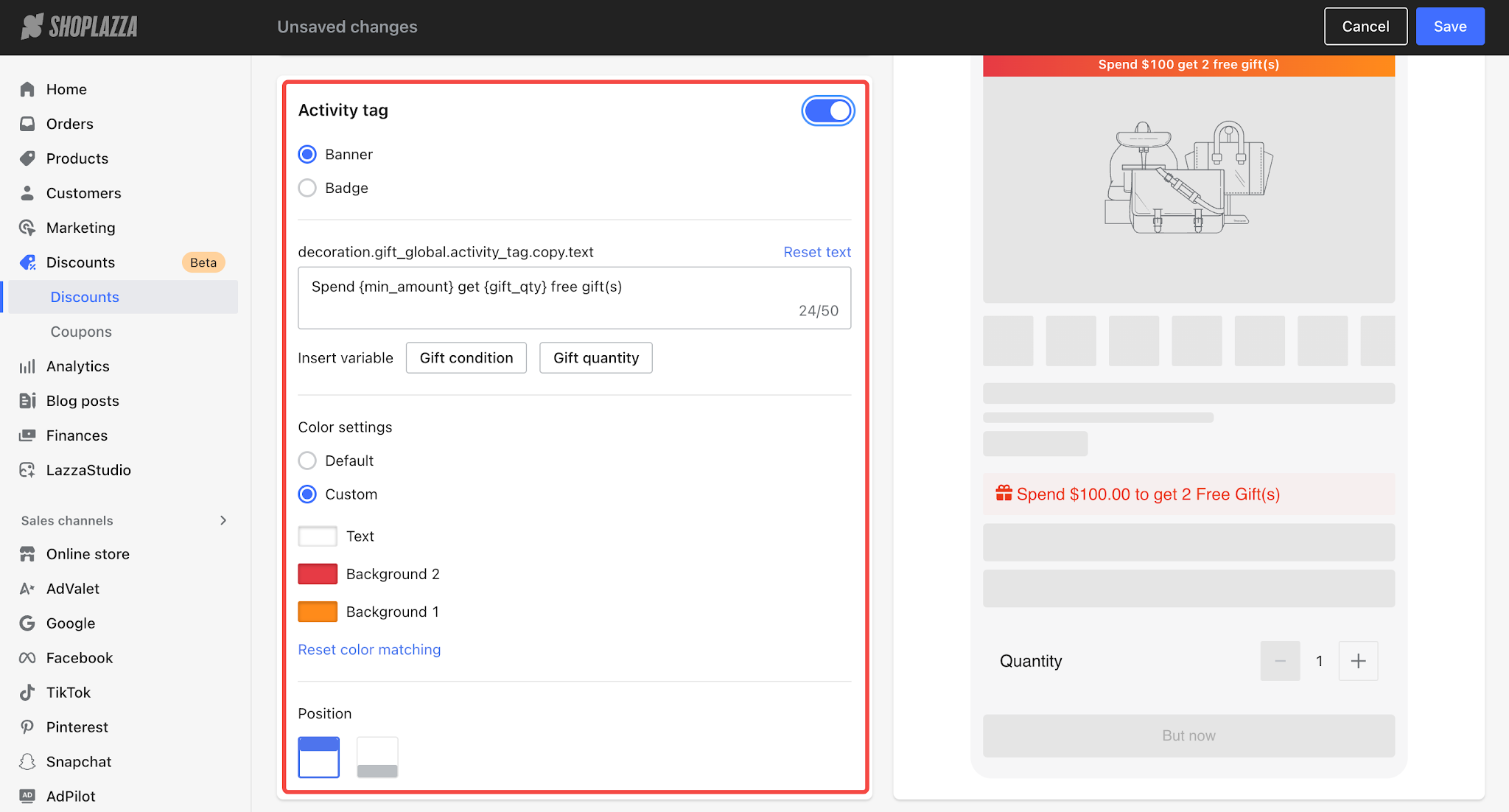
Promotion Label Display on the Customer-Facing Store:
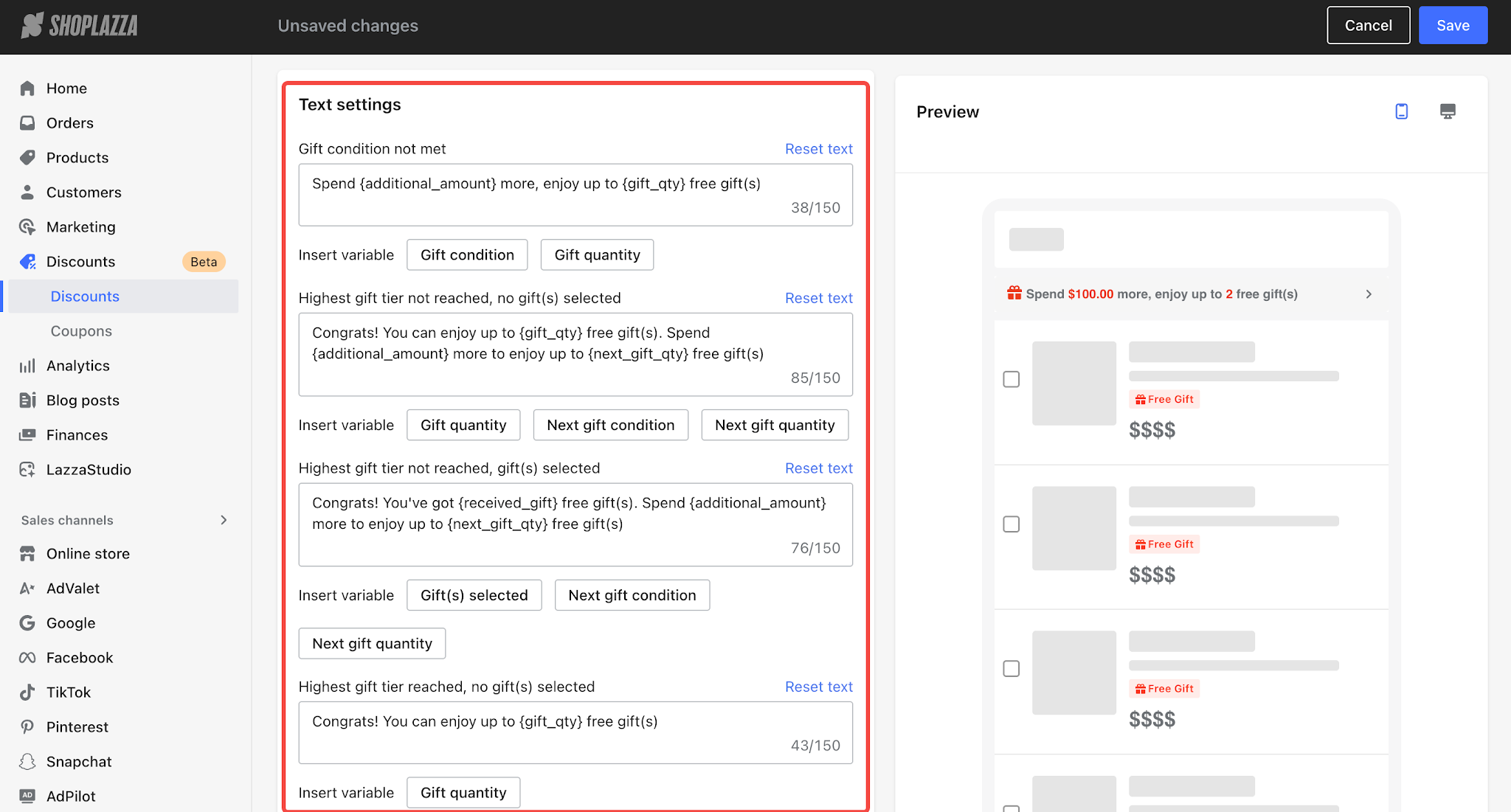
Cart Page
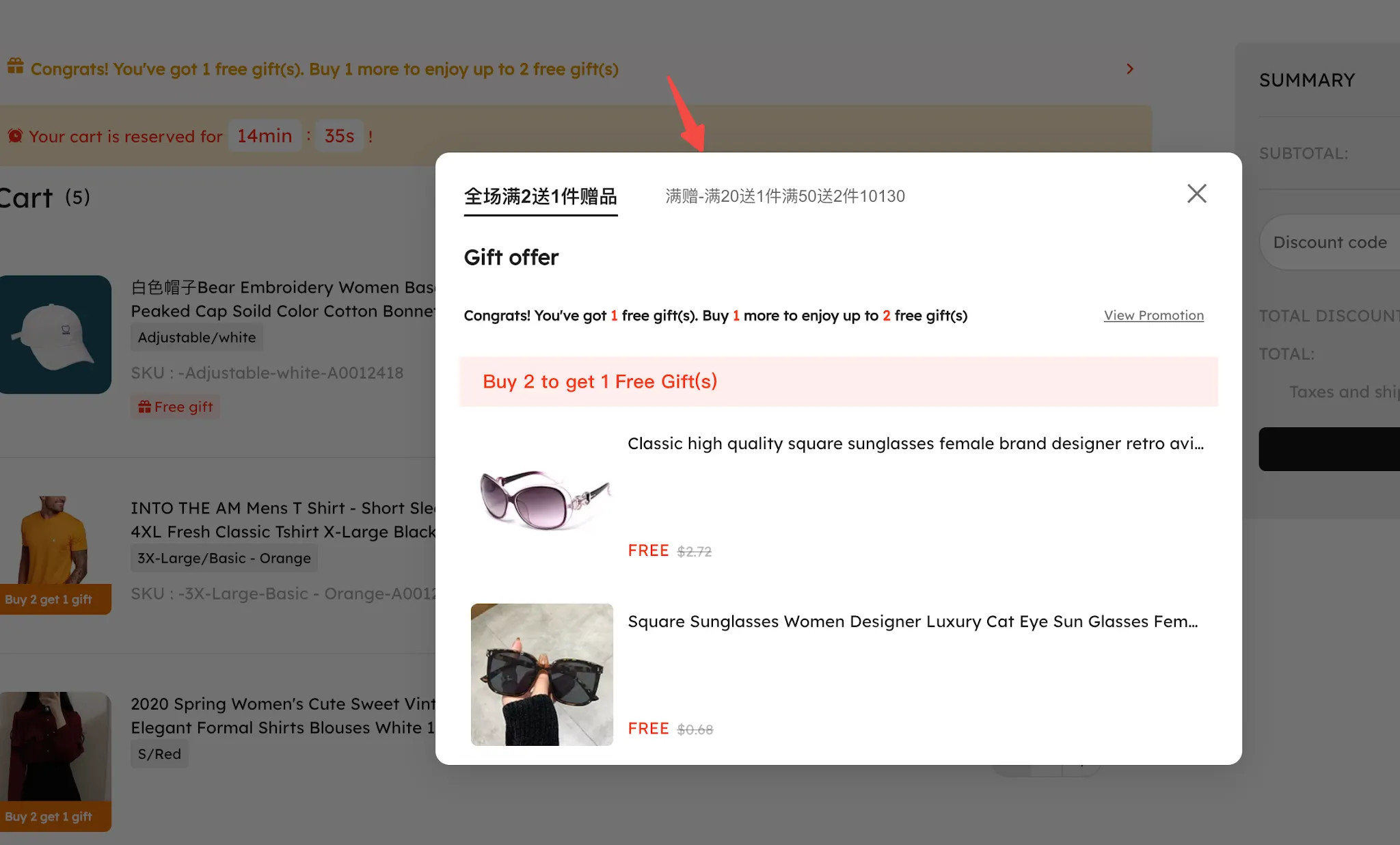
Configure and display promotional messages based on customers’ current promotion progress and gift selection status, helping them understand their progress toward qualifying for a promotion and the gift benefits they can unlock next.
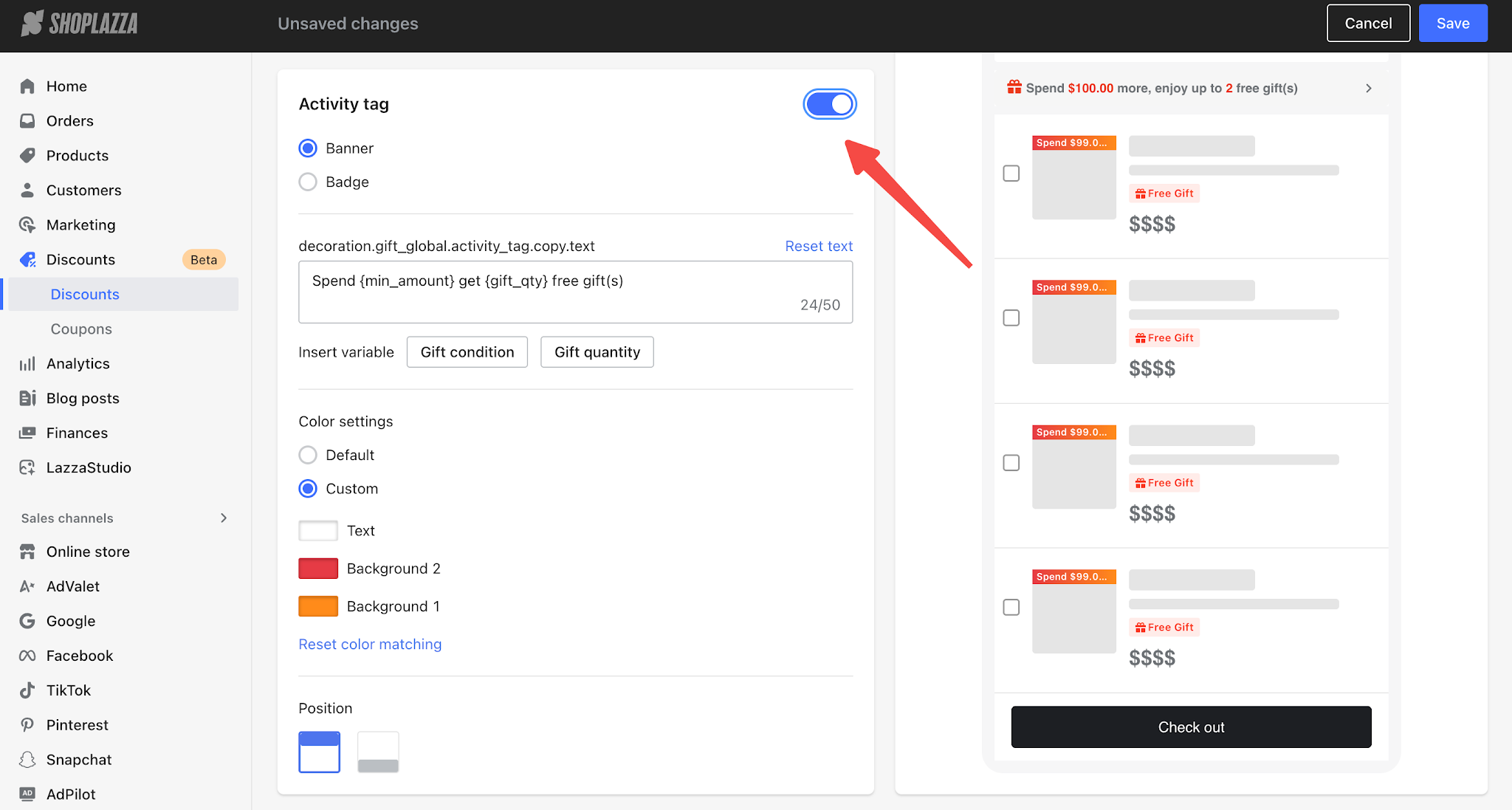
- Promotion labels can also be configured in the same way.
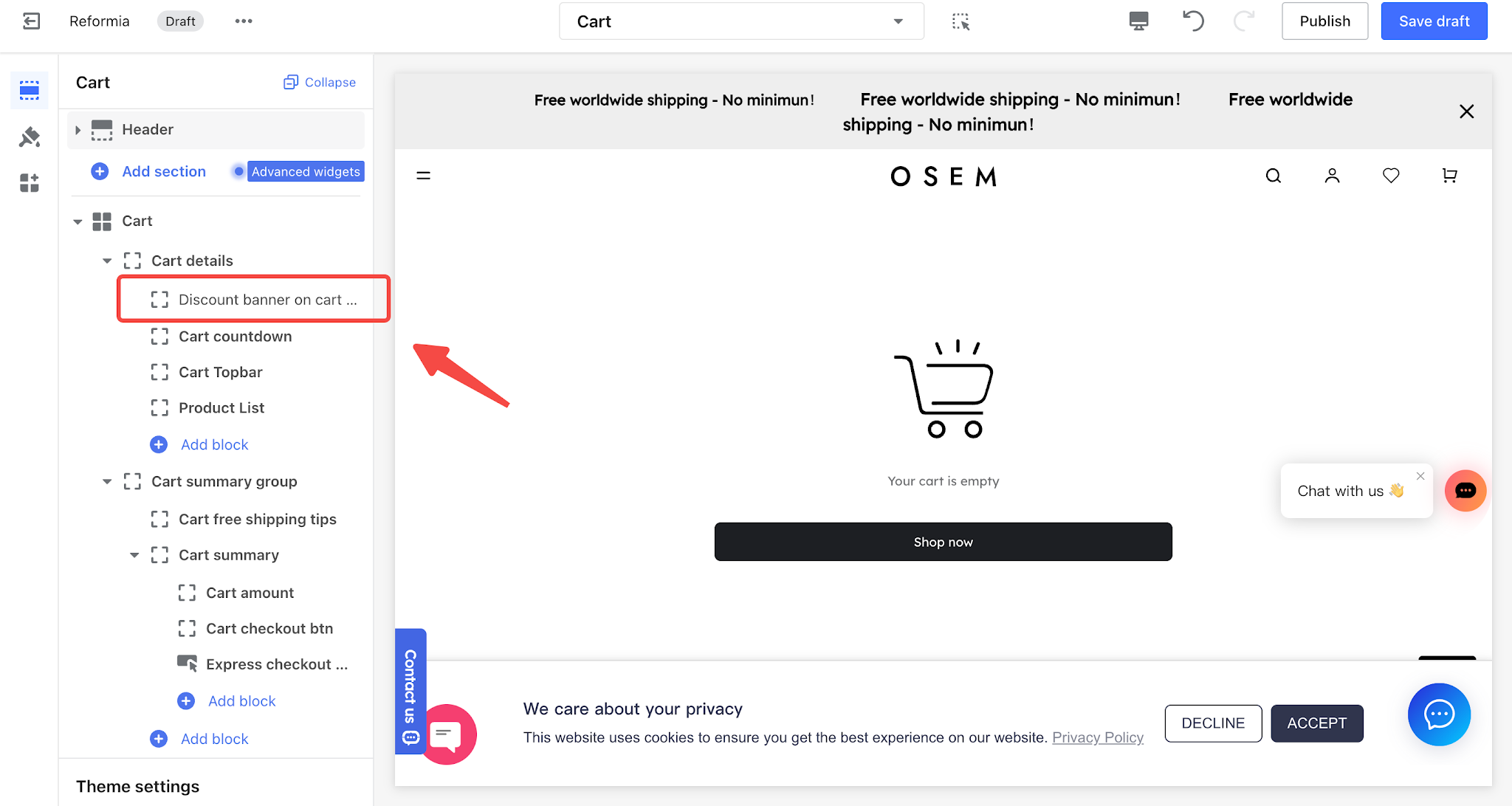
- Once the configuration is complete, if you want to display the promotion information on the cart page, go to Online Store > Customize Theme > Cart Page, click Cart Details, add the Cart Discount Banner card, then save and publish your changes.
Notes
- The promotional message calculation takes gift availability into account. For example, if all gifts in the lowest tier are unavailable, “Buy X more” will be calculated based on the next available tier.
- If multiple gift-with-purchase promotions apply, only the message for the most recently updated promotion will be displayed. Messages for other promotions will be collapsed.
Promotion Landing Page
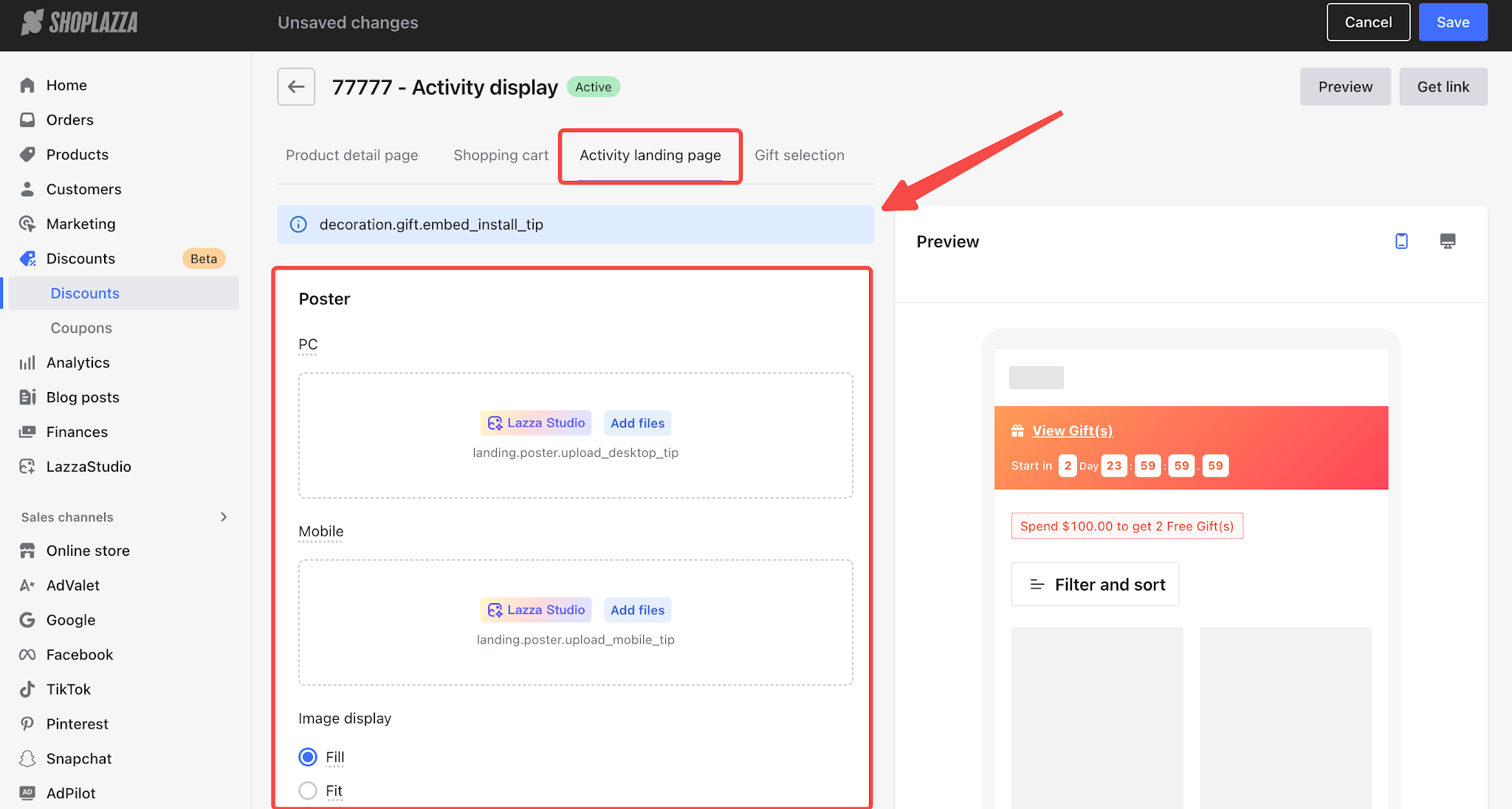
- Banner Image: You can upload separate banner images for desktop and mobile.
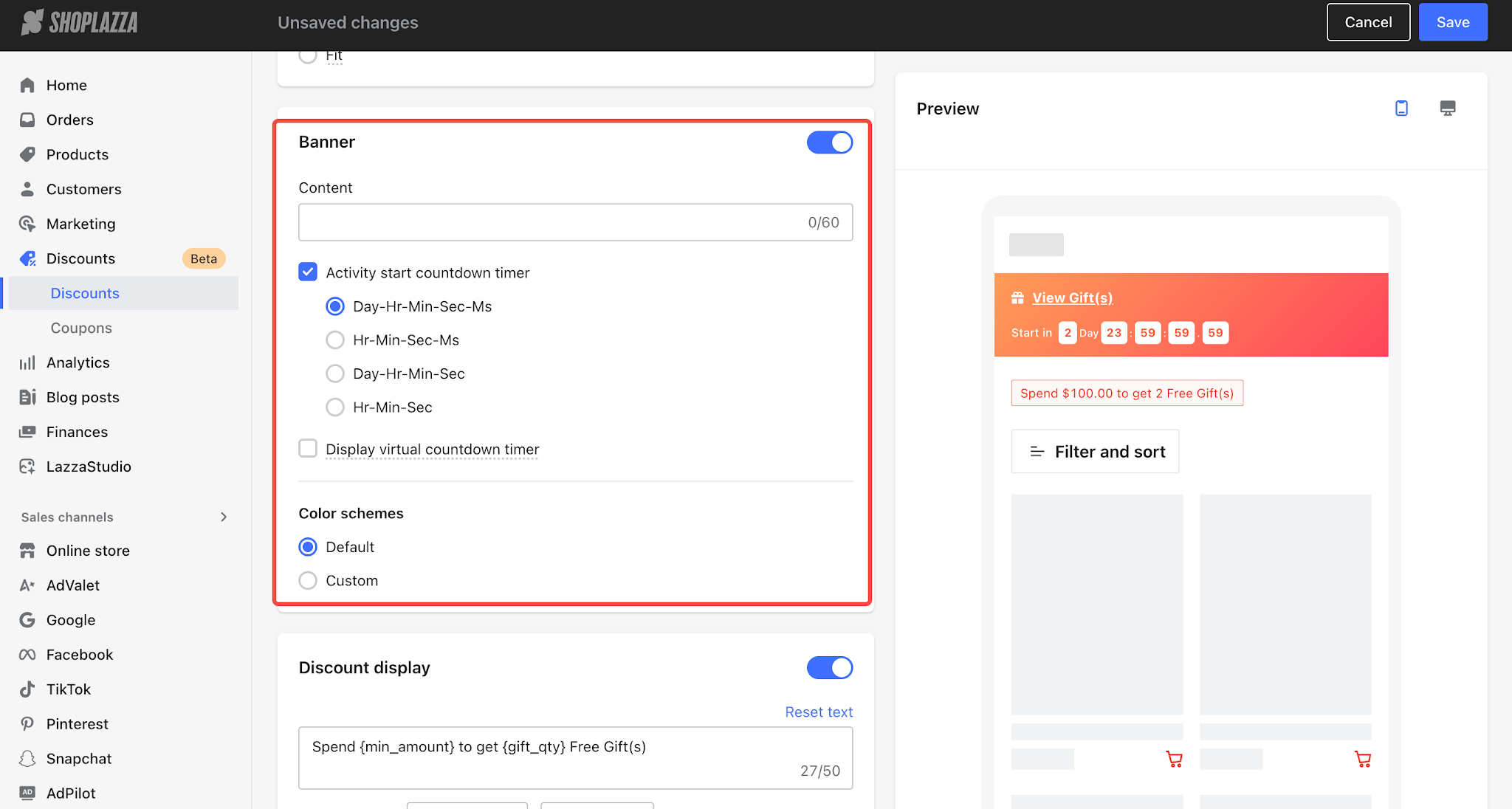
- Banner Settings: Configure the banner text, countdown timer, and color scheme for the promotion landing page.
- Discount Display: Display specific discount rules on the landing page, with customizable colors.
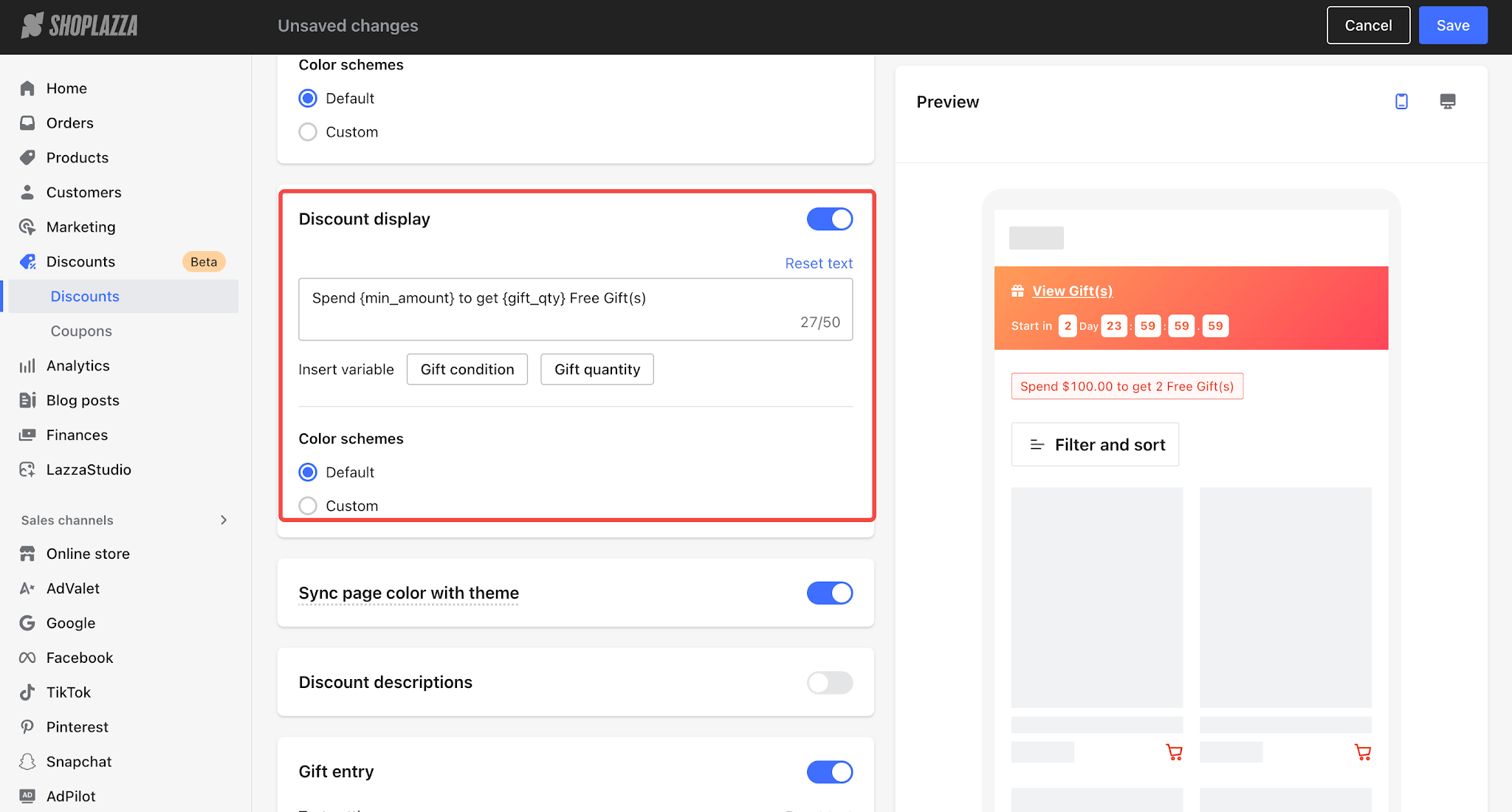
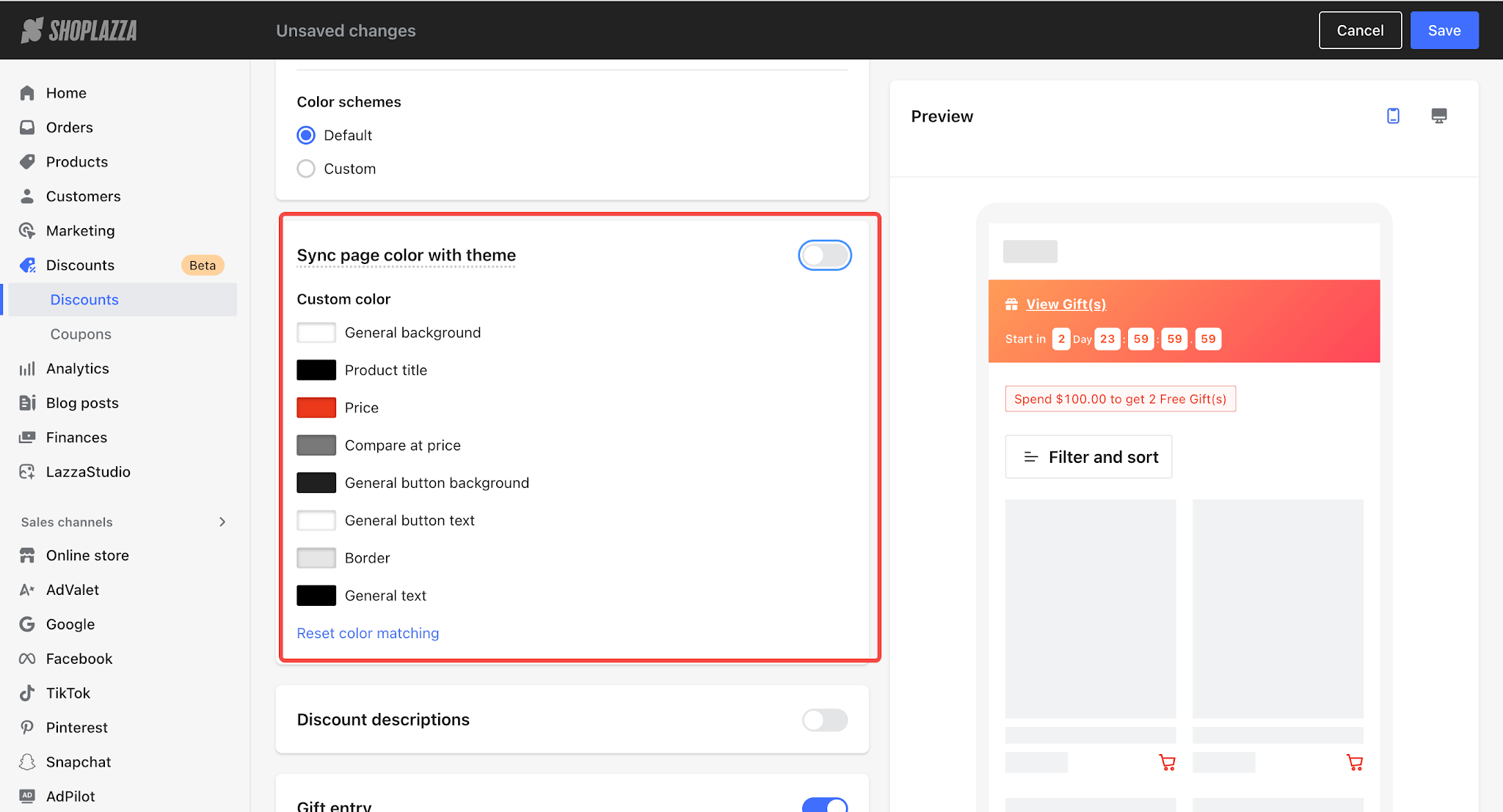
- Custom Page Colors: Customize the color scheme of individual sections across the entire promotion landing page.
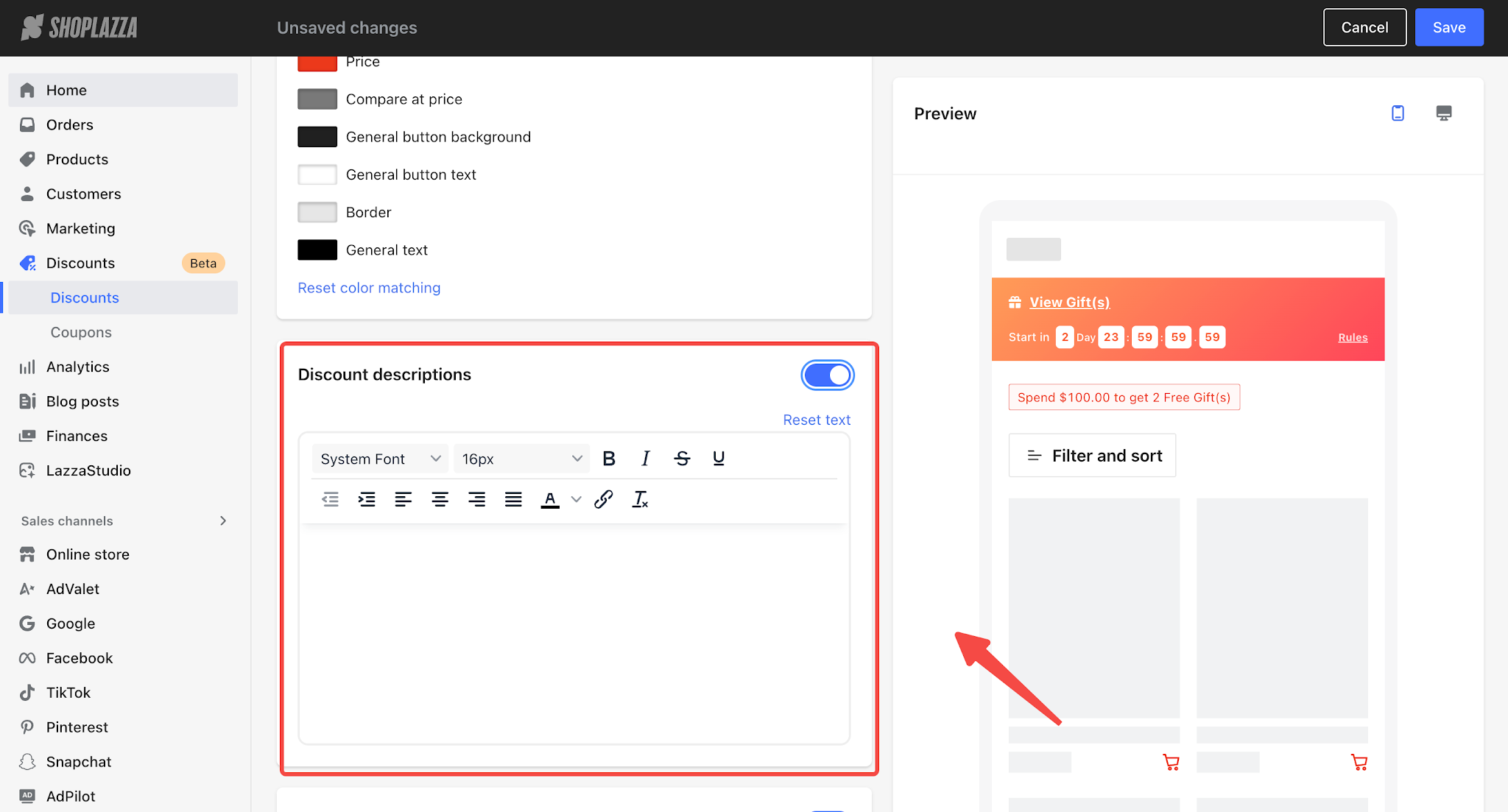
- Promotion Terms and Conditions: If you need to provide additional details about the promotion rules, enable this option to edit the content.
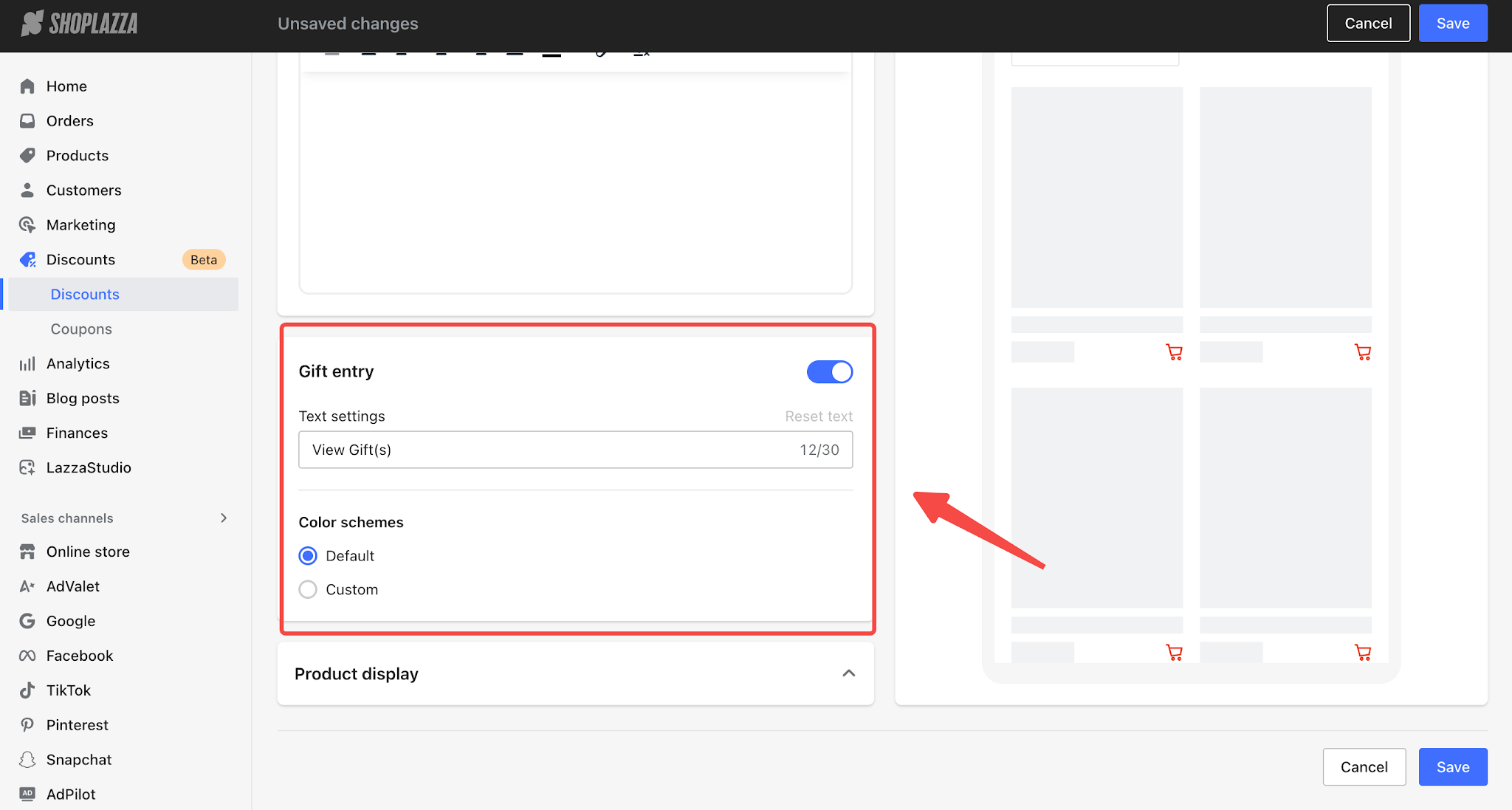
- Gift Preview Entry: Once enabled, clicking the gift entry will open a pop-up displaying the gifts available for the promotion.
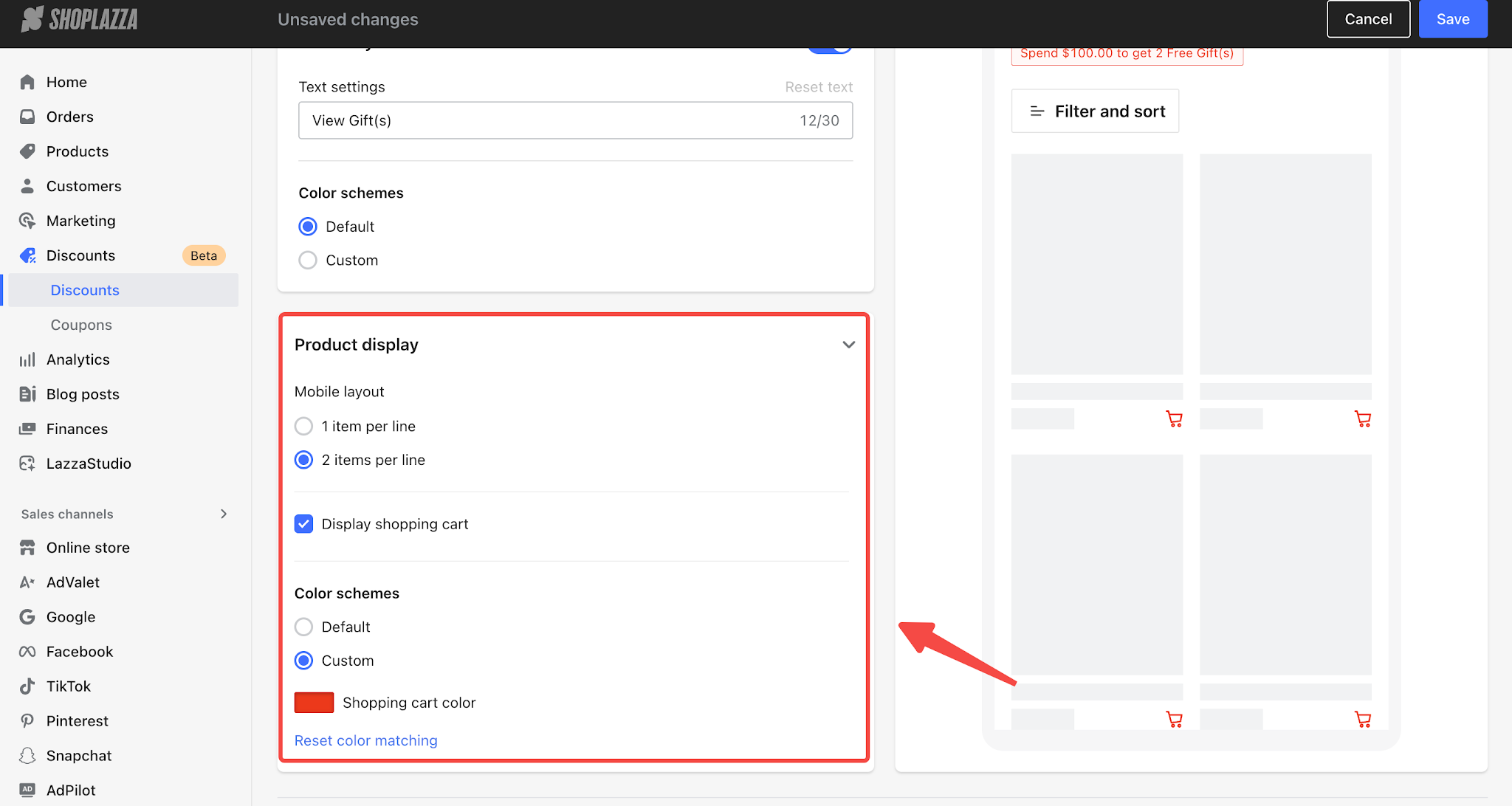
- Product Display: Supports configuring the mobile layout, Add to Cart button, and color scheme.
Gift Selection
Gift selection settings allow you to configure how customers receive gifts after meeting the requirements of a gift-with-purchase promotion, including automatic addition to cart and manual selection. You can also customize the display text, style, and navigation behavior of the gift selection pop-up to enhance the gift-claiming experience.
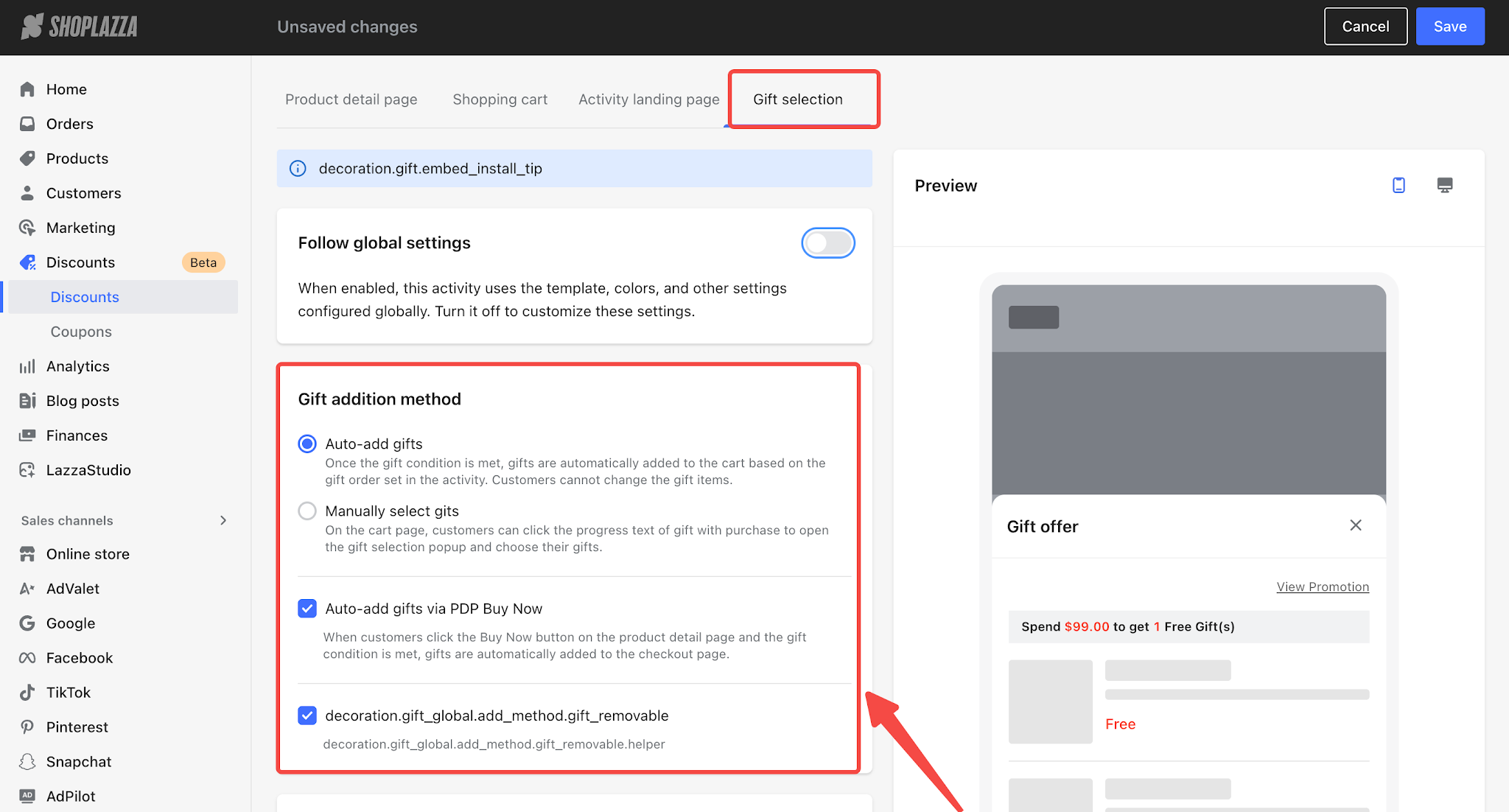
- Gift Addition Method
- Automatically Add to Cart: Once the promotion requirements are met, the system will automatically add gifts to the cart in the order configured in the promotion settings. Customers cannot change the selected gifts.
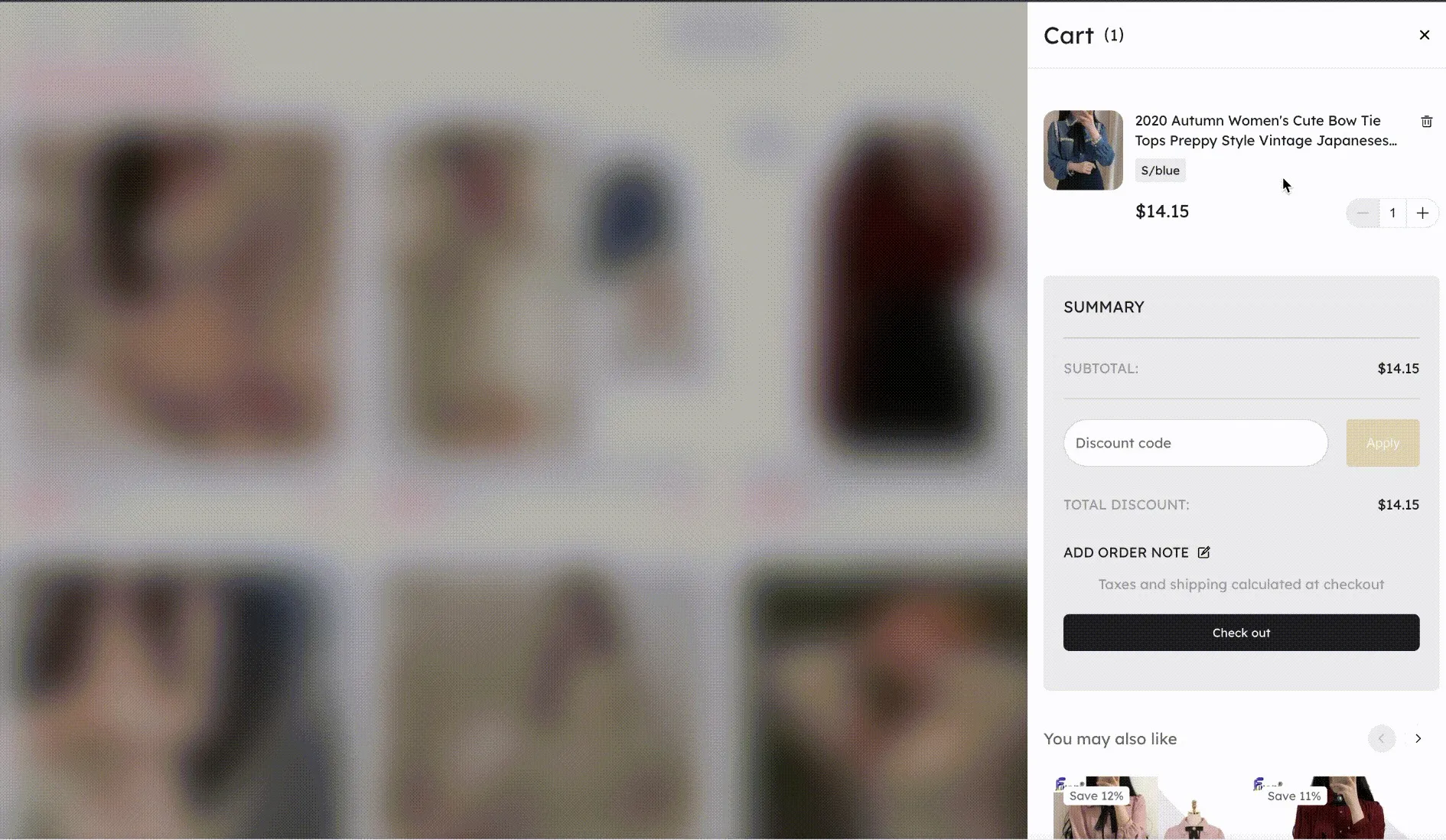
Notes on Automatically Adding Gifts to Cart
- Eligibility Conditions: The customer meets the applicable customer criteria, has not reached the purchase limit, meets the main product threshold, the promotion has automatic gift addition enabled, and at least one gift is available for sale.
- Gift Addition Order
- Multiple gift products: Gifts are added in a repeating cycle based on the order configured in the admin panel. Example: For a promotion offering 3 gifts with a $99 purchase, if gifts A, B, and C are configured and gift B is sold out, the system adds A, C, and A.
- Multiple variants of the same gift product: Variants are added in descending order of price in a repeating cycle. If the current variant has insufficient stock, the system automatically moves to the next variant.
- Stacked tiers: Each tier adds the corresponding number of gifts according to the rules above.
- Manual Selection: On the cart page, clicking the gift-with-purchase promotion message will open a gift selection pop-up where customers can choose their gifts.
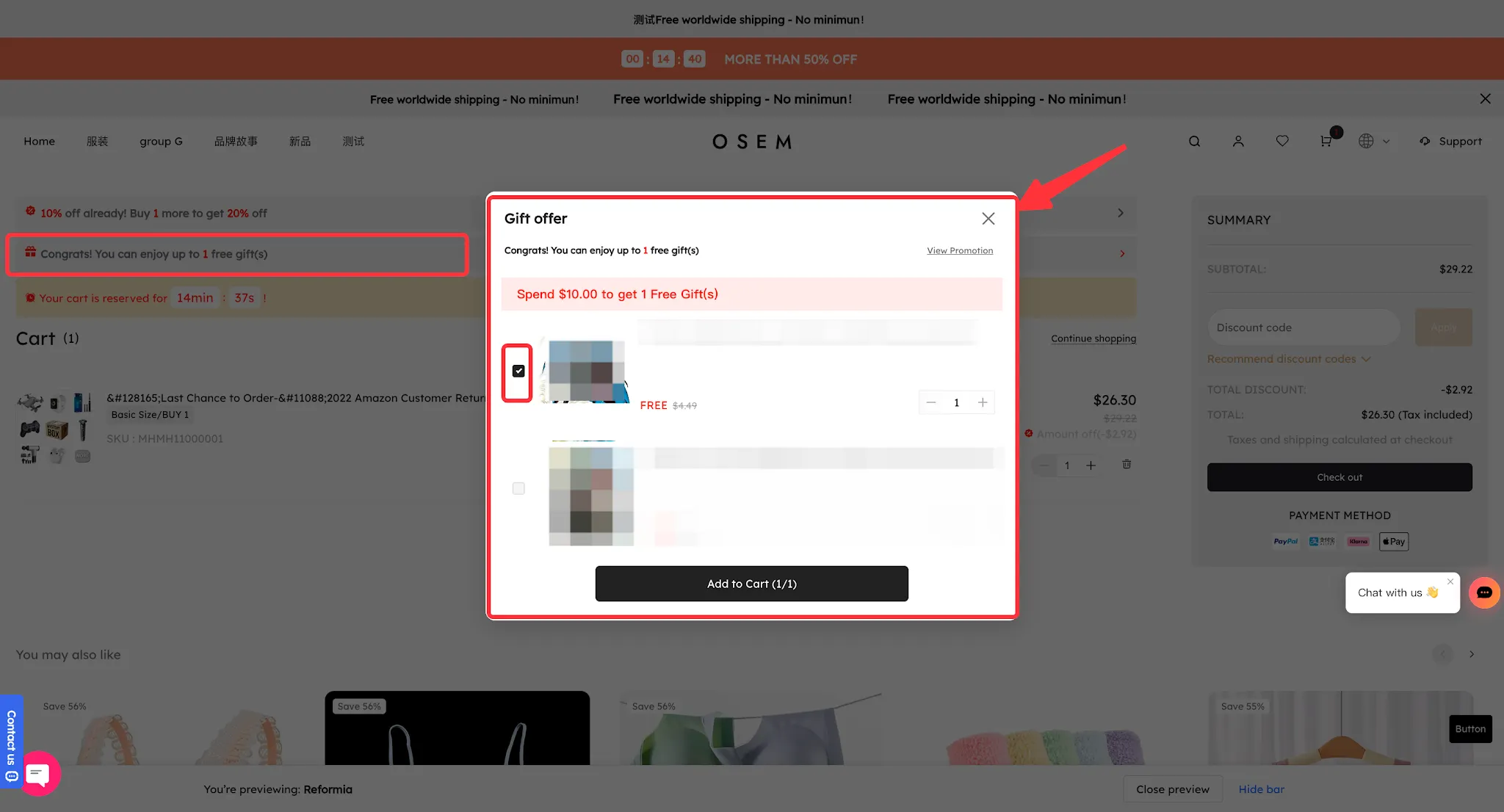
Notes on Manual Gift Selection
- Threshold Not Met: Customers can view the gifts but cannot add them to the cart.
- Threshold Met: The maximum number of gifts customers can select is the minimum of the number of gifts earned based on the main products and the available quantity of gifts for sale. Once the limit is reached, customers cannot add more gifts.
- Multiple Tiers: Gifts are displayed by tier in the pop-up. The pop-up automatically navigates to and expands the highest tier for which the customer qualifies. If all gifts in that tier are unavailable, it automatically navigates to the next tier.
- Checkout Page: Gift selection is not available on the checkout page. In manual selection mode, customers must select their gifts through the gift selection pop-up in the cart or when clicking Buy Now on the product details page.
- Display Gift Selection Pop-up on the Product Details Page When Clicking Buy Now: When customers click Buy Now on the product details page and meet the promotion requirements, a gift selection pop-up will appear. After selecting their gifts, customers will proceed to checkout.
- Allow Gift Removal: When enabled, customers can choose not to receive gifts in the cart.
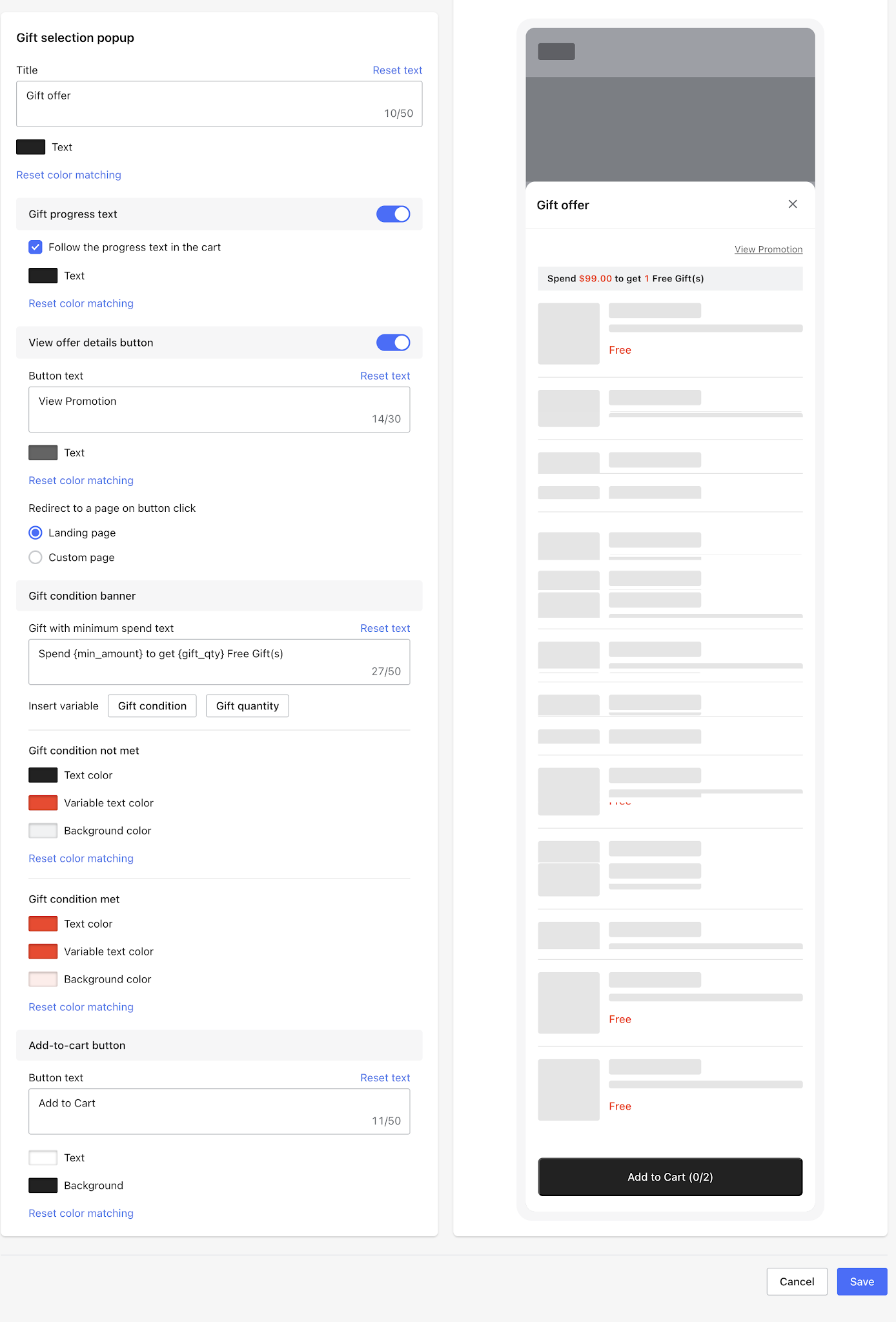
- Gift Selection Pop-up
Customize the gift selection pop-up’s title, text, text and background colors, promotion eligibility display style, and Add to Cart button. You can also configure how customers navigate to the promotion details page to create a gift selection experience that matches your store’s style.


Comments
Please sign in to leave a comment.