
Order Tarceback allows you to view a visitor’s activity during the 30 days before an order is placed, including visit times, pages visited, traffic sources, and devices used. This helps you understand the order’s conversion path and source.
I. Use Cases
You can use Order Tarceback to view the complete visitor journey before an order is placed in the following scenarios:
- When you need to verify an order source: For orders with an uncertain source, view the visitor’s activity during the 30 days before the order was placed, including visit times, pages visited, and traffic sources.
- For high-value orders or longer purchase decision cycles: Review the complete visitor journey to understand the multiple touchpoints a customer experienced from their first visit to the final purchase.
- When you suspect advertising channel parameters were lost: If the order source after an advertising campaign does not match expectations, review the visitor’s activity to identify the channels and pages they visited and help locate the issue.
- When you need to understand tarceback results: Tarceback Analysis shows how orders are attributed to different channels and their respective contributions, while Order Tarceback shows the actual visitor journey before an order was placed, providing behavioral context for the tarceback results.
II. Access
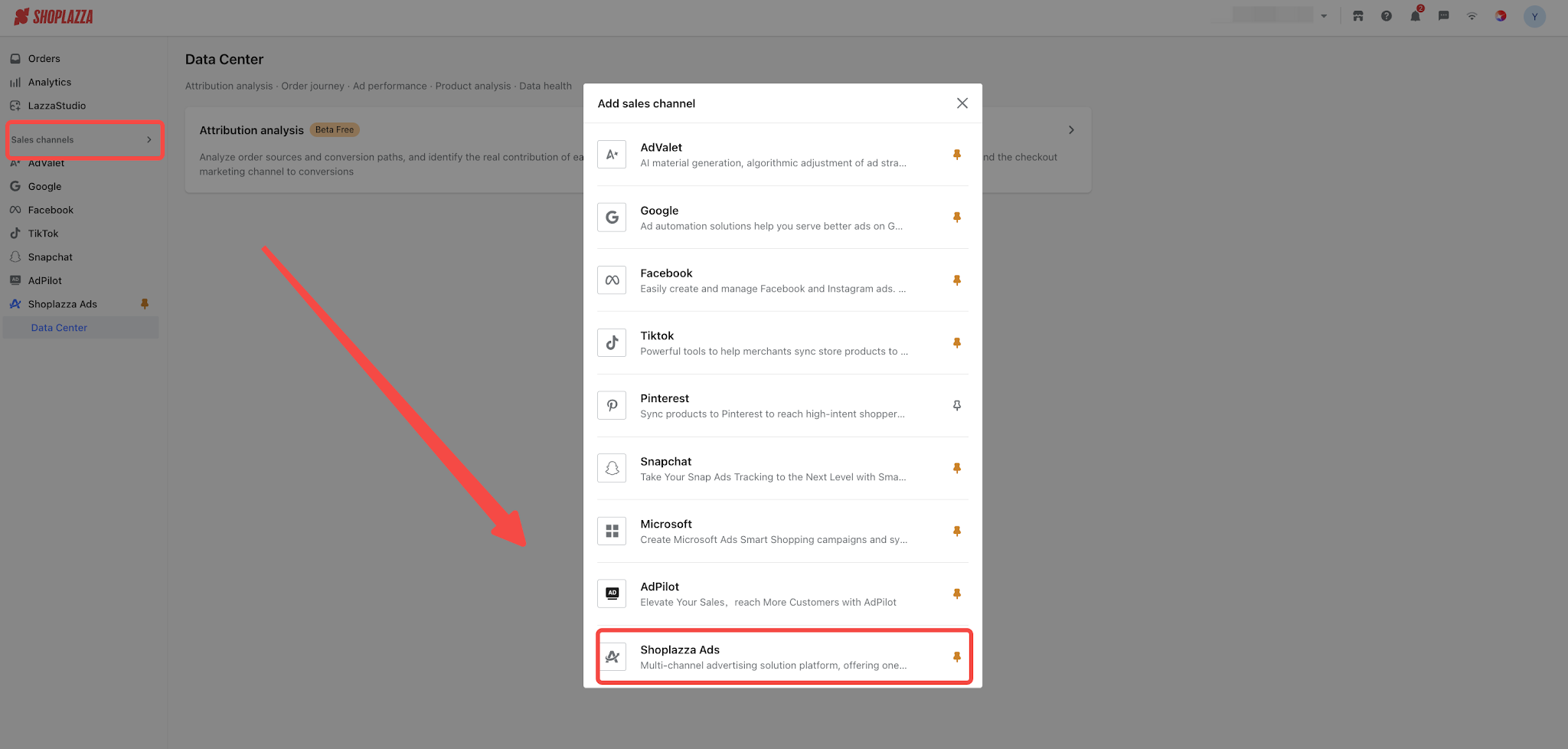
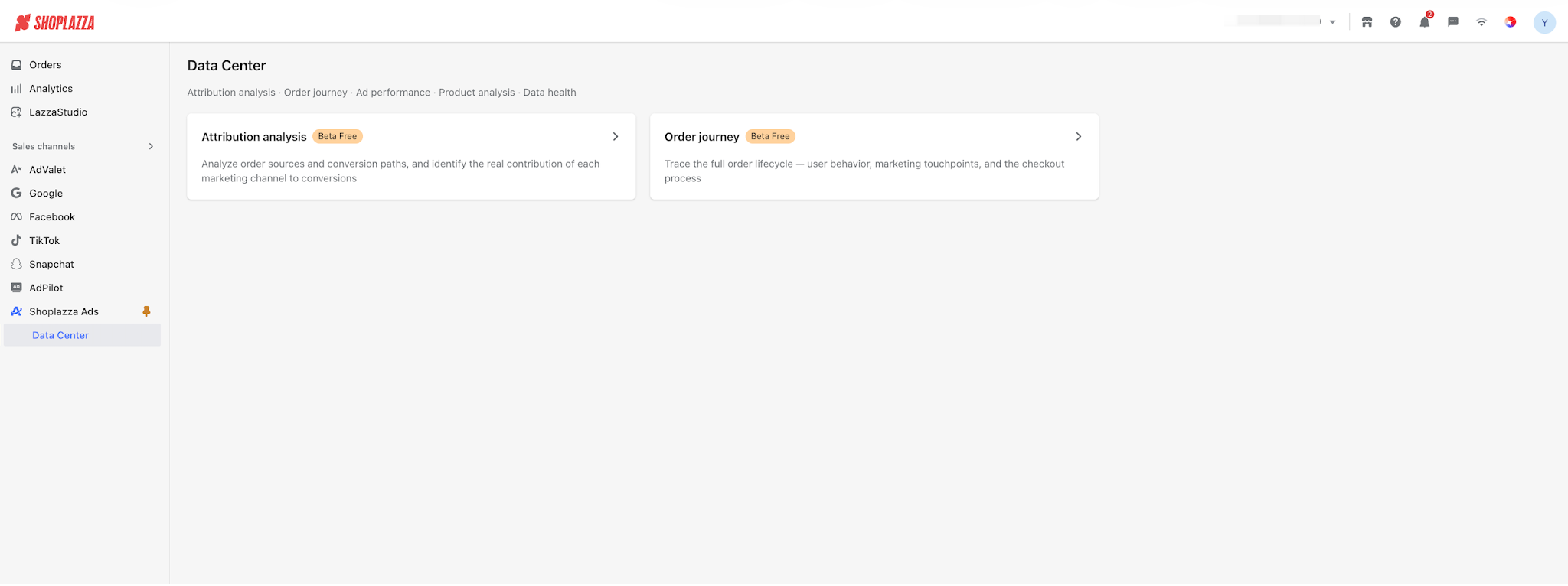
Log in to your Shoplazza admin> Sales Channels > click Shoplazza Ads > go to Data Center > Order journey.
III. Page Overview
Order List
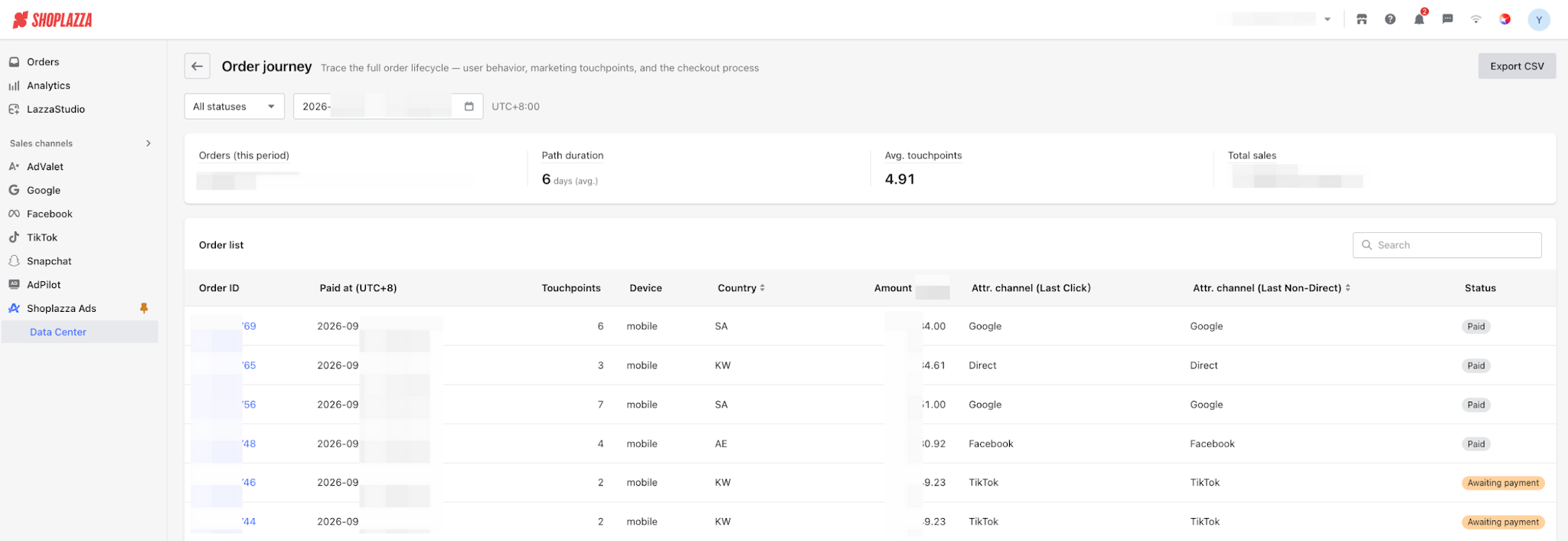
The top section displays an overview of key metrics for the selected time range, including Number of Orders, Journey Duration, Average Touchpoints, and Total Sales.
The order list below displays the following information for each order:
- Order ID
- Creation Time (displayed according to the store's time zone)
- Touchpoints: The number of times the customer visited the store during the 30 days before placing the order.
- Device, Country/Region, and Order Amount
- Tarceback Channel: The channel to which the order is attributed based on the current Tarceback model.
- Order Status: Paid, Pending Payment, Refunding, and other statuses.
You can search the list by Order ID or Channel, and export the list as a CSV file. The timestamps in the exported file are also displayed according to the store's time zone.
Order Details Page (Customer Journey)
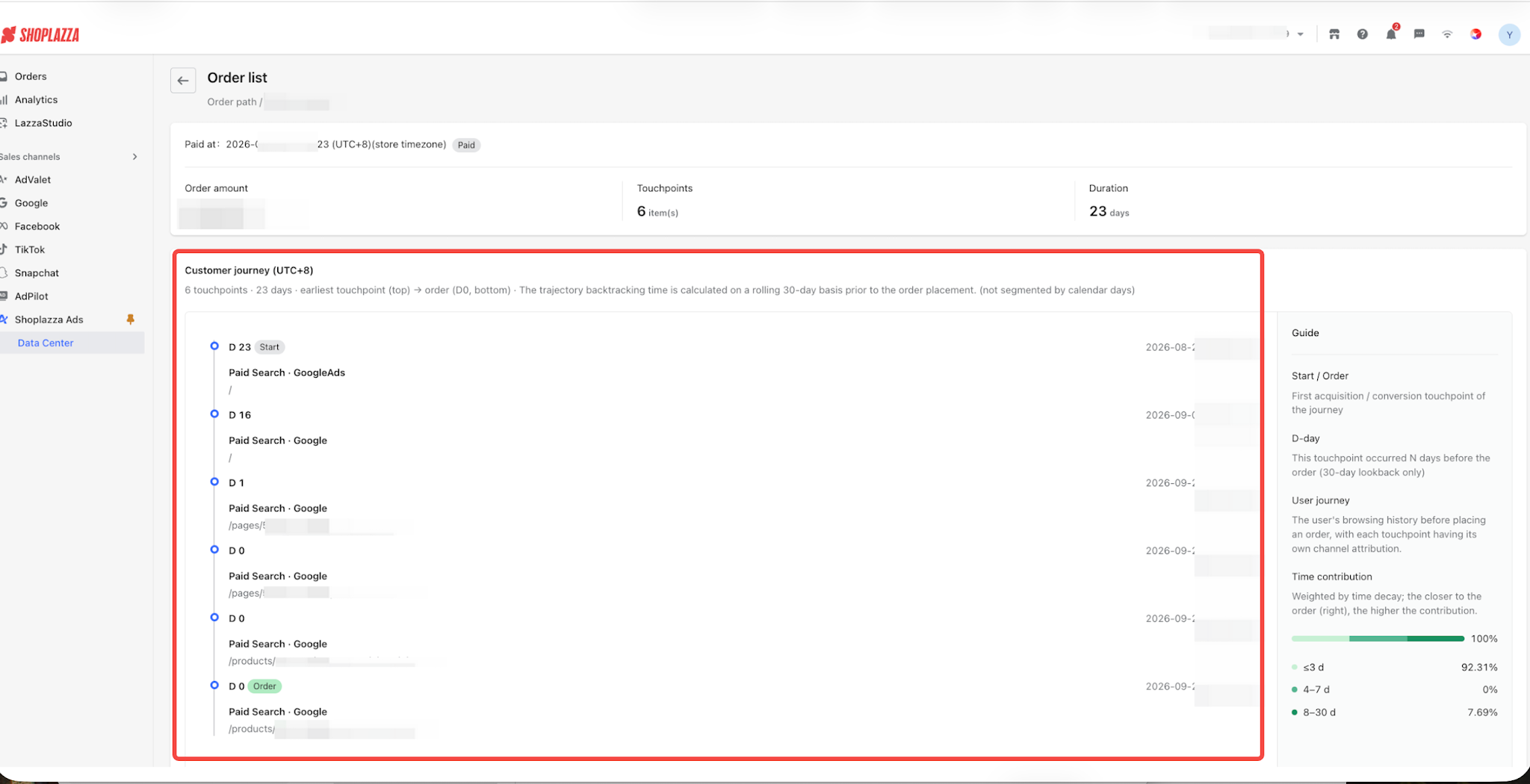
1. Click any order to view the customer’s complete journey timeline.
- Summary Metrics: Order amount, total number of touchpoints, and the time from the first touchpoint to order placement.
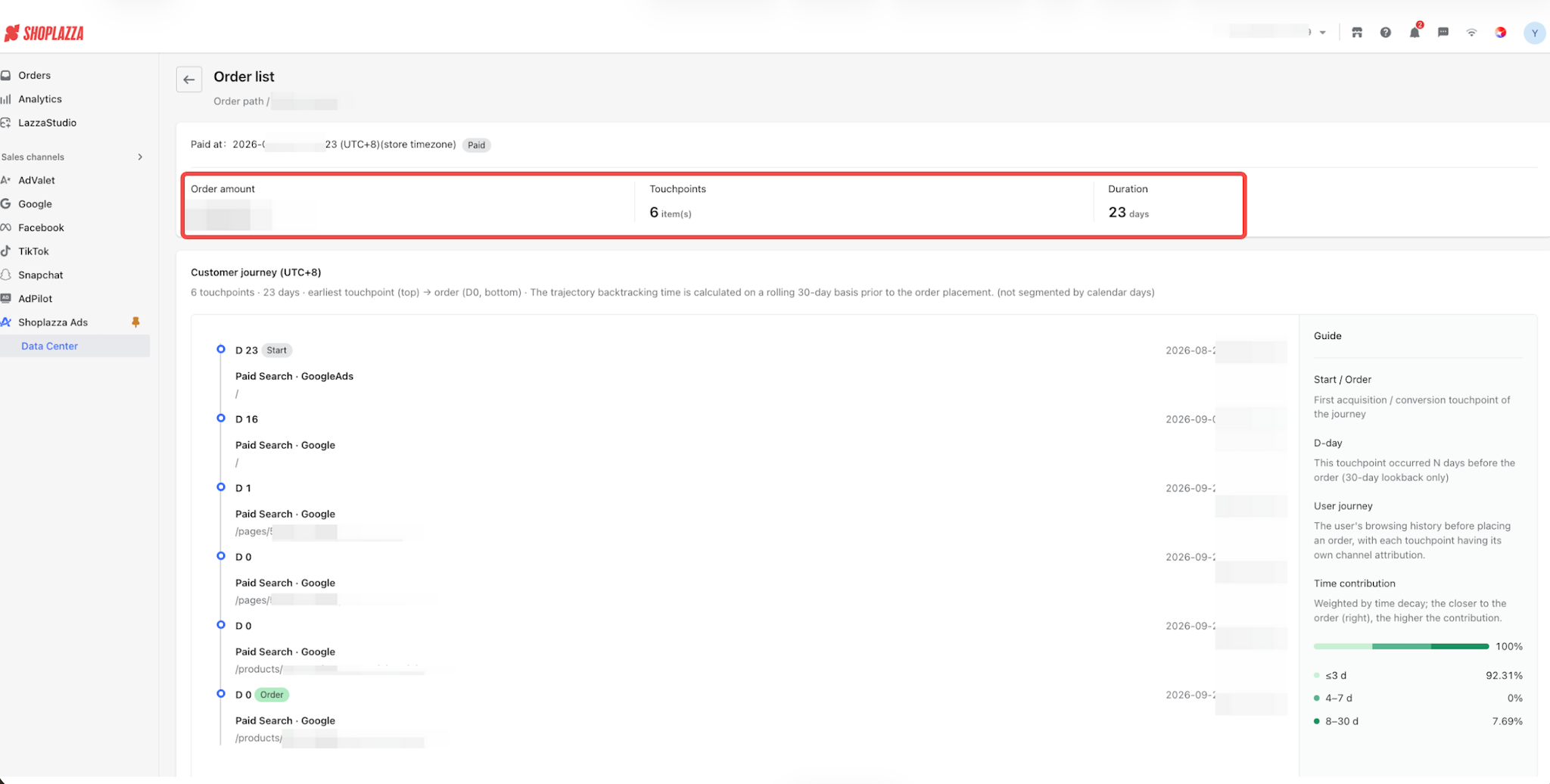
- Each Touchpoint: Visit time, landing page URL, identified channel, and the number of days between the visit and order placement.
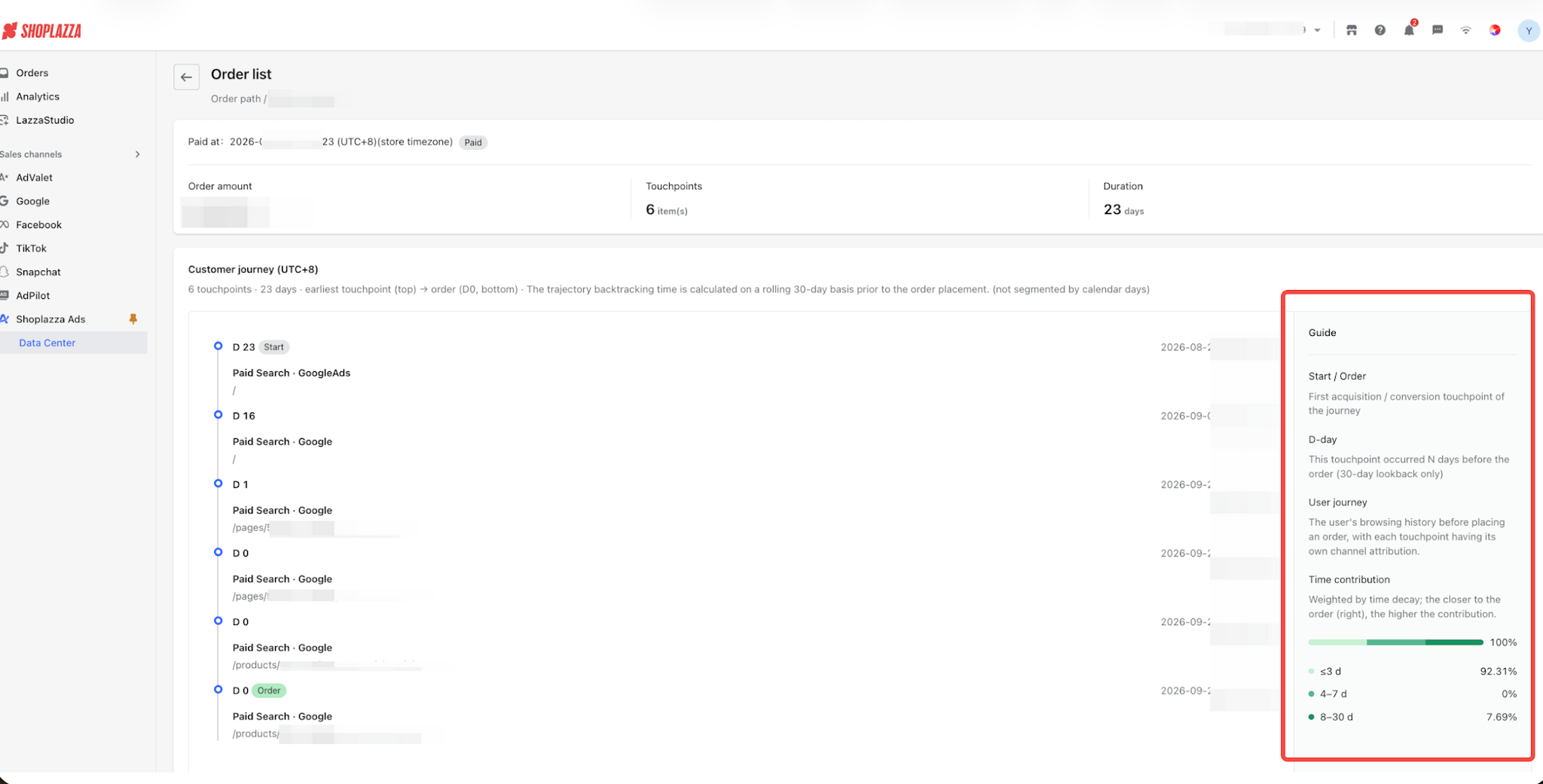
- Guide: View the customer journey guide for guidance on interpreting the distribution of touchpoints based on how close they are to the order placement.
Through the customer journey, you can view the complete visitor journey before an order is placed, including visits to your store through channels such as Instagram, YouTube, and Google, as well as the visit that ultimately led to the order. This helps you understand how different channels contributed to the customer’s conversion journey.
2. Three Steps to Verify an Order in Question
- Find the Order: Search for the order number in the Order Tarceback list to view the order status and tarceback channel. Because data may be delayed by several hours and may be recalculated, we recommend checking the order on the day after it is placed.
- Open the Journey: Open the order details to view the visitor’s activity during the 30 days before the order was placed, including visit times, pages visited, and traffic sources.
- Verify Each Touchpoint: Pay close attention to the landing page URLs and advertising parameters (such as UTM parameters) associated with each touchpoint. If parameters are missing during the visit or lost due to intermediate redirects, the order may be attributed to a different channel. You can review the visitor journey to further verify the source.
Note
Order Tarceback displays the customer’s complete journey, so activities such as payment page redirects (e.g., Stripe or PayPal redirects) and store admin activities may also appear in the timeline. This is normal and does not indicate a data error. For tarceback, the default tarceback model automatically skips these types of activities and continues looking back to identify the actual source. Multi-touch tarceback models include all activities in the tarceback process according to the rules of the selected model.
IV. Data Reference Guide
| Frequently Asked Questions | Rule Description |
| How far back can I view visitor activity? | Only visits made within 30 days before the order was placed are recorded and displayed. Earlier visits are not displayed or included in tarceback. |
Is the data real-time?
| No. Data synchronization may be delayed by several hours, and data may be recalculated. Data for the current day may appear gradually and may be incomplete, with additional data added later. Considering these delays, we recommend checking data on a T+1 basis, meaning that you should check data from the previous day or earlier. |
| What is the maximum query range? | To ensure query performance, you can query data for up to 30 days at a time.
|
| What time zone is used? | The dates displayed on the page, order times, and timestamps in exported files all use the store's time zone, which is indicated in the interface. |
| Which orders are included? | All orders that were successfully placed are included, regardless of their status, including Pending Payment, Canceled, Refunding, and other statuses. Before comparing the data with Paid Orders in the admin panel, filter the orders by status first. |
| Why are all visits recorded? | The customer journey records the customer’s complete journey, including payment page redirects and store admin activities. The selected tarceback model determines which visits are considered when attributing the order. |
| How are traffic sources identified? | Traffic sources are identified based on advertising link identifiers, UTM parameters, and referring websites. To identify traffic sources at the campaign, ad group, or creative level, you must configure UTM parameters first. This only applies to new traffic after the parameters are configured; historical data will not be backfilled. |
V. Frequently Asked Questions
Q1: Why can't I find my order in the Order Tarceback list?
First, check the order type. Subscription renewals, API-created orders, manually added orders, and offline orders do not have a web browsing journey and therefore are not included in the tarceback report by design. This is expected behavior and does not indicate missing data.
For regular web orders, please note that data may be delayed. Data synchronization may take several hours and may involve recalculation, so we recommend checking the order on the day after it is placed.
Q2: Why do I see Stripe, store admin, and other visits in the customer journey?
The customer journey displays the customer’s complete journey. Payment page redirects and store admin activities are also part of the journey, so it is normal for them to appear in the timeline.
Q3: Why do some touchpoints show as direct visits without a traffic source?
When a customer enters the URL directly, accesses the store through a bookmark, or returns to the store as a returning customer, the visit is recorded as a direct visit. This is normal.
If you have confirmed that the visit came from an advertisement, check the landing page URL for the corresponding touchpoint. Parameters may be lost during intermediate redirects, or the advertising link may not have been properly configured with UTM parameters, which can prevent the system from correctly identifying the traffic source.
Q4: Why doesn't the number of orders in the Order Tarceback list match the number of orders in my admin panel?
The Order Tarceback list includes all orders that were successfully placed, regardless of their status, including pending payment, canceled, and refunding orders. Therefore, you cannot directly compare the number of orders in the Order Tarceback list with the number of paid orders in the admin panel.
To compare the data, first use the Status filter to select paid orders, then compare the results with the number of paid orders in the Orders section of your admin panel.
Q5: How far back can I view the customer journey?
You can view visits from up to 30 days before the order was placed. Earlier visits are outside the reporting range and are not displayed or included in tarceback.
Q6: What time zone is used for timestamps in the exported CSV file?
The exported CSV file uses the store's time zone, consistent with the time zone used on the page. The time zone is indicated in the column headers.
When analyzing the data alongside data from advertising platforms, first confirm the time zone used in the advertising platform's reports.


Comments
Please sign in to leave a comment.