
By installing the AppLovin app from the Shoplazza App Store and authorizing your AppLovin Ads account, you get automatic conversion tracking and an always up-to-date product catalog, and you can also launch personalized, dynamic product ads in AppLovin Ads Manager without writing any code. This integration gives you accurate, revenue-based reporting on how your ads are performing.
What does AppLovin App do?
Once you've installed the app from the Shoplazza App Store and authorized your AppLovin Ads account, the app automatically:
- Installs the AppLovin Pixel on your store, with no manual code installation required, so AppLovin can track conversions and accurately measure how your ads are performing.
- Syncs your product catalog with AppLovin, so your ads reflect your current products, prices, and availability.
- Connects this data to your AppLovin Ads account, so AppLovin can automatically build and optimize dynamic product ads and attribute purchases back to the right campaign.
You don't need to write any code or configure anything manually — all of the above happens automatically once your account is connected.
Connecting your AppLovin account
1. Go to your Shoplazza Admin > App Store, search for "AppLovin", and install the app (or install it directly from the AppLovin Listing Link .
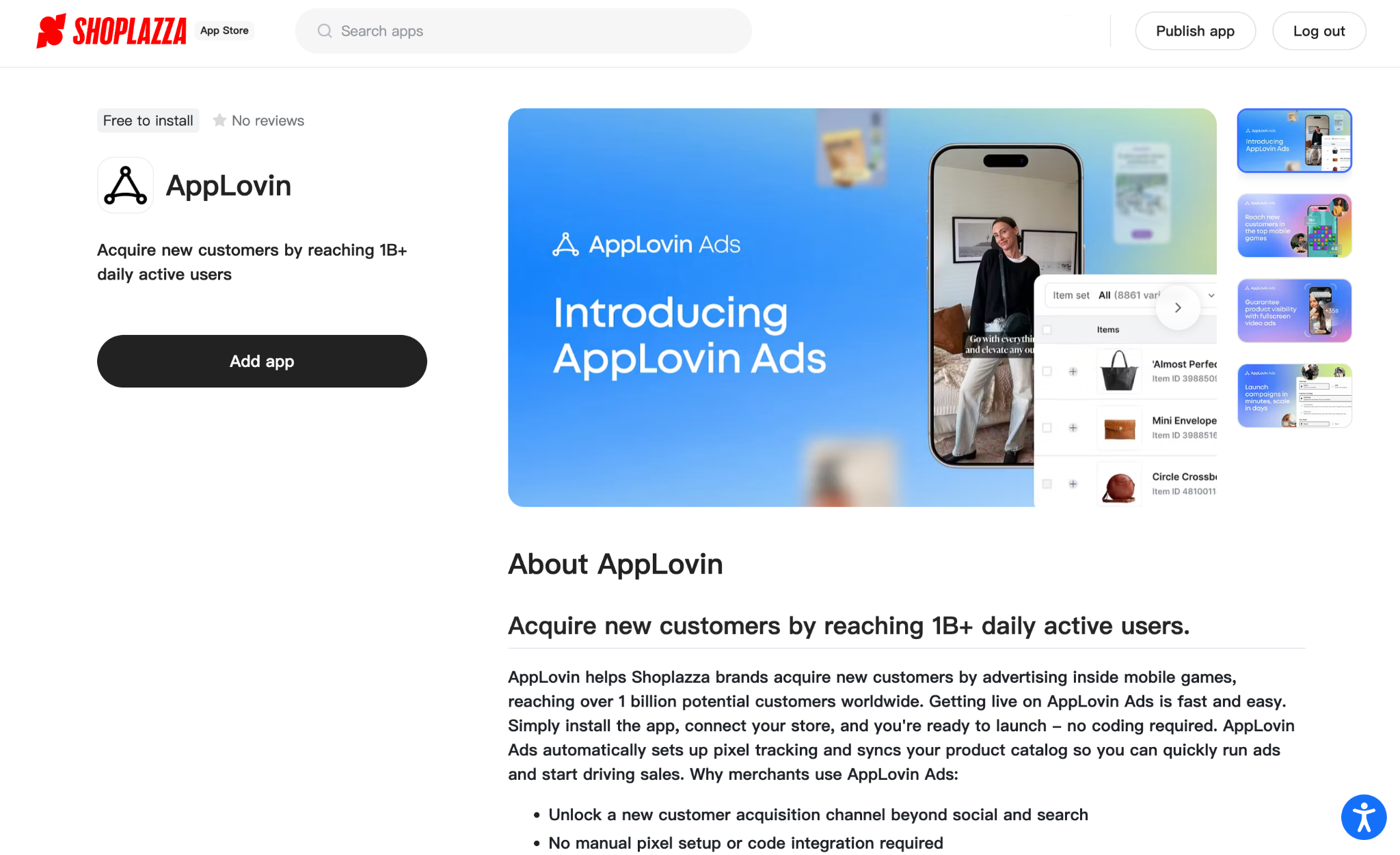
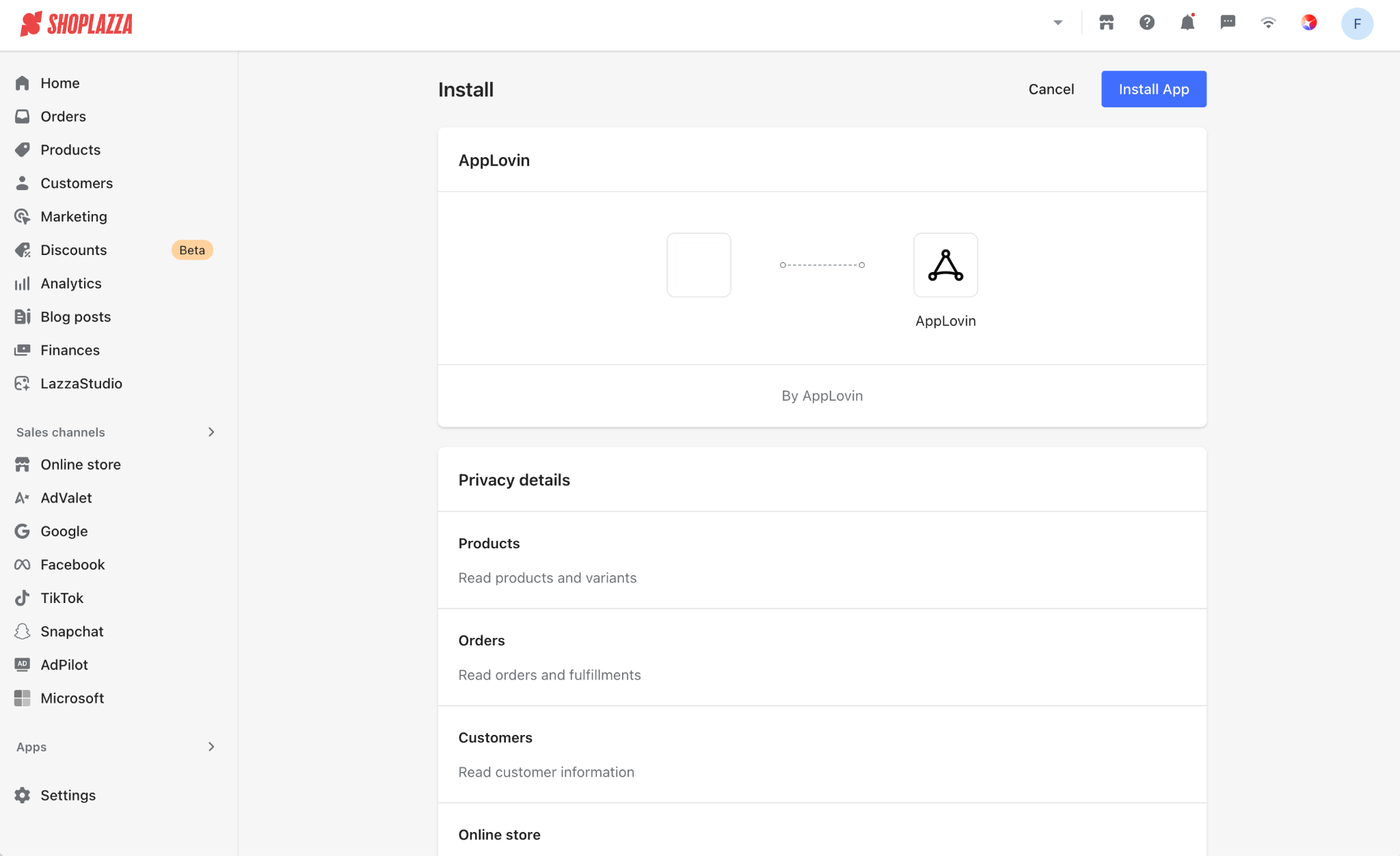
2. Connecting your existing account
If you don't already have an AppLovin Ads account, click Sign up free and register with your email. When asked for your account goal, choose “Purchases on my website(s)”.
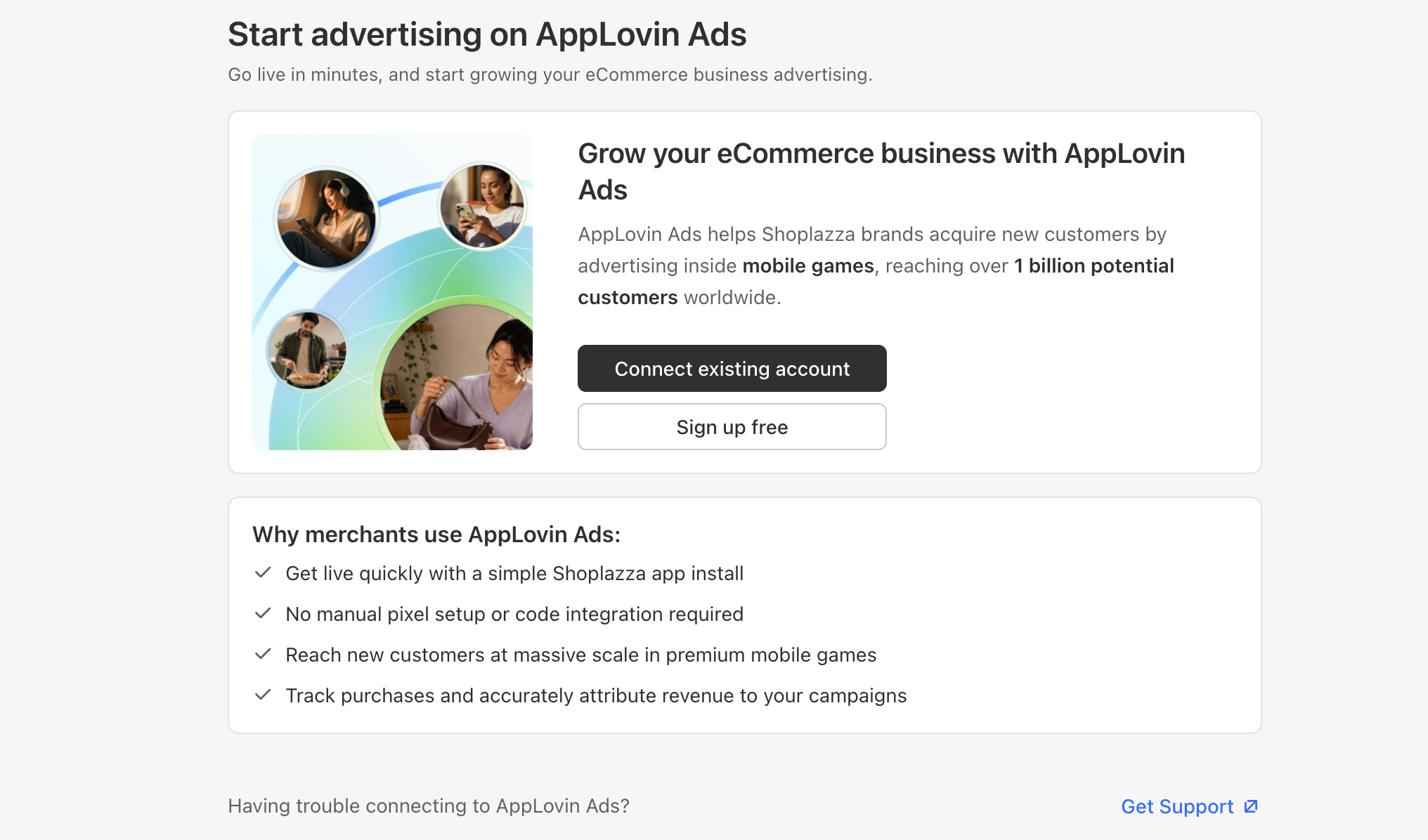
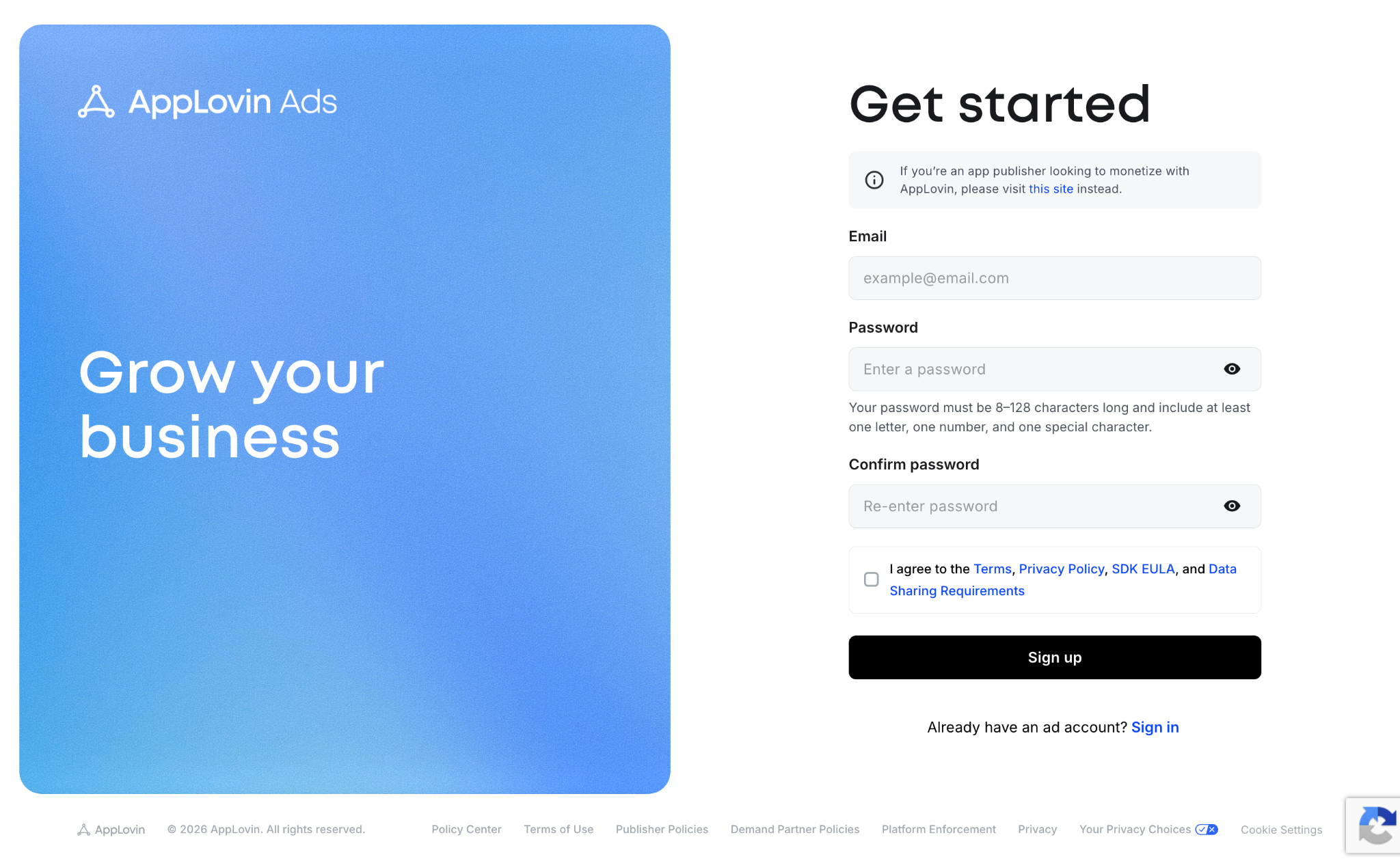
3. Once the app is installed and your account is set up, return to the AppLovin app page in your Shoplazza Admin and click Connect existing account, then click Connect to authorize the connection.
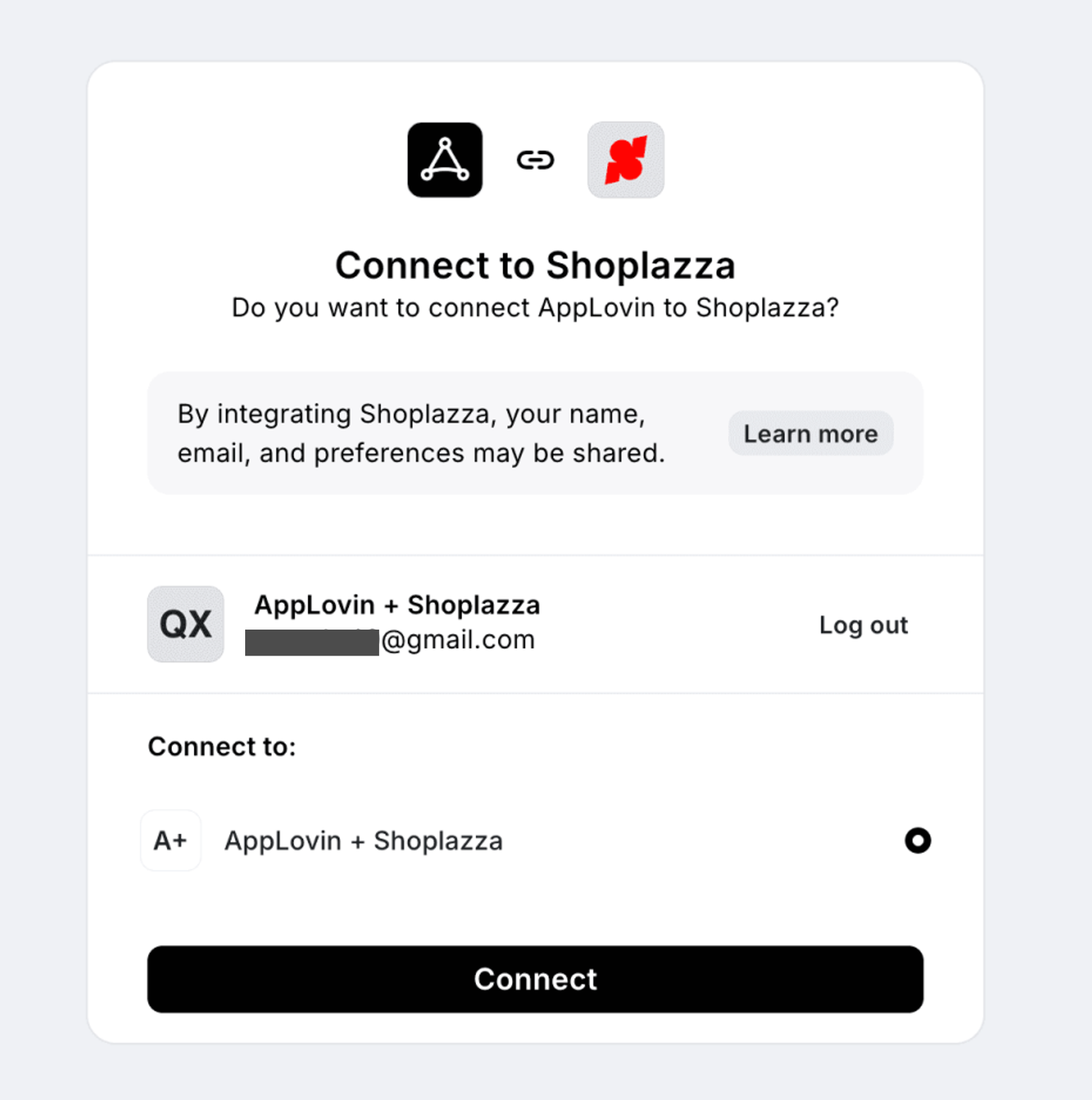
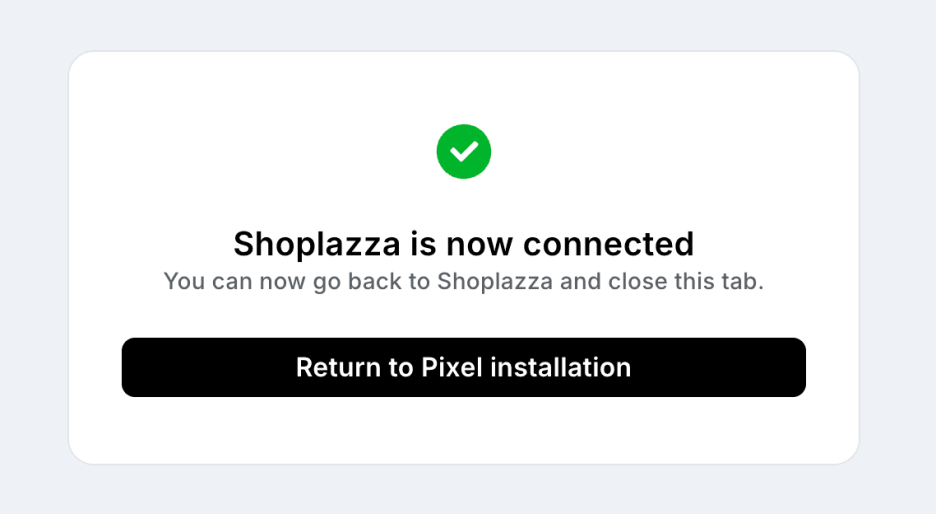
4. You'll see a confirmation once the connection is successful. Your integration is now complete.
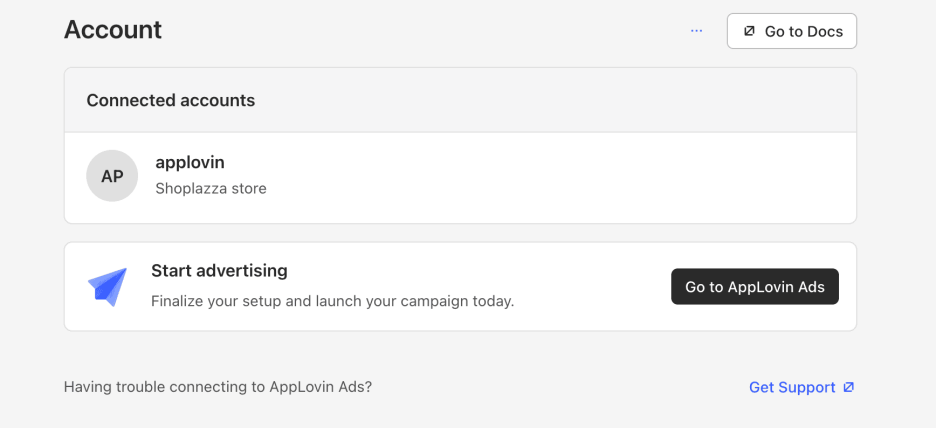
Where to check your Pixel status
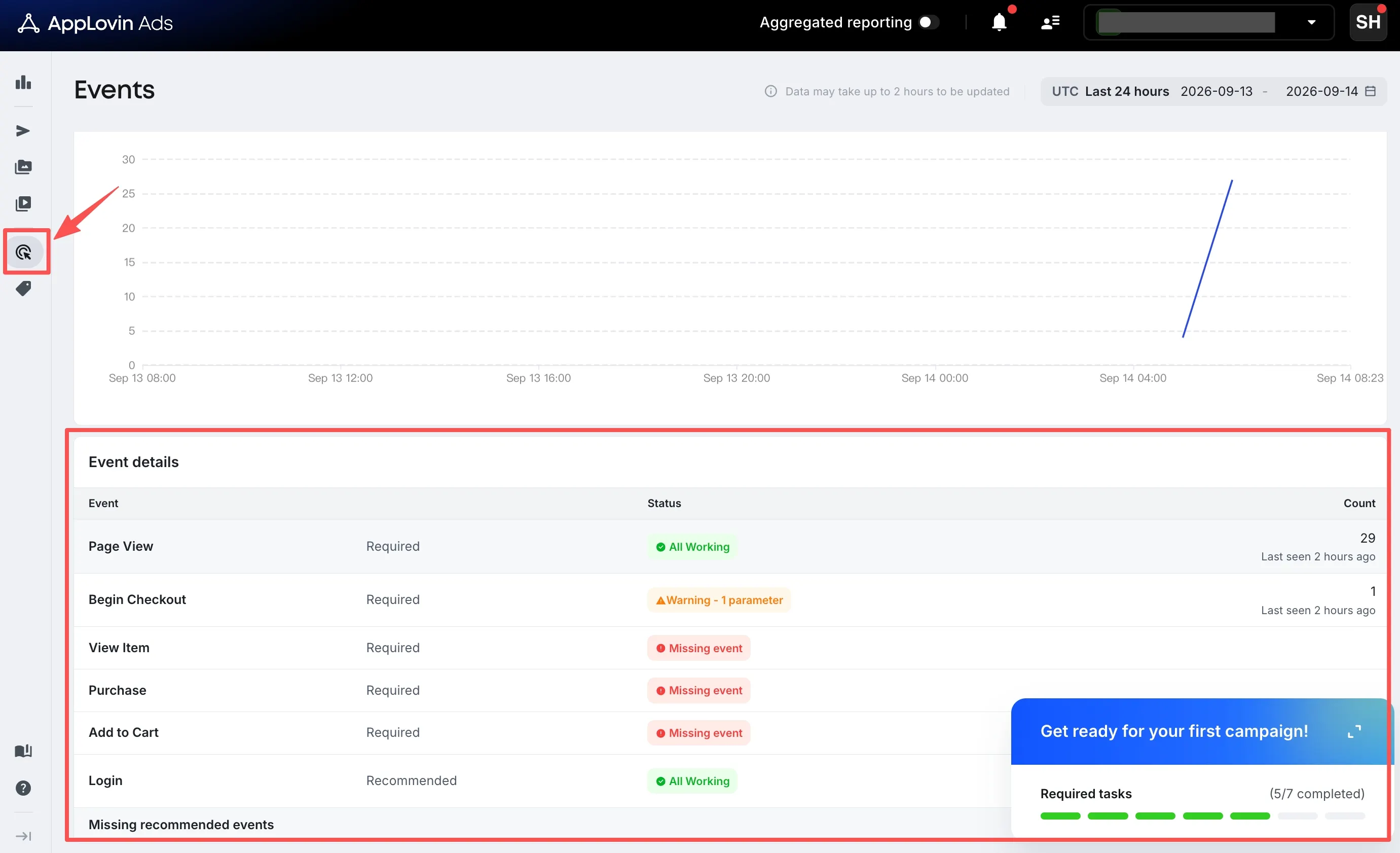
1. After you finish installing and authorizing the app, the AppLovin Ads dashboard tracks your Pixel's activation progress. You'll need to take the corresponding actions on your storefront to activate each event.
- All working: The payload structure is correct, and all required and recommended fields are present.
- Warning: The payload structure is correct, but some recommended fields are missing.
- Missing Event: Required fields are missing, or the payload structure is incorrect.
2. We recommend getting all events to "All working" status, so your conversion data is complete and accurate — which in turn supports better ad optimization and more reliable performance attribution.
For what each event refers to, see:
Where do you manage your ads and view your data?
You can click Go to Ads Manager from the AppLovin app page to open AppLovin Ads Manager. From there you can:
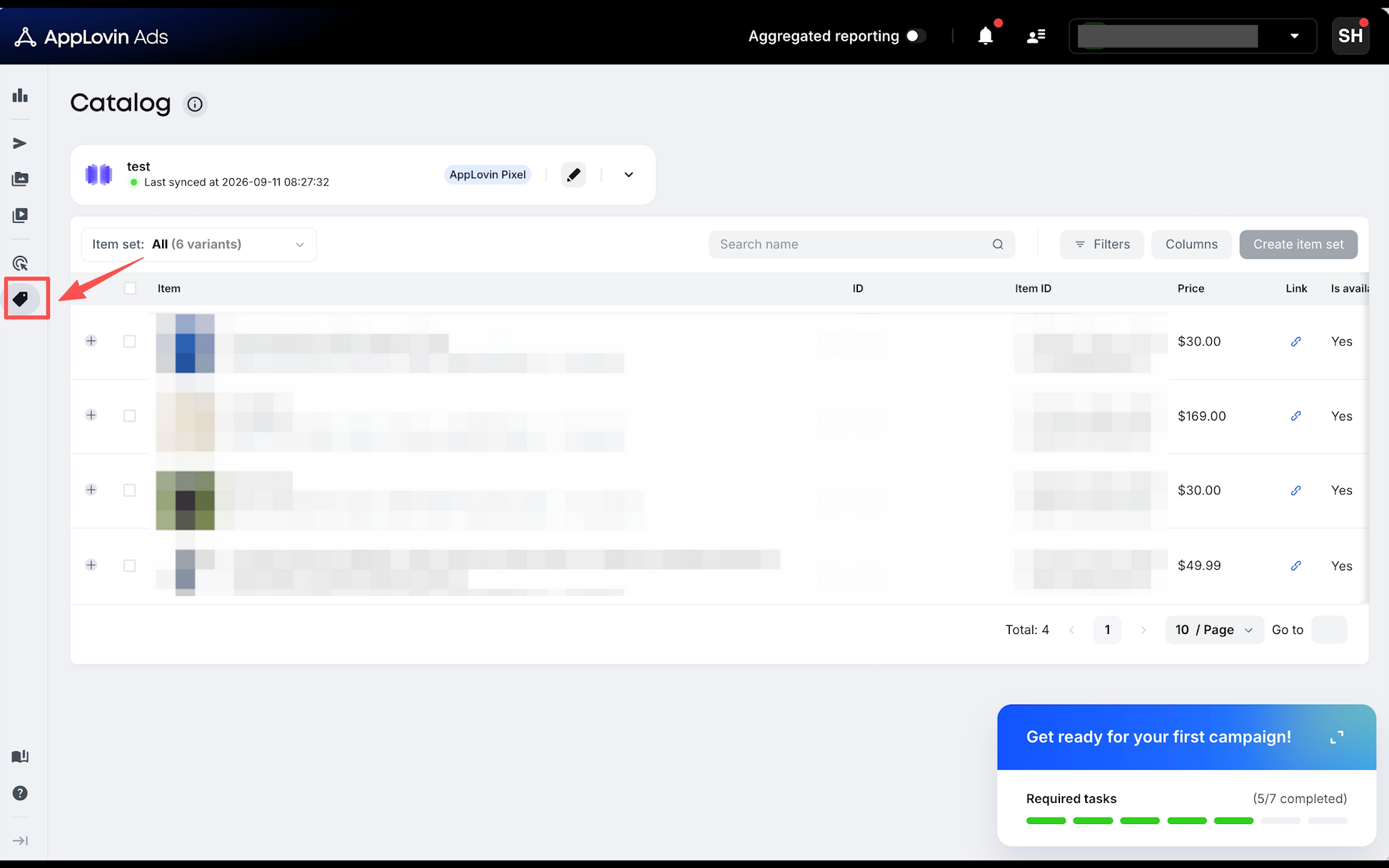
- View and manage your synced product catalog.
- Create and launch ad campaigns, including Dynamic Catalog ads.
- Review your campaign performance and revenue attribution data.
You can check your product catalog status, including each product's individual sync status, under Catalog.
Note
Your product catalog updates automatically as your store changes. For larger catalogs, it may take a little time after connecting to your full catalog — and any newly added products — to be fully reflected in AppLovin Ads Manager.


Comments
Please sign in to leave a comment.