
The Recipients page is where you manage all your payout recipients in one place. You can check recipient status, search and filter recipients, view account details, and initiate a payout directly to a recipient — making repeat payments more efficient.
View the recipient list
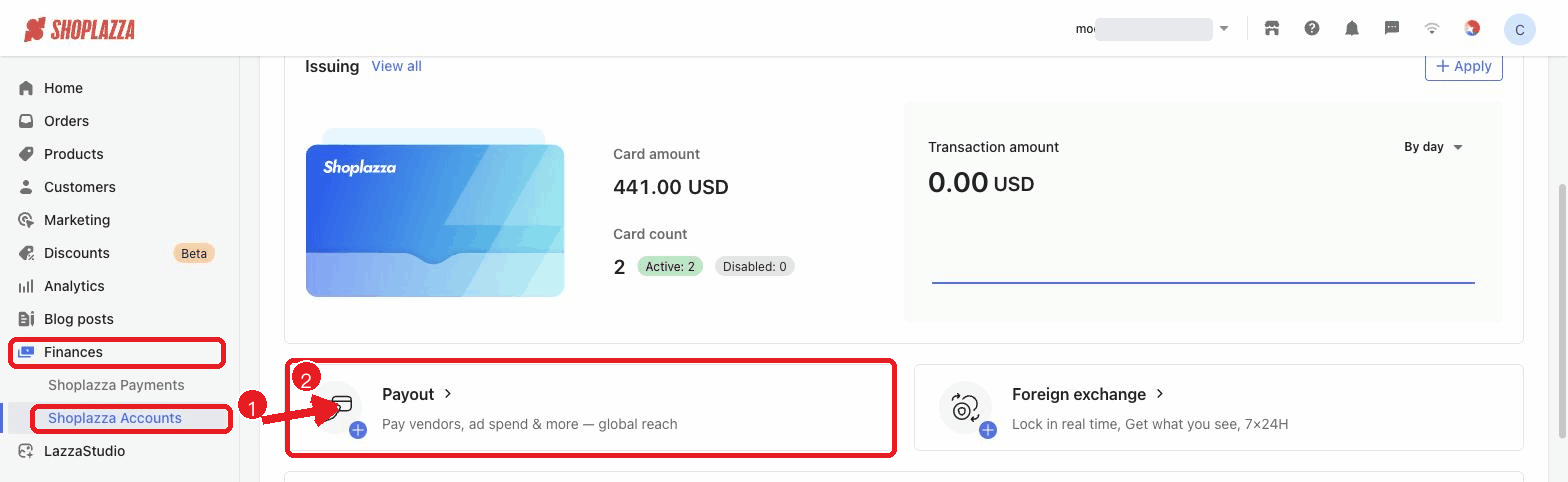
1. Open the Recipients page: go to Finances > Shoplazza Accounts > Payout, then click the Recipients tab.
2. Review the list: the recipient list shows the key information for each recipient.
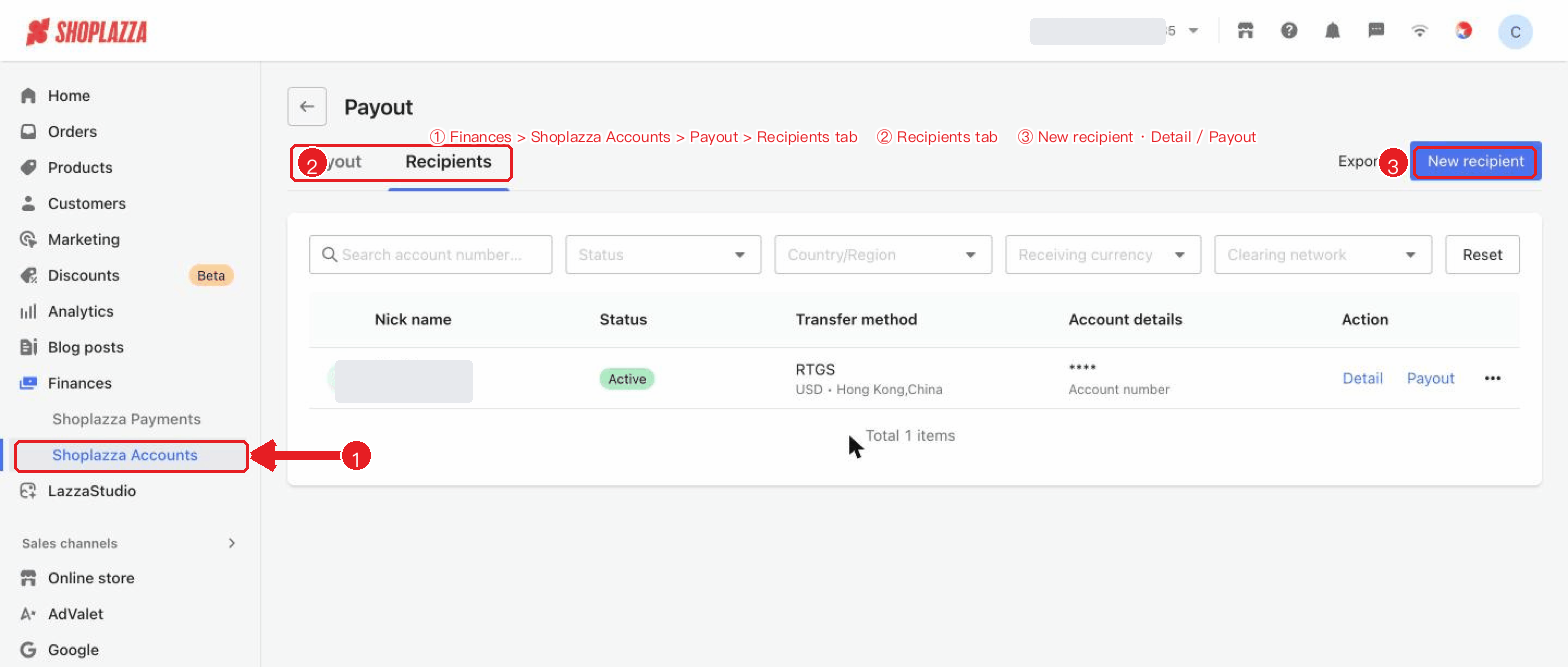
List field descriptions:
| Field | Description |
| Nickname | The recipient's nickname and account name (for your reference only). |
| Status | Active / Processing / Action required / Rejected. |
| Transfer method | The clearing network together with the receiving region and currency (e.g., SEPA, SWIFT, RTGS, FPS). |
| Account details | The masked account number / IBAN. |
| Action | Detail / Payout / More (Duplicate, Edit, etc.). |
Recipient status
| Status | Description |
| Processing | The recipient's information is under review and cannot be used for payouts yet. This is usually quick — the actual time depends on the review result, and can be as fast as 1 minute. |
| Action required | The recipient's information has triggered a risk rule. You need to upload supplementary materials in the backend and resubmit for review. |
| Active | The review has passed and you can initiate payouts normally. |
| Rejected | The review did not pass. You can edit and resubmit, or delete the recipient. |
Recipient status: Active (ready for payouts), Processing (under review, temporarily unavailable), Rejected (can be edited and resubmitted, or deleted).
Search and filter
When you have a large number of recipients, use search and filters to locate one quickly:
- Search: enter the recipient's account number or nickname.
- Status: filter by Active / Processing / Rejected.
- Country/Region, Receiving currency, Clearing network: filter by the corresponding dimension.
- Reset: clear all filter conditions.
Common actions
- View details: click "Detail" to view the recipient's complete bank and contact information.
- Initiate a payout: click "Payout" to create a payout directly to this recipient.
- Add supplementary materials: if the status indicates that documents are required, upload the relevant files as prompted.
Interface controls and buttons
The functions of the buttons and controls on the Recipients page are as follows:
| Button / control | Location | Function |
| Payout / Recipients (tabs) | Top of the page | Switch between the "Payout records" and "Recipients" views. |
| New recipient | Top right | Start the flow to add a new recipient: first choose the account type (Domestic Bank Account / International Bank Account), then fill in the details and submit. |
| Export | Top right | Export the current recipient list as a file (unavailable when the list is empty). |
| Search box | Filter bar | Search by the recipient's account number or nickname. |
| Status / Country/Region / Receiving currency / Clearing network (filters) | Filter bar | Filter recipients by the corresponding dimension. |
| Reset | Filter bar | Clear all search and filter conditions. |
| Detail (row action) | Action column | View the recipient's complete bank and contact information. |
| Payout (row action) | Action column | Go directly to the "Create a payout" flow with this recipient preselected. |
| Duplicate (row action) | Action column | Copy this recipient's information to quickly create a similar recipient (common for recipients that are Processing). |
| More (···) (row action) | Action column | Expand more actions, such as editing or deleting the recipient (deletion requires confirmation). |


Comments
Please sign in to leave a comment.