
Create a Payout lets merchants use their Shoplazza Accounts balance to send global payouts to recipients they have already added. The system automatically matches the applicable local clearing network or SWIFT international transfer based on the recipient's details, and displays the exchange rate, fee, and estimated amount the recipient will receive before submission, helping merchants complete cross-border payouts safely and efficiently.
Before you begin
- Your account has completed identity verification.
- Your account balance is sufficient.
- You have added a recipient (if not, please first complete "Add a Local/International Bank Recipient").
- You have set a transaction password.
How to create a payout
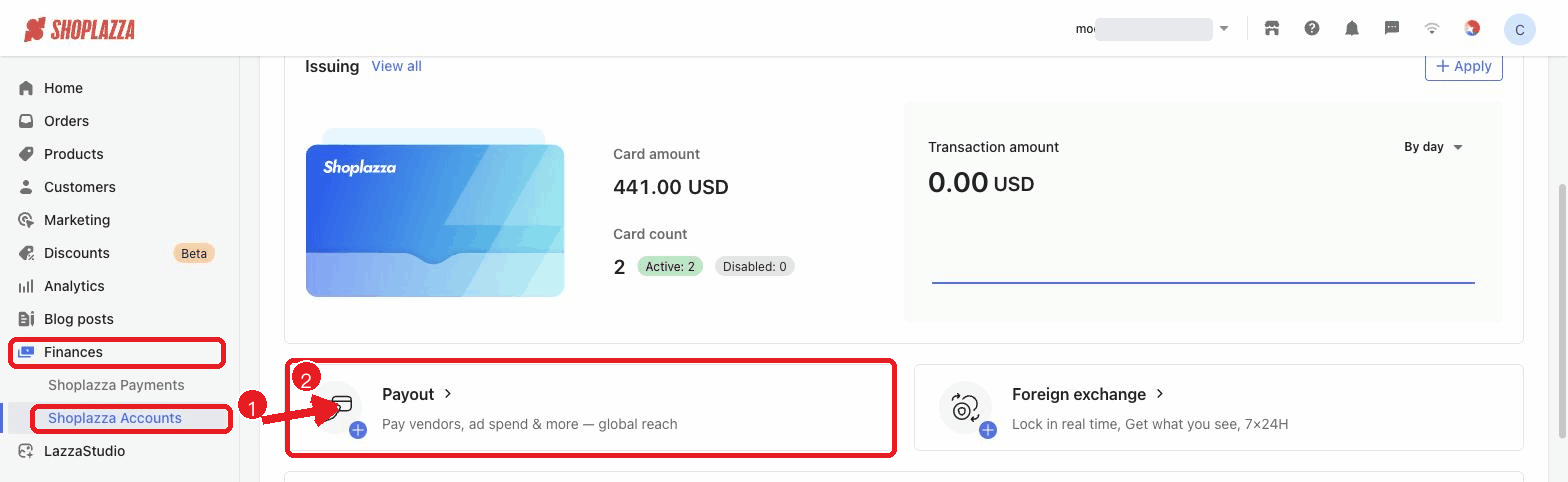
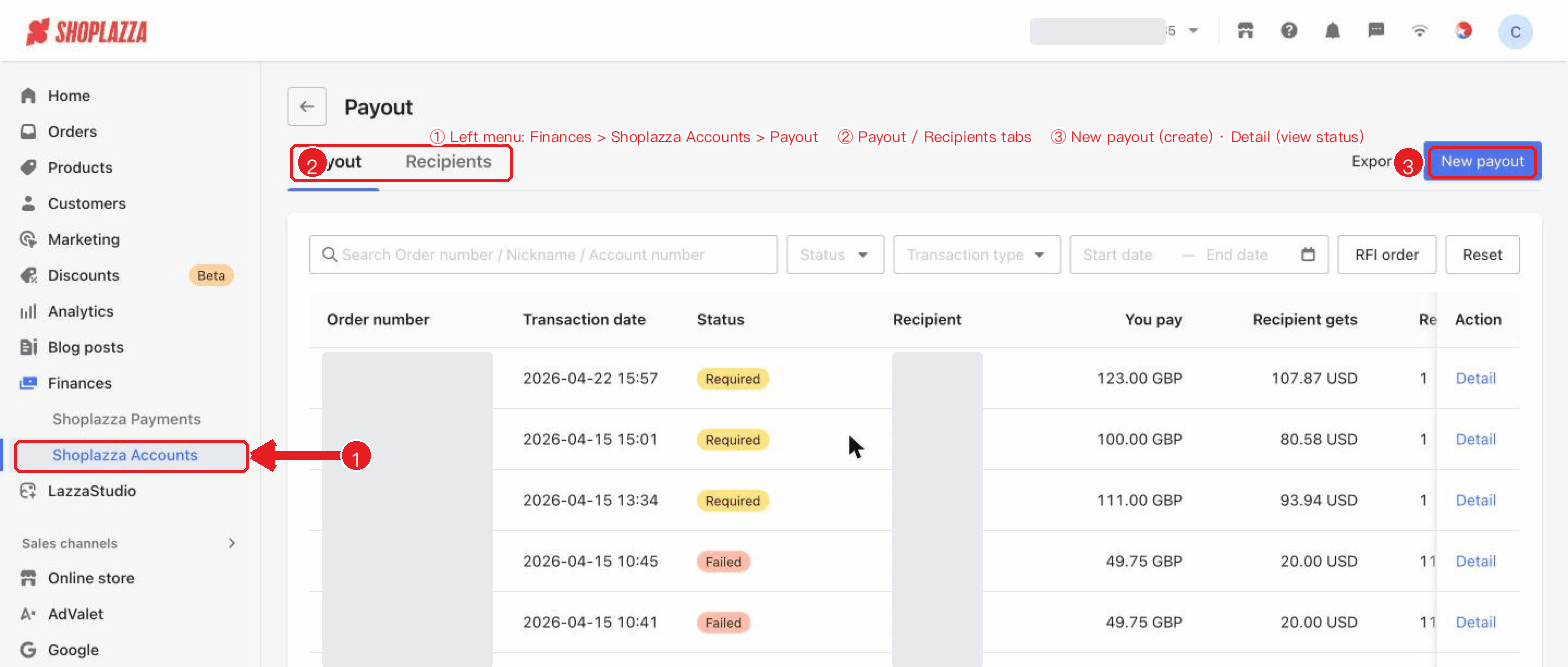
1. Open the payout page: Go to Finances > Shoplazza Accounts > Payout and click New Payout.
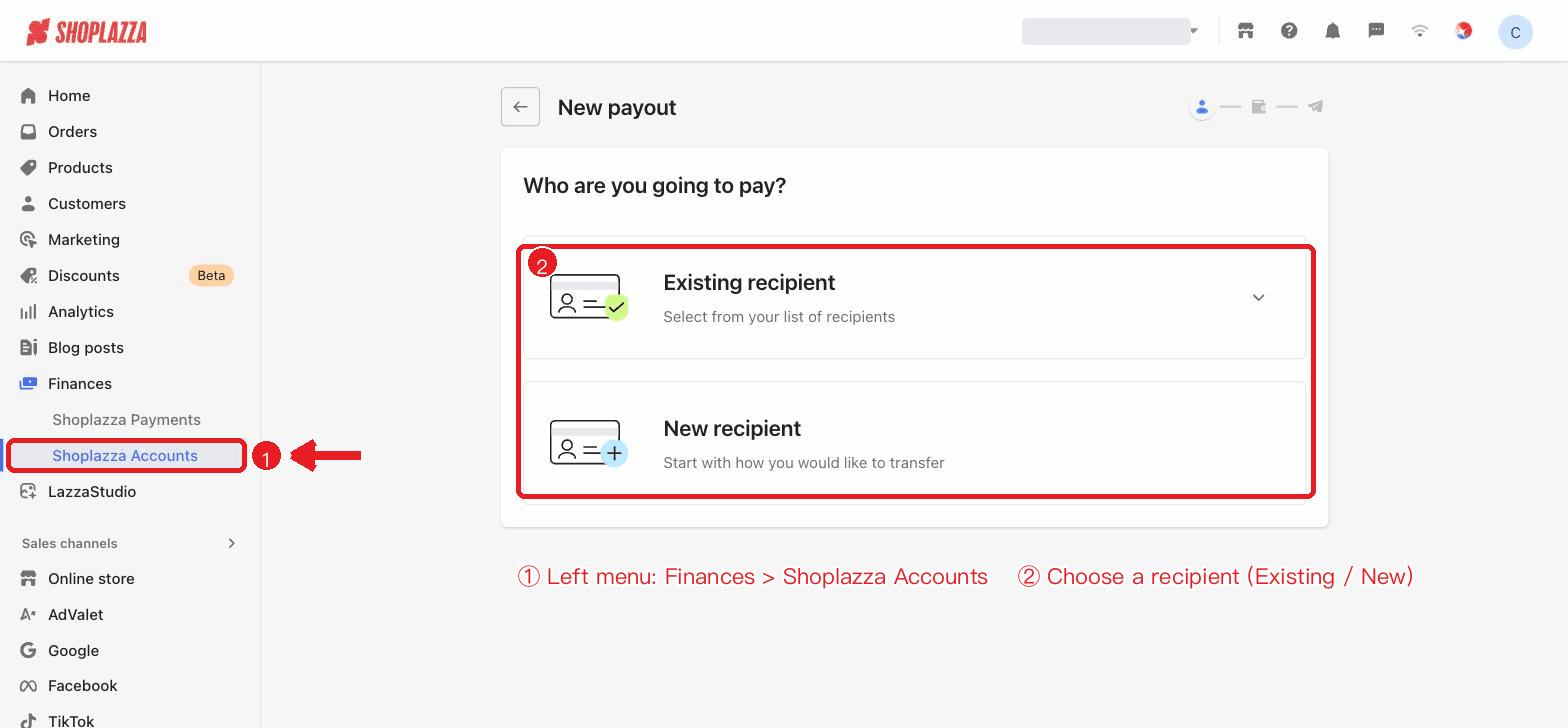
2. Select a recipient: Choose the recipient you want to pay from the Existing recipient list; you can also type a name to search quickly, or click New recipient to add one.
3. Enter the payout amount and select the payout currency: Enter the amount under "You pay" and select the account currency to pay from; the system automatically calculates the amount the recipient will receive.
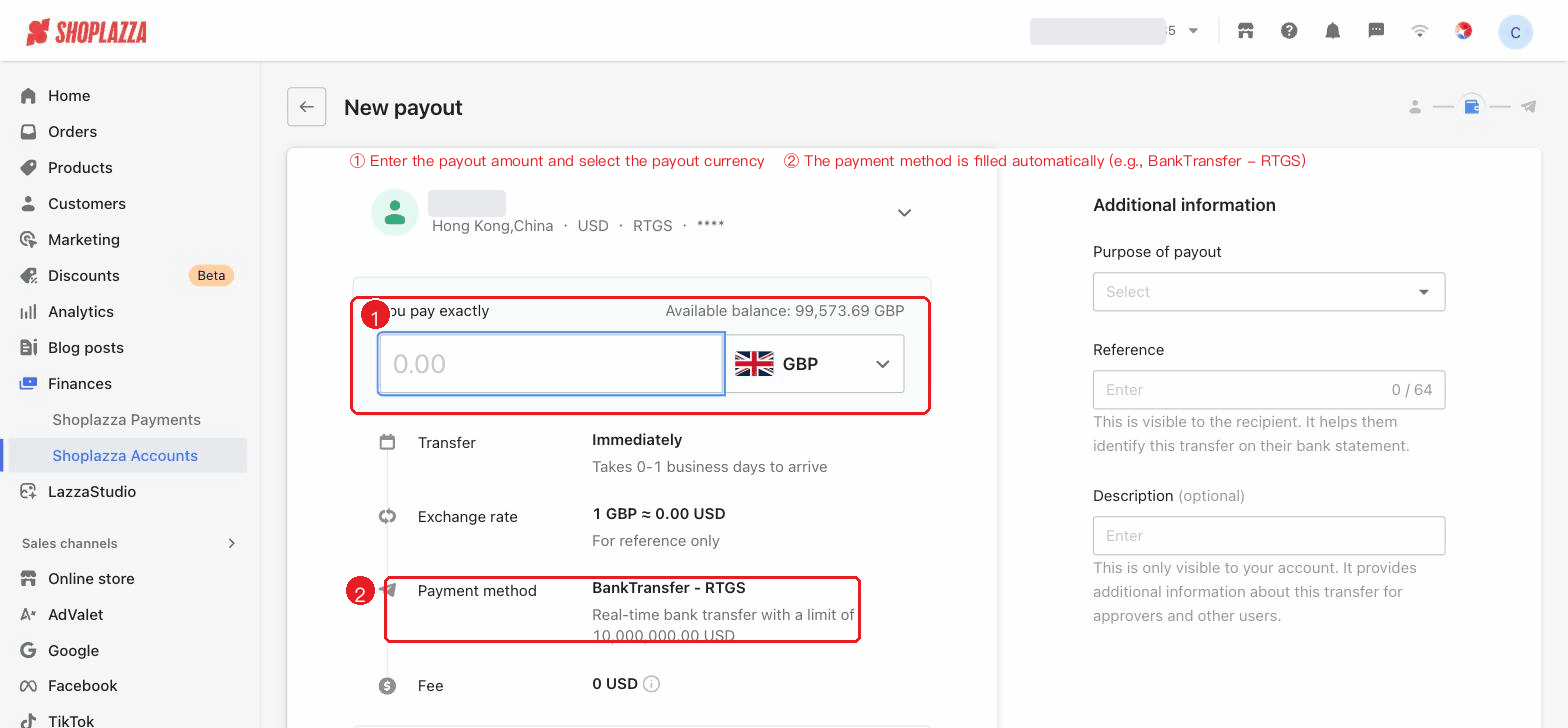
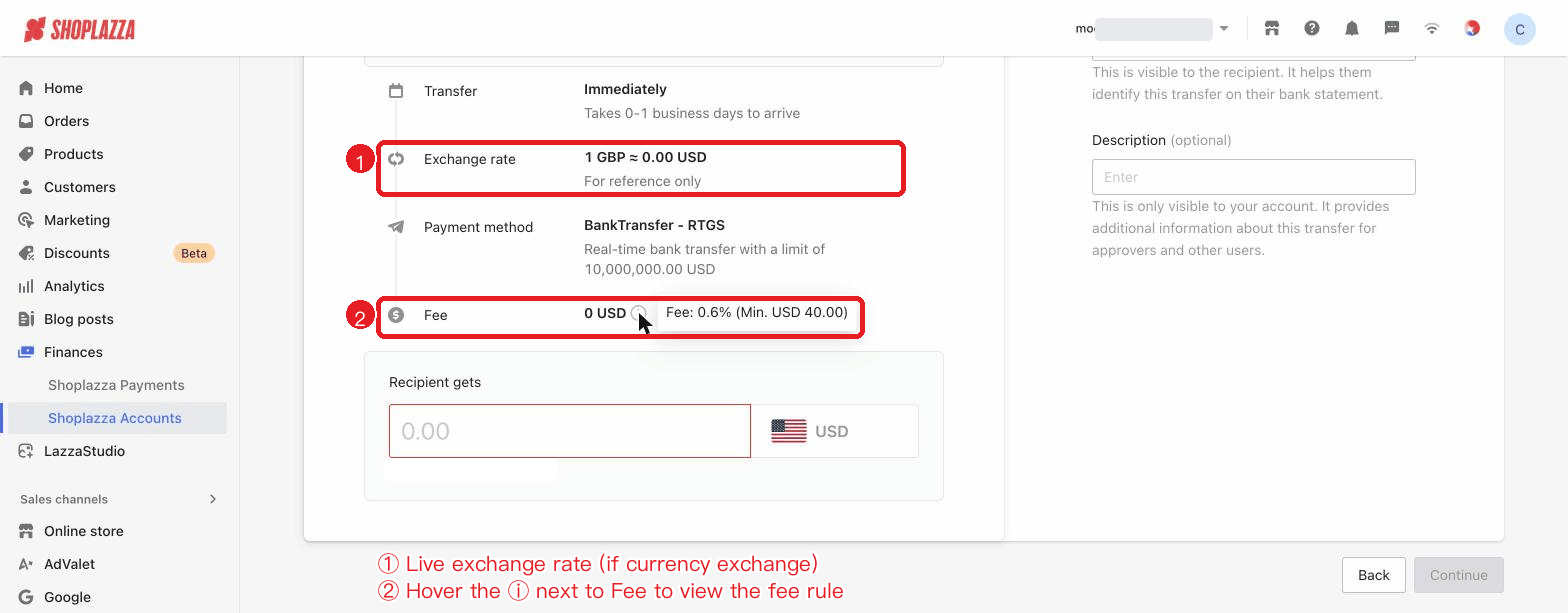
4. Review the payment method: Based on the recipient's country/region, receiving currency, and bank details, the system automatically matches the applicable payment method and displays: estimated arrival time, live exchange rate (if currency exchange is involved), payment method, fee, and the estimated amount the recipient will receive.
5. Fill in the additional information:
- Purpose of payout: Select the purpose of this payout (e.g., supplier payment, advertising expense, logistics freight, etc.).
- Reference (optional): A payout note that will appear on the recipient's bank statement.
- Description (optional): A note visible only within your account.
6. Continue with the payout: Click Continue. The system will lock the current exchange rate; please complete the remaining verification before the countdown ends.
7. Confirm the payout details: Review the payout amount, payment method, exchange rate, fee, and recipient information.
8. Enter the transaction password: Enter your 6-digit transaction password to complete identity verification.
9. Submit the payout: Click Confirm to submit the payout request.
Check the payout status
After submitting the payout, you can return to Finances > Shoplazza Accounts > Payout to view the payout record and its processing status, including: the current payout status, payout details, transaction timeline, whether supplementary materials are required (RFI), and the reason for a failed payout (if applicable). If a payout requires supplementary materials for compliance review, the system will prompt you to submit the relevant information, after which the transaction will continue processing.
Notes
- Confirm your account balance: The payout amount and fee will be deducted from your available account balance.
- Confirm the recipient information: Before submitting the payout, make sure the recipient's details are accurate.
- Review the exchange rate and fee: If currency exchange is involved, the system will display the live exchange rate before submission; hover over the ⓘ icon next to the fee to view the calculation rules.
- Distinguish between Reference and Description: The Reference is shown to the recipient; the Description is visible only to internal users of the account.
- Note the exchange rate lock time: After clicking "Continue", the system will lock the exchange rate; please complete transaction password verification before the countdown ends.
- Cannot be revoked after submission: Once a payout request is submitted, it cannot be modified or revoked.
Interface actions and button descriptions
| Button / Control | Location | Function |
| Existing recipient | Step 1 | Expands the recipient dropdown to select from your existing recipients; supports searching by recipient name in the field. |
| New recipient | Step 1 | Goes to the add-recipient flow (choose a local/international bank account). |
| You pay (amount input + currency dropdown) | Step 2 | Enter the payout amount and select the funding account currency; the available balance is shown on the right. |
| Recipient gets (amount input + currency dropdown) | Step 2 | The system converts automatically; if the recipient supports multiple currencies, you can select the receiving currency. |
| Purpose of payout (dropdown) | Step 2 · Additional information | Select the purpose of this payout (withdraw, supplier payment, advertising expense, logistics freight, etc.). |
| VAT tax number / VAT document upload | Step 2 (conditional) | Appears when the purpose of payout is "VAT Self-Payment"; you must enter the tax number and upload documents. |
| Reference / Description | Step 2 · Additional information | The Reference is shown to the recipient (on their bank statement); the Description is visible only internally. |
| Back / Continue | Bottom of Step 2 | Return to the previous step; clicking "Continue" locks the exchange rate and opens the confirmation dialog. |
| Confirm / Cancel | Rate-lock dialog | Review the amount, exchange rate, fee, and recipient information; "Confirm" submits the payout, "Cancel" closes the dialog. |
| Transaction password / Forgot password | Rate-lock dialog | Enter the 6-digit transaction password to complete verification; "Forgot password" lets you go to Settings to reset it. |
Next steps
After clicking "Continue", the exchange rate enters a countdown lock; please complete password verification before the countdown ends. Once submitted, the transaction cannot be revoked.


Comments
Please sign in to leave a comment.