
Through the SWIFT international wire transfer network, an International Bank Account recipient lets you send payouts to a company or personal bank account, covering 200+ countries and regions worldwide as well as major receiving currencies. Once you add the recipient in advance, you can select it directly when creating a payout later, without re-entering the international bank account details each time.
Before you start
Before adding an International Bank Account recipient, please prepare the following:
- Basic recipient information (business or individual);
- International bank account details (SWIFT code / BIC, account number, bank name, etc.);
- The country or region where the receiving account is located.
Add an International Bank Recipient
1. Open the Payout page: Go to Finances > Shoplazza Accounts > Payout.
2. Start adding a recipient: Click the Recipients tab, then click New recipient.
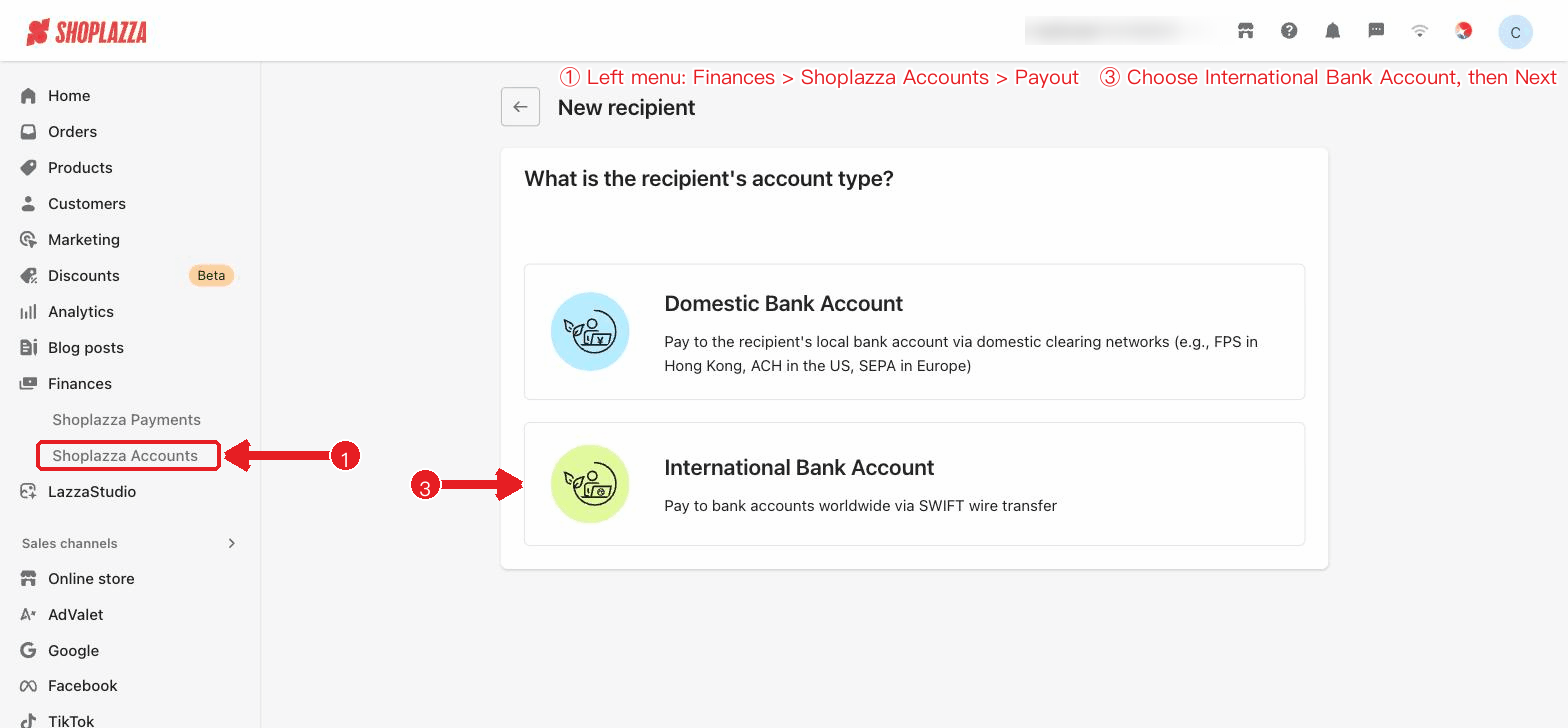
3. Select International Bank Account: On the account type page, select International Bank Account (pay to bank accounts worldwide via SWIFT wire transfer).
Figure: Selecting the recipient account type — Domestic Bank Account / International Bank Account.
4. Select the recipient type: Choose Business or Individual as appropriate.
5. Fill in the recipient details: Select the Country / Region, Account currency, and transfer method (SWIFT) in turn, then fill in the international bank account and recipient information as prompted on the page.
- Business recipient: You typically need to provide the account currency, SWIFT code / BIC, bank name, bank account number, company name (must match the account name registered with the bank), business registration number (if applicable), recipient nickname, email address (optional), and address.
- Individual recipient: You typically need to provide the account currency, SWIFT code / BIC, bank name, bank account number, recipient name (must match the account name registered with the bank), ID number (if applicable), recipient nickname, email address (optional), and address.
Tip: The fields required for an international bank account adjust automatically based on the selected country or region, account currency, and transfer method. Different scenarios may require information such as Bank Name, Bank Address, SWIFT code / BIC, IBAN, Account Number, Routing Number, or Intermediary Bank. Always follow the fields actually displayed on the page.
6. Submit the recipient: Click Submit to finish adding. Once added successfully, the recipient is saved to your recipient list and can be selected directly when you create a payout later.
Notes
- Account name must match: The company name or recipient name should match the account name registered with the bank; otherwise the payout may fail.
- Bank details must be accurate: Errors in the SWIFT code / BIC, IBAN, account number, or other bank details may cause the payout to be returned. If the transfer needs to go through an intermediary bank, make sure the intermediary bank's SWIFT code / BIC and related information are also entered correctly; otherwise the funds may be returned or extra fees may be incurred.
- Nickname is for internal identification only: The recipient nickname is shown only in the Shoplazza Accounts back office and will not be sent to the recipient.
- Confirm the account supports the receiving currency: The receiving account must be able to accept the selected payout currency; otherwise the payout may fail or the funds may be returned.
Interface actions and button reference
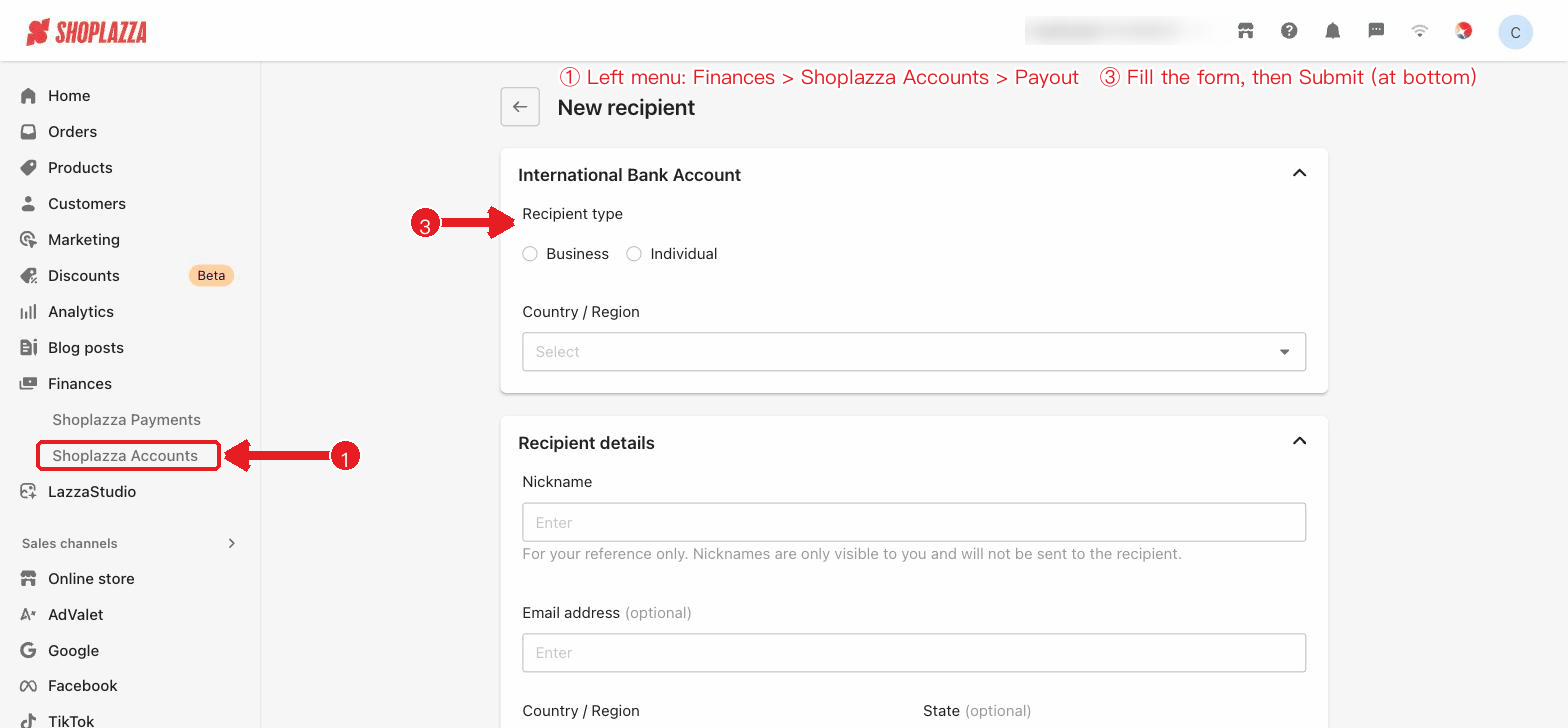
After you select International Bank Account, the expanded form looks like the figure below:
Figure: International Bank Account form — recipient type / country and region plus recipient information.
| Button / control | Location | Function |
| Domestic Bank Account / International Bank Account | Step 1 | Select the account type; this article uses "International Bank Account" (SWIFT). |
| Recipient type: Business / Individual | Bank account information panel | Select the type of recipient entity. |
| Country / Region, Account currency, transfer method (SWIFT) | Bank account information panel | Once selected in turn, fields such as SWIFT code / BIC, bank name, bank account number, and intermediary bank are displayed. |
| Fee bearer: SHA / OUR | Bank account information panel (shown conditionally) | Choose who bears the transfer fee (SHA = shared / OUR = sender pays all). |
| Collapsible panels (bank account / recipient information / detailed address / documents) | Form | Grouped input that can be expanded or collapsed. |
| Add file (upload) | Supplementary documents | Upload documents such as a business license or ID card. |
| Back / Submit | Bottom | Back returns to reselect; Submit completes the addition. |
Next steps
If the transfer needs to go through an intermediary bank, enter the intermediary bank's SWIFT code / BIC correctly; otherwise the funds may be returned or extra fees may be incurred.


Comments
Please sign in to leave a comment.