
Stores lets you link your Shoplazza or other-platform stores to Shoplazza Accounts for collection, settlement quota calculation, and compliance review. Once linked, you can manage multiple stores centrally under the same account.
View the store list
On the store management page you can view your linked stores. Fields include: Store name, Status (Authorized / Authorizing / Authorization failed / Rejected), Source, Store ID, Store currency, and Action.
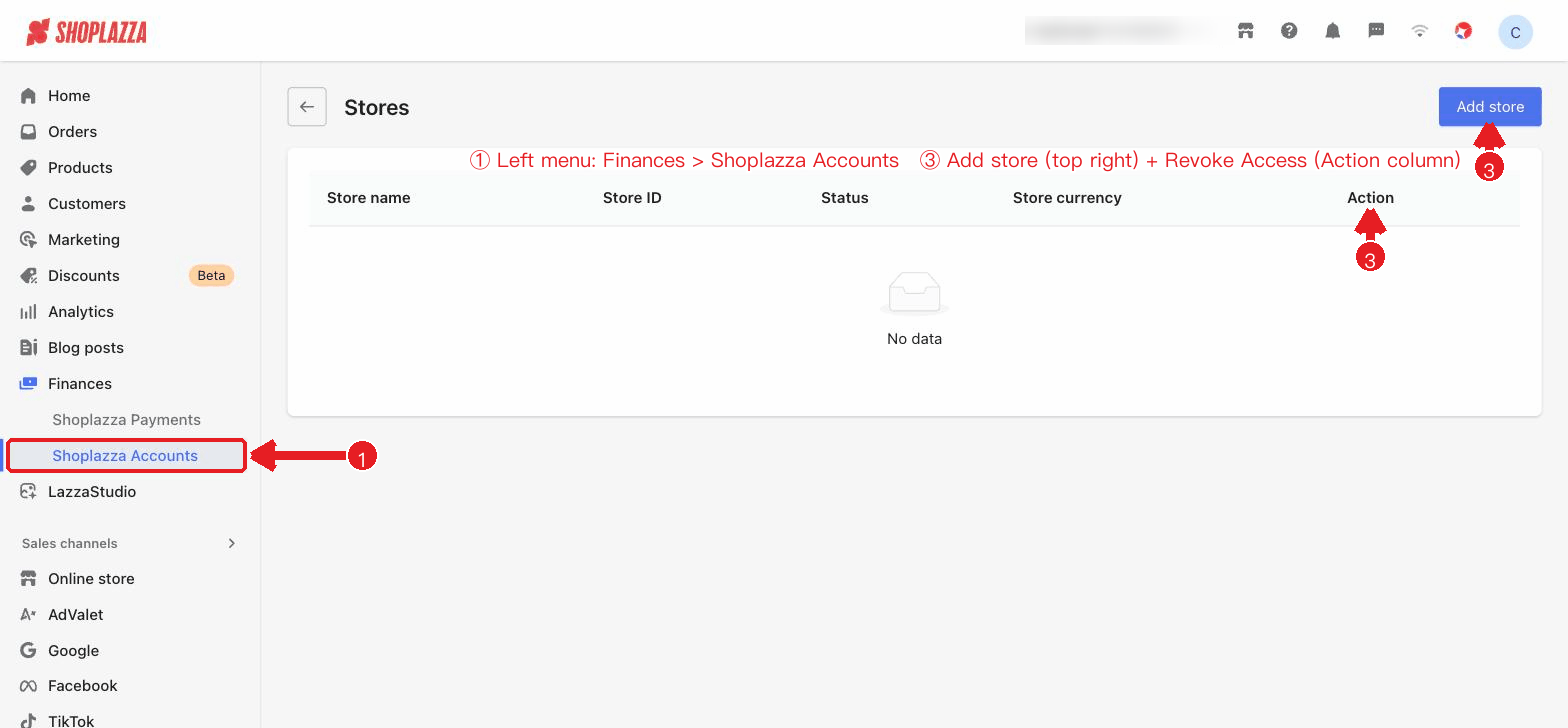
Add a store
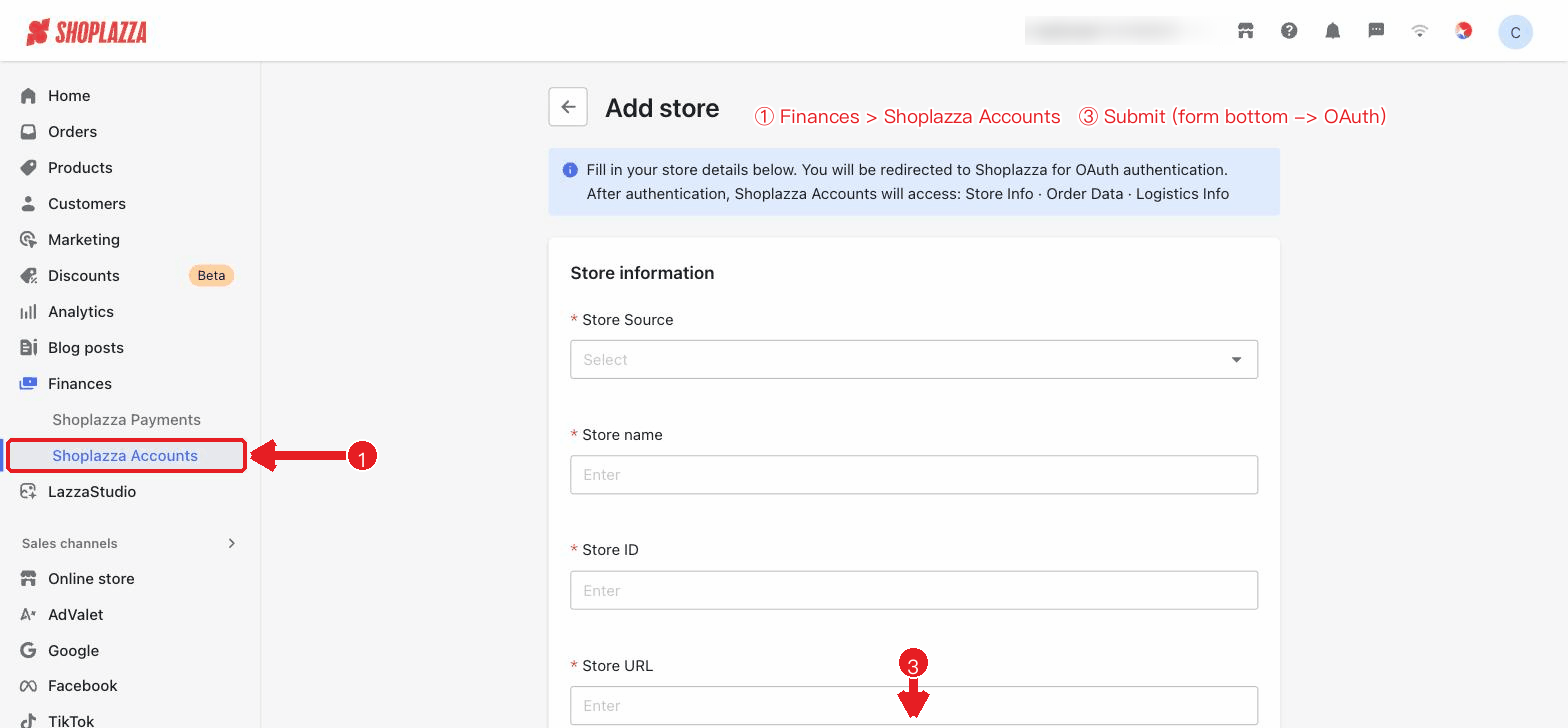
1. Click Add store.
2. Select the Store Source (Shoplazza / Subotiz / other self-built site). When you select Shoplazza, the current store information is filled in automatically.
3. Select the source platform (Shoplazza / Independent site): for Shoplazza, select the store to link; for an Independent site, enter the store name (the store ID is generated automatically). Enter the store URL (preferably a product/category page that shows your items), select the Global Account (the store currency is locked to the selected GA's currency) and the payment service provider, and check the box to agree to the Store Statement.
4. Click Submit. If the source is Shoplazza, you will be redirected to complete OAuth authorization, after which Shoplazza Accounts will access the store information, order data, and logistics information.
Revoke Access
Click Revoke Access in the Action column. After you confirm, the store will be unlinked from your account.
After revocation, this store's quota will no longer be counted toward the settlement quota calculation. Please proceed with caution.
Interface actions and buttons
| Button / Control | Function |
| Add store (top right) | Opens the Add store page. |
| Revoke Access (row action) | Opens a confirmation dialog and unlinks the store from your account (its quota is no longer counted). |
| Store Source (dropdown) | Select Shoplazza / Subotiz / other self-built site. Selecting Shoplazza auto-fills the store name / ID / URL (read-only). |
| Store name / ID / URL | Fill in the store's basic information (read-only for the Shoplazza source). |
| Global Account / Store Currency / Payment Service Provider | Select the Global Account (the store currency is locked to the selected GA's currency) and the payment service provider; then check the box to agree to the Store Statement. |
| Cancel / Submit | Discard / submit; the Shoplazza source redirects to OAuth authorization. |
| Cancel / Revoke Access (revoke dialog) | Discard / confirm revoking access to this store. |


Comments
Please sign in to leave a comment.