
Before you start a CNY Settlement, complete three preparation steps: link your store, apply for a settlement quota, and add a CNY recipient. This article covers the operations on these three tabs.
Stores
On the Stores tab, click Add store: select an activated Global Account, enter the store name, URL, payment provider, source platform, and more, then agree to the declaration and submit. The system will use your platform order data to automatically apply for a settlement quota on your behalf.
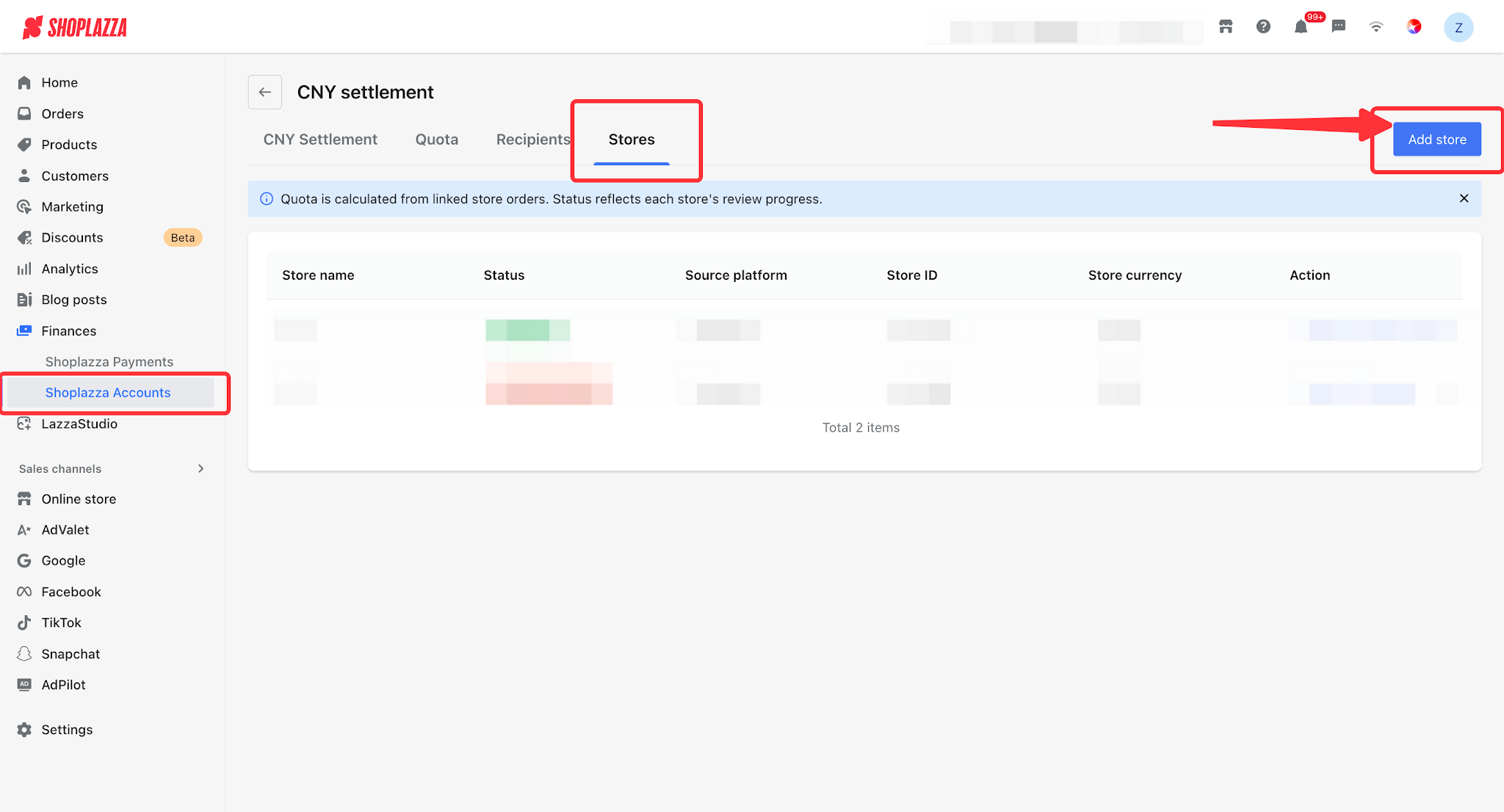
- Store status: Authorizing / Authorized / Authorization failed.
- Available store actions: Details, Revoke access, Resubmit (when failed), and Delete.
Tips
The quota is calculated from the orders of linked stores, and the status reflects each store's review progress. There is no fixed ratio: the system automatically syncs platform orders from linked stores into the order pool, estimates the CNY quota from order amounts, submits declarations, and credits the available quota after review — it depends on your actual valid orders.
Quota
On the Quota tab, view your Available quota, the real-time USD:CNY rate, and the update time. The quota comes from order declarations and includes three sub-tabs:
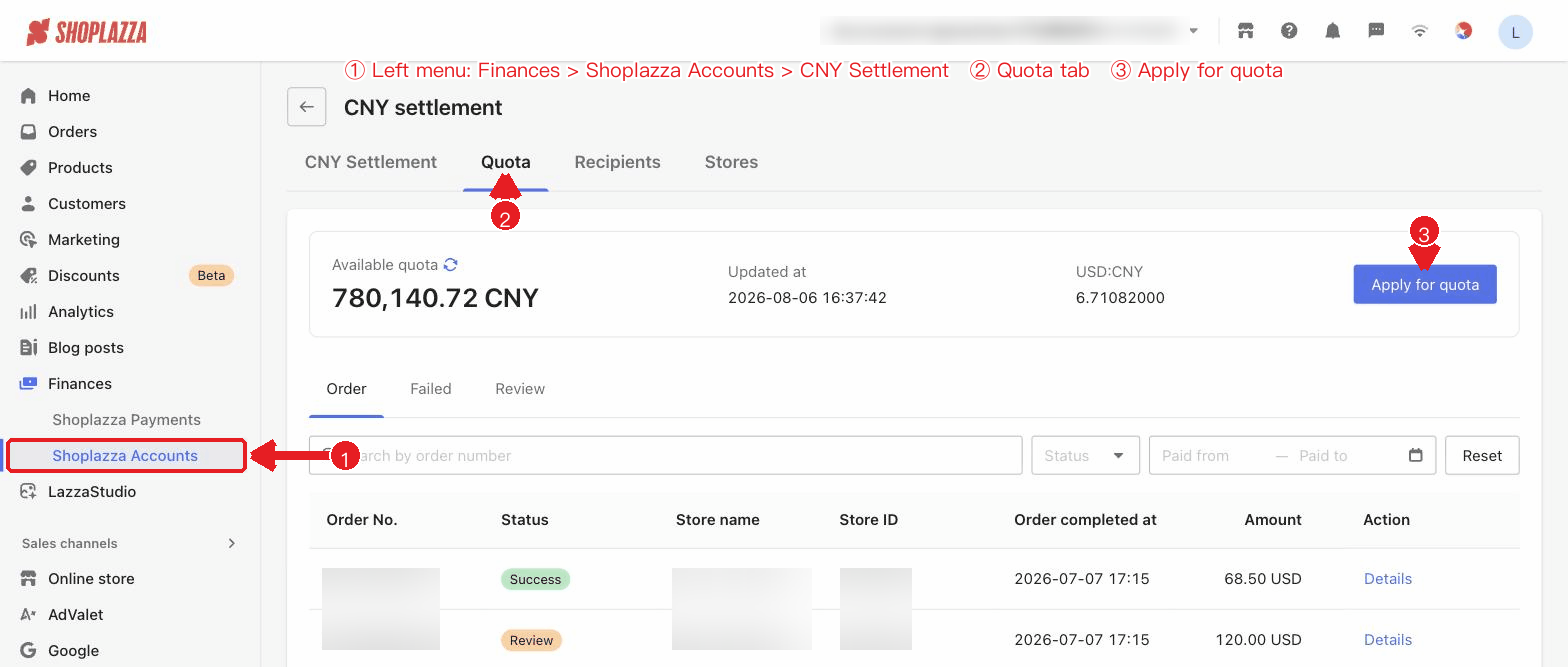
- Order: the list of orders pending declaration. After a SaaS store is authorized, eligible orders are synced automatically and declared to obtain quota. You can also import orders (.xls/.xlsx/.csv, ≤10MB, ≤500 rows; a template is available for download) or sync store data, then select orders and submit the declaration.
- Failed: orders that failed declaration; you can edit the product information and then reapply for quota.
- Review: orders under declaration and approved orders, along with batch details.
Note
Orders eligible for declaration must meet the following conditions: within 330 days, paid, completed, and not yet declared. Once a declaration is submitted, the orders are locked and can no longer be edited.
Recipients
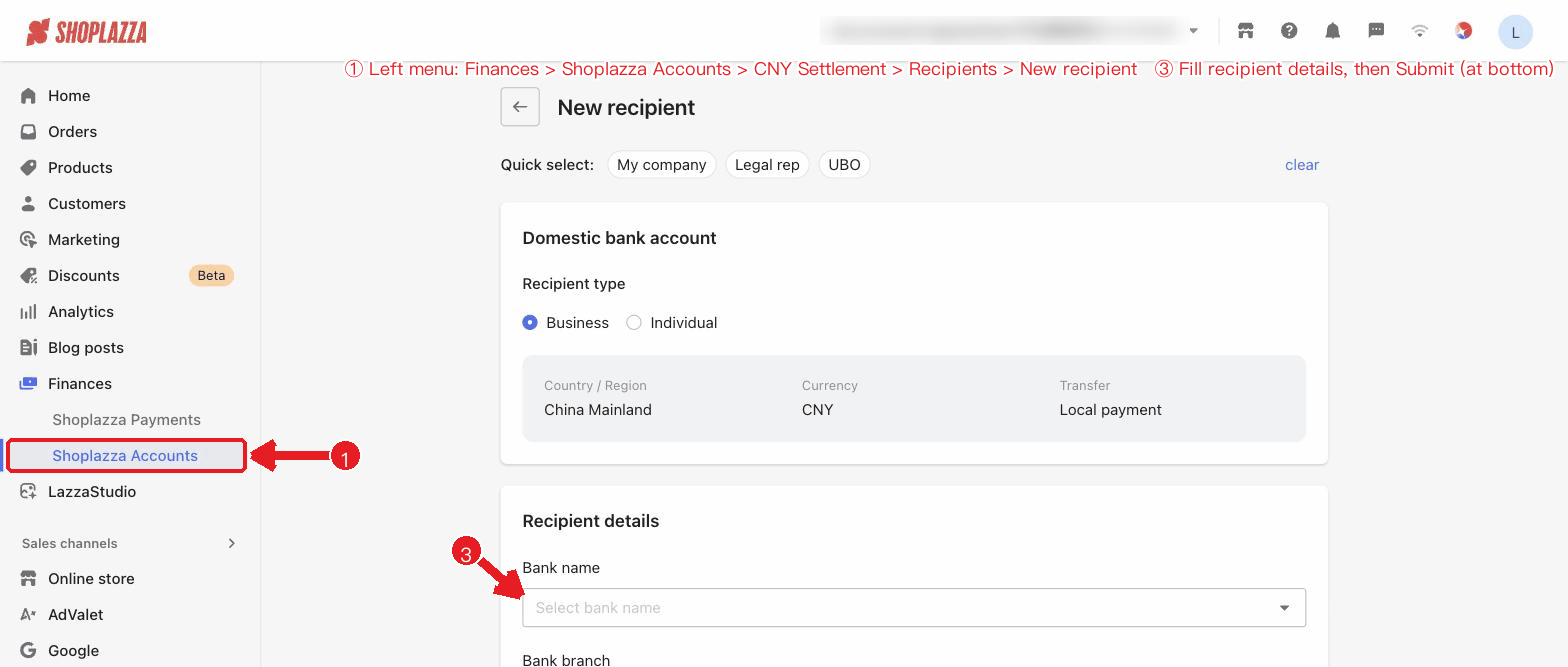
On the Recipients tab, click New recipient to add a domestic CNY bank account:
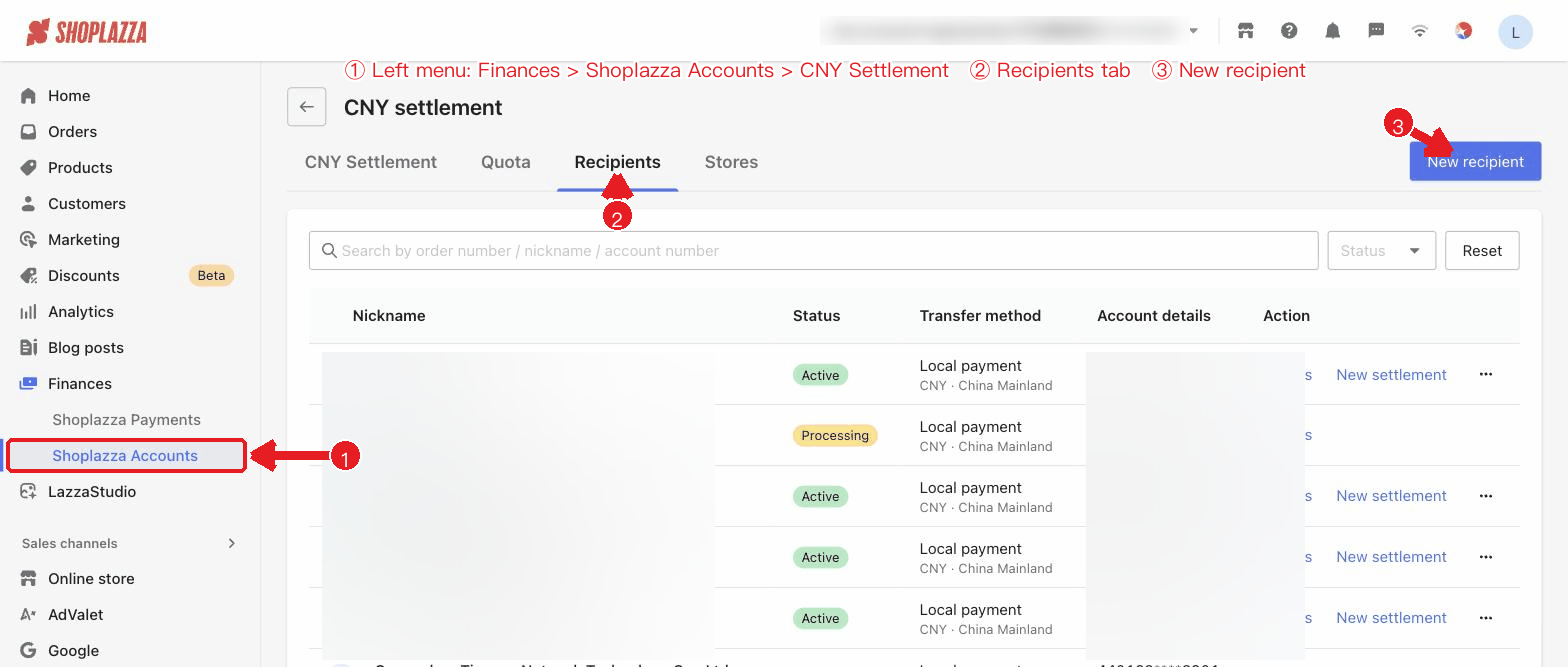
1. Select the recipient type (Business/Individual). You can quickly fill in the details from your KYC data (My company / Legal rep / UBO).
2. Enter the domestic bank account: bank name, province, bank branch, bank account number, account name (in Chinese), and CNAPS code.
3. Enter the recipient details: nickname, Unified Social Credit Code (business) or name and ID number (individual), address, contact information, and more.
4. Click Submit and wait for review (Active / Processing / Required / Rejected).
UI actions and buttons
Stores tab
| Button / Control | Function |
| Add store | Opens the Add store dialog: select an activated Global Account, enter the store information and source, agree to the declaration, and submit. |
| Details / Revoke access / Resubmit / Edit & Resubmit / Delete (row actions) | View store details; revoke store authorization (the quota is no longer counted); resubmit a failed/rejected store; delete a store (confirmation required). |
Quota tab
| Button / Control | Function |
| Refresh | Refresh the available quota and the real-time rate. |
| Order / Failed / Review (sub-tabs) | Switch between orders pending declaration, orders that failed declaration, and orders under declaration / approved. |
| Import / Download template | Upload .xls/.xlsx/.csv (≤10MB, ≤500 rows) to import orders; you can download the import template. |
| Sync orders | Automatically sync eligible orders from linked stores. |
| Submit declaration | Select orders and declare the quota; once submitted, the orders are locked and cannot be edited. |
| Edit / Delete / Reapply for quota (order row actions) | Edit an order's product information, delete an order, or modify a failed order and reapply for quota. |
Recipients tab
| Button / Control | Function |
| New recipient | Add a domestic CNY bank account (you can quickly fill in the details from your KYC data). |
| Details / New settlement / Payout / Add document / Delete (row actions) | View the recipient; quickly start a settlement; initiate a payout; add supplementary documents (when required); delete the recipient. |


Comments
Please sign in to leave a comment.