
CNY Settlement lets merchants convert overseas revenue into CNY in a compliant way, with near real-time credit to a domestic bank account. Link and authorize a store to declare your settlement quota, create a CNY recipient, and you can initiate a settlement transaction.
Settlement workflow at a glance
1. Set up a store: Link and authorize a store, used for order-data syncing and quota calculation.
2. Add a recipient: Add a domestic CNY bank account.
3. Apply for a quota: Declare your settlement quota based on eligible orders.
4. Initiate a settlement: Select a recipient, enter an amount, and submit after confirming the exchange rate and fee.
Page overview
Go to Finances > Shoplazza Accounts > CNY Settlement. The page has four tabs: CNY Settlement, Quota, Recipients, Stores, with New settlement in the top-right corner. You can check order number, transaction date, status, recipient, you pay, recipient gets, reference, and action. You can search by order number / nickname / account number, filter by status and date, and select "RFI order" to show RFI orders only.
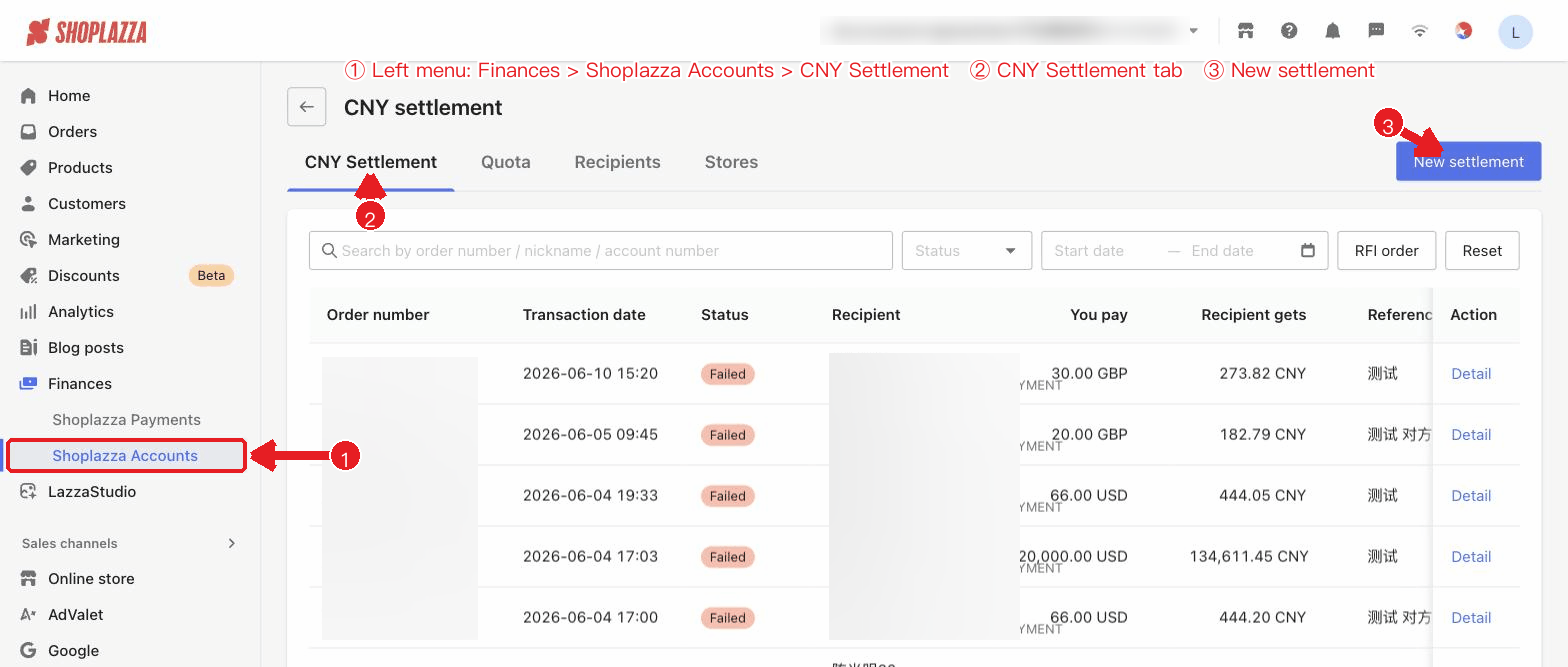
Initiate a settlement
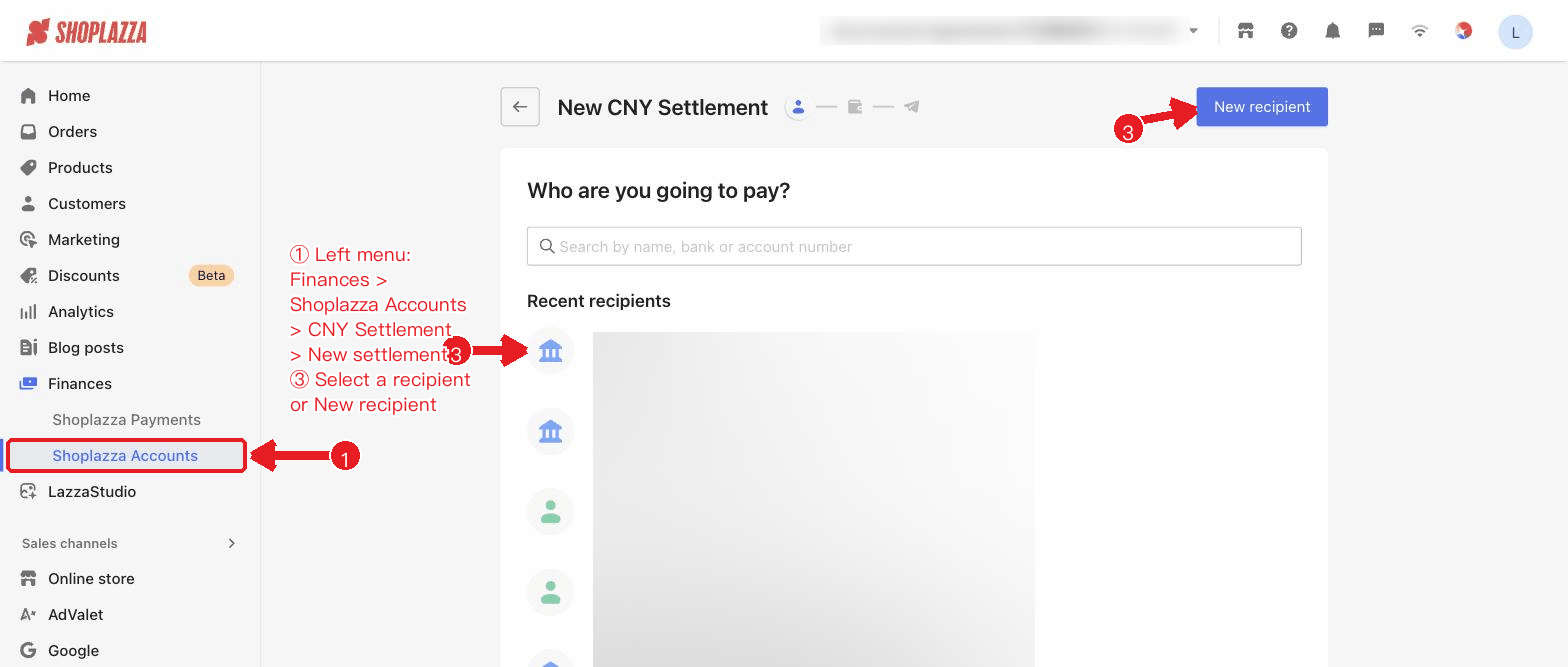
1. Click New settlement and select a recipient (you can search "recent recipients / all recipients").
2. Select a payment account and enter the You pay or Recipient gets amount. The system shows the real-time exchange rate, available settlement quota, and fee.
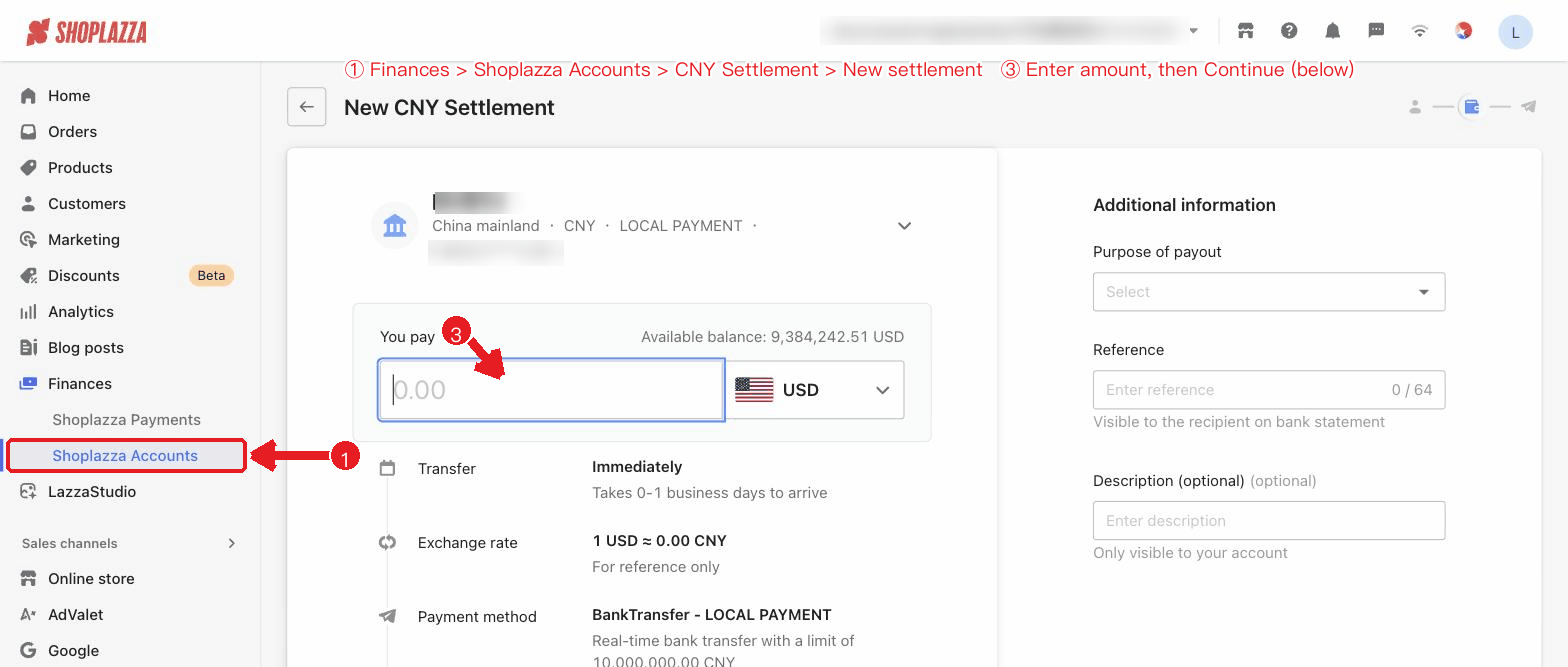
3. Select a Purpose, then fill in the Reference (visible on the recipient's bank statement) and Description (internal only).
4. Click Continue, review the information, and enter your 6-digit transaction password to submit.
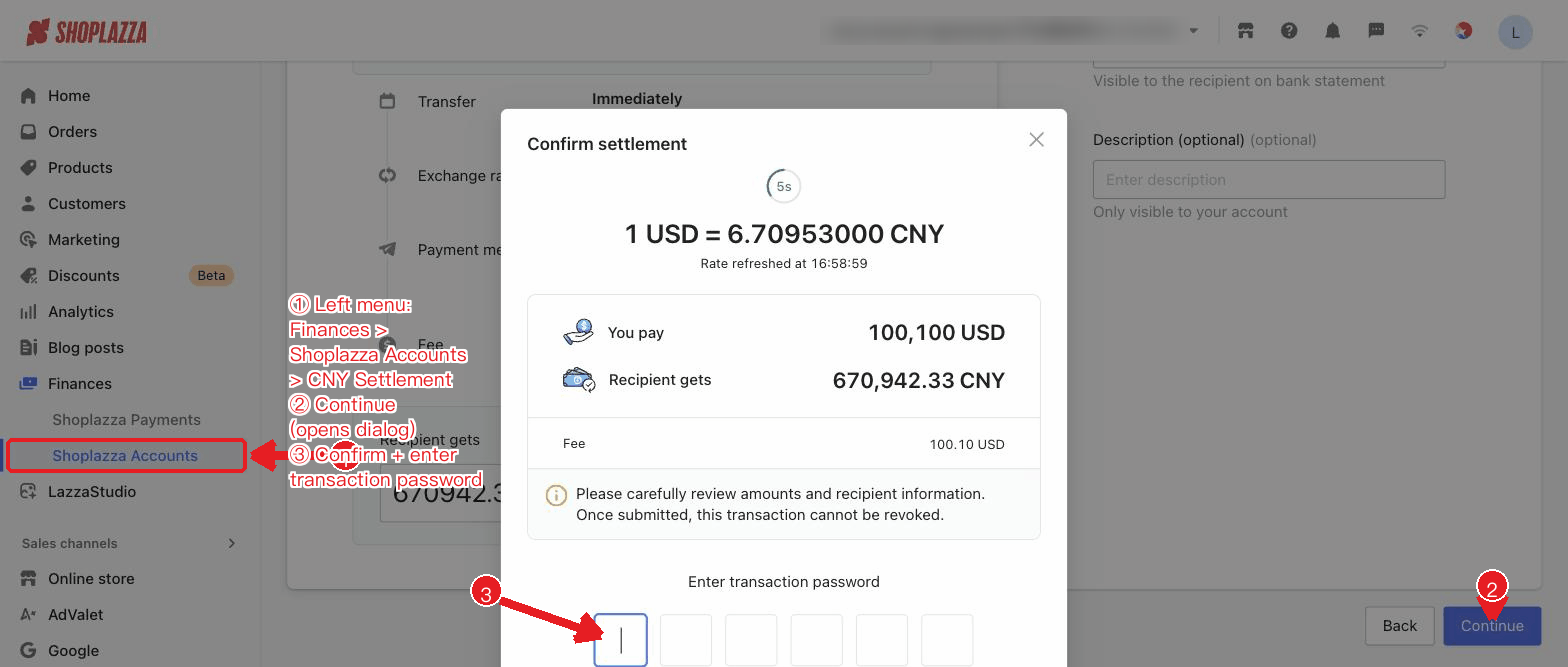
Please carefully review the amount and recipient information. Once submitted, the transaction cannot be revoked. The amount must not exceed your remaining settlement quota.
Settlement statuses
| Status | Description |
| Processing | The settlement is being processed. |
| Success | The settlement is complete and the funds have been credited. |
| RFI | Additional documents (RFI) are required before processing can continue. |
| Failed | The settlement was not successful. |
| Reversed | After processing, the recipient bank failed to credit the funds and returned them. |
Interface actions and button reference
Clicking New settlement takes you to the first step (select a recipient), shown below:
| Button / control | Function |
| CNY Settlement / Quota / Recipients / Stores (tabs) | Switch between the settlement records, quota, recipients, and stores views. |
| New settlement (top-right) | Start the settlement workflow: select a recipient → enter an amount → confirm and enter the transaction password. |
| Search / Status / Date (filters) | Search by order number / nickname / account number, and filter settlement records by status and date. |
| RFI order (checkbox) | Show only settlement orders that require additional documents. |
| Reset | Clear all filters. |
| Detail (row action) | View the settlement amount, CNY amount, exchange rate, fee, recipient, reference, and more. |
| Select recipient / Search / New recipient | The first step of a new settlement: choose from recent / all recipients, or create a new recipient. |
| Fix You pay / Fix Recipient gets | In a new settlement, choose whether the calculation is based on the you-pay or recipient-gets amount. |
| Purpose / Reference / Description | Select the settlement purpose, and fill in the reference (visible on the bank statement) and description (internal only). |
| Continue → Confirm → Transaction password | Review the information, then enter your 6-digit transaction password to submit. Once submitted, it cannot be revoked. |


Comments
Please sign in to leave a comment.