
This article covers viewing and day-to-day management of Cardholders, including the cardholder list, status descriptions, Details, supplementary materials, Apply for a card, and Edit/Delete operations.
View the cardholder list
Go to Funds > Shoplazza Accounts > Issuing and click the Cardholder tab. You can check Name, Email, Creation time, Linked cards (number of shared cards / regular cards), status, and Actions (Details / Apply for a card / Edit / Delete). You can search by name or email and filter by status and date.
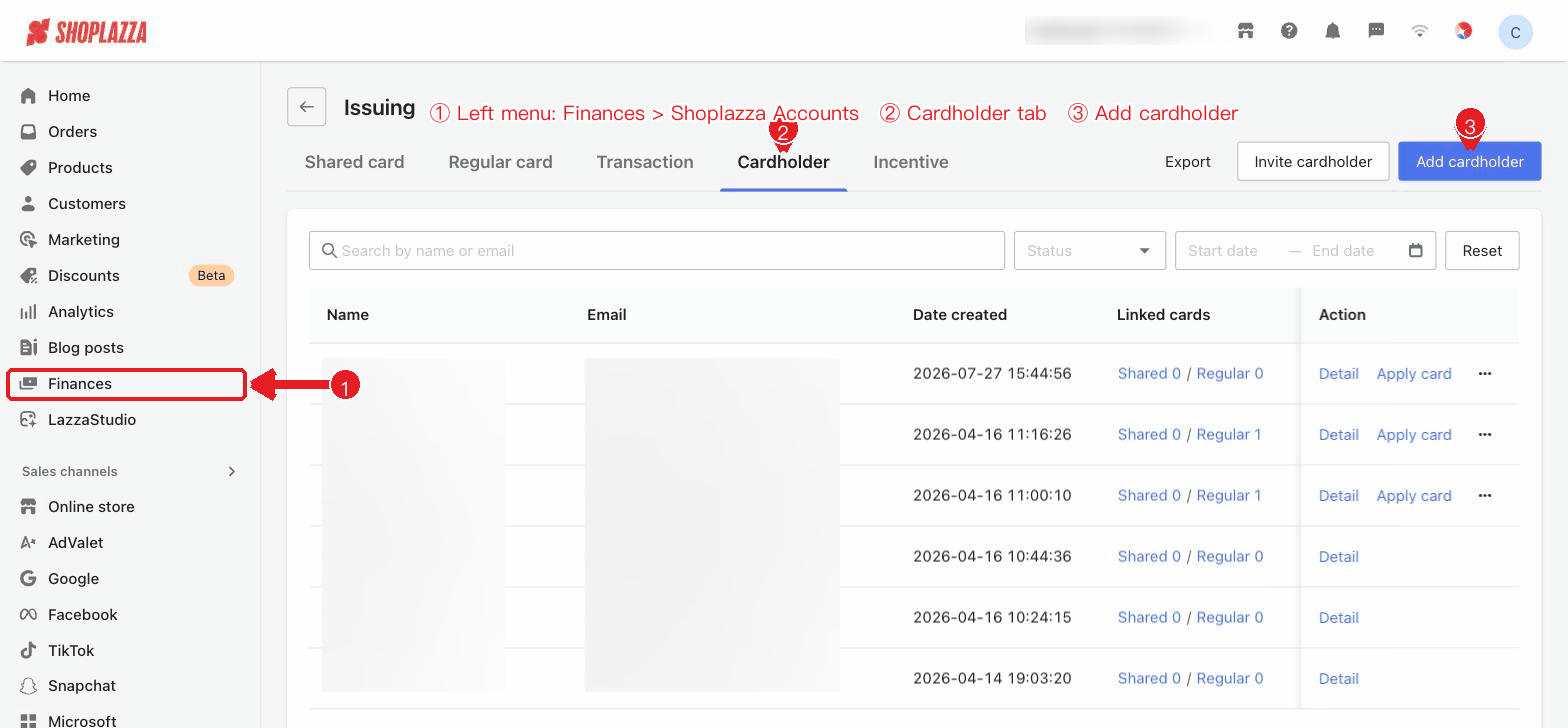
Status
| Status | Description |
| Normal | Approved and available for applying for a card. |
| Under review | Materials are under review. |
| To be modified | Materials need to be supplemented or modified. |
| Rejected | The review was not approved. |
Common operations
- Details: View cardholder information and linked cards (you can switch between all cards / shared cards / regular cards).
- Supplementary materials: When the review status is "To be modified / Rejected", you can supplement the missing files and resubmit.
- Apply for a card: Appears when the status is "Normal" and you have card-issuing permission; provides a quick entry to the card application flow with this cardholder pre-filled.
- Edit / Delete: Modify cardholder information or delete a cardholder (confirmation required).
Interface operations and button descriptions
| Button / Control | Function |
| Search / Status / Date / Reset | Search by name or email, filter by status and date, and reset with one click. |
| Details (row action) | View cardholder information and linked cards (you can switch between all cards / shared cards / regular cards). |
| Supplementary materials (row action) | Appears when the status is "To be modified / Rejected"; supplement the missing documents and resubmit. |
| Apply for a card (row action) | Appears when the status is "Normal" and you have card-issuing permission; provides a quick entry to card application with this cardholder pre-filled. |
| Edit / Delete (row action) | Modify cardholder information / delete a cardholder (confirmation required). |


Comments
Please sign in to leave a comment.