
A Shared card uses a funding pool (Issuing account) model: multiple Shared cards draw from the same funding pool, and purchases are automatically deducted from the pool without needing to fund each card individually, with support for auto fund in. It is ideal for unified fund management scenarios such as multiple ad accounts, multi-team collaboration, and corporate procurement. U.S. cards now also support regular cards, for AI and advertising scenarios.
Prerequisites
- You have activated Shoplazza Accounts and completed identity verification (KYC/KYB).
- You have created a cardholder whose status is "Normal" (see "Issuing | Add a Cardholder").
- You have set a 6-digit transaction password.
- Shared card purchases are deducted from the Issuing account funding pool, so make sure the account has sufficient balance (minimum Fund In is 100 USD; see "Issuing | Manage Shared Cards").
Apply for a Shared Card
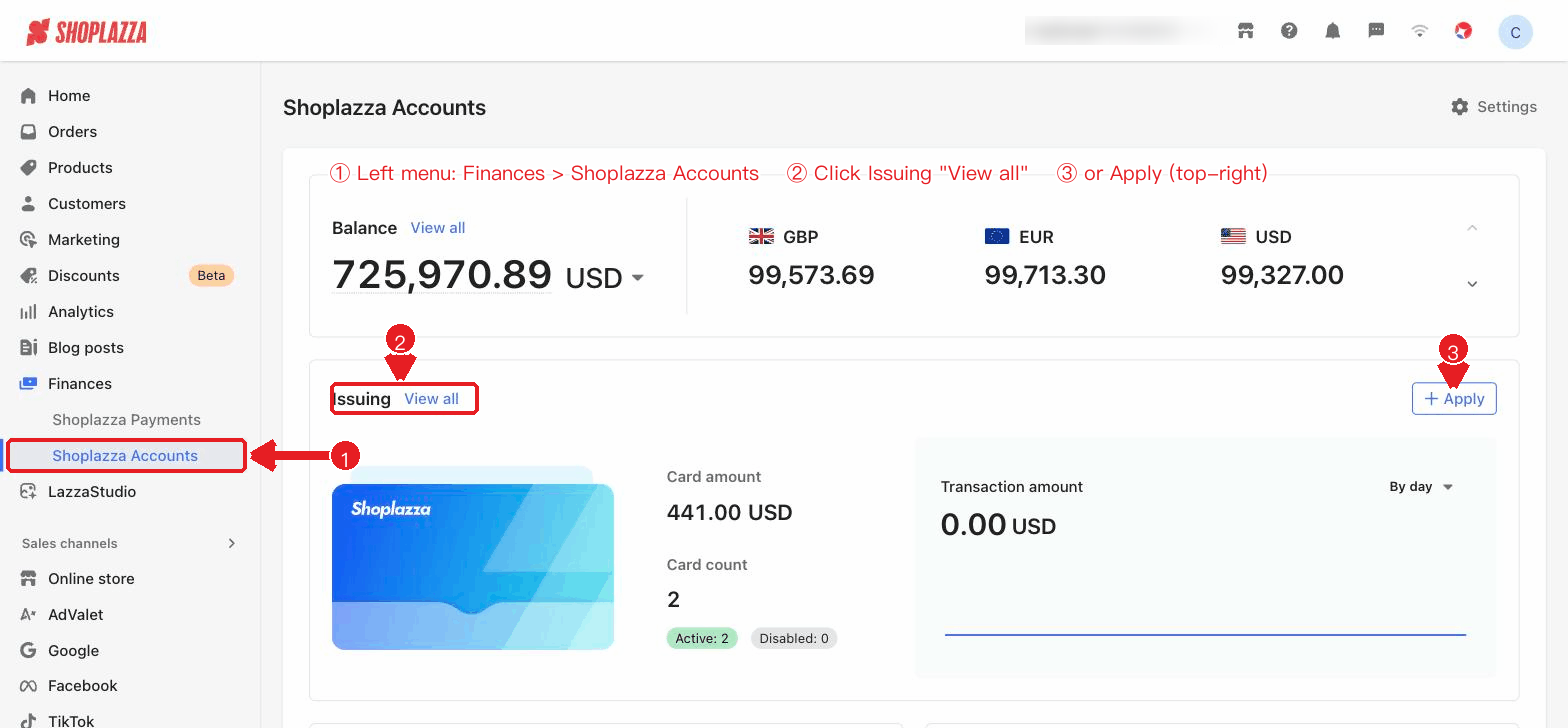
1. Navigate to your Shoplazza admin go to Funds > Shoplazza Accounts > Issuing > Shared Cards, and click Apply for a card.
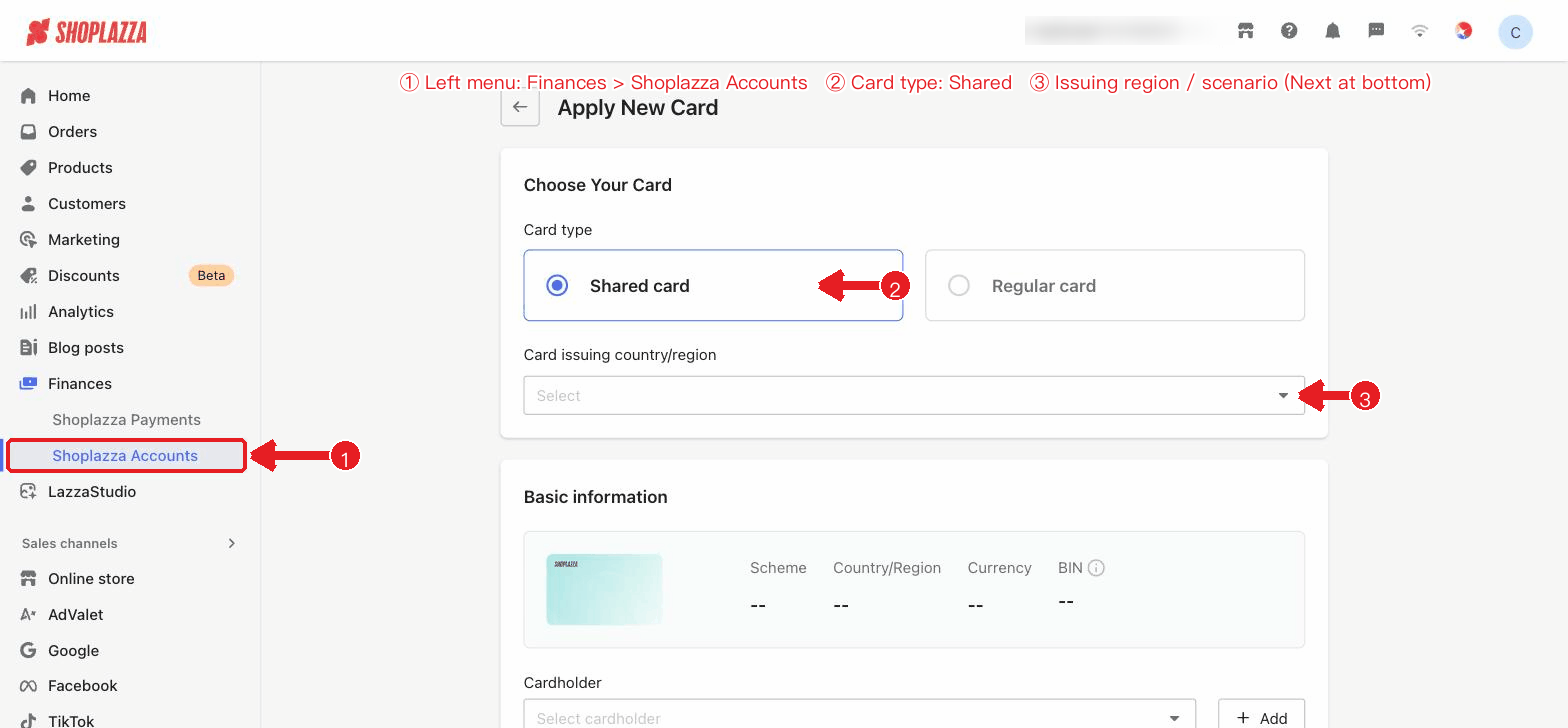
2. Select the card type: here, select Shared card (linked to an Issuing account and sharing the funding pool balance).
3. Select the use case (advertising, subscriptions, cloud services, AI, etc.) and the corresponding platform.
4. Select the issuing region and card network (Shared cards support HK Hong Kong cards and US US cards).
5. Select the cardholder and enter the number of cards to apply for (up to 10 at a time). Shared cards do not require funding each card individually; funds are supplied uniformly by the Issuing account. You can also set the single / daily / monthly limit; the upper limit depends on the issuing region (e.g., HK cards up to single 100,000 / daily 1,000,000 / monthly 5,000,000 USD; US cards up to 500,000 USD each; monthly ≥ daily ≥ single), subject to what is shown on the application page.
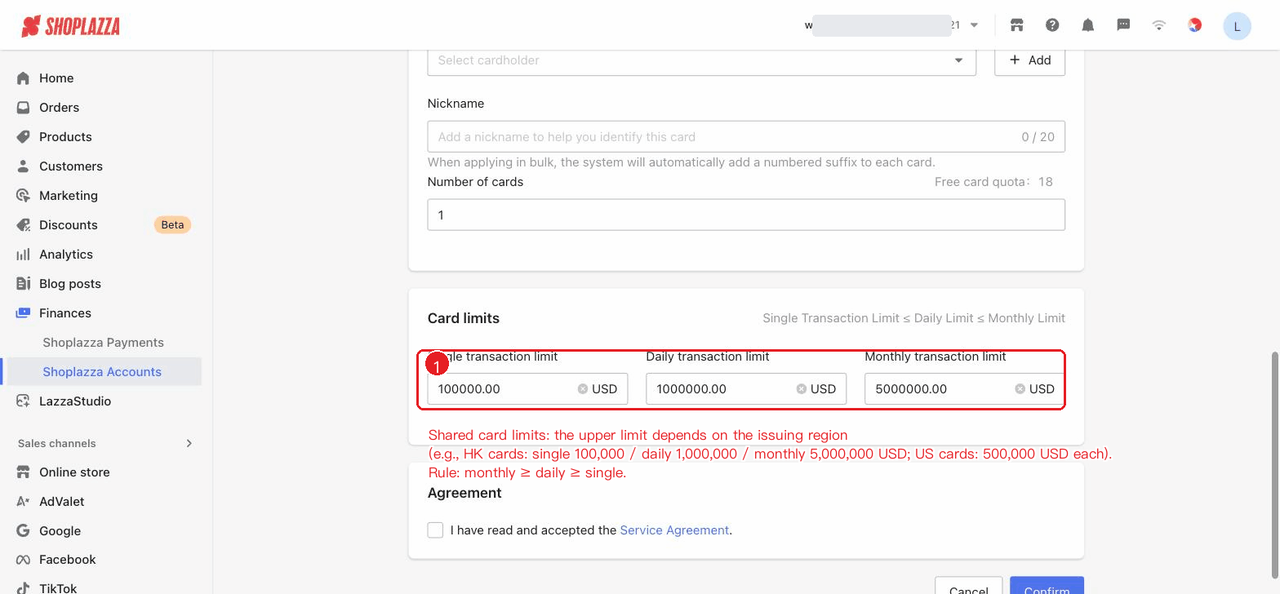
6. Review the card issuance fee and related information, and check the Service Agreement.
7. Click Next steps, confirm the information, and enter your 6-digit transaction password to complete card issuance.
Note
Once a Shared card is issued, purchases are deducted from the Issuing account. We recommend that after issuing the card you go to the Shared Cards page to fund the Issuing account (Fund In), and enable Auto fund in as needed, to avoid failed purchases caused by insufficient funding pool balance. When you choose a US non-3DS card, it is not covered by 3DS liability shift protection, so please choose carefully.
Regular Card vs. Shared Card
| Comparison item | Regular card | Shared card |
| Funding model | Independent balance per card | Shared Issuing account funding pool |
| Funding method | Fund each card individually (≥100 USD) | Fund in to the Issuing account, with auto fund in supported |
| Applicable scenarios | A single ad account, payment to a single supplier | Multiple ad accounts, multiple teams, corporate procurement, AI scenarios |
| Issuing region | HK Hong Kong cards | HK Hong Kong cards, US US cards |


Comments
Please sign in to leave a comment.