
A Regular card uses a per-card independent balance model: each card is applied for and topped up individually, and purchases are deducted directly from that card's balance. It is well suited to independent budget management where "one card corresponds to one business scenario." Before applying for a card, you must first create a Cardholder and have it approved.
Prerequisites
- You have activated Shoplazza Accounts and completed identity verification (KYC/KYB).
- You have created a Cardholder whose status is "Active" (see "Issuing | Add a Cardholder").
- You have set a 6-digit transaction password (required to verify sensitive operations such as issuing a card).
- Once the free card quota is used up, you must top up when issuing a card. The minimum for a single Regular card is 100 USD.
Apply for a card
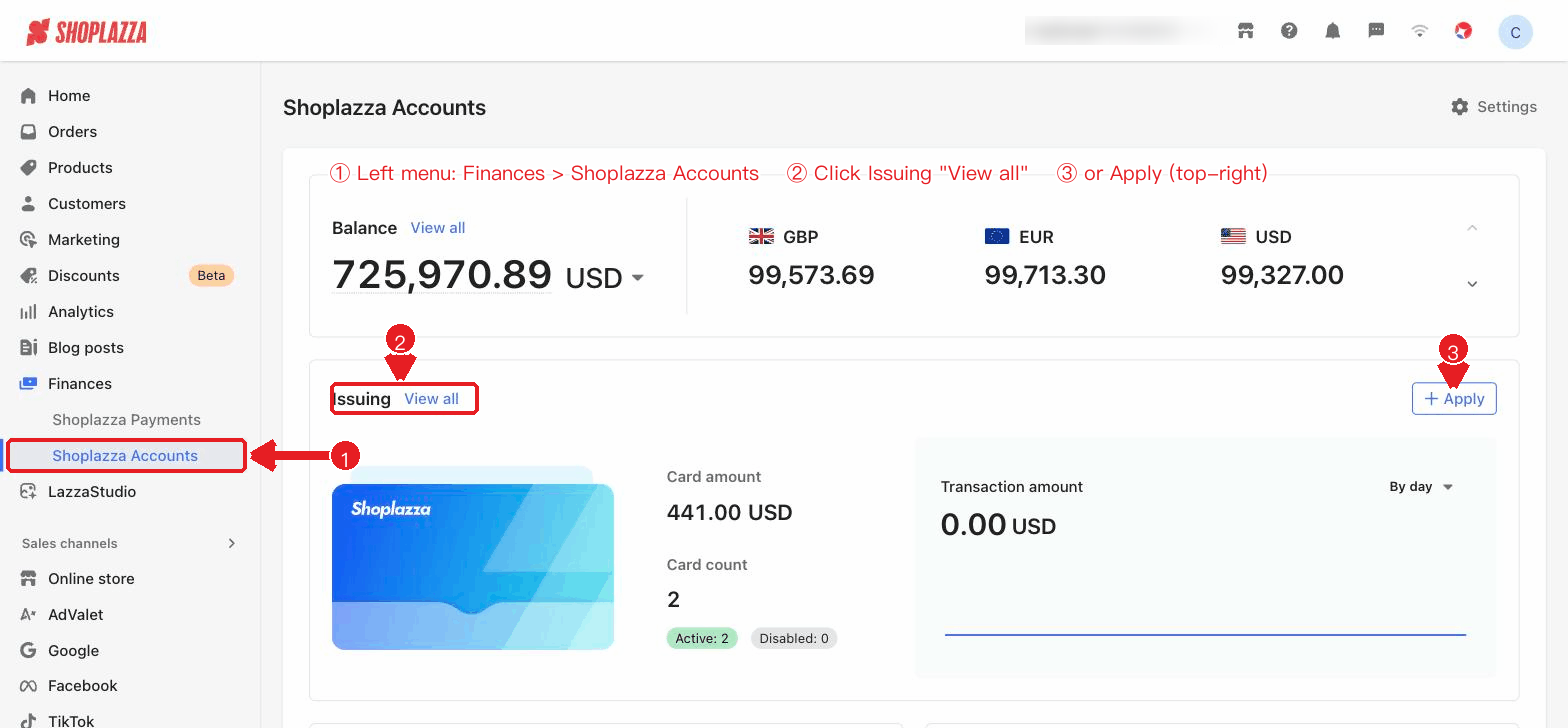
1. Navigate to your Shoplazza admin and go to Funds > Shoplazza Accounts > Issuing > Regular Cards and click Apply New Card in the top-right corner.
2. Select the card type: here, select Regular card.
3. Select the usage scenario (advertising, travel, subscriptions, cloud services, e-commerce, logistics, AI, etc.), and optionally select the corresponding platform.
4. Select the issuing region and card network (e.g., Hong Kong or U.S. Mastercard). You can also let the system assign the BIN at random.
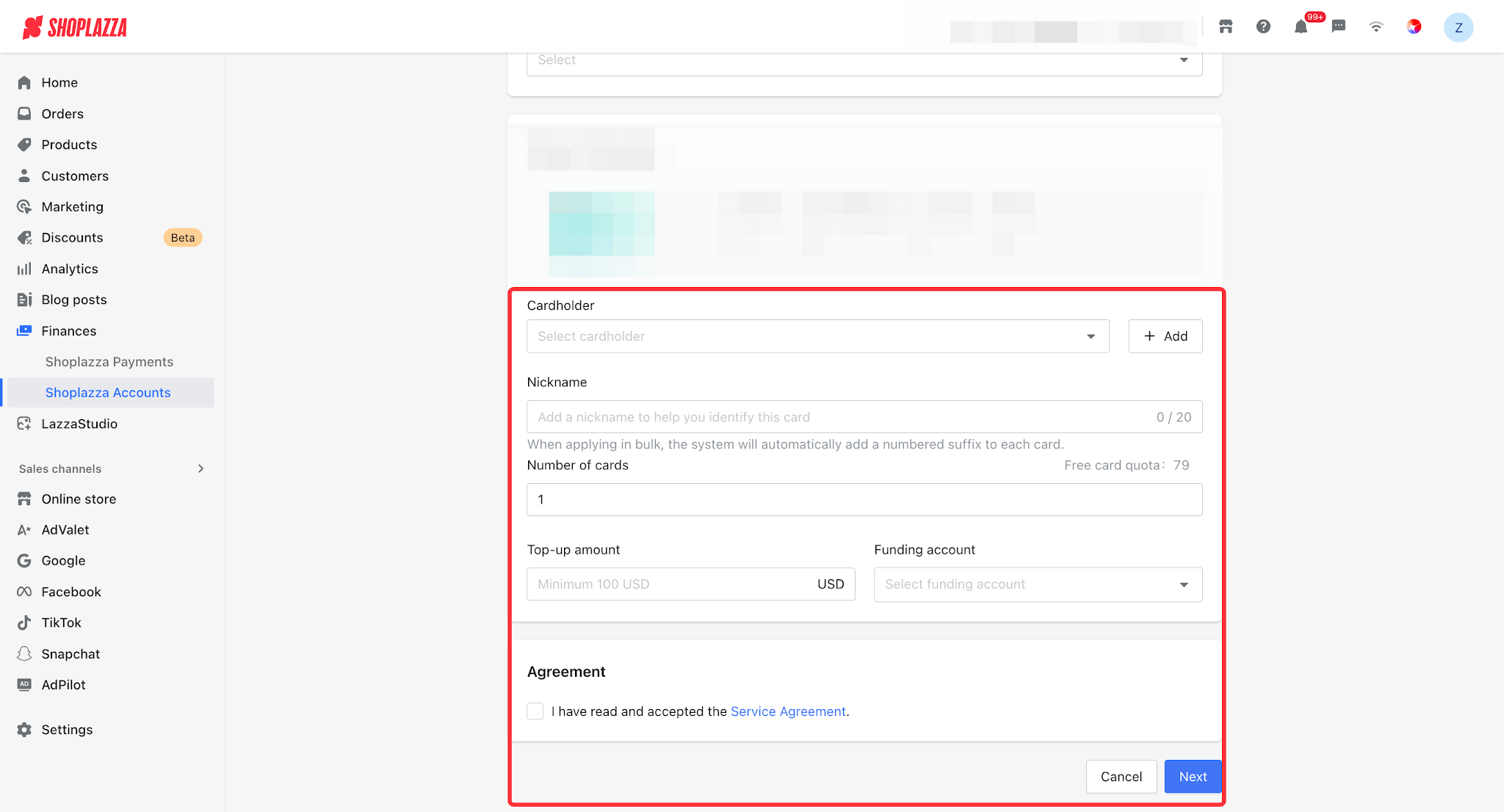
5. Select the Cardholder, enter the number of cards to apply for (up to 10 at a time) and the top-up amount per card (minimum 100 USD for a Regular card), and select the funding account.
6. Review the issuing fee, exchange rate (if currency conversion is involved), amount payable, and the amount credited to the card, then check the service agreement.
7. Click Next, confirm the information, and enter your 6-digit transaction password to complete the card issuance.
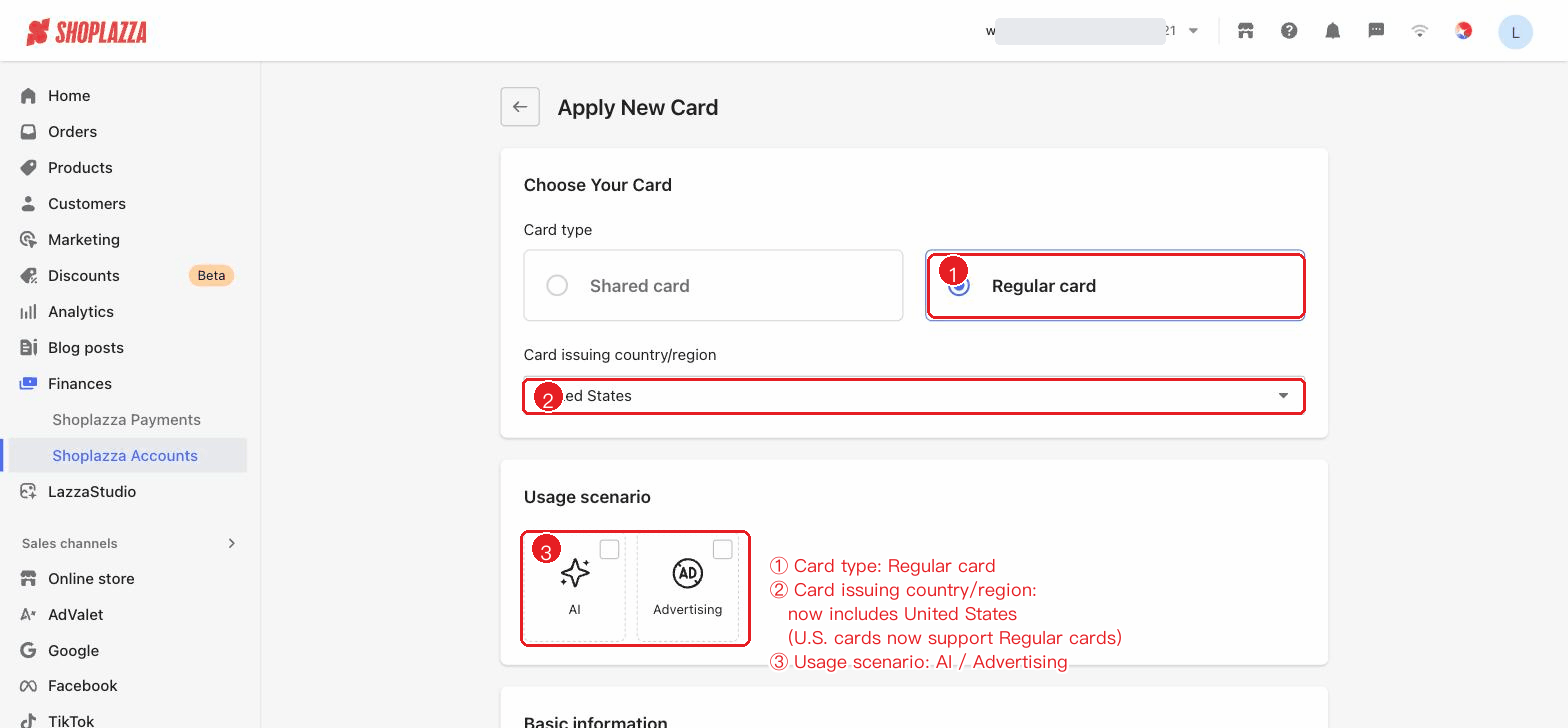
When you select a U.S. non-3DS card, transactions are not protected by 3DS liability shift and are not eligible for chargebacks or dispute claims, so please choose carefully. In addition, U.S. cards now also support Regular cards, for AI and Advertising scenarios.
Card status
| Status | Description |
| Active | The card can be used normally. |
| Freezing / Frozen | The card is frozen or being frozen; transactions are suspended. |
| Unfreezing | The card is being unfrozen. |
| Canceling / Canceled | The card is being canceled or has been canceled. |
UI operations and button reference
| Button / control | Location | Function |
| Apply New Card | Top-right of Regular Cards | Enters the card issuance flow (requires the issuing permission; Regular cards also require the top-up permission). |
| Card type: Shared card / Regular card | Step 1 of Apply for a card | Select the card type (here, select Regular card). |
| Usage scenario + platform (multi-select) | Apply for a card | Select the scenario (advertising / travel / subscriptions / cloud services / e-commerce / logistics / AI / other) and the corresponding platform. |
| Issuing region / card network / random assignment | Apply for a card | Select the issuing region and card network (Mastercard), or let the system assign the BIN at random. |
| Cardholder / quantity / top-up per card / funding account | Apply for a card | Select the Cardholder, the number of cards, the top-up amount per card (≥100 USD), and the account to be charged. |
| Service agreement (checkbox) | Apply for a card | You must check to agree to the service agreement before continuing. |
| Next → Confirm → Transaction password | Apply for a card | Confirm the order information and enter the 6-digit transaction password to complete the card issuance. |
| Go to card list / Apply for another / Retry | Result page | View the result, continue issuing cards, or retry a failed order. |


Comments
Please sign in to leave a comment.