
The Balance feature brings together your available balance, pending pay in, and pending pay out across all currencies in Shoplazza Accounts, and provides complete transaction details — helping you keep track of your funds and transaction records in real time for everyday reconciliation and financial management.
View your account balance
1. Open the Balance page: Go to Finances > Shoplazza Accounts > Balance.
2. View total balance: The top of the page shows your total balance converted at the latest exchange rate. Use the dropdown on the right to switch the display currency for the conversion.
3. View balance by currency: The balance list shows the key information for each currency account.
The balance list includes the following fields:
| Field | Description |
| Currency | The account currency (with a flag icon). |
| Global accounts | The number of activated global accounts under this currency. Click to jump to the Global Accounts list. |
| Pending pay in | Incoming amounts that are being processed and not yet added to your available balance. |
| Pending pay out | Outgoing amounts that are being processed and frozen pending deduction. |
| Available balance | The balance currently available for operations such as payouts, currency exchange, and card issuing. |
| Action | Click "Detail" to view the details of this currency account. |
Figure 1: Account balance list page
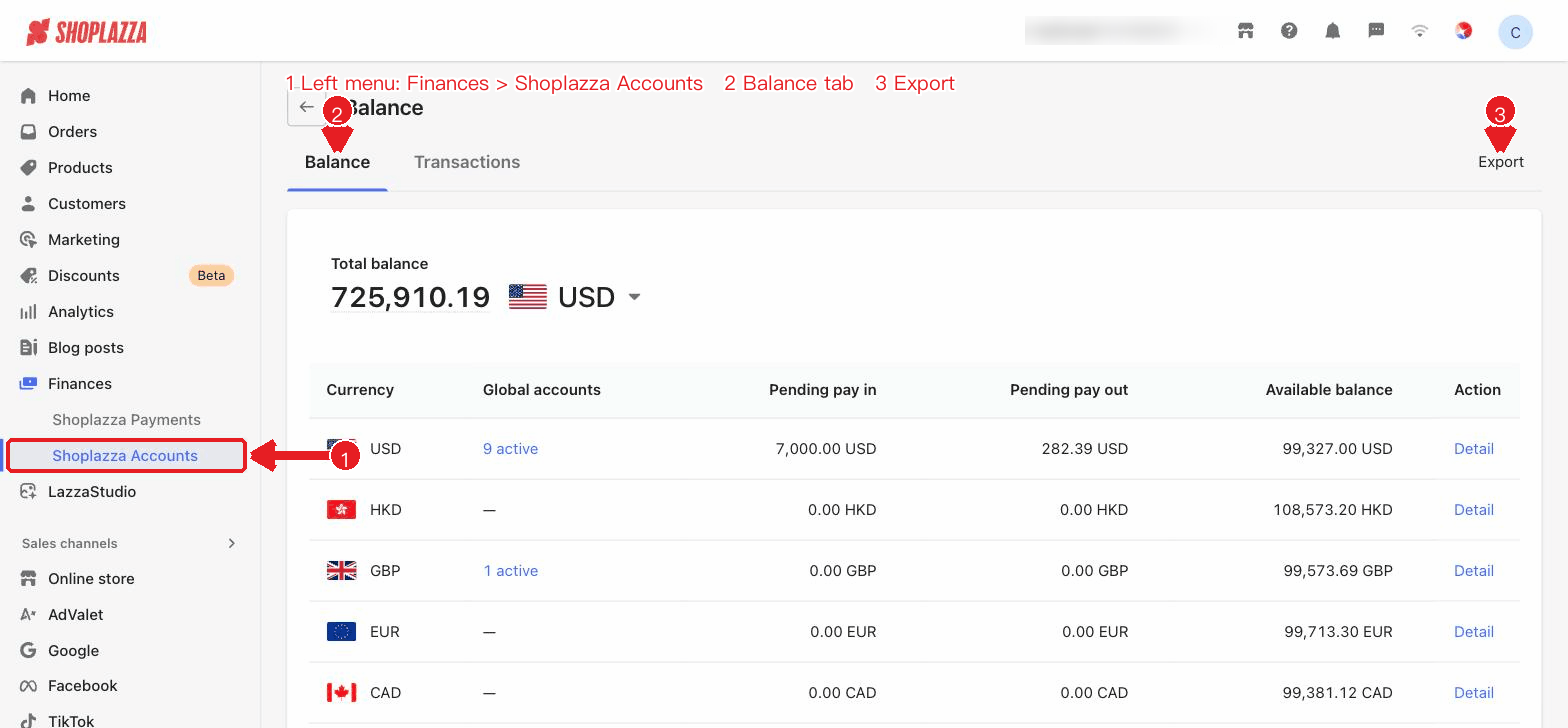
Figure: Account balance list — total balance and per-currency balances (USD/HKD/GBP/EUR)
Total balance is an estimated total of the available balances of all currencies, converted at the latest exchange rate, and is for reference only. The actual amount is subject to the available balance of each currency.
View transaction details
1. Switch to the "Transactions" tab: View the unified transaction records across all currency accounts.
2. Search and filter: Enter an order number in the search box to look one up, or use the transaction type filter and select a start date — end date. Click Reset to clear all filters.
3. View list fields: These include created at, order number, transaction type, amount, and balance.
Figure 2: Transactions tab
Figure: Transaction details — collection/payout/fee records
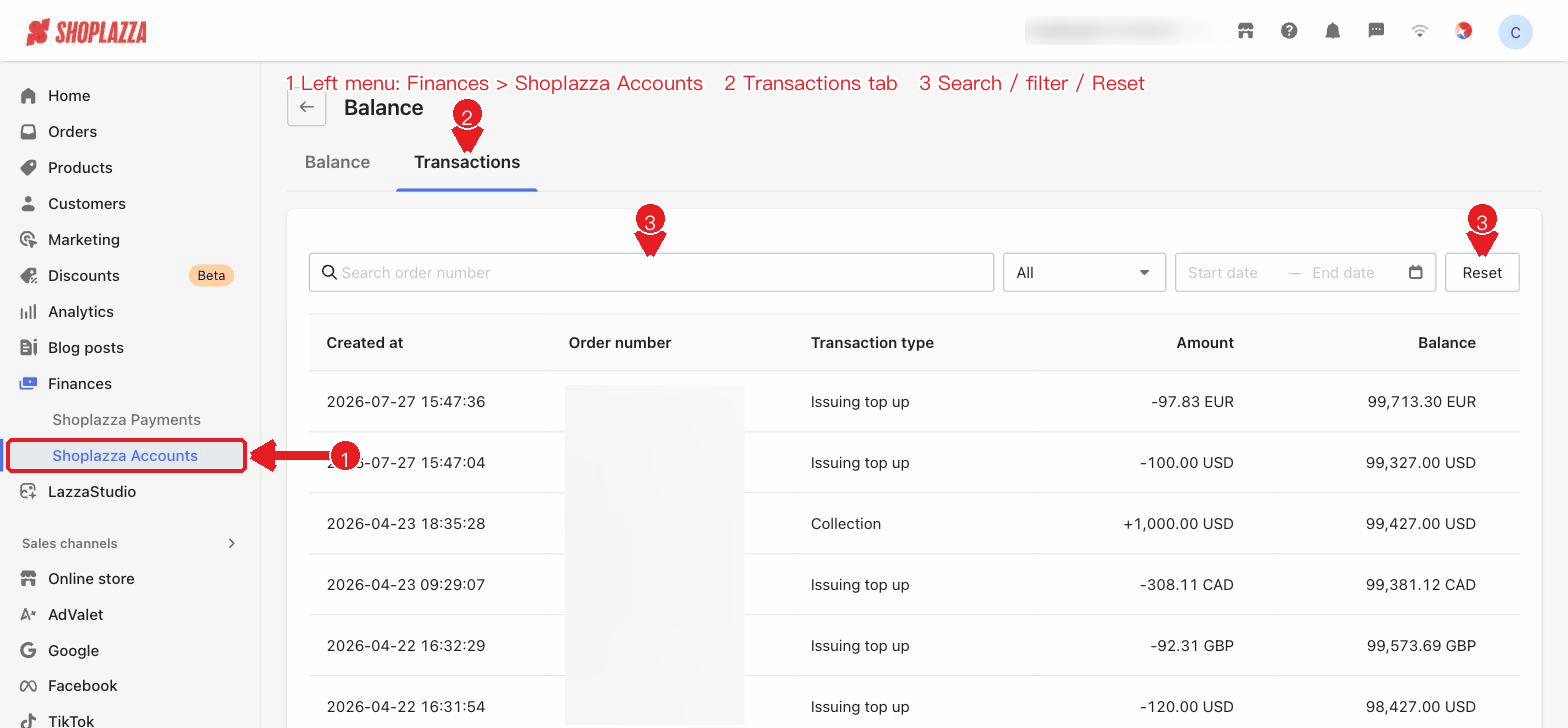
Common transaction types:
| Transaction type | Description |
| Collection | Incoming funds received through a global account. |
| Payout | Outgoing payments made to a recipient. |
| Fx | Fund changes resulting from currency exchange. |
| Fee | The fee deducted for a transaction. |
| Transfer In | Funds transferred in between accounts. |
| Issuing fund in / transfer out | Funding a virtual card shared account or transferring funds out of it. |
| Issuing top up / refund | Fund changes resulting from virtual card top-ups and refunds. |
The transaction types actually displayed are subject to the admin page.
View a single-currency account's details
1. Open the details: In the balance list, click Detail for a currency.
2. View the account overview: This shows the current balance, pending pay in, and pending pay out of this currency account.
3. View this currency's transaction details: This shows all transaction records for this currency account, and likewise supports searching by order number and filtering by transaction type and date.
Figure 3: Single-currency account details page
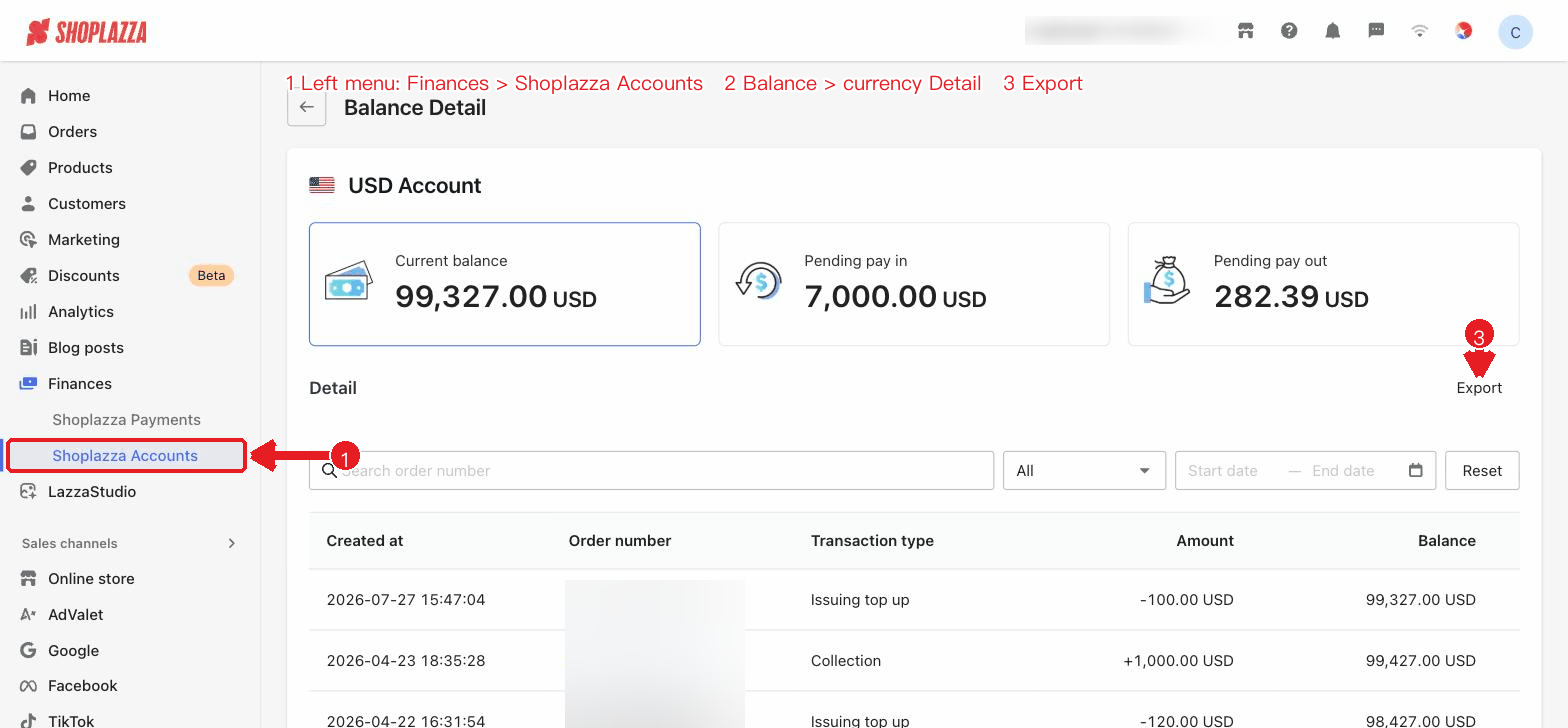
Figure: Single-currency account details — USD account
Export
Click Export in the top-right corner of the balance list or the Transactions tab to export the current data as a file, making reconciliation and financial archiving easier.
Notes
- Total balance is for reference only: It is an estimate converted at the latest exchange rate; the actual amount is subject to the available balance of each currency.
- Distinguish available balance from pending pay in/pay out: Pending pay in and pending pay out are funds still being processed and are not yet added to your available balance.
- Make good use of search and filters: Combine order number search with transaction type and date filters to quickly locate transactions and improve reconciliation efficiency.
UI actions and buttons
| Button / control | Location | Function |
| Total balance currency dropdown | Total balance area at the top | Switch the display currency for the total balance conversion (searchable). |
| Balance / Transactions (tabs) | Top | Switch between the balance list and the all-currency transaction details view. |
| Export | Top-right corner | Export the current balance or transaction data (available when there is data). |
| N active (Global accounts column) | Balance list | Click to jump to the Global Accounts list, filtered by this currency and Active status. |
| Detail (row action) | Action column of the balance list | Open the details page of this currency account (current balance / pending pay in / pending pay out + this currency's transaction details). |
| Search order number / Transaction type / Start date / End date | Transactions filter bar | Search by order number and filter by transaction type and date. |
| Reset | Transactions filter bar | Clear all filters. |
| Transaction row (click) | Transactions | Click a transaction to open the corresponding details drawer (currency exchange, pay in, etc.); fields such as the order number in the drawer can be copied. |


Comments
Please sign in to leave a comment.