
Before using Shoplazza Accounts for the first time, you need to complete account onboarding and identity verification (KYC/KYB). Once you submit your enterprise or individual materials according to your entity type and pass review, you can enable global collection, payout, foreign exchange, card issuing, and more.
Supported onboarding entities and countries/regions
| Entity type | Supported countries/regions |
| Individual | Chinese mainland |
| Enterprise | Chinese mainland, Hong Kong (China), the United States, the United Kingdom, and 27 European countries |
Note: A foreign-invested enterprise refers to an enterprise not registered in the Chinese mainland or Hong Kong (China). A Hong Kong (China) enterprise may omit the NAR1 for its first year, or use the NNC1 instead; the ownership structure chart must be signed or sealed by a director; a screenshot of the store registration information page is optional. We recommend submitting all documents in advance (including optional ones) to avoid supplementary requests during subsequent compliance and risk-control review.
Preparing for onboarding
Please prepare the following materials according to your entity type:
- Enterprise: business license/certificate of incorporation, legal representative and beneficiary IDs, business address and proof of business, store back-office screenshots, and more.
- Individual: front and back of your own ID (ID card/passport), a photo of yourself holding your ID, proof of residential address, store back-office screenshots, and more.
The materials actually required will adjust automatically based on your country or region, entity type, and registration time. Please refer to what is displayed on the page.
Onboarding process
1. Start onboarding: When you enter Shoplazza Accounts for the first time or click "Apply for a Global Account", you enter the onboarding guide page, where you select Enterprise onboarding or Personal onboarding.
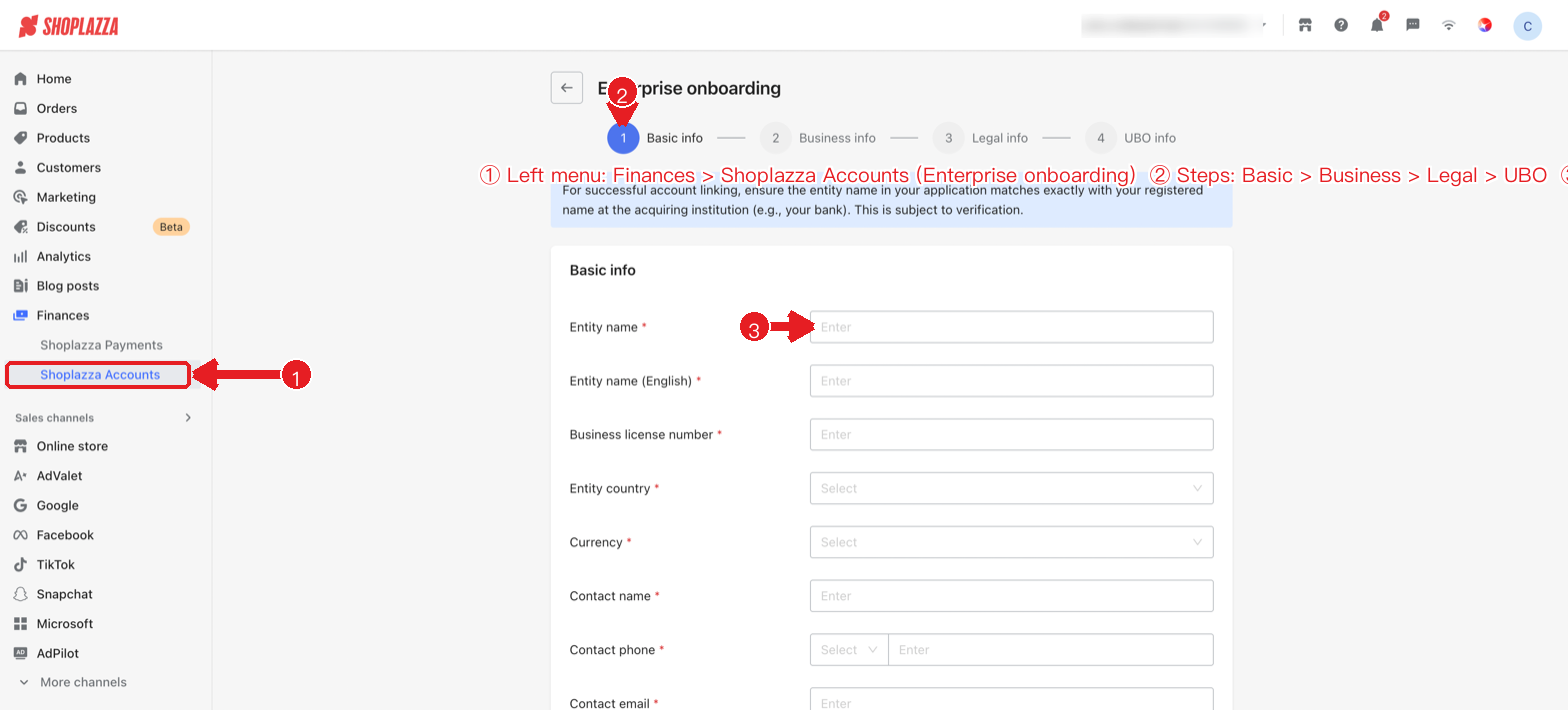
2. Fill in basic info: Enter your entity name/name, ID information, country/region, business or residential address, contact person, and contact details, and upload the required IDs and supporting documents.
3. Fill in business info: Enter your website, primary/secondary industry, business model, monthly turnover, business locations, and more.
4. Fill in legal info (enterprise): Enter the legal representative's name, ID, and address, and upload the ID (up to 3 can be added).
5. Fill in UBO info (enterprise): Provide information on all beneficiaries holding 25% or more shares, and upload their IDs.
6. Read and accept the agreements: Check the terms of service and agreements (on the Shoplazza platform, you also need to authorize linking your Shoplazza Payment account).
7. Submit the application: Submit once everything is confirmed correct.
Review and status
After a successful submission, the review process is expected to take 1–2 business days. The result will be notified via email, and you can also log in to the system to check your application progress.
| Status | Description |
| Reviewing | Materials submitted and under review; editing is temporarily unavailable. |
| Unapproved (supplement required) | Some fields need changes. Please supplement them as marked and resubmit. |
| Declined | The application was not approved. You can click "Reapply" to start again. |
| Activated | Onboarding succeeded; you can use the account features normally. |
Onboarding entry points and process overview
Whether or not you have enabled Shoplazza Payments, you can go directly to Balance > Shoplazza Accounts. If your account has not been onboarded yet (inactive), the system automatically redirects you to the onboarding guide page (see "Onboarding process" above). The figures below show the scenario of applying for a Global Account while enabling Shoplazza Payments; merchants who have already enabled Payments, or who do not need it, can skip this and go straight to Shoplazza Accounts onboarding.
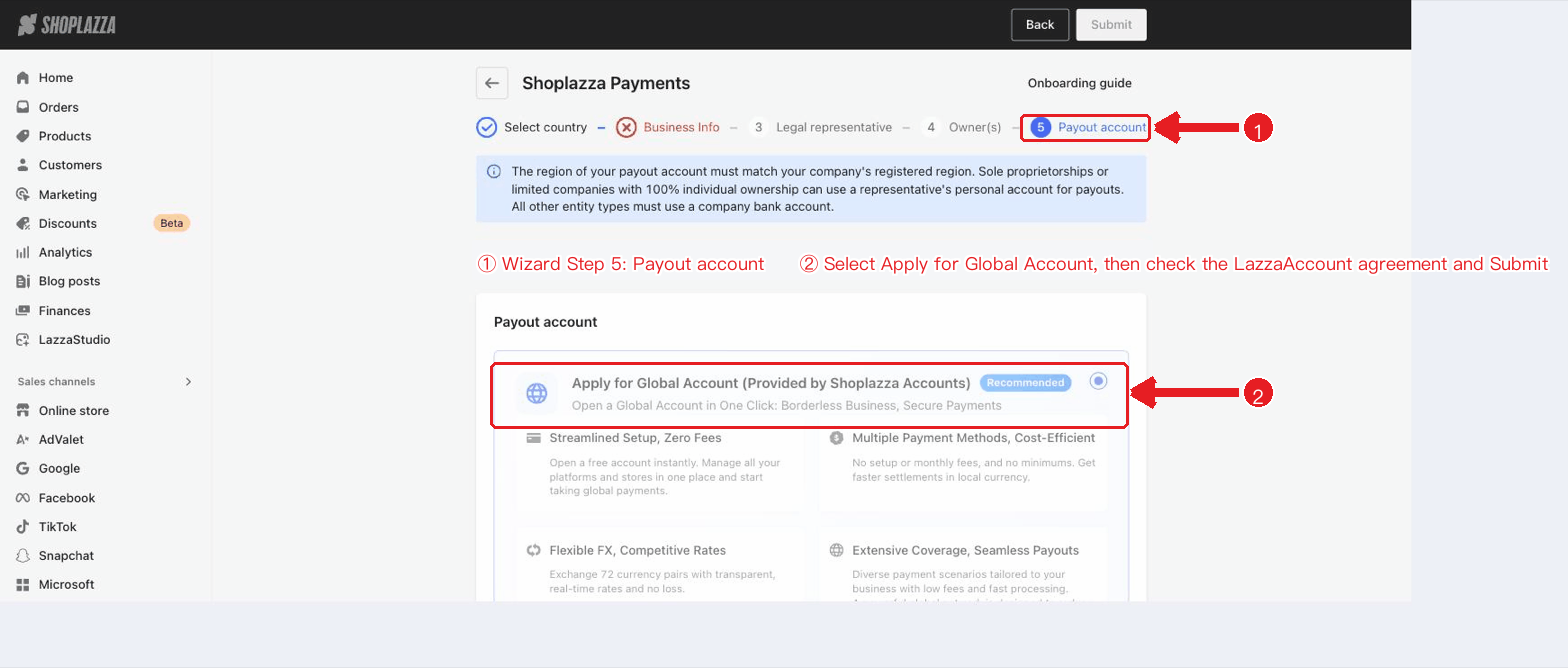
Path 1 · Shoplazza Payments customers: During the process of enabling Shoplazza Payments, go to the Balance menu to enable your own payment; at step 5, "Withdrawal account information", select Apply for a Global Account as your withdrawal account and check the LazzaAccount privacy agreement to complete onboarding at the same time.
Figure: Go to the Balance menu to enable own payment
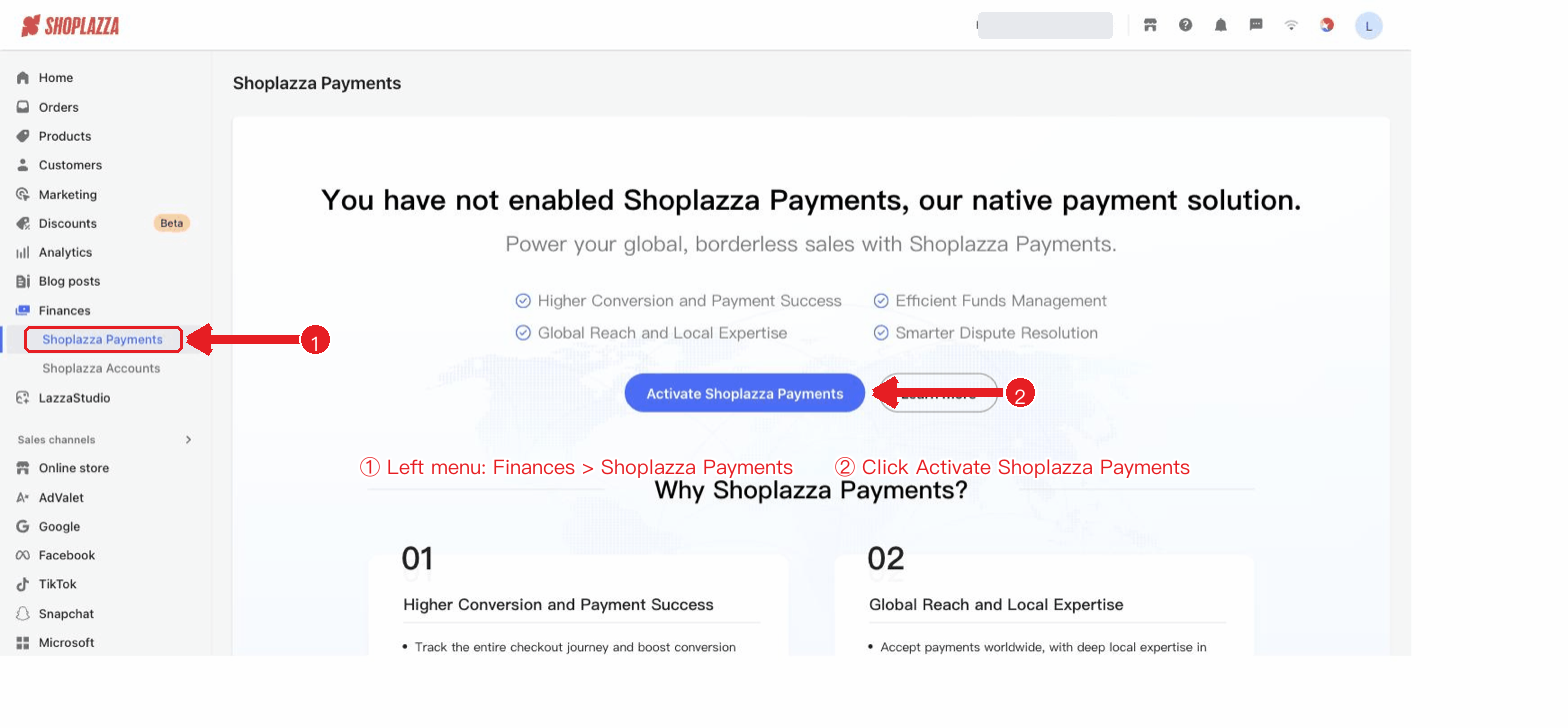
Figure: Step 5 — select Apply for a GA account as the withdrawal account and check the privacy agreement
Path 2 · Non-Shoplazza Payments customers: Go to Balance > Shoplazza Accounts and, on the onboarding guide page, select Personal onboarding or Enterprise onboarding to begin entering your materials.
Figure: Onboarding guide page (Personal / Enterprise onboarding)
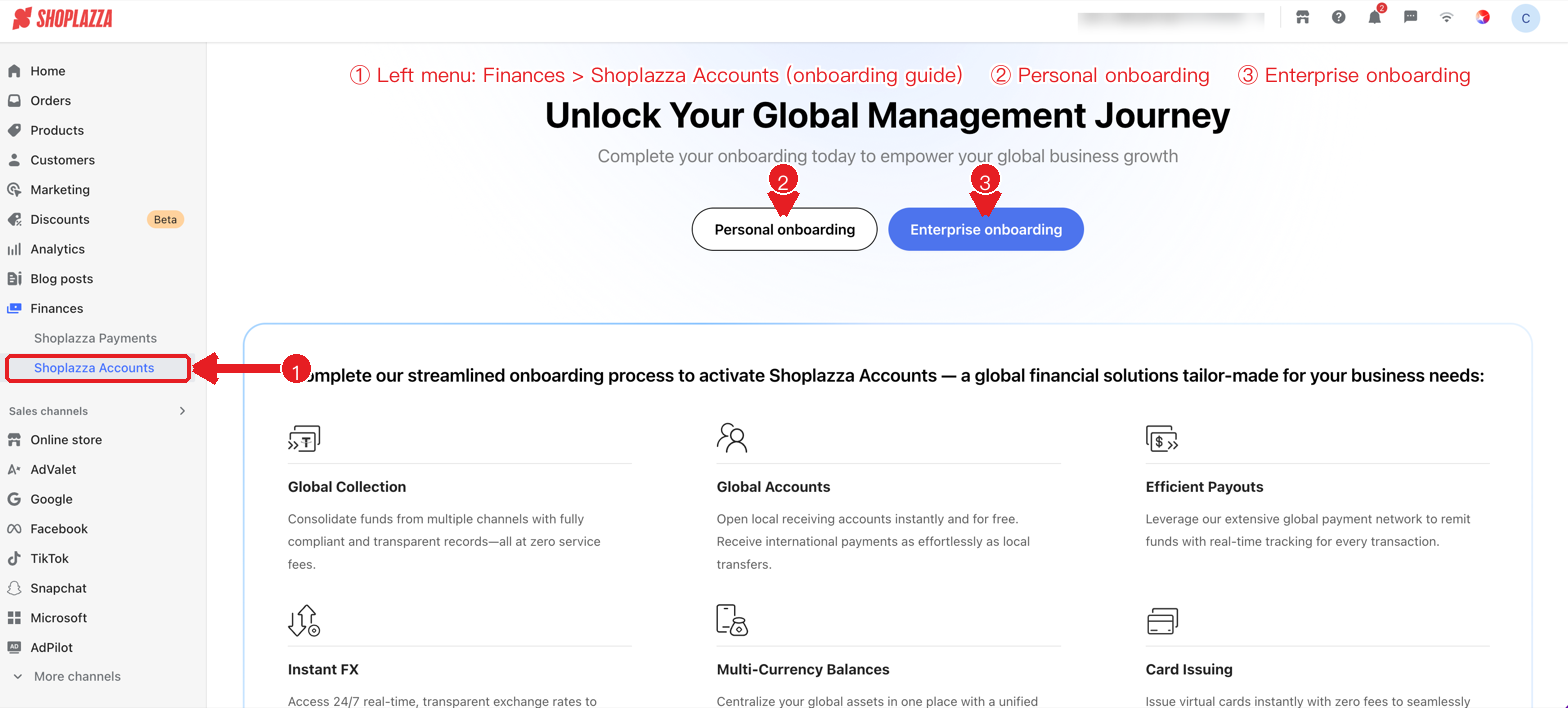
Figure: Enterprise onboarding · Basic info
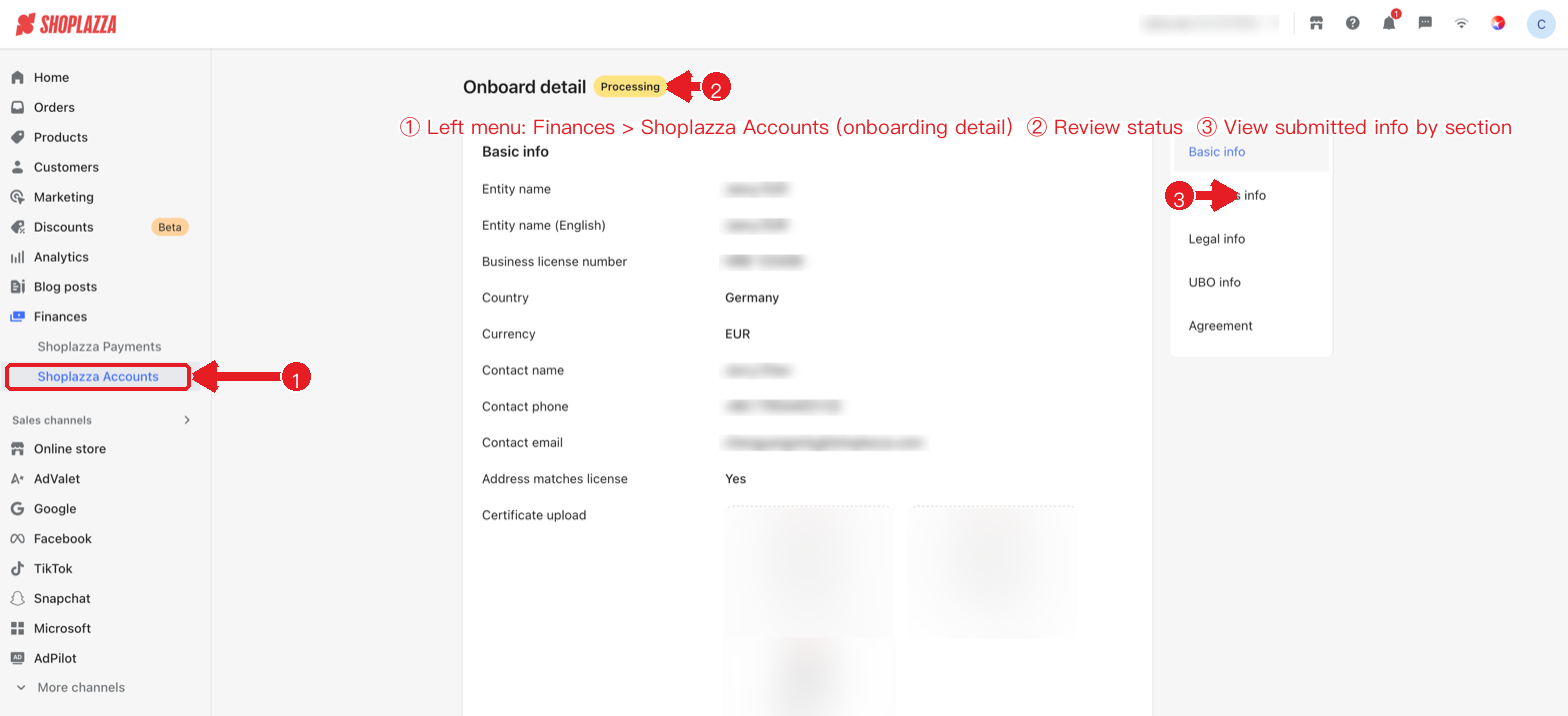
After submitting, you can view your review progress and result on the onboarding detail page.
Figure: Onboarding detail page
Notes
- Names must match: The entity name in your application must exactly match the name registered with the acquiring institution (e.g., your bank) for verification.
- Materials must be authentic and complete: IDs and supporting documents must be clear, authentic, and valid. Files support JPG/JPEG/PNG/HEIC/PDF, with each file no larger than 10MB.
- Beneficiaries must be complete: An enterprise must provide information on all beneficiaries holding ≥25% shares; otherwise, the review may be affected.
- Regional restrictions: If you see "Not yet available in your region", please wait patiently while coverage expands.
Interface operations and buttons
| Button / control | Location | Function |
| Personal onboarding / Enterprise onboarding | Onboarding entry page | Select your entity type and enter the corresponding onboarding form (2 steps for individual / 4 steps for enterprise). |
| Step bar | Top of the form | Shows the current progress; when supplementing, the steps requiring changes are marked in red. |
| Previous / Back | Bottom of the form | Step 1 shows "Cancel"; from step 2 onward it shows "Back" (clicking saves a draft). |
| Next / Submit | Bottom of the form | Go to the next step; the last step shows "Submit". |
| File upload for each step | Basic/Legal/UBO info steps | Upload the business license, front and back of IDs, a photo holding an ID, and more (≤10MB). |
| Add legal info / Add UBO info | Enterprise steps 3/4 | Add multiple legal representatives (up to 3) or beneficiaries (holding ≥25% shares). |
| Agreement checkbox | Last step | Check the terms of service and agreements (on the Shoplazza platform, you also need to authorize linking your Shoplazza Payment account) before you can submit. |
| View detail / Done | Submission success page | View the application details / finish the process. |
| Edit / Reapply | Onboarding detail page | When "Unapproved/supplement required", you can edit and resubmit; when "Declined", you can reapply. |


Comments
Please sign in to leave a comment.