
Settings lets you manage your account's transaction password and payout preferences. The transaction password is an essential security barrier for fund operations (payouts, foreign exchange, card top-ups, and more), so be sure to set it and keep it safe.
Set or update your transaction password
1. Open the Settings page: Go to Finances > Shoplazza Accounts > Settings, and find Transaction password under the Global settings tab.
Figure: Transaction password settings
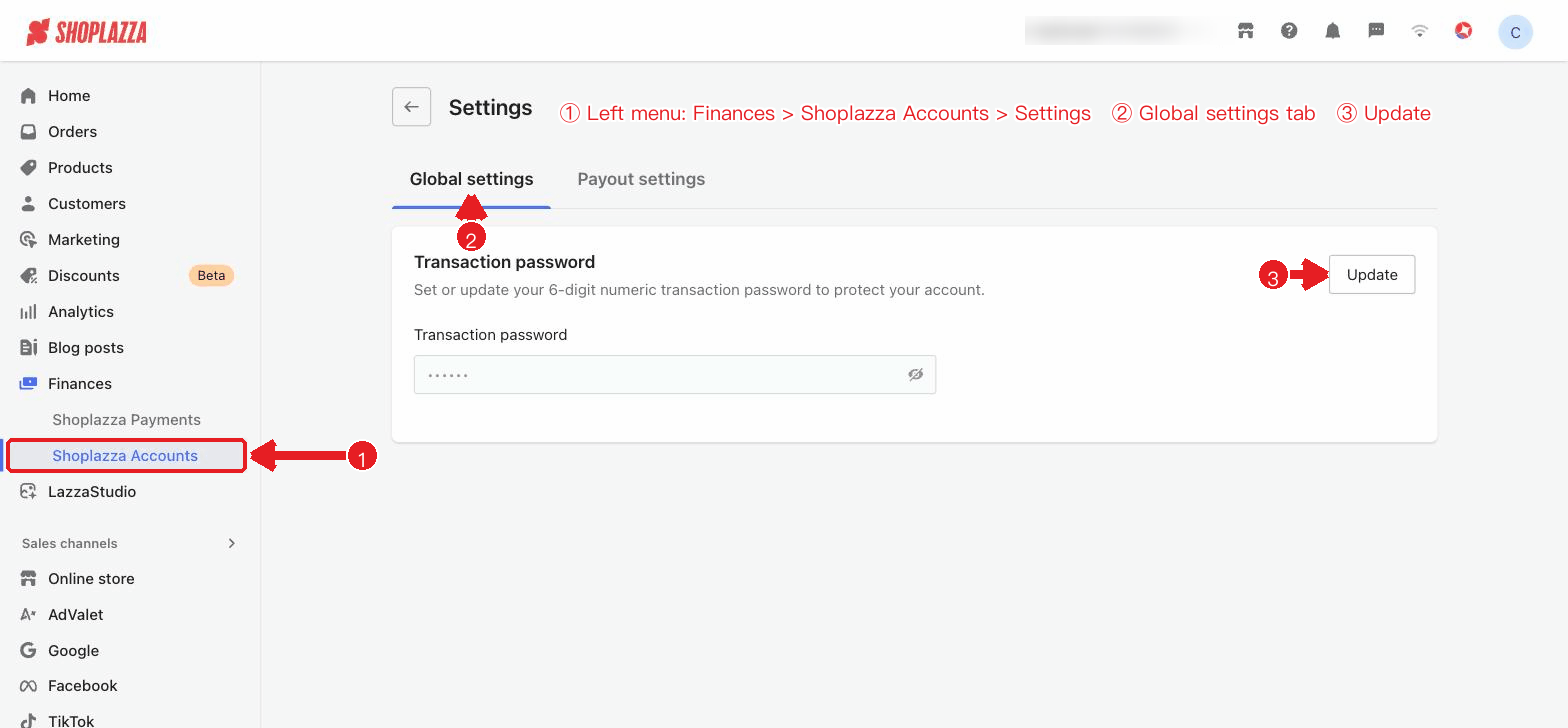
2. Enter the password: Enter a 6-digit numeric transaction password, then enter it again to confirm.
3. Get the verification code: Click Send code. The verification code will be sent to the email address / phone number bound to your account. Enter the code you receive.
4. Save: Click Save password to complete the setup.
The transaction password must be 6 digits. Entering it incorrectly multiple times will temporarily lock your account, so keep your password safe. If you forget your password, you can reset it after verifying your identity.
Payout settings
Under the Payout settings tab, you can configure the refund currency for failed payouts:
- Refund in the currency recipient gets: Failed FX conversions will be refunded to your account in the recipient's received currency. For unsupported currencies, the refund will be in your paid currency.
- Refund in the currency you pay: Failed FX conversions will be refunded to your account in your paid currency.
If the market rate differs from the original conversion rate, the refund may result in an FX gain or loss. After making changes, click Confirm to save.
Interface actions and button reference
| Button / control | Location | Function |
| Global settings / Payout settings (tabs) | Top | Switch between the "Transaction password" and "Payout refund preferences" groups of settings. |
| Update | Top right of the transaction password card | Enters edit mode for the transaction password, showing the password / confirm password / verification code form. |
| Transaction password / Confirm password (input fields) | Edit mode | Enter and re-enter the 6-digit numeric password (the two must match). |
| Send code / Resend code | Edit mode | Sends a verification code to the bound email address / phone number; after sending, a countdown starts and the button changes to "Resend code". |
| Verification code (input field) | Edit mode | Enter the 6-digit verification code you received. |
| Reset / Save password | Bottom of edit mode | Clears the form and returns to read-only / validates and saves the new password. |
| Payout refund preferences (radio buttons) | Payout settings | Choose "Refund in the currency recipient gets" or "Refund in the currency you pay". |
| Reset / Confirm | Bottom of payout settings | Restore the initial selection / save the refund preference (appears only after a change). |


Comments
Please sign in to leave a comment.