
Link is an accelerated checkout solution (often referred to as “remember-and-pay-in-one-click”) launched by Stripe. When a consumer completes a payment using Link for the first time, their card details and billing/shipping address will be saved to their Link account. After that, whenever they place an order on any merchant site that supports Link, they do not need to re-enter their payment information. Instead, they can complete the payment in one click after verifying their identity via email or SMS code. Shoplazza Payments already supports Link as a fast checkout payment method. Link is particularly suitable for merchants with high repeat purchase rates, complex checkout flows, or those looking to further improve checkout conversion rates in their independent stores. In addition, Link has the following features:
- Save once, reuse across merchants: Consumers’ card and address information is stored in their Link account and can be reused on any other Link-enabled merchant site without re-entering details.
- Faster checkout: Eliminates manual entry of card number and billing address, reducing checkout friction and improving conversion, especially on mobile devices.
- More secure verification: Consumers confirm identity via email or SMS code; card details are not exposed to merchants in plaintext.
- Compatible with saved cards: On the same checkout page, the Link express checkout button can be displayed alongside Shoplazza Payments’ native saved-card payment option.
Supported merchant entities for Link:
Currently, EC supports all countries except India.
Prerequisites for using Link:
- The merchant has enabled Shoplazza Payments credit card acquiring capability.
- Link is selected and saved in the Express Checkout section of the Shoplazza Payments configuration page.
- The consumer’s browser/device supports Link. (Stripe will automatically validate this; consumers must use an email that supports Link for verification.)
How to add Link in Shoplazza Payments:
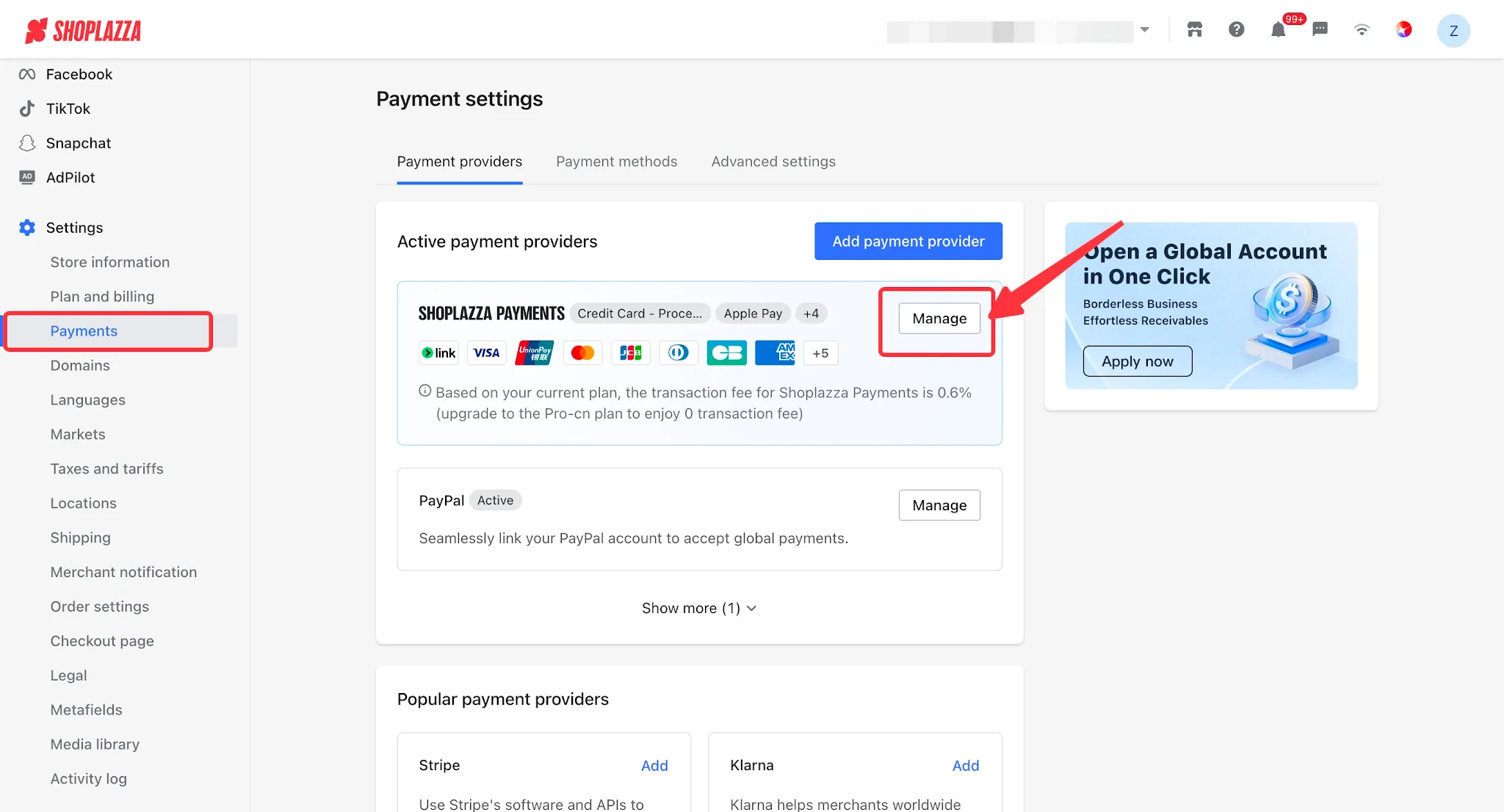
1. Log in to your Shoplazza admin, go to Settings > Payments, and click the Manage button for Shoplazza Payments.
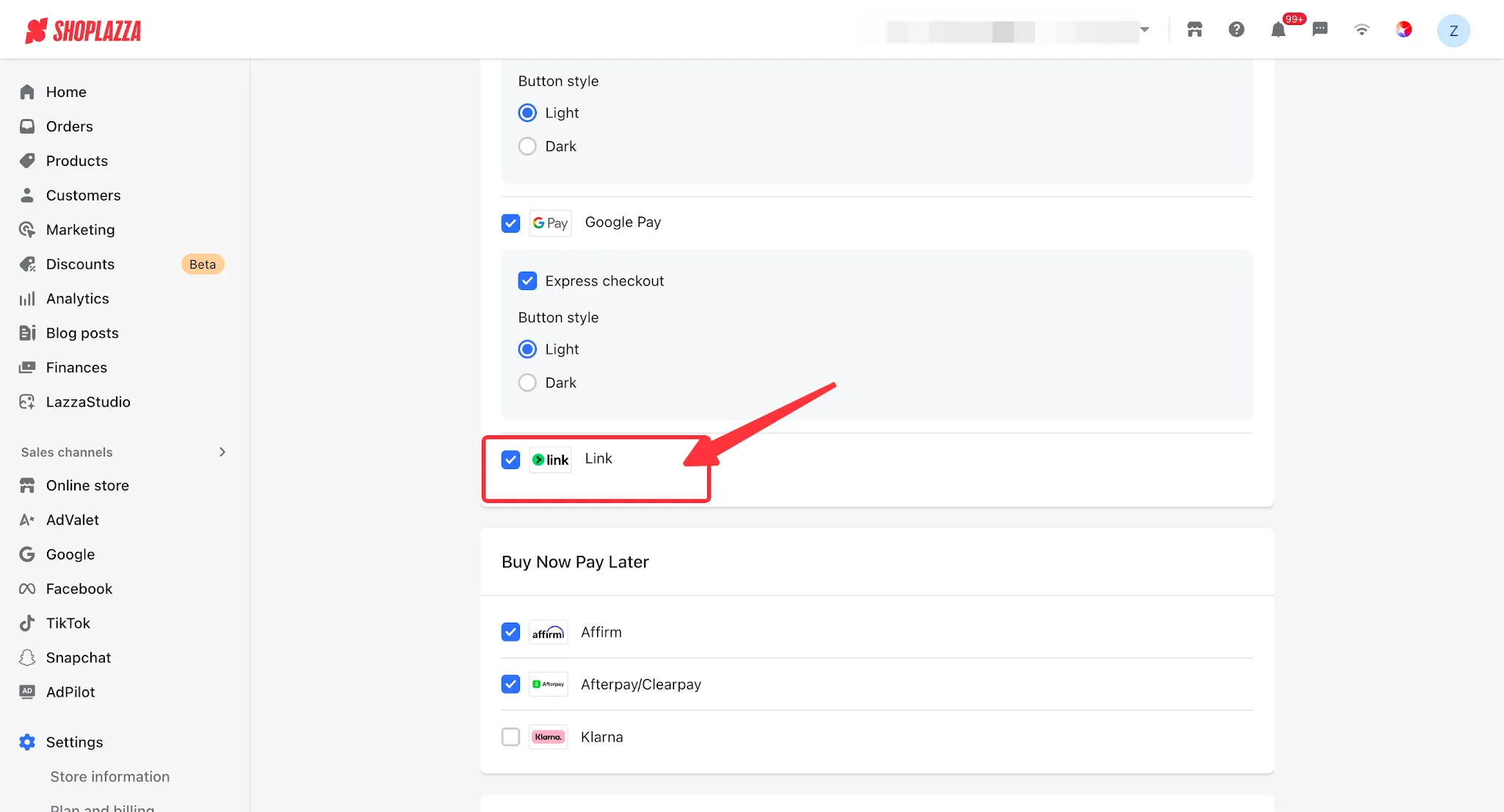
2. On the Shoplazza Payments configuration page, locate the Express Checkout section (below Google Pay), select Link, and save your settings.
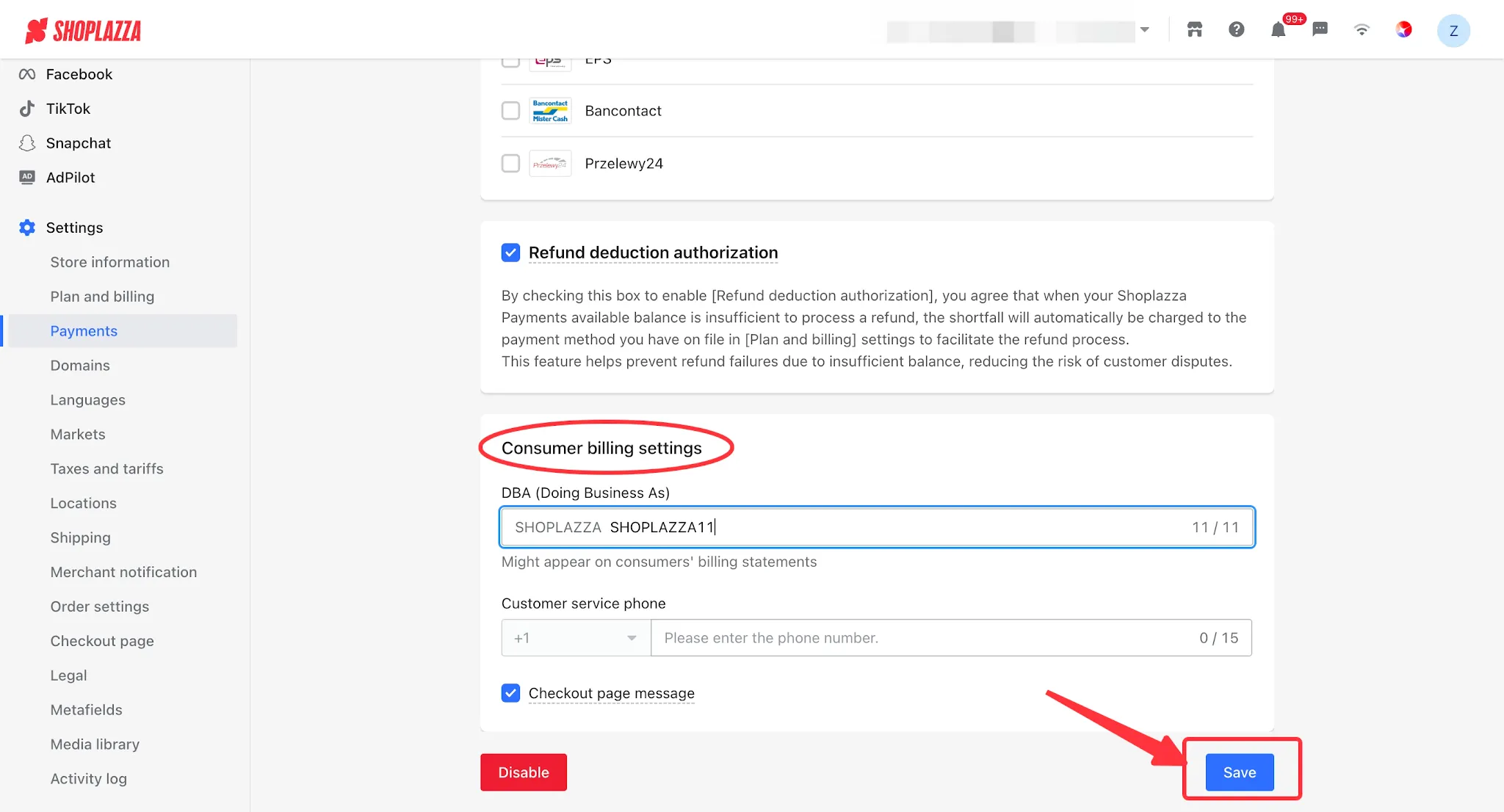
3. (Optional) In the Customer Billing Settings section, configure your Business Name and Customer Service Phone Number. These details will appear on your customers' credit card statements. Once saved, the changes will take effect.
Customer Experience
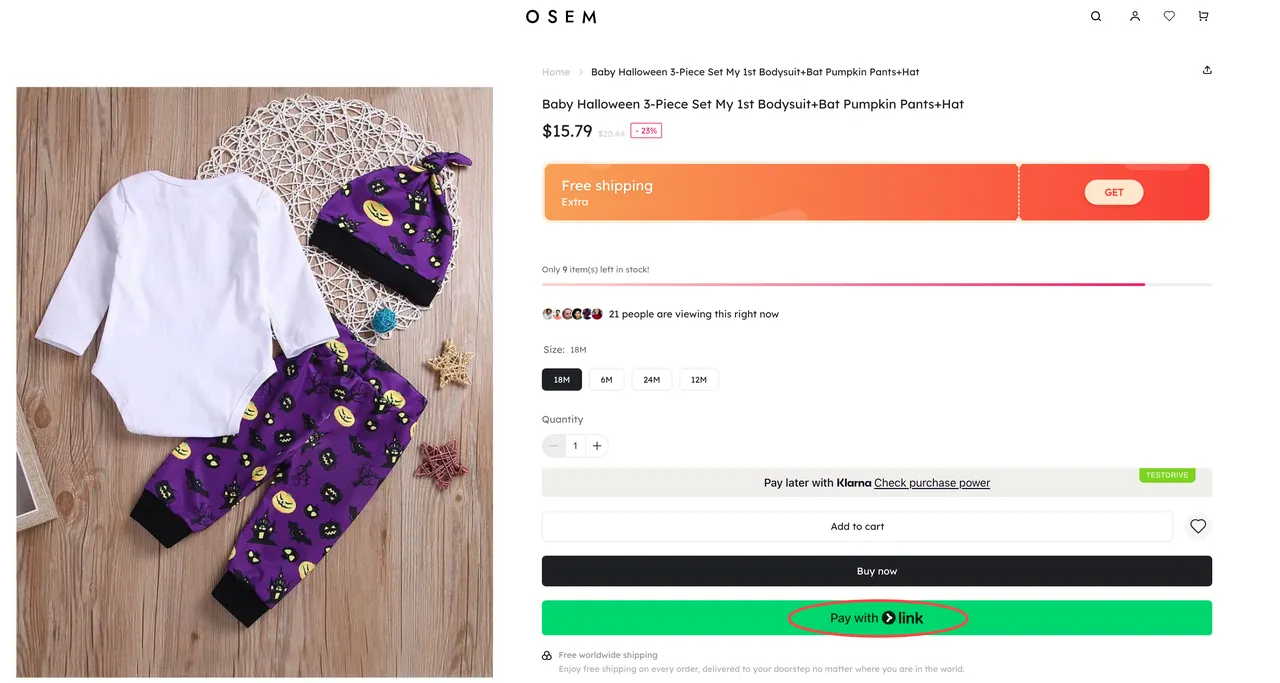
- After the configuration is complete, customers will see a green "Pay with Link" express checkout button on the product details page.
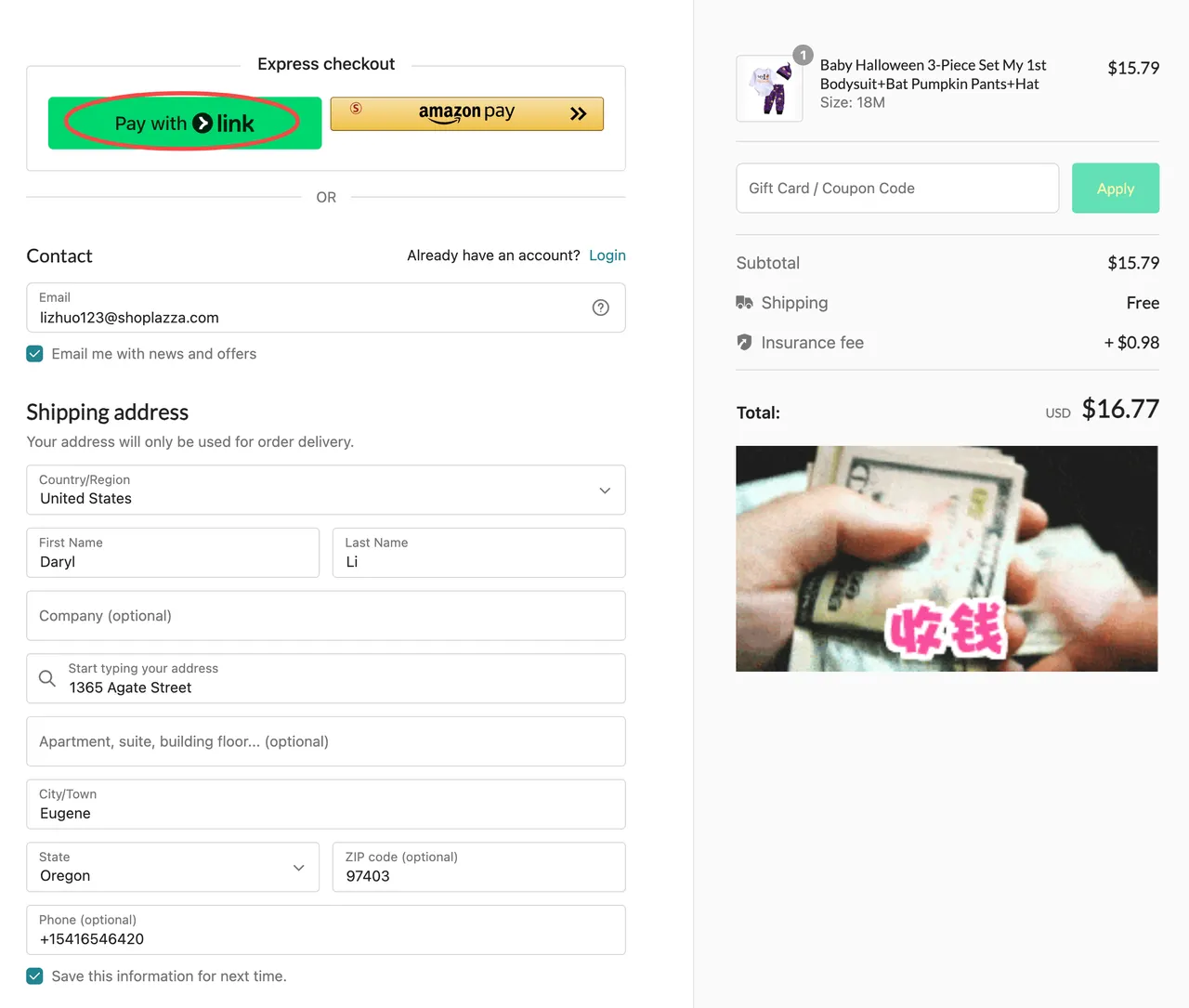
- On the checkout page, the "Pay with Link" button will also appear in the Express Checkout section. Customers who have already registered with Link can click the button to use their saved shipping address and contact information to complete checkout quickly.
FAQ
Q: Which currency is used for Link settlements?
A: The settlement currency is the same as the currency of your Shoplazza Payments payout account. You can view it in the Payout Account section of your Shoplazza Payments settings.
Q: Can orders paid with Link be refunded?
A: Yes. Link is simply an accelerated checkout method that uses a customer's saved card information. Refunds follow the same rules as the underlying credit card payment method (such as Visa or Mastercard).
Q: Does Link have its own chargeback process?
A: No. Chargebacks follow the rules of the customer's credit card network. Link only streamlines the payment information entry and identity verification process.
Q: How are Link transaction fees calculated?
A: Link uses the merchant's existing Shoplazza Payments credit card processing rate. There are no additional fees for using Link.
Q: Can Link and Save Card be enabled at the same time?
A: Yes. Both features can be enabled simultaneously. However, on a single checkout page, they are displayed exclusively—customers will see either the Link button or the Save Card option, but not both, to avoid collecting the same card information twice.
Q: Will Link appear in the payment methods list on the checkout page?
A: No. In the current integration, Link is available only in the Express Checkout section and does not appear in the standard payment methods list.


Comments
Please sign in to leave a comment.