
PayPal Pay Later Messaging (PLM) is a buy-now-pay-later marketing component provided by PayPal. It allows you to display installment payment banners across multiple pages of your store, helping increase consumer awareness and boost conversion rates.
Overview
PayPal Pay Later Messaging lets you display "buy now, pay later" promotional banners on your store's home page, product detail pages, shopping cart page, and more. When shoppers browse your products, they can immediately see PayPal's installment payment options — lowering the barrier to purchase and improving order conversion.
Key Benefits
- Boost conversion rates: Displaying installment information at key purchase decision moments effectively reduces cart abandonment caused by price concerns.
- Attract new customers: Flexible payment options draw in shoppers who may otherwise be constrained by budget.
- Increase average order value: The flexibility of installment payments encourages shoppers to choose higher-priced items.
- Zero setup cost: No additional fees for merchants — PayPal provides full payment guarantees throughout the transaction.
Supported Pages
| Page | Description |
| Home page | Display on your store's home page to build overall brand awareness |
| Product detail page | Display next to the product price to drive single-product conversion |
| Shopping cart page | Last reminder before checkout to reduce cart abandonment |
Supported Countries / Regions
Pay Later Messaging is currently available in the following countries:
| Country | Currency |
| United States | USD |
| Australia | AUD |
| Canada | CAD |
| France | EUR |
| Germany | EUR |
| Italy | EUR |
| Spain | EUR |
| United Kingdom | GBP |
Note
Whether the PLM banner is shown to a shopper is determined by the country associated with their IP address. The banner will only be displayed to visitors whose IP address maps to a country in the supported list above.
Prerequisites
Before enabling PayPal Pay Later Messaging, make sure the following conditions are met:
- Your Shoplazza store has successfully connected to PayPal. If not yet connected, refer to PayPal | Integrating PayPal with your Shoplazza store.
- Your PayPal account has been granted eligibility for the Pay Later Messaging feature.
About eligibility: PayPal Pay Later Messaging is not enabled by default for all merchant accounts — it is activated separately by PayPal. You can quickly check whether your account is eligible in each supported country using the Eligibility Status feature in your Shoplazza admin (see the steps below for details).
Steps
Step 1: Go to PayPal Settings
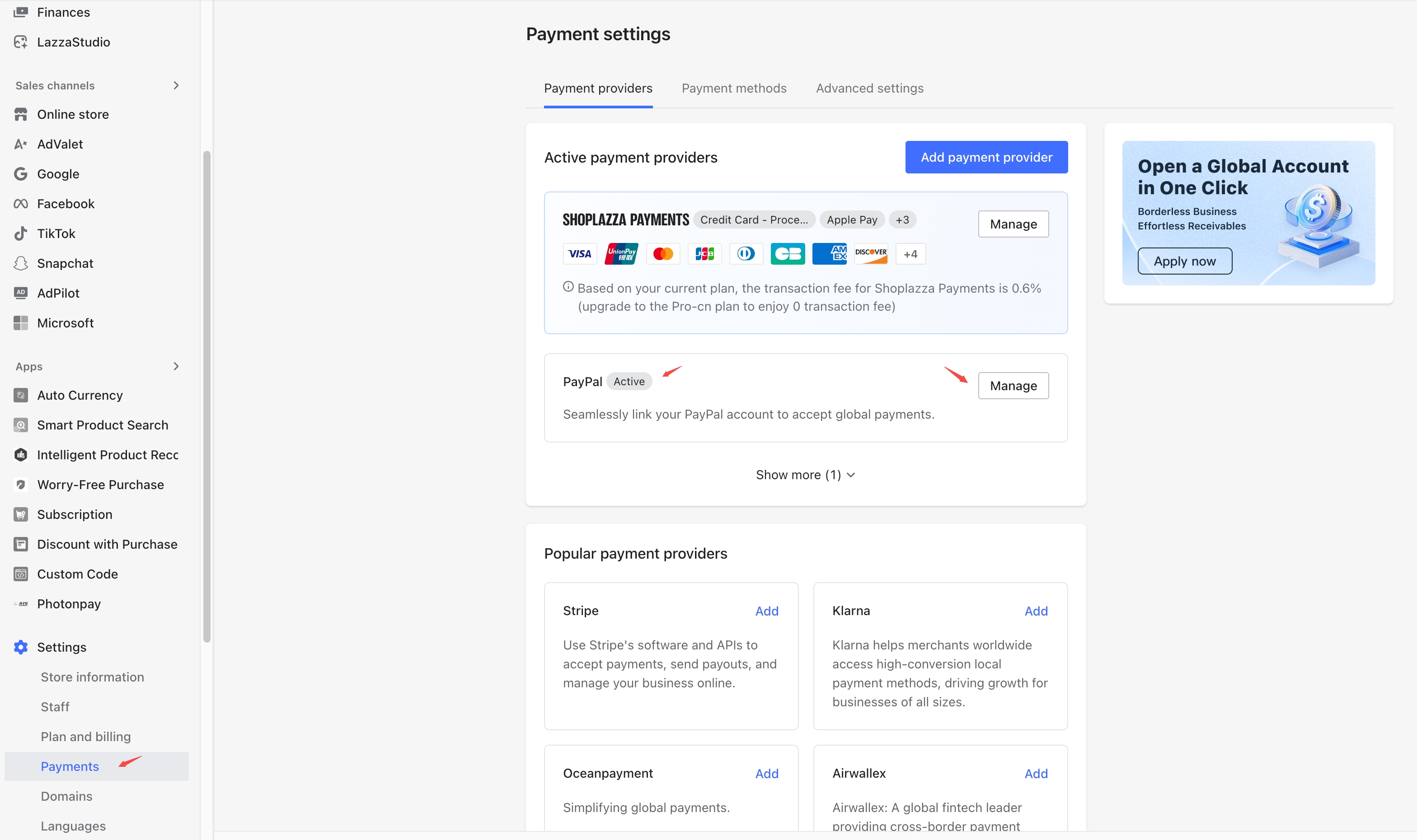
- Log in to your Shoplazza admin.
- In the left navigation bar, go to Settings > Payments.
- Locate PayPal and click Manage to open the PayPal settings page.
Step 2: Check Eligibility Status
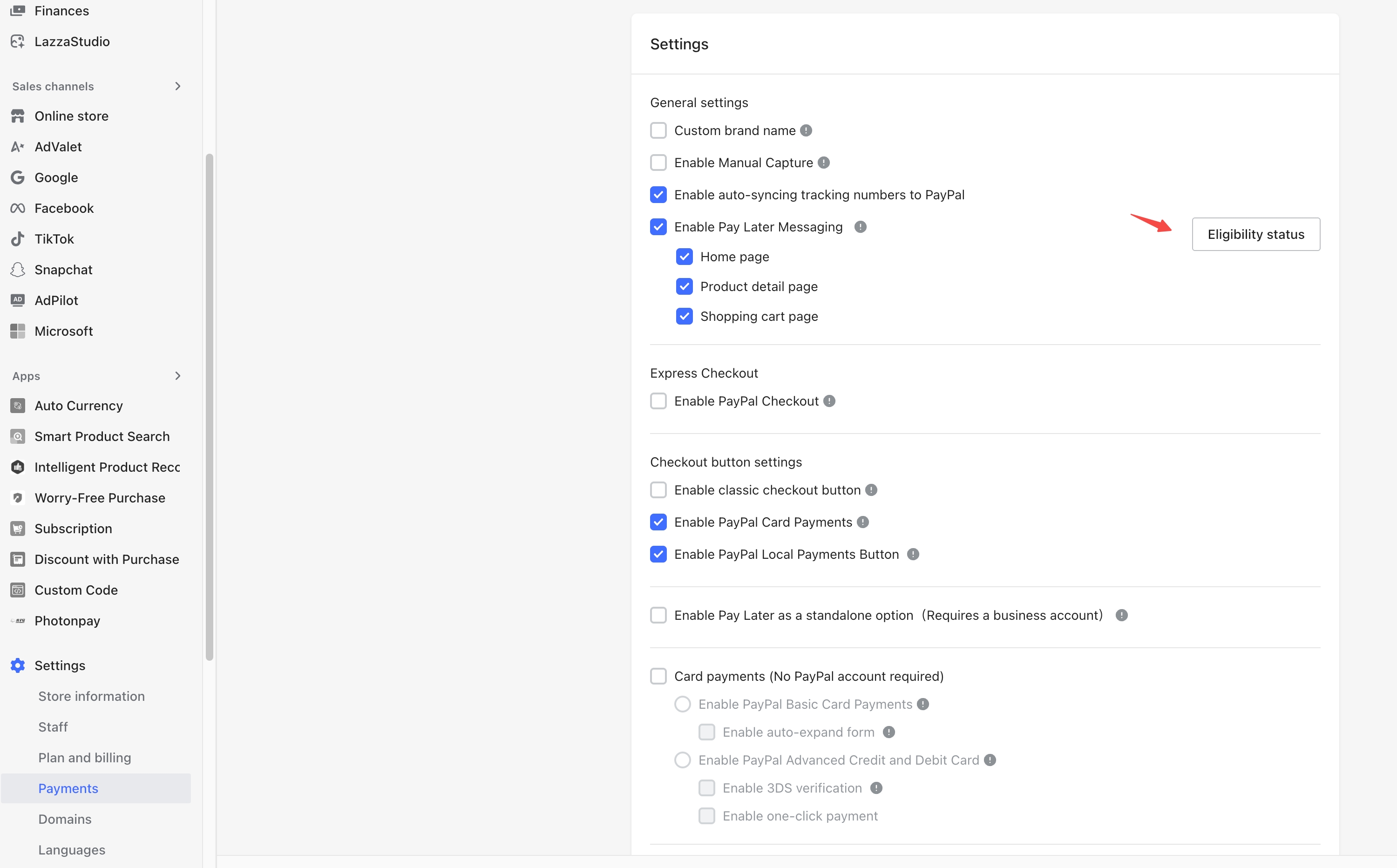
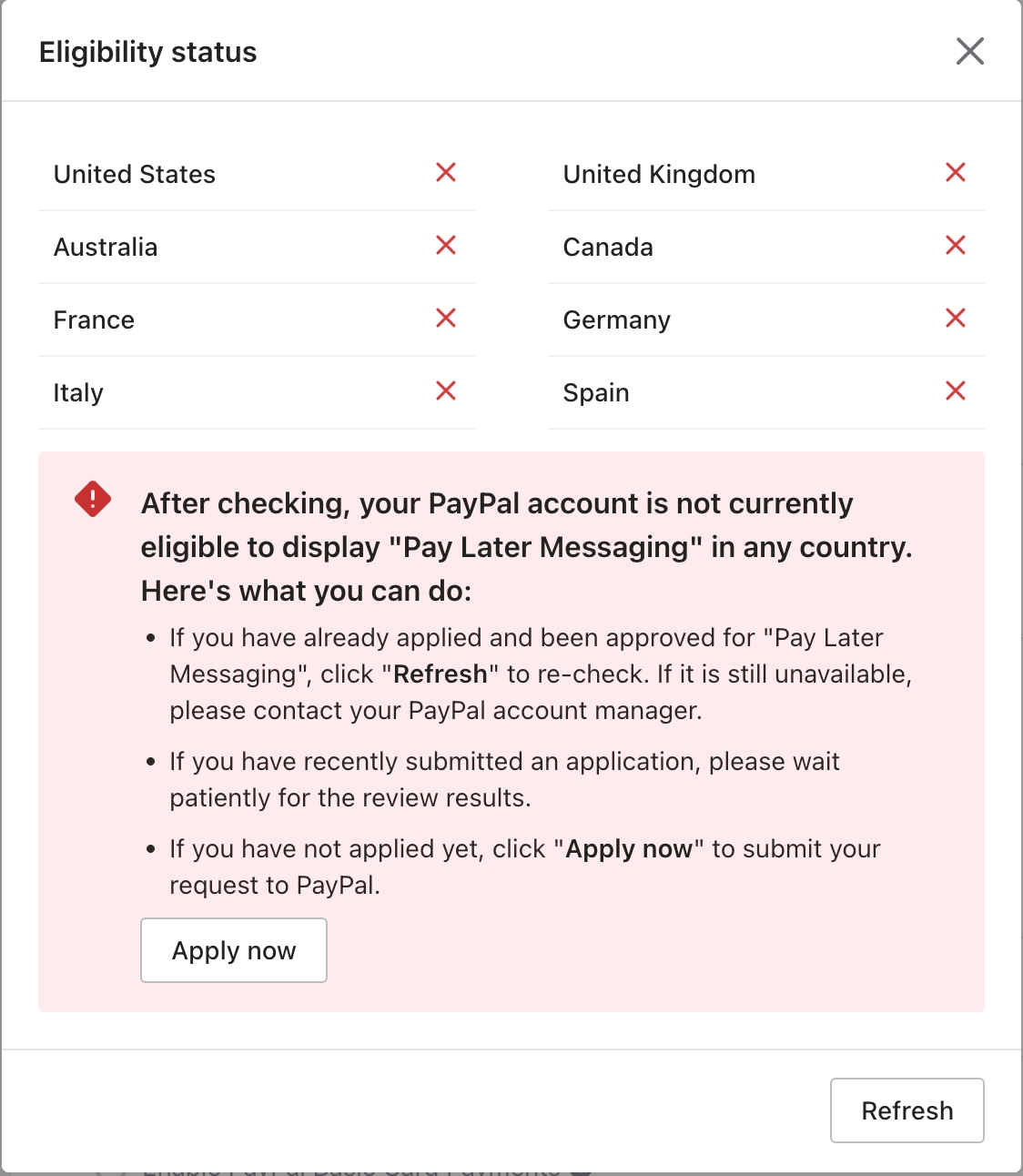
Click the Eligibility Status button to open the eligibility pop-up, which shows whether your PayPal account is eligible to display Pay Later Messaging in each supported country:
- ✓ (green): Your account is eligible to display Pay Later Messaging in this country. Shoppers from this country will see the banner normally.
- ✗ (red): Your account is not currently eligible in this country. Shoppers from this country will not see the PLM banner.
If all countries show ✗, a red warning will appear on the page. Please follow the guidance below based on your situation:
- If you have already applied for and activated Pay Later Messaging with PayPal: Click Refresh to re-run the check. If it still shows ✗, please contact your PayPal account manager.
- If you recently submitted an application: Please wait patiently for PayPal's review. Once approved, click Refresh to update the results.
- If you have not yet applied: Contact your PayPal account manager first. If you don't have a dedicated account manager, click the Apply Now button to submit a request directly on PayPal's website.
Refresh check: You can click the Refresh button at any time to manually re-run the eligibility check. The button will be disabled during the check to prevent duplicate requests, and results will update automatically once the check is complete.
Step 3: Enable Pay Later Messaging
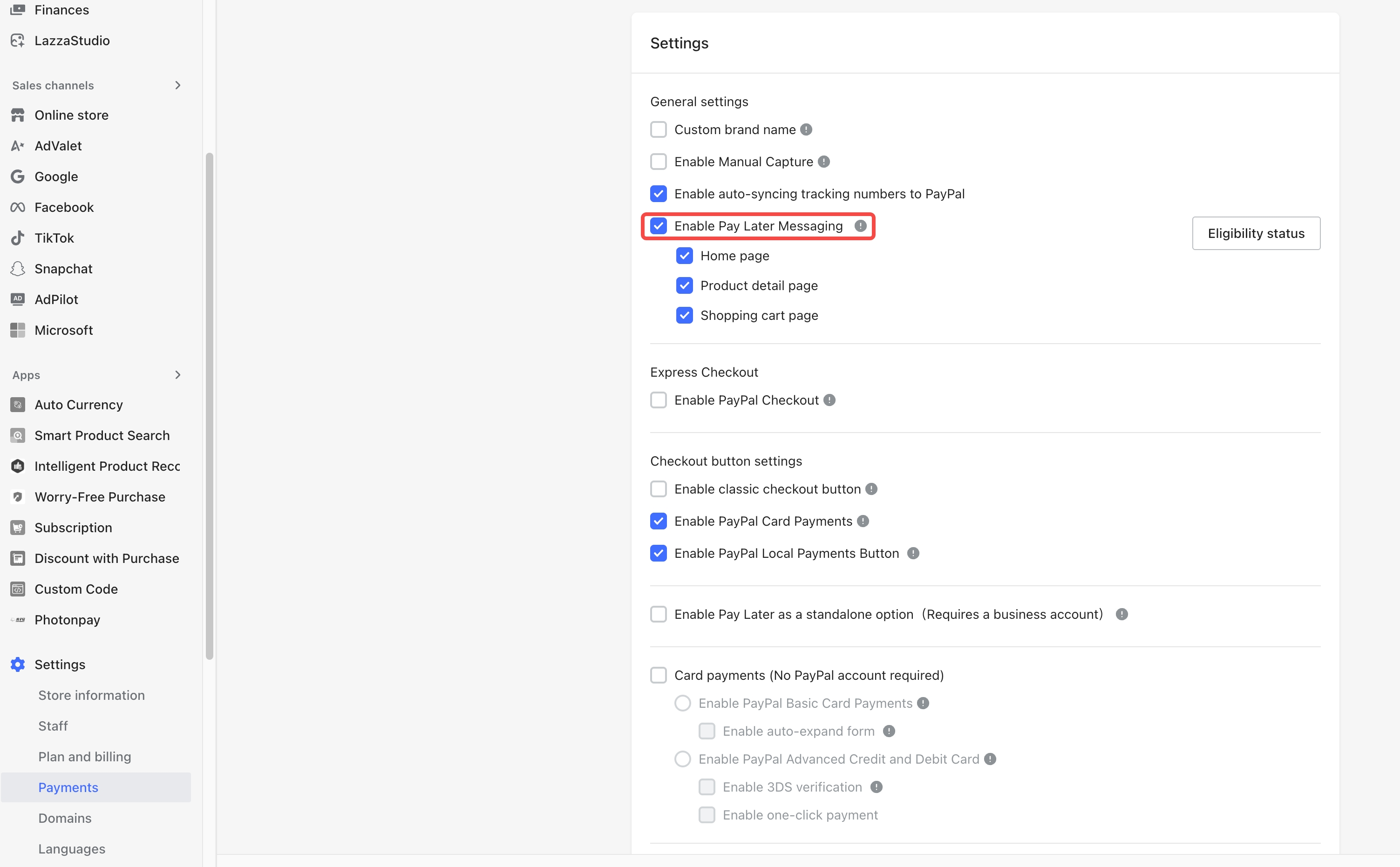
Once you have confirmed your account is eligible to display PLM in at least some countries, go to the PayPal settings page and turn on the Pay Later Messaging main toggle.
Step 4: Configure Display Pages
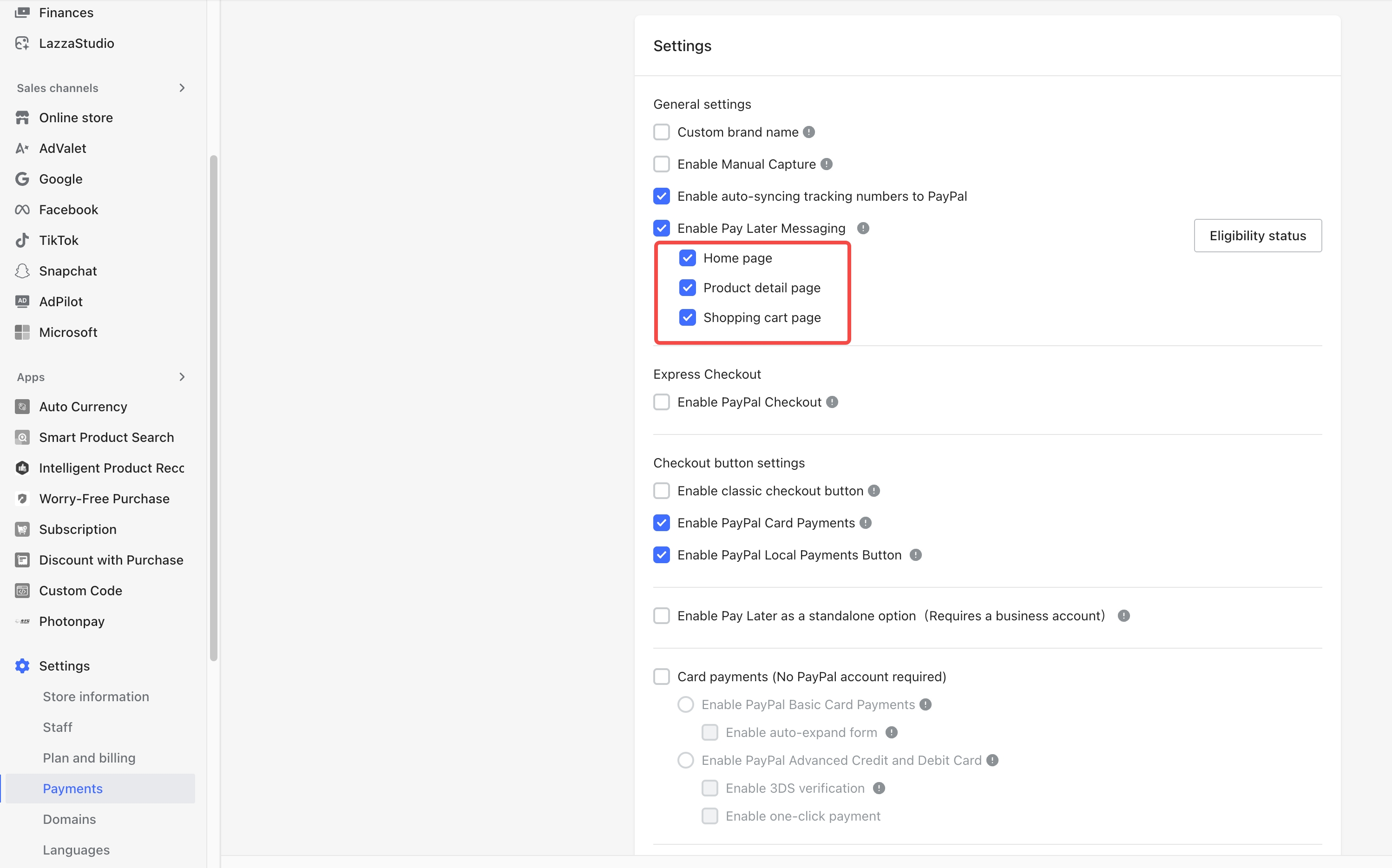
Select the pages where you want to display the Pay Later Messaging banner:
- Home page
- Product detail page
- Shopping cart page
You can select one or multiple pages based on your store's needs.
Step 5: Save Settings
After selecting your preferred pages, click the Save button at the bottom of the page. Your configuration will take effect immediately, and the Pay Later Messaging banner will appear on your storefront.
FAQs
Q: I've enabled Pay Later Messaging, but the banner isn't showing on my storefront. Why?
A: Possible reasons include:
- Your PayPal account has not yet been granted PLM eligibility (Eligibility Status shows all ✗). Please follow the guidance in Step 2 above to apply or refresh the check.
- The visitor's IP address is not in a supported country. PLM banners are only shown to shoppers from supported countries.
Q: How do I apply for Pay Later Messaging eligibility?
A:
- If you have a PayPal account manager: Contact your account manager directly to submit the application.
- No account manager : Visit [https://share.hsforms.com/1r3dvIvgQT_uUuP4avZFnpgcsz2i] to submit your request.
Q: I've enabled Pay Later Messaging, but shoppers don't see a Pay Later payment option at checkout. Why?
A: Pay Later and Pay Later Messaging are two separate features and must be enabled independently.
- Pay Later Messaging is a marketing component only — it displays promotional banners to inform shoppers about installment options.
- Pay Later is the actual payment method that allows shoppers to complete purchases in installments.
Please make sure your PayPal account has Pay Later as an active payment method. If your PayPal account already has Pay Later enabled and you'd like to display a standalone Pay Later button in your Shoplazza store, refer to PayPal | Pay Later.


Comments
Please sign in to leave a comment.