
In the highly competitive landscape of cross-border e-commerce, visual content is the primary driver of productivity. Lazza Studio is a conversational AI-powered visual creation platform specifically designed for cross-border sellers. We aim to break the “impossible triangle” in traditional visual production—high quality, low cost, and high efficiency cannot be achieved simultaneously—so that creative visuals are no longer limited by expensive models or cumbersome tools.
Product Entry
Product Editing Page
1. Log in to your Shoplazza Admin dashboard, navigate to the Products section, and click on the corresponding product to enter the Product Editing Page. Scroll down to the Product Media section and click Add Media. In the media selection popup, click Lazza Studio to access the platform interface.
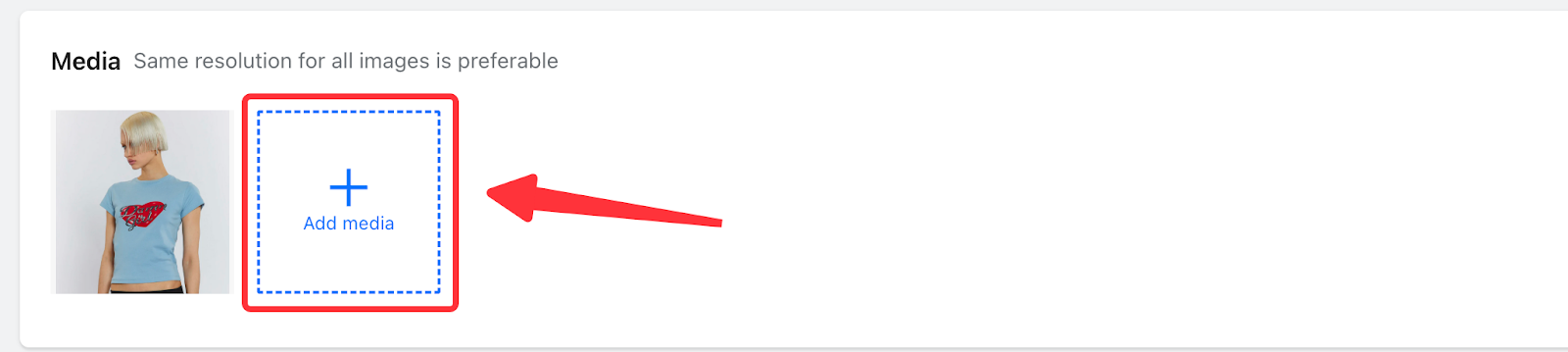
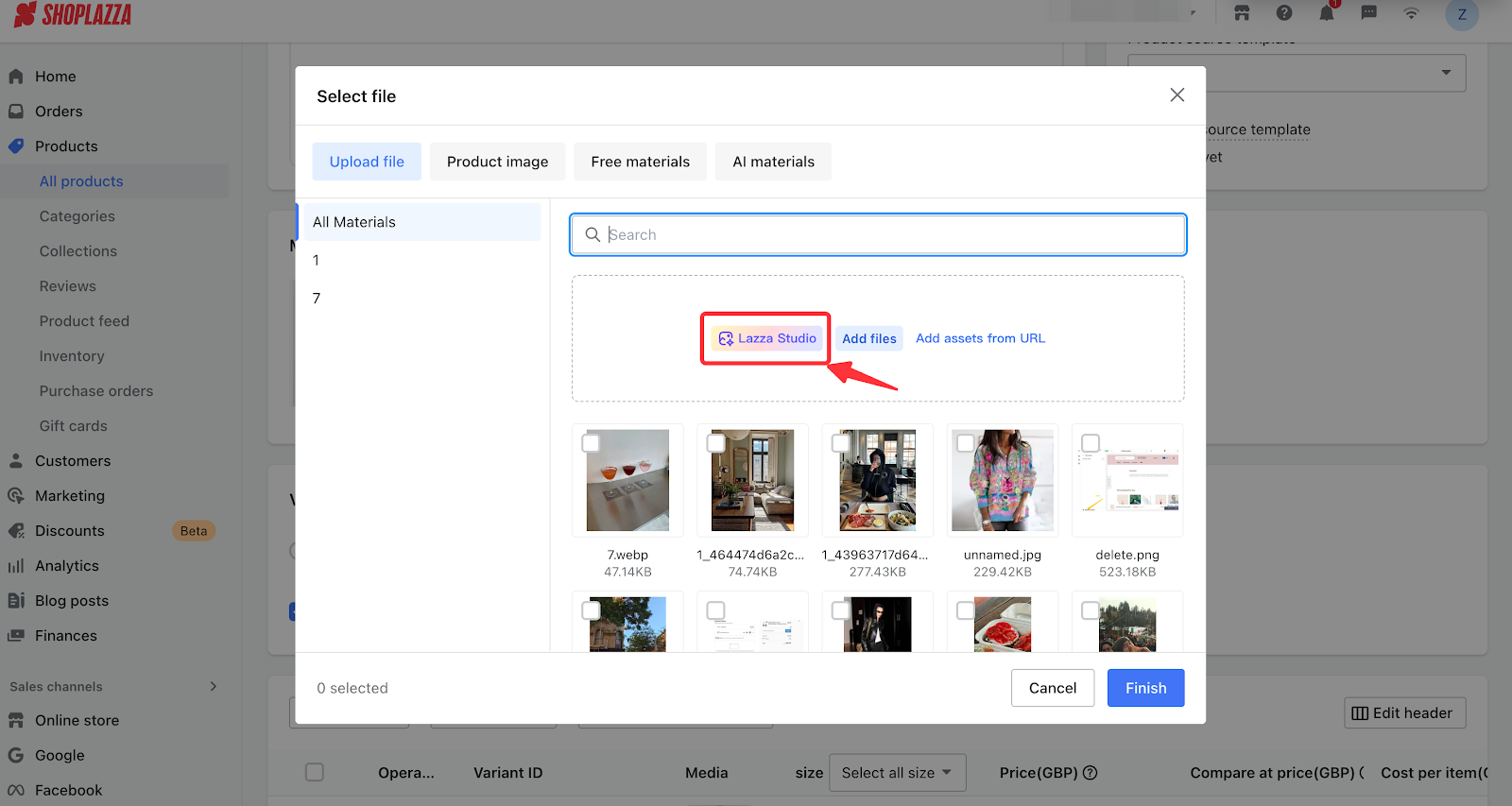
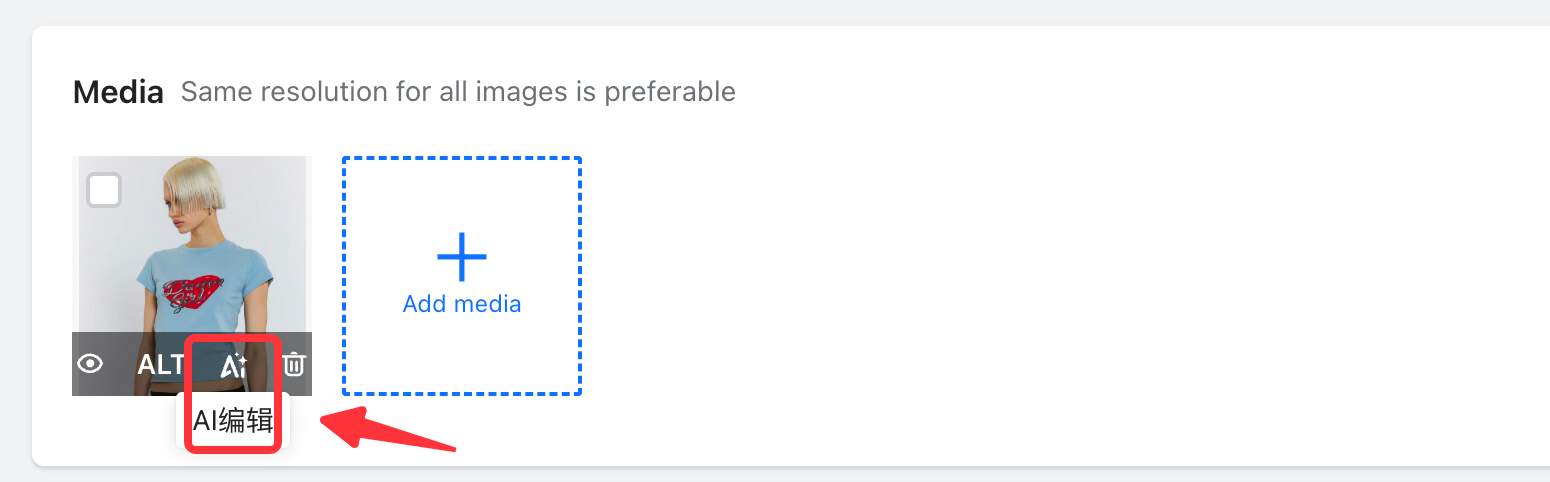
- On the Product Editing Page > Product Media section, you can hover your mouse over a media item and click AI Edit to enter the Lazza Studio interface. The selected media will be automatically loaded into Lazza Studio.
2. Discount Design Editing Page
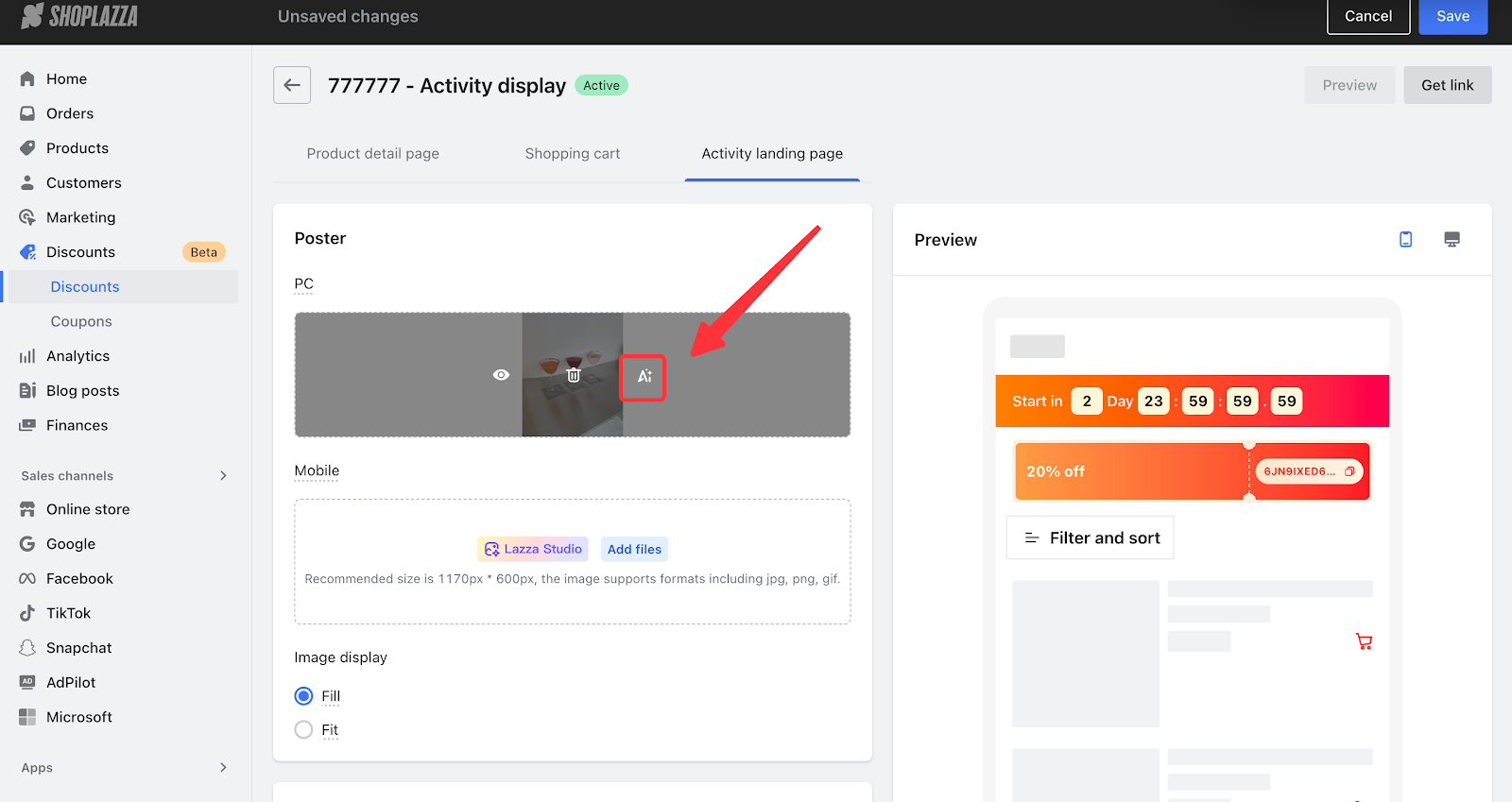
- On the Discount Design Editing Page, in sections such as Poster where you upload images, click Add File. In the media selection popup, click Lazza Studio to access the platform interface.
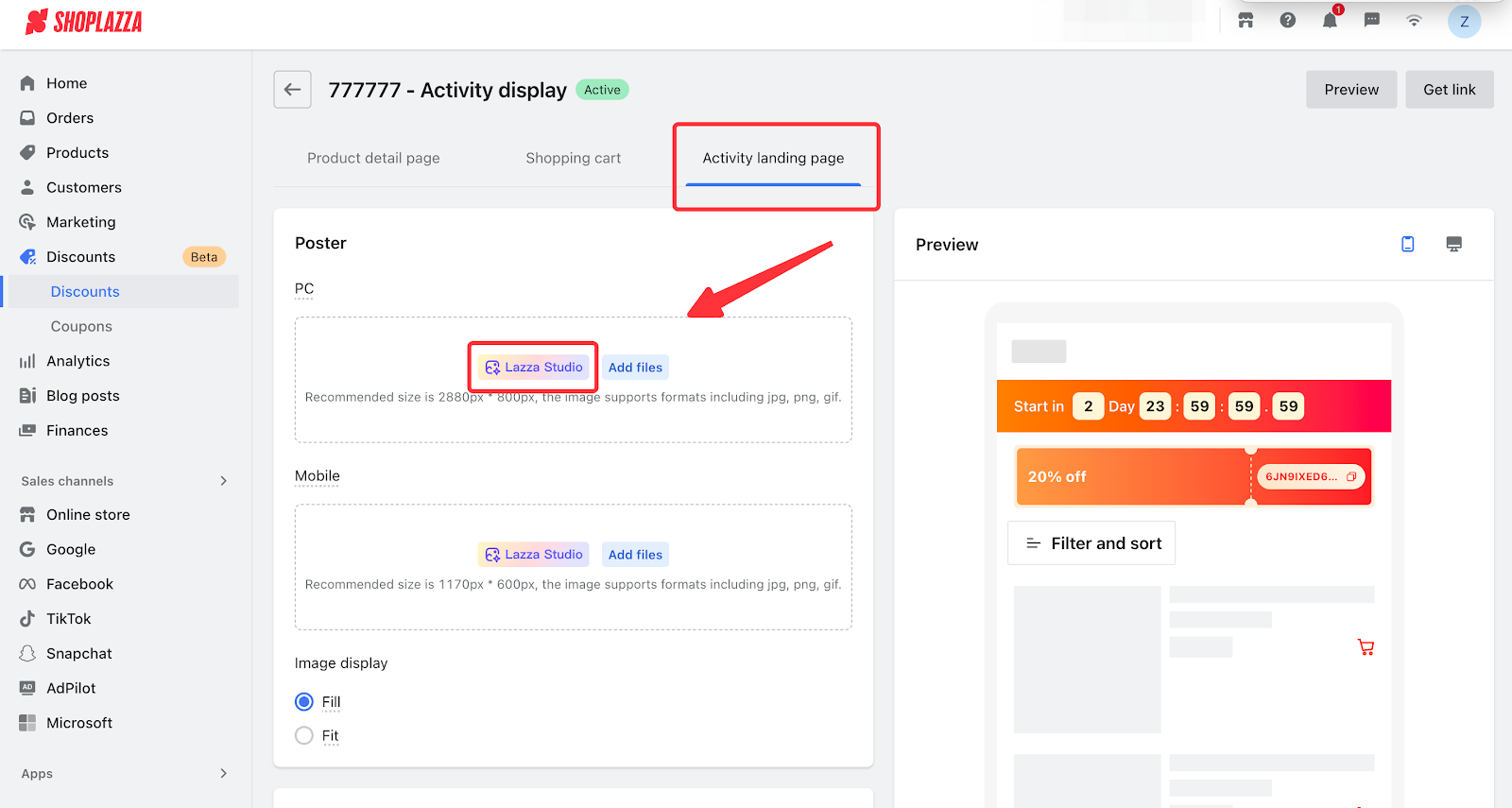
- On the Discount Design Editing Page, in sections such as Poster where images are uploaded, hover over an existing image and click AI Edit to enter the Lazza Studio interface. The selected media will be automatically loaded into Lazza Studio.
AI Product Images
With AI Product Images, you can generate the product visuals you need through conversational prompts. Examples include images for product listing pages (such as AI model try-on images, white background images, color variation images, and lifestyle scene images), website design assets, promotional banner images for discount pages, and creatives for social media advertising. Click AI Product Images to start a new conversation and begin a new image generation workflow.
Input Field
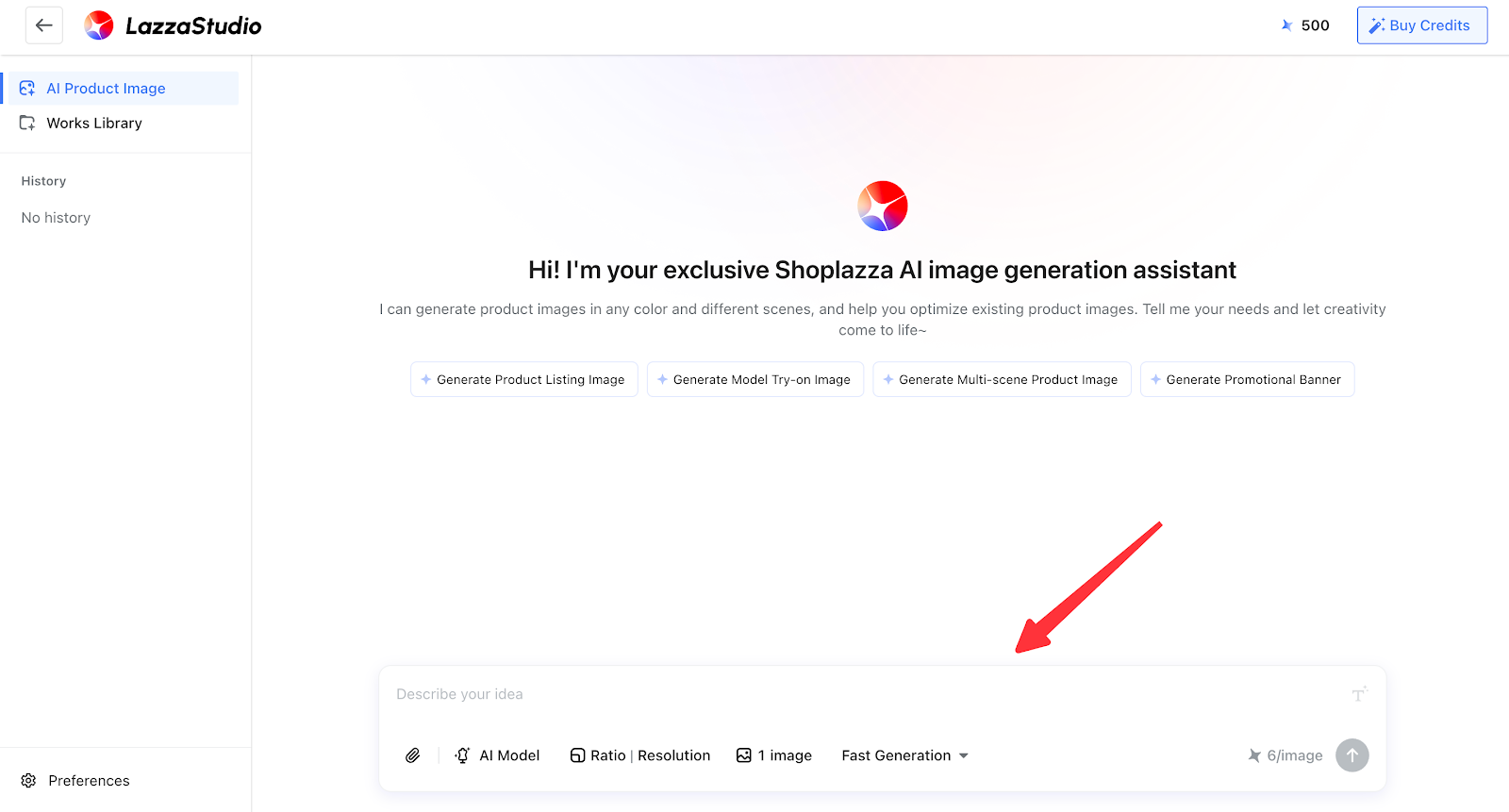
1. Input Field & "Refine Prompt"
Enter the instructions for the image you would like to generate. It is recommended to use the Refine Prompt feature on the right side. Powered by an integrated LLM (Large Language Model), this function semantically enhances your plain-language input and automatically transforms it into a professional image-generation prompt.
This helps reduce the need for repeated adjustments, improves image generation success rate and efficiency, and enables even beginners to create visuals with professional, studio-quality results comparable to those of top photographers.
Before Optimization:
Make the model in Image 1 wear the shoes from Image 2, keeping all other elements the same as Image 1.
After Optimization:
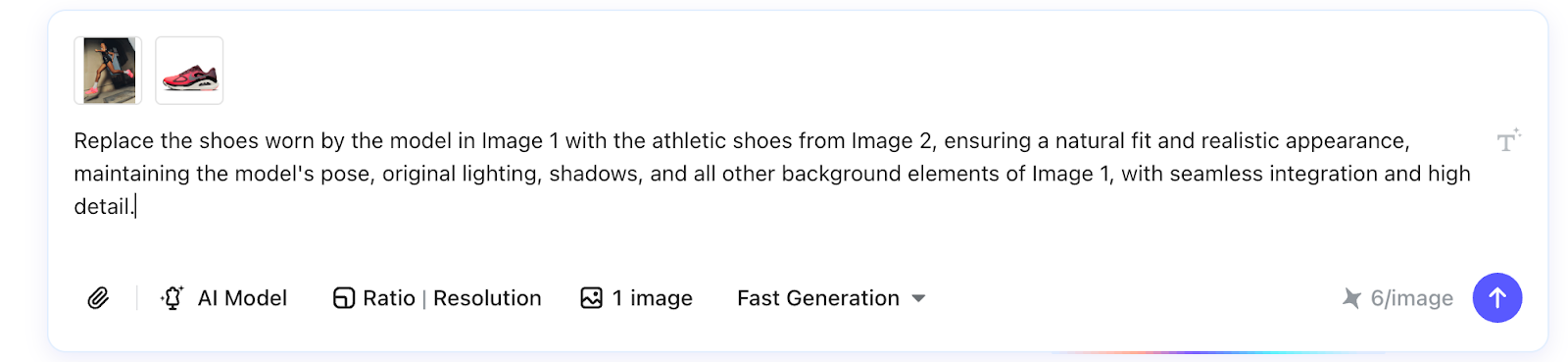
Replace the shoes worn by the model in Image 1 with the athletic shoes from Image 2, ensuring a natural fit and realistic appearance, maintaining the model's pose, original lighting, shadows, and all other background elements of Image 1, with seamless integration and high detail.
2. Reference Images
Supports uploading from local files or the media library. Upload restrictions:
- Only JPG, JPEG, PNG, and WEBP formats are supported.
- The total size of all images must not exceed 20 MB.
- A maximum of 10 reference images can be uploaded.
3. AI Model
Supports selecting system models or custom models. Users can create their own models. The process for creating a model will be described in detail in the AI Model section later.
4. Aspect Ratio & Resolution
Allows setting the aspect ratio and resolution for generated images. If not set, each mode will use default aspect ratio and resolution. Higher resolution selections will result in longer generation times.
Default Settings:
- Fast Mode: 1:1; 1K
- Standard Commercial Mode: 1:1; 2K
- Professional Studio Mode: 1:1; 2K
5. Number of Images
Allows setting the number of images to generate per instruction.
6. Generation Model
| Mode | Pricing Structure | Advantages & Disadvantages |
| Fast Mode | 6 Creativity Points per Image | Advantages:
Disadvantages:
|
| Standard Commercial Mode | 6 Creativity Points per Image | Advantages:
Disadvantages:
|
| Professional Studio Mode | 1K / 2K: 20 Creativity Points per Image 4K: 30 Creativity Points per Image | Advantages:
Disadvantages:
|
After Sending a Prompt
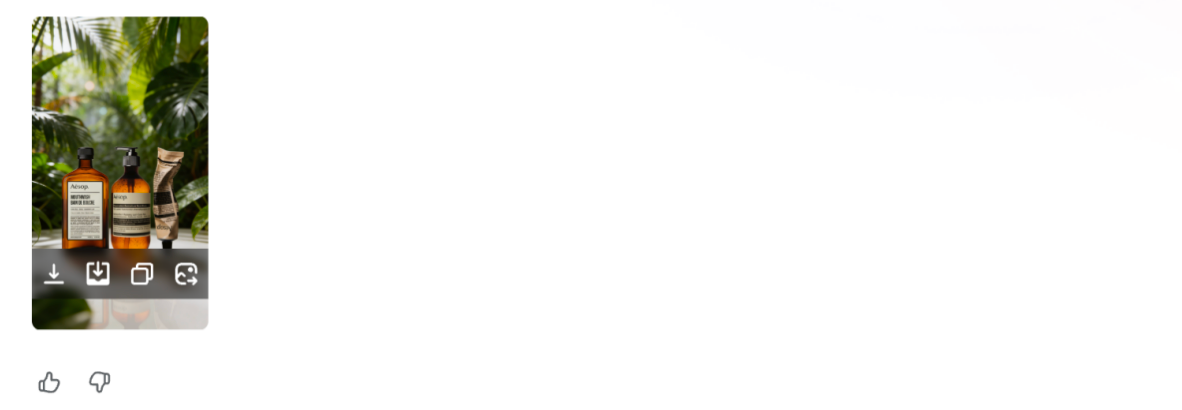
Once the image is generated, you can perform the following actions:
- Download: Save the image to your local device.
- Save to Media Library: After saving, the image will be stored under Media Library > AI Generated.
- Copy: Copy the image so it can be quickly pasted into the prompt input field.
- Reference Image: Click to reference the image in the prompt input field for secondary adjustments after generation.
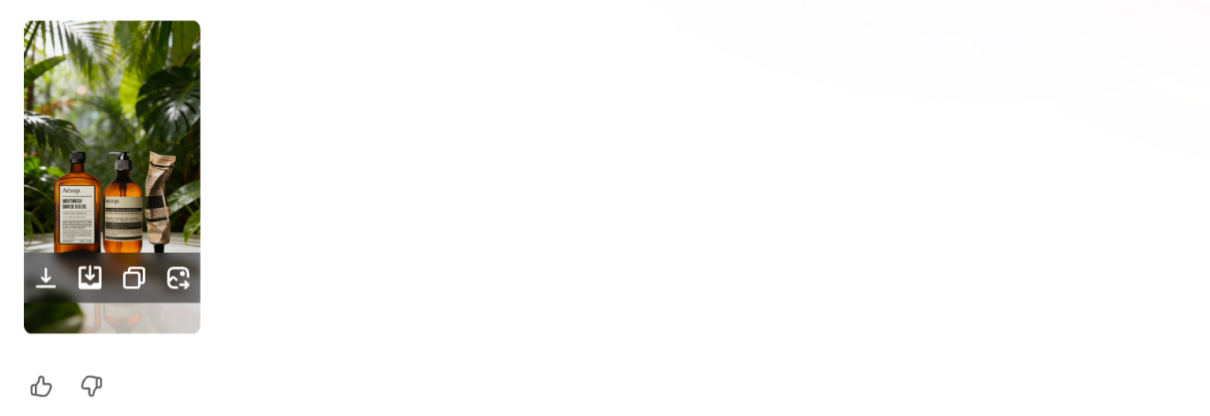
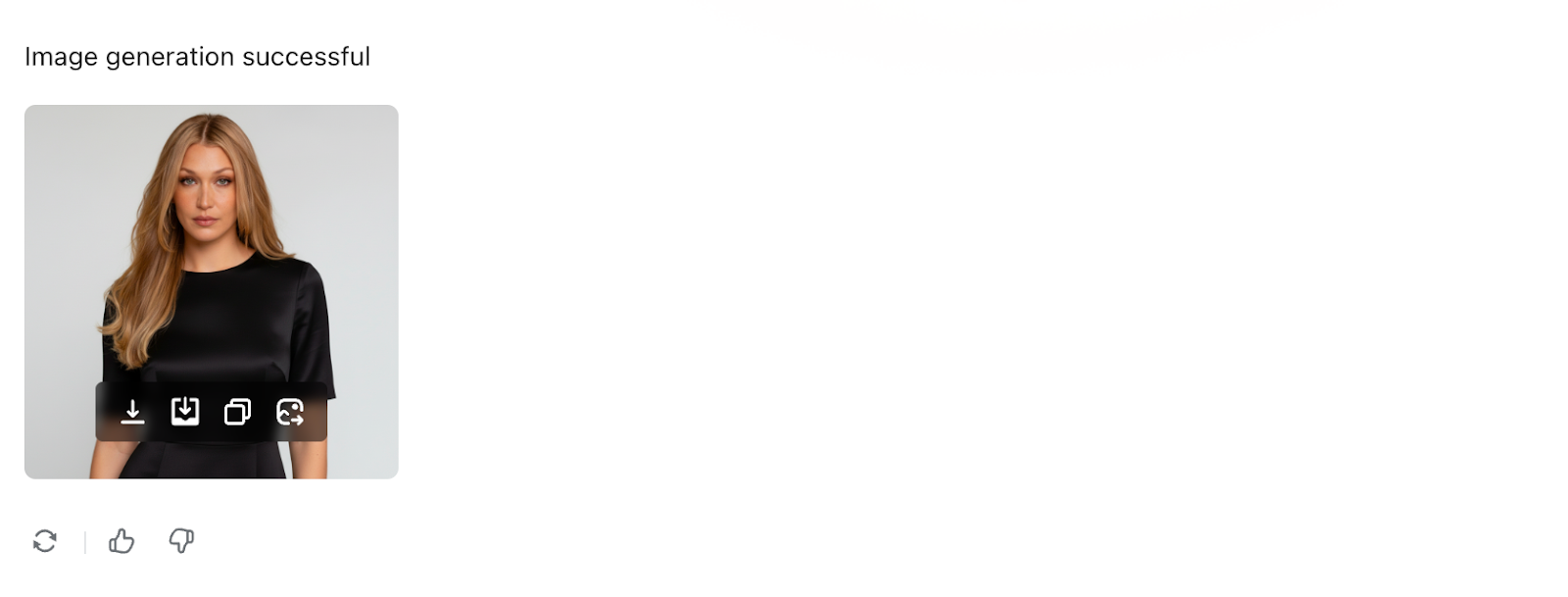
Image Generation Error Messages
| Error Message | Cause | Solution |
| Current image generation model resources are overloaded, and the image was not generated successfully. The Creativity Points for this attempt have been automatically refunded. Please try again later. | Image generation service rate-limited (overheated), resources are overloaded | 1. Switch to another generation mode 2. Use during off-peak hours (e.g., morning) |
| The generated content did not pass compliance checks, and the image was not generated successfully. The Creativity Points for this attempt have been automatically refunded. Please adjust your description and try again. | Generated sensitive content filtered by the AI model | 1. Switch the generation mode to Standard Commercial Mode |
AI Model
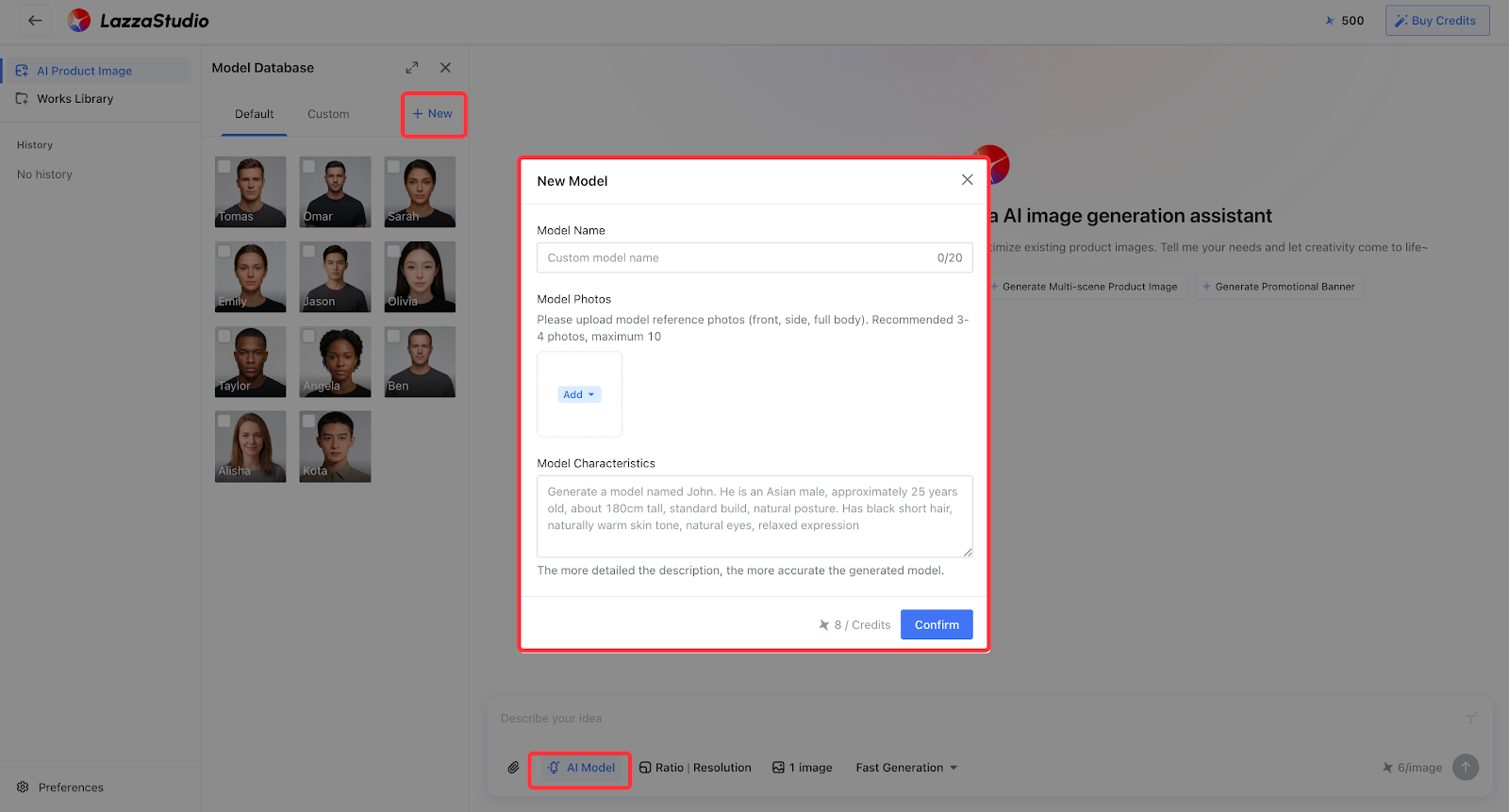
1. Create a Model: To create a model, enter the model name and upload a clear frontal reference image showing the model’s facial features.
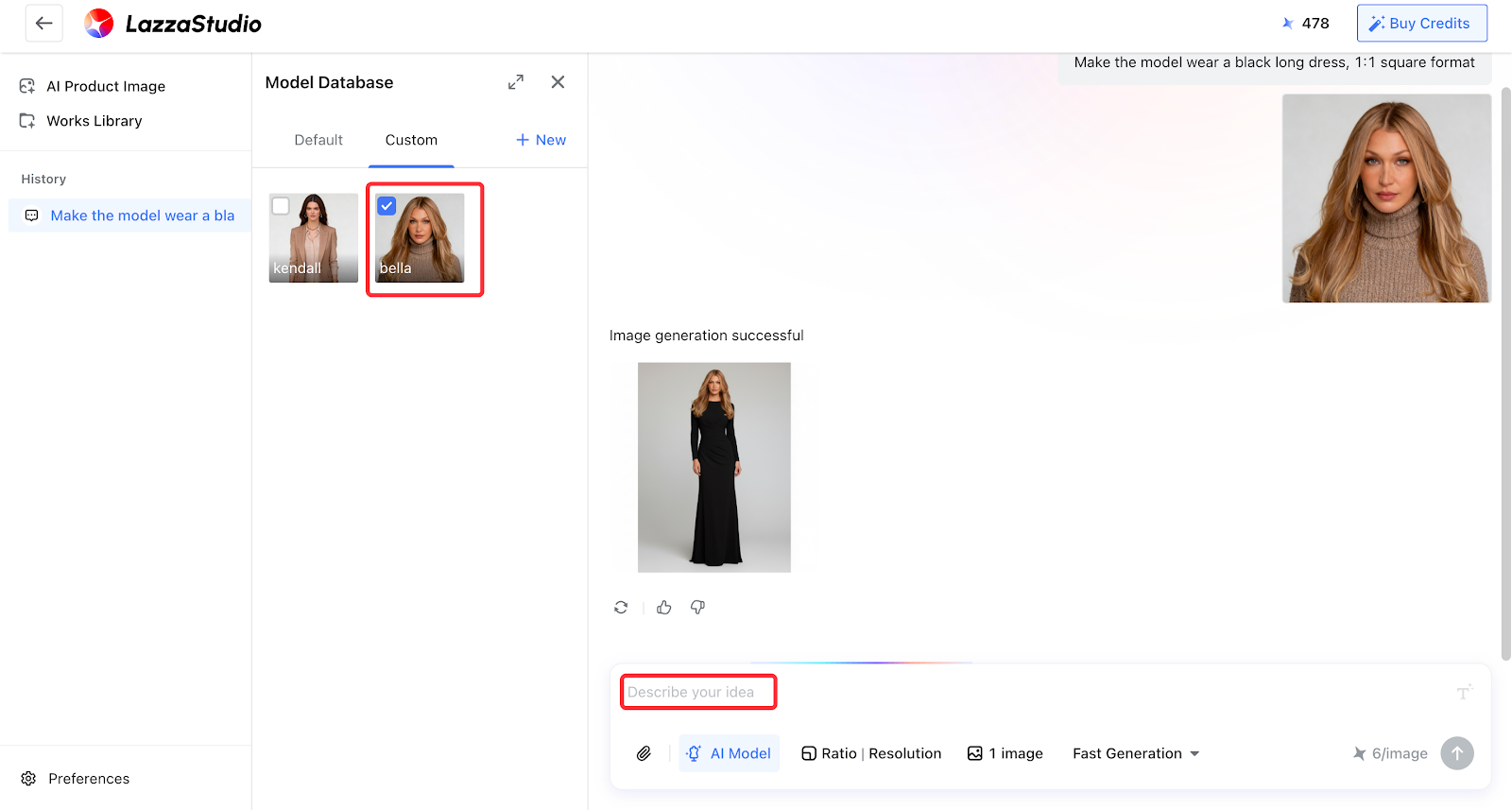
2. Use a Model: After selecting a model in AI Model, you can reference the model in the prompt input field as a source for image generation. This is applicable for scenarios such as AI try-on, poster creation, and other visual content generation.
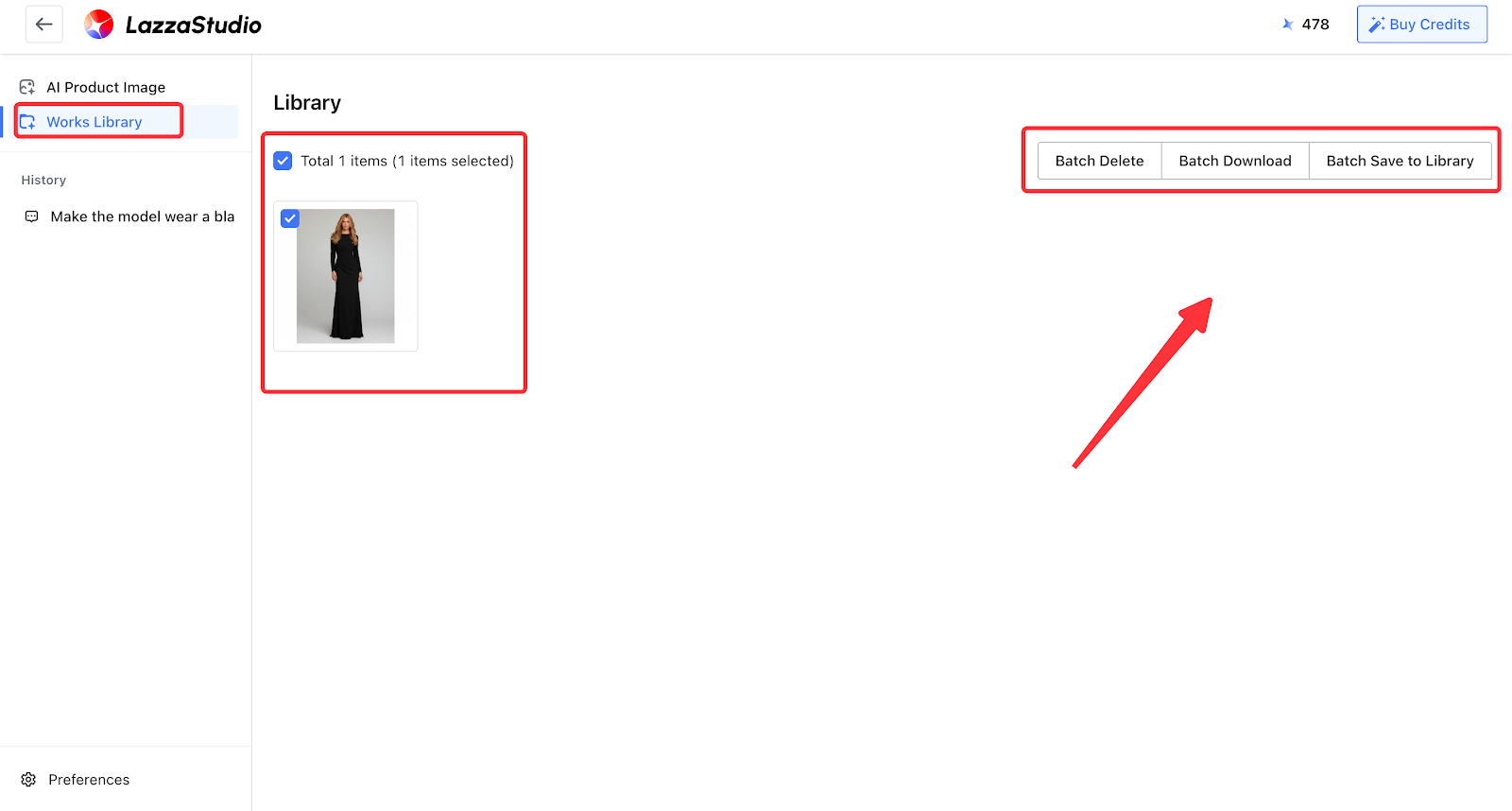
Works Library
Supports Batch Delete, Batch Download, and Batch Save to Library.
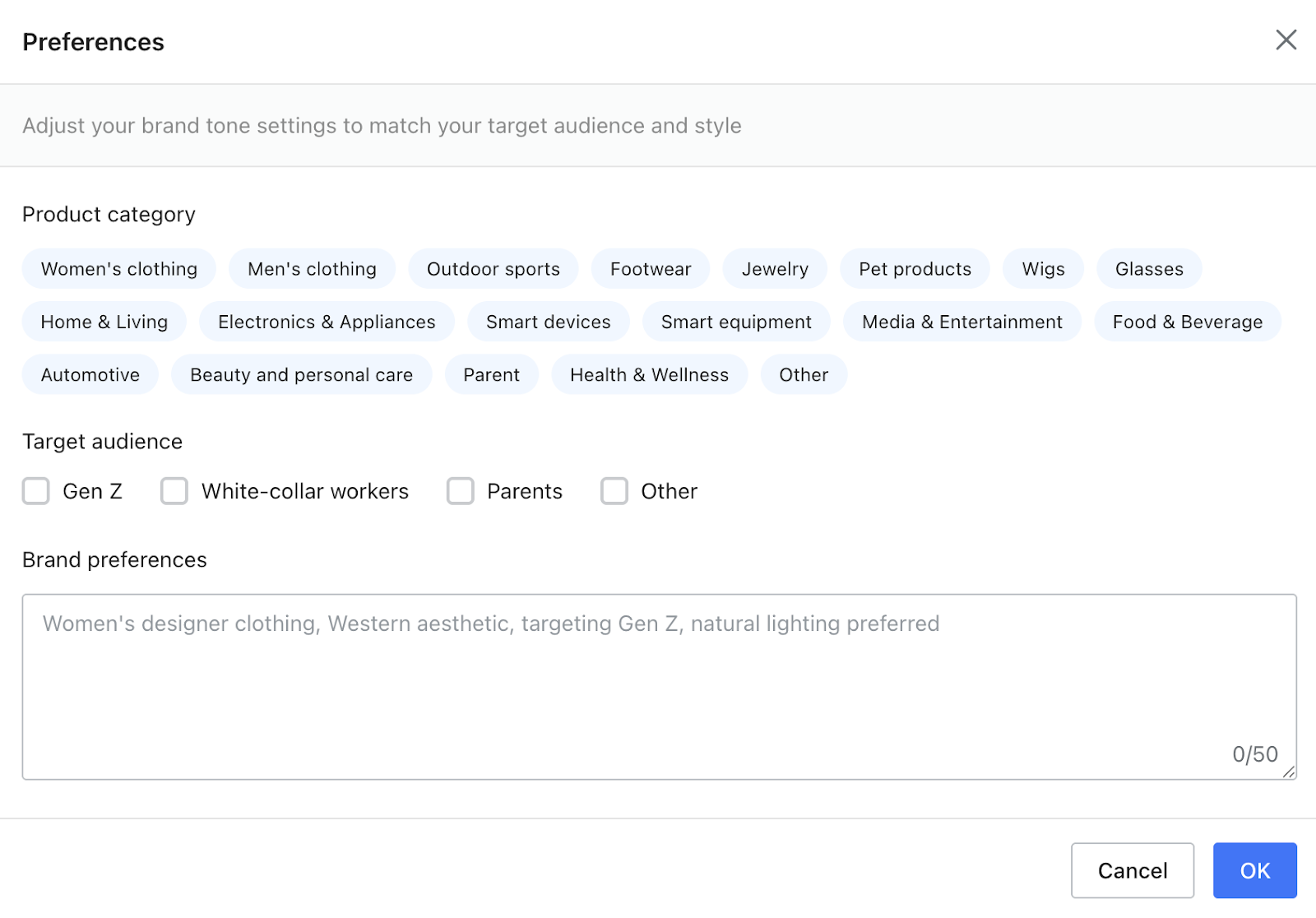
Preferences
You can set your brand tone, category, target audience, and brand preferences. Once configured, we will save them in Lazza Studio, and future generated images will follow the preferences you’ve set.
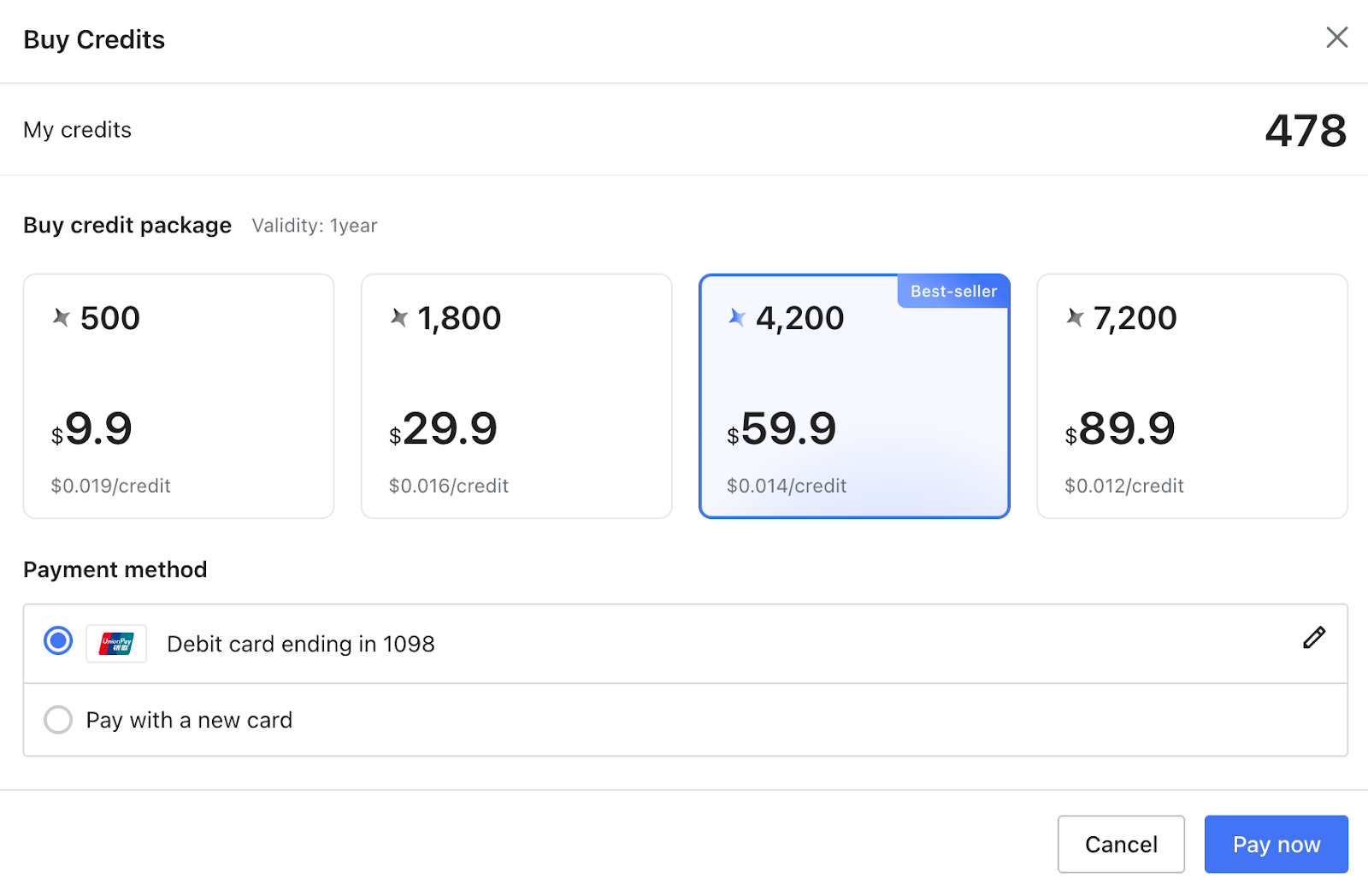
Purchase Ingenuity Points
Purchase Ingenuity Points to generate images that require these points. Each Ingenuity Package is valid for 1 year. Points are consumed in the order of purchase — packages bought earlier will be used first. The more points you purchase in a package, the lower the cost per image generation.
Ingenuity Points Packages
| Package Points | Price | Average Cost per Point |
| 500 | $9.90 | $0.019/point |
| 1800 | $29.90 | $0.016/point |
| 4200 | $59.90 | $0.014/point |
| 7200 | $89.90 | $0.012/point |
Generated Image Effects
Generate posters, scene images, and product images.
Input Instructions | Source Images | Select Configuration | Output Images |
Generate an image featuring the model (Image 2) wearing the crossbody bag (Image 1), taking a mirror selfie in an urban street setting in the style of a Xiaohongshu fashion influencer. The image should have high detail, ultra-realistic quality, and a high-definition professional photography look, with natural lighting and shadows. The bag should be worn naturally, fitting the model’s body well. The subject should be prominent, with a complete composition and a clear mirror selfie perspective. No unnecessary distracting elements. The overall result should present a fashionable, trendy commercial visual suitable for publishing on Chinese social media. | 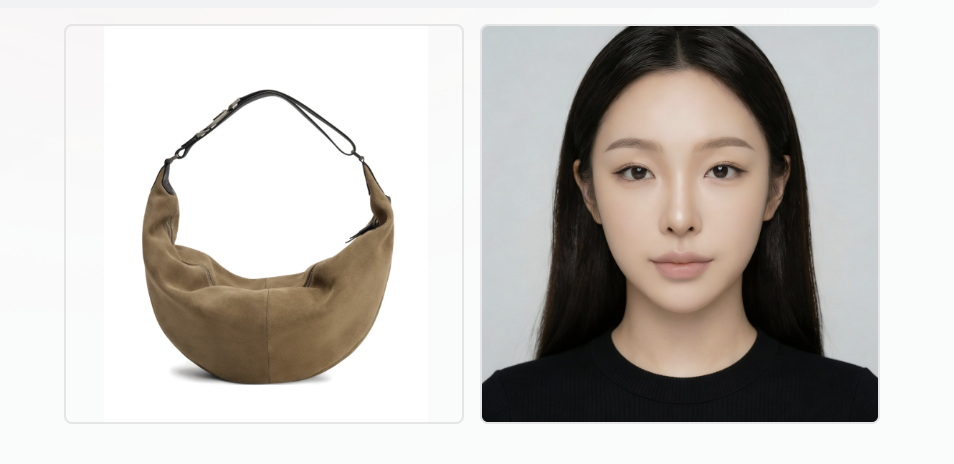 | 1. Number of images: 3 2. Aspect Ratio & Resolution: 9:16; 2K 3. Mode: Professional Studio |    |
1. Number of images: 3 2. Aspect Ratio & Resolution: 9:16; 2K 3. Mode: Standard Commercial |  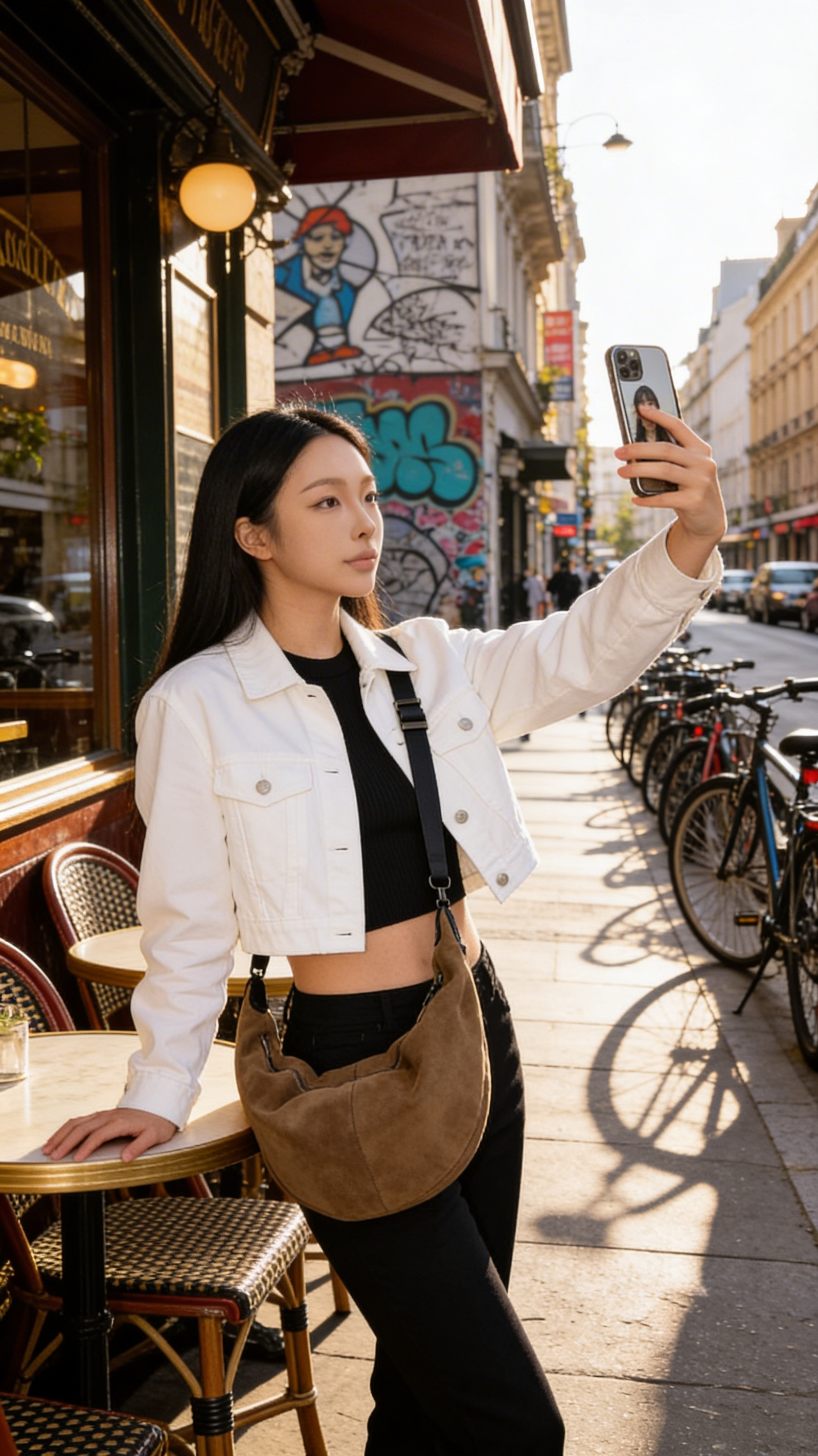 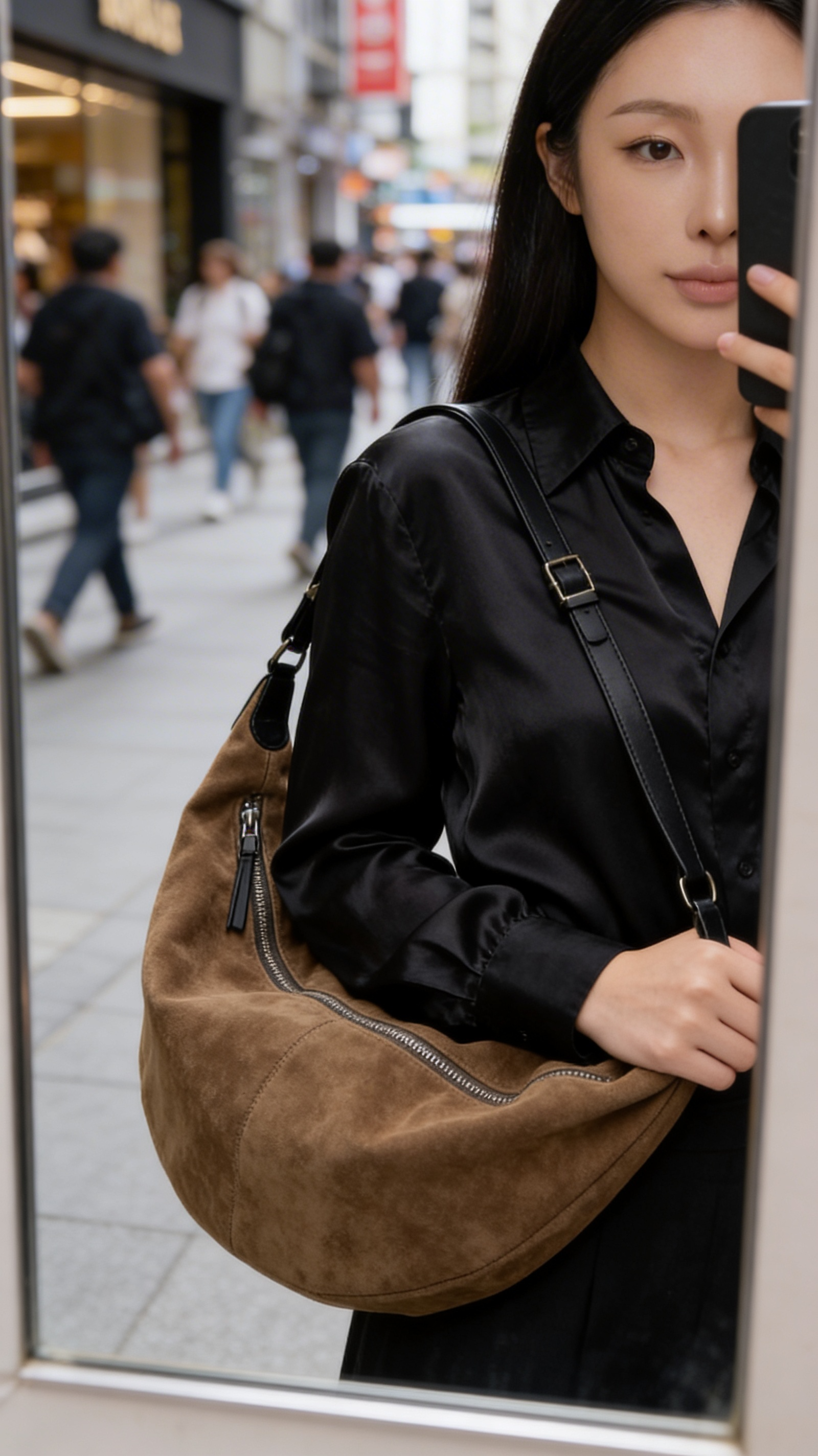 | ||
1. Number of images: 3 2. Aspect Ratio & Resolution: 9:16; 1K 3. Mode: Fast Generation | 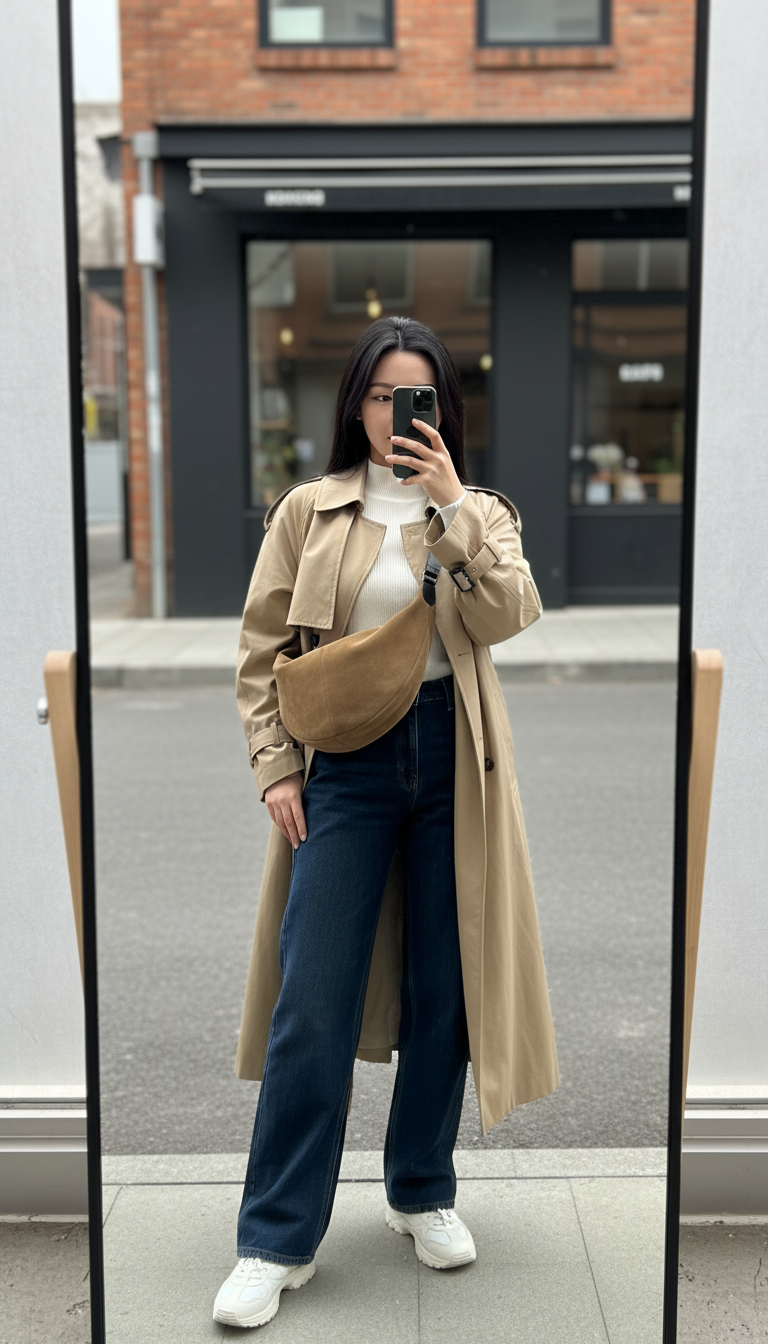 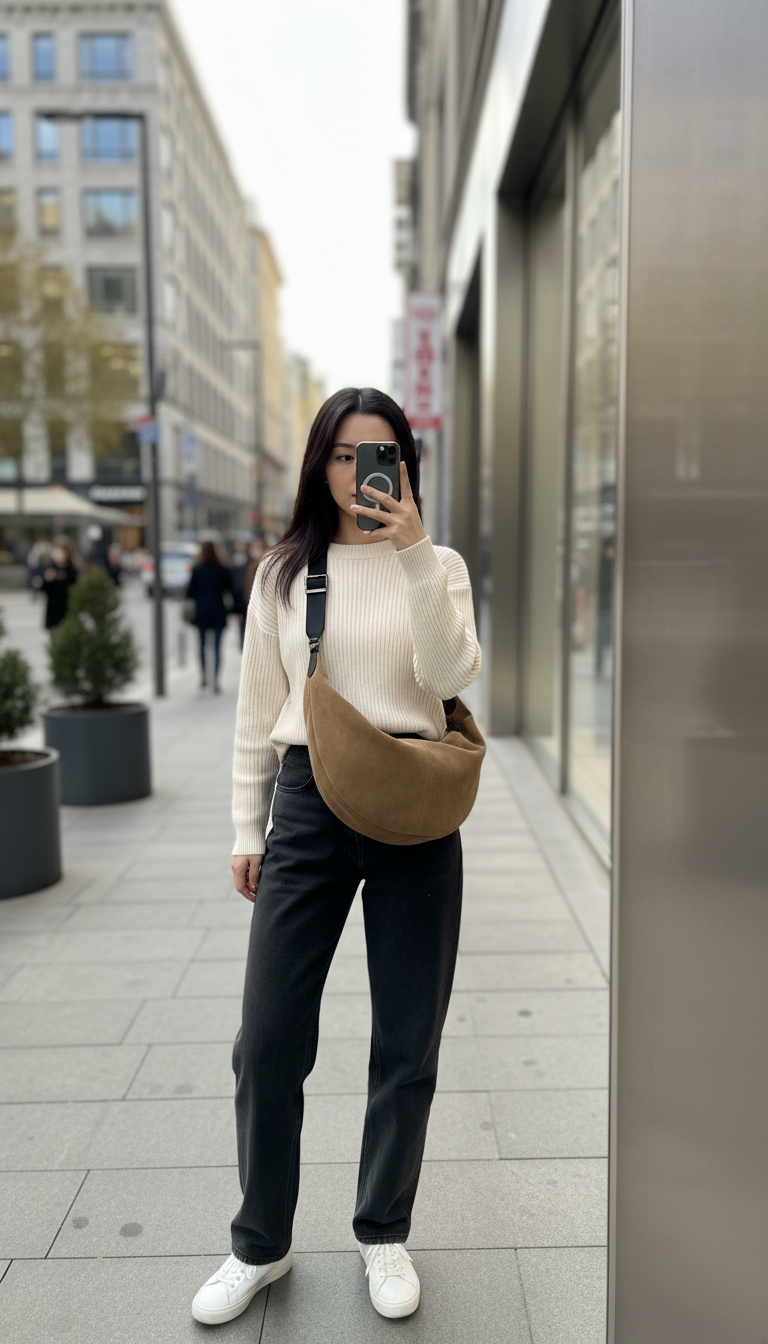 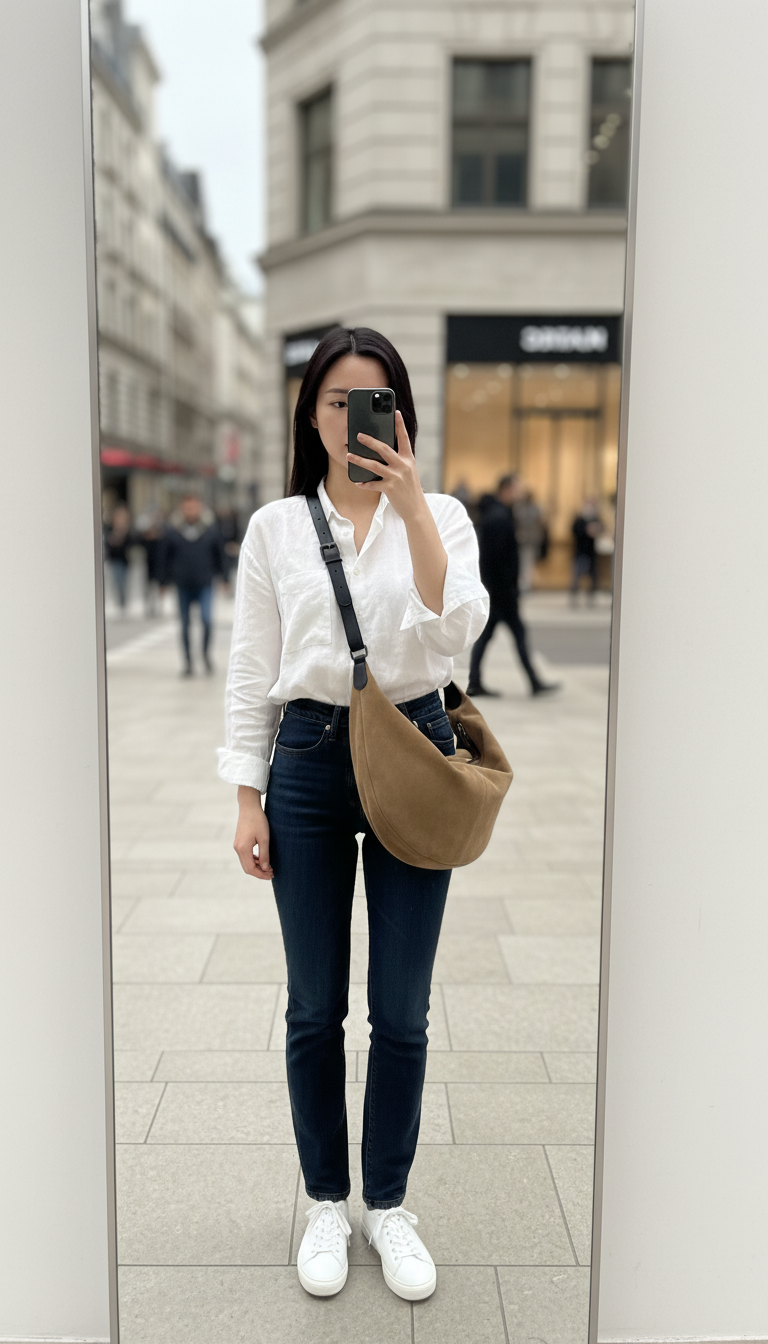 | ||
Generate an image showing the model from Image 2 wearing the crossbody bag from Image 1. The scene is a mirror selfie in an urban street setting, styled like an Instagram fashion influencer. The image should feature high detail, ultra-realistic quality, and a high-definition professional photography look, with natural and evenly balanced lighting. The bag should be worn naturally, fitting the model’s body with realistic material texture. The model’s facial features must remain consistent. The subject should be prominent, with a complete composition and a distinctive mirror selfie perspective. The image should be clean and uncluttered, with no unnecessary distracting elements. The overall result should present a fashionable, trendy commercial visual suitable for overseas social media publication. | 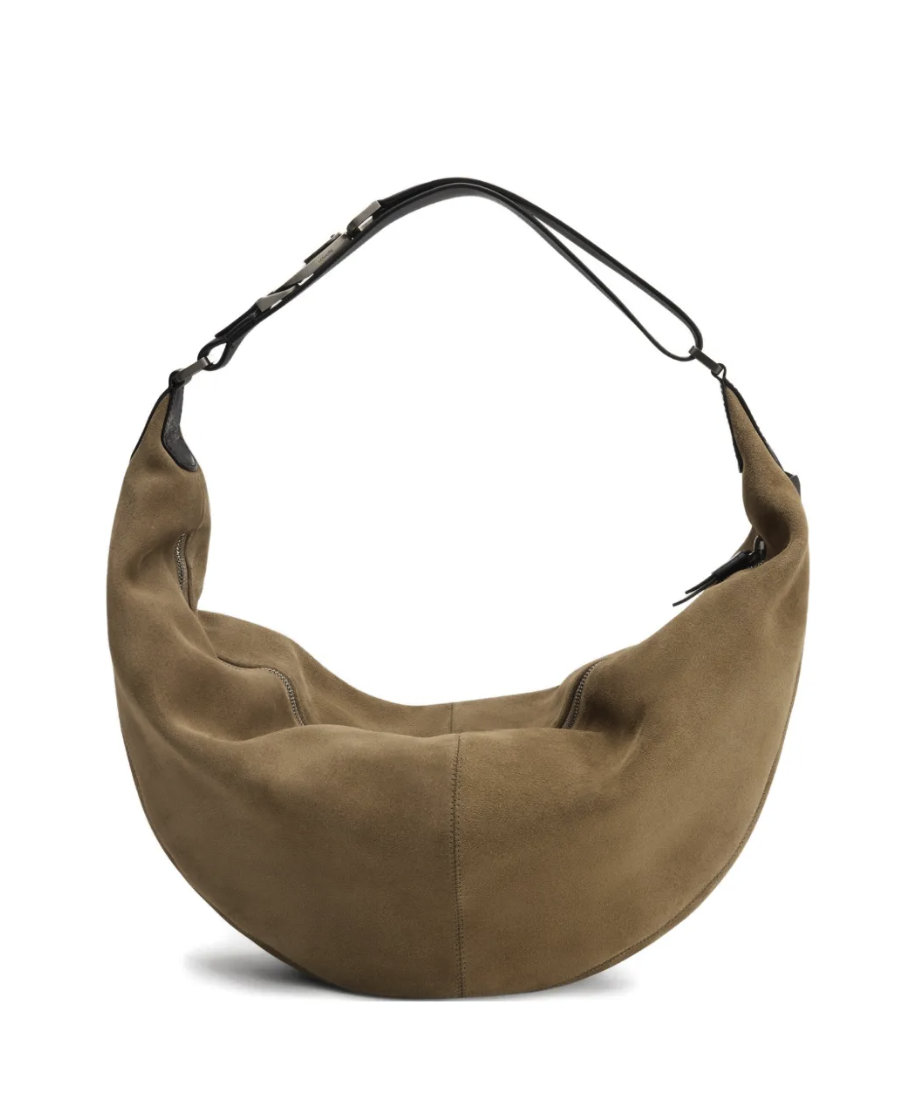 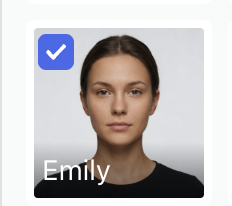 | 1. Number of images: 3 2. Aspect Ratio & Resolution: 9:16; 2K 3. Mode: Professional Studio | 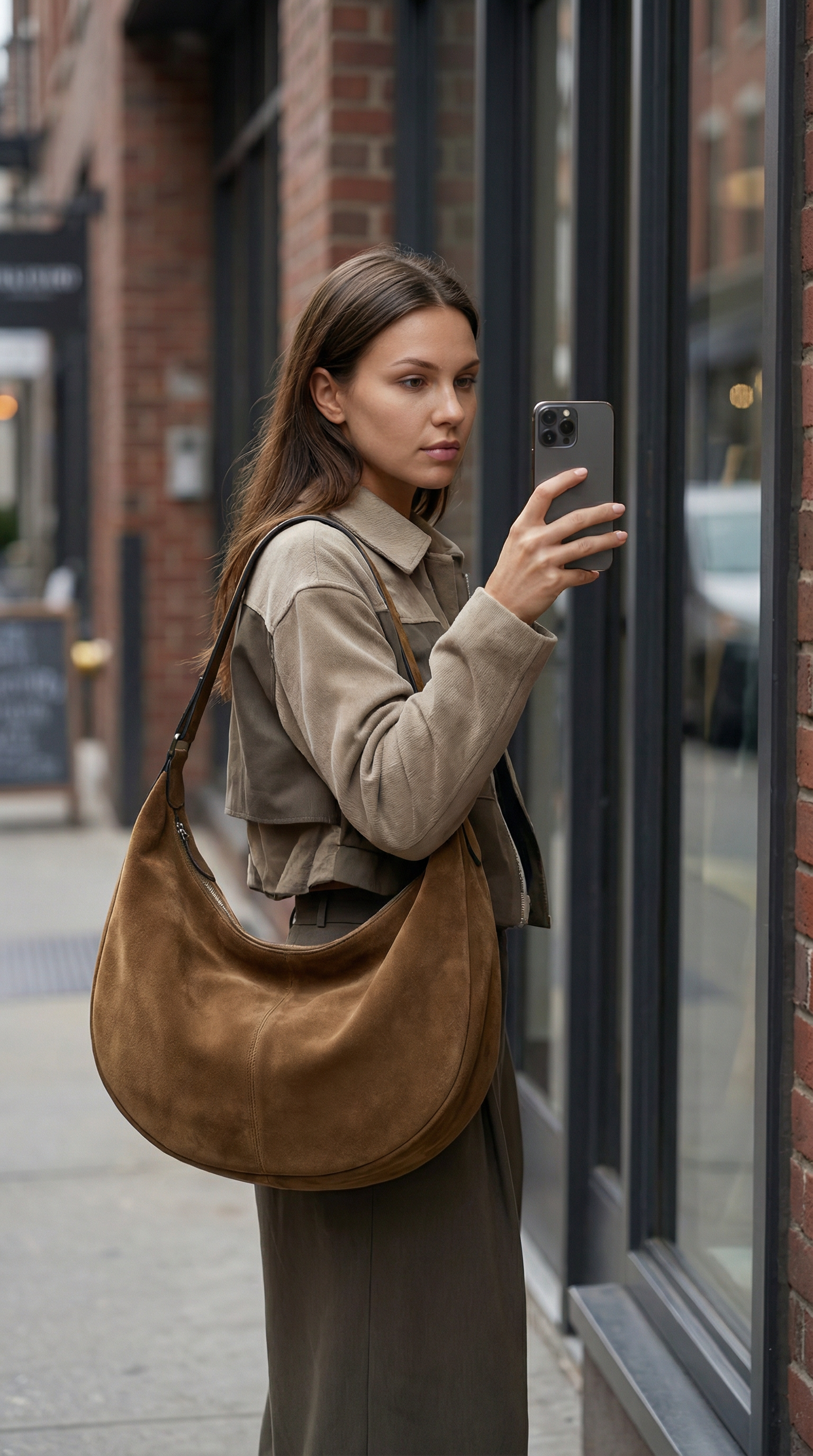 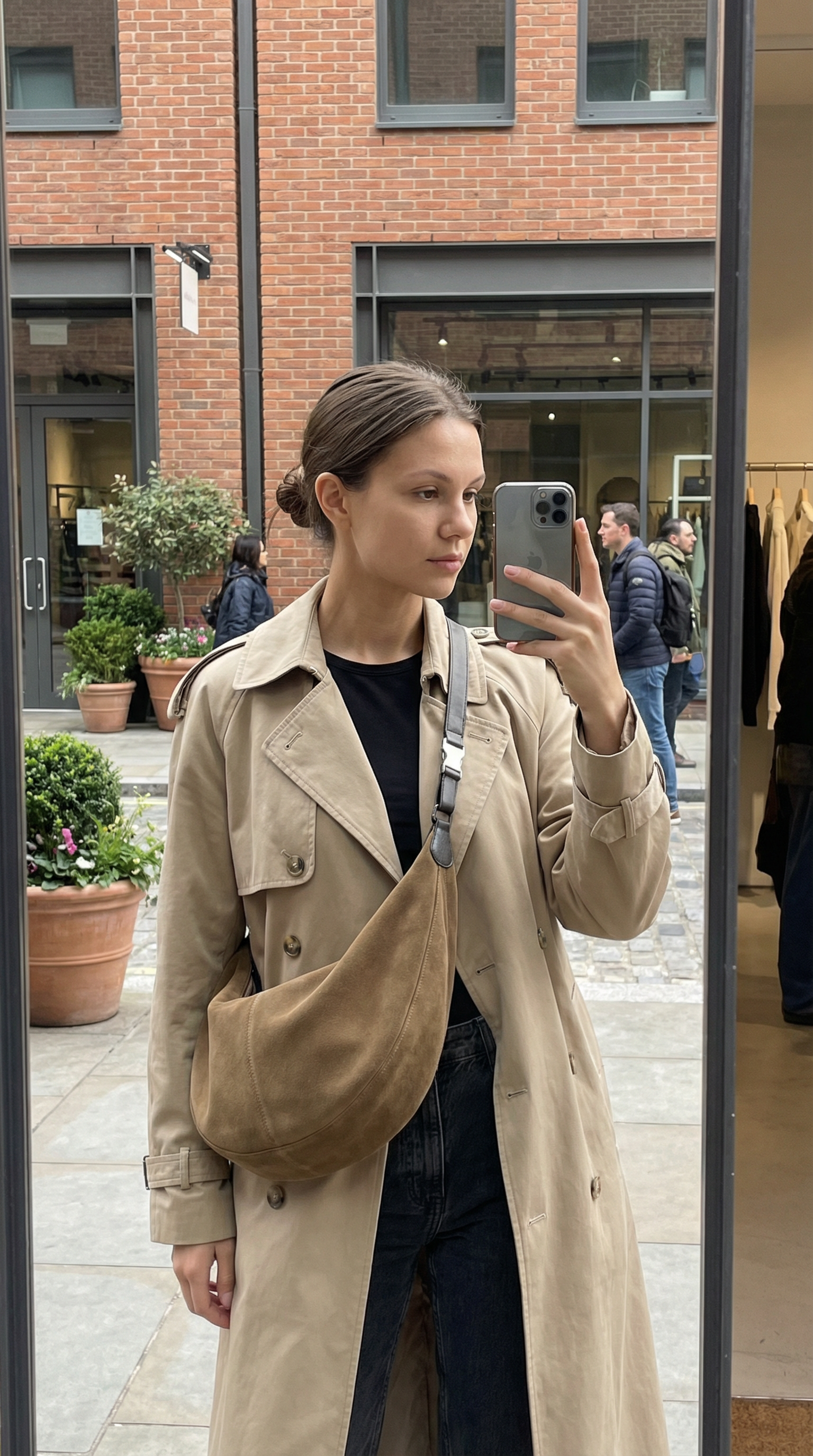 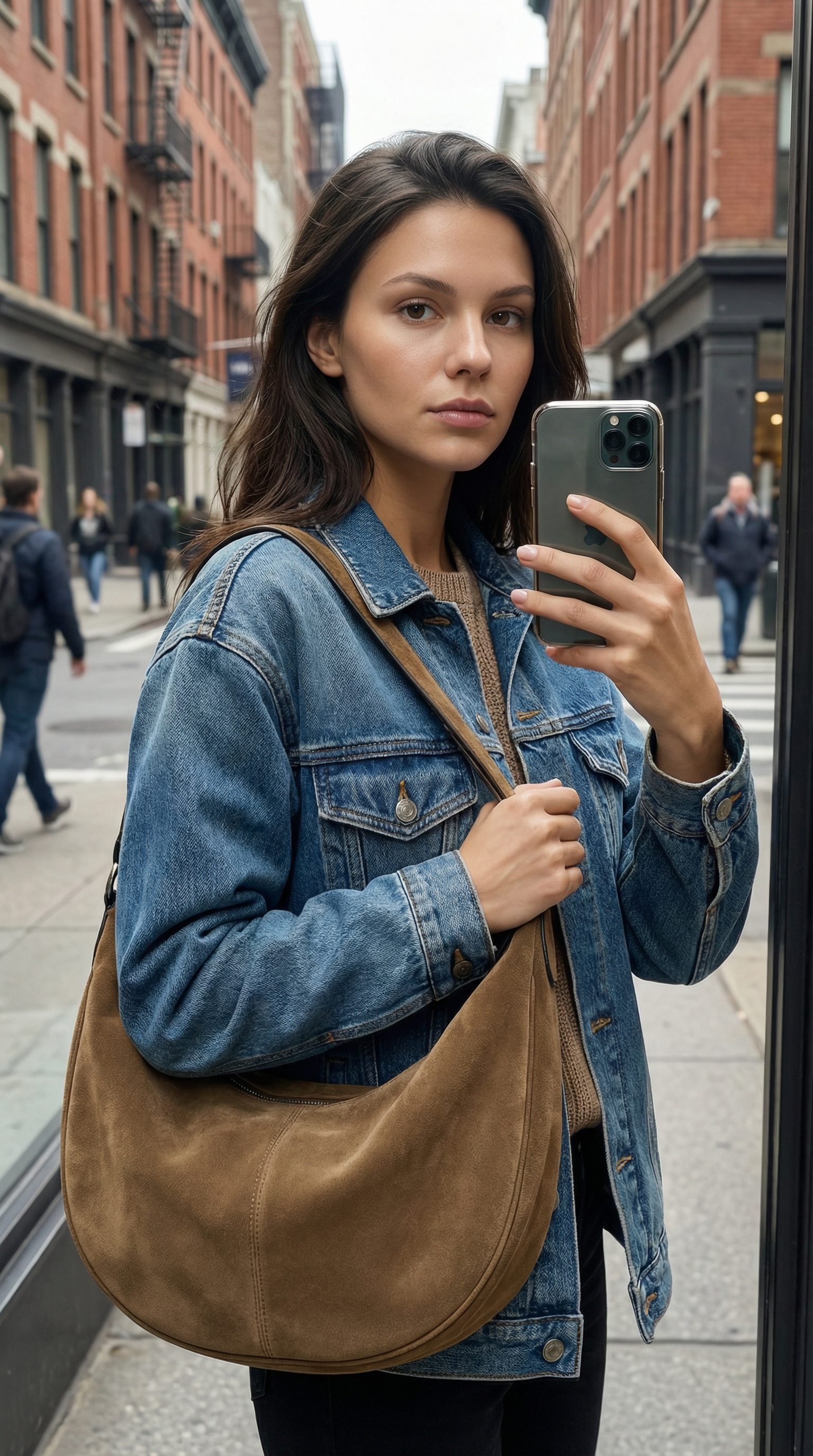 |
Generate a realistic influencer-style street fashion sharing image featuring the provided model’s face as the main subject, wearing the black sleeveless top from Image 1, the dark wide-leg jeans from Image 2, and the black high-heeled sandals from Image 3. The overall image should match an Instagram promotional style, using soft natural outdoor lighting with a fashionable composition. The image should be high-definition with ultra-realistic details. The clothing should fit naturally, with realistic material texture and an authentic wearing appearance. | 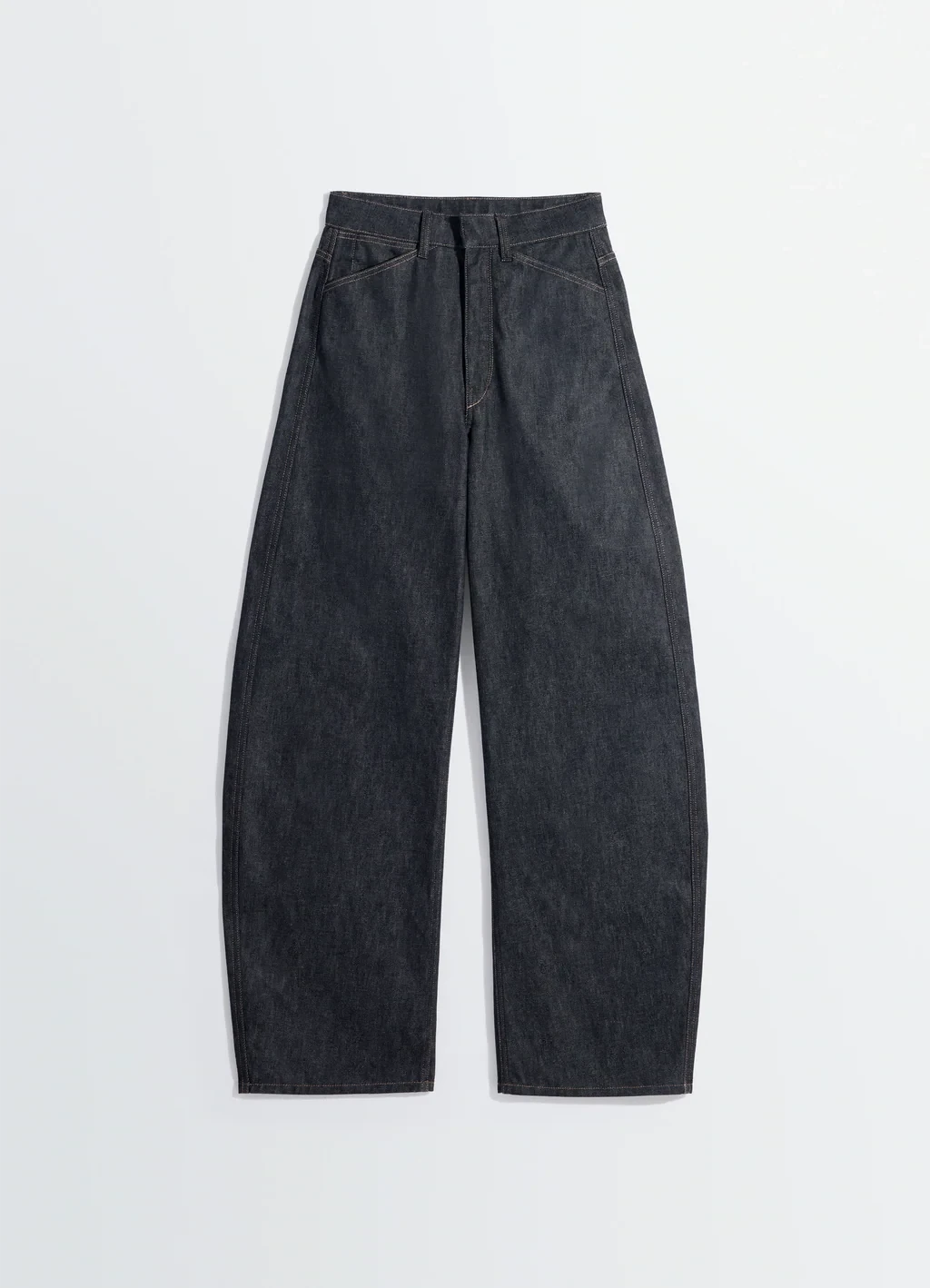 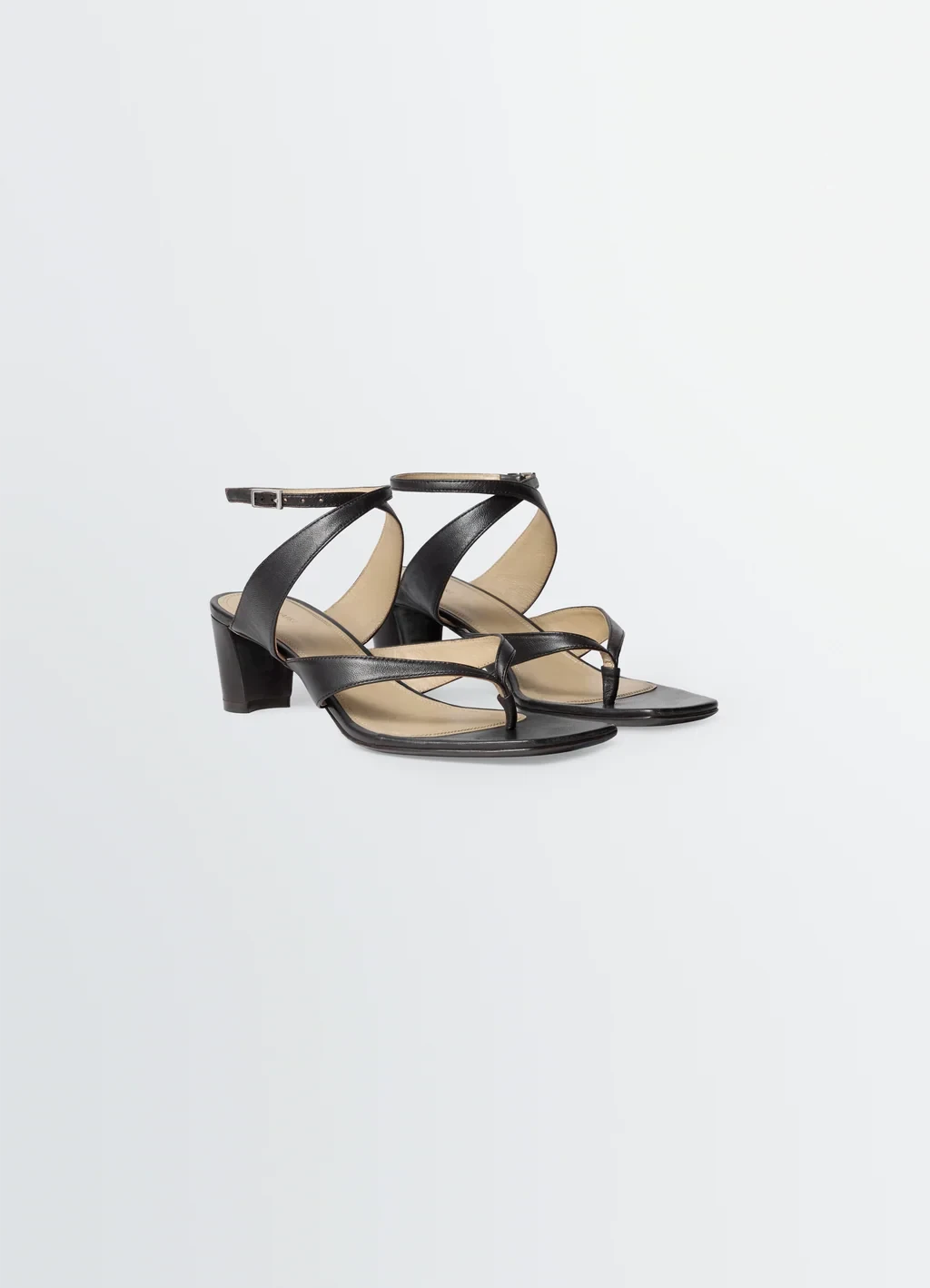 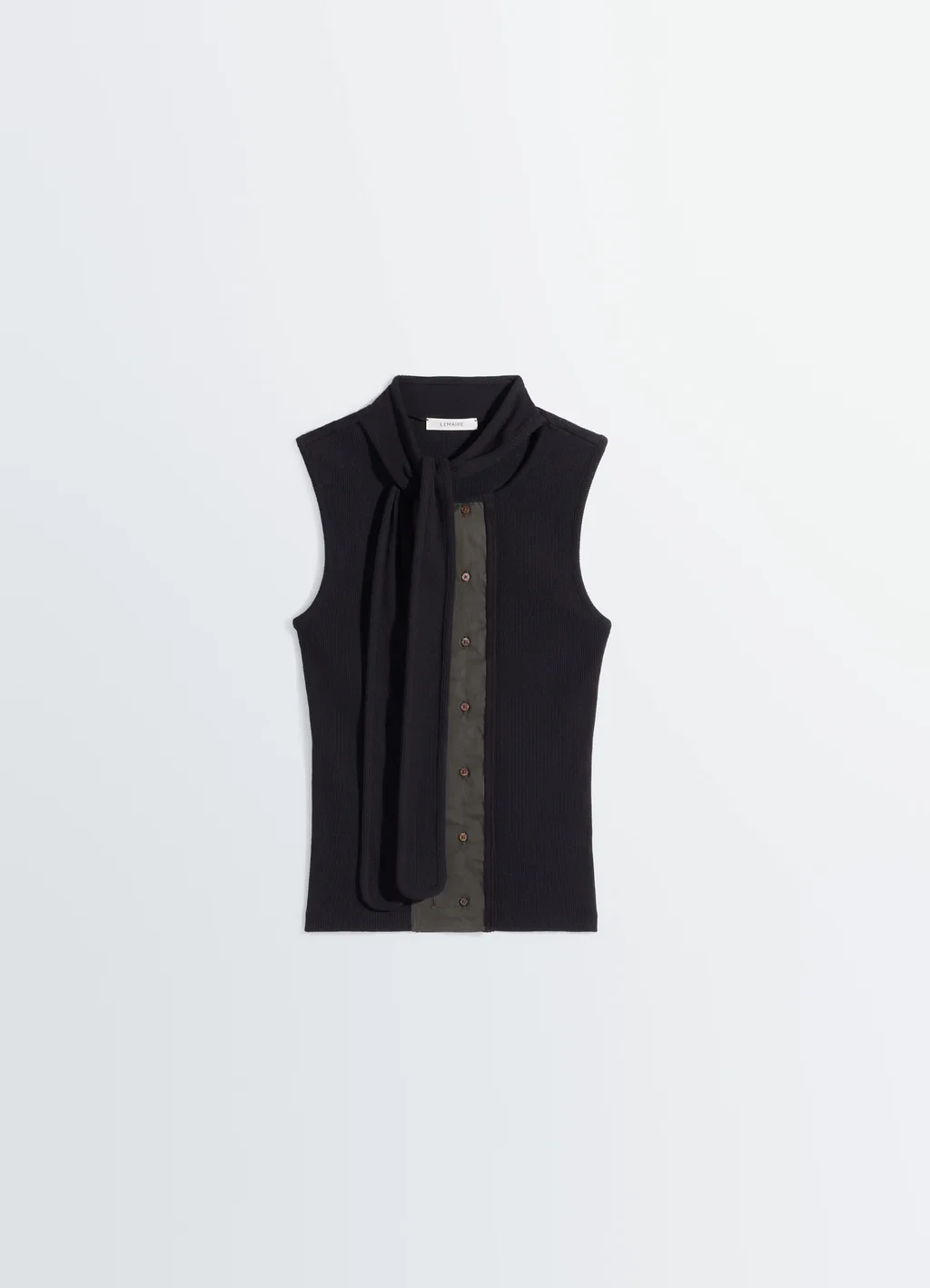 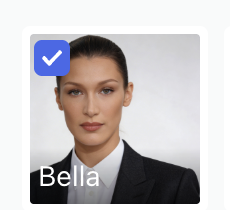 | 1. Number of images: 3 2. Aspect Ratio & Resolution: 9:16; 2K 3. Mode: Professional Studio | 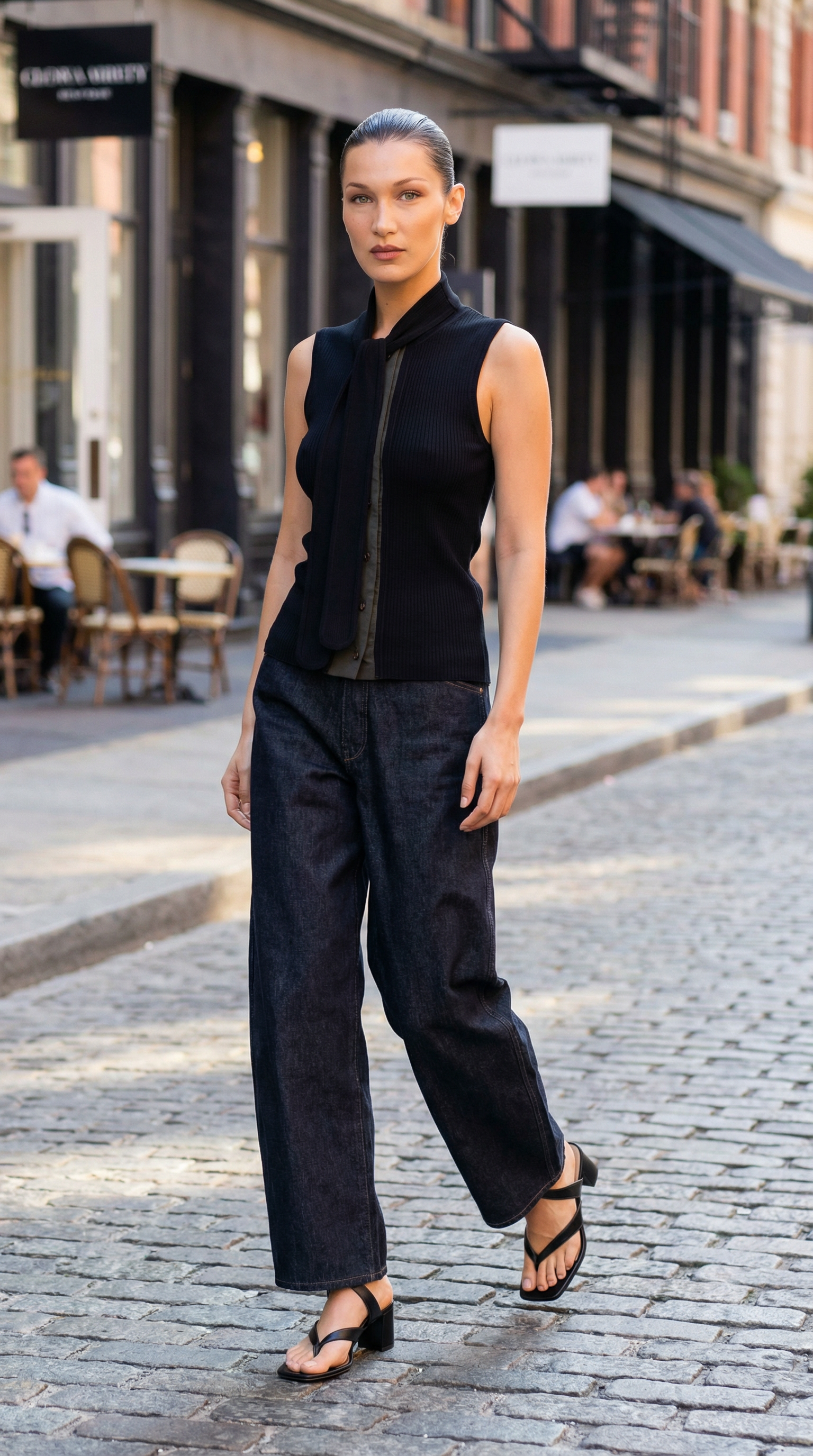  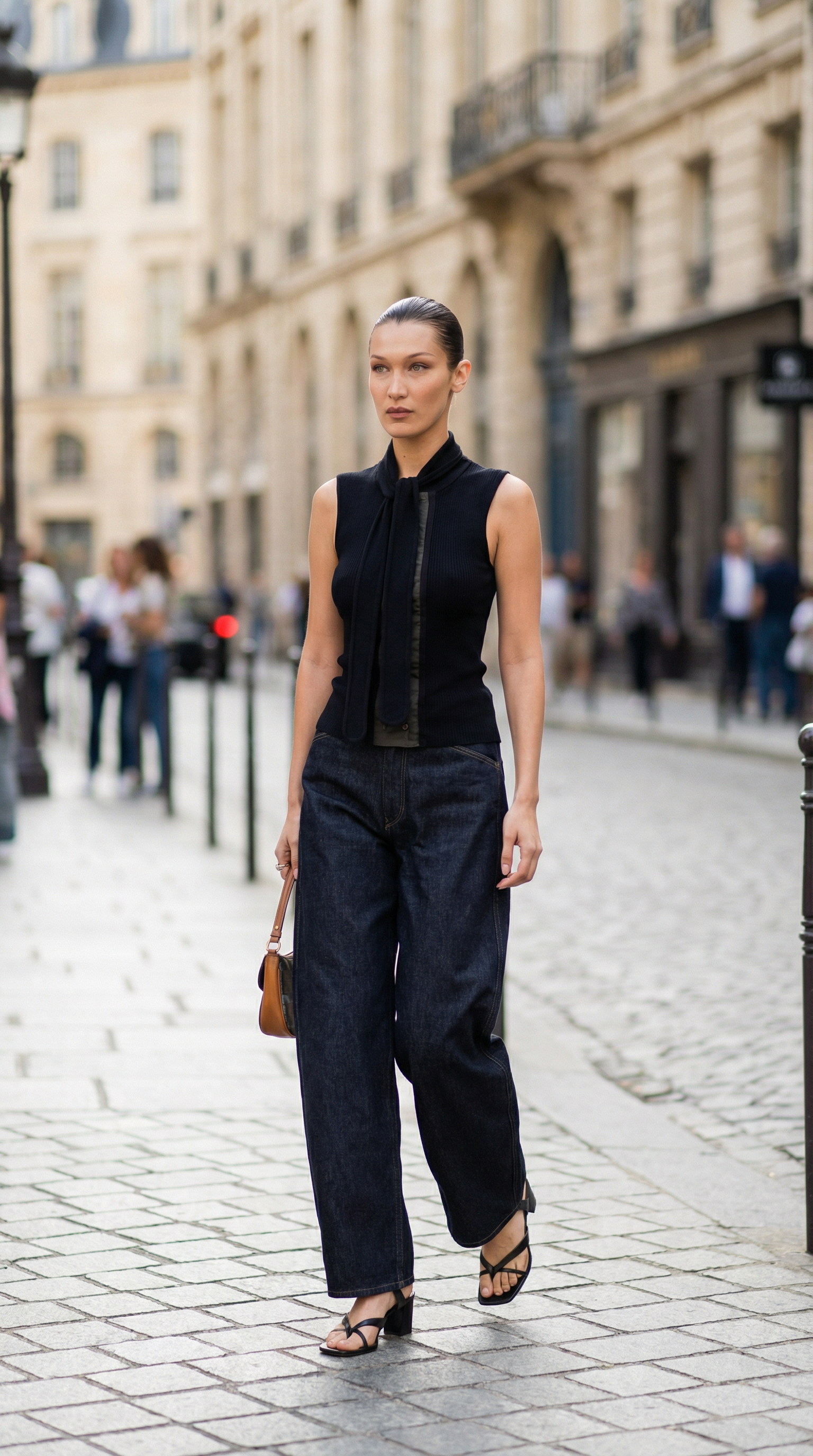 |
Replace the shoes on the model in Image 1 with the shoes shown in Image 2, ensuring that the shoes fit naturally on the model’s feet. Maintain consistent lighting, perspective, proportions, and depth with the original image. At the same time, keep the model’s pose, body structure, background, and all other elements identical to Image 1. The replaced area should have no visible seams, and the final image should exhibit realistic material, clear details, and high-fidelity professional photography quality. | 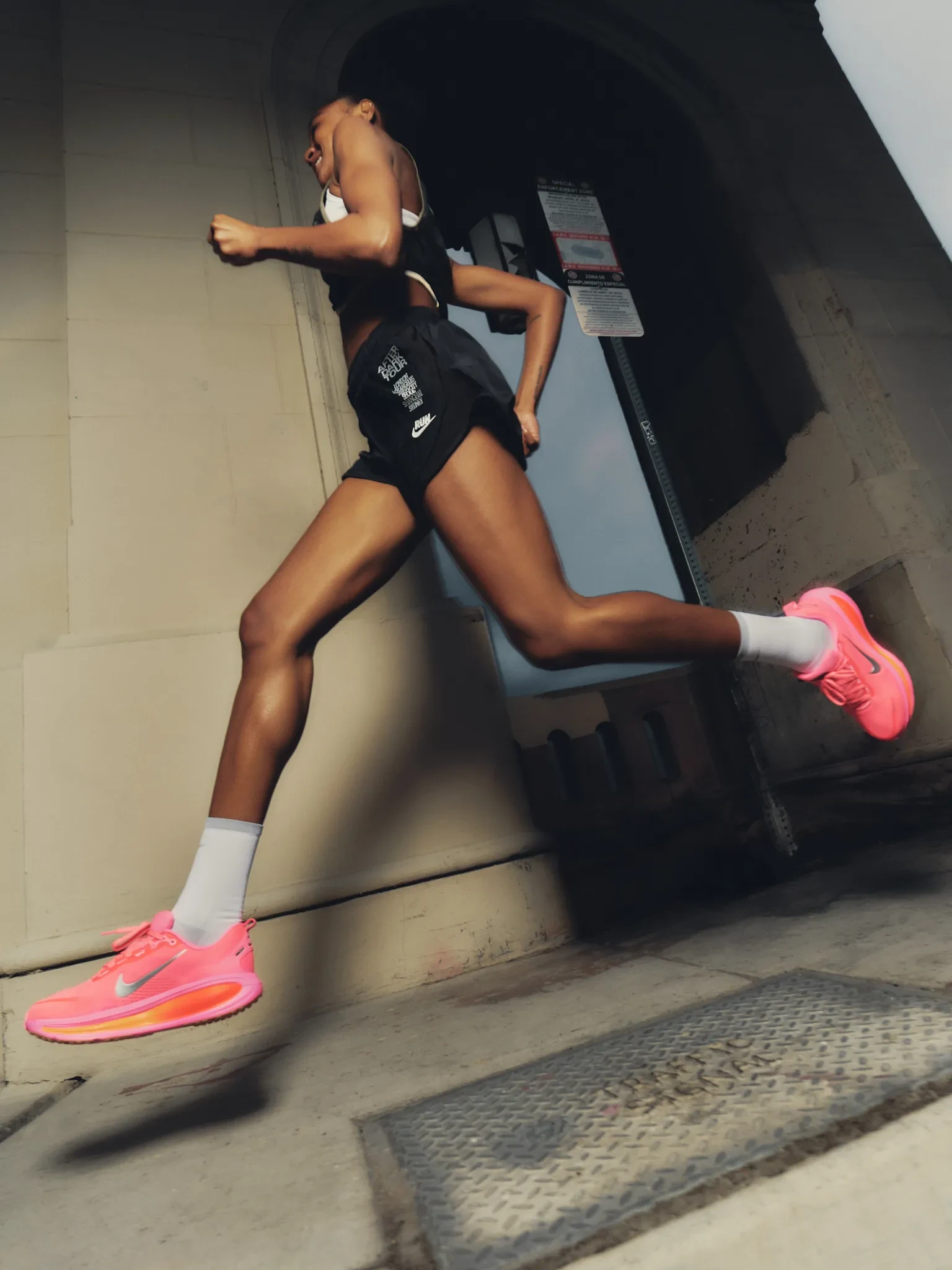 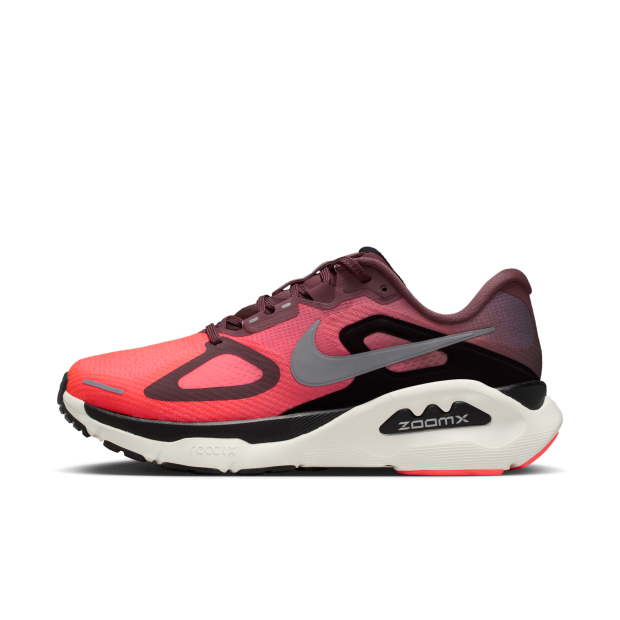 | 1. Number of images: 1 2. Aspect Ratio & Resolution: 9:16; 2K 3. Mode: Professional Studio | 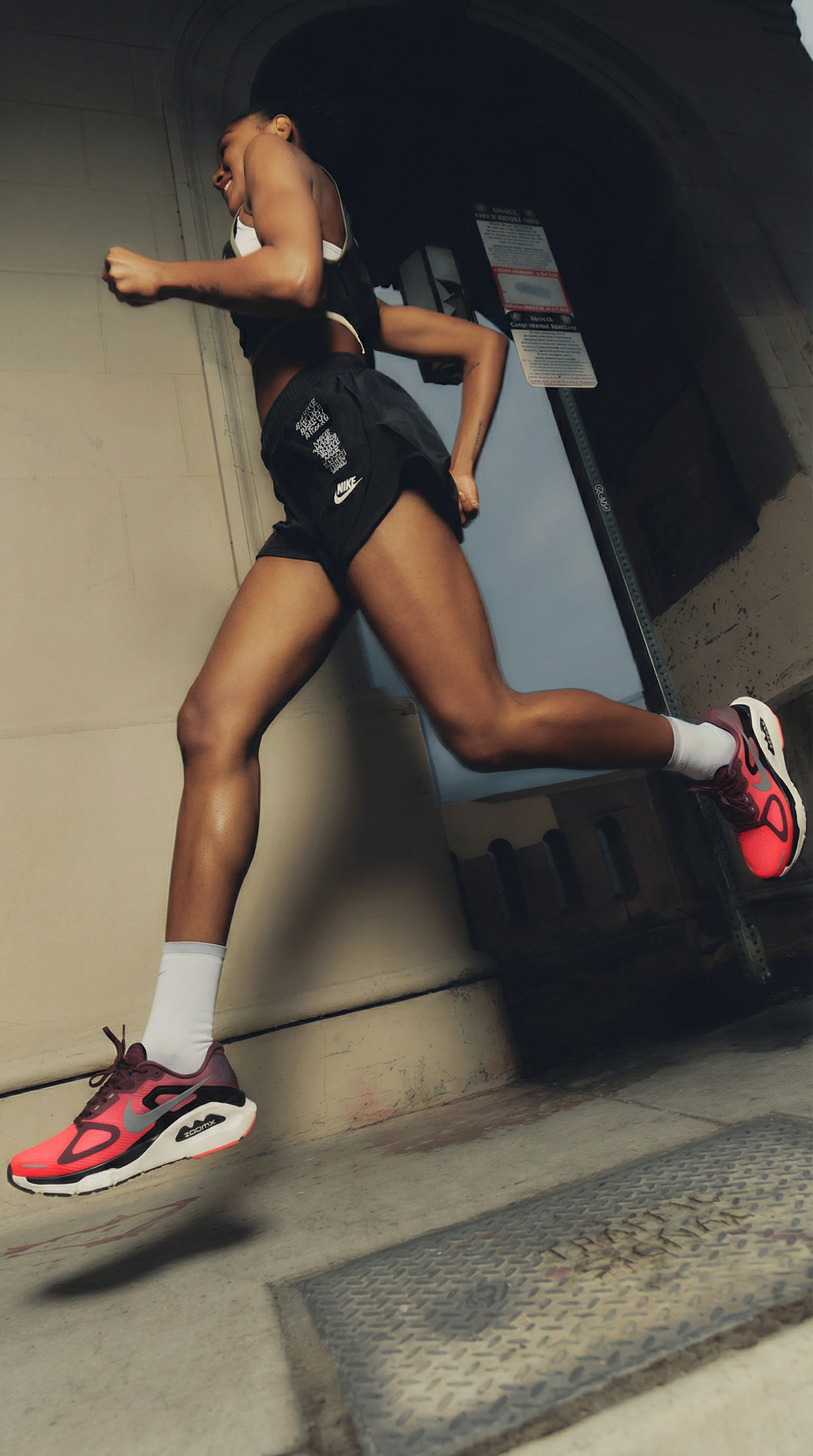 |
1. Number of images: 1 2. Aspect Ratio & Resolution: 9:16; 2K 3. Mode: Standard Commercial | 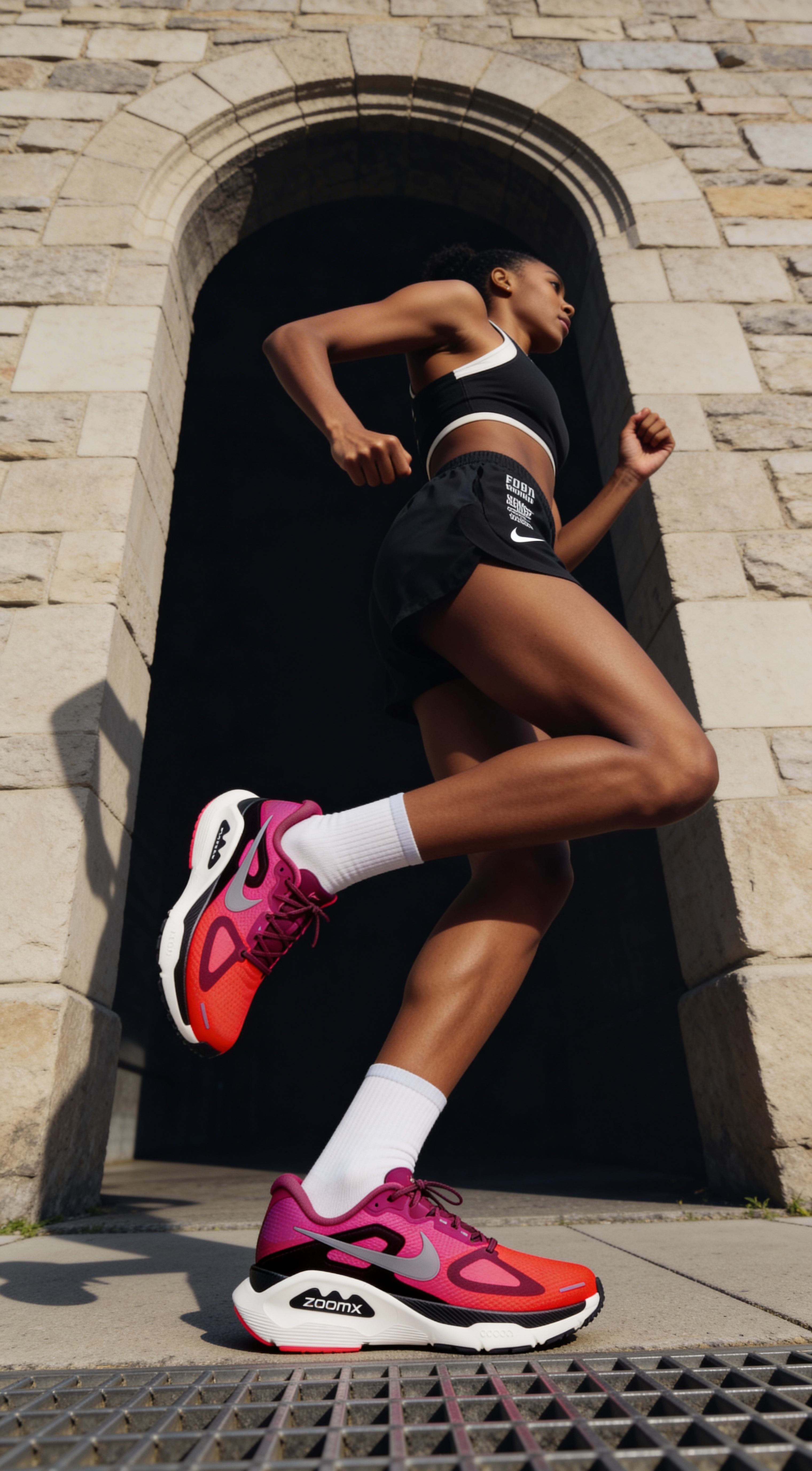 | ||
1. Number of images: 1 2. Aspect Ratio & Resolution: 9:16; 1K 3. Mode: Fast Generation | 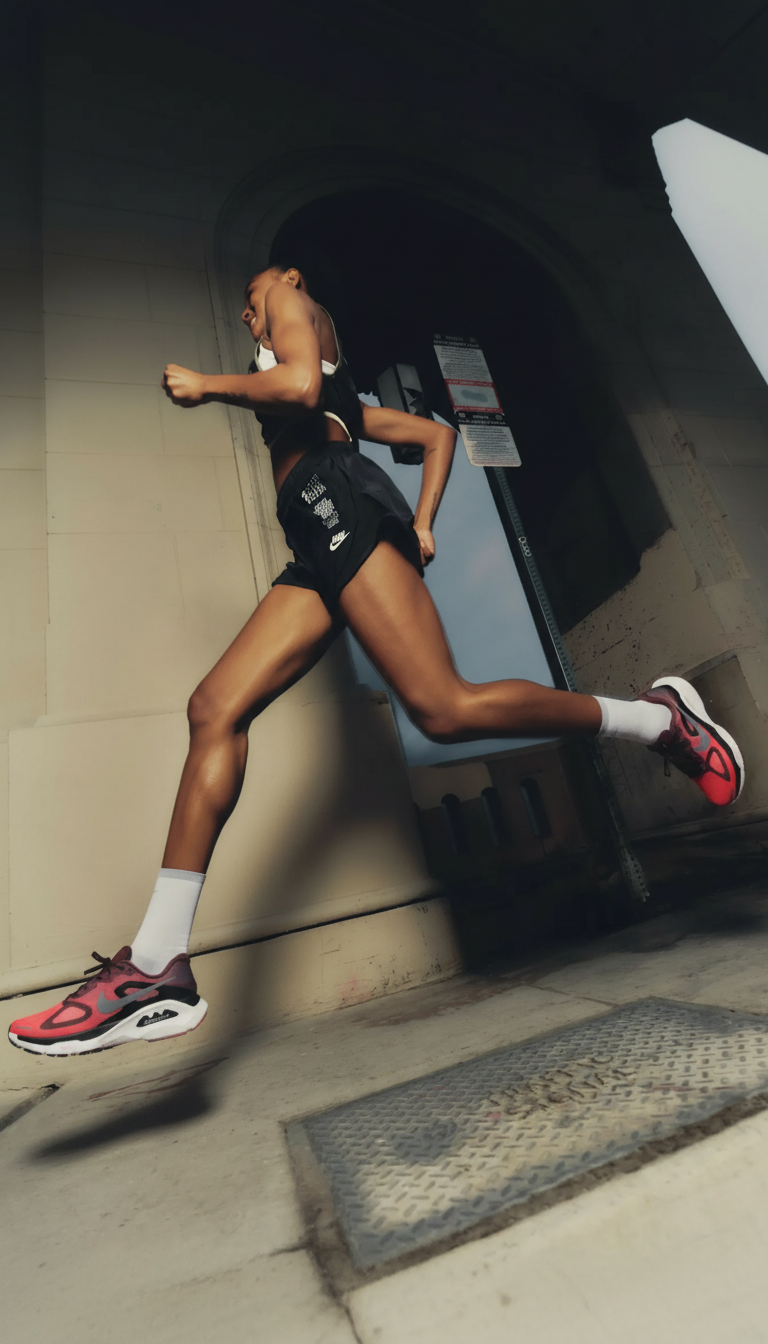 | ||
Based on the reference bed, generate a cozy bedroom scene. The bed should be dressed with exquisite Christmas-themed bedding, including a duvet, pillows, and a decorative throw, with clear textures and realistic materials naturally integrated with the bed frame. The bedroom background should feature warm tones, a lit fireplace, and a beautifully decorated Christmas tree. The overall lighting should be soft, creating a comfortable and inviting atmosphere. The product should be the focal point, with rich details, presenting a high-quality, ultra-realistic commercial photography effect that is highly appealing for purchase. | 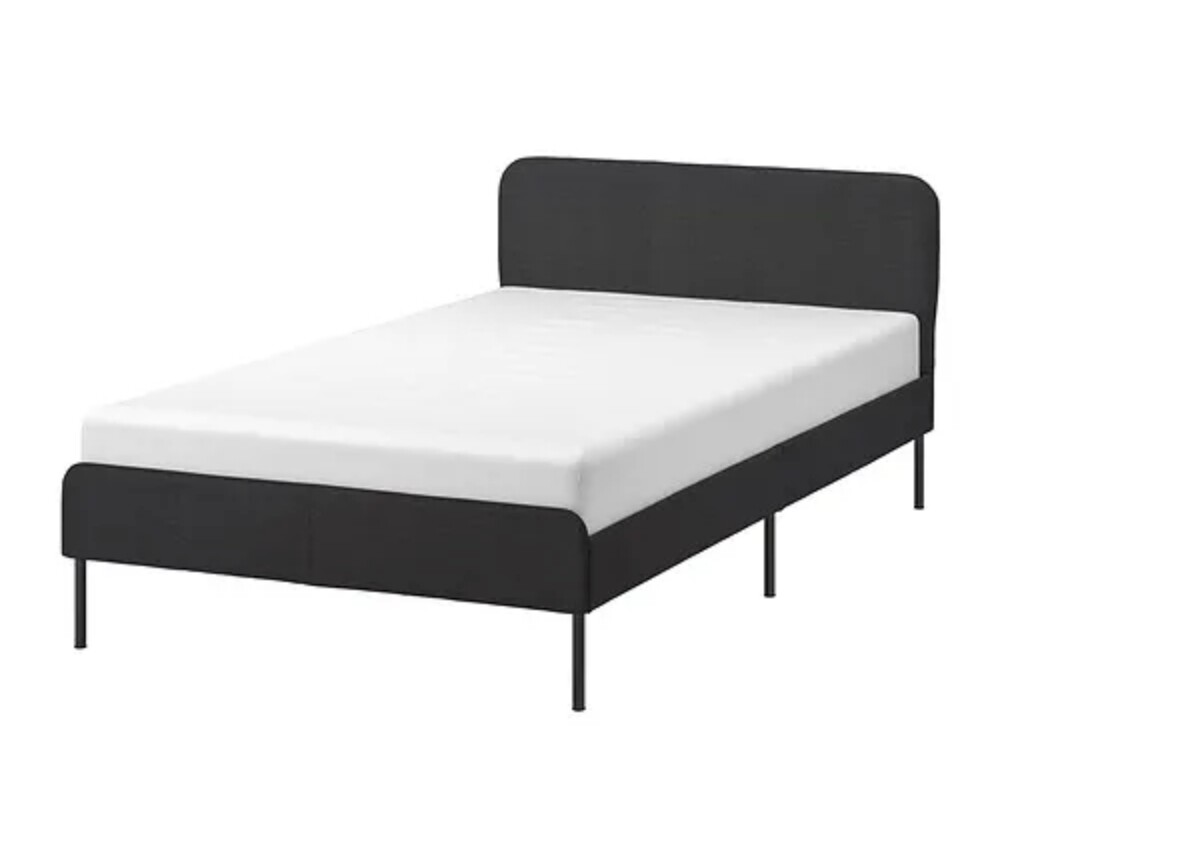 | 1. Number of images: 2. Aspect Ratio & Resolution: 16:9; 2K 3. Mode: Professional Studio | 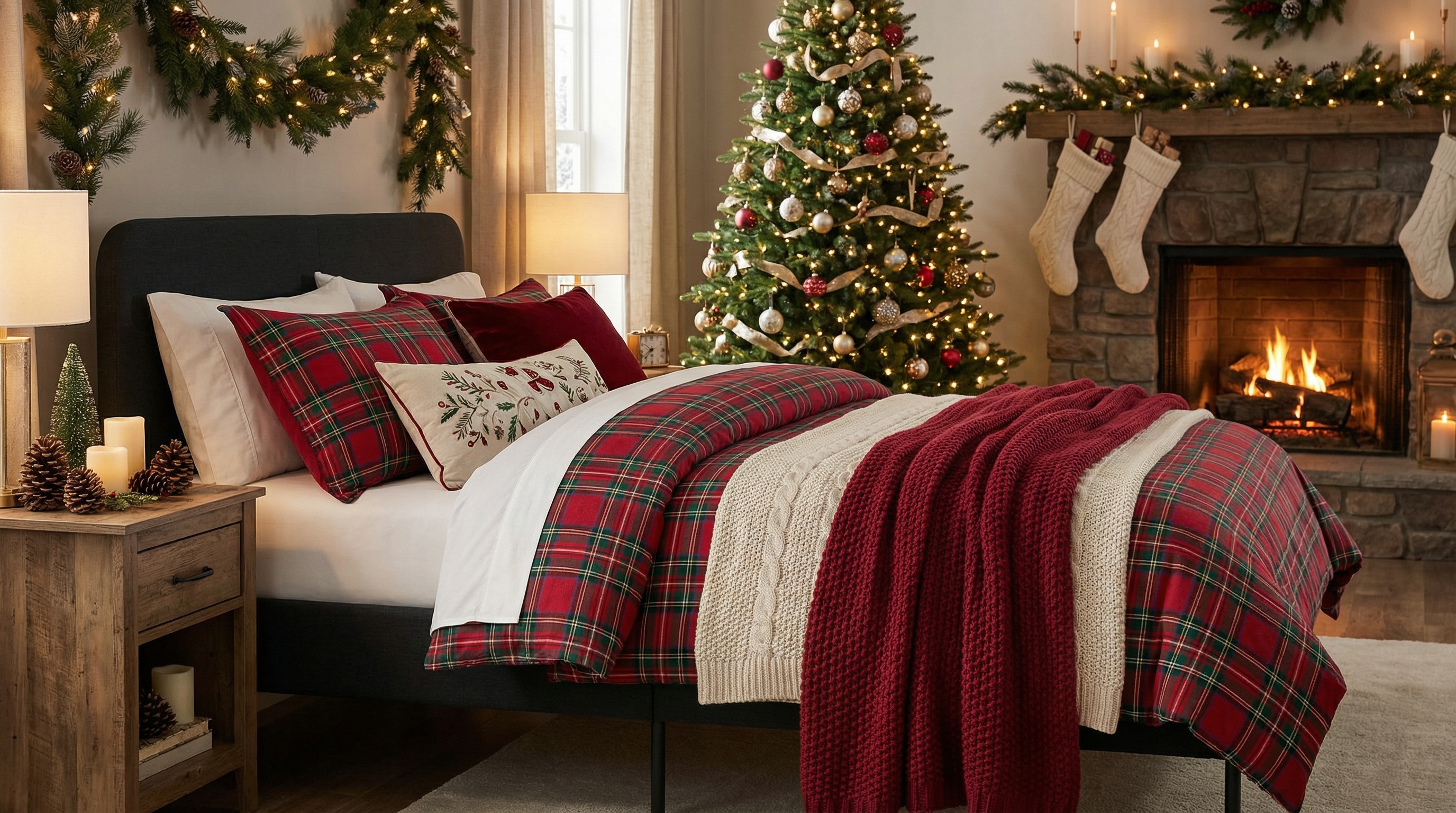 |
1. Number of images: 1 2. Aspect Ratio & Resolution: 16:9; 2K 3. Mode: Standard Commercial | 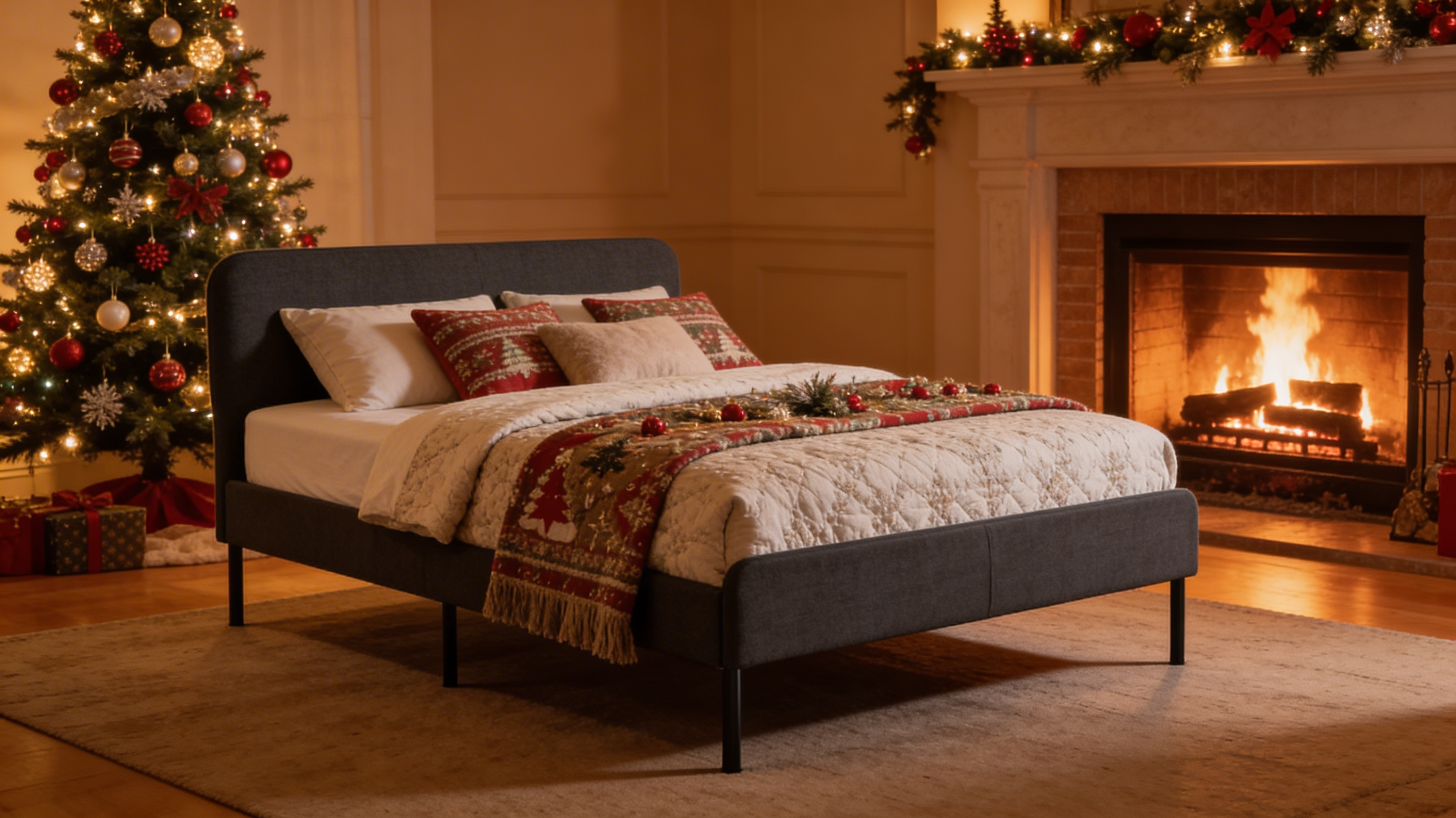 | ||
1. Number of images: 1 2. Aspect Ratio & Resolution: 16:9; 1K 3. Mode: Fast Generation | 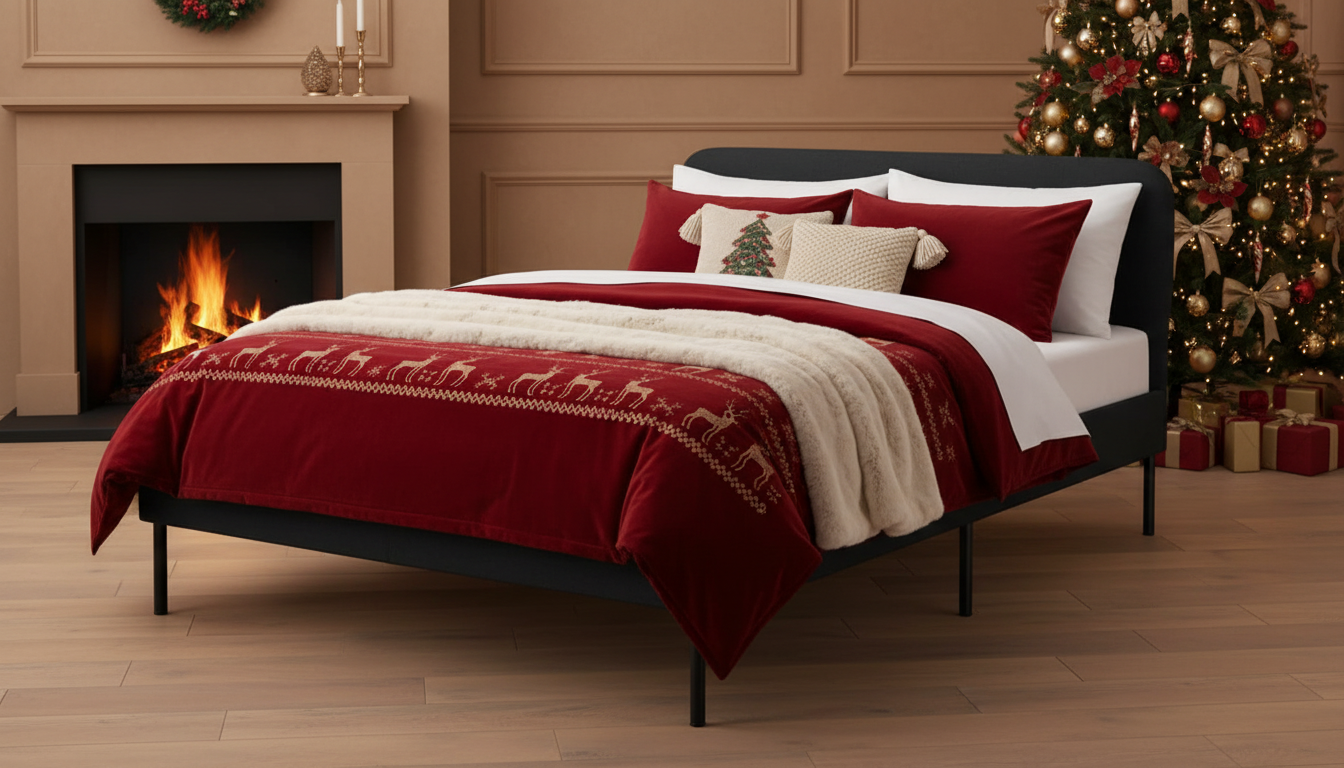 | ||
Place the SZ mouthwash, hand wash, and hand cream on a high-end, transparent Southeast Asian resort-style washbasin. Use soft natural lighting to create a warm and relaxing vacation atmosphere. The image should be ultra-realistic with high detail and professional photography quality. The products should be clearly prominent, with a clean and complete composition, no distracting elements, and an overall commercial display effect. | 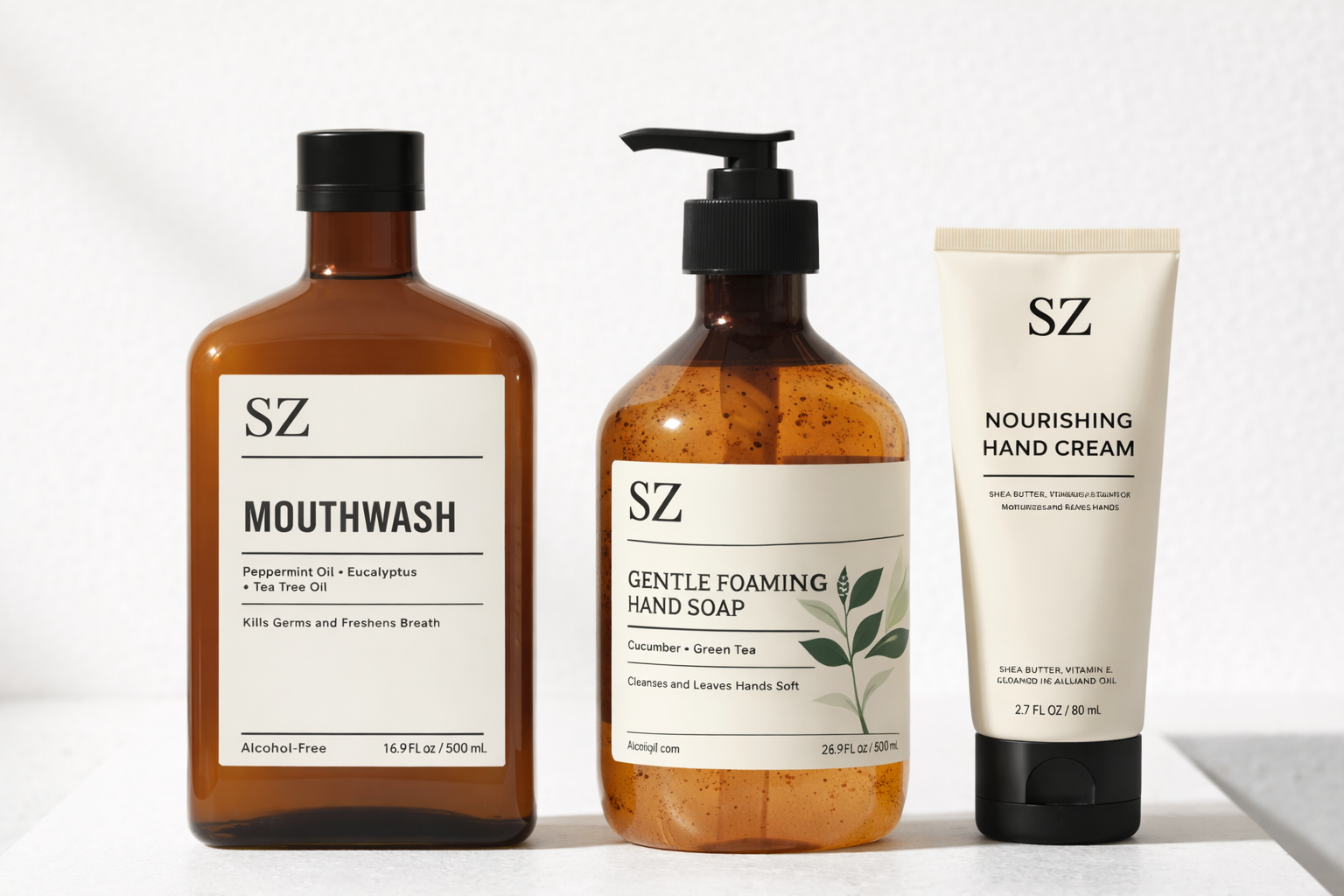 | 1. Number of images: 1 2. Aspect Ratio & Resolution: 1:1; 2K 3. Mode: Professional Studio | |
1. Number of images: 1 2. Aspect Ratio & Resolution: 1:1; 2K 3. Mode: Standard Commercial | 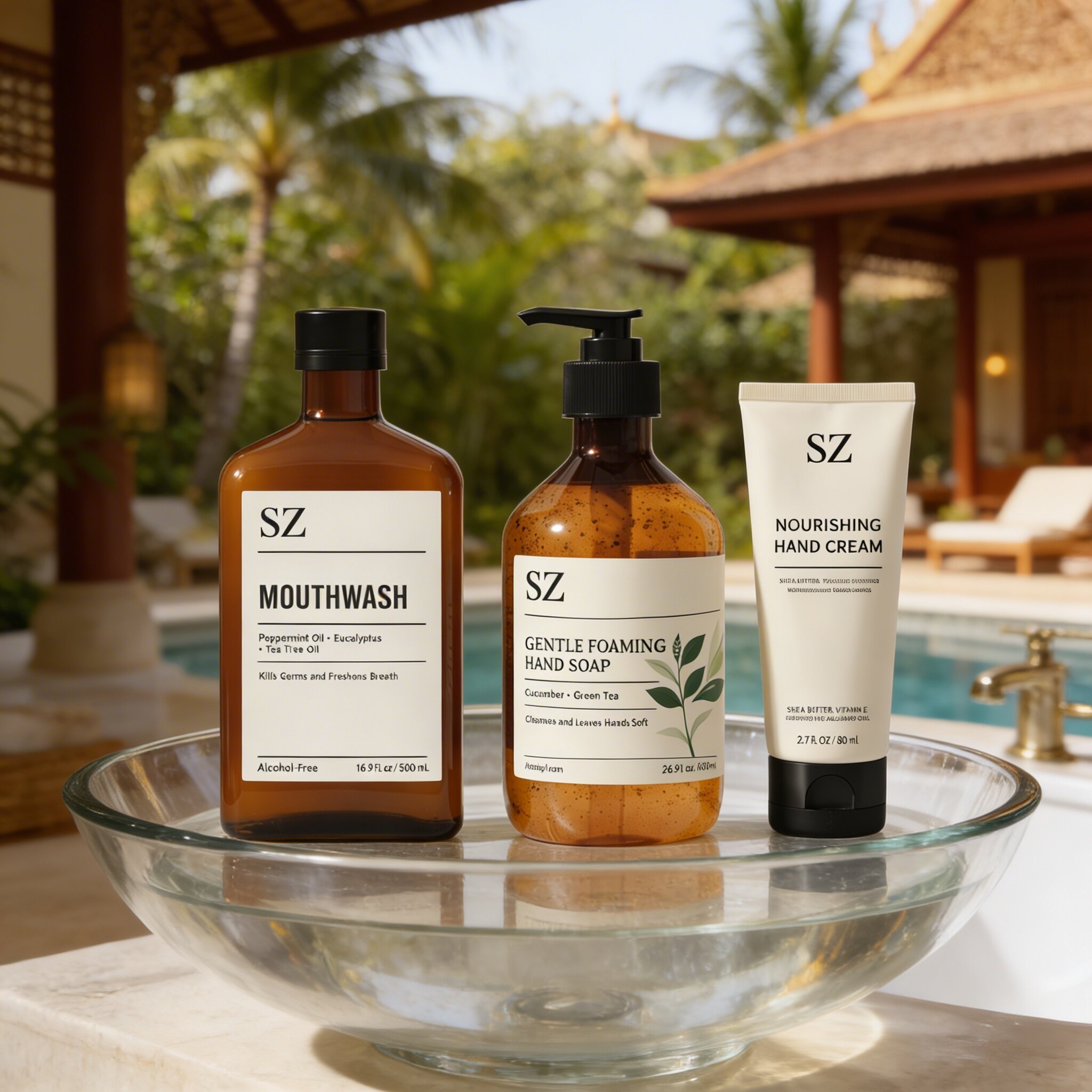 | ||
1. Number of images: 1 2. Aspect Ratio & Resolution: 1:1; 1K 3. Mode: Fast Generation | 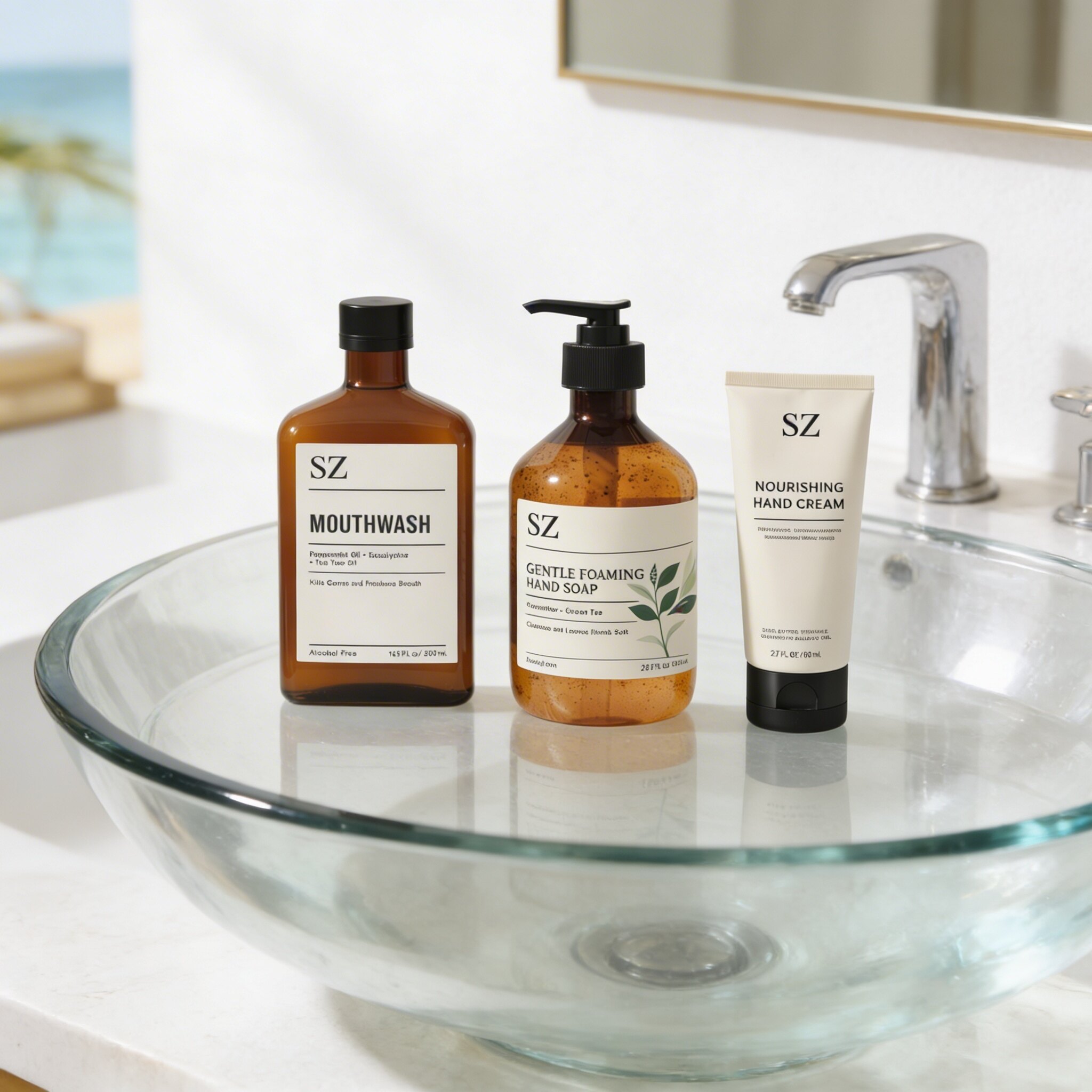 |
Remove watermark & generate white background & cutout
Input Instructions | Source Images | Select Configuration | Output Images |
Based on the provided image of the cup, generate an e-commerce product image with a pure white background. The cup should be the focal point, with clear details, even lighting, and soft shadows, presenting a professional photography look and commercial display effect. The image should be clean, with no distracting elements. | 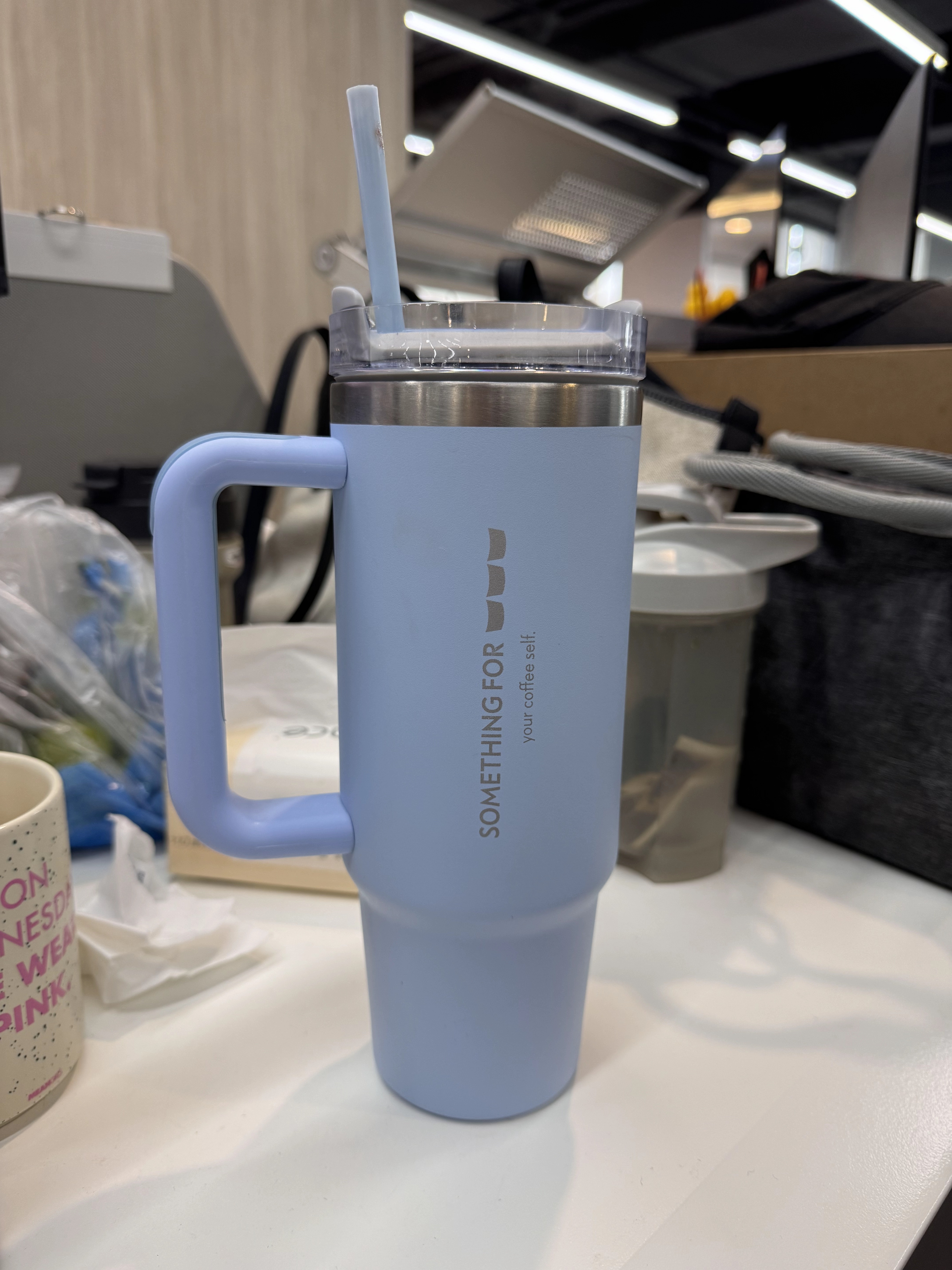 | 1. Number of images: 1 2. Aspect Ratio & Resolution: 9:16; 2K 3. Mode: Professional Studio | 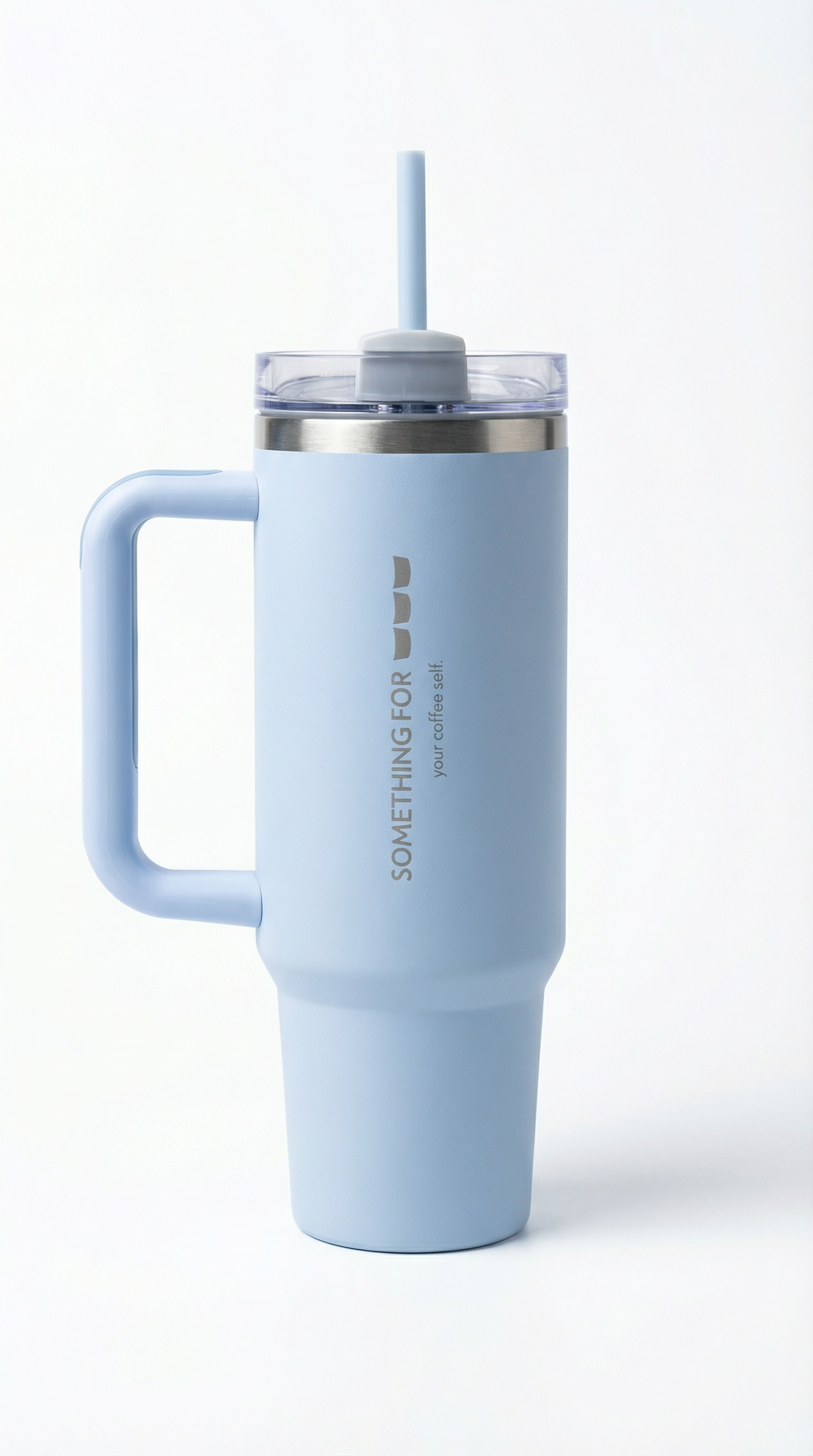 |
1. Number of images: 1 2. Aspect Ratio & Resolution: 9:16; 2K 3. Mode: Standard Commercial | 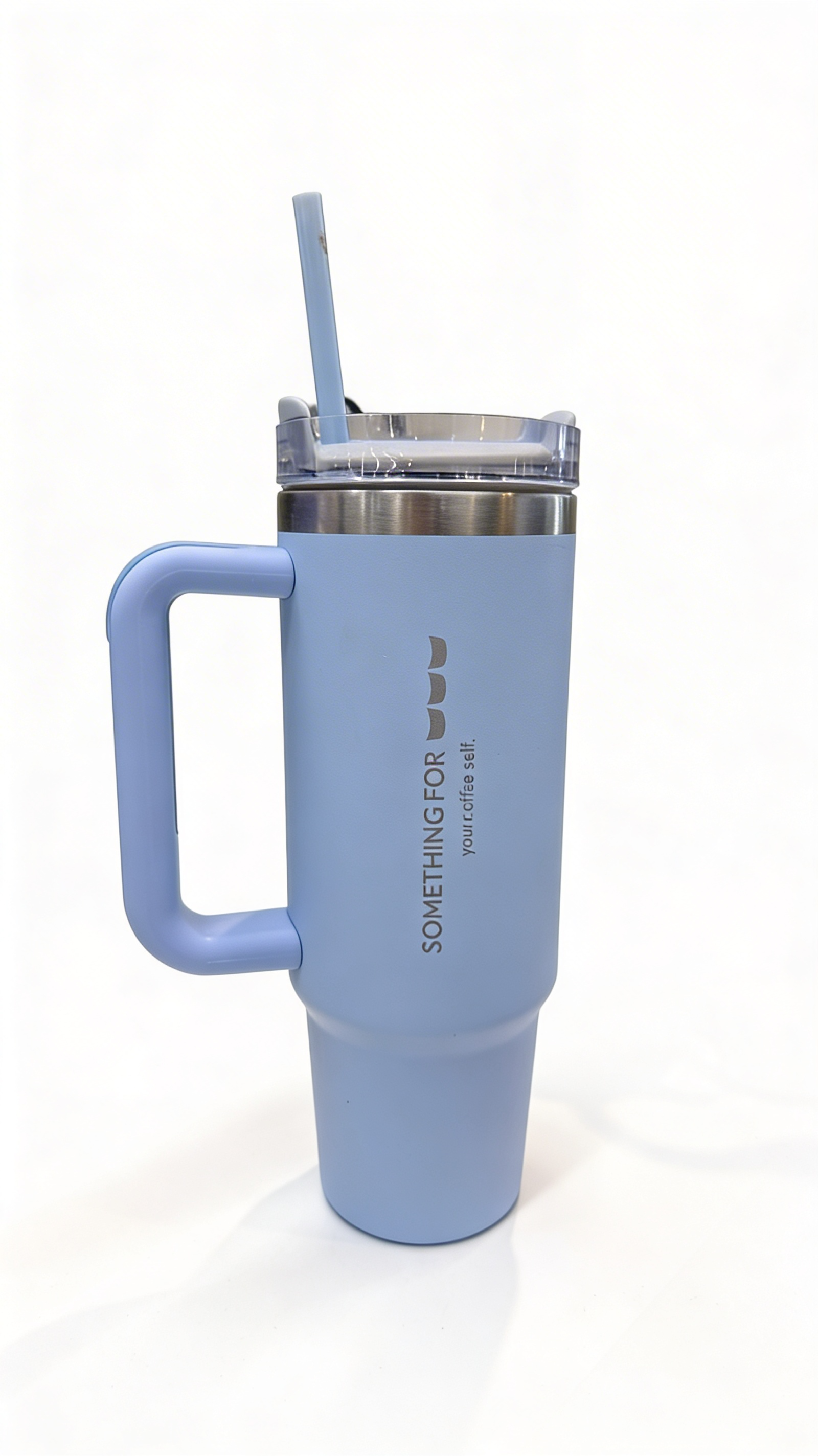 | ||
1. Number of images: 1 2. Aspect Ratio & Resolution: 9:16; 1K 3. Mode: Fast Generation | 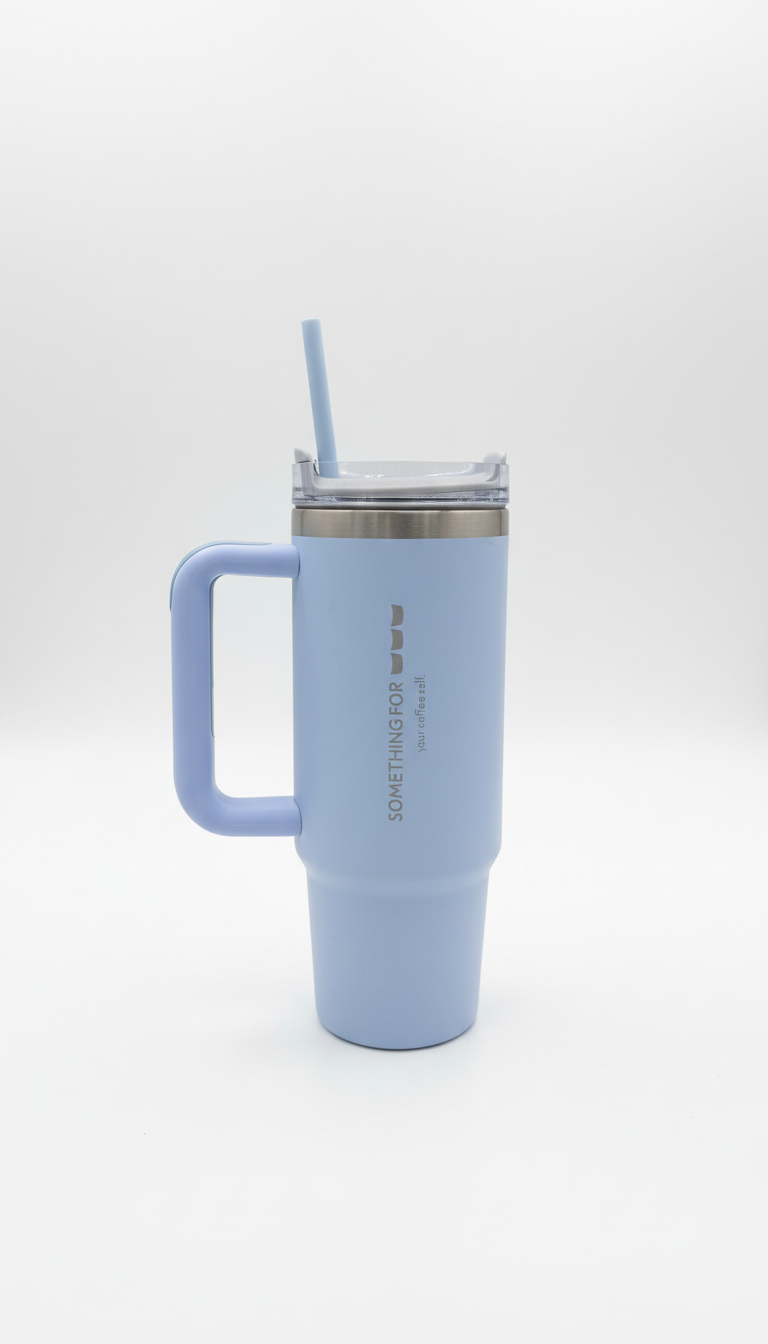 | ||
Place a diagonal "New Sale" text watermark across the image. The watermark should be semi-transparent, clearly visible, and should not obstruct the recognition of the main content of the image. | 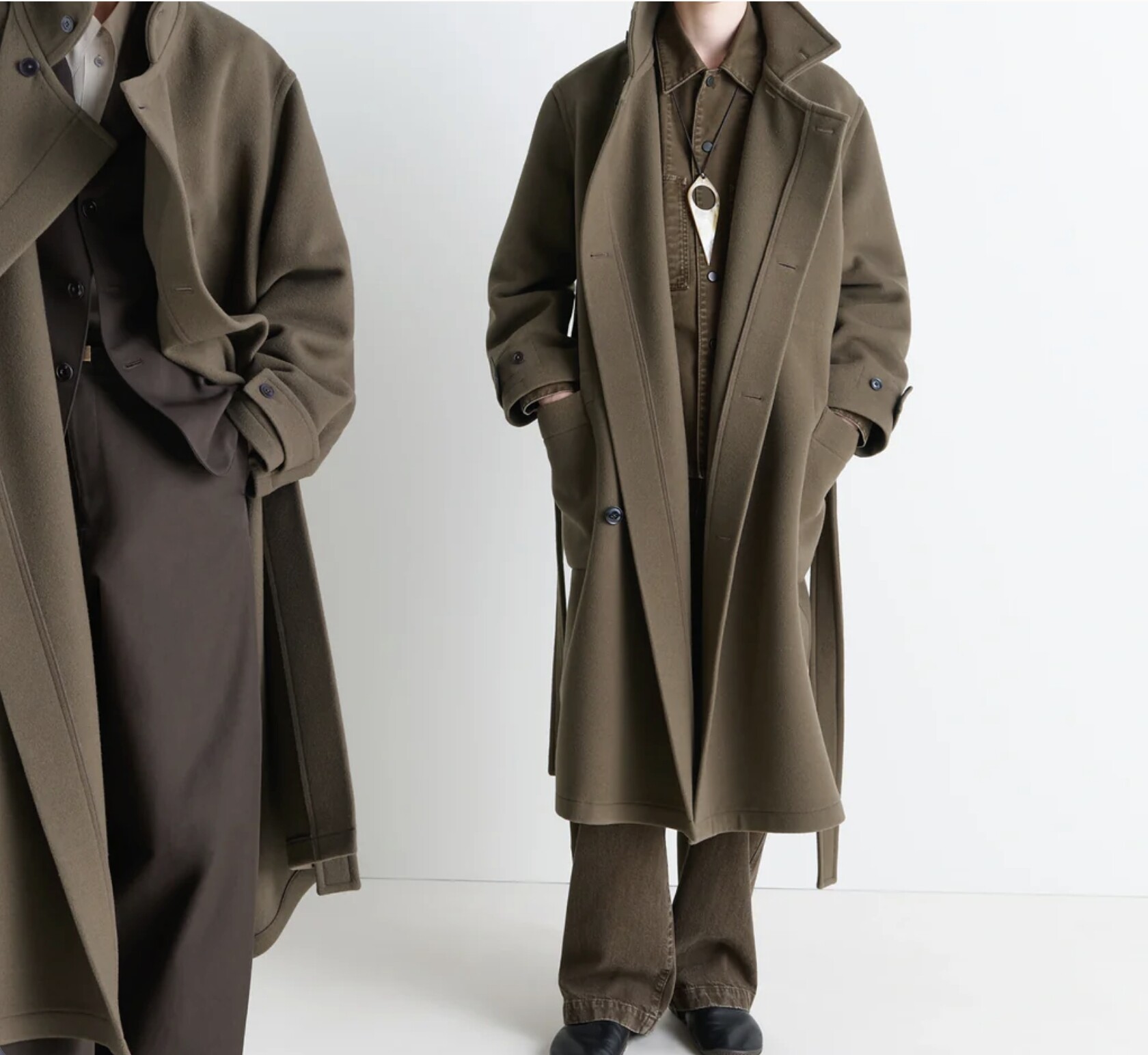 | Number of images: 1 Aspect Ratio & Resolution: 1:1; 2K Mode: Professional Studio | 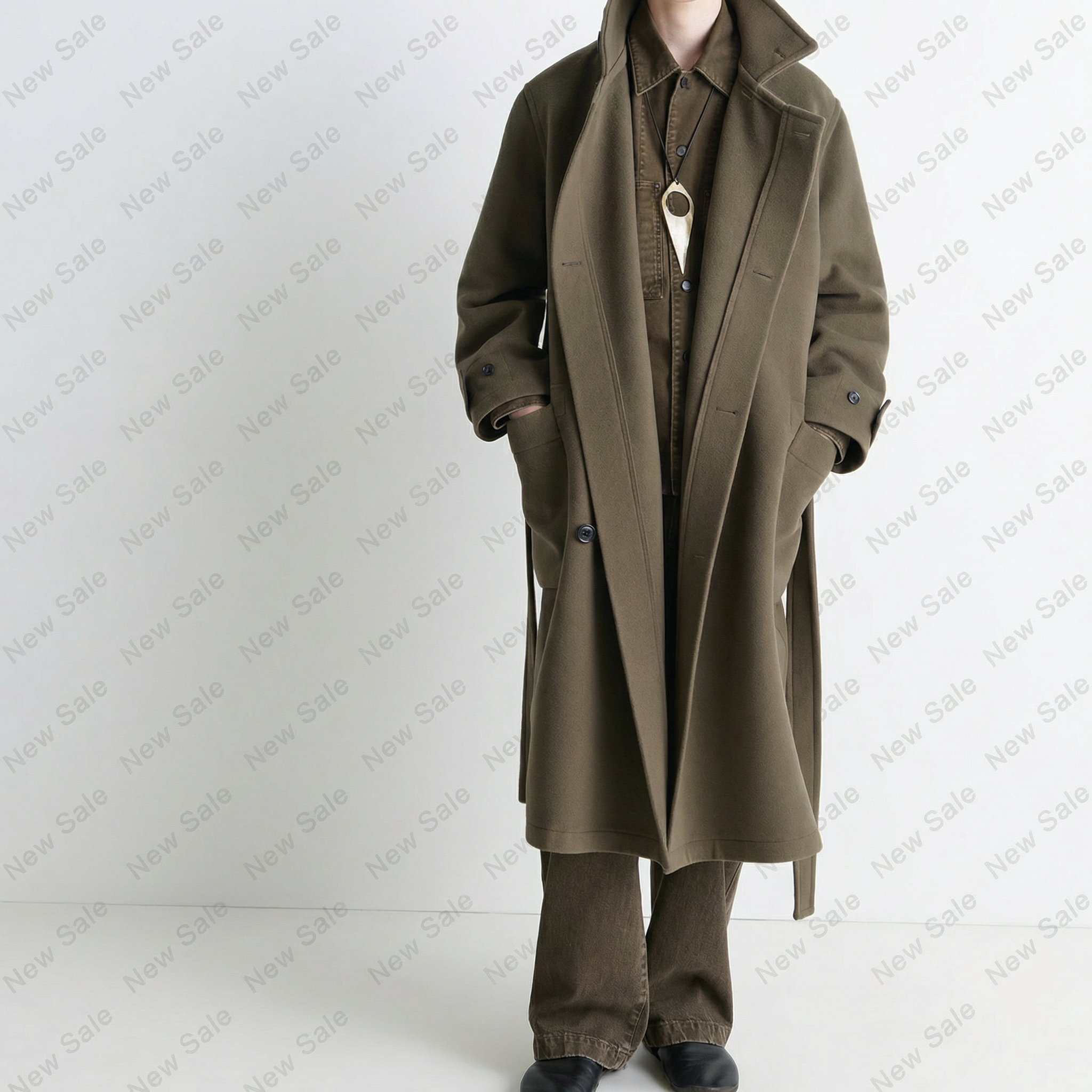 |
Number of images: 1 Aspect Ratio & Resolution: 1:1; 2K Mode: Standard Commercial | 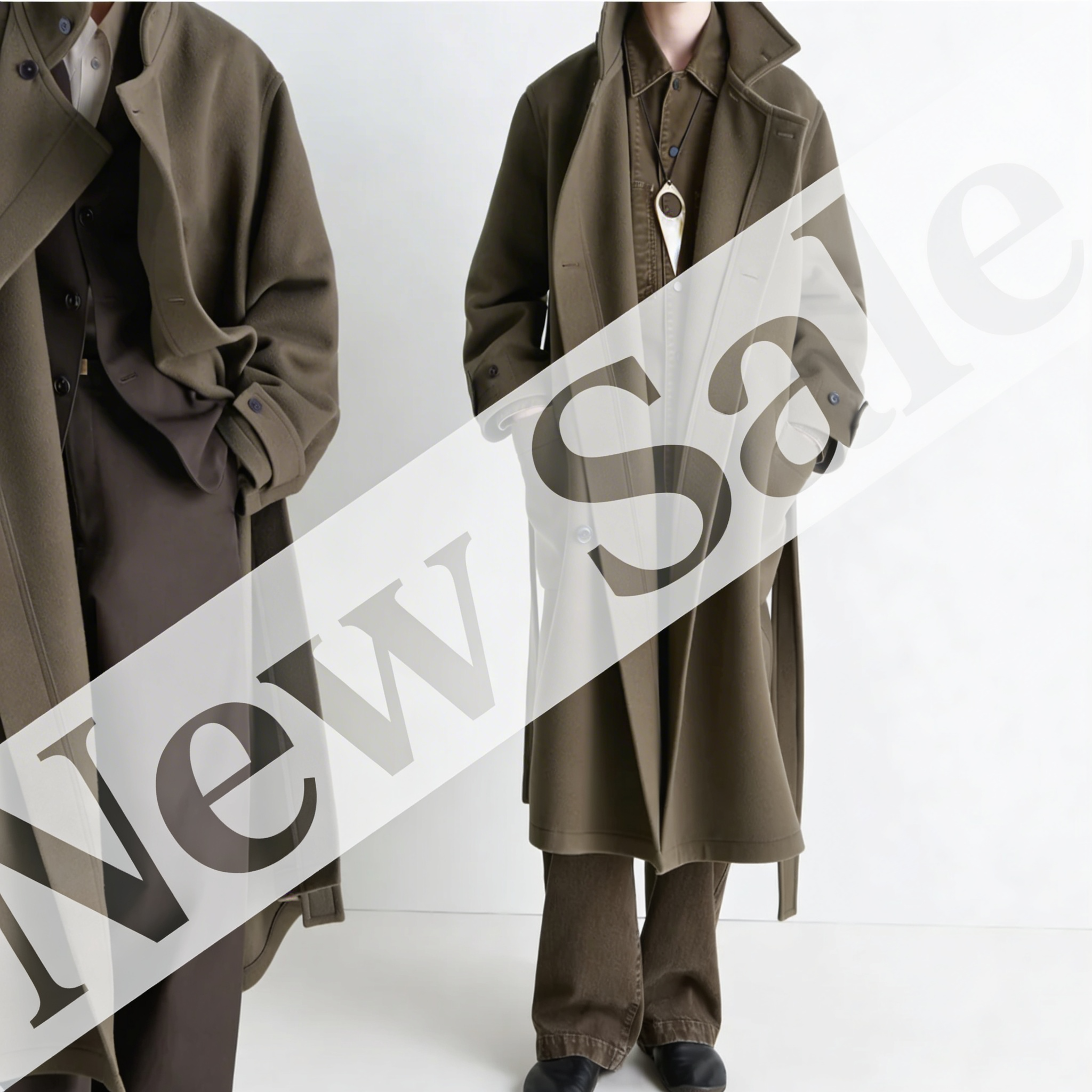 | ||
Number of images: 1 Aspect Ratio & Resolution: 1:1; 1K Mode: Fast Generation | 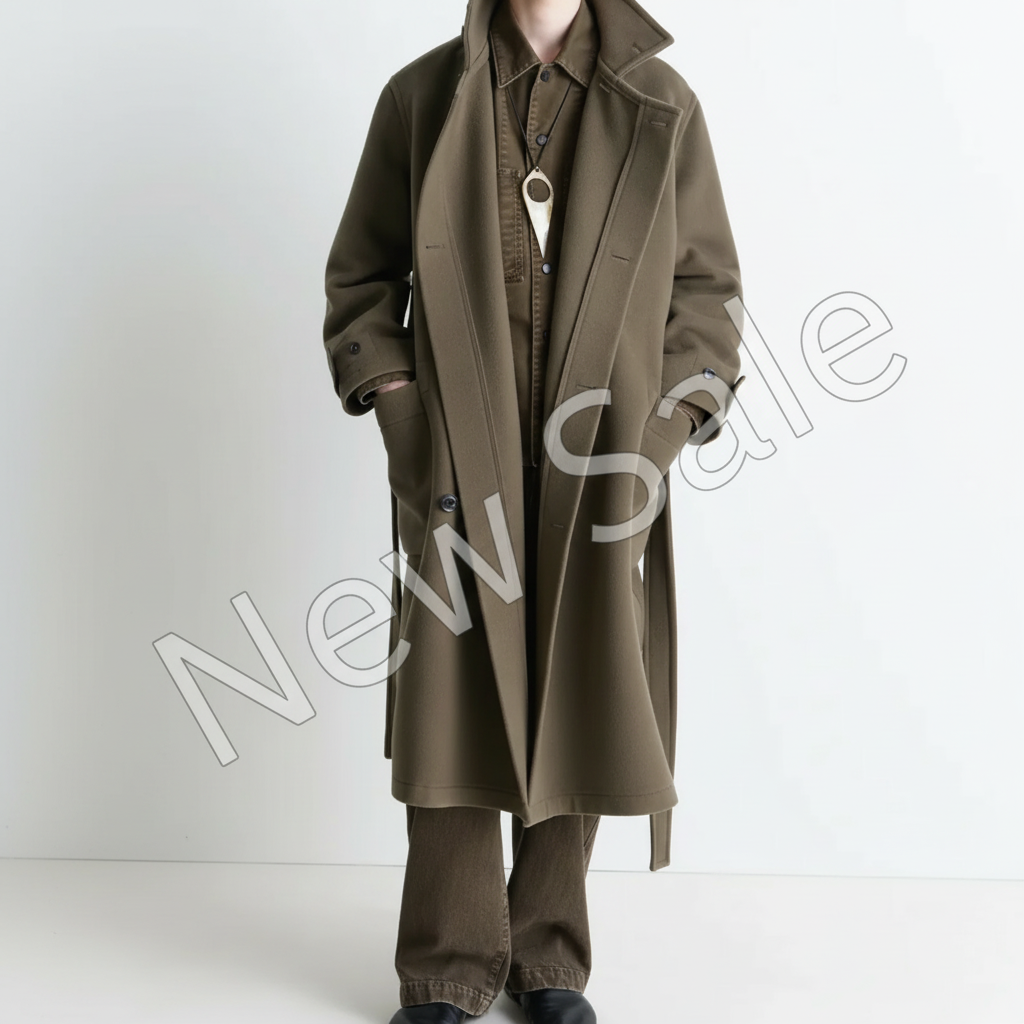 | ||
Remove all watermarks and the text on the left side of the image, while keeping the "84 Disinfectant" product as the main subject, including all text and labels on the bottle. Restore the areas where elements were removed so that the background is clean and tidy, with smooth, seamless transitions. Preserve the product’s original details, lighting, and material texture, delivering a professional commercial display effect with a clear image. | 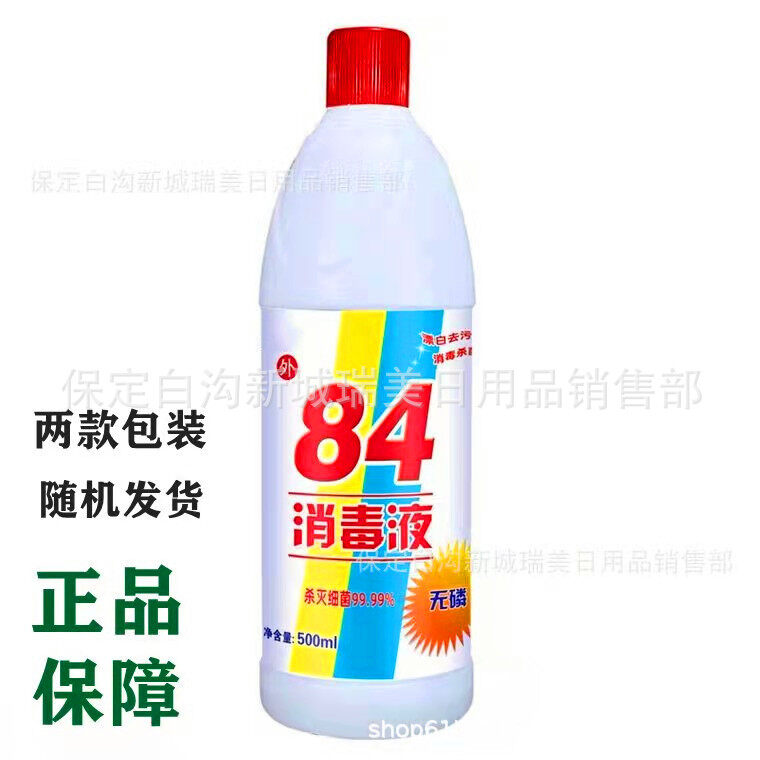 | 1. Number of images: 1 2. Aspect Ratio & Resolution: 3:4; 2K 3. Mode: Professional Studio |  |
1. Number of images: 1 2. Aspect Ratio & Resolution: 3:4; 2K 3. Mode: Standard Commercial | 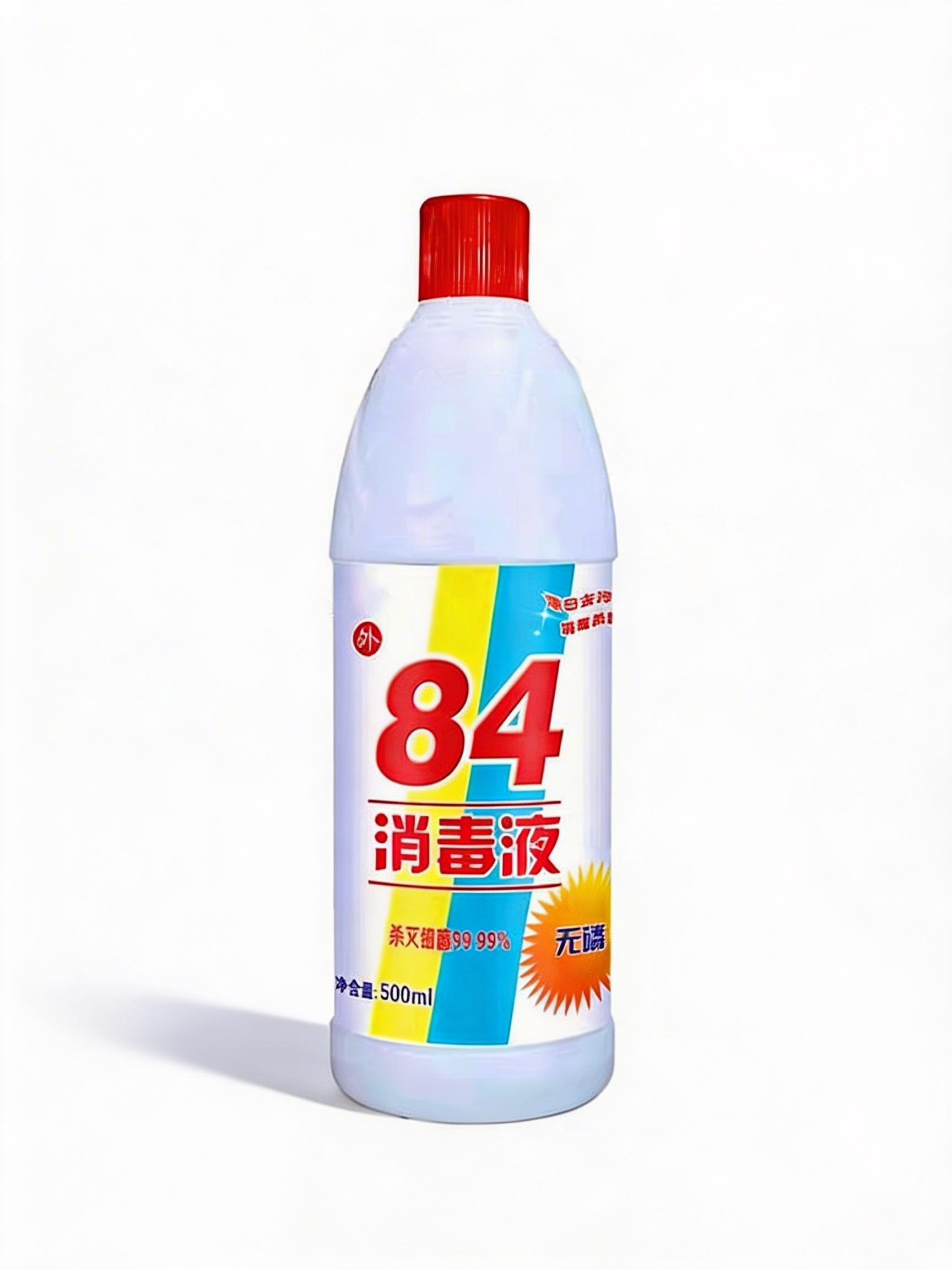 | ||
1. Number of images: 1 2. Aspect Ratio & Resolution: 3:4; 1K 3. Mode: Fast Generation | 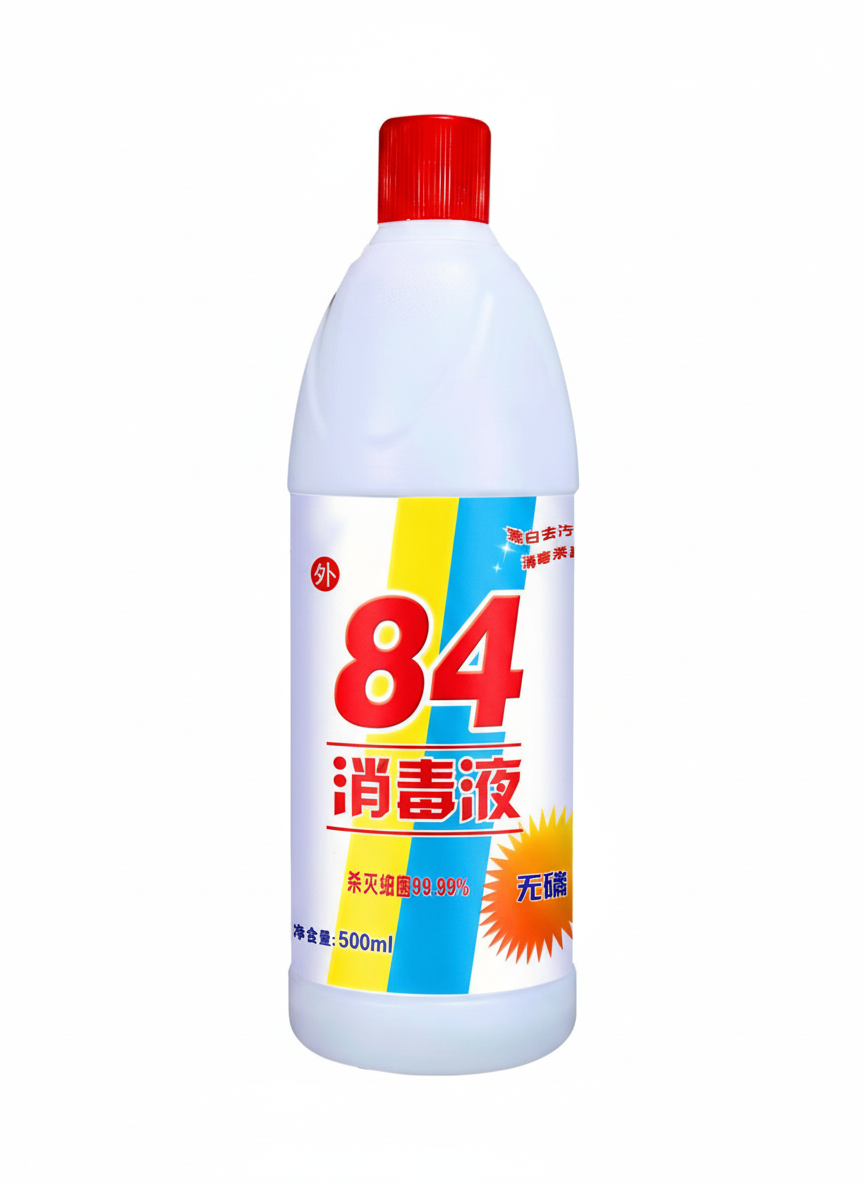 |


Comments
Please sign in to leave a comment.