
After enabling Intelligent EC, the system will intelligently recommend the most suitable quick payment method (such as PayPal, Apple Pay, or Google Pay – only one method will be suggested) based on the customer’s historical behavior and the current payment environment. This reduces payment friction, supports order conversion, and significantly improves conversion rates.
Eligibility Conditions
Applicable Themes: Reformia series, Nova2023 series, Hero series, Geek series, Eva, Farida (please ensure the theme has been updated to the latest version).
Prerequisites for Activation: Log in to the Shoplazza admin dashboard > Settings > Payments, and enter the management page for activated payment providers (currently only PayPal and Shoplazza Payments are supported; other providers will be added in the future). Enable the quick checkout button for the desired fast payment methods (such as PayPal, Apple Pay, or Google Pay).
How to Enable Shoplazza Payments
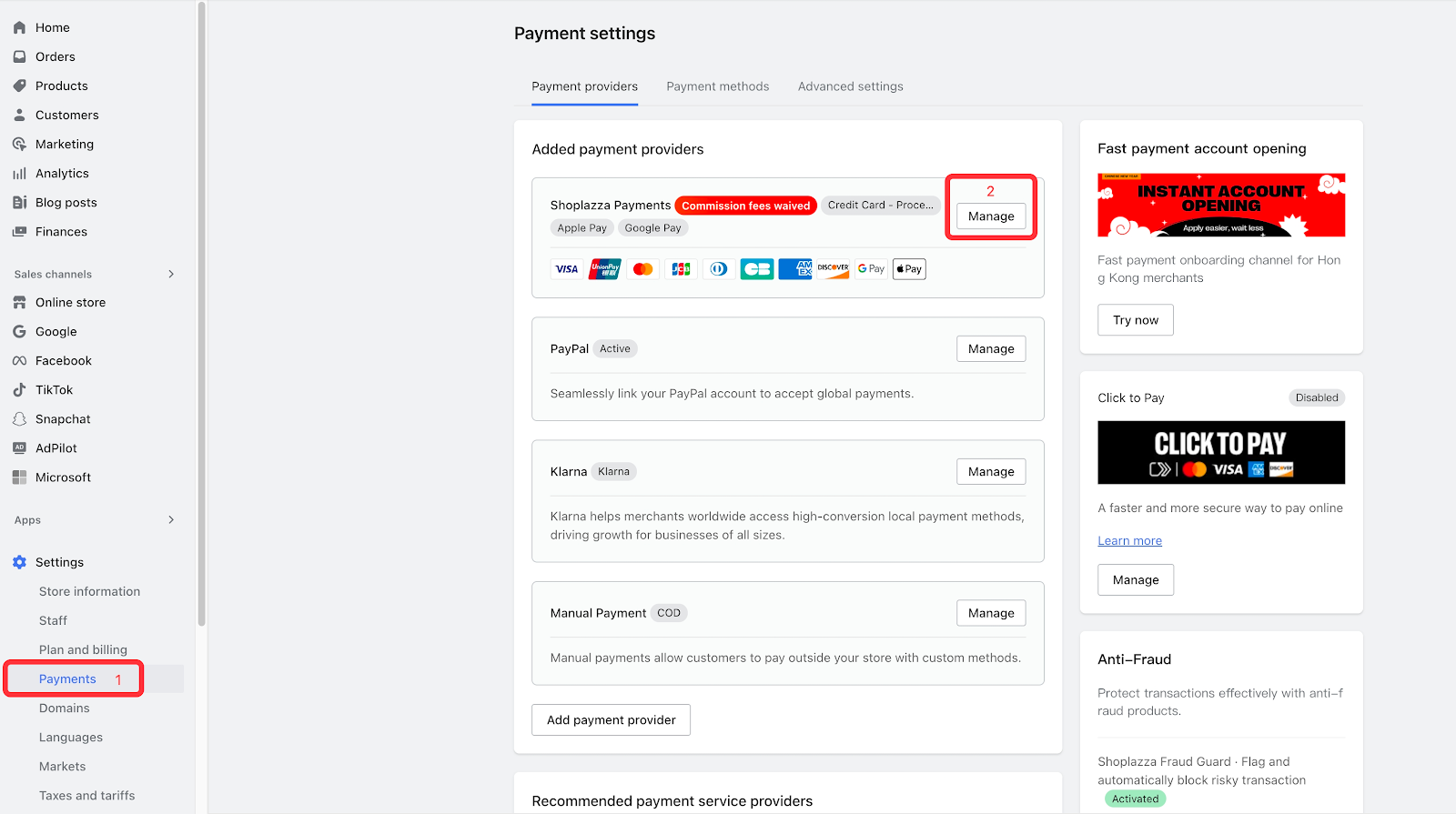
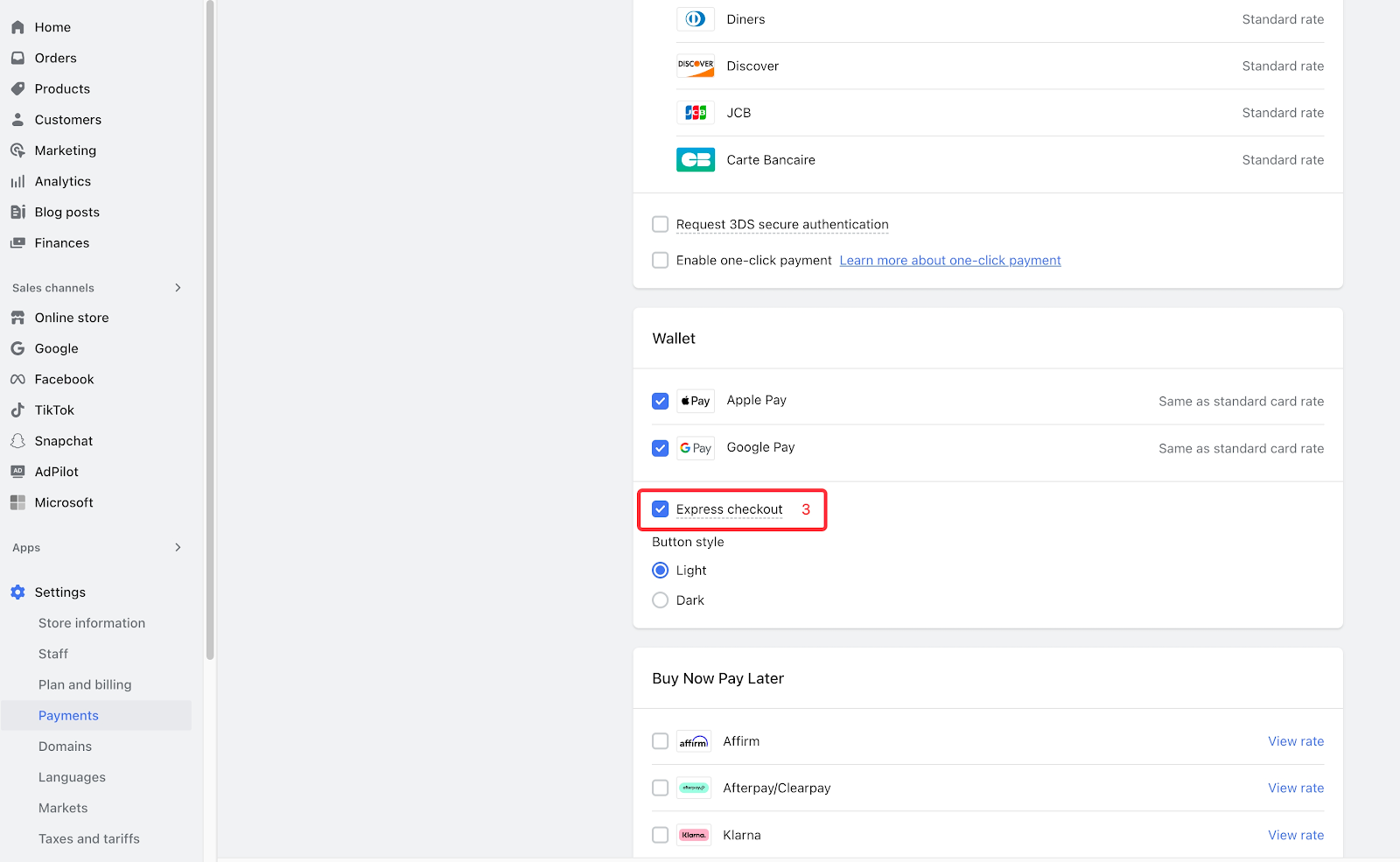
How to Enable PayPal:
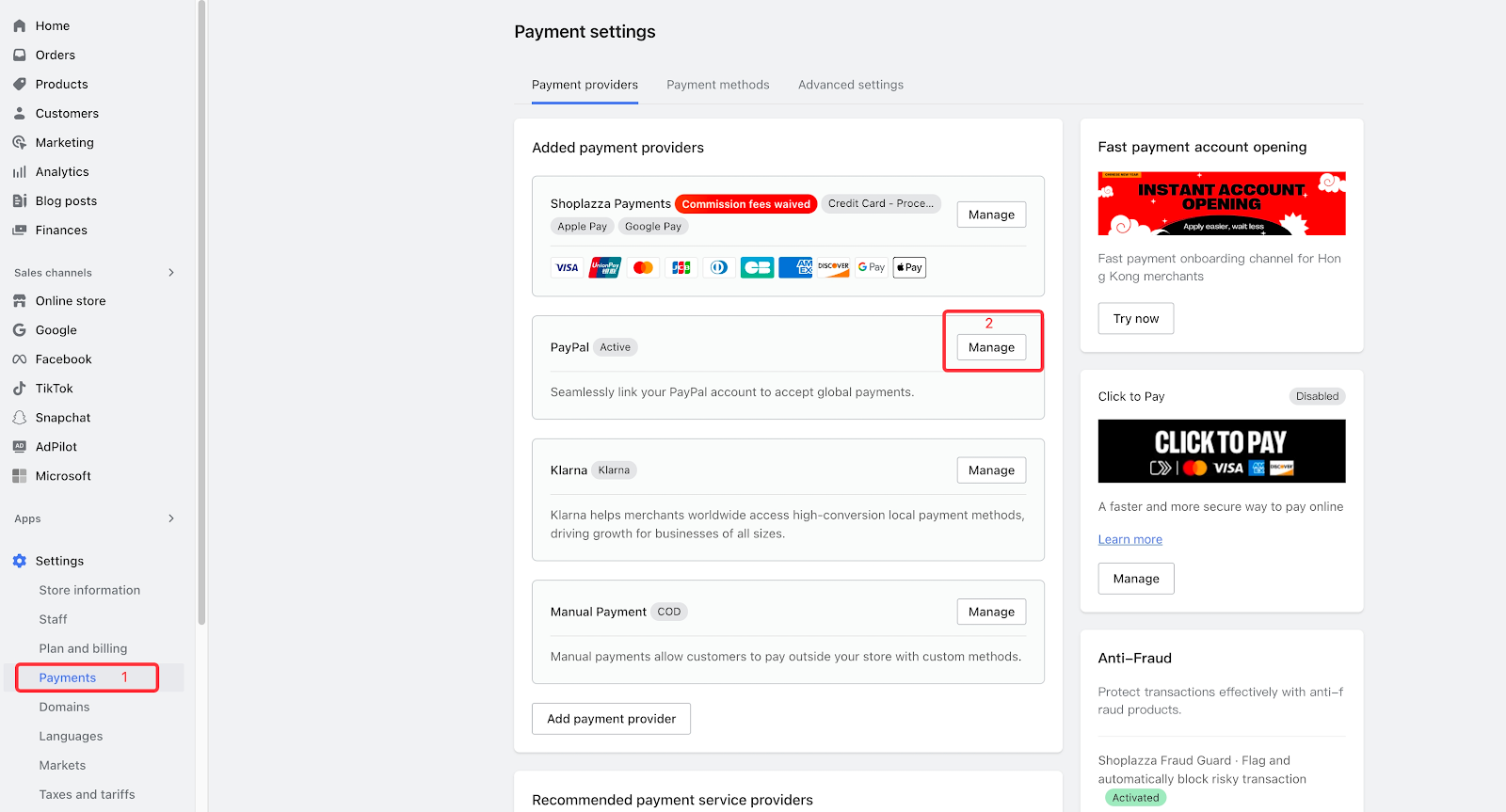
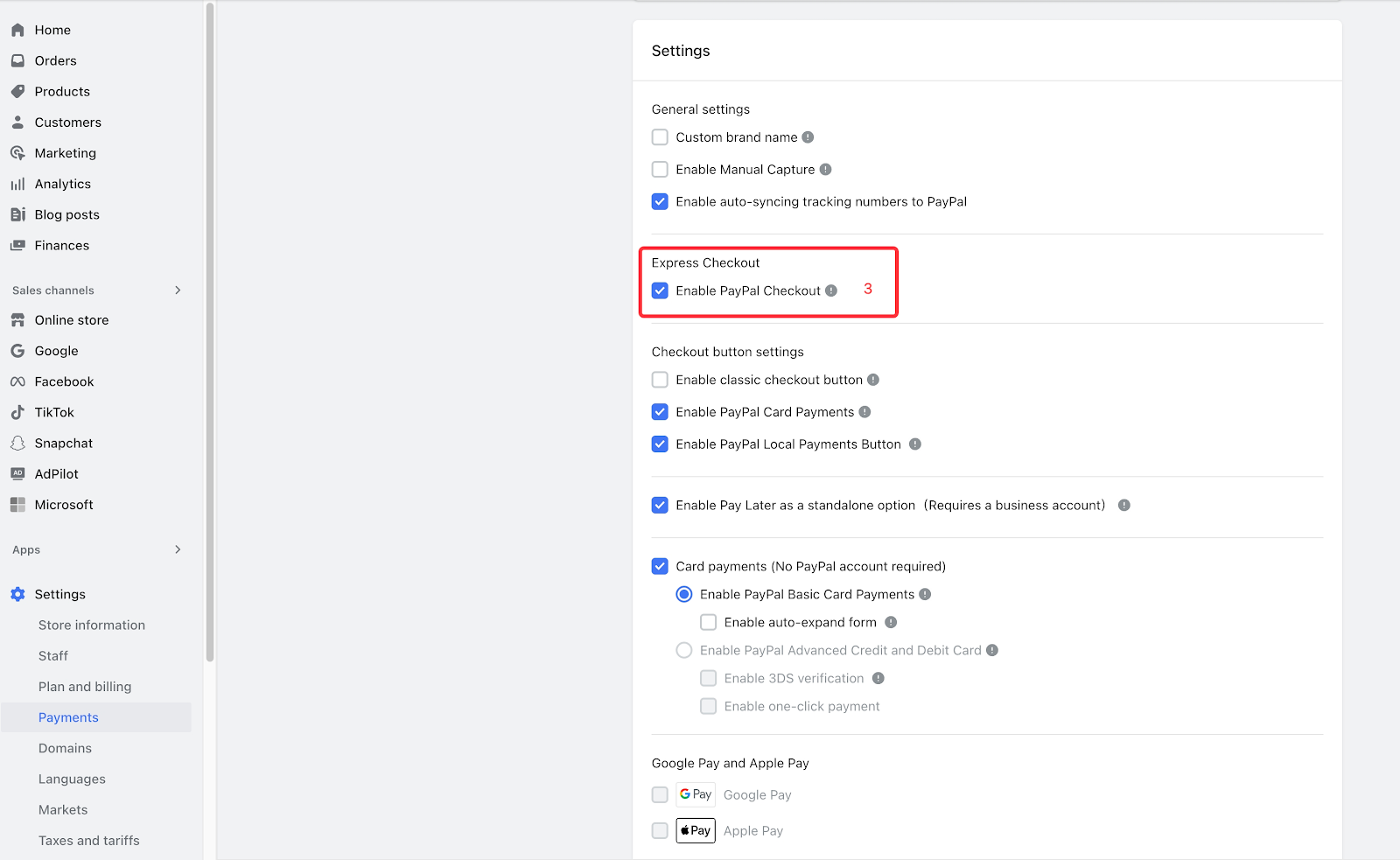
Activation Path
You can enable this feature in either of the following locations as needed:
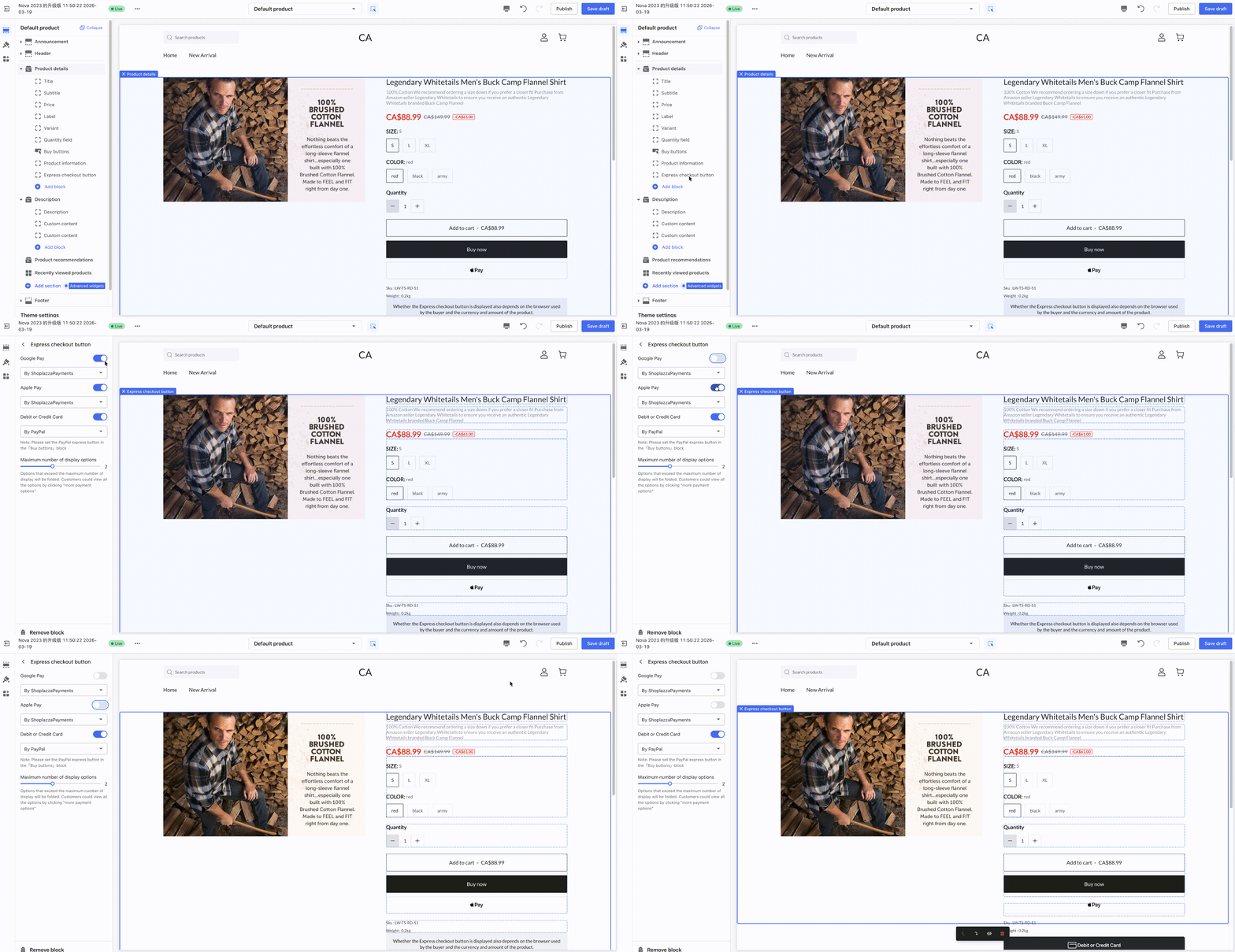
1. Product Detail Page: Log in to your Shoplazza admin dashboard, go to Online Store > Theme Customization, and enter the theme editor. At the top, select the product detail page, click the "Buy Button" card, and enable the quick checkout button. This button is an optimized version of the original PayPal button. After the theme is upgraded, its previous status will be maintained. For example, if the original PayPal button was enabled, Intelligent EC will also remain enabled.
- Configuration Path:
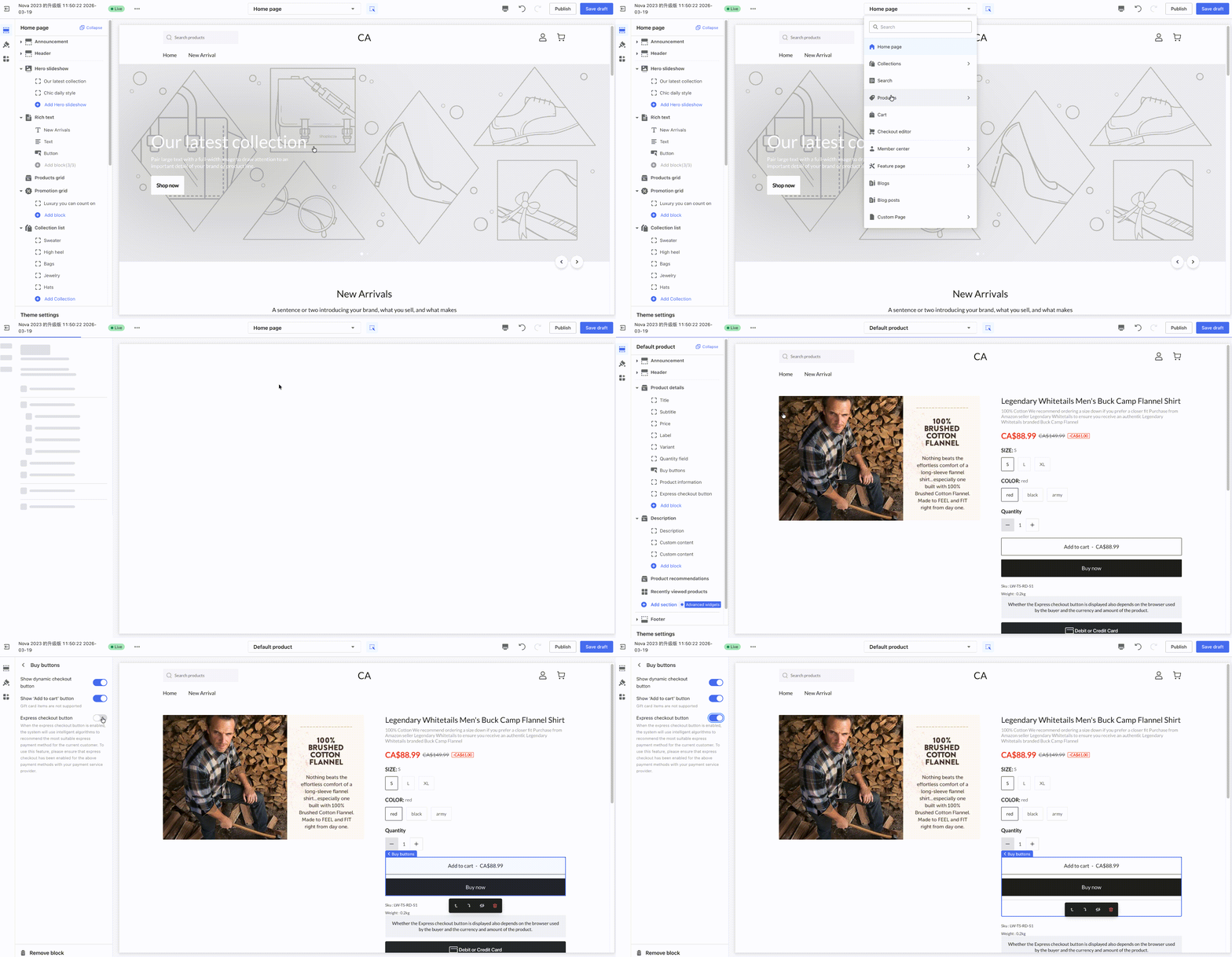
- Page Display
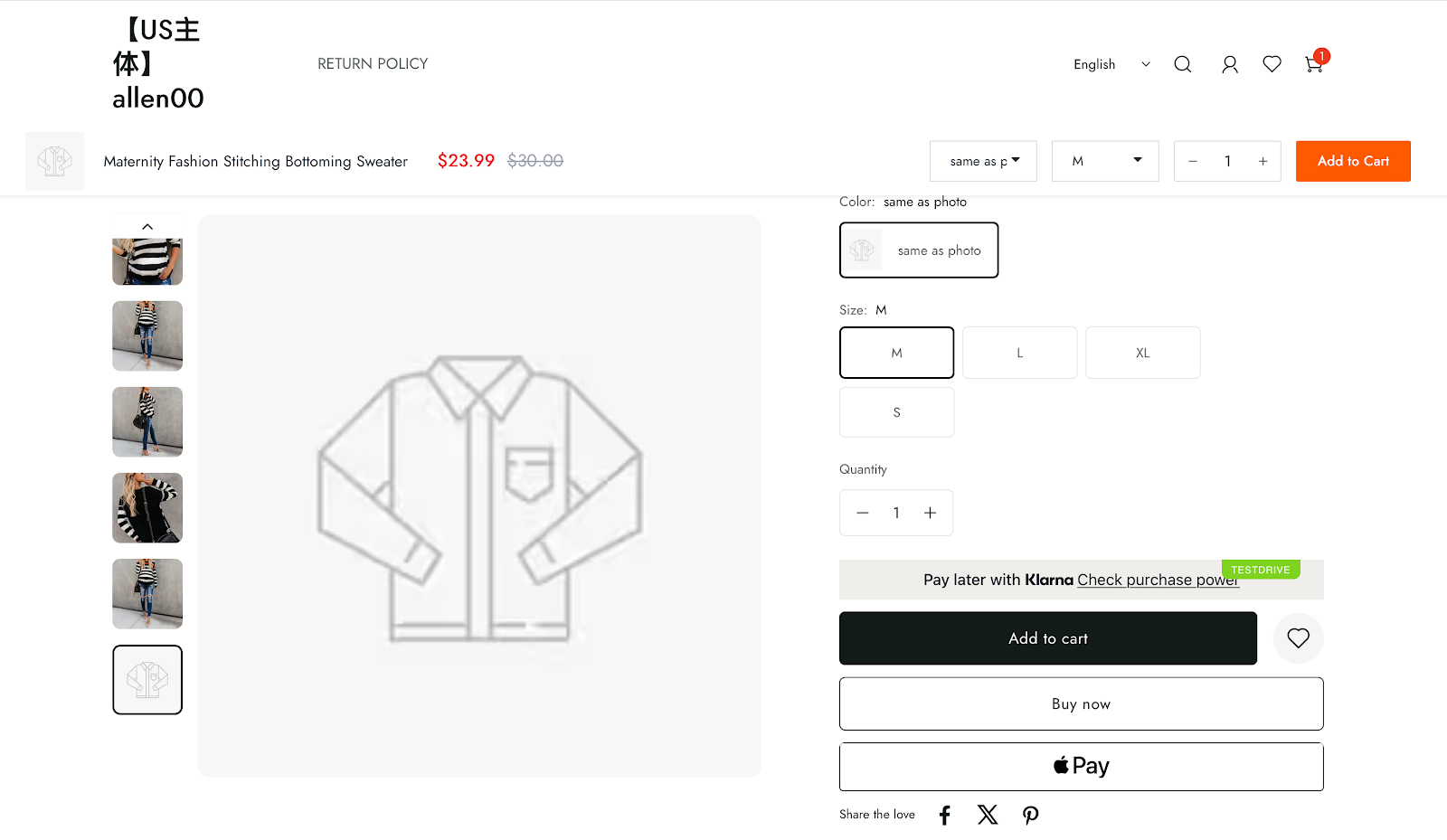
2. Cart Page: go to Online Store > Theme Customization, select the cart page and enable the Express Checkout Button.The Smart EC on this page is a newly added feature and will be enabled by default after the theme upgrade
- Configuring Paths:
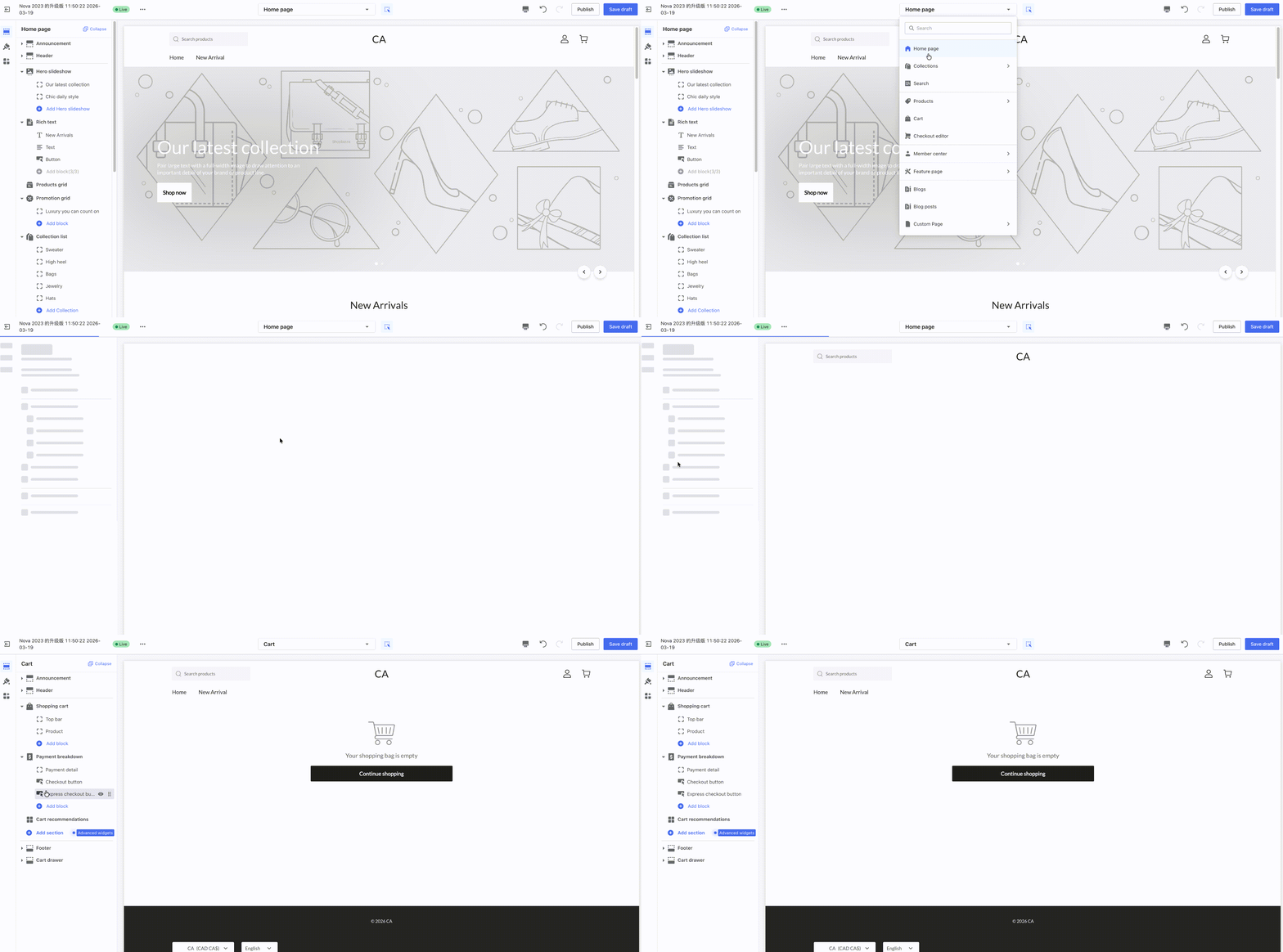
- Page Display
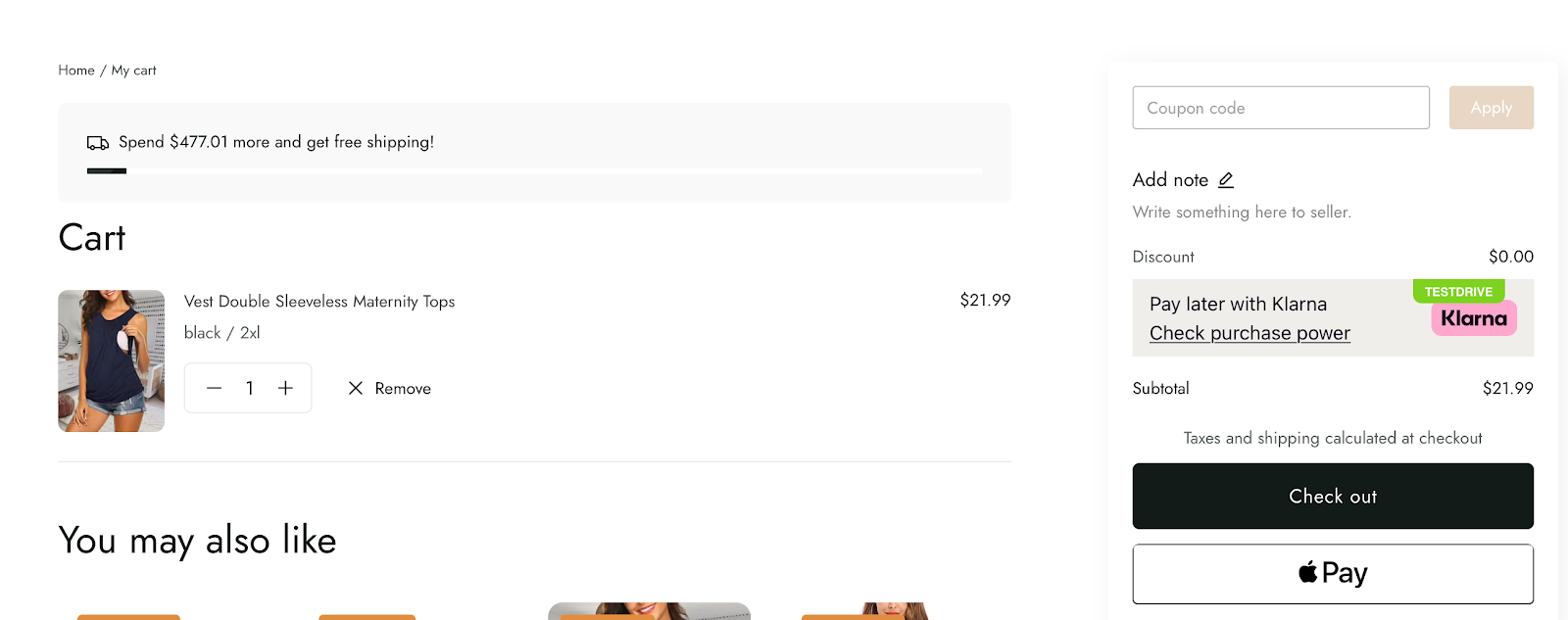
Notes
If the Express Checkout Button (originally the PayPal button) has been enabled on the product detail page, merchants need to check whether they have previously enabled Apple Pay or Google Pay separately under Theme Customization > Product Detail > Quick Payment Button.
- If enabled: To avoid duplicate payment buttons on the product detail page, please first disable the original "Express Checkout Button", and then enable the "Buy Buttons - Express Checkout Button" mentioned above.
- If not enabled: Simply follow the activation path above to enable the feature.
- The standalone Apple Pay or Google Pay express checkout button feature will be deprecated in the future. Please update your theme as soon as possible and use the "Express Checkout Button" instead.


Comments
Please sign in to leave a comment.