
The Product SKU is the unique identifier of a product within the Warehouse & Logistics System. It is used to maintain and synchronize product-related data (including name, images, specifications, attributes, etc.), ensuring the accuracy, consistency, and compliance of product information, and enabling clear product identification.
How to Create a Product SKU
Method 1: Create Individually
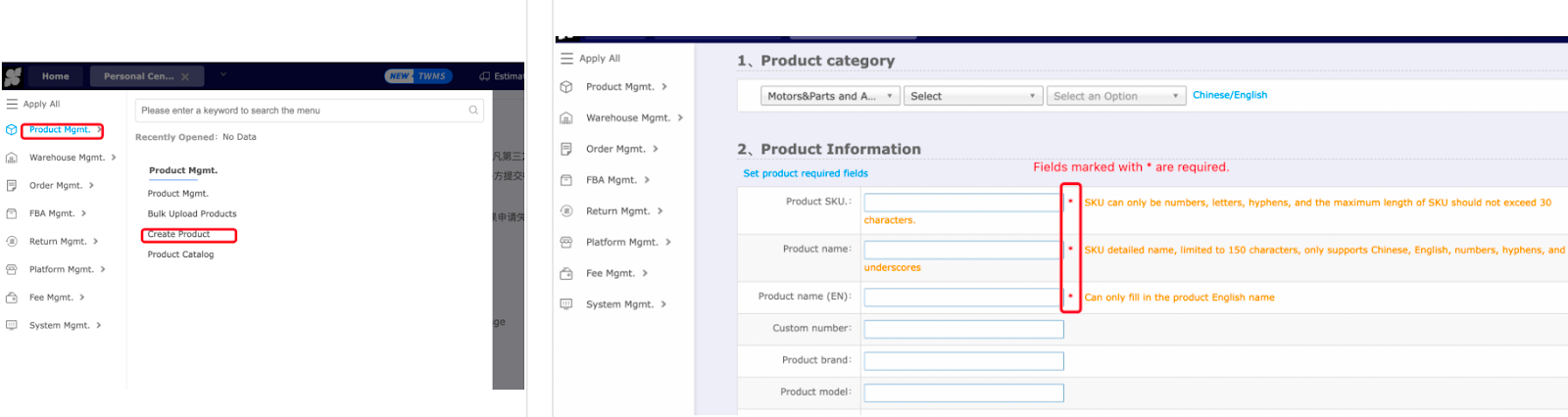
1. Log in to the Warehouse & Logistics System and navigate to Product Management from the main menu.
2. Click Create Product.
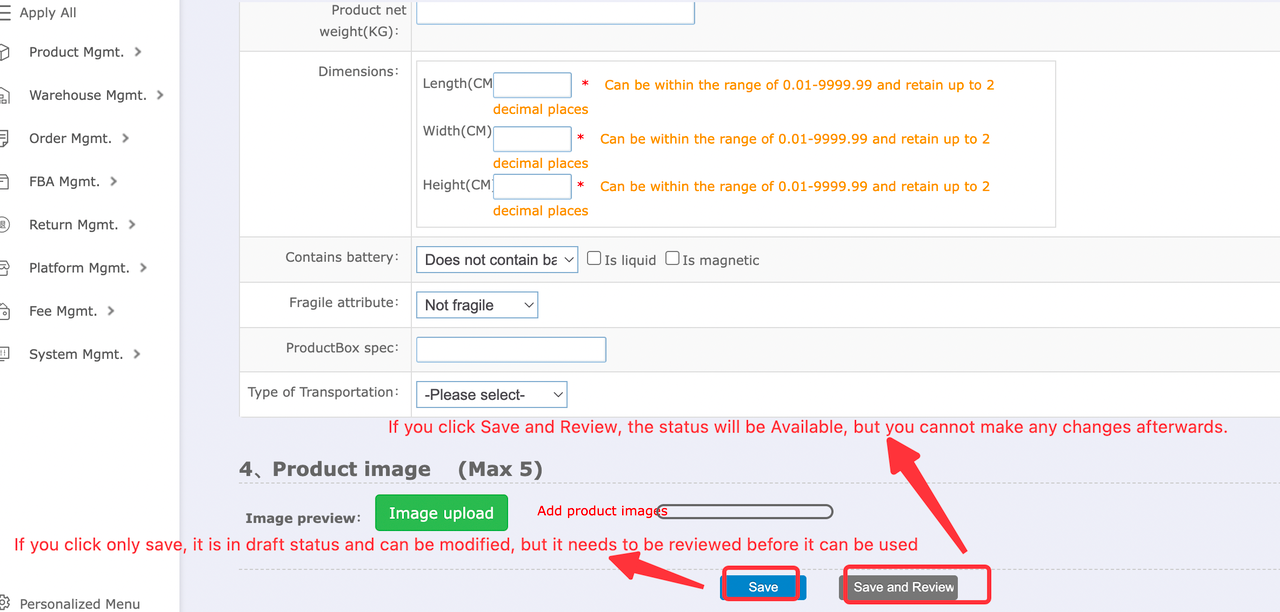
3. Complete the required fields marked with “*”.
4. Click Save and Submit for Review.
Method 2: Batch Creation
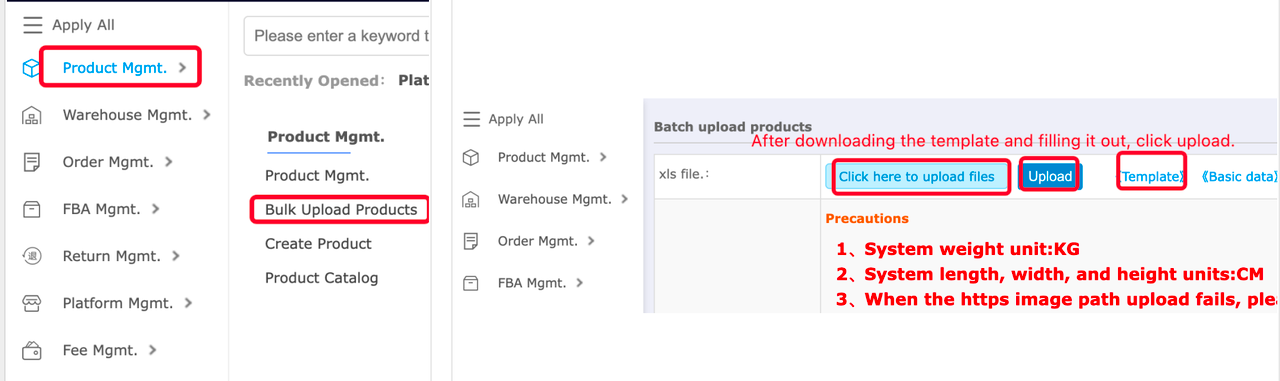
1. Log in to the Warehouse Management System (WMS) and navigate to Product Management in the menu bar.
2. Click Batch Upload Products.
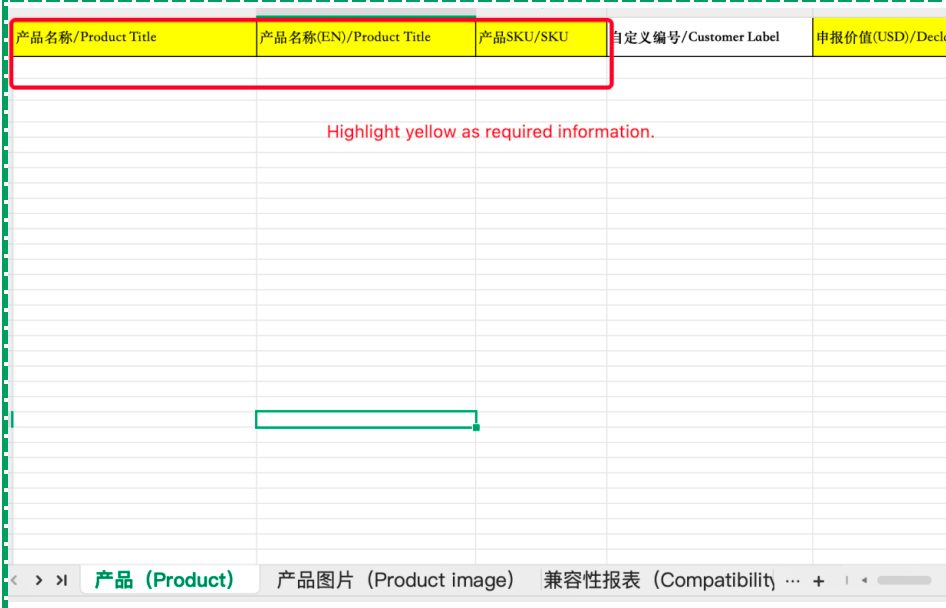
3. Click Template to download the file.
4. Complete all required fields highlighted in yellow within the template.
5. Select the completed template file and click Upload.
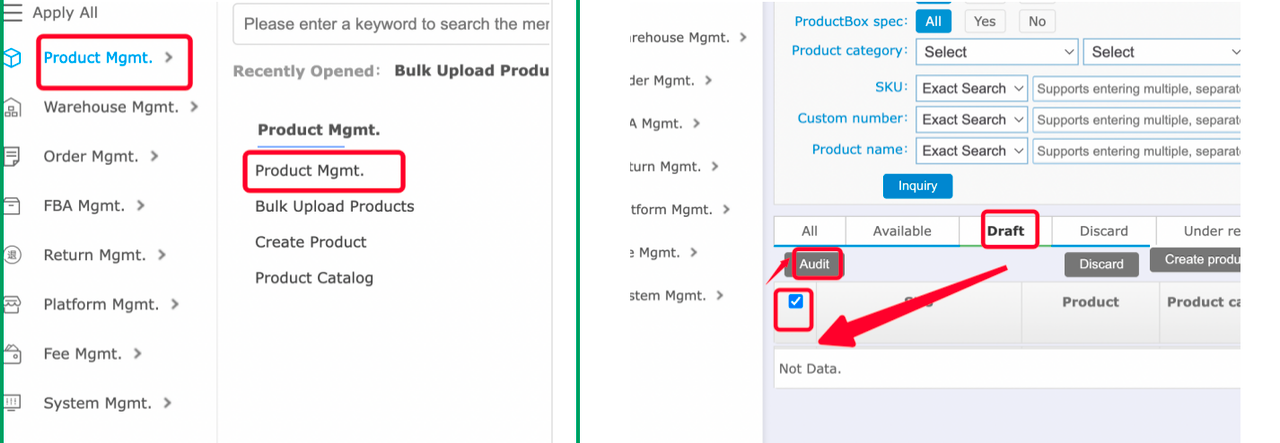
6. After a successful upload, return to Product Management.
7. Filter by Draft status, select the relevant items, and click Submit for Review.
Illustration:
How to Modify a Product SKU
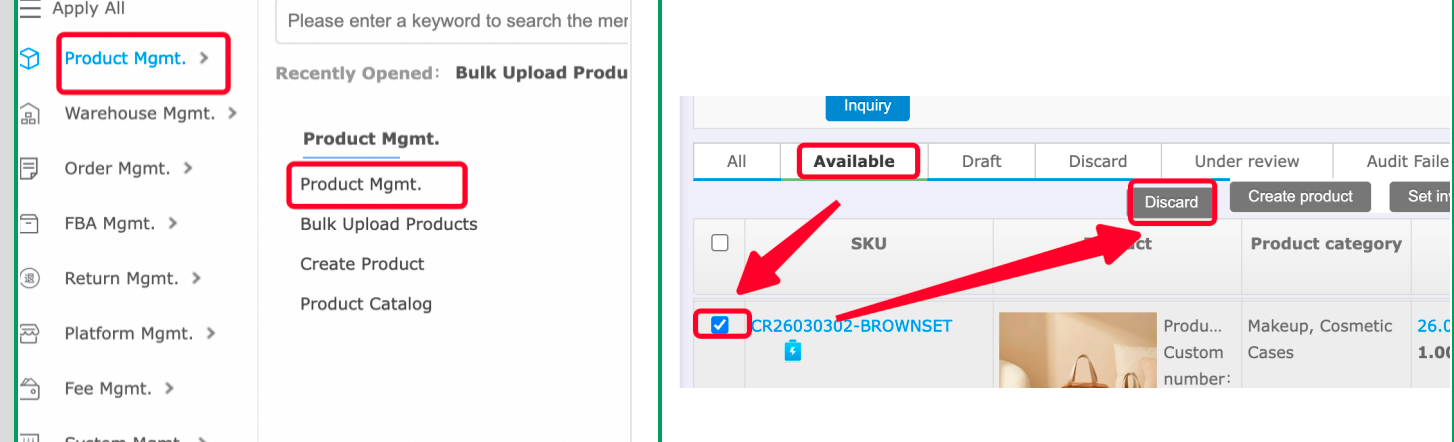
1. Log in to the Warehouse Management System (WMS) and go to Product Management.
2. Search for the product whose SKU needs to be modified, then click Edit on the right.
3. After making the necessary changes, click Save.
Illustration:
How to Map Platform Product SKUs
Step 1: Bind Your Platform Account
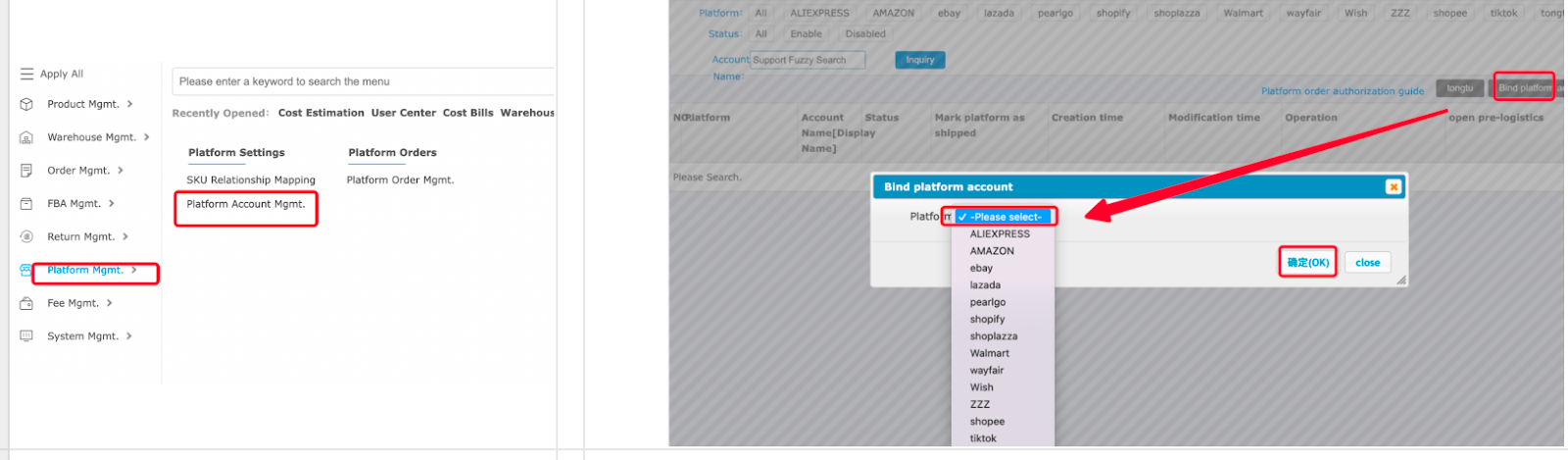
1. Log in to the Warehouse Management System (WMS) and navigate to Platform Management in the menu bar.
2. Click Platform Account Management.
3. Click Bind Platform Account and select the corresponding platform.
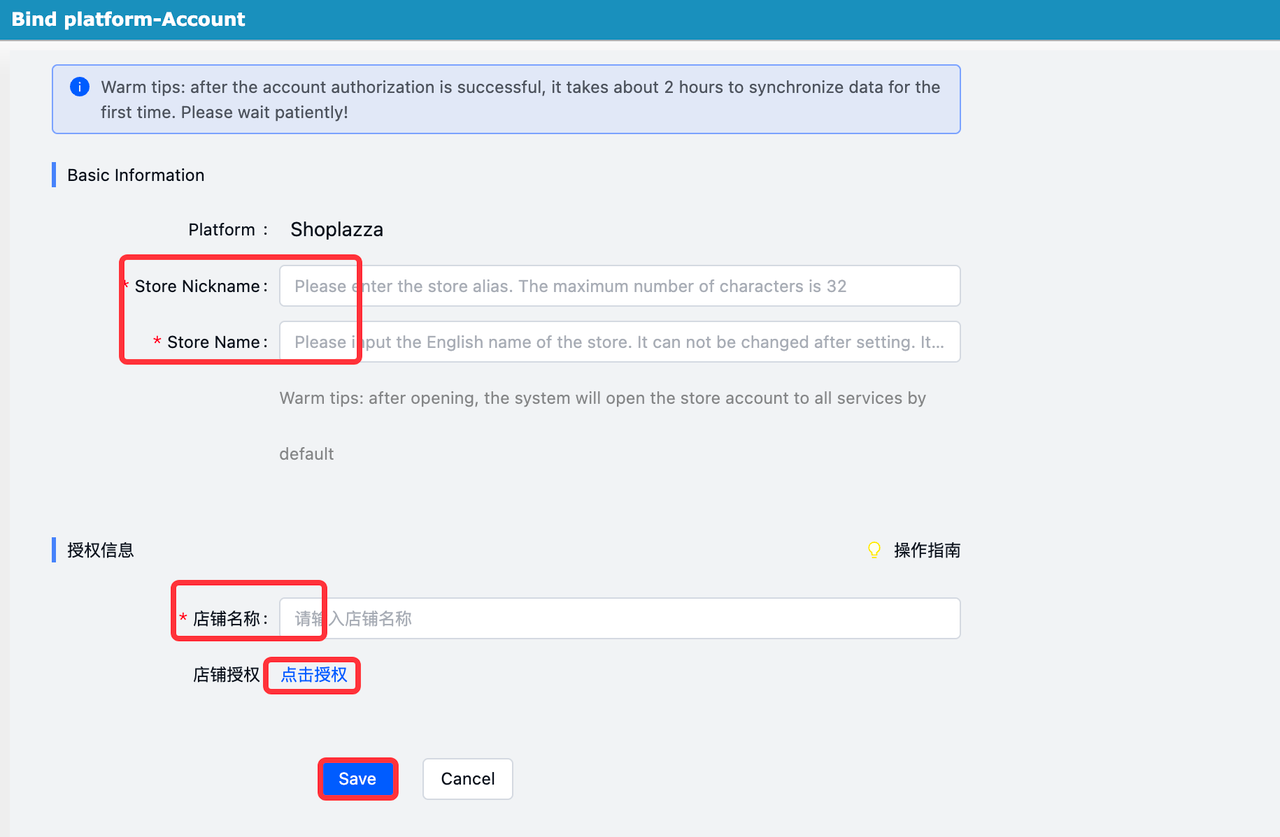
4. Enter your store information and click Authorize.
Illustration:
Step 2: Map SKU Relationships
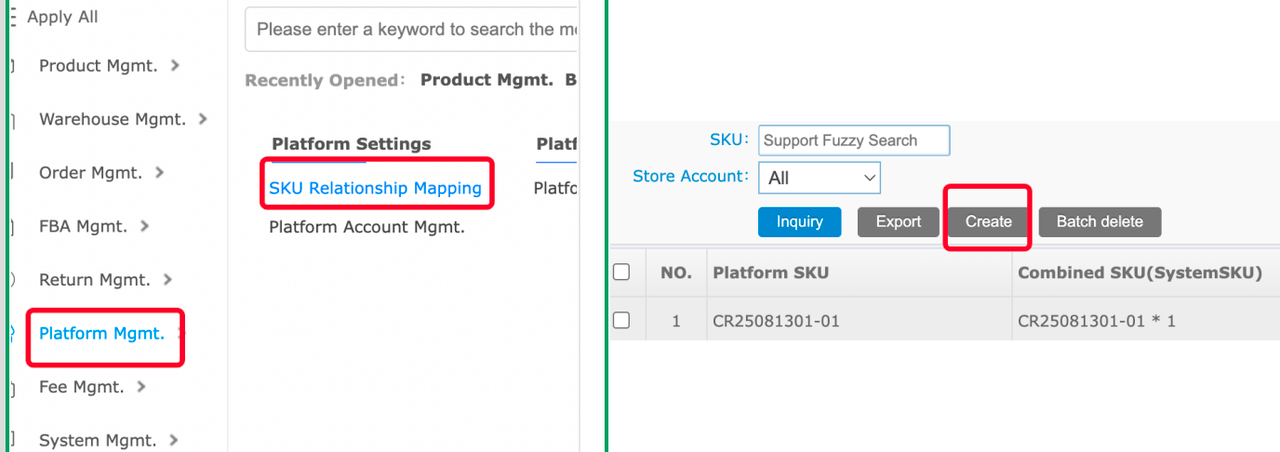
1. In Platform Management, click SKU Relationship Mapping.
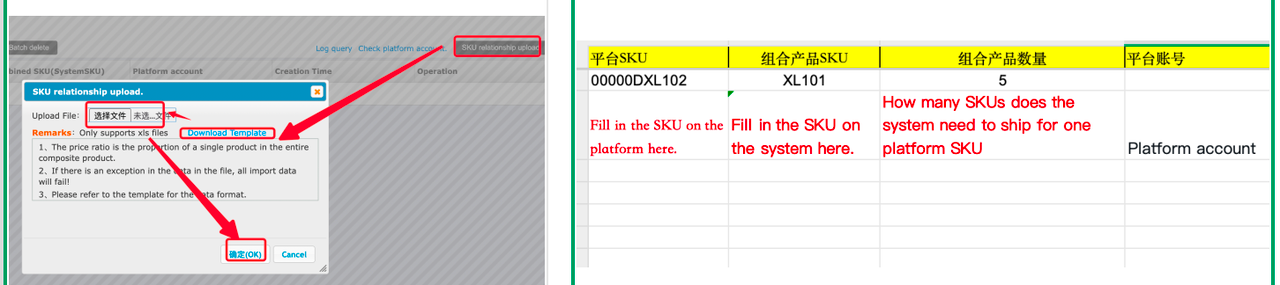
2. Click Create (Single) or Upload SKU Relationships (Batch).
3. Fill in the corresponding SKU mappings and quantity information.
Illustration:
How to Unbind Platform SKU Mappings
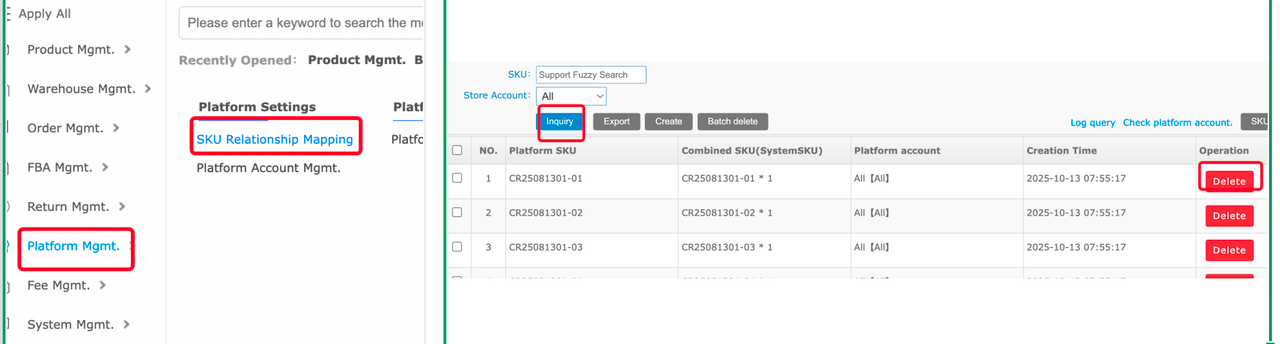
1. Log in to the Warehouse Management System (WMS) and go to Platform Management.
2. Click SKU Relationship Mapping.
3. Select the SKU entries you wish to unbind, then click Delete on the right.
Illustration:


Comments
Please sign in to leave a comment.