
To connect and activate Payoneer as your payment provider, you need to enter your Payoneer account credentials, including the API Username, API Token, and Store Code.
Navigation
1. Sign in to your Payoneer account using your registered email address and password. Then, follow the steps below to generate an API Token.
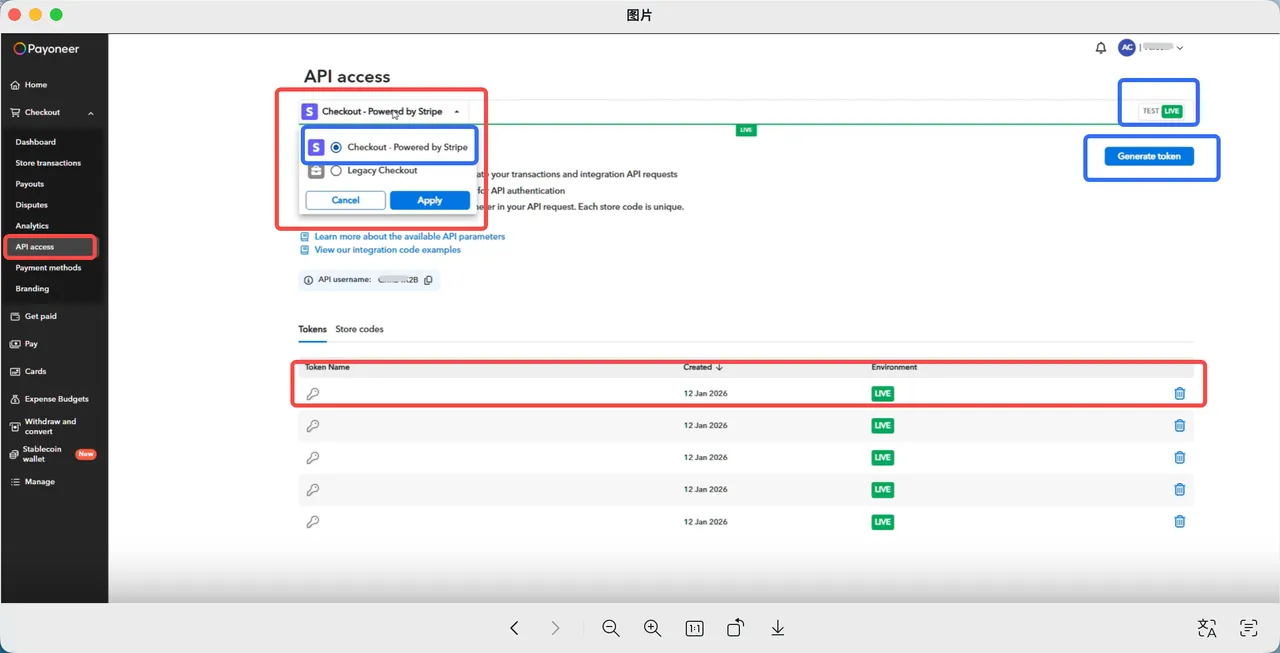
2. In the left-hand navigation menu, go to Checkout > API Access.
3. At the top of the API Access page, select Checkout – Powered by Stripe, if available.
4. Verify the current environment. The upper-right corner of the page displays either TEST or LIVE. The API token you generate will correspond to the selected environment. If you need a production token, make sure your LIVE environment is enabled and switch to LIVE before generating the token.
5. Click Generate Token.
6. Enter a recognizable name for the token, such as your store name or its intended purpose, and then click Generate.
Note
You can generate a production (LIVE) token only when your account's LIVE environment is enabled.
7. After the token is generated, copy and save your API Token.
8. Switch to the Store Codes tab and copy your Store Code.
9. Return to your Shoplazza admin, enter your API Username, API Token, and Store Code, then complete the Payoneer account connection.
For more information, refer to the official documentation: Generate your authentication credentials .


Comments
Please sign in to leave a comment.